
7. Tag Manager

In this Section:


Create and Manage Tags

The Tag Manager is a tool that allows SELMA Users to assign and manage tags against different Objects within the system, such as Students or Components.

Tags are labels used to classify batches of information, and make it easier to search for a related Object.

Create a Tag

Figure 1. Access the Tag Manager

Navigate to Settings > Tag Manager.
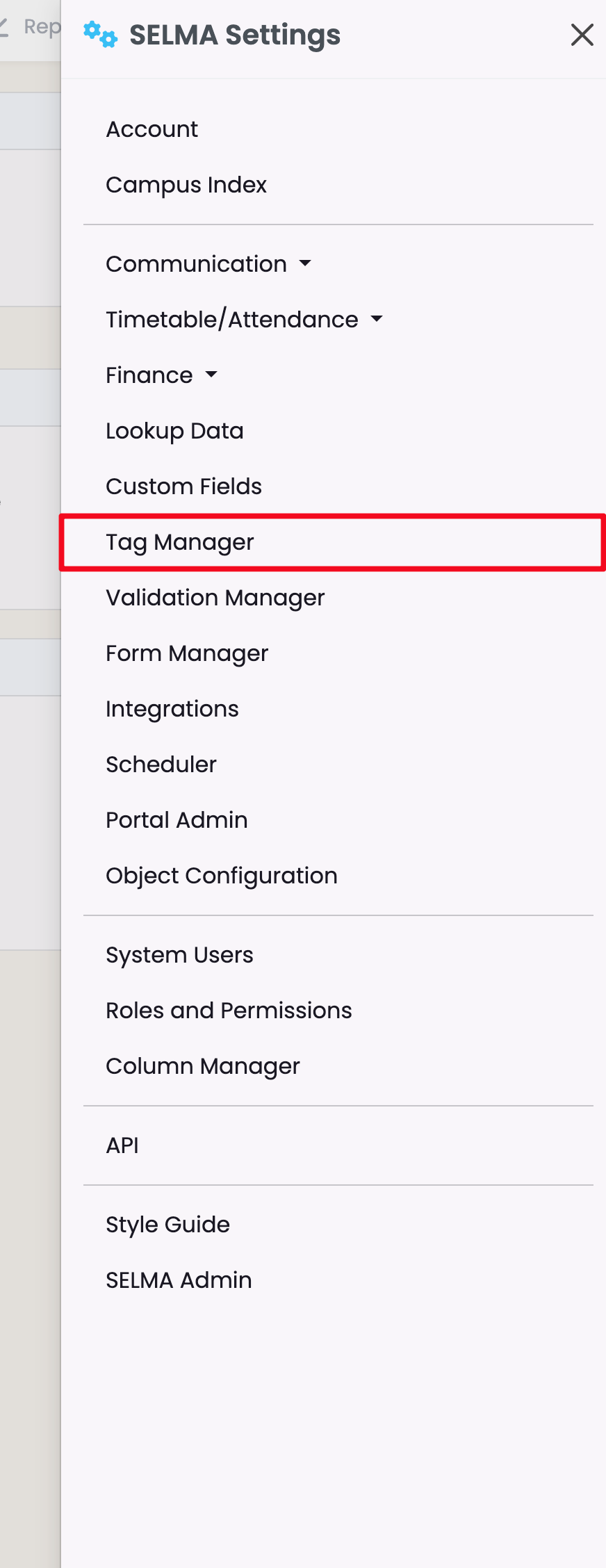
Figure 2i. Tag Manager Overview + Tag Creation

Click on an Object heading to view a drop-down list of all existing, associated tags (red). Edit the tags (pencil icon) or remove them (bin icon). Click “+Add” to create a new tag (green).
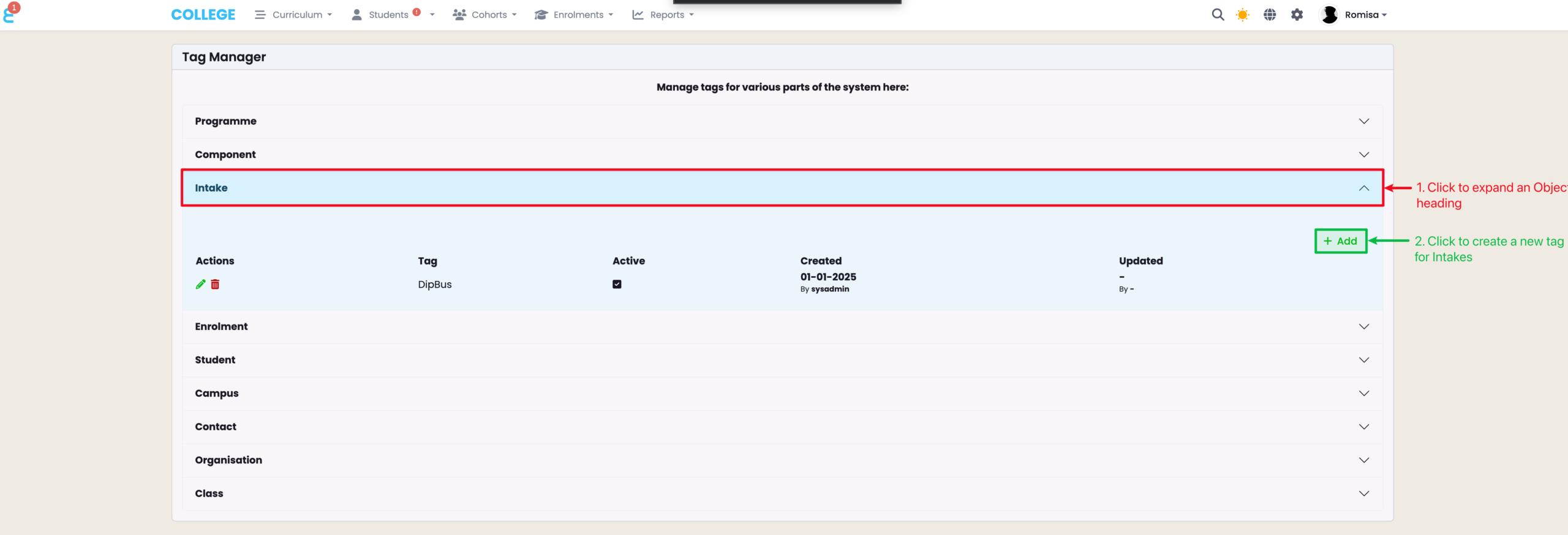
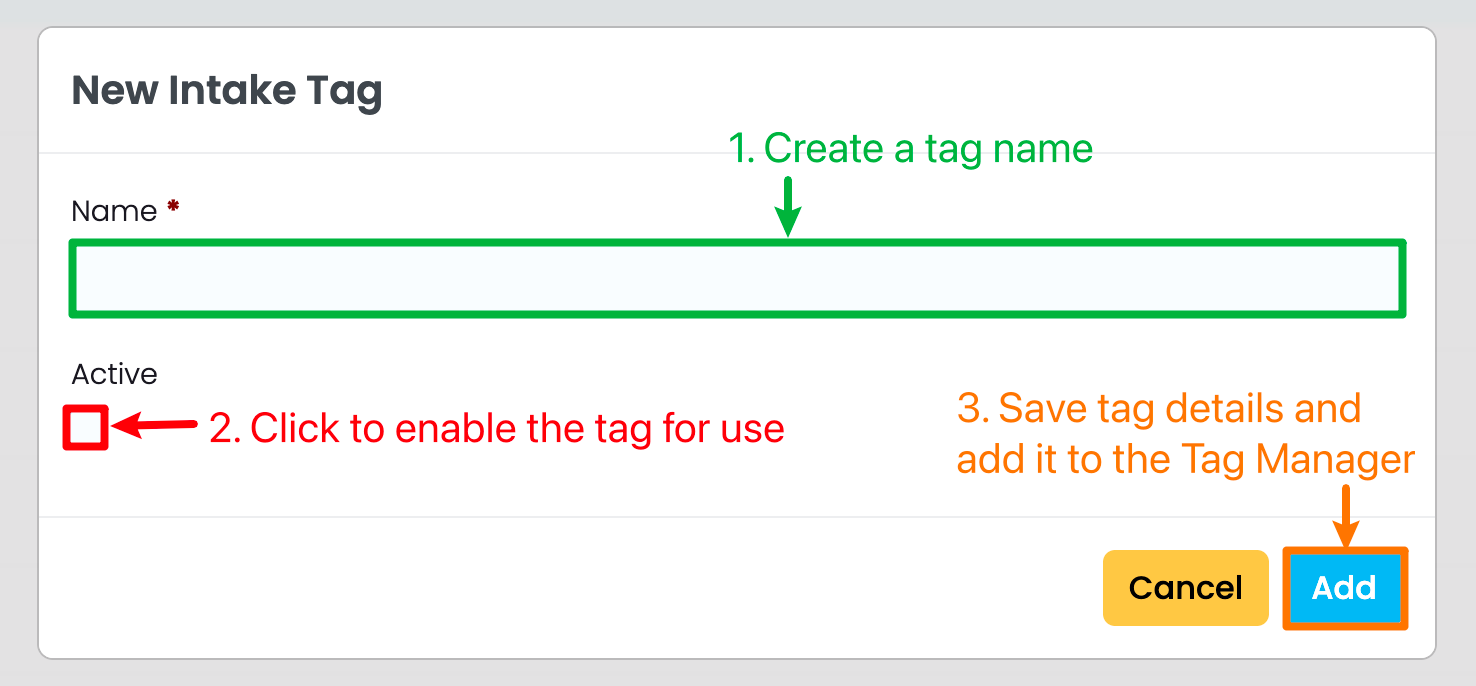
Figure 2ii. Tag Details

When you have chosen to create a new tag, you will need to provide a tag name, and click the “Active” check-box to enable it for use.

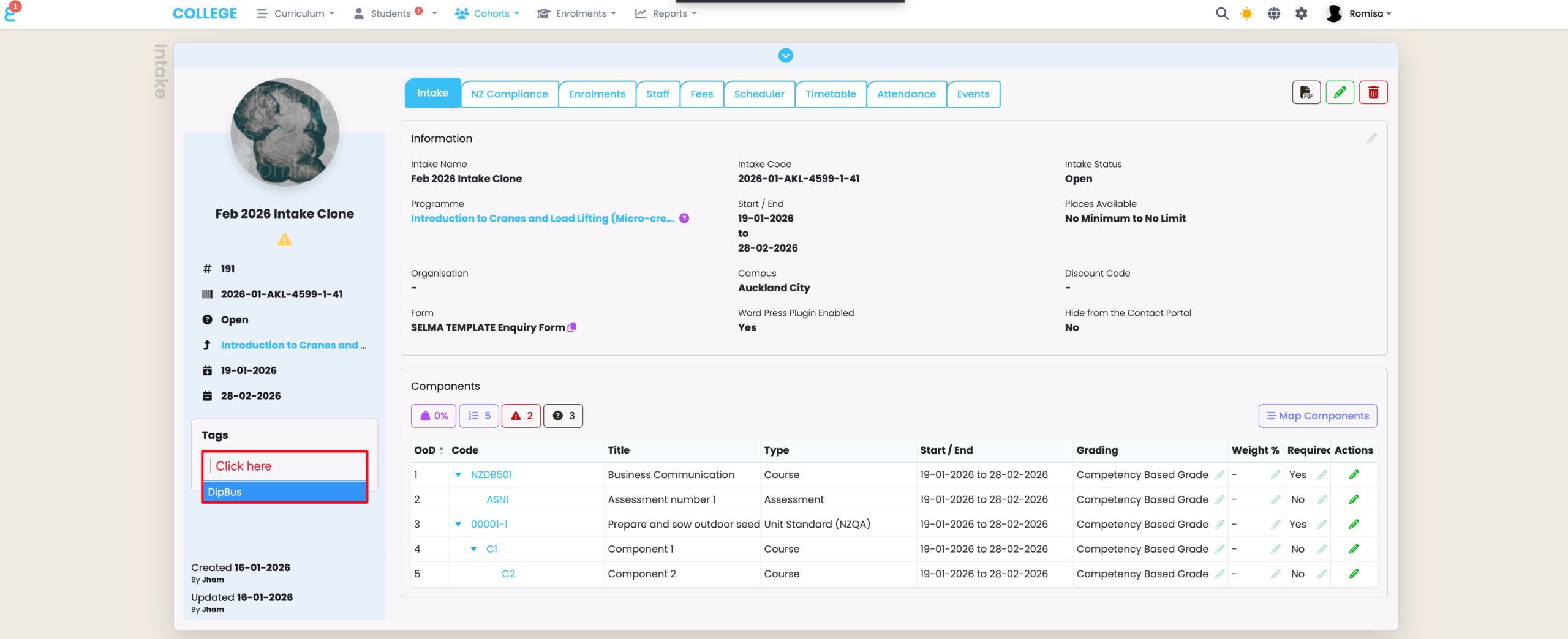
Use a Tag

In this example, the tag “DipBus“, created via the Tag Manager, and added under the Intake Object, can be accessed at the Intake level. Click the empty tag field to display the tags available for this Object (red).
Related Articles

4. Custom Fields

In this Section: Create and Manage Custom Fields Include customised fields as a new tab on profiles by following the guide below. Create a Custom Field Figure 1. Navigate to Settings > Custom Fields Figure 2. Custom Field Overview See a list of custom fields under each Object heading, which corresponds with an “Object” in …

9. Form Manager

In this Section: Access the Form Manager The Form Builder is an additional paid feature to your SELMA subscription plan. Figure 1. Navigation Bar Click the cog icon in the top navigation bar. Figure 1ii. Settings Panel Click “Form Manager“. Form Manager Overview The Form Manager allows you to create and store Enquiry and Enrolment …

3. Communication Templates

In this Section: Access Communication Templates Figure 1. Navigation Bar Click the cog icon in the top navigation bar. Figure 1ii. Settings Panel Click “Communication Templates“. Create a New Template The most effective way of using comms in SELMA is by creating templates. You can create templates for Emails, Email Attachments (PDF documents) and Text …

1. Account

In this Section: Find your Account Details Figure 1. Navigation Bar Click the cog icon in the top navigation bar (red). Figure 1ii. Settings Panel Click “Account“. Account Tab The Account tab is where you can make changes to the basic details set-up by SELMA. Figure 2. Key Details Set-up key parameters such as your …