
Contact Portal (For Stakeholders)

Please send the following article to the Stakeholder i.e. Contact who is working with your Organisation.


How to Enrol Students

Figure 1. Invite to Portal

Click the portal invitation link in your primary email inbox. Then, follow the instructions, and set-up a password via the “Forgot Password” option.

  • NOTE: The portal invitation email may be found in your spam/junk folder.
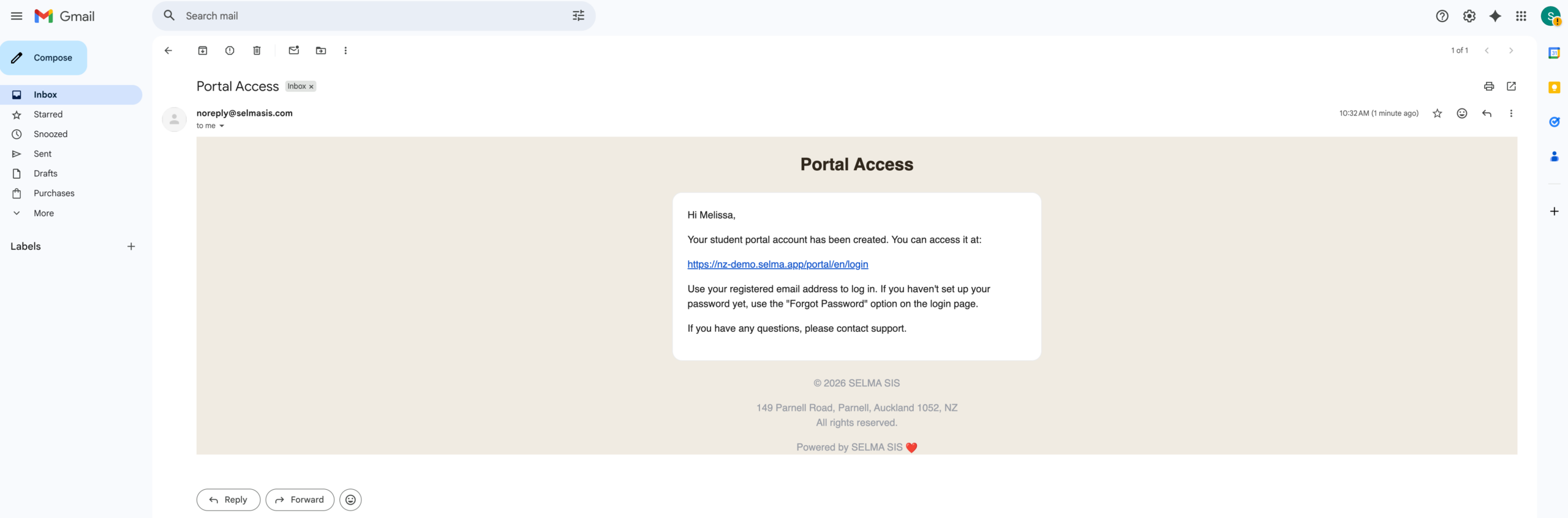
Figure 2. Enrol Students

Click the link “Enrol Students” on the top navigation bar.
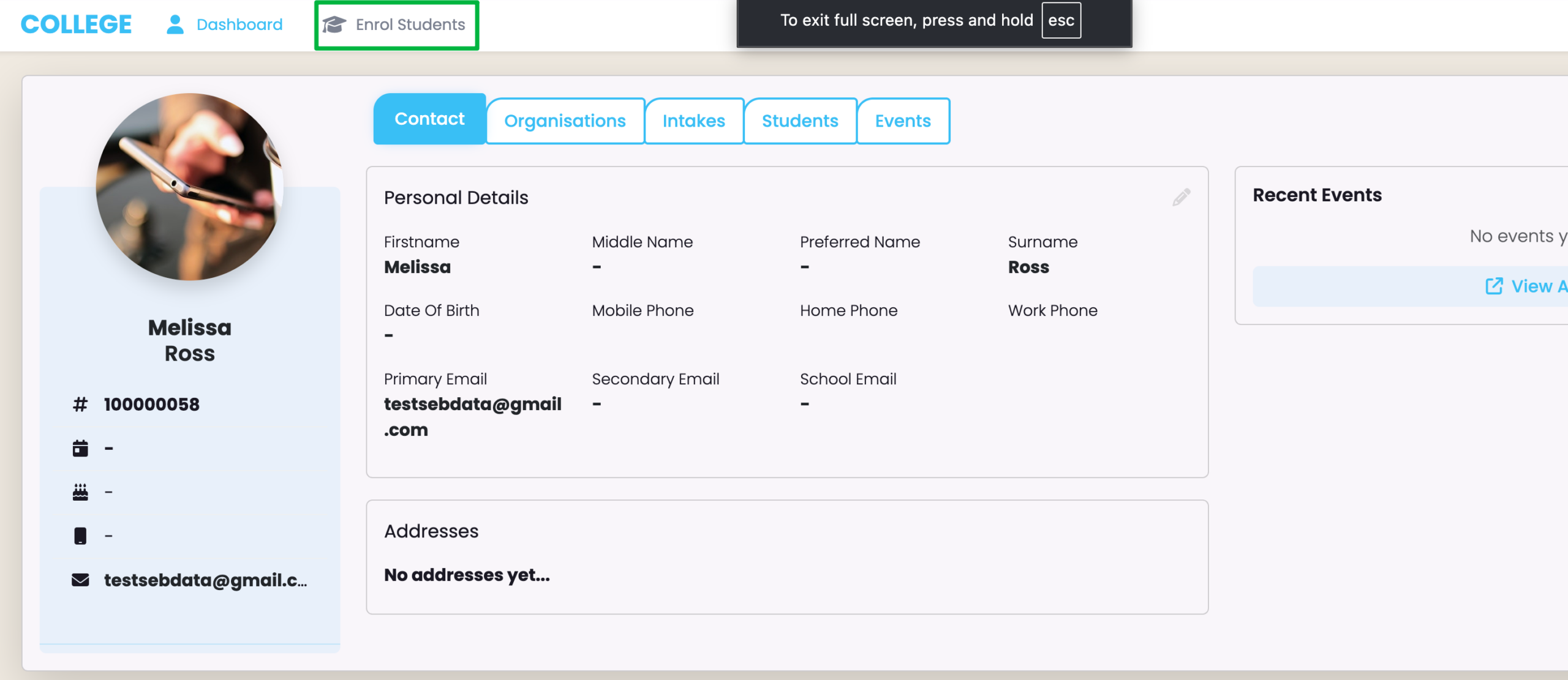
Figure 3. Select a Programme

You will see all available Programme/s, here. Click the “View Intakes” button to select a Programme.
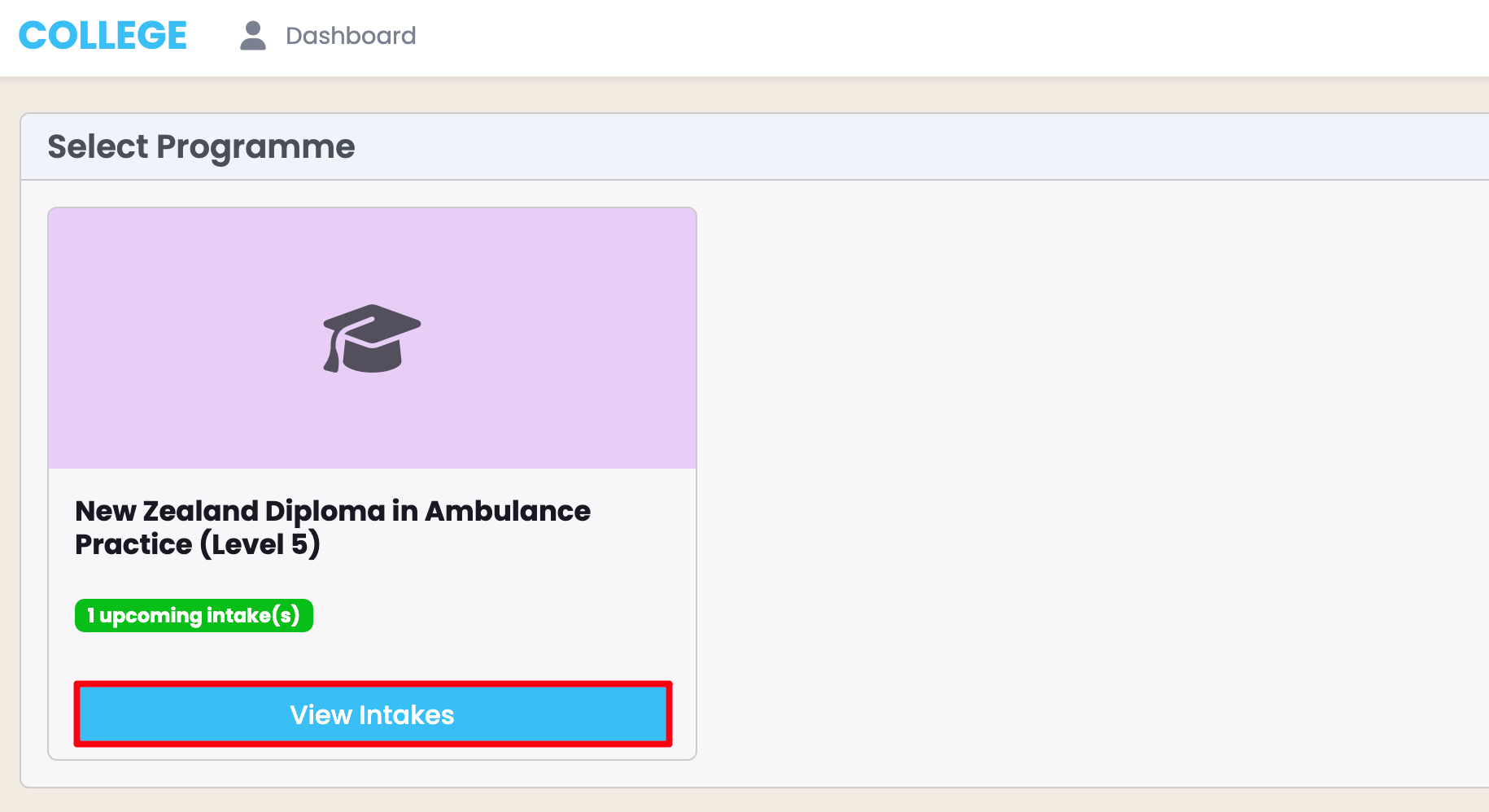
Figure 4. Select Intake and Enrol

Fill out the required fields, as marked by red asterisks.

  • NOTE: You can see specific details about each Intake (orange), including how many spots are remaining in the Intake. You can also select multiple Enrolments, using that number to guide you.
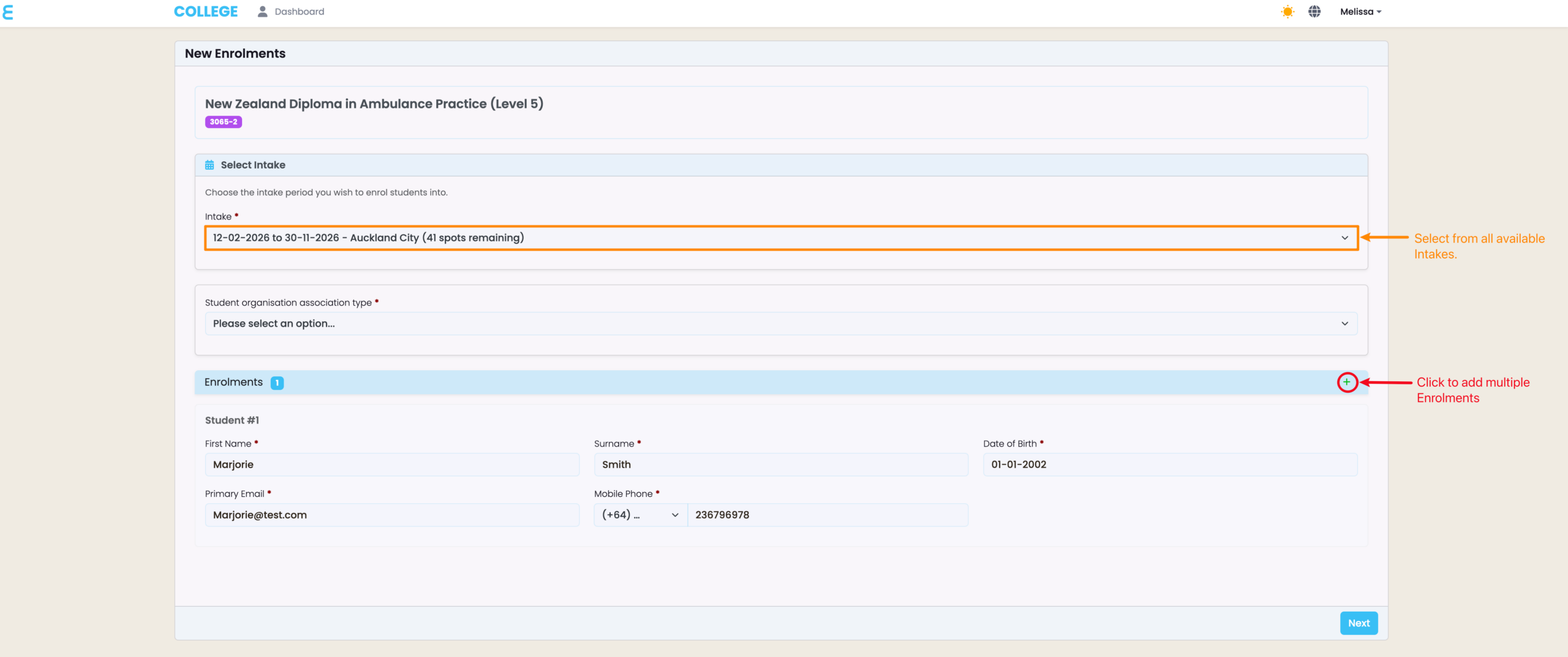
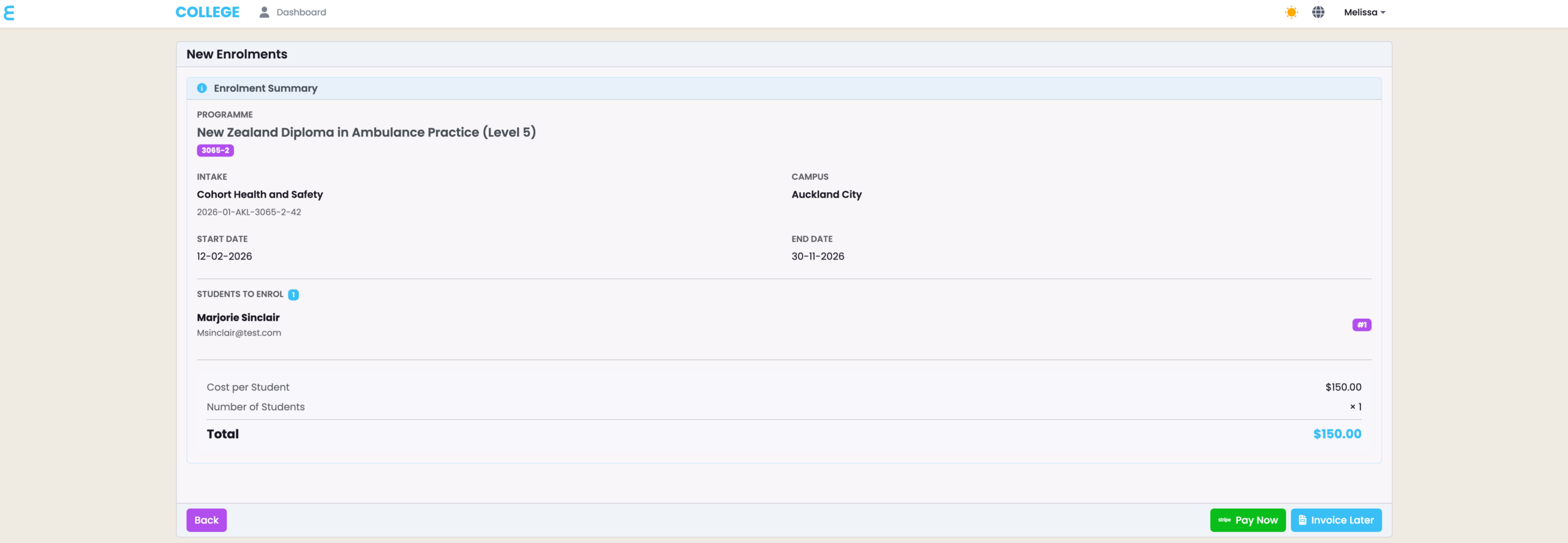
Figure 5. Review Details and Pay

Review all details before choosing to pay immediately (green button), or generating an invoice to send as an email to your Primary Email address.

  • NOTE: Once this is done, the Contact’s Fees tab will show the sum of fees associated with Enrolments.
Related Articles

WordPress Integration Set-Up

The SELMA-WordPress integration uses a WordPress plugin to display Programmes and Programme Campuses on your website. Students can select their preferred option, and are then directed to your SELMA enrolment form to complete their application. Note: Please contact SELMA Support to include this paid feature in your subscription plan. In this Section: Upload the WordPress …

Stripe and Discount Codes

Stripe is a payment gate-way that you can integrate with your SELMA Enrolment form. This integration allows Student applicants to make payments, seamlessly, as they record their details with SELMA. In this Section: Stripe Configuration Figure 1. Navigate to Settings > Integrations Figure 2. Select the Stripe Integration Scroll to find the “Stripe” Integration, and …

Google (Account-Level Emails) – Setup

Enabling the Google Integration in SELMA allows you to use your organisation’s Google mailbox(es) for emailing directly in SELMA. As such, emails sent from within SELMA are stored in the mailbox’s ‘sent’ folder as well. Note: The below instructions serve as a guide only – please ask your IT Team/Provider about what’s best for your …