
Updated on
Student Portal (For Students)
Please send the following article to the Student who will be using the Student Portal.
Please send the following article to the Student who will be using the Student Portal.
Navigate the Student Portal
The following sections describe how you should upload documents, view your submissions and review other details on your Student record.
Upload Documents
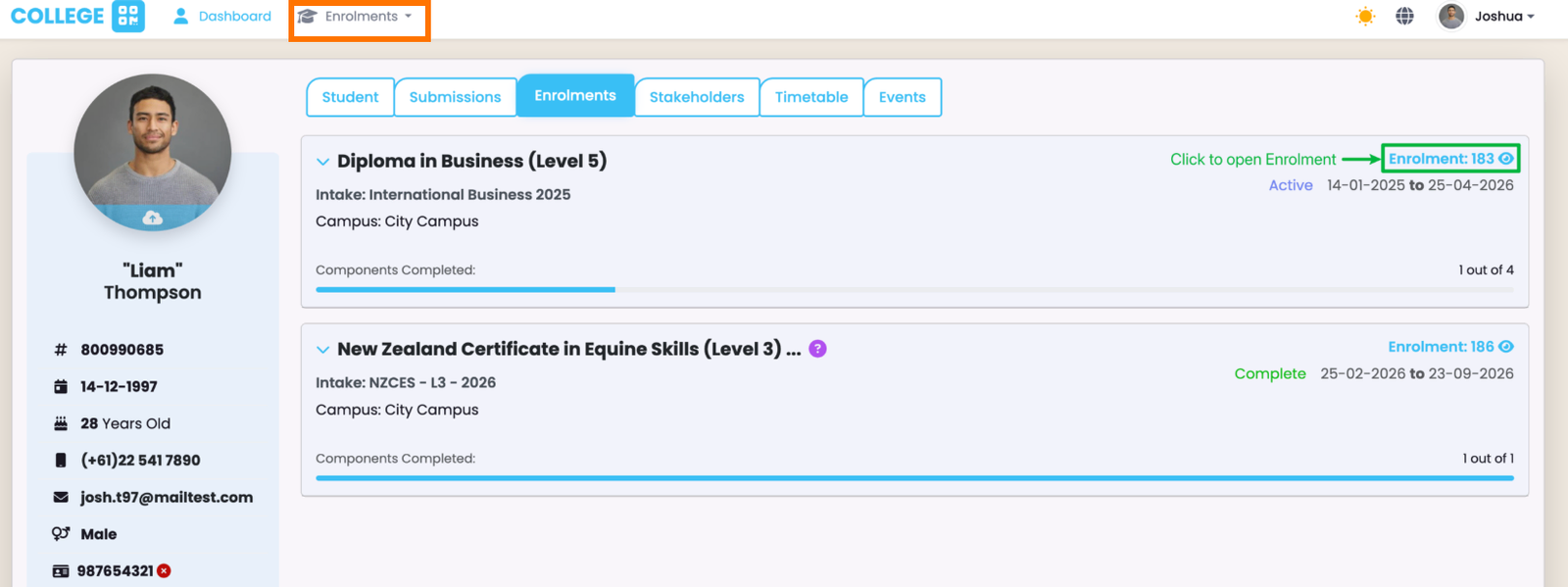
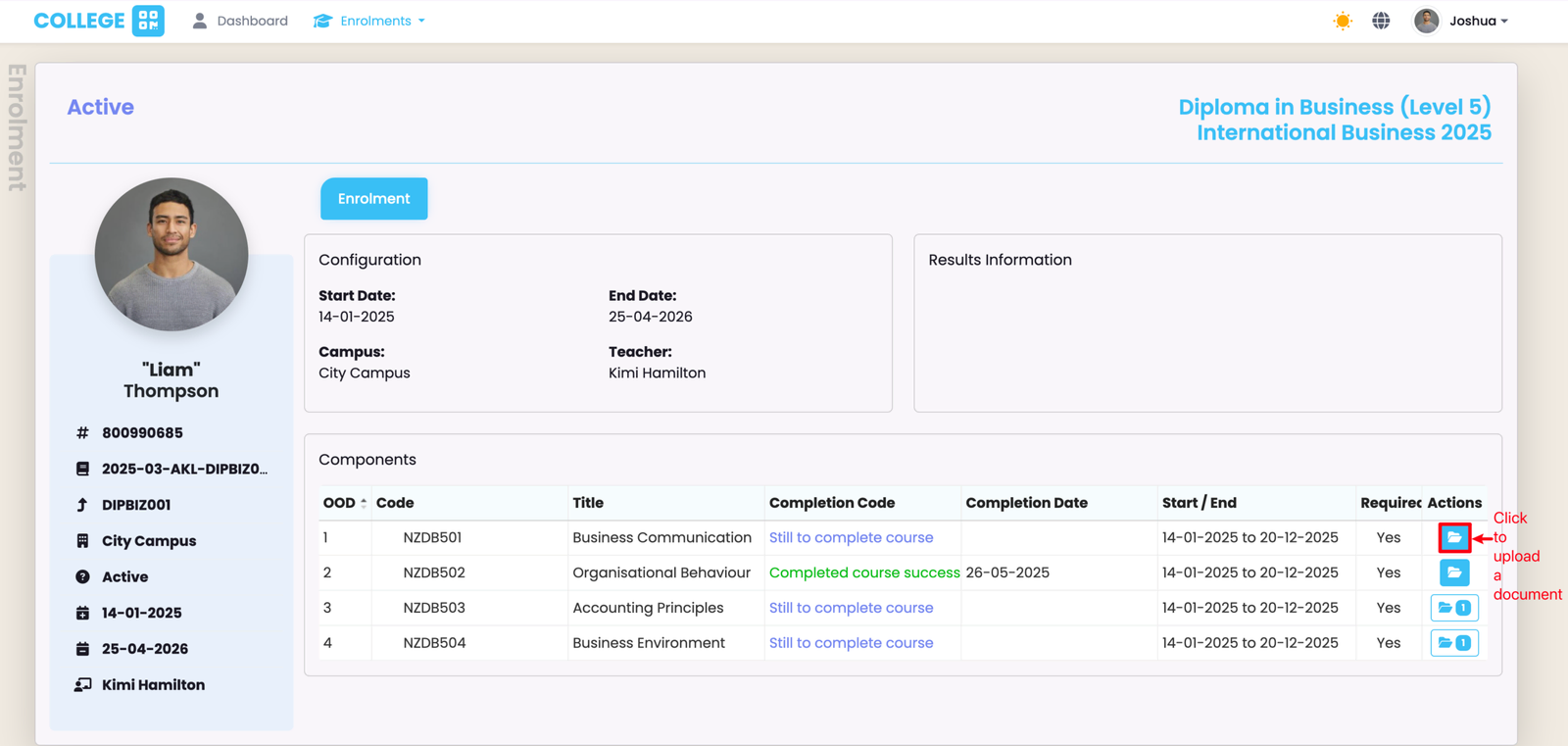
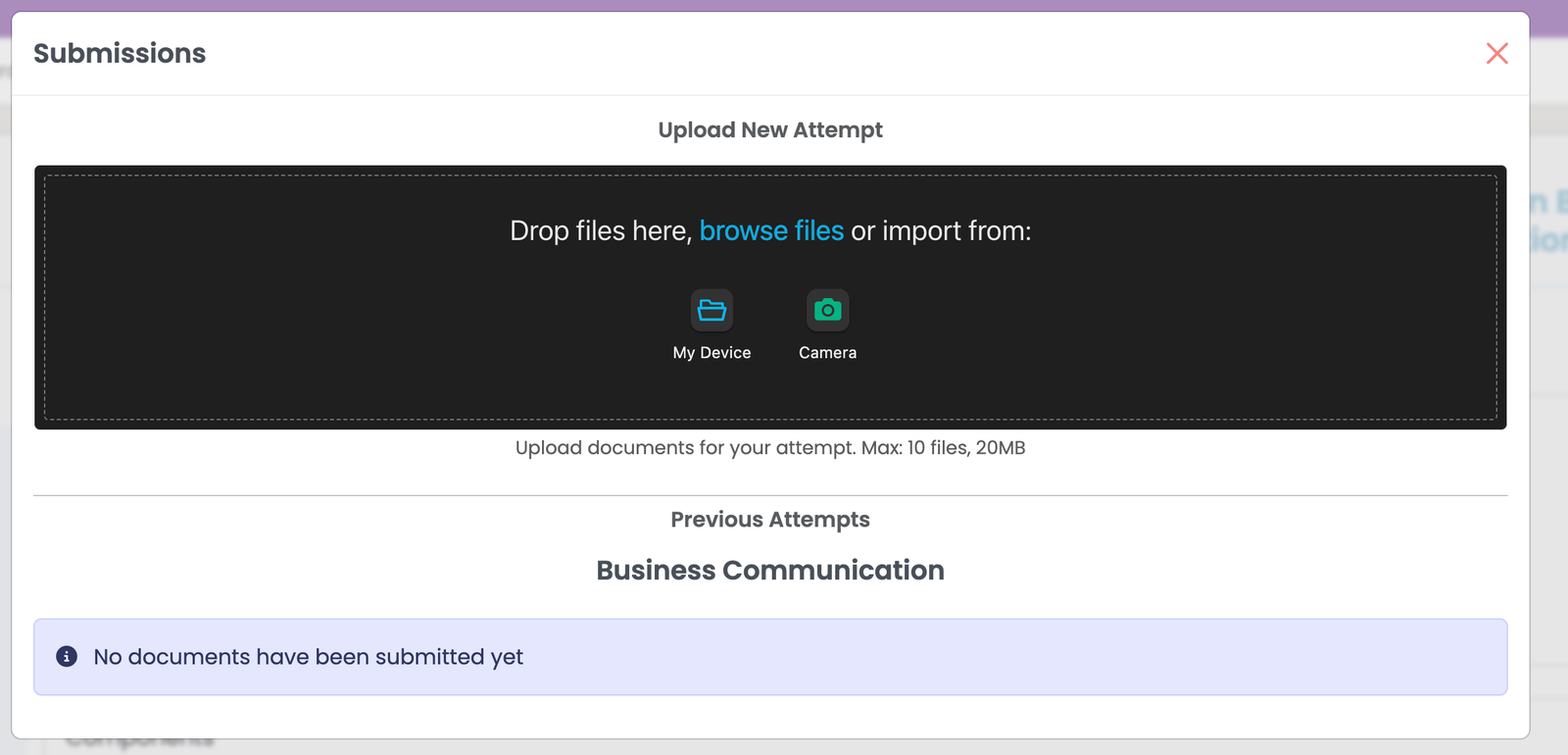
Upload documents, such as assessments, against Enrolment Components, as indicated in the steps below.
Click the blue highlighted text to open an Enrolment; (you can also select an Enrolment from the Enrolments tab (orange)).
View Personal Information
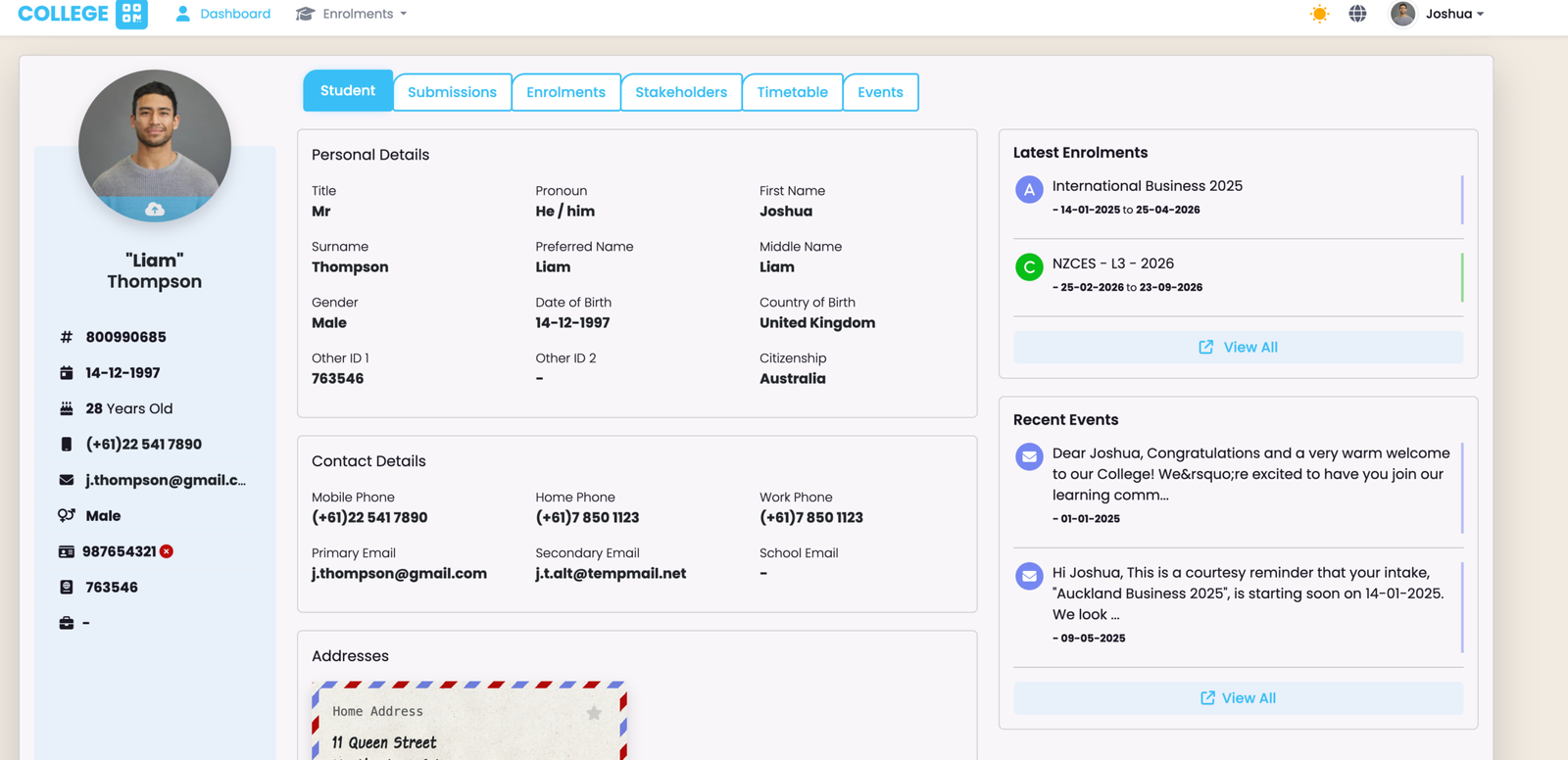
Review details against your Student profile.
On the Student tab, you can see your Personal Details, including your Names, Country of Birth, Date of Birth, and Addresses. On the right, you will see your Latest Enrolments and Recent Events, which are communications sent by your education provider.
View Form Submissions
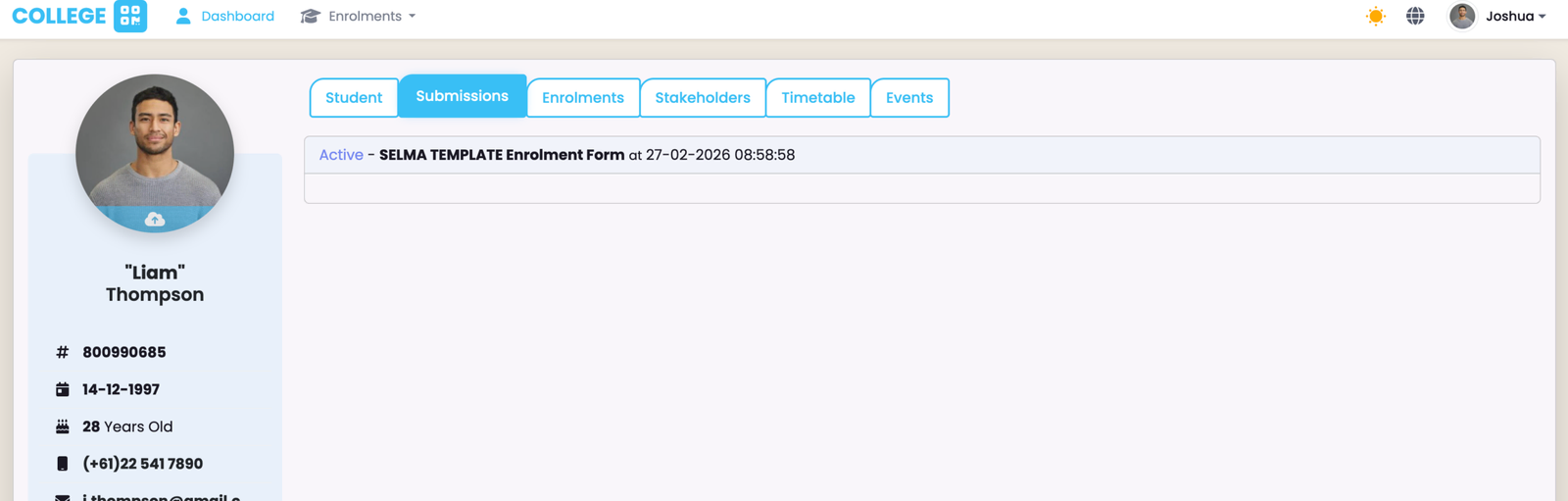
The Submissions tab will show forms that you have completed in the past, or that which you are currently filling-out.
If you have completed a form, or saved it to complete later, you can view or access it again, respectively, on the Submissions tab.
View Contacts
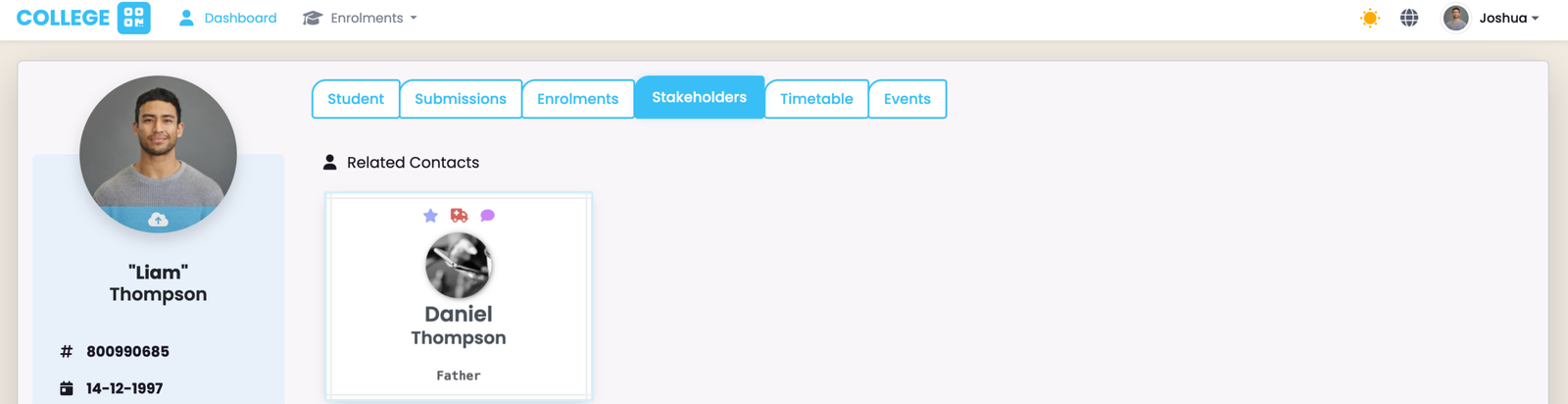
View information about the Contacts associated with you. These details will have been captured by your form.
The Stakeholders tab holds information about your related Contacts. Click a card to flip it and reveal more details. Icons on the front of the card indicate if a Contact is listed as a Primary Contact (star), Emergency Contact (ambulance), and CCed in all communications (speech bubble) sent to you by your education provider.
View Timetable Sessions
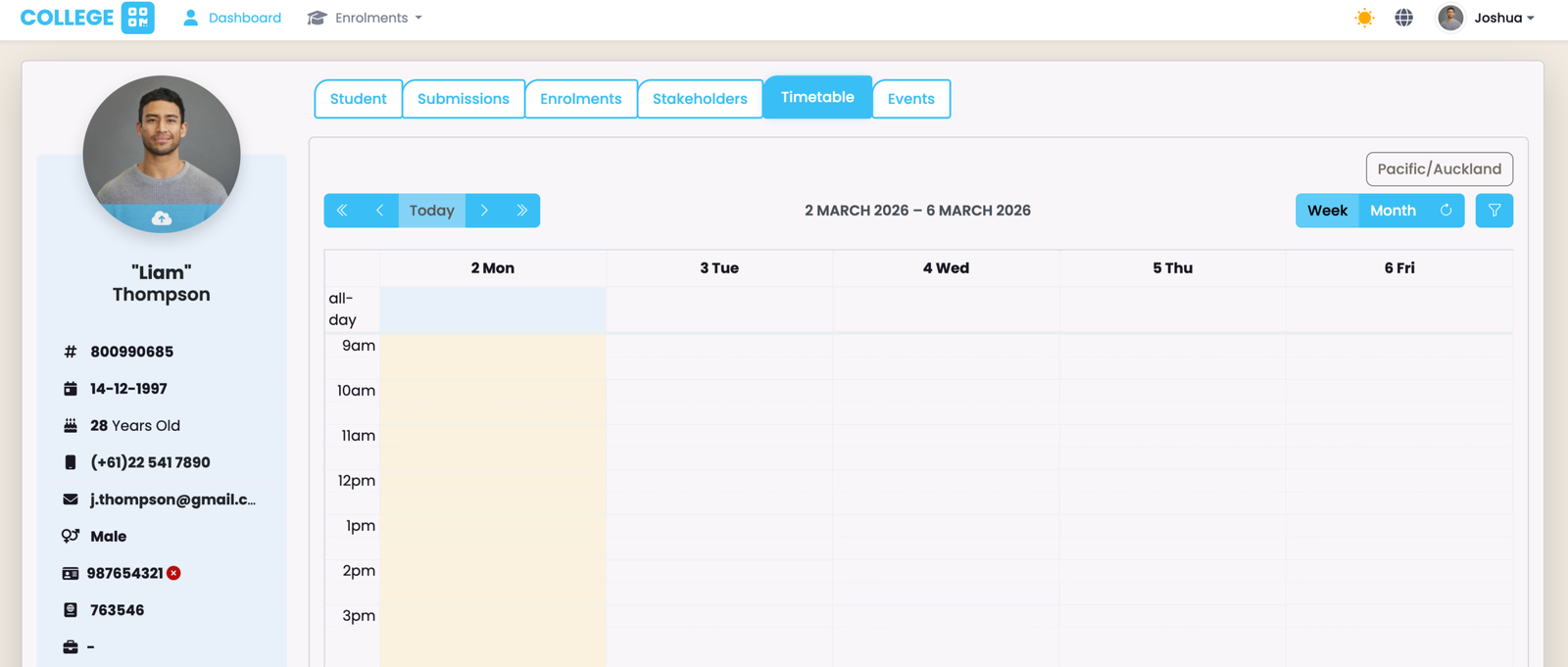
See your scheduled Timetable sessions on the Timetable tab.
View Events
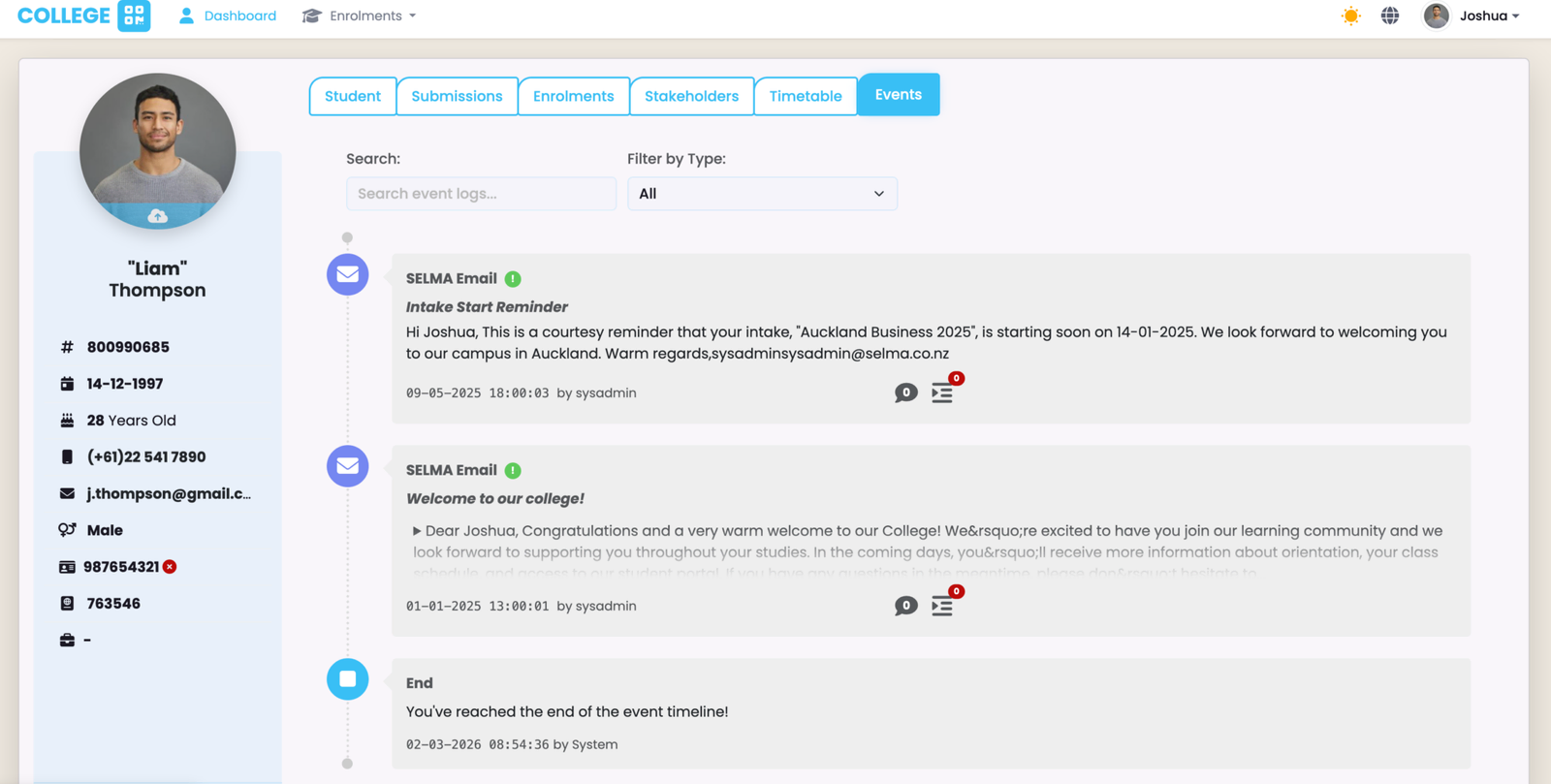
Events are communications sent to you by your education provider.
While you can see a quick overview of communications on the Student Tab, you can see a list of all communications on the Events tab.
View a list of communications from your education provider on the Events tab.
Last updated
Student Portal (For SELMA Users)
The Student Portal is a paid feature which grants Students access to SELMA to review their information, upload submissions and download documents.
WordPress Integration Set-Up
The SELMA-WordPress integration uses a WordPress plugin to display Programmes and Programme Campuses on your website. Students can select their…