
Updated on
Login to SELMA with Microsoft
Enabling the Microsoft login in SELMA allows users to authenticate themselves, using their Microsoft accounts. This improves the User Experience by…
Enabling the Microsoft login in SELMA allows users to authenticate themselves, using their Microsoft accounts. This improves the User Experience by allowing you to sign-in with a click of a button, as opposed to traditionally typing out your username and password.
Retrieve Values from Microsoft Entra
You will now need to retrieve the following credentials from Microsoft Entra:
- Client ID
- Tenant ID
- Client Secret Key
Please follow Stage 1, Stage 2 and Stage 5 in the separate linked article for a guide on how to fetch these credentials and enter them into SELMA.
Note: Please return to this article and read on once you have completed Stages 1-3, as linked above.
Test the Integration
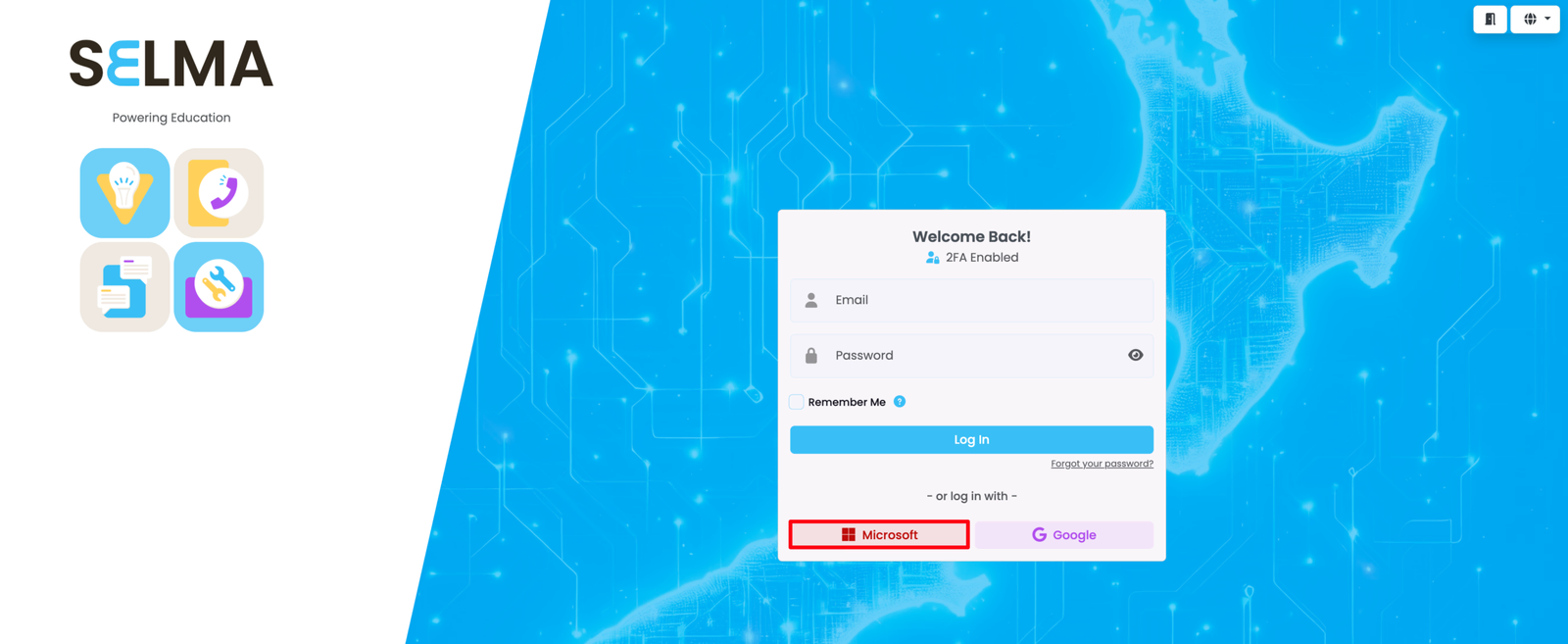
Once the SELMA team have configured the integration, Users should log out of their accounts, and sign-in using the "Microsoft" button.
Login with Microsoft | SELMA Login Screen
On the SELMA login screen, click the "Microsoft" button to sign in immediately. Note: You may be redirected to a page to select a Microsoft account, if you have multiple.
Important Notes
- Setup Process:
- The Entra App set-up is done by your organisation, but the SELMA integration is configured by the SELMA team.
- Credentials Security:
- Store your Client ID, Tenant ID, and Client Secret Key securely before sending them to the SELMA team.
- Email Matching:
- Users must have the same email address in both SELMA and their Microsoft account for the login process to work.
- Secret Expiry:
- Remember to renew your Client Secret Key before it expires, and provide the new secret to the SELMA team.
Trouble-Shooting
- "Invalid client" error:
- Check that the correct Application ID, Directory ID, and Client Secret were provided to the SELMA team
- "Redirect URI mismatch": Ensure the redirect URL in Entra exactly matches the format
- Secret expiry issues:
- If authentication suddenly stops working, check if the client secret has expired in Azure
Last updated
Google OAuth2 Login – Setup
Enabling Google OAuth2 login in SELMA allows users to authenticate using their Google accounts instead of traditional username/password credentials.…
Microsoft 365 (Account-Level Emails)
Enabling the Microsoft 365 integration in SELMA allows you to use your organisation's Microsoft mailbox(es) to send emails directly from SELMA. Emails…