
Updated on
Tips and Tricks for Using SELMA Productively
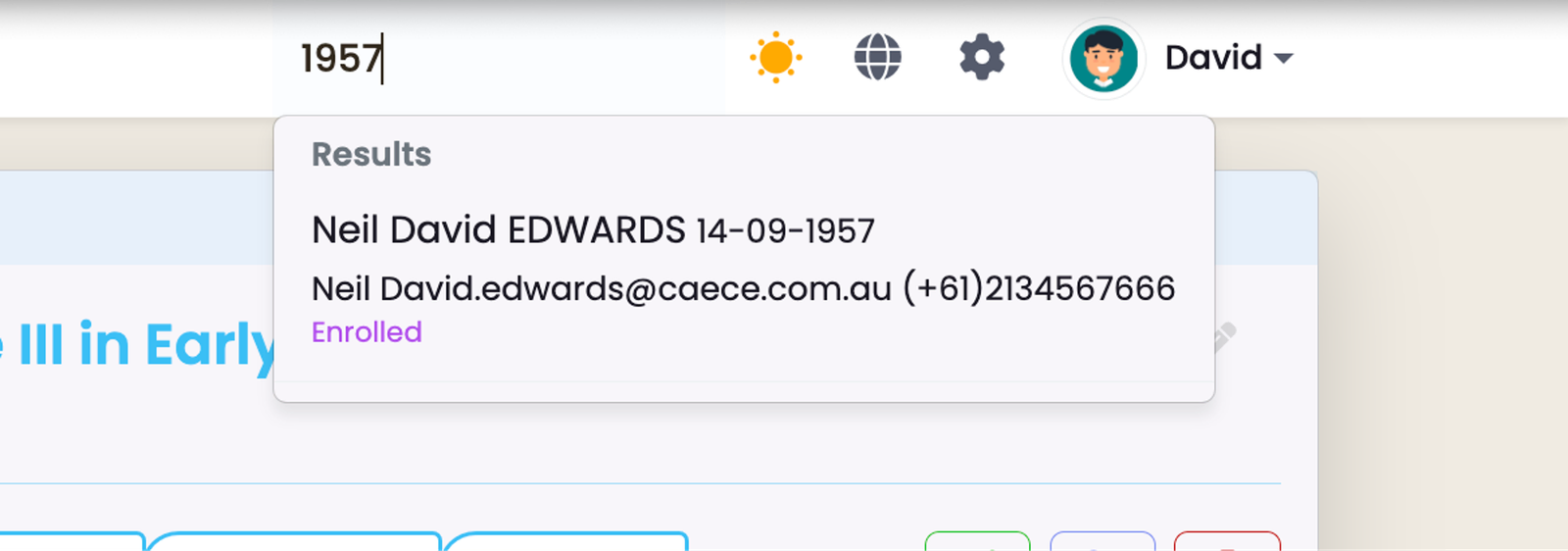
The fast search field on the top navigation bar is a powerful tool for quickly locating records. You can search by attributes such as student id…
On this page:
- Leverage the Fast Student Search Feature
- Click on High-Level Counts
- Save Searches in Grids
- Use Multiple Browser Tabs
- Return to the Index with a Single Click
- Utilise Custom Fields and Tabs
Leverage the Fast Student Search Feature
The fast search field on the top navigation bar is a powerful tool for quickly locating records. You can search by attributes such as student id number, NSN, name, email address, phone number or date of birth. This feature helps you find what you need without navigating through multiple menus.
Click on High-Level Counts
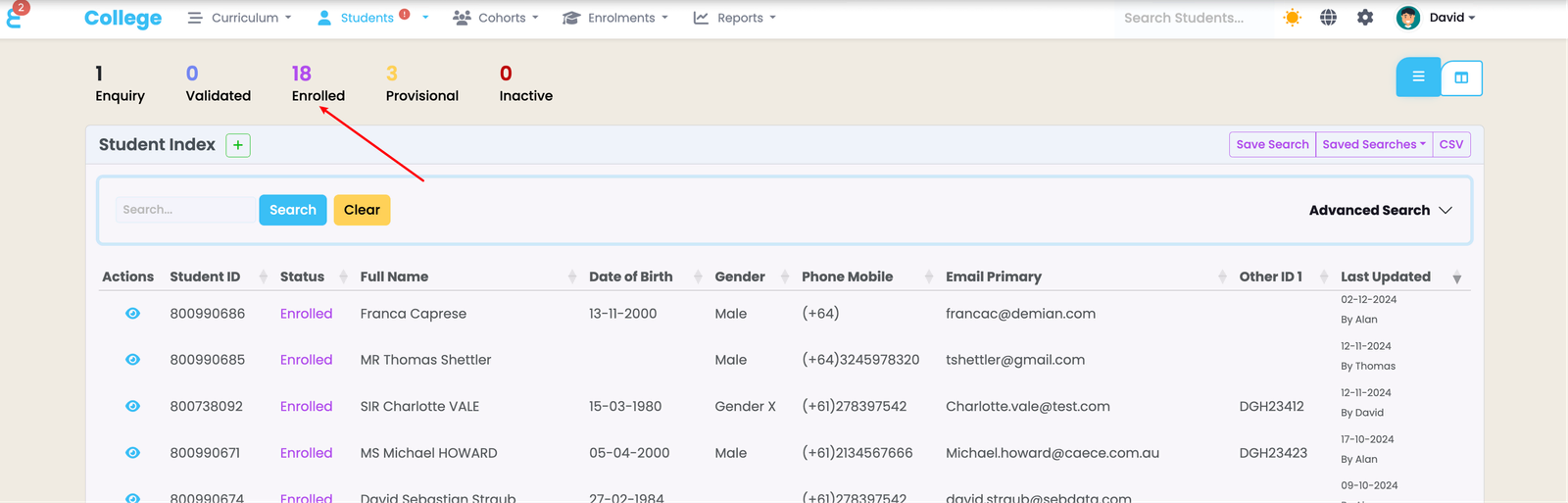
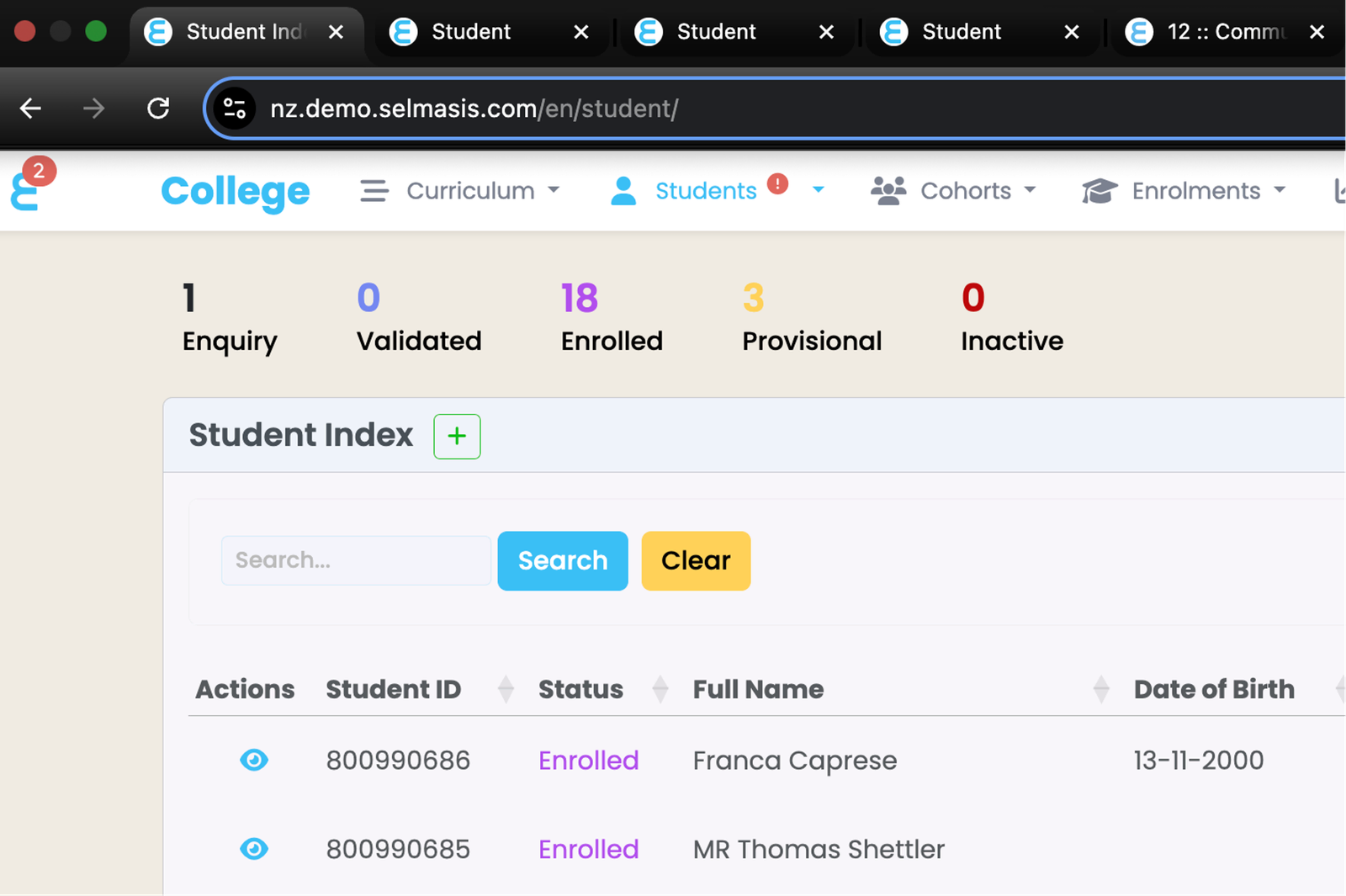
At the top of grids, you’ll notice category or status totals displayed. These totals are interactive; clicking on them immediately filters the grid to show only records relevant to that specific category or status. This feature allows you to quickly drill down into the data you need without manual filtering.
Save Searches in Grids
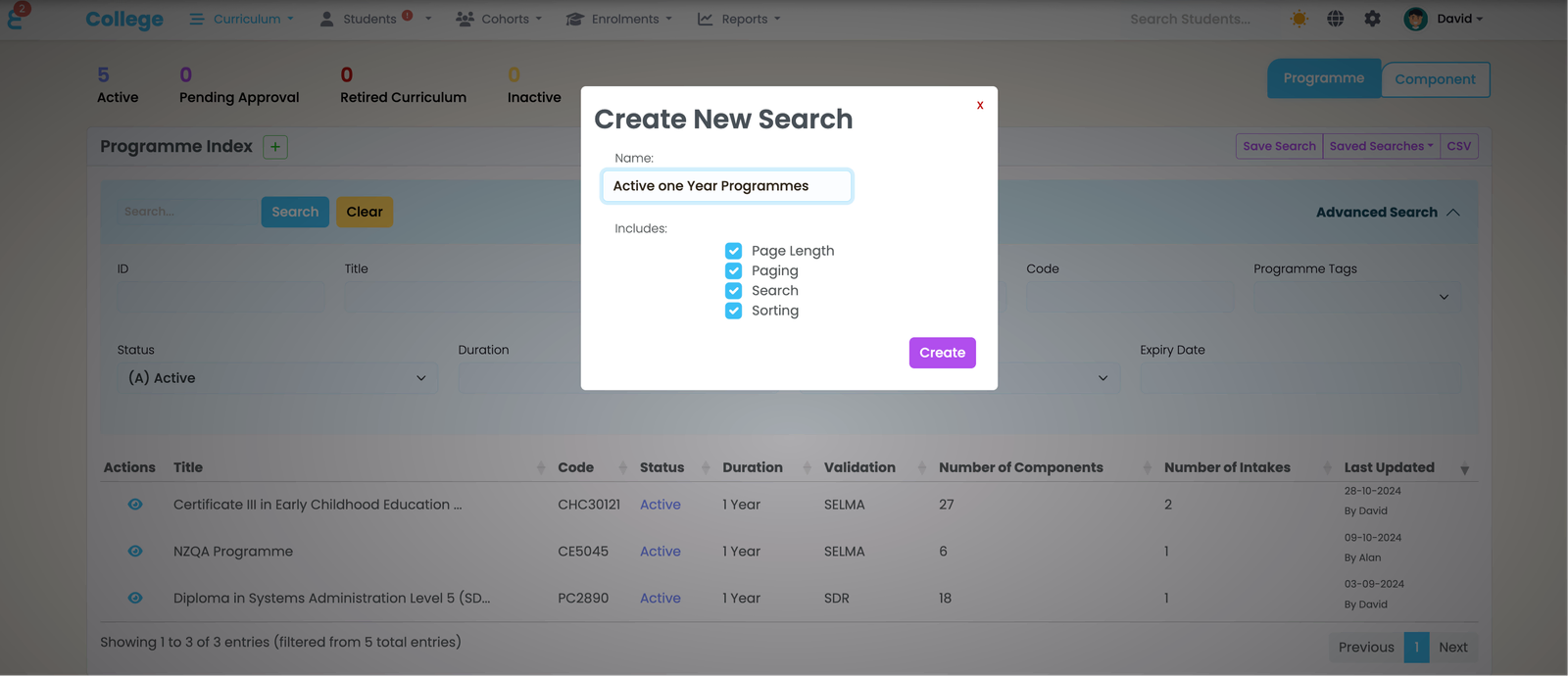
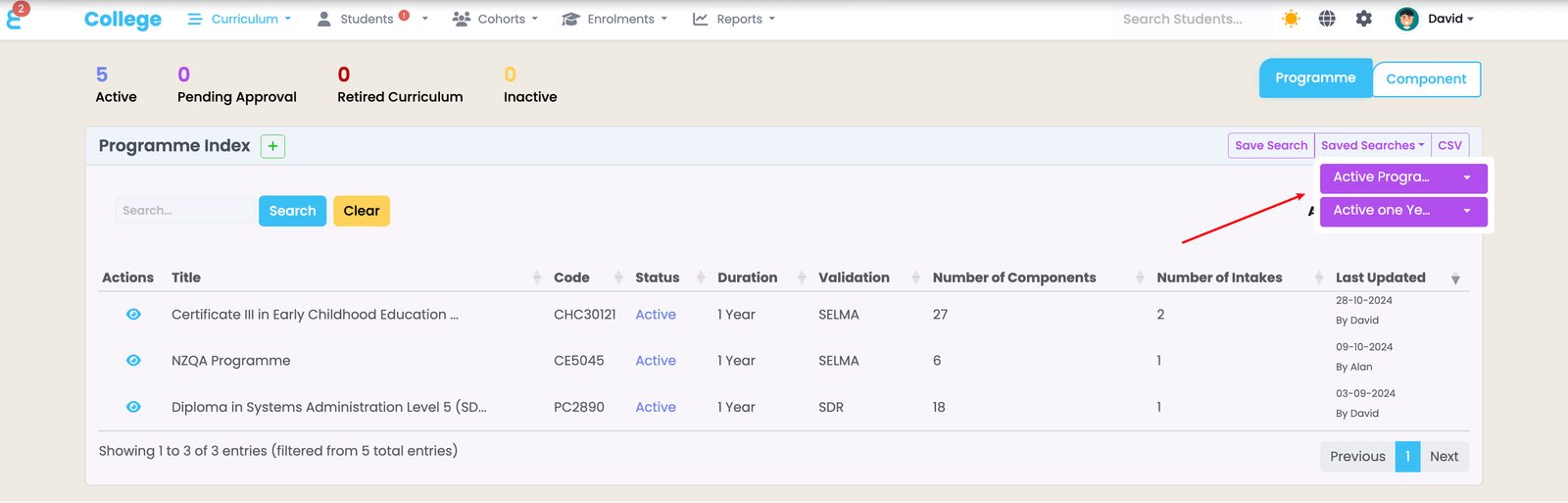
When using the advanced search feature, you have the option to save your search. Saved searches are linked to your profile and can be reused in the future, helping you avoid repetitive setups.
Note that these saved searches are private to your profile and are not visible to other users.
Use Multiple Browser Tabs
For tasks requiring simultaneous comparisons, such as checking details for two students or comparing records, open SELMA in multiple browser tabs or windows. This setup makes multitasking efficient and ensures you can cross-reference information without losing your place.
Return to the Index with a Single Click
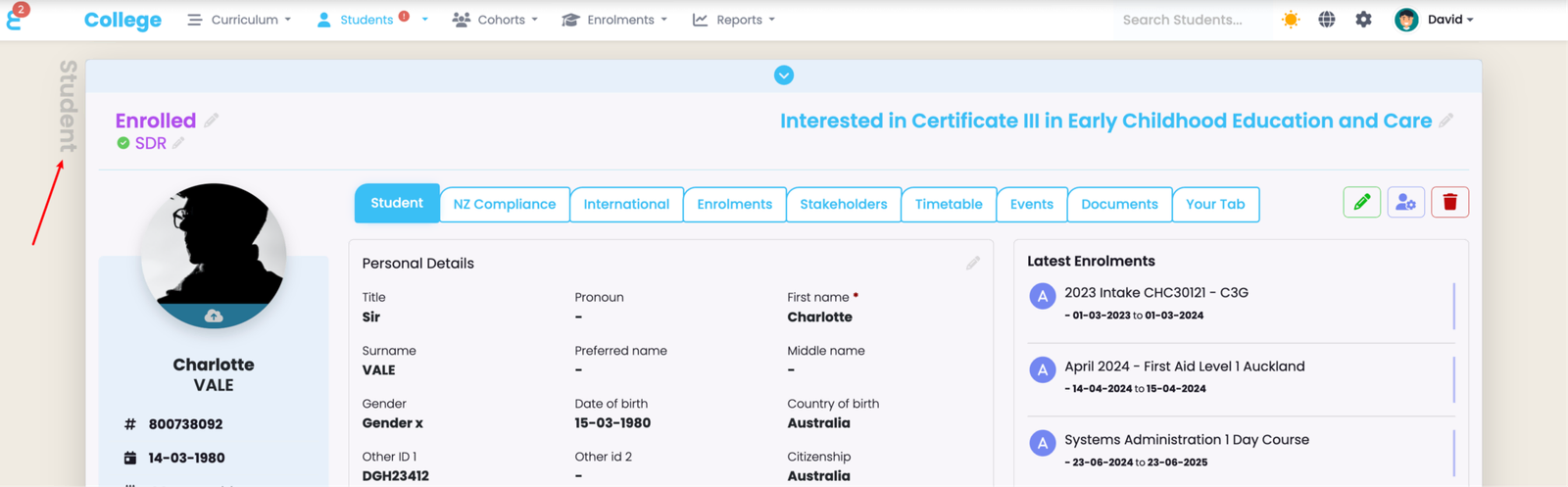
When working on a specific record, the title of the main object (e.g., “Student Index” or “Programme Index”) is always visible in a slightly greyed-out style at the top of the page. Clicking this title will take you directly back to the overview page (index) for that object, saving time navigating back manually.
Utilise Custom Fields and Tabs
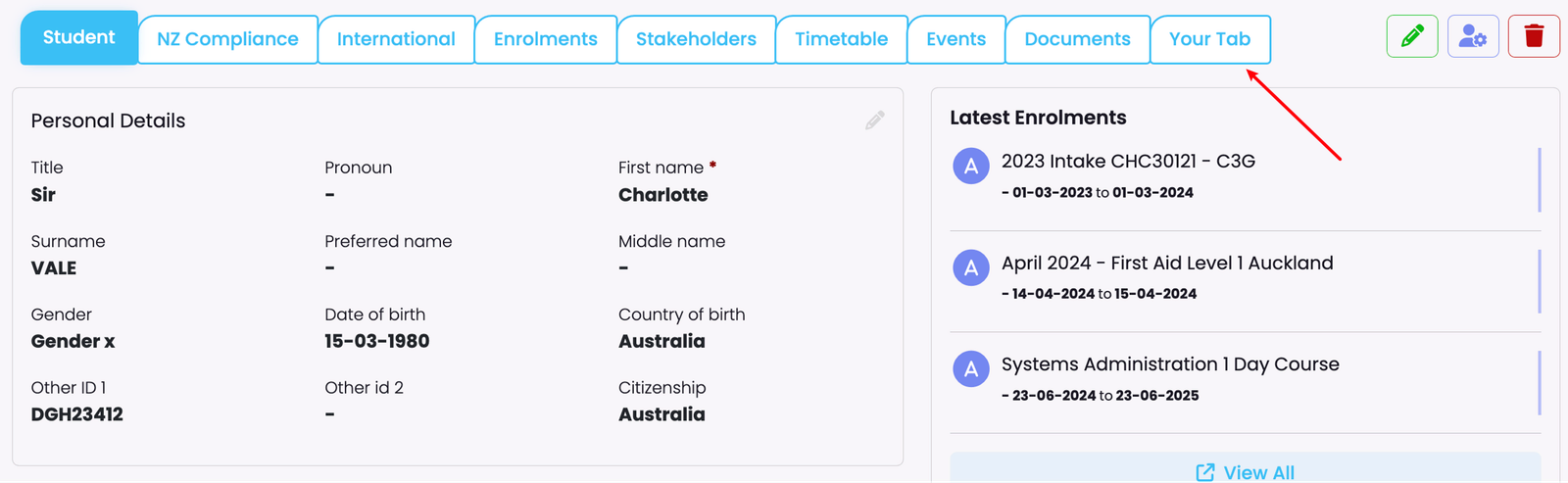
SELMA allows you to create custom fields and tabs to manage institution-specific information. These customisations enable you to organise data in a way that aligns with your unique operational needs. For more details on setting this up, refer to the Settings -> Custom Fields section in this manual.
Last updated