
Updated on
LNAAT (Literacy and Numeracy Assessment Tool)
The LNAAT (Literacy and Numeracy Assessment Tool) integration connects SELMA with the TEC (Tertiary Education Commission) LNAAT API, allowing providers…
The LNAAT (Literacy and Numeracy Assessment Tool) integration connects SELMA with the TEC (Tertiary Education Commission) LNAAT API, allowing providers to sync learner assessment results directly into student and enrolment records.
Note: LNAAT is a New Zealand–only feature.
Setup and Configuration
You will need a machine account from the Ministry of Education (ESL — Education Sector Login credentials) to connect. Please contact the Ministry of Education to obtain these.
You may be required to fill out a ESL55 Form to request LNAAT API Role enabled on your Machine Account.
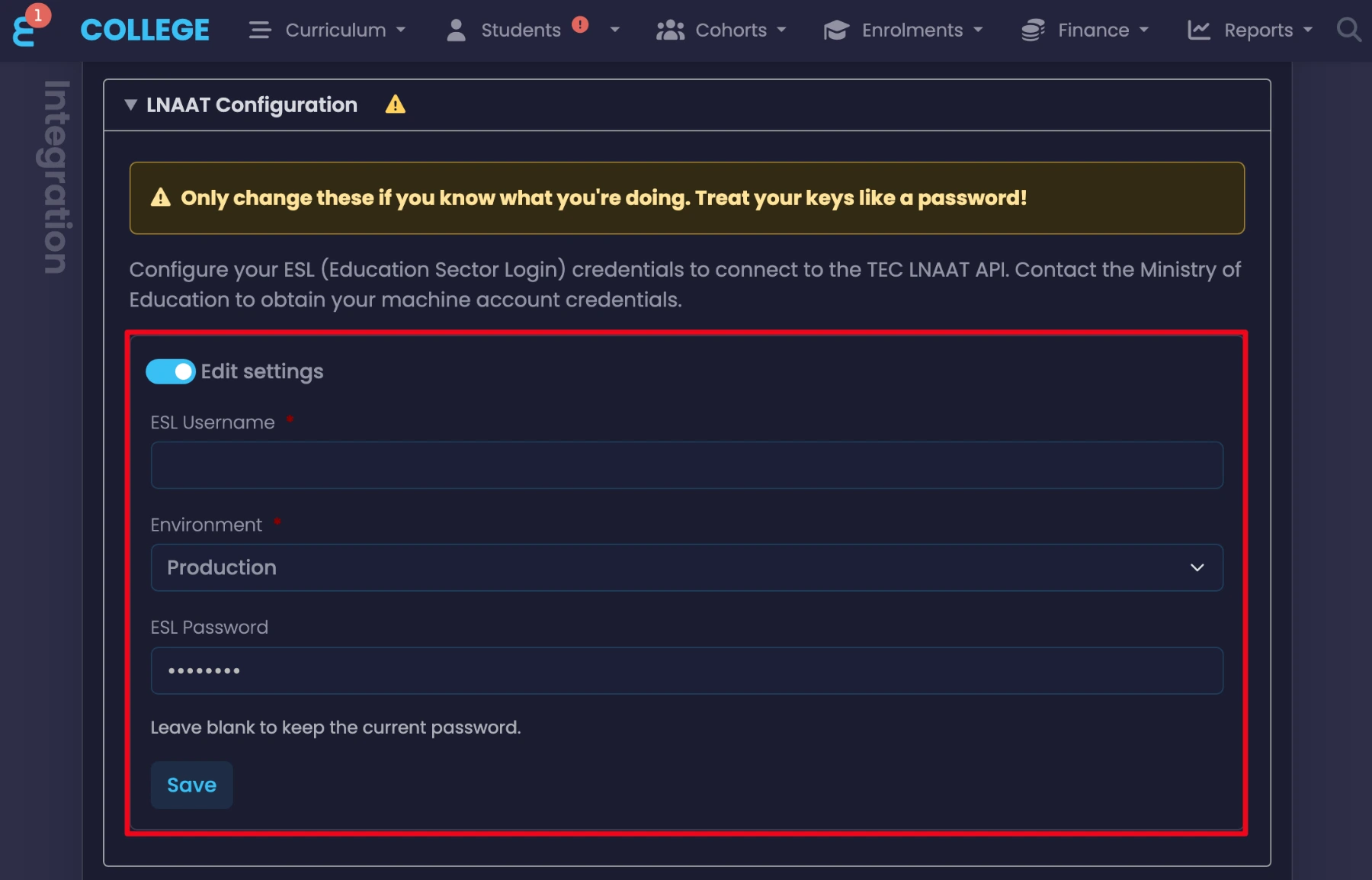
ESL Credentials
Expand the LNAAT Configuration section to enter your ESL (Education Sector Login) credentials.
- Click on "Edit Settings"
- Enter your ESL Username.
- Select the Machine Account environment: Pre-Prod or Production.
- Enter your ESL Password.
- Click**** on "Save".
- Click on "Test Connection" on the top right corner and reach out to SELMA Support if it fails to connect. Most common causes for failed connection are: Incorrect username and/or password, LNAAT API Role not enabled by MoE, incorrect environment selected for the username and password.
NOTE: Treat your ESL credentials like a password — do not share them with unauthorised users.
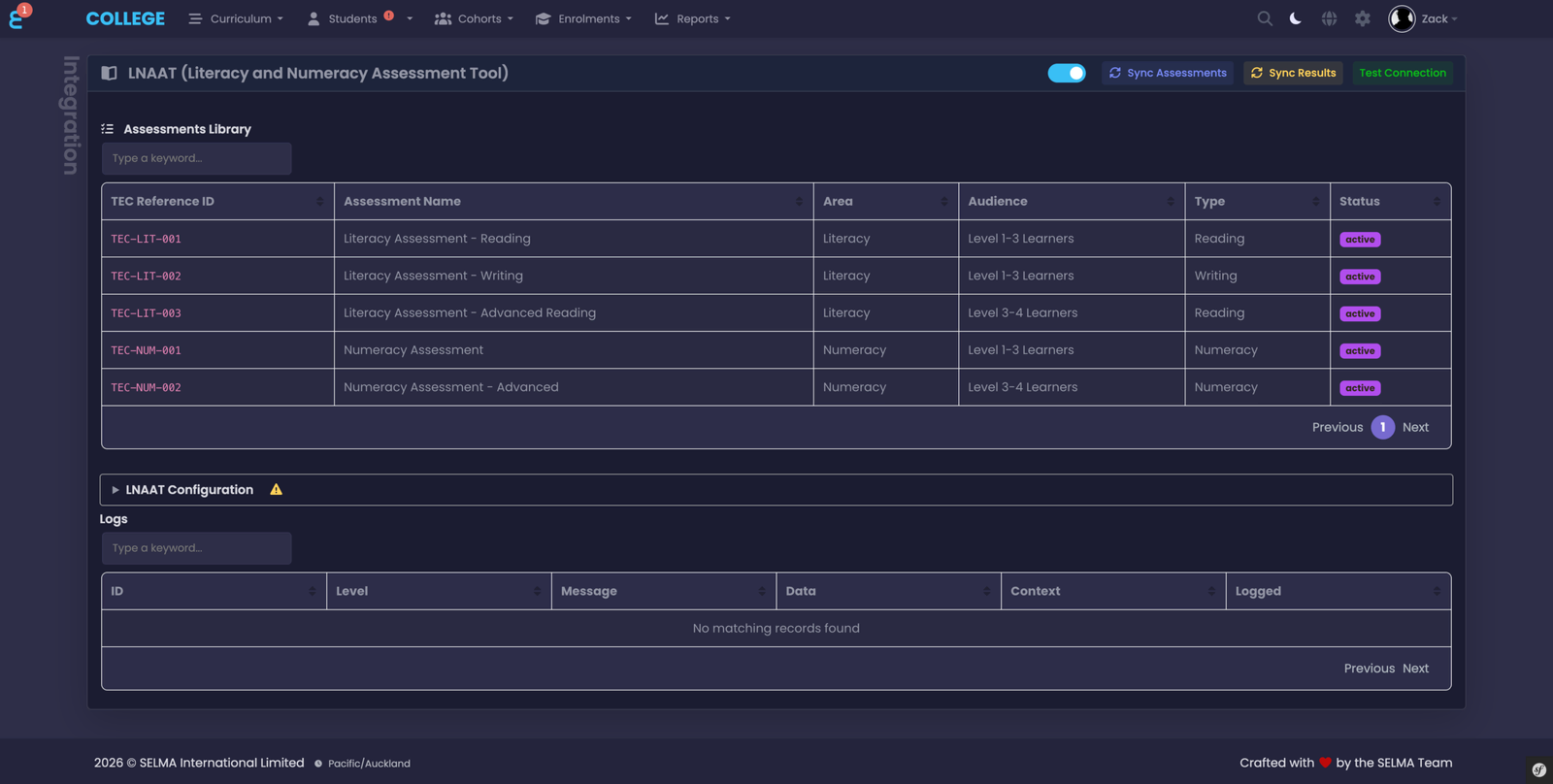
Syncing Assessments & Results
Once credentials are configured, use the action buttons at the top of the page:
- Test Connection — verifies that your ESL credentials are valid and the API is reachable.
- Sync Assessments — pulls the latest assessment catalogue from TEC into the Assessments Library.
- Sync Results — pulls the latest learner results from TEC and updates student and enrolment records.
Check the Logs section at the bottom of the page for any error details if a sync fails.
Class / Intake Results
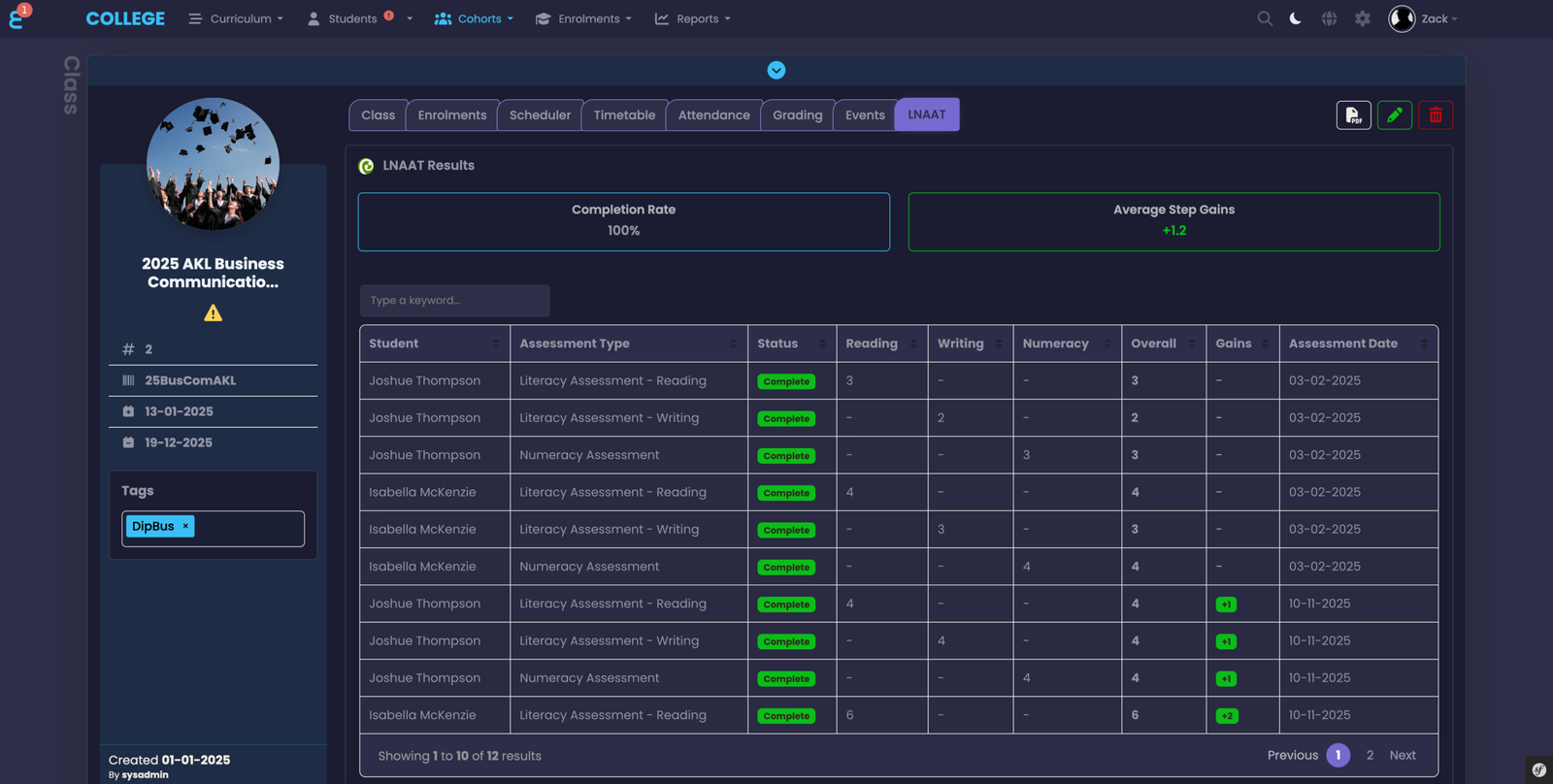
LNAAT assessment results for all learners in a group can be viewed at the Class or Intake level from the dedicated LNAAT tab. Open a Class and click the “LNAAT” tab. The page shows:
- Completion Rate — the percentage of assigned assessments that have been completed across all learners in the class.
- Average Step Gains — the average improvement in literacy/numeracy steps across all learners.
- A results table listing each assessment per learner, with their Reading, Writing, Numeracy, and Overall step levels, along with Gains and Assessment Date.
NOTE: The same LNAAT tab is available on the Intake page and works identically, showing results for all enrolments in that intake.
Assigning Assessments to Learners
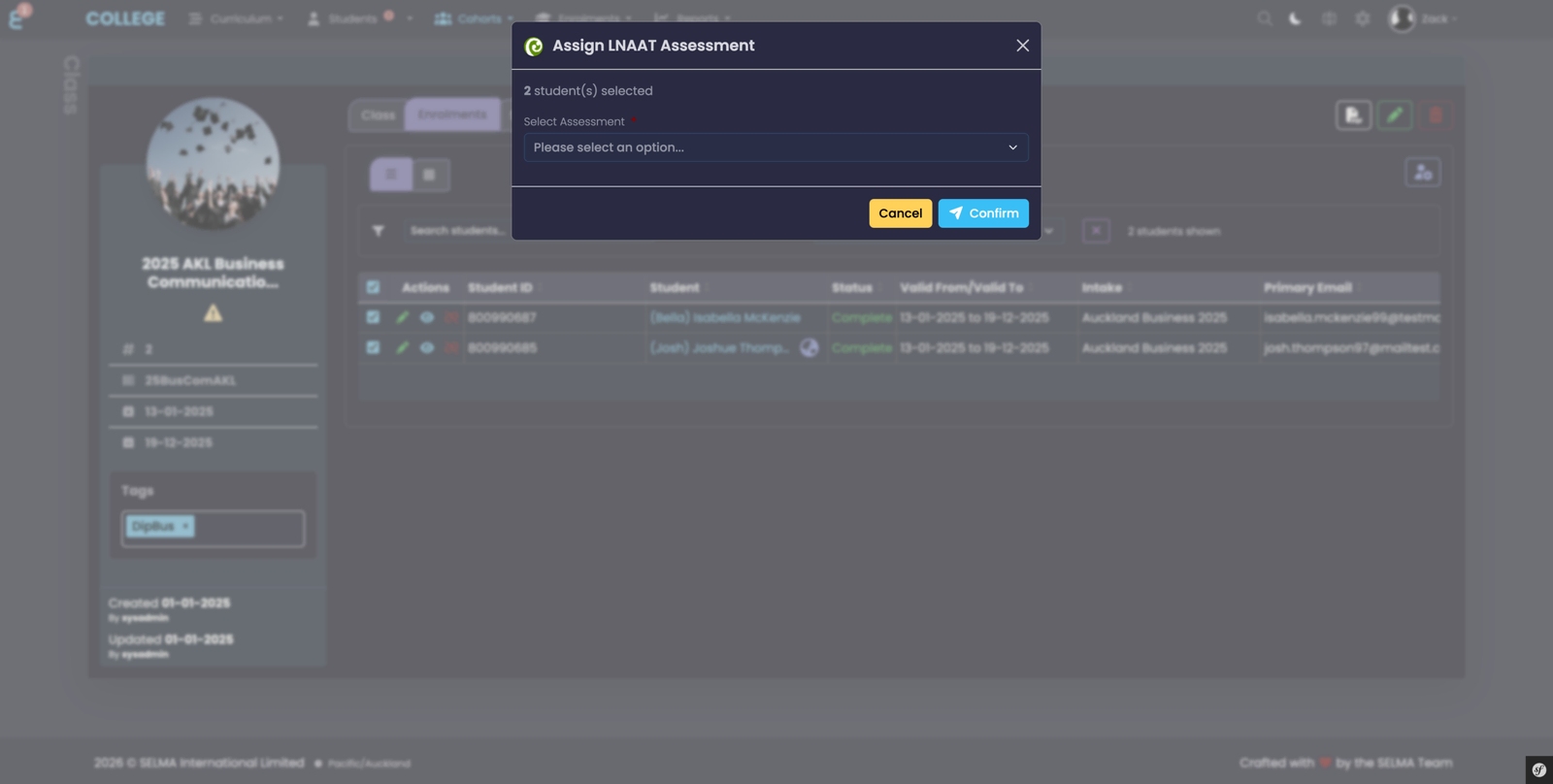
You can assign an LNAAT assessment to one or more learners directly from the Class Enrolments tab. Tick the checkboxes next to the learners you wish to assign an assessment to, then click “Actions” and select “Assign LNAAT Assessment”.
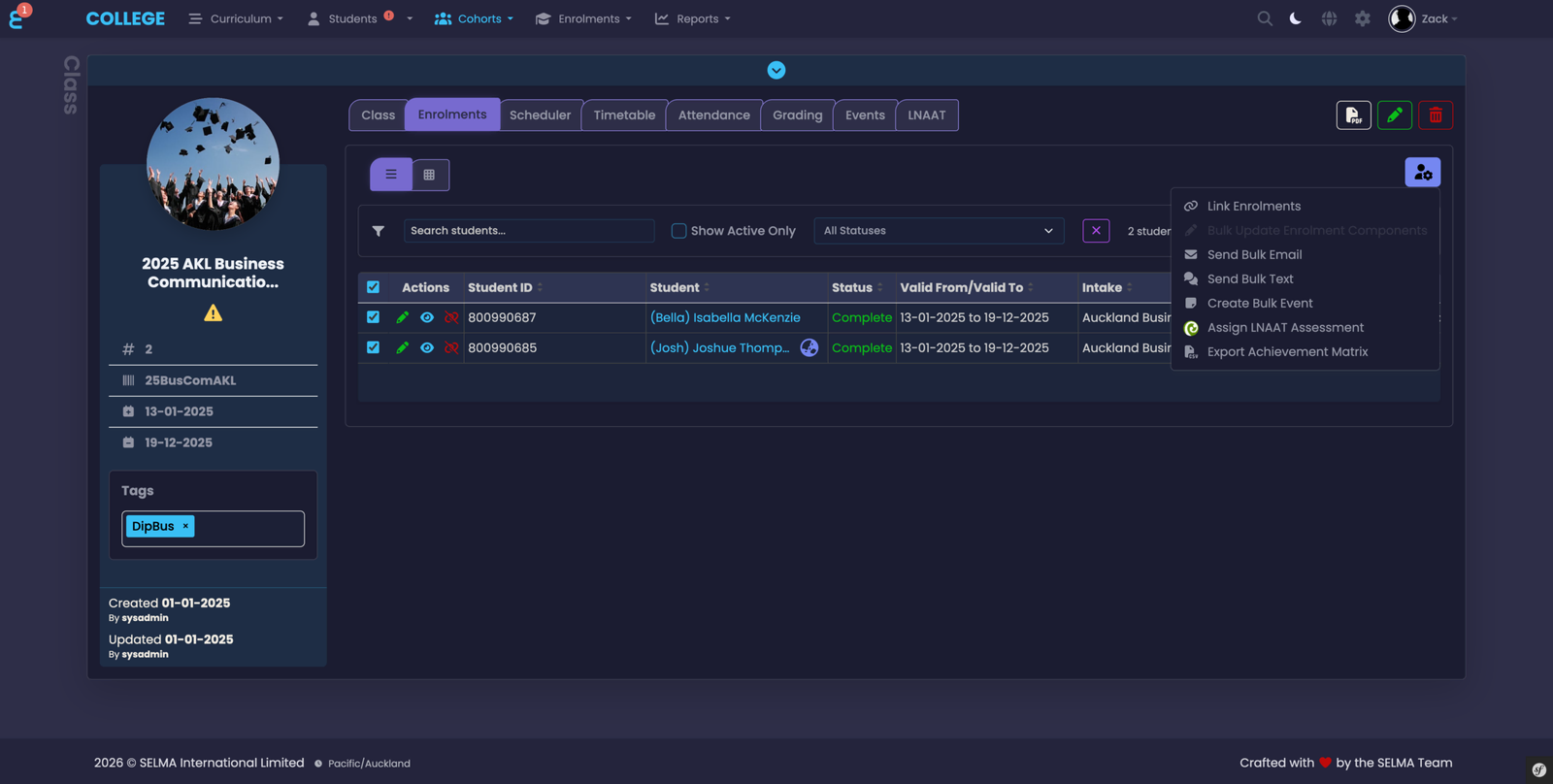
A modal will appear confirming the number of selected learners. Choose the assessment from the “Select Assessment” dropdown and click “Confirm” to assign it. The assignment will be submitted to the TEC LNAAT API.
Student Page
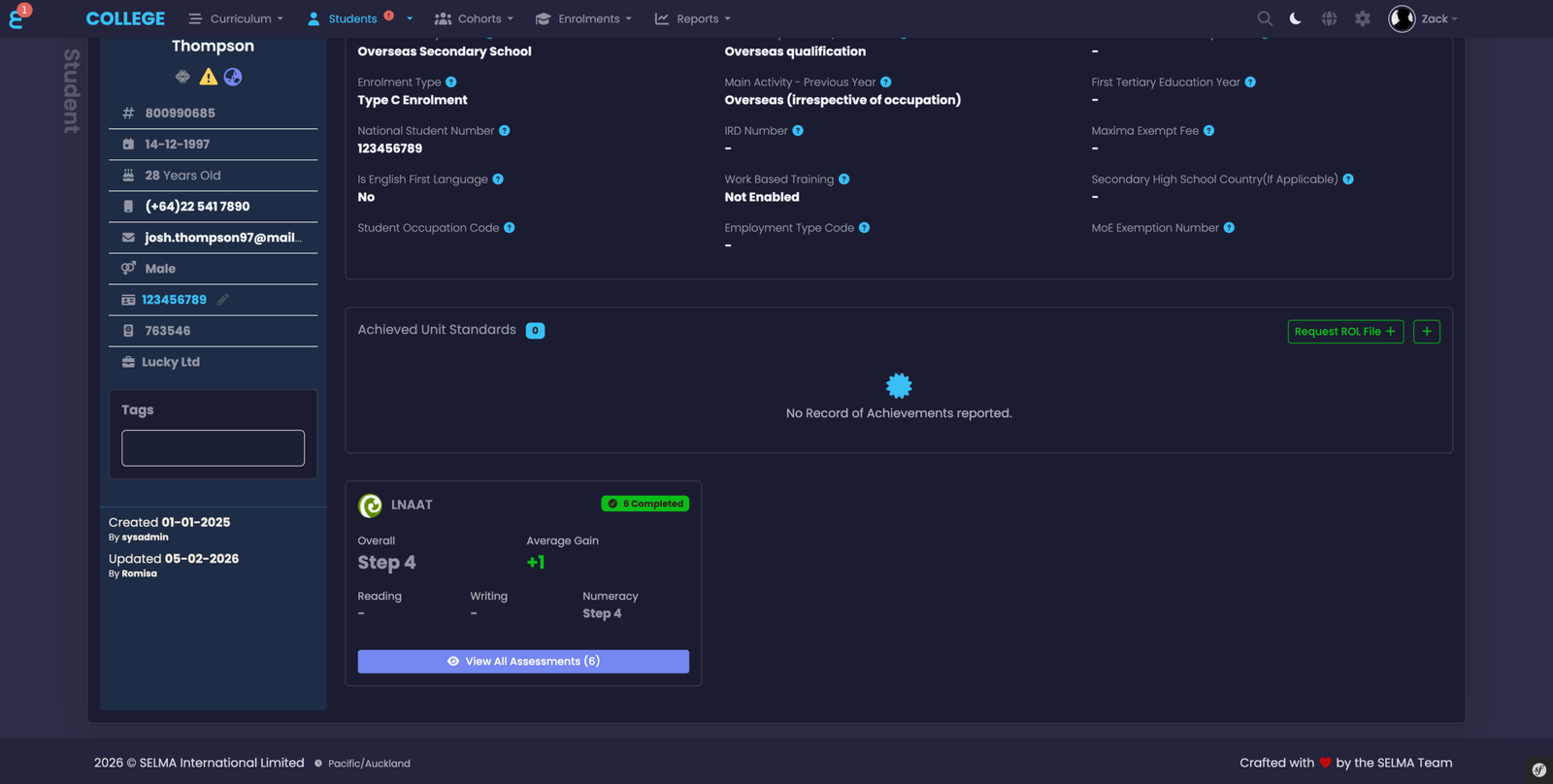
A summary of a student’s LNAAT results is available on their NZ Compliance tab. Open a Student record and click the “NZ Compliance” tab. Scroll down to the LNAAT card, which displays:
- Completed — the total number of completed assessments for this student.
- Overall Step — the student’s most recent overall literacy/numeracy step level.
- Average Gain — the average step improvement across all completed assessments.
- Reading / Writing / Numeracy — individual step levels per domain.
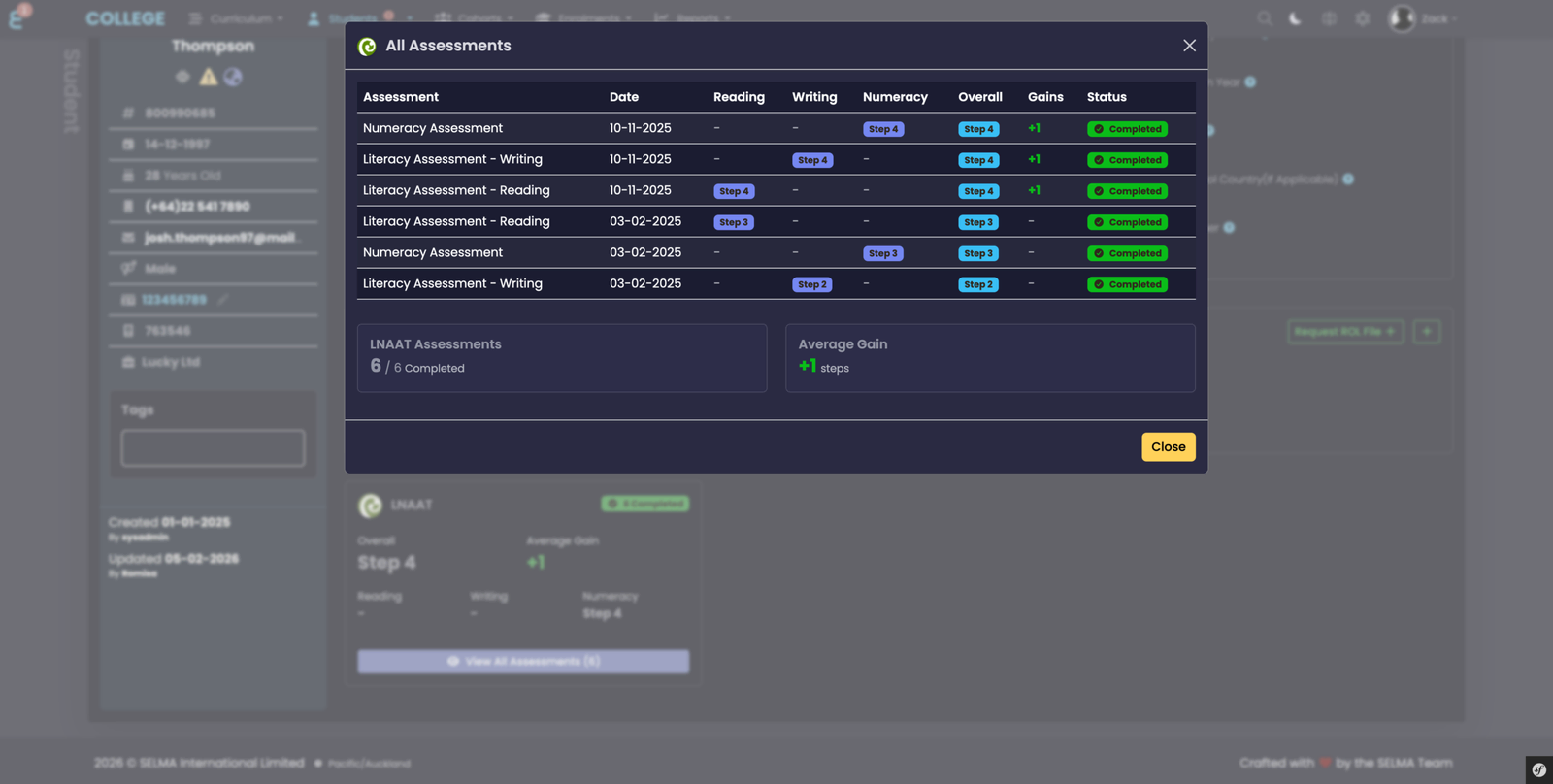
Click “View All Assessments” to open a detailed modal listing all of the student’s LNAAT assessments. Each row shows the assessment name, date, step levels per domain, overall step, gain, and completion status. A summary at the bottom shows the total completed count and overall average gain.
Enrolment Page
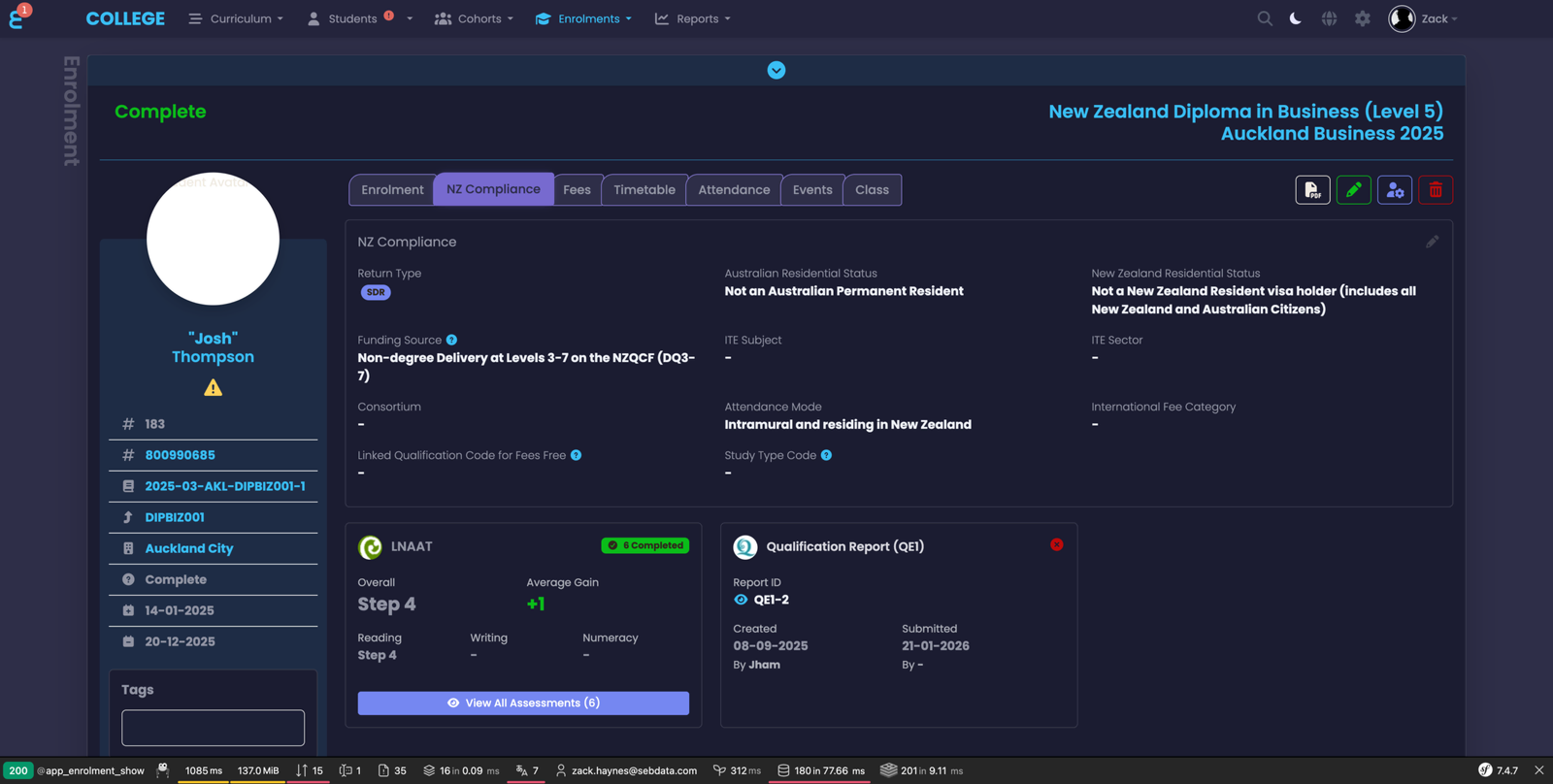
LNAAT results relevant to a specific enrolment are also available on the Enrolment page. Open an Enrolment and click the “NZ Compliance” tab. The LNAAT card displays the same summary as on the student page — Overall Step, Average Gain, and individual domain levels — scoped to assessments relevant to that enrolment. Click “View All Assessments” to see the full breakdown.
Last updated