
Updated on
2. Marking Attendance
An Attendance Register entry is an object for marking attendance. It is created for every timetable session that an "Active" Enrolment is linked to.
An Attendance Register entry is an object for marking attendance. It is created for every timetable session that an "Active" Enrolment is linked to.
Important Note:
- Attendance sessions generate overnight on their start date, and are ready for marking that day.
I.e. Future attendance sessions only appear on the morning of their scheduled date.
Attendance Marking
You can mark attendance sessions, in bulk, in two ways:
- Flash marking
- Bulk Attendance Marking
Note: The steps illustrated below can apply to the Class or Intake level.
Bulk Attendance Marking
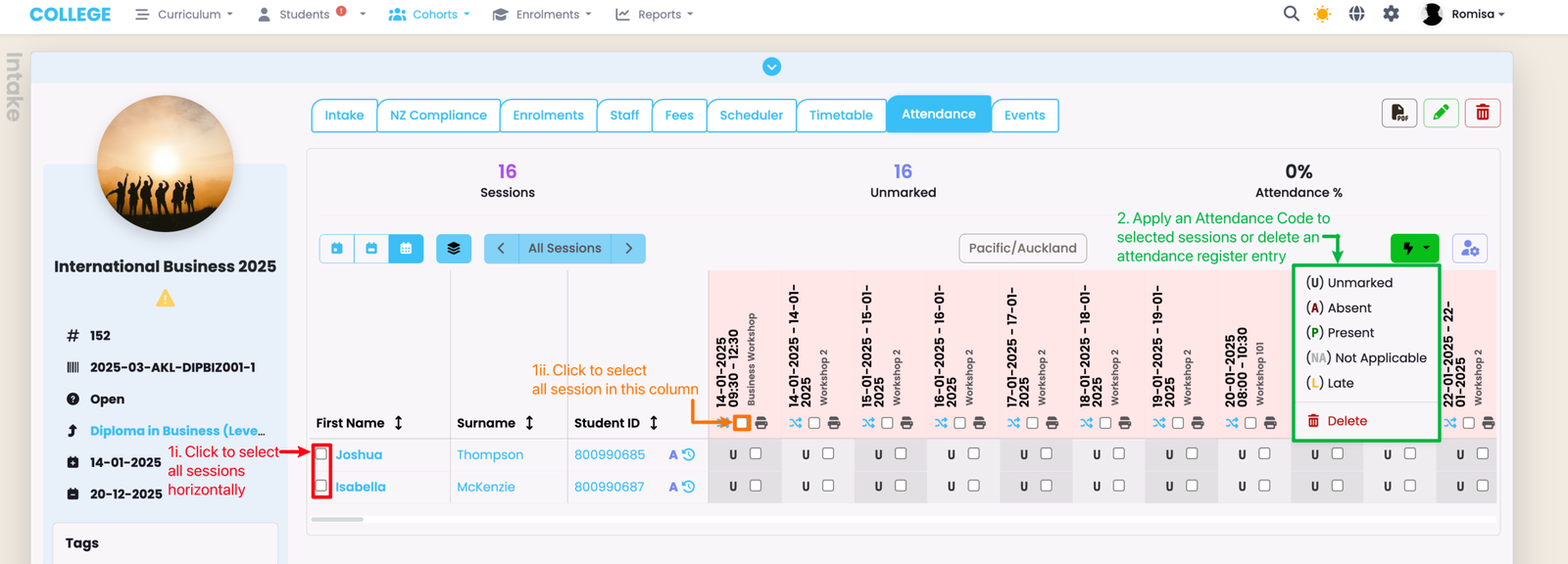
Select attendance sessions, and click the green "flash" icon to assign an Attendance Code to them.
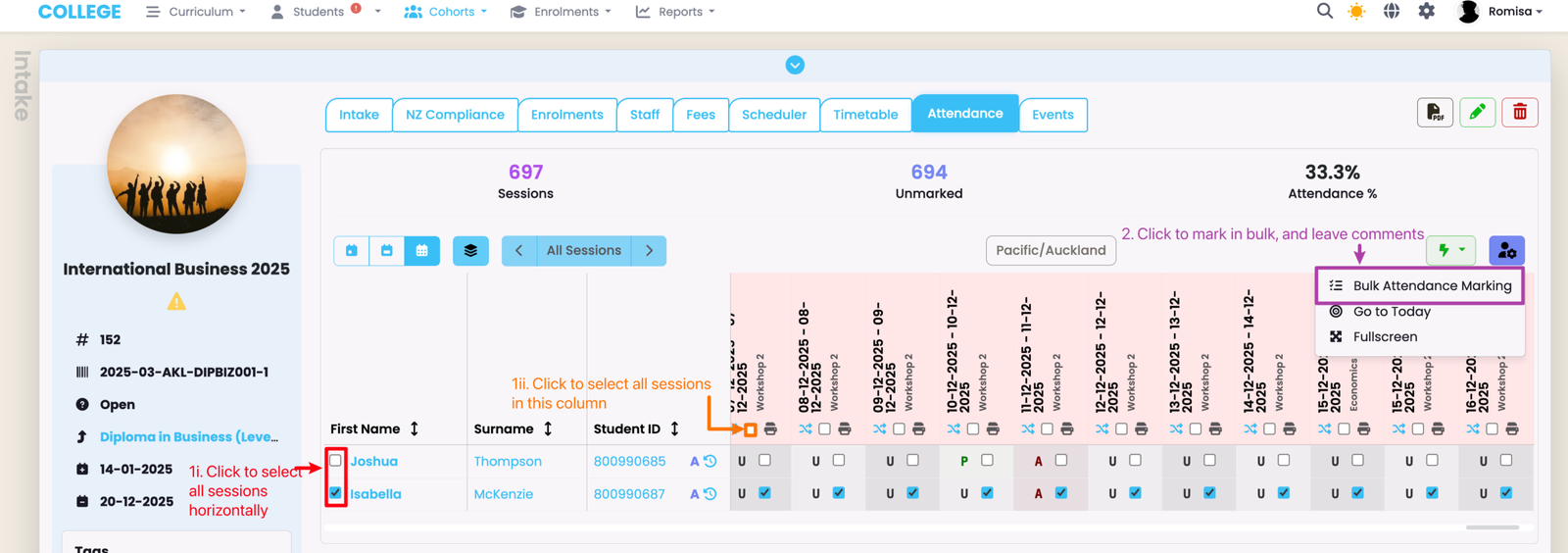
Select attendance sessions, and click the "Bulk Attendance Marking" button to assign an Attendance Code. This method is usually used to mark late attendance sessions and leave comments in bulk.
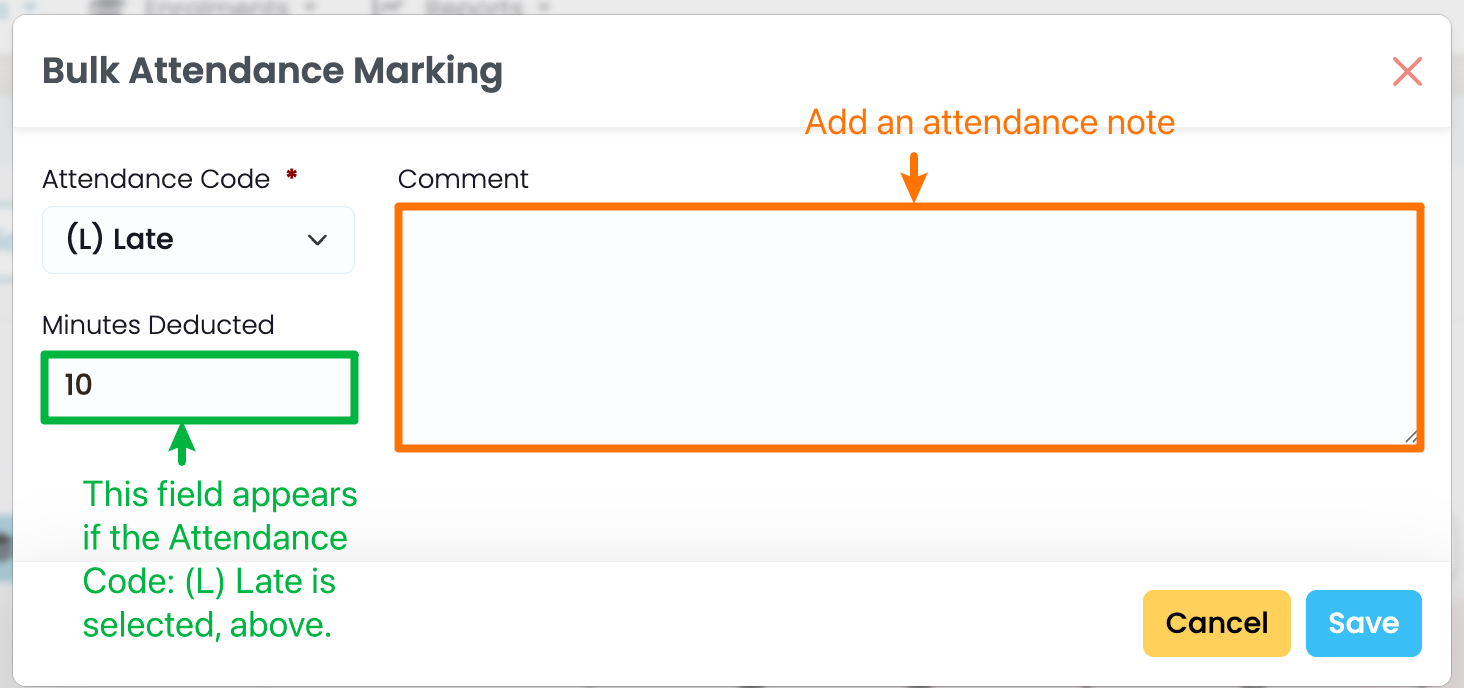
Attendance Code: (L) Late reveals a "Minutes Deducted" field, which is pre-populated and deducted from the calculation which results in the total attendance percentage. This method of bulk attendance marking also allows you to leave comments for multiple attendance sessions (orange).
Attendance Marking Functions
The following features are included in the Attendance tab, across all objects (Class, Intake and Enrolment).
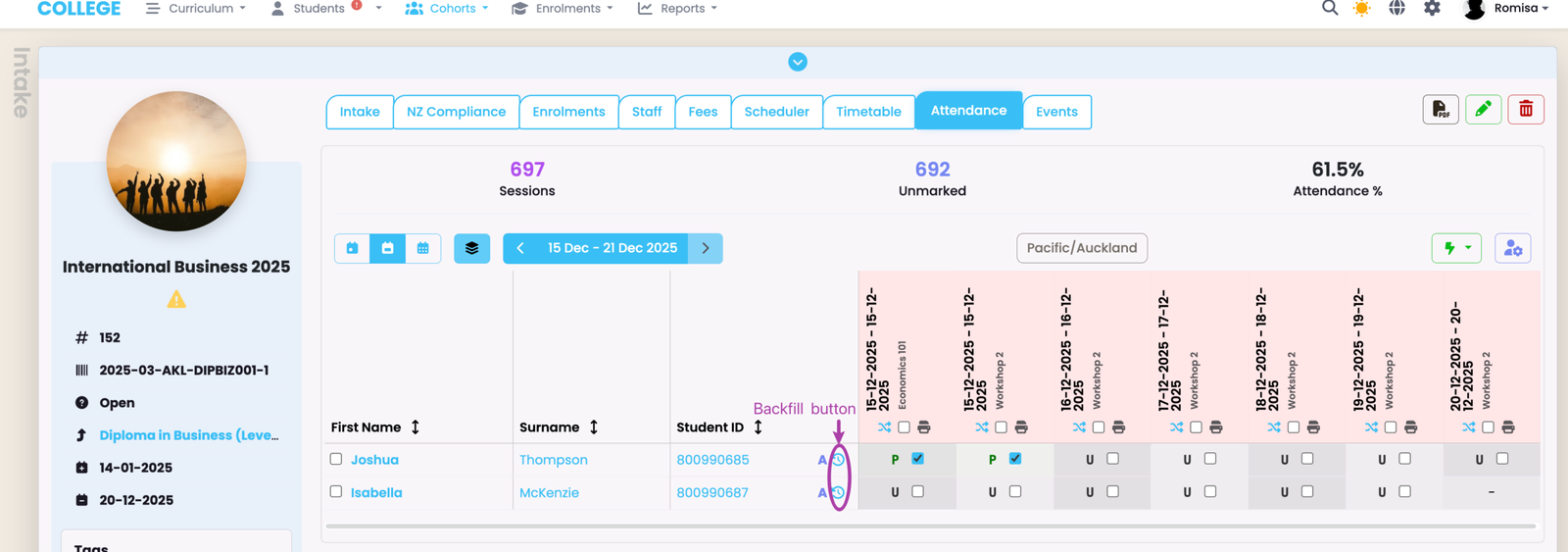
Use this button if you create an Enrolment after an attendance session has been created at the Intake or Class level.
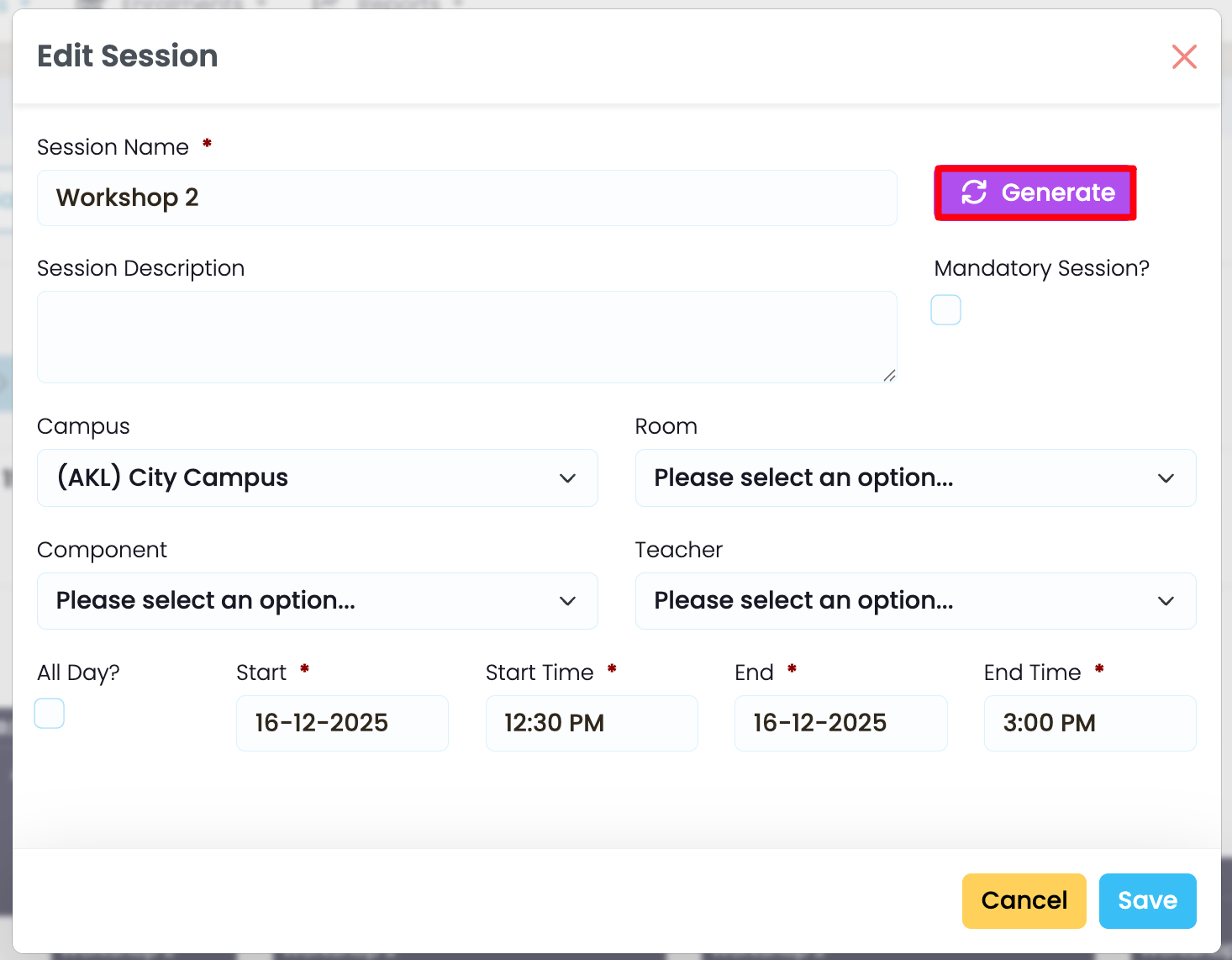
Use this button if you wish to create an attendance session, and mark the session on the same day. You can find the "Generate" button if you edit a timetable or attendance session on the timetable tab of a Class, Intake or Enrolment.
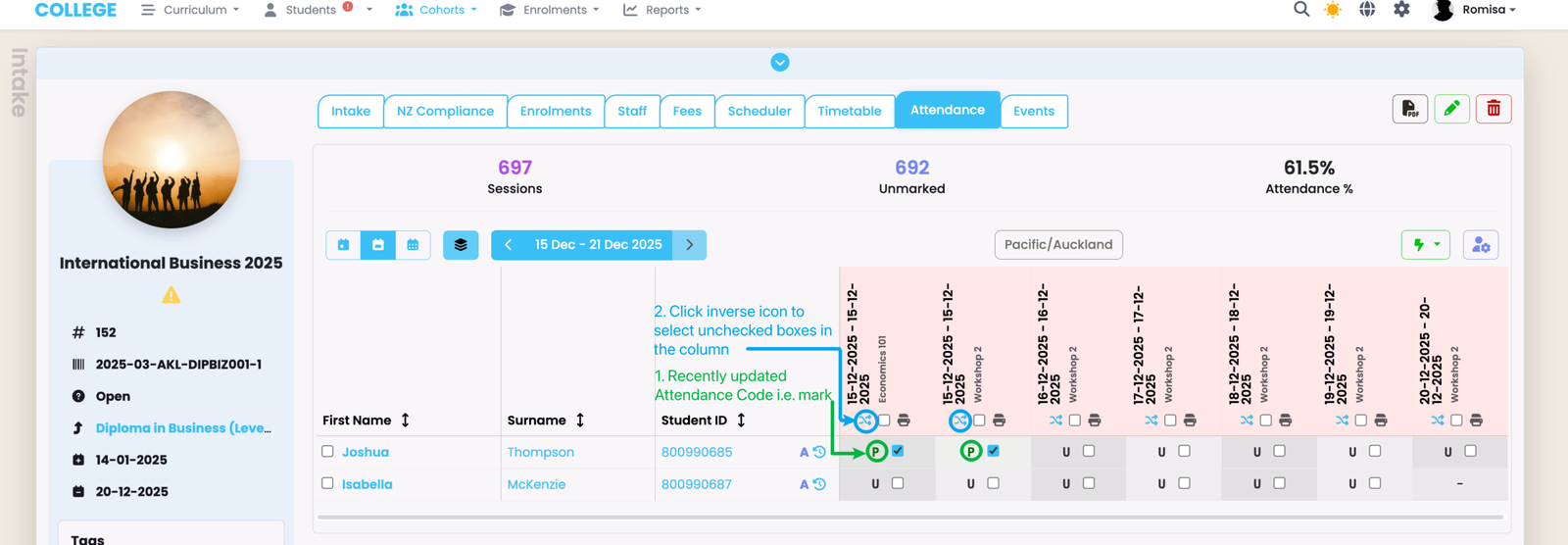
Once you have marked attendance, you will see that your selections will remain (i.e. checkboxes still ticked). Click the blue inverse icon to reverse your selections.
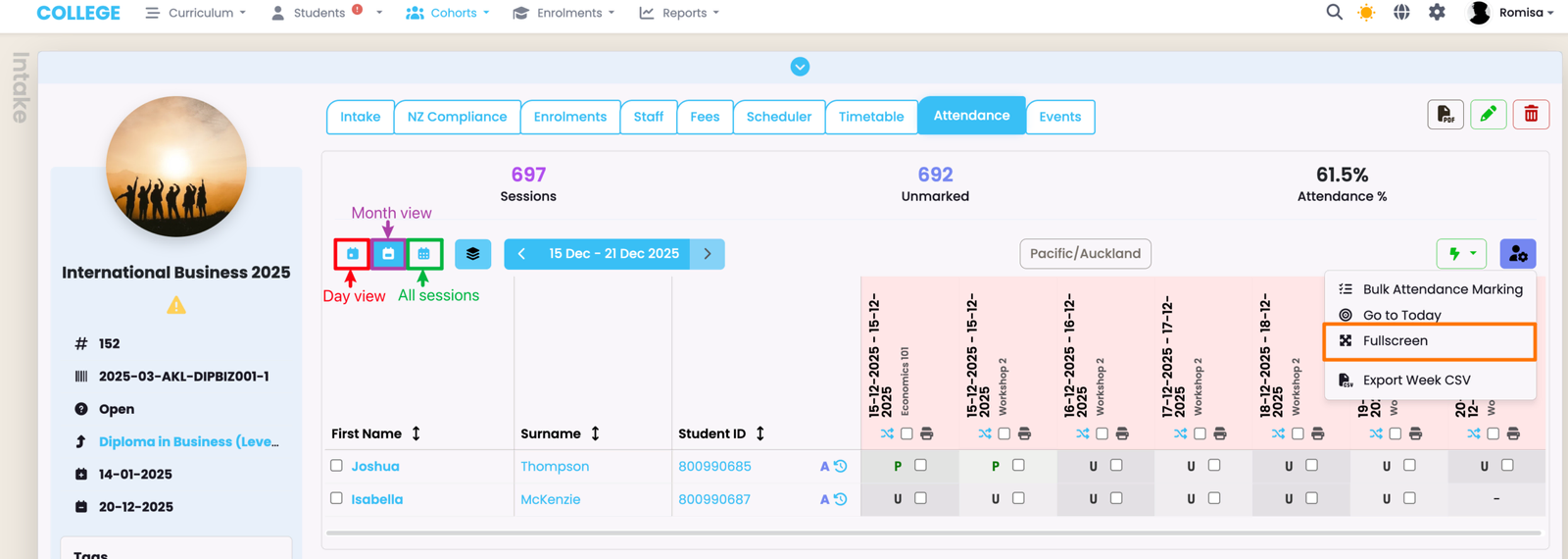
The Attendance Register on the Attendance tab of a Class, Intake or Enrolment, can be viewed by day, month, or expanded to view all sessions. Click the "Fullscreen" button to fit the grid to the size of your screen.
Enrolment Attendance
Marking attendance on an Enrolment works the same as that of the Class or Intake.
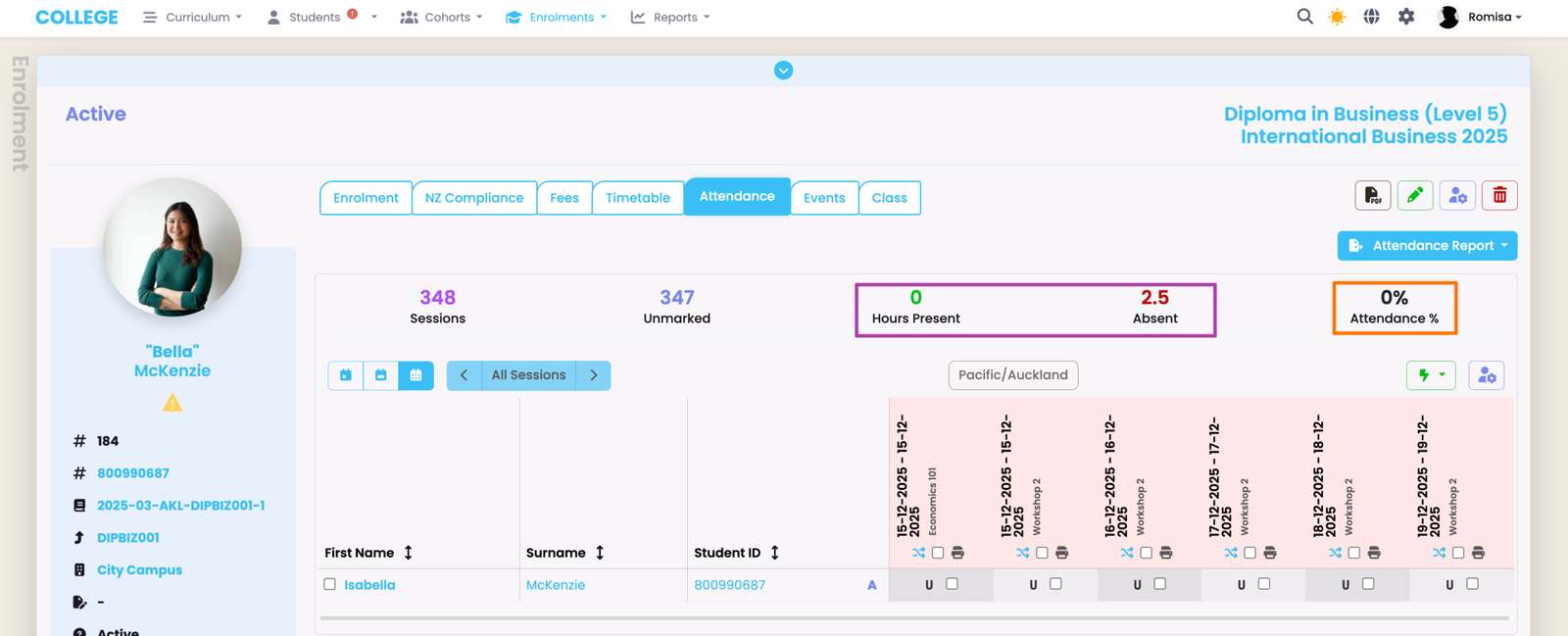
However, you can see specific attendance details such as Hours Present and Absent, which the Class and Intake Attendance tab does not feature.
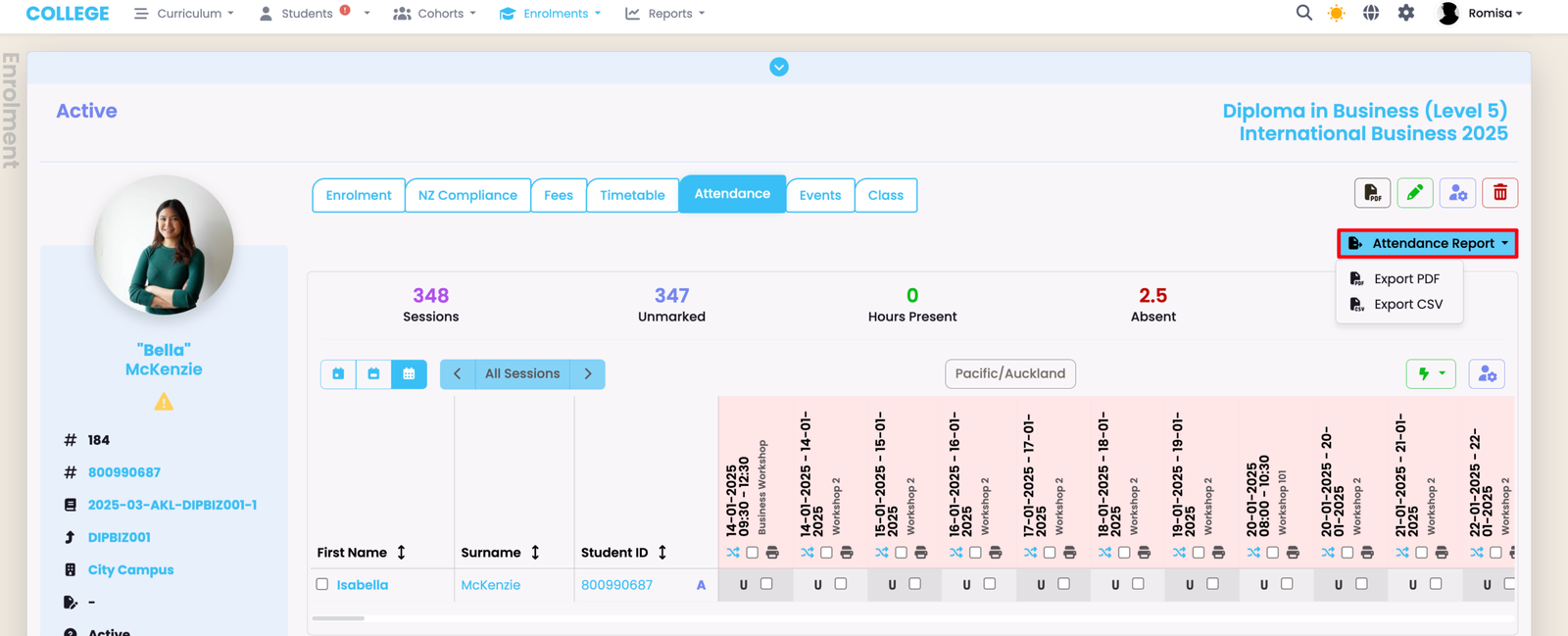
The total hours present and absent are included on the Enrolment Attendance tab (purple), as opposed to the Class and Intake Attendance tab.
Note: To calculate the total attendance percentage, SELMA calculates the difference between the total session duration minutes and the total minutes the Student was marked present. Late minutes is also deducted in the calculation.
Enrolment Attendance Report
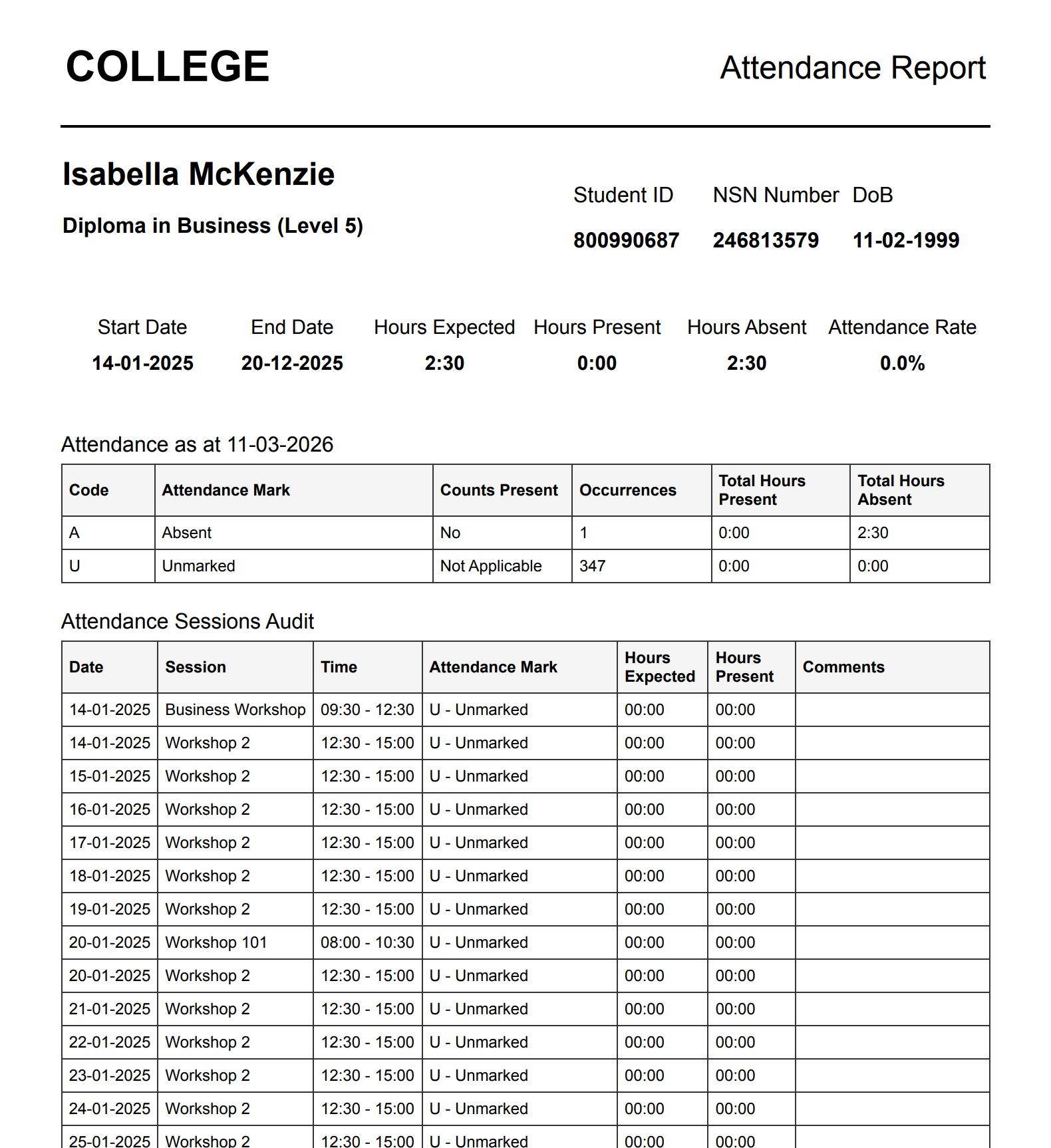
The Attendance Report uses a system default template. If you want this report customised, please reach out to SELMA Support.
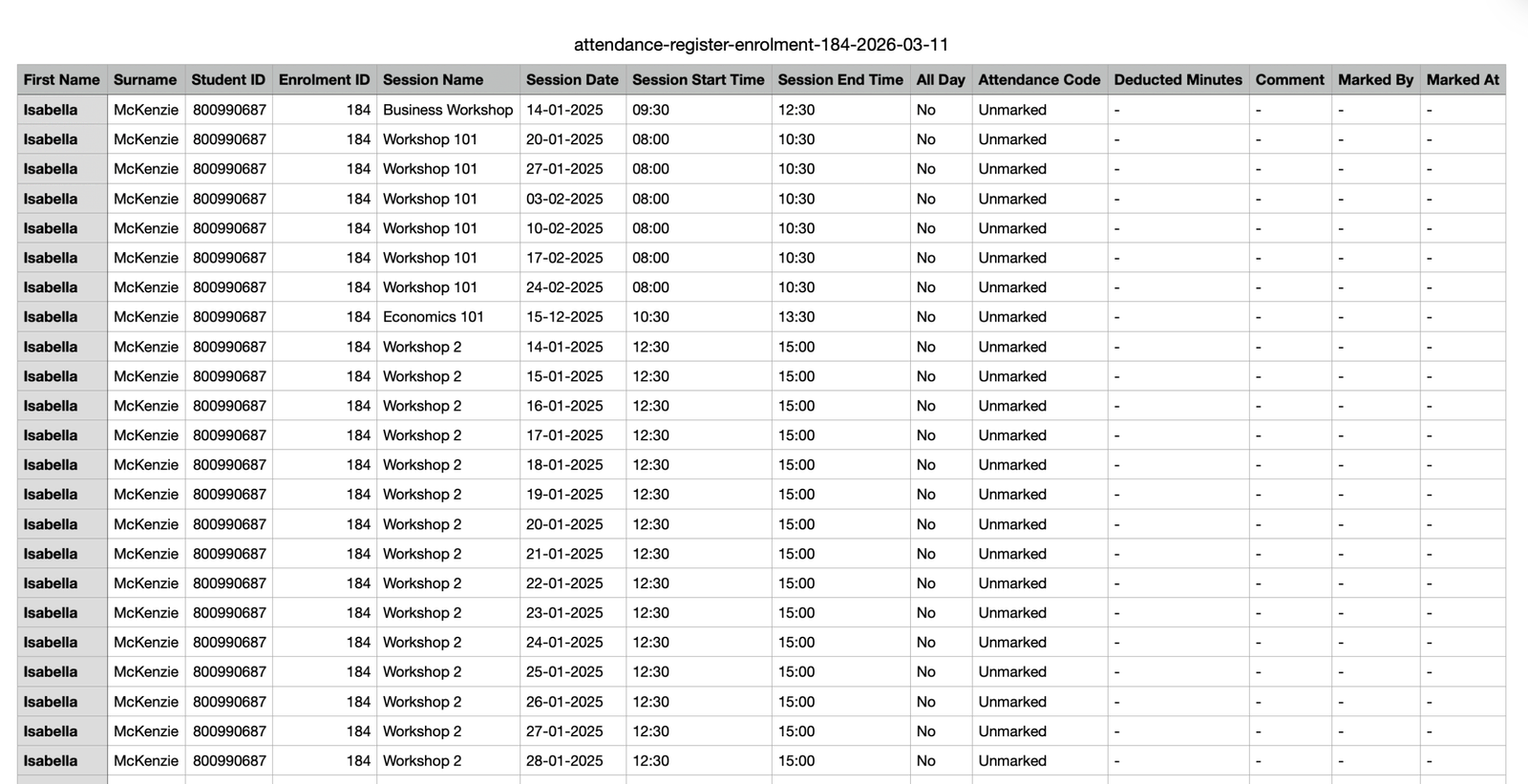
To generate a PDF or CSV file of the Student's attendance report, click the “Attendance Report” button on the Enrolment Attendance tab.
Export a CSV file of the Attendance view you are on.
Note: the screenshot example shows the Intake, but the same applies to Classes (day and week views, only).
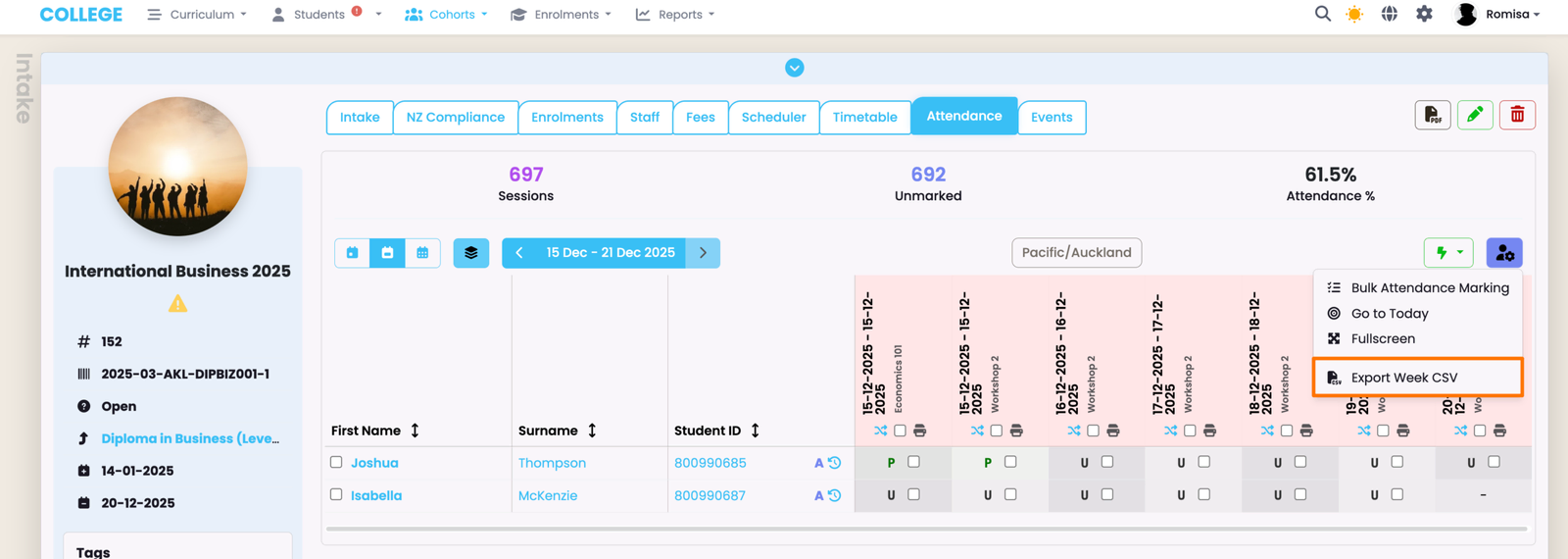
Figure 10. Class Attendance Tab
Last updated