
Updated on
4. Merge Students
Combine two profiles for the same student into one, choosing which records move across before the duplicate is removed.
If the same student has two profiles in SELMA, you can merge them. You pick the profile to keep and the profile to remove, choose which records move across, and SELMA removes the duplicate.
You need the /student/edit permission to see .
A merge cannot be undone
Once merged, the removed profile is gone from SELMA, and anything you did not choose to move goes with it. Open both profiles and check them before you start.
Merge two students
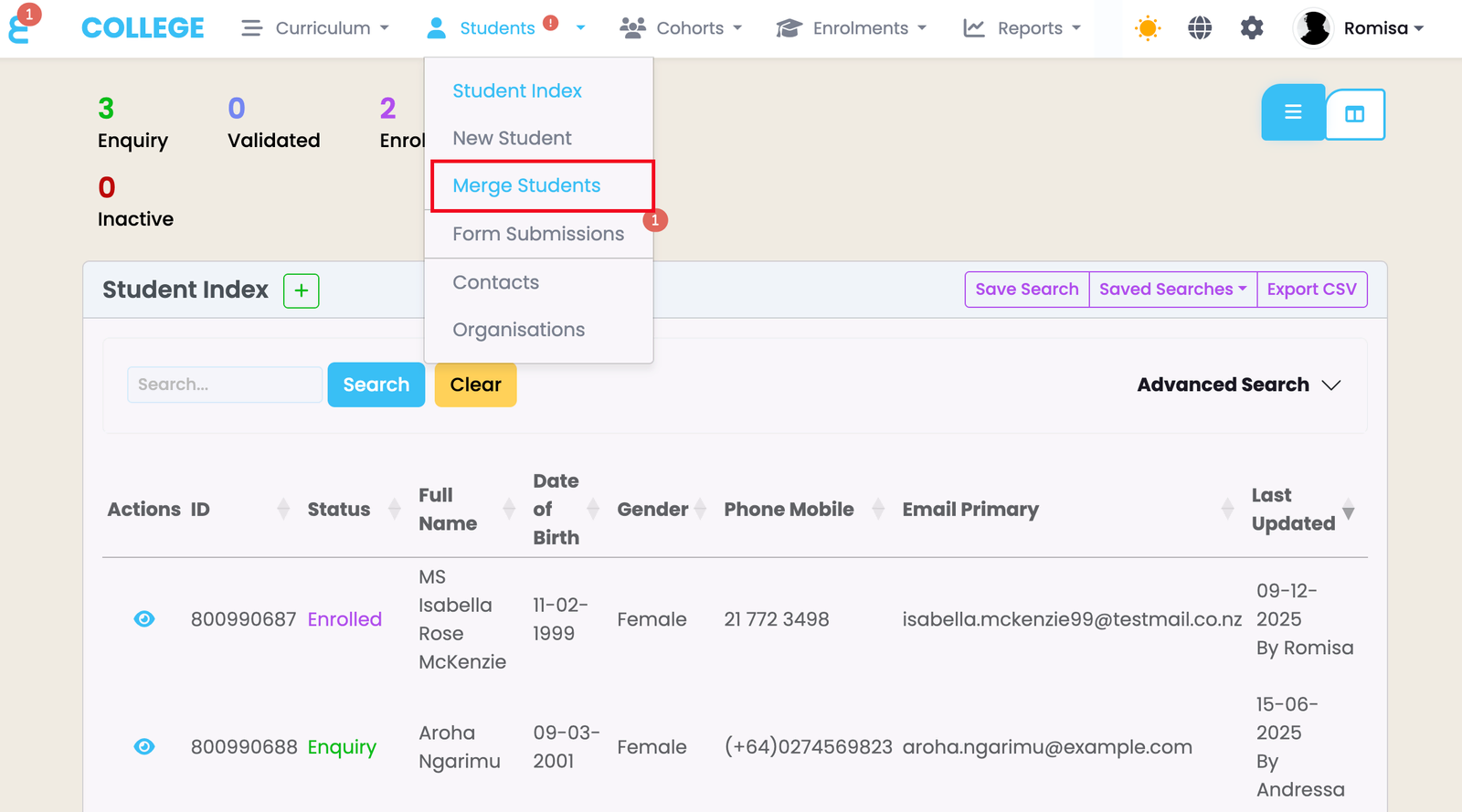
Choose the student to remove and the student to keep
On the left, under Student to remove, search for the duplicate profile. On the right, under Student to keep, search for the profile that should stay. You can search by student ID, first name, surname, full name or email address. Each search shows up to 100 results.
Click a student's card to select it. Each card shows the student's ID, date of birth, created date and email (and NSN when NZ SDR is enabled). Use the icon next to the name to open the profile in a new tab.
- The Newer badge marks whichever of the two selected students was created most recently.
- Picked the wrong way round? Click the swap button between the two sides.
- To clear a selection, click the selected card again.
- A student selected on one side can't be selected on the other.
Click Next and choose what to move
Click Next, then tick the records to move from the student to remove to the student to keep. Most options are ticked by default; the learning system links are not.
See What each option moves below. Options marked Overwrites the kept student's data replace what the kept student already has.
Click Previous to go back and change the students.
Click Merge
Click Merge. SELMA opens the kept student's profile, where a Students Merged note in the event log records who merged which two students and when.
What each option moves
| Option | What happens |
|---|---|
| Enrolments | Enrolments, their components and the student's invoice lines move to the kept student. |
| Event Logs | Event log entries move to the kept student. |
| Custom Fields | Custom field values move to the kept student. Where both students have a value for the same field, the removed student's value replaces it. Empty values are not moved, so they never wipe out a filled-in field. |
| Addresses | Addresses move to the kept student. The kept student's default address stays the default. |
| Stakeholders | Linked contacts and organisations move to the kept student. |
| Documents | Documents move to the kept student. The removed student's profile photo becomes an ordinary document, so the kept student's photo stays. |
| Tags | Tags move to the kept student. |
| Placements | Shown when Placements is enabled. Placements move to the kept student. Placements linked to an enrolment only move if Enrolments is also ticked. |
| Blackboard Link, Canvas Link, Cloud Assess Link, Moodle Link | Shown when the integration is enabled. If the removed student is linked to that system, their link replaces the kept student's. For Moodle this is per Moodle site. |
Check for doubles afterwards
If both students were linked to the same contact, organisation or tag, the kept student may now show it twice. Remove the extra link from the kept student's profile.
What happens automatically
These happen on every merge, whatever you tick:
- Form submissions made by or for the removed student move to the kept student, along with their PDFs and uploaded files.
- Portal login: if the kept student has no login, the removed student's login moves across, and its email is updated to the kept student's primary email (unless another user already has that email). If the kept student already has a login, the removed student's login is deleted.
- Personal details such as name, date of birth, email and phone are not merged. The kept student's details stay as they are, so copy anything you need across before merging.
Things to know
- Anything you don't tick stays with the removed student and is no longer shown in SELMA after the merge.
- NSN (New Zealand): if the student to remove has an NSN and the student to keep doesn't, a warning appears. The NSN is not carried over, so add it to the kept student first, or swap the sides.
- Work Based Training (New Zealand): a student synced to Work Based Training shows a WBT badge. They can be the student to keep, but not the student to remove.
Merging possible duplicates from Form Submissions
When a form submission creates a student who looks like an existing one (for example, the same name and date of birth), the row is highlighted in with a warning icon. Click the merge button on the row to open the merge page with both students already selected: the older profile as the one to remove and the newer one as the one to keep. Nothing is merged until you review the options and click Merge.
Last updated