
Updated on
2. The Event Report
The Event Report keeps a log of all events created in SELMA, including system changes, and notes and tasks assigned to Users.
The Event Report keeps a log of all events created in SELMA, including system changes, and notes and tasks assigned to Users.
Event Report
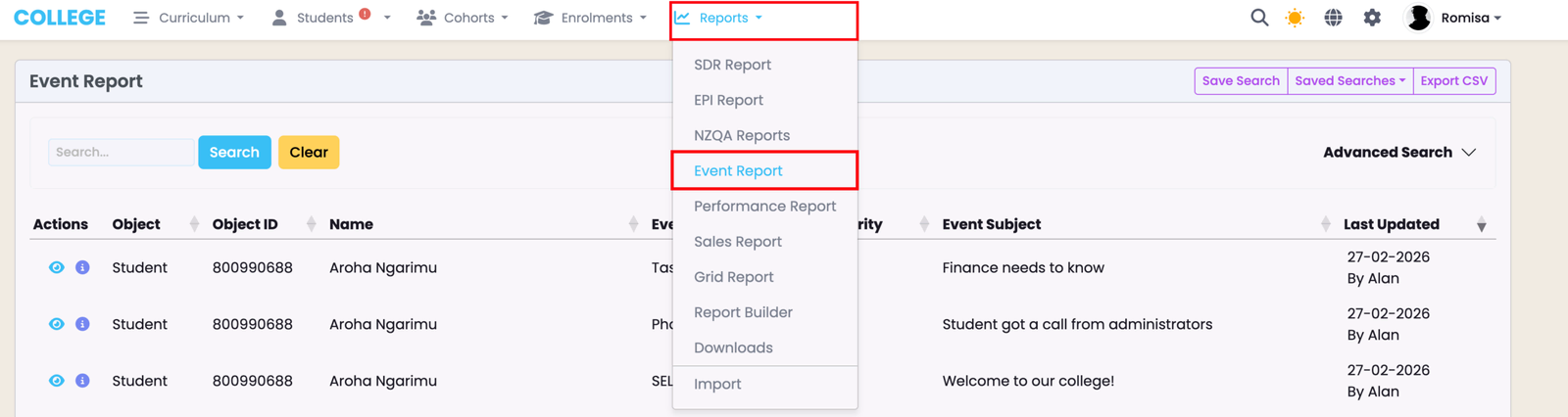
View a list of all Event log entries within the "Event Report" table. You can filter the table using the quick search, or Advanced Search criteria.
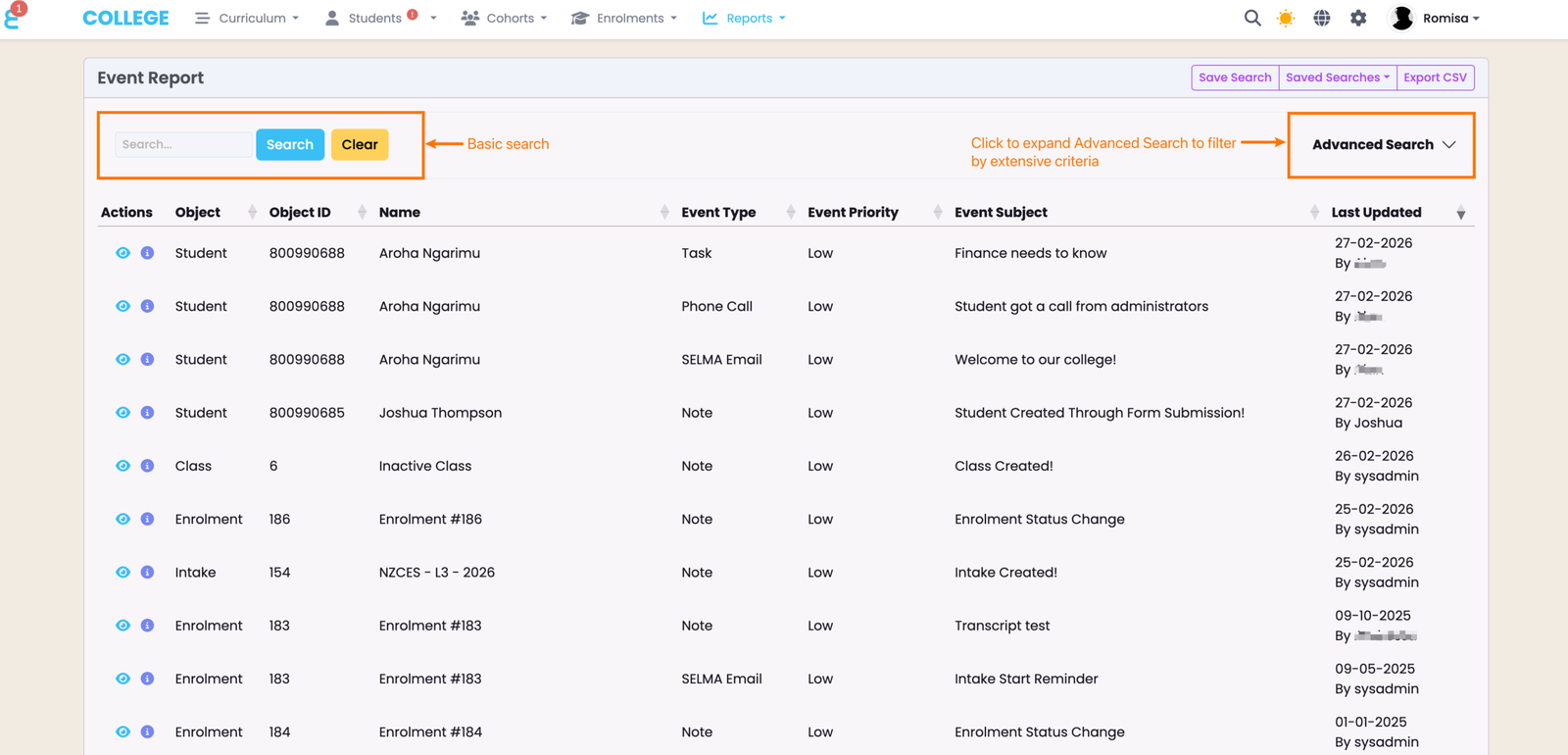
Advanced Search Criteria
If you wish to filter the Event Report by specific search criteria, you should use the Advanced Search dropdown fields. These criteria can also be saved for later use, making access to the grid display you need easier, and more efficient.
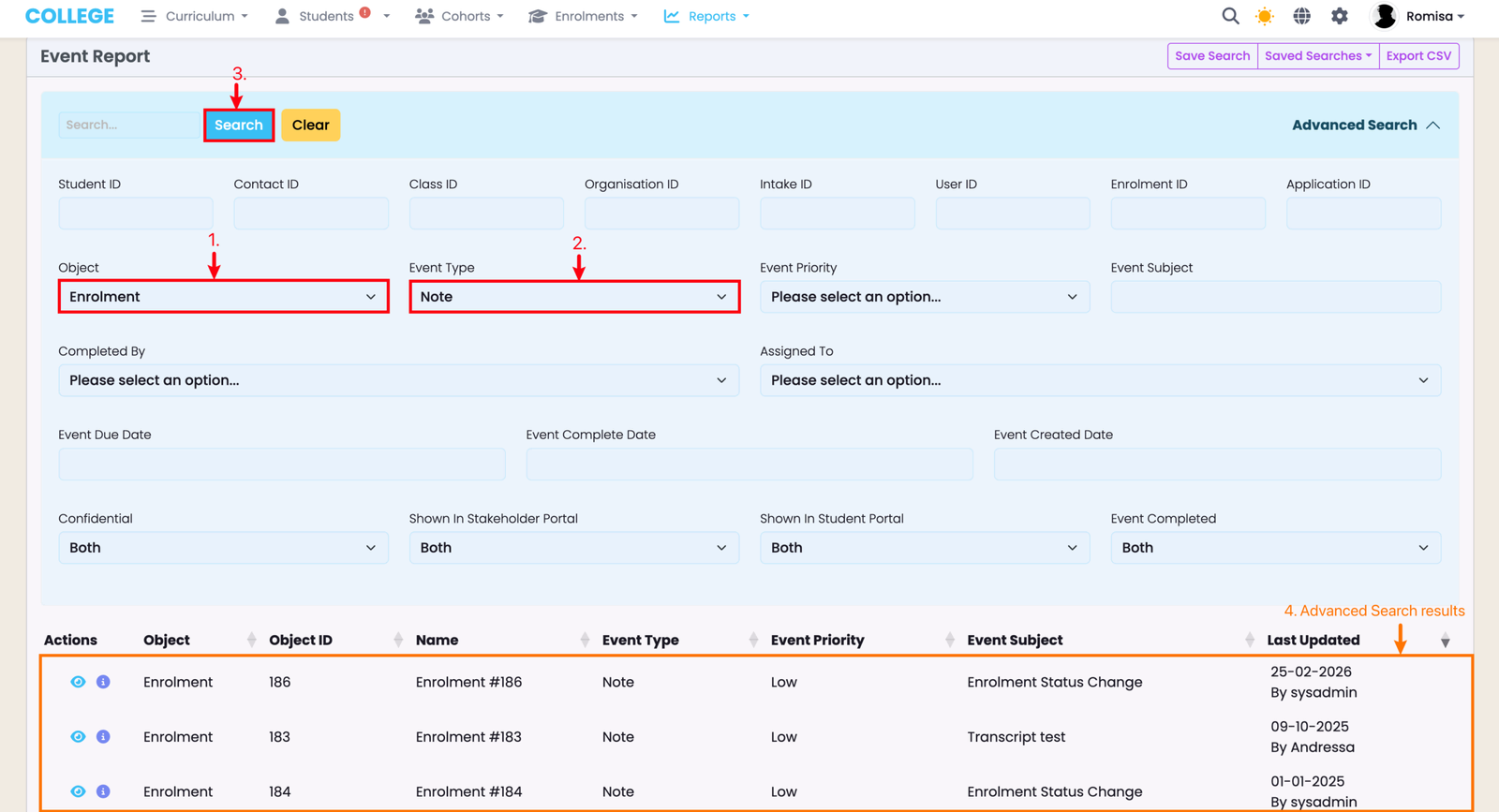
Here, the User has filtered for an Event type (2) that has been set against a specific Object (1), and clicked the blue Search button (3) to display their search results.
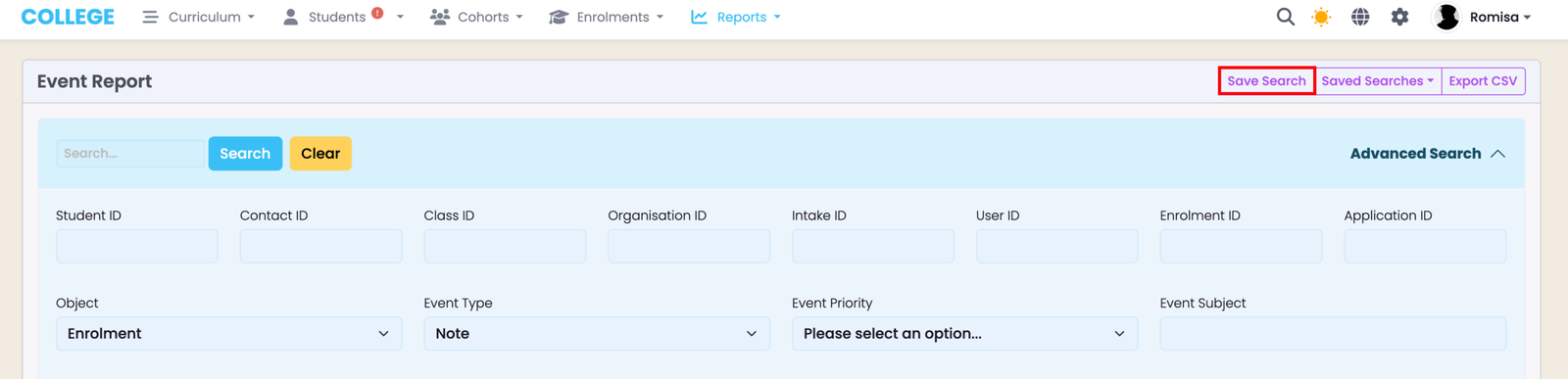
Create a name for the search criterion or criteria you are saving for later use. Ensure the "Search" checkbox is selected, and opt to include the Page Length, number of pages (Paging), and the Sorting of the grid results you are saving.
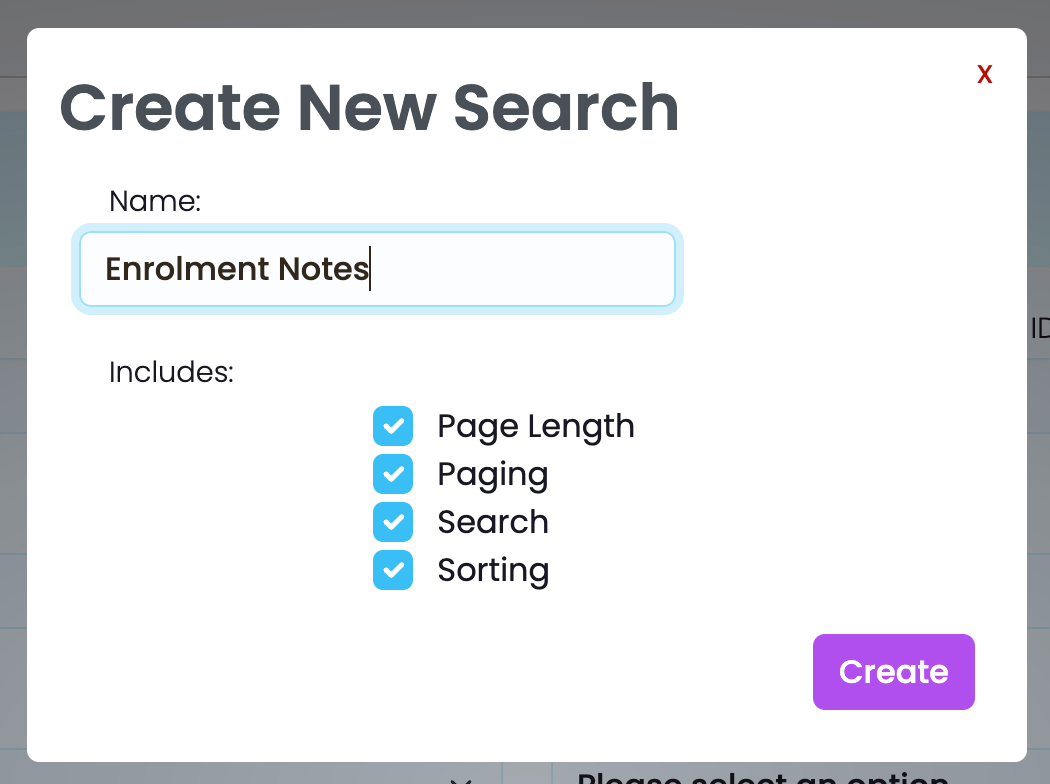
Click the Saved Search you have named to apply it to the Event Report table. Click the dropdown arrow next to the Search name to rename or remove the Saved Search.

Export Event Report
You can export the Event Report table, with or without Advanced search filters applied. The file type that is sent to your email is in CSV format.
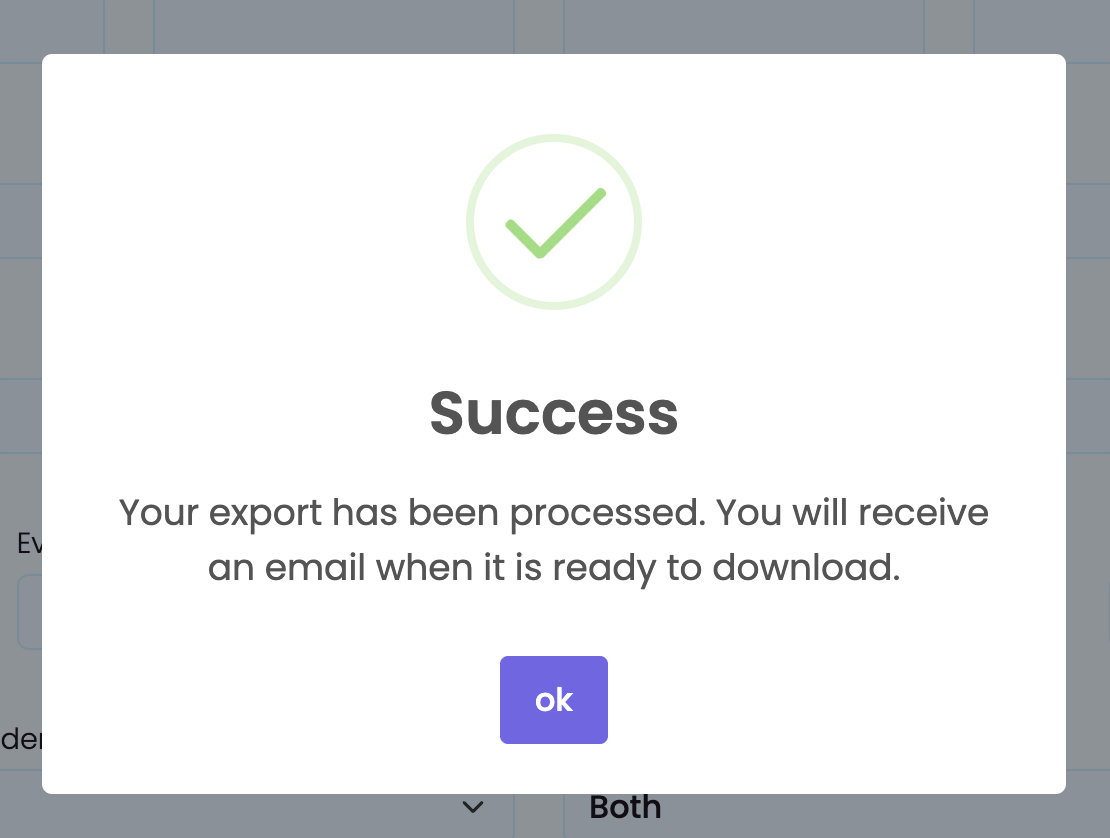
Click the "Export CSV" button to send an email to yourself containing the CSV of the Advanced Search results.

Please check your email inbox, including your spam or junk folders.
Failed Event Report Export
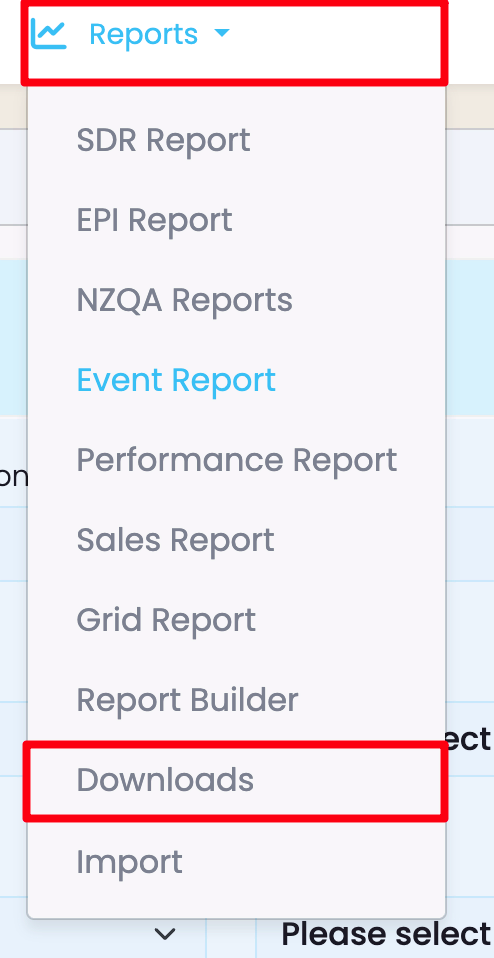
If the Event Report export to your email has failed, and you have checked that it doesn't exist in your spam or junk folders, download the CSV file directly in SELMA.

Last updated