
support@selma.co.nz
+64(0)9 366 0789
  • Home
  • SELMA WEBSITE
+64(0)9 366 0789
Parnell, Auckland, New Zealand
support@selma.co.nz
Resource Centre

Resource Centre

  • Home
  • SELMA WEBSITE
Menu
Home>4 :: Login & Security>SELMA Security Measures
Updated on 19/12/202519/12/2025/

SELMA Security Measures

Login & Security

This article discusses log-in methods and security measures regarding your SELMA account.

In this section:

  • The SELMA Login Screen
    • Two-Factor Authentication (2FA)
    • Quick-Login: Third-Party Apps
  • Forgot Password
    • Steps to Reset Your Password
  • Logging-Out
  • Security Measures

The SELMA Login Screen

There are two ways to login to SELMA: via 2FA or third-party apps.

Note: Each provider has a unique login URL to access SELMA. For quick access to the login screen, bookmark the URL by saving it to your Favourites folder on your browser.

Two-Factor Authentication (2FA)

2FA involves two steps to login to your SELMA account:

  1. Enter your Email and Password (Figure 1.).
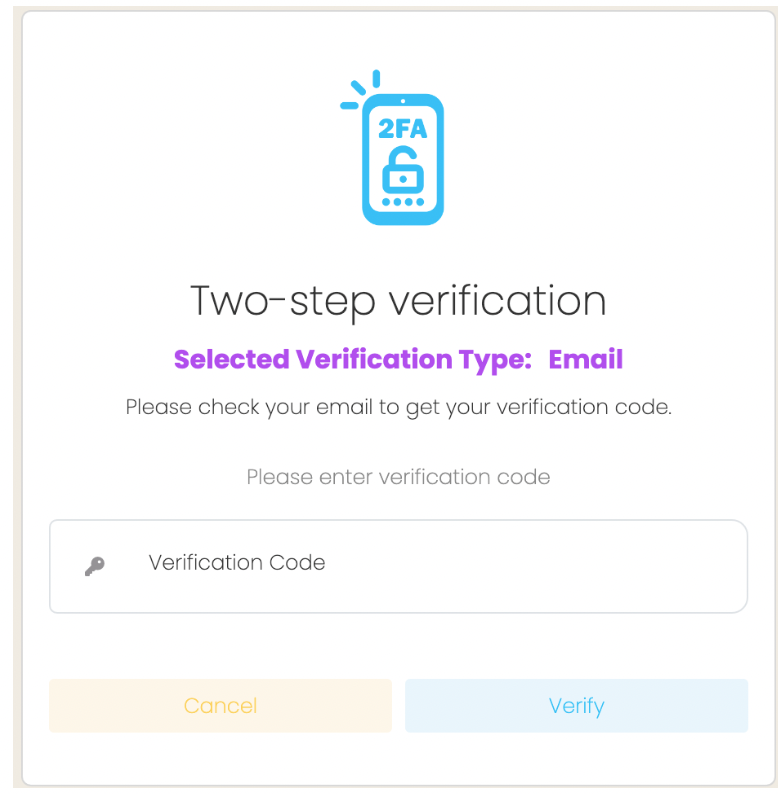
  2. Enter the verification code sent to your email (Figure 2.).

Figure 1. Enter your Email and Password on the SELMA Login screen.
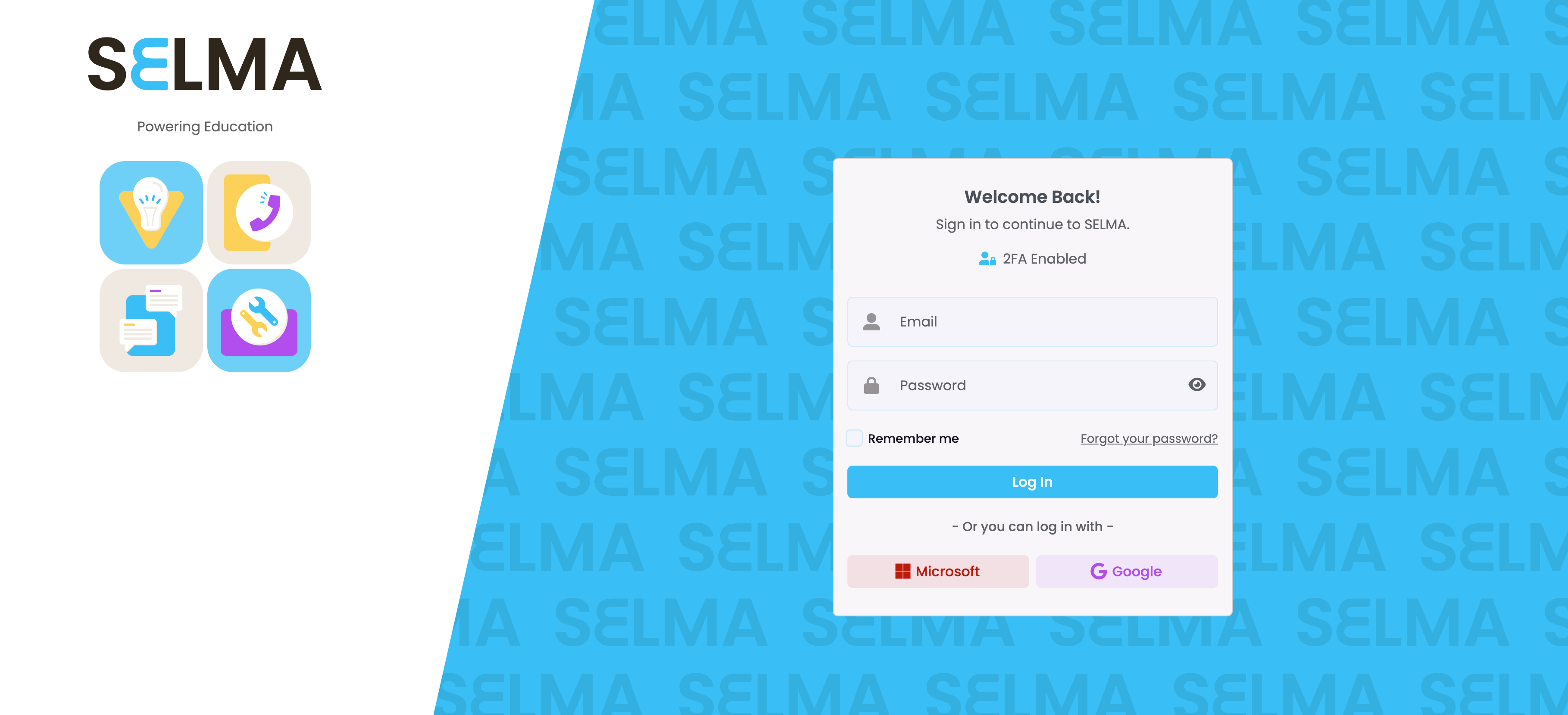
Figure 2. Enter the verification code sent to your email.
Quick-Login: Third-Party Apps

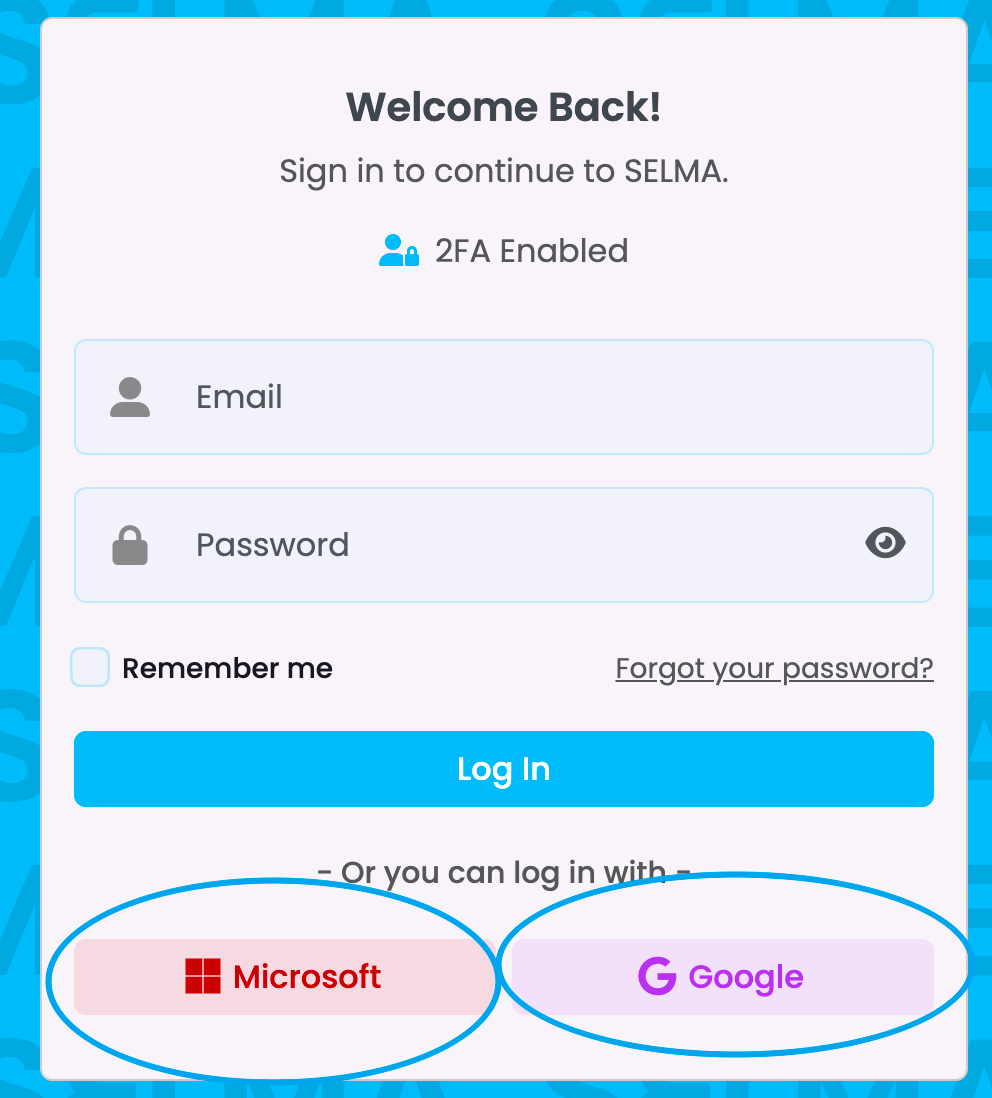
You can directly login to SELMA by automatically verifying your identity via your Google or Microsoft 365 accounts (Figure 3.).

Please contact SELMA Support to use the above third-party apps.

Figure 3. Click the Microsoft or Google buttons to login automatically.
Forgot Password

If you have forgotten your password you need not worry. The password recovery process is quick and simple:

Steps to Reset Your Password

  • Click on “Forgot your password?” on the login screen (Figure 1.).
  • A new screen will appear prompting you to enter your email address and click “Submit” (Figure 4.)
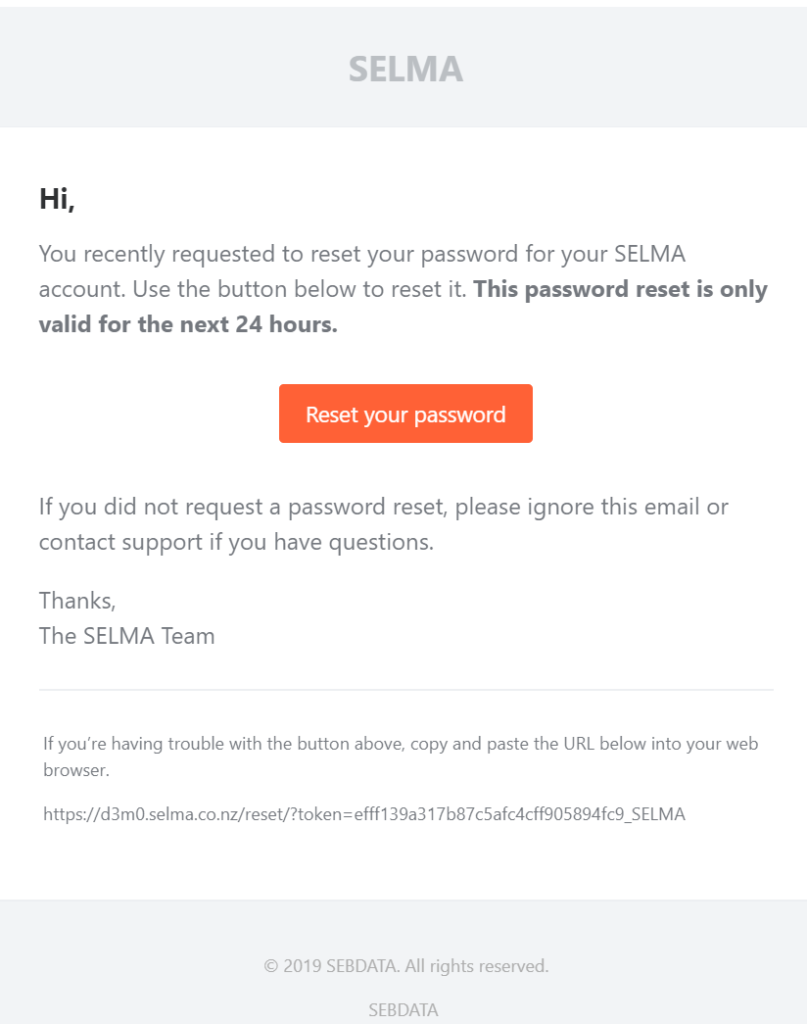
  • A password reset link will have been sent your email. Click the link to set-up a new password (Figure 5.).
    • If you don’t receive your email in you primary inbox, please check your “Other” and “Spam” inboxes.
  • Once you have created a new password, you will be redirected to the SELMA login screen to use it.

Figure 4. Send a password reset link to your email.
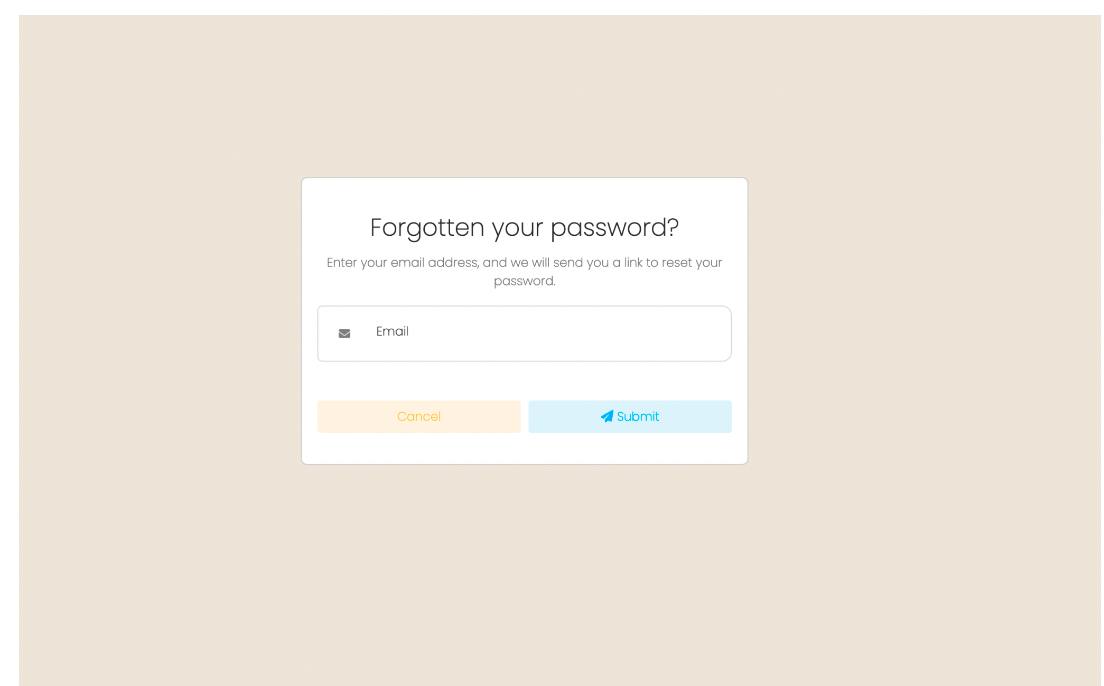
Figure 5. Click the “Reset your password” button in your SELMA email.
Logging-Out

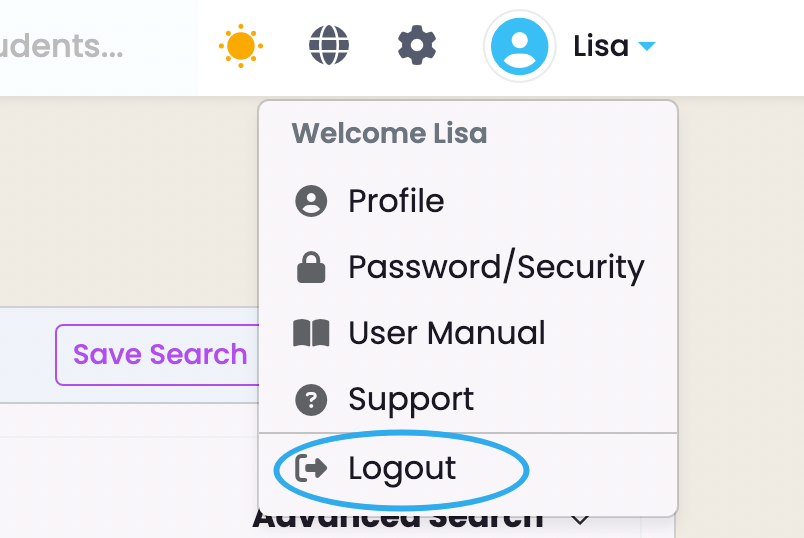
Please ensure you log-out of your account after use, by navigating from your Account Name > Logout (Figure 6.).

Figure 6. Click your Account Name in the top right of the navigation bar, and click “Logout”.
Security Measures

Enable MFA for Third-Party Logins
If using third-party authentication like Google or Microsoft to login, ensure that Multi-Factor Authentication is enabled on the third-party accounts for additional protection.

  • Please contact SELMA Support to use third-party authentication.

Role-Based Access Control
Clearly define roles and assign permissions based on users’ responsibilities. Avoid granting excessive access permissions.

  • Please see System Users – User Roles and Permissions in this resource for more information.

Do Not Share Credentials
Keep your login details private. Sharing credentials compromises the system’s security and accountability.

Recommended Browser
Use Google Chrome for the best compatibility and performance when accessing SELMA.

Regular Password Updates
If using 2FA to login, update your password periodically, and avoid reusing old passwords.

Monitor Login Activity
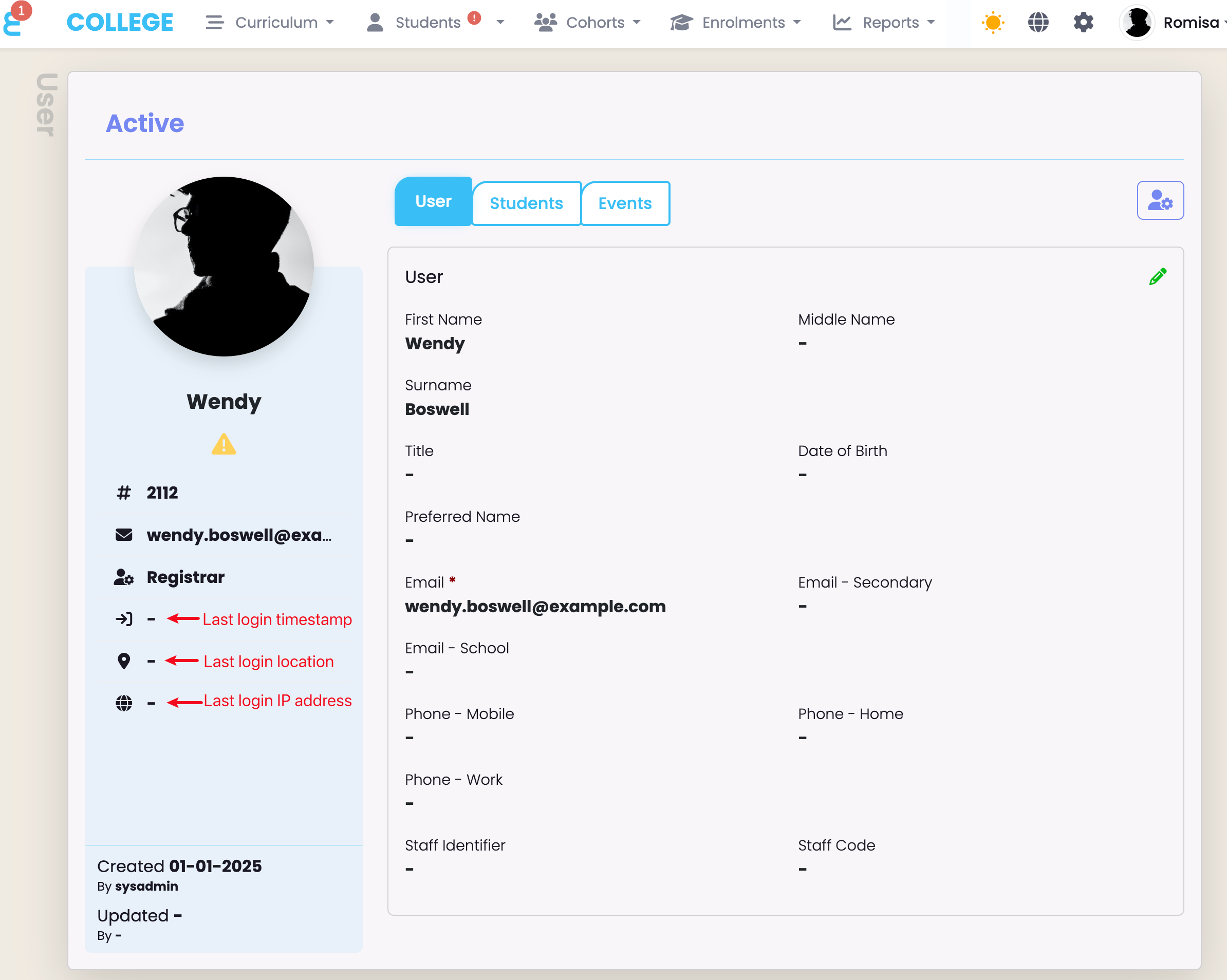
Monitor staff login details from their User profile, including their last login timestamp, IP address, and geographic location. Unexpected logins from unauthorised countries and/or IP addresses may indicate suspicious activity (Figure 7.).

Revoke Access for Departed Staff
Registrars must immediately deactivate User accounts that are no longer active. This ensures they can no longer access the system and reduces the risk of unauthorised login attempts.

  • Please see System Users – User Roles and Permissions for more information.

Figure 7. Keep an eye on “Last login” details on User profiles for any suspicious activity (red).
< Previous Page
Next Page >

Post Navigation

Prev Post3. User Roles and Permissions
Resource Centre

Resource Centre

  • ✨ Release Notes Expand
    • 3.00.0 Release Notes
    • 3.01.0 Release Notes
    • 3.02.0 Release Notes
    • 3.03.0 Release Notes
    • 3.04.0 Release Notes
    • 3.05.0 Release Notes
    • 3.06.0 Release Notes
    • 3.07.0 Release Notes
    • 3.08.0 Release Notes
    • 3.09.0 Release Notes
    • 3.10.0 Release Notes
    • 3.11.0 Release Notes
    • 3.12.0 Release Notes
    • 3.13.0 Release Notes
    • 3.14.0 Release Notes 🥧
    • 3.15.0 Release Notes
    • 3.16.0 Release Notes
    • 3.17.0 Release Notes
    • 3.18.0 Release Notes
    • 3.19.0 Release Notes
    • 3.20.0 Release Notes
    • 3.21.0 Release Notes
  • 1SELMA 101 Expand
    • SELMA 101
    • Tips and Tricks for Using SELMA Productively
  • 2System Configurations Expand
    • AUS Higher Ed
    • AUS Vocational
    • NZ Training & Short Courses
    • NZ Vocational & Higher Ed
  • 3System Users Expand
    • 1. Personal Settings
    • 2. Creating Users and Navigating the User Index
    • 3. User Roles and Permissions
  • 4Login & Security Expand
    • SELMA Security Measures
  • 5Dashboard Expand
    • Dashboard Elements and Navigation
  • 6Students Expand
    • 1. Searching the Student Index
    • 2. Creating a Student Profile
    • 3. Editing a Student Profile
    • 4. Merge Students
    • 5. Validating a Student
  • 7Curriculum Expand
    • 1. Curriculum Items and Notes 
    • 2. Navigating your Curriculum
    • 3. Programmes
    • 4. Components
    • 5. Completion Rules
    • 6. Grading Scheme Manager
  • 8Cohorts Expand
    • 1. Creating and Managing Intakes
    • 2. Navigating the Intake Profile
    • 3. Cloning Intakes
    • 4. Creating and Managing Classes
  • 9Enrolments Expand
    • 1. Creating and Managing Enrolments
    • 2. Navigating the Enrolment Profile
  • 10Contacts Expand
    • 1. Contact Index & Search
    • 2. Create & Edit Contacts
    • 3. Link Contacts and Students
  • 11Organisations Expand
    • 1. Organisation Index & Search
    • 2. Create & Edit an Organisation
    • 3. Link Organisations and Students
  • 12Communication Expand
    • Email Students
    • Send Text Messages
    • Send to Cohorts in Bulk
    • Setup Email Templates
    • Setup Text Templates
  • 13Event Log Expand
    • The Event Log Report
    • The SELMA Event Log
  • 14Forms & Enquiries Expand
    • 1. Form Manager
    • 2. Setting up Enrolment Form
    • 3. Setting up Enquiry Form
    • 4. Receive Form Submissions
  • 15Grading & Marking Expand
    • Grading & Marking
    • Grading a Class in Bulk
    • Marking in Bulk
  • 16Attendance Expand
    • Create Timetables
    • Mark Attendance
  • 17Reporting Expand
    • 1. Grid Reports
    • 2. Performance Report
    • 3. Report Builder
    • 4. Sales Report
    • 5. csv File Import
  • 18System Settings Expand
    • 1. Account
    • 1. Form Manager
    • 2. Campus Index, Rooms and Holidays
    • 3. Communication Templates
    • 4. Custom Fields
    • 6. Lookup Data
    • 7. Tag Manager
    • 8. Validation Manager
  • 19AUS Compliance Expand
    • VET Provider Collection
  • 20NZ Compliance Expand
    • 20.00 DXP SDR
    • 20.01 NZ EPI Report
    • 20.02 National Student Index (NSI)
    • 20.03 NZQA Units & Quals
    • 20.04 NZQA Unit Reporting (F23)
    • 20.05 NZQA Qual Reporting (QE1)
    • 20.06 NZQA RoA Import
    • 20.07 UIP Reporting
    • 20.08 ILN, WLN, ACE
    • 20.09 DXP WBT (ITR)
    • 7. NZQA Unit Standards
    • 8. NZQA Qualifications
  • 21Integrations Expand
    • Canvas Integration Setup
    • Cloud Assess
    • Google (Account-Level Emails) – Setup
    • Google (User-Level Emails) – Setup
    • Google OAuth2 Login – Setup
    • Microsoft 365 (Account-Level Emails) – Setup
    • Microsoft 365 (User-Level Emails) - Setup
    • Microsoft OAuth2 Login – Setup
    • Moodle Integration Setup
    • Store Front WordPress Plugin
    • Xero Integration Guide
    • Xero Integration Setup
  • 22API Expand
    • SELMA API User Guide
  • 💻 Webinars Expand
    • Aug 2025: Navigating the New SDR Changes in SELMA SIS

SELMA Helpdesk

We’re here to help! Submit a ticket via our Helpdesk and the team will get back to you.

Submit a Ticket
Copyright © 2022 SELMA International Limited