In this Section:
Organisation Index and Search
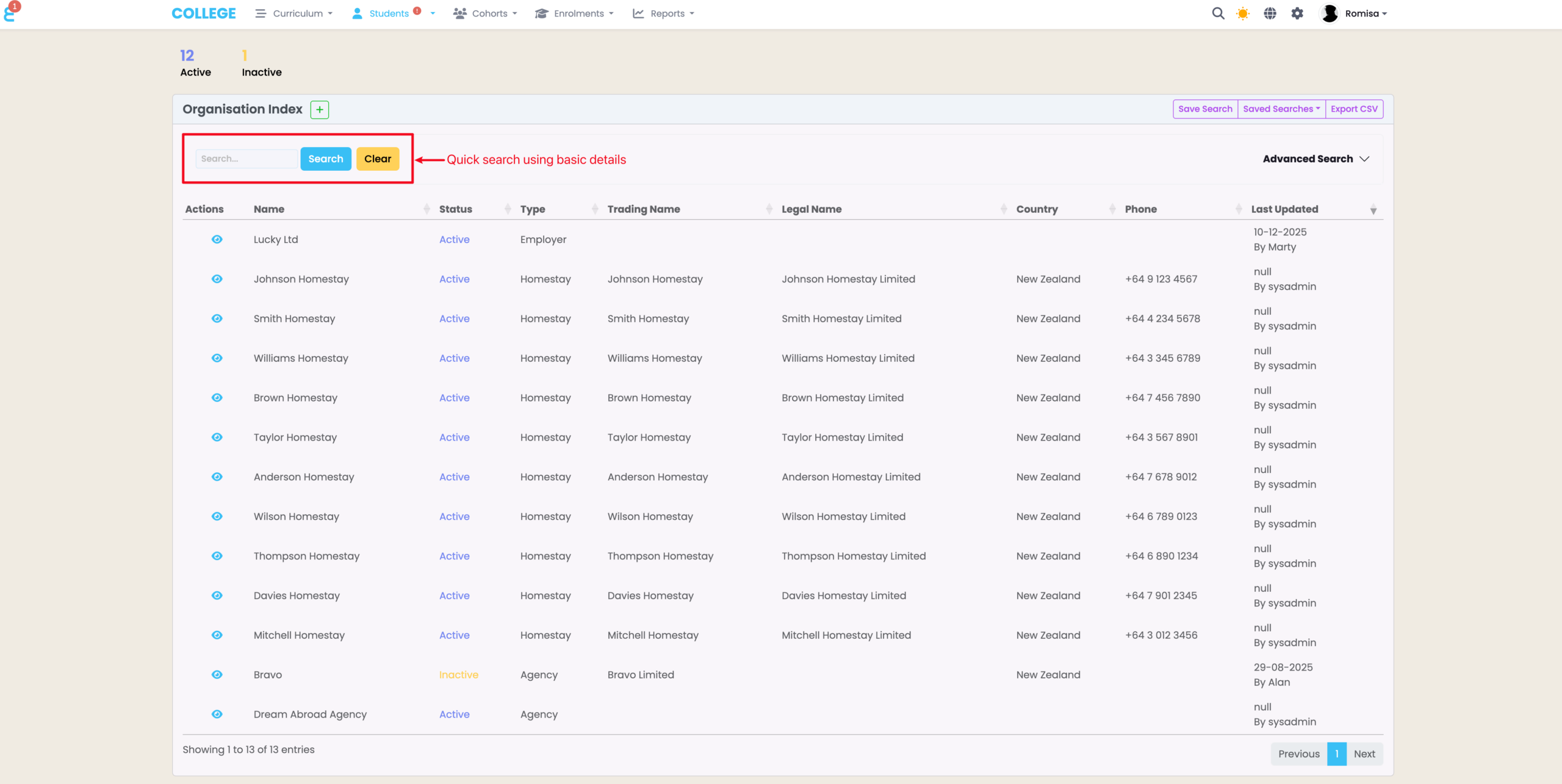
The Organisation Index displays a quick overview of a list of Organisations recorded in SELMA, and allows you to access select records.
The basic search feature allows you to find specific records quickly, and produces results that match your criteria the closest.
Figure 1. Navigate to Students > Organisations
Advanced Search and Saved Searches
Advanced Search
The Advanced Search is hidden by default, and can expand to reveal multiple fields where you can filter for specific Organisation details.
Figure 2i. Access Advanced Search Filter
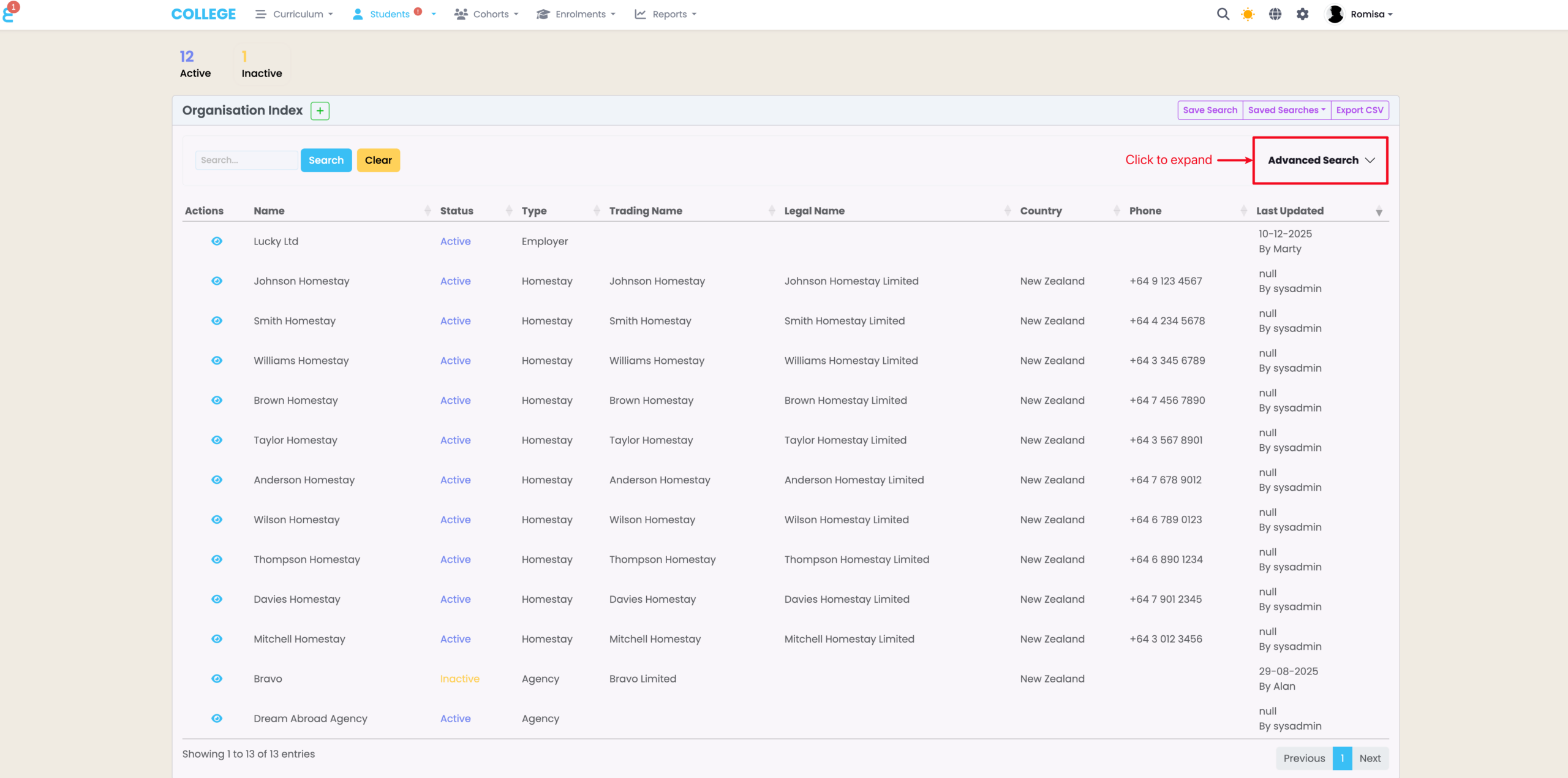
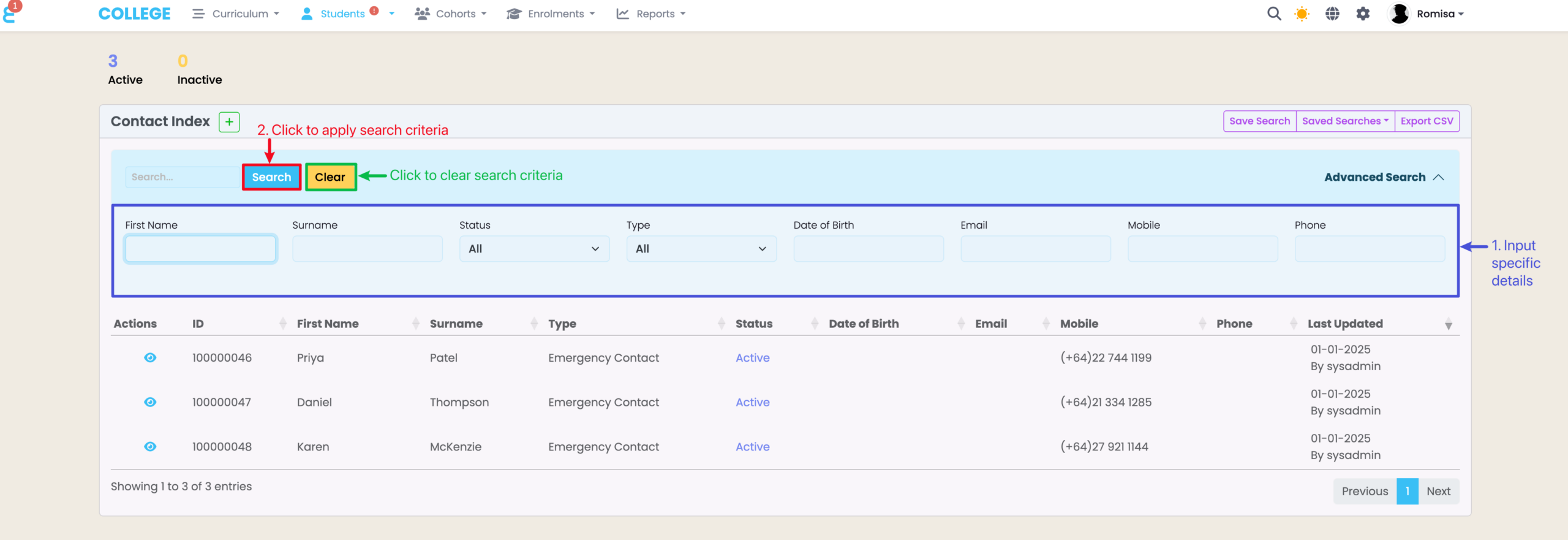
Figure 2ii. Search for Specific Records
Choose your filters (blue), then click the buttons above the Advanced Search fields to apply your criteria to the Organisation Index (red), or clear your criteria from the search fields (green).
Saved Searches
If there are search criteria that you use often, you can save them as a “Saved Search” to access again, without manually typing up your search parameters.
Figure 3i. Set Search Criteria
Set-up your search criteria by filling out the Advanced Search fields, and click “Save Search”.
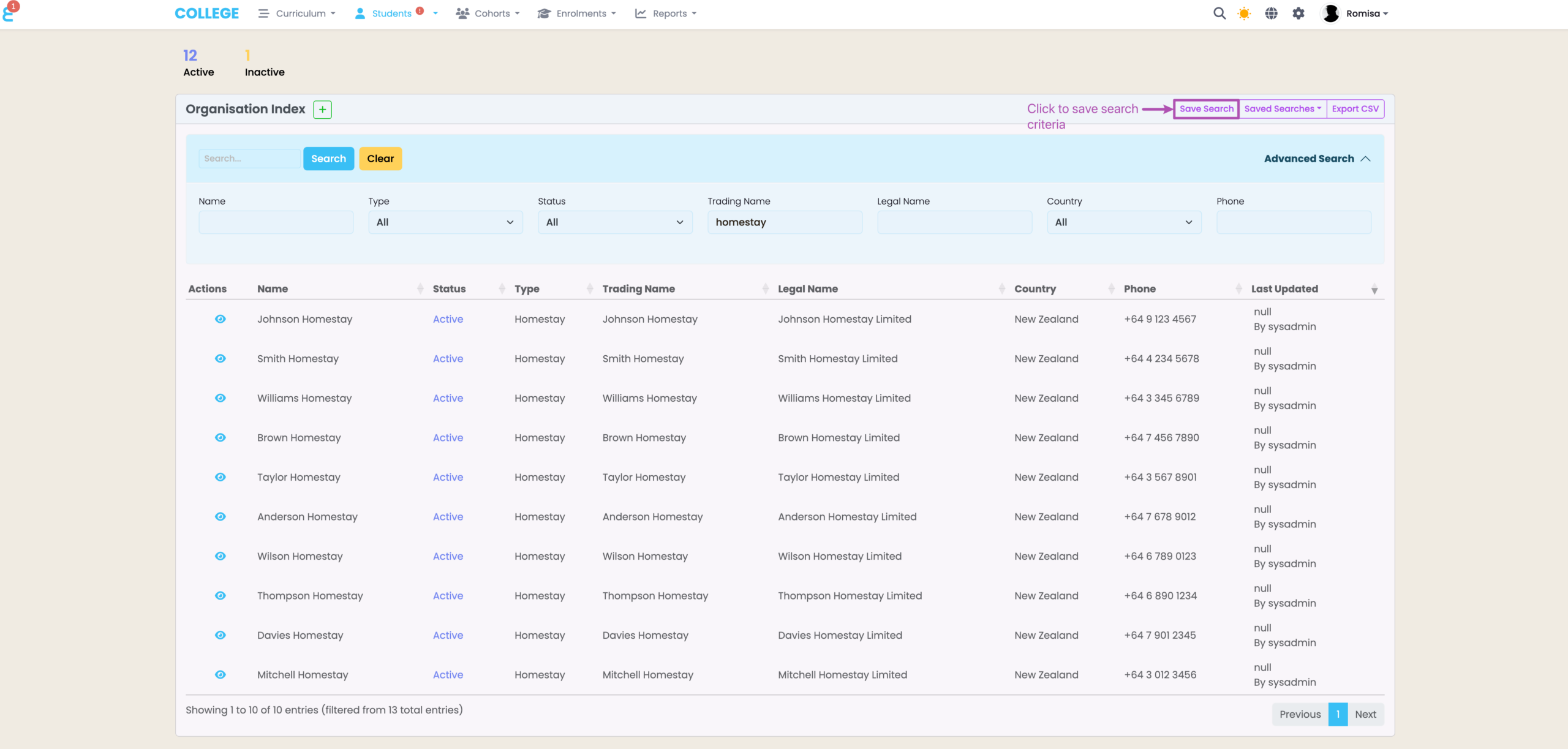
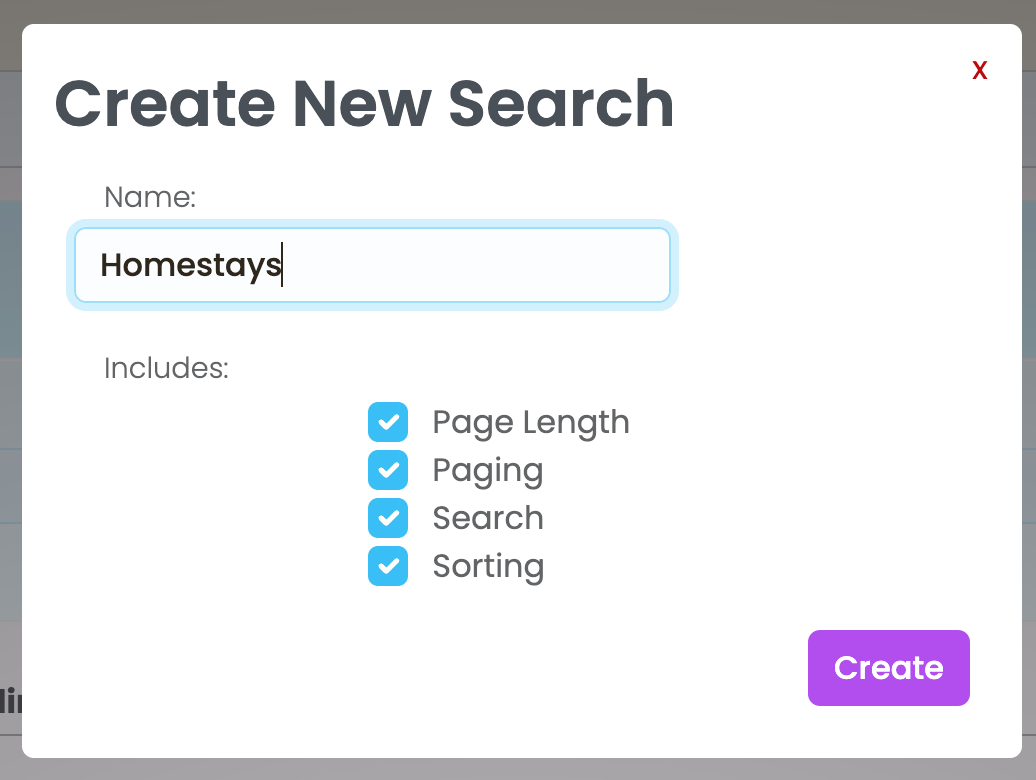
Figure 3ii. Save Search
Name the new search you are saving, and click the purple “Create” button. You can also save the search results’ page length, sorting etc.
Access and Manage Saved Searches
Figure 4i. Access Saved Search
Click the button “Saved Searches” to find and apply a Saved Search.
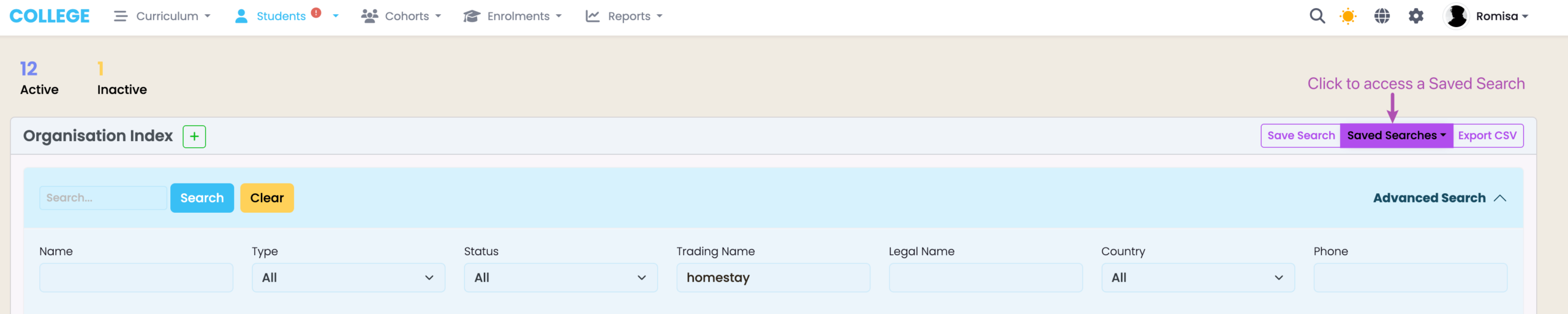
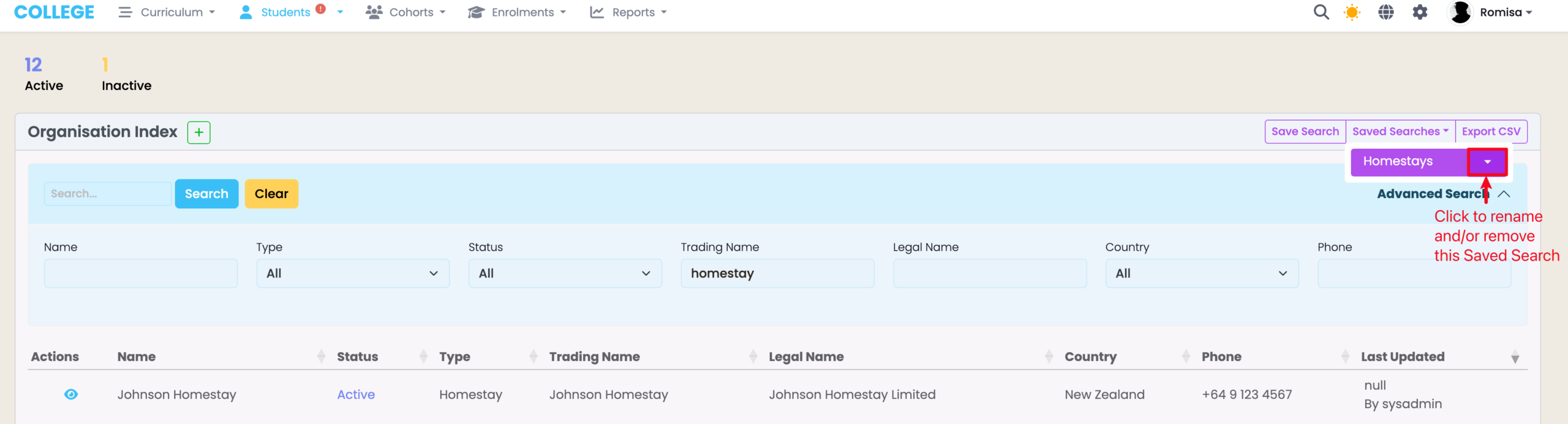
Figure 4ii. Rename and Remove Saved Search
Click the drop-down arrow beside a Saved Search to rename and/or remove it.
Download Search Results
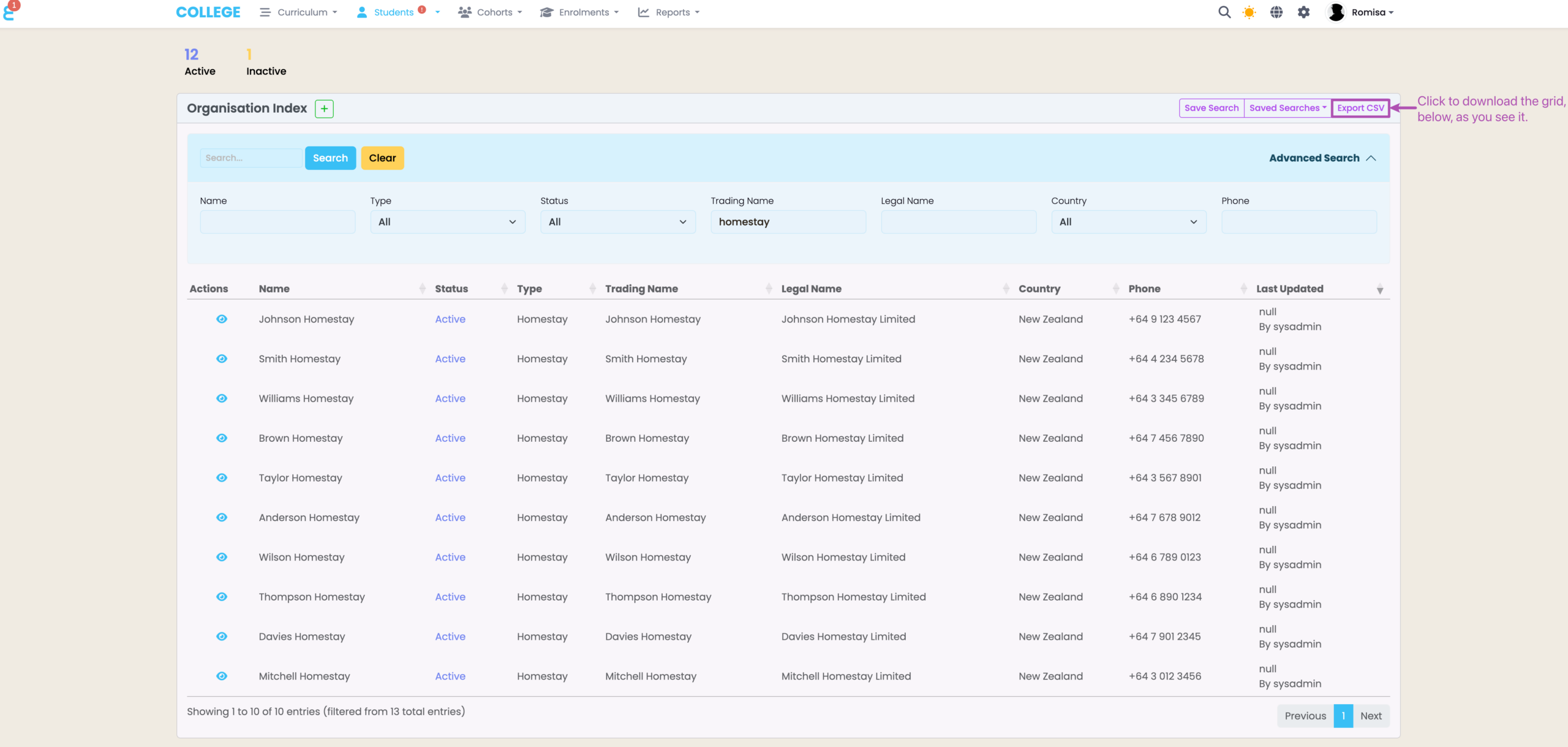
Figure 5. Download CSV File
To download your search results as a CSV file, click on the button “Export CSV”.