If you deliver Unit Standards, it is crucial to report completed Unit Standards to NZQA, and no later than 2 months after completion.
SELMA allows you to create a batch file to upload to NZQA for Unit Standard reporting, i.e. a report detailing multiple completed Unit Standards.
Read further to understand how to create a Unit Standard Report.
In this Section:
- Reporting Pre-requisites
- Reporting Completed Units
- Reporting Merit and Excellence Unit Standards
- Unsuccessful Batch Upload
Reporting Pre-requisites
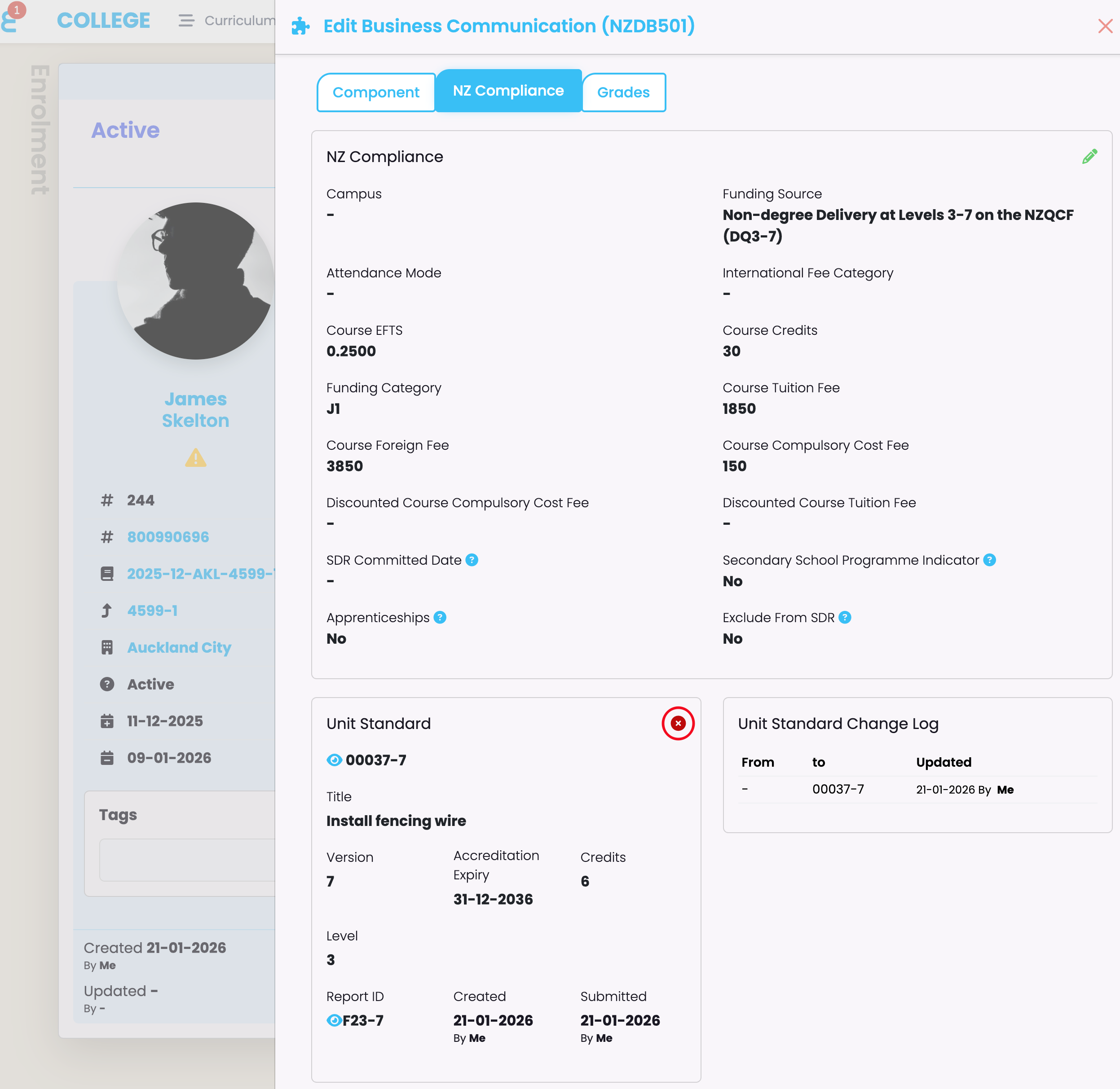
To report Unit Standards to NZQA, you must have Students enrolled into Components that are linked to a Unit Standard (Figure 1.).
- Please refer to NZ Compliance – Uploading Units & Qualifications (NZQA) to read how to upload Unit Standards and link them to Components.
Figure 1. Check that an Enrolment Component is linked to a Unit Standard
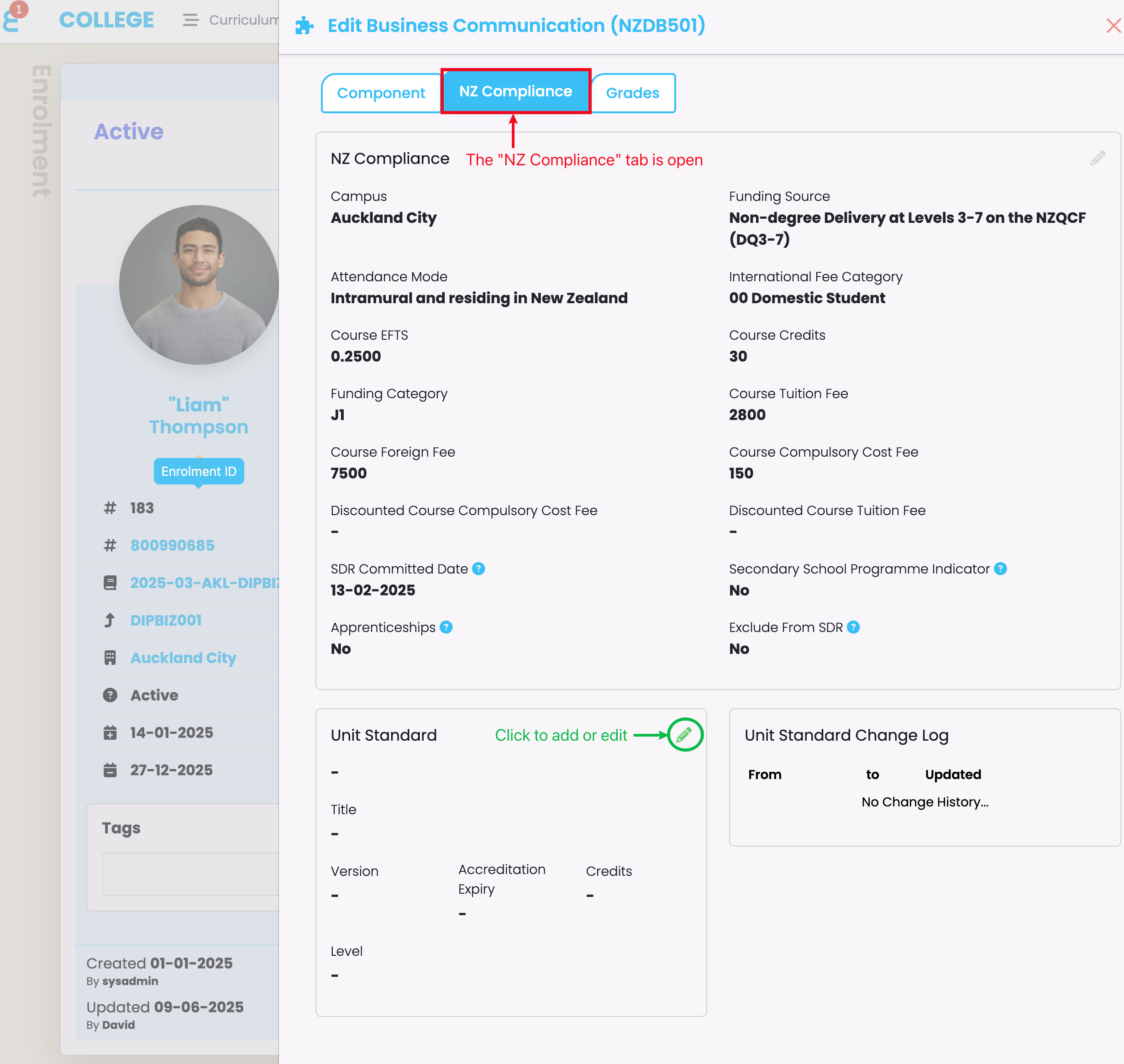
Click the edit button on the Enrolment page and navigate to the bottom of the page. Then, click to add or edit a Unit Standard (green).
Reporting Completed Units
Complete a Unit Standard
When a Student meets the requirements to have a Unit Standard awarded, change the Completion Code of Enrolment Components to “(2) Completed course successfully“.
NOTES:
- The “Completion Date” must be the day the student met the requirement, not the day you marked. It will appear on the Student’s Record of Achievement in NZQA.
- If you wish to report a “Merit” or “Excellence” grade for Unit Standards, jump to Reporting Merit and Excellence Unit Standards, following this section.
Figure 2i: Select Enrolment Component
On an Enrolment, select an Enrolment Component/s (orange, red) to change the Completion Code (purple).
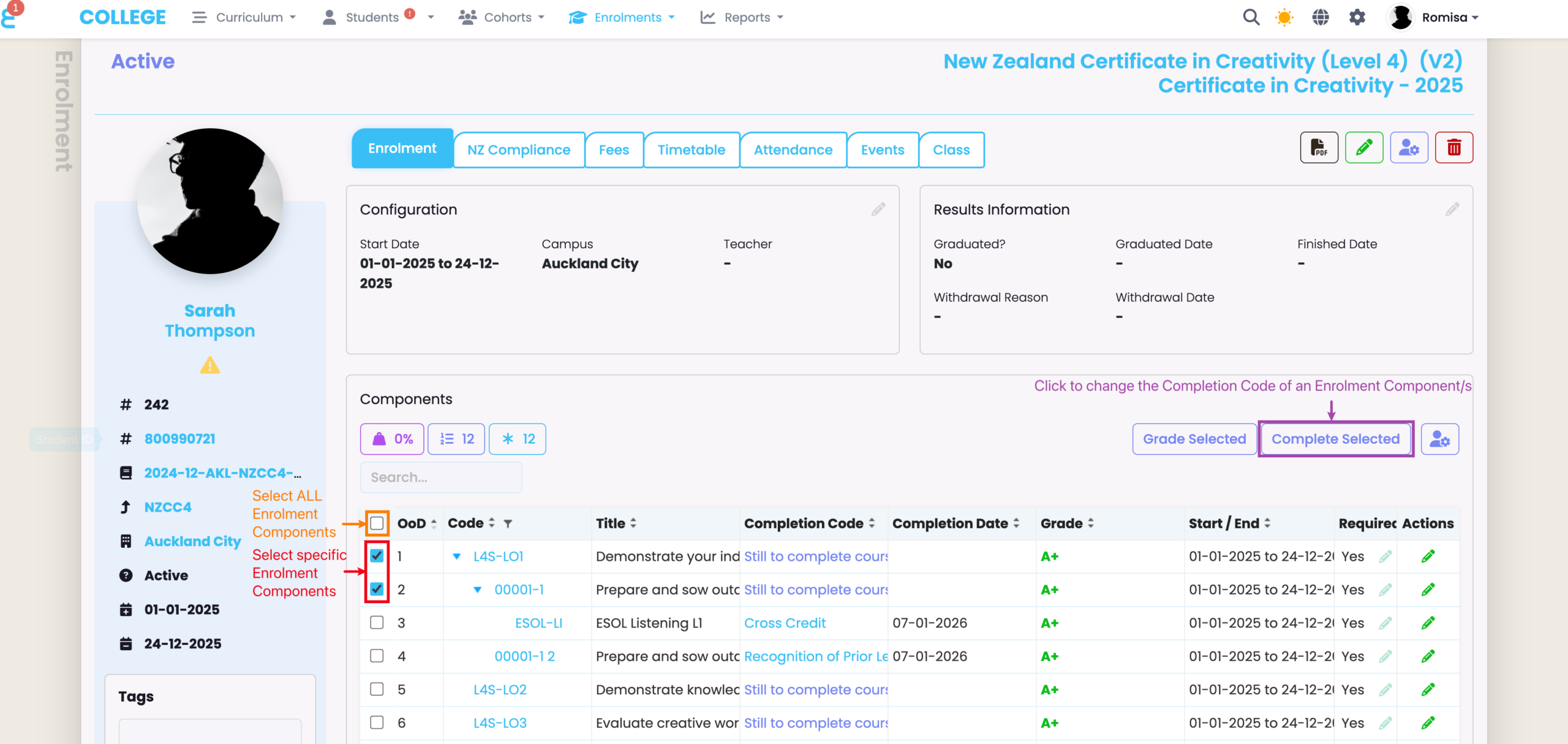
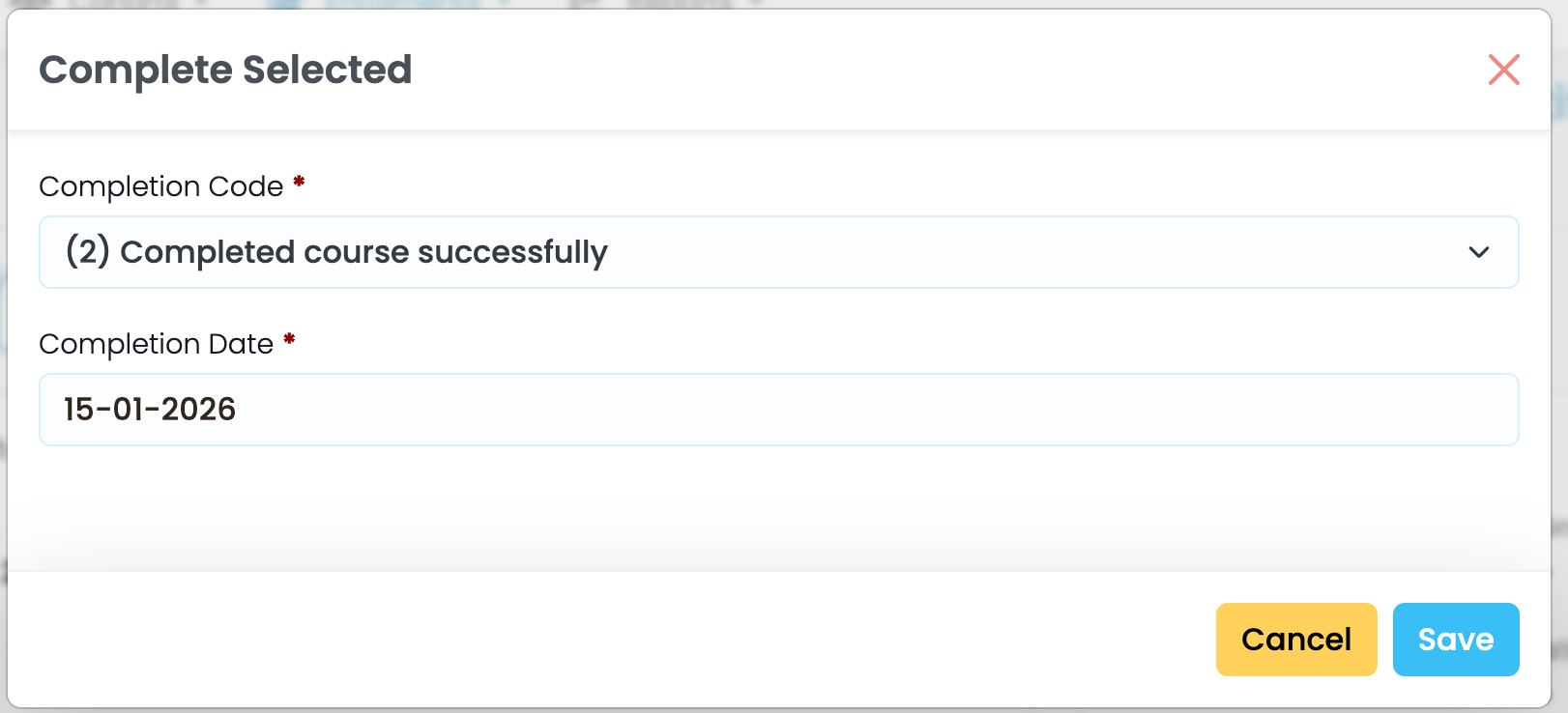
Figure 2ii: Set Completion Code and Date
Change the Completion Code to “(2) Completed course successfully” (blue), and set the Completion Date to the date the Student met the requirement (orange).
Create and Submit a Report
Generate a Batch File from SELMA
Navigate from Reports > NZQA Reports, and select to upload a “Unit Standard Report (F23)” under the heading “NZQA Report“.
Select relevant filters for the batch file, including the “Campus“, which may be different to the “Reporting Provider Location“. Then, select all or some of the Unit Standards you would like to report from the Report table.
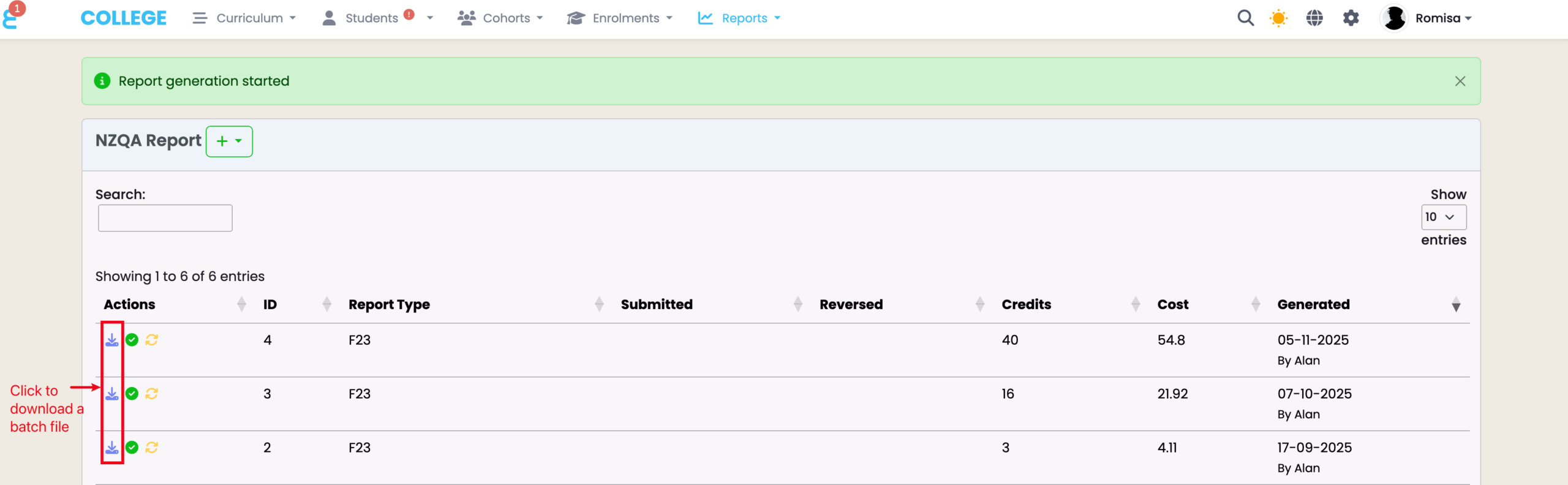
You will be redirected back to the NZQA Reports page, where you can now download the batch file.
NOTE: Before generating the batch file, SELMA gives you an indication of the fee amount NZQA charges for the batch file submission.
Figure 3i: Access NZQA Reports
Click “Reports” in the top navigation bar (orange), and navigate to “NZQA Reports” (purple).
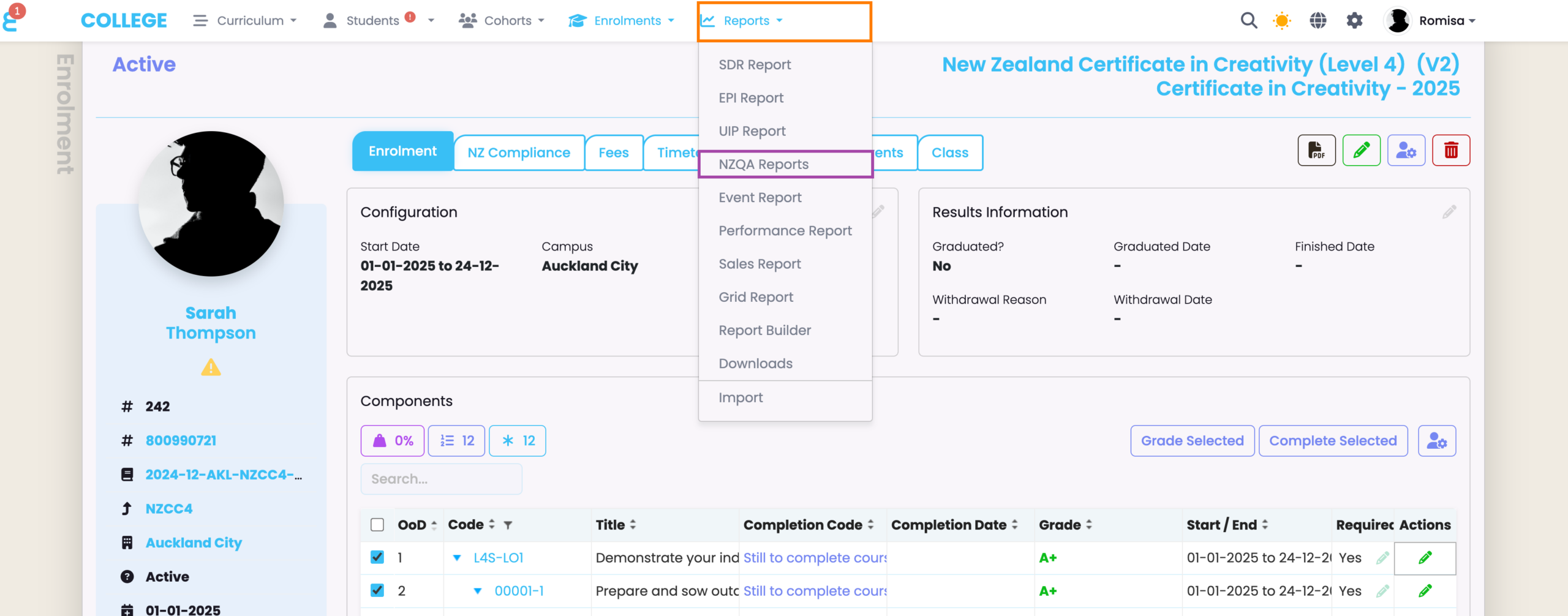
Figure 3ii: Create Unit Standard Report
Click the green “+” button next to the heading “NZQA Report” (red), and select “Unit Standard Report (F23)” (orange).
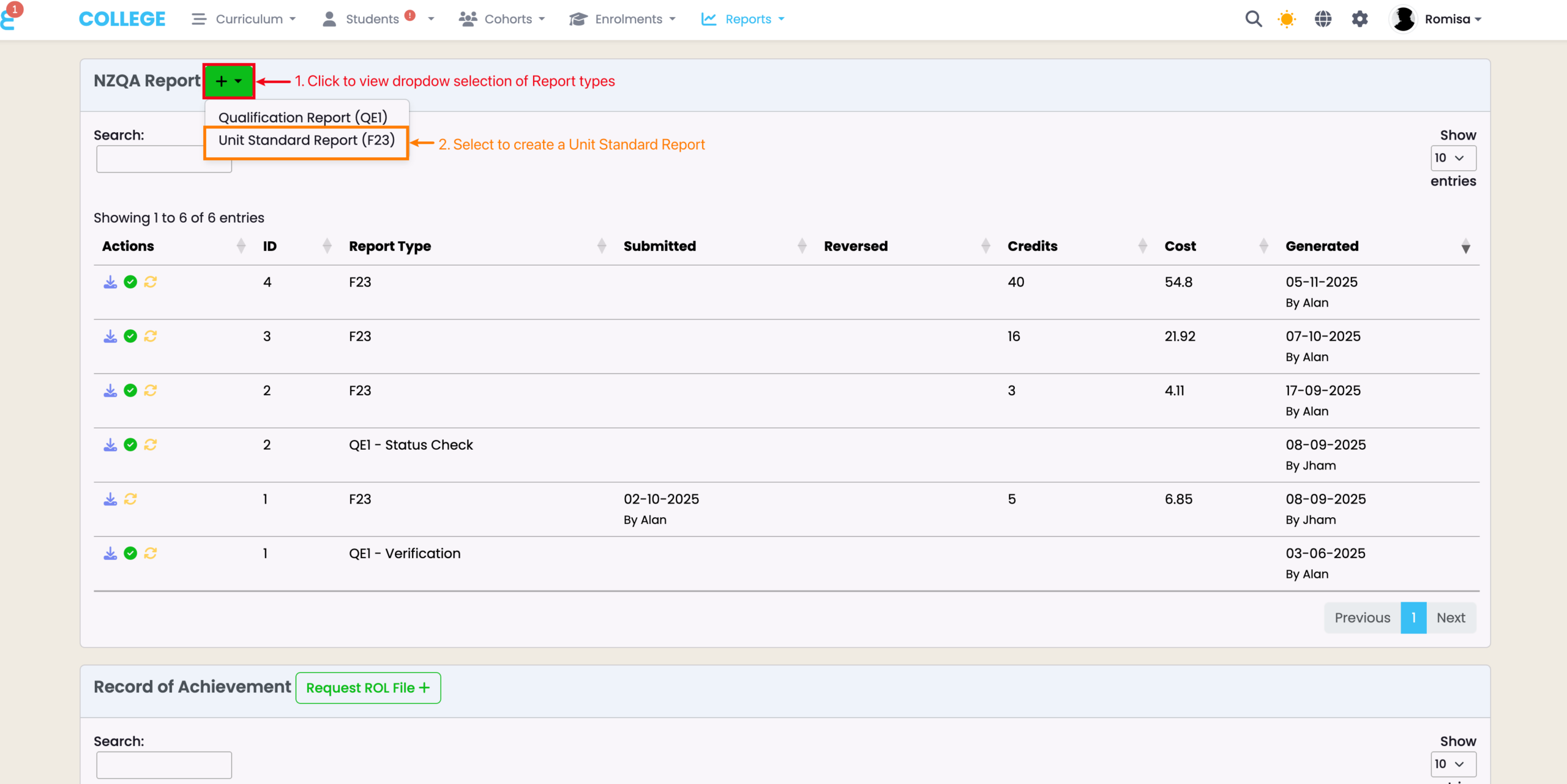
Figure 4: Select Enrolments for Batch File
Select relevant filters and completed Enrolments to include in the batch file. SELMA displays the estimated NZQA fee amount before you click “Generate File” (red).
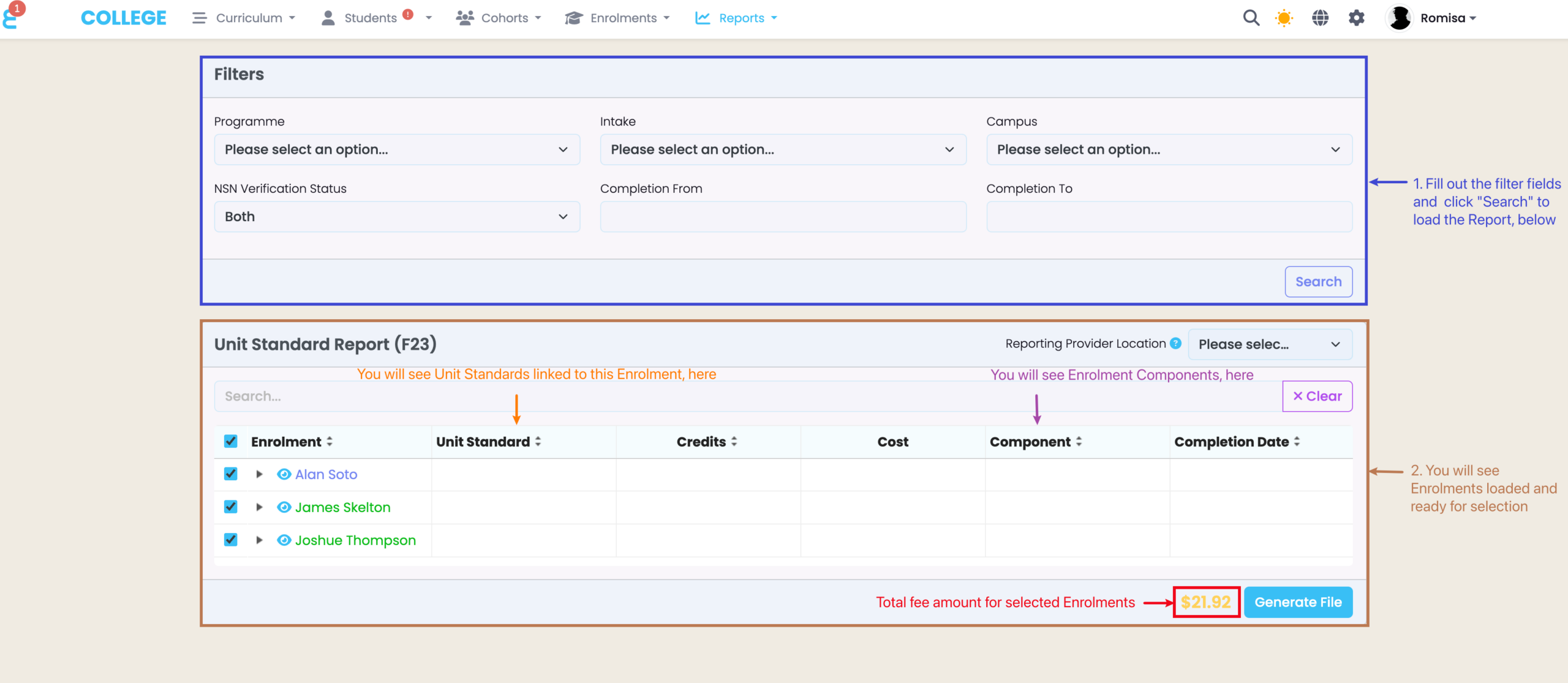
Figure 5: Download Batch File
Download the generated batch file from the NZQA Reports page.
Upload the Batch File to NZQA
- a. Navigate to NZQA and click on “Submit Data File“
- b. Upload the file and click “Submit“.
- Download the NZQA “User Guide” for an explanation on how batch processing works in NZQA.
- c. If your batch file was successfully uploaded, you will find it under “View Batches“.
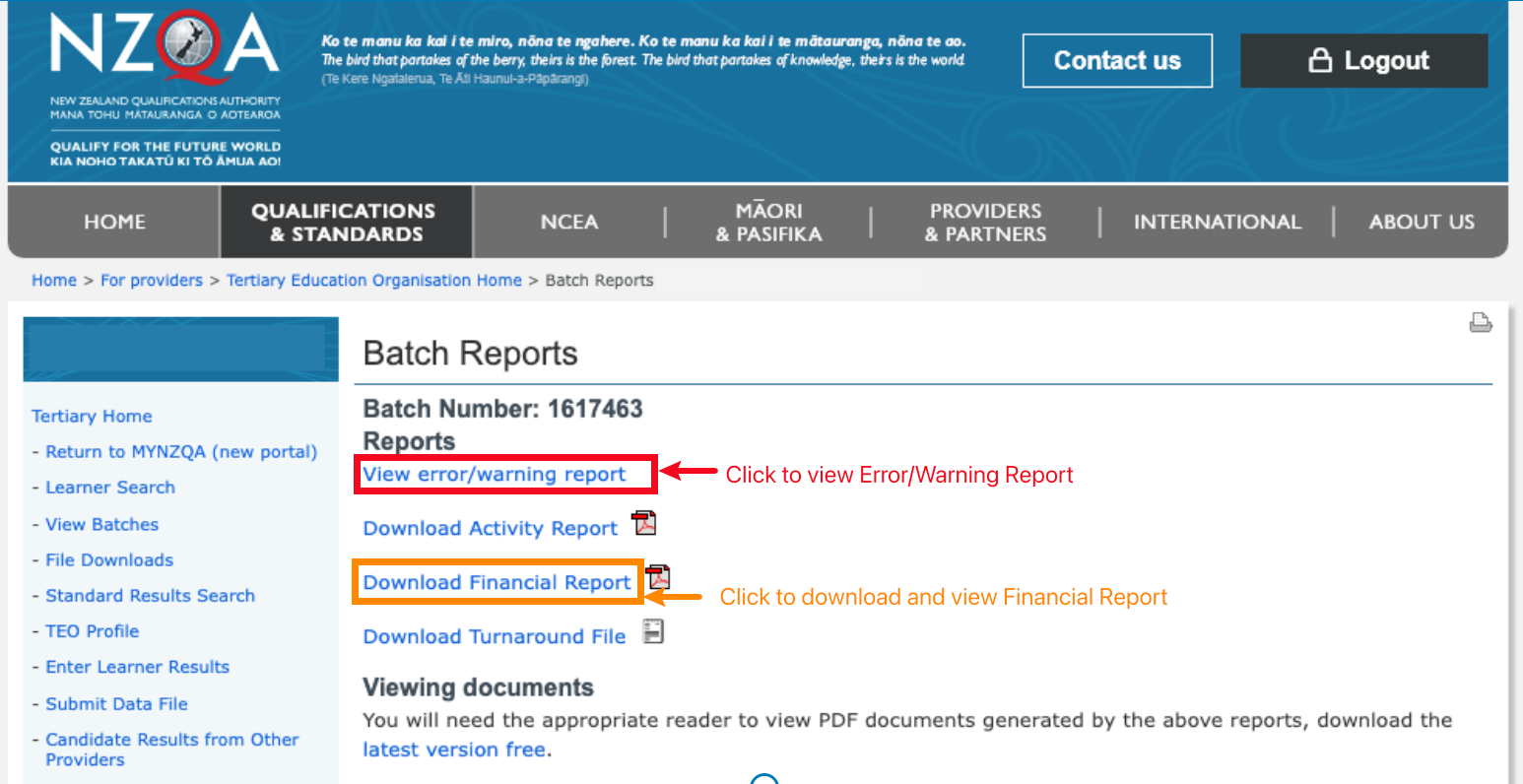
- d. Select the batch you just submitted to review the Error Report and Financial Report.
Figure a. Navigate to the NZQA Site
Once you have the file downloaded, go to NZQA and select “Submit Data File”:
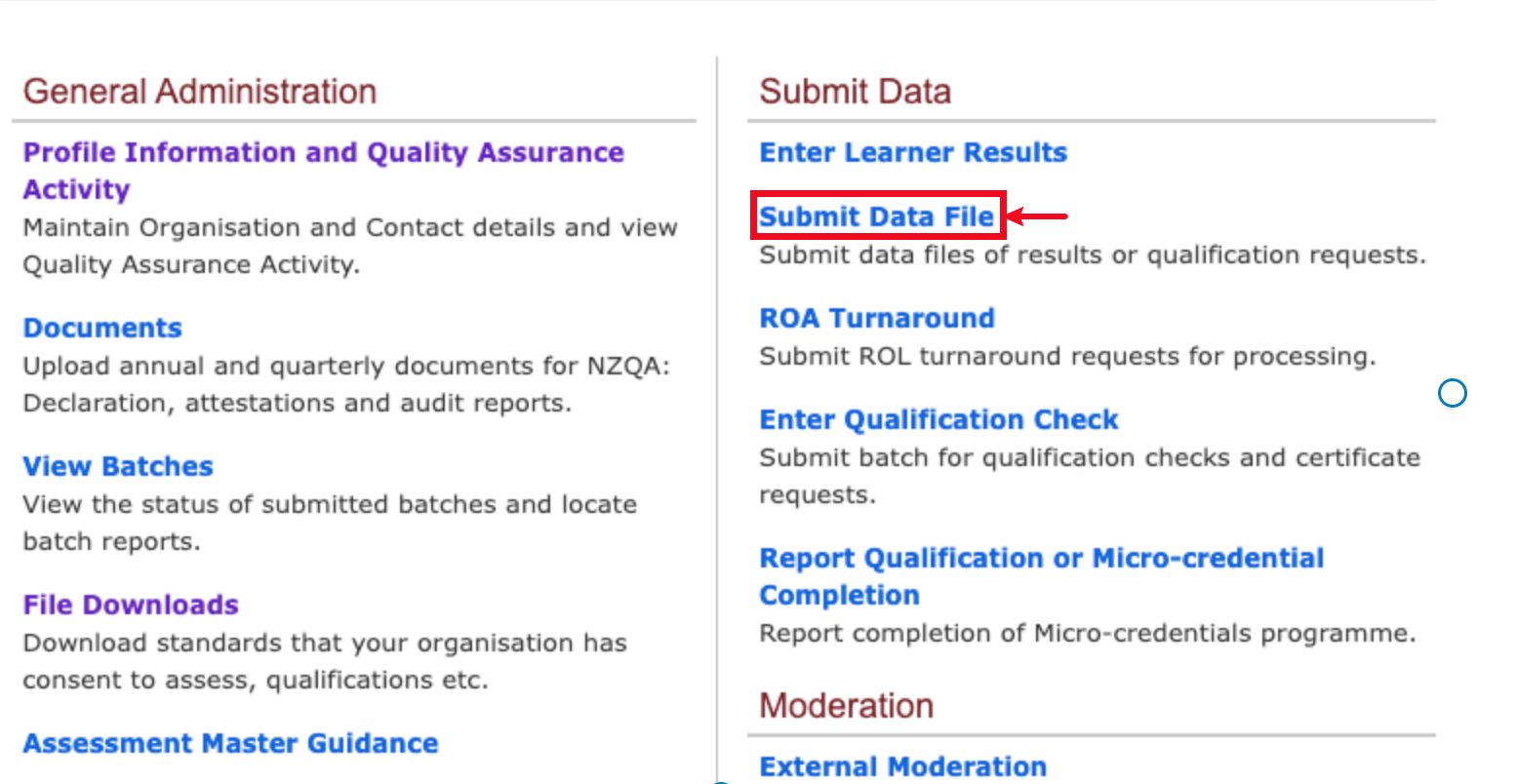
Figure b. Submit Data File
Select the batch file you have just created, and upload it to NZQA.
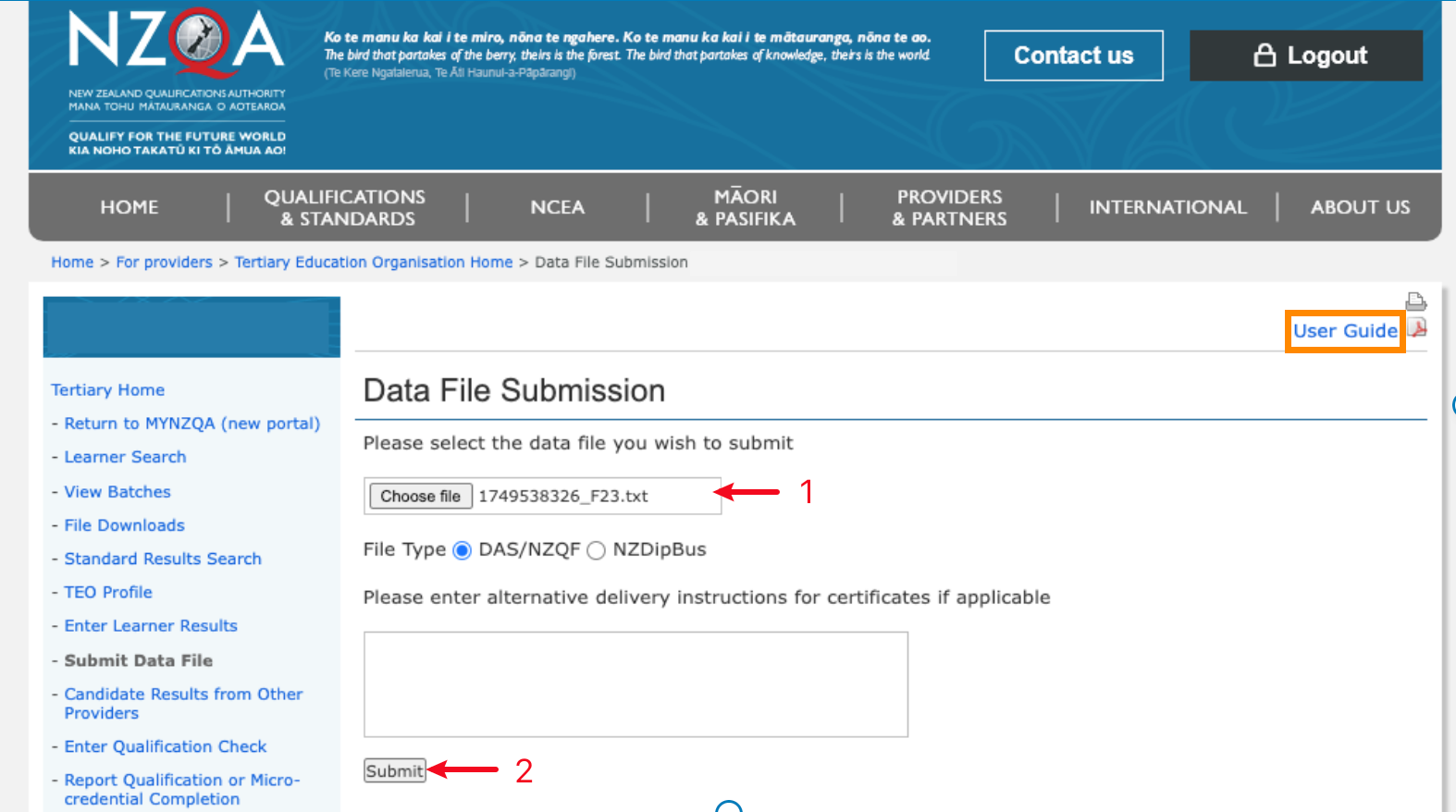
Figure c. View Uploaded Batch File
Select the batch file you created to review the details again.
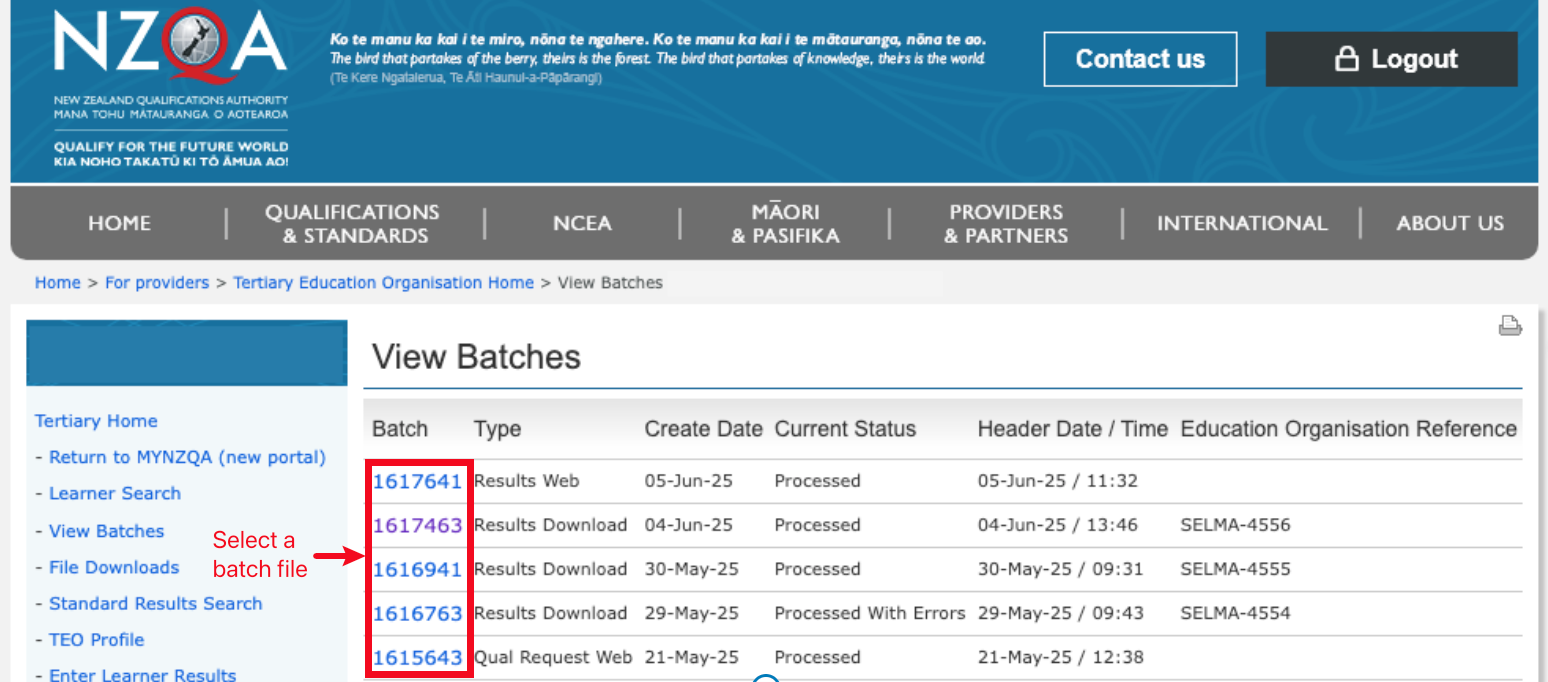
Figure d. Review the Financial Report and Logs
Check to see if a batch file’s financial report and error/warning report is as expected.
Verify Report Submission on SELMA
Once you are satisfied that the batch file submission has successfully registered your Unit Standards, return to SELMA.
Figure 5. Submit the Batch File in SELMA
In the NZQA Reports menu, click the “Submit” button on the relevant batch file.
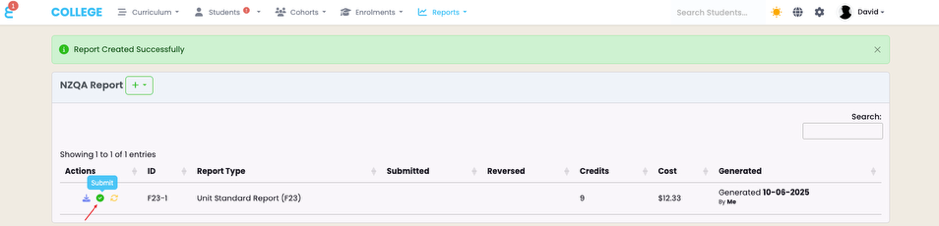
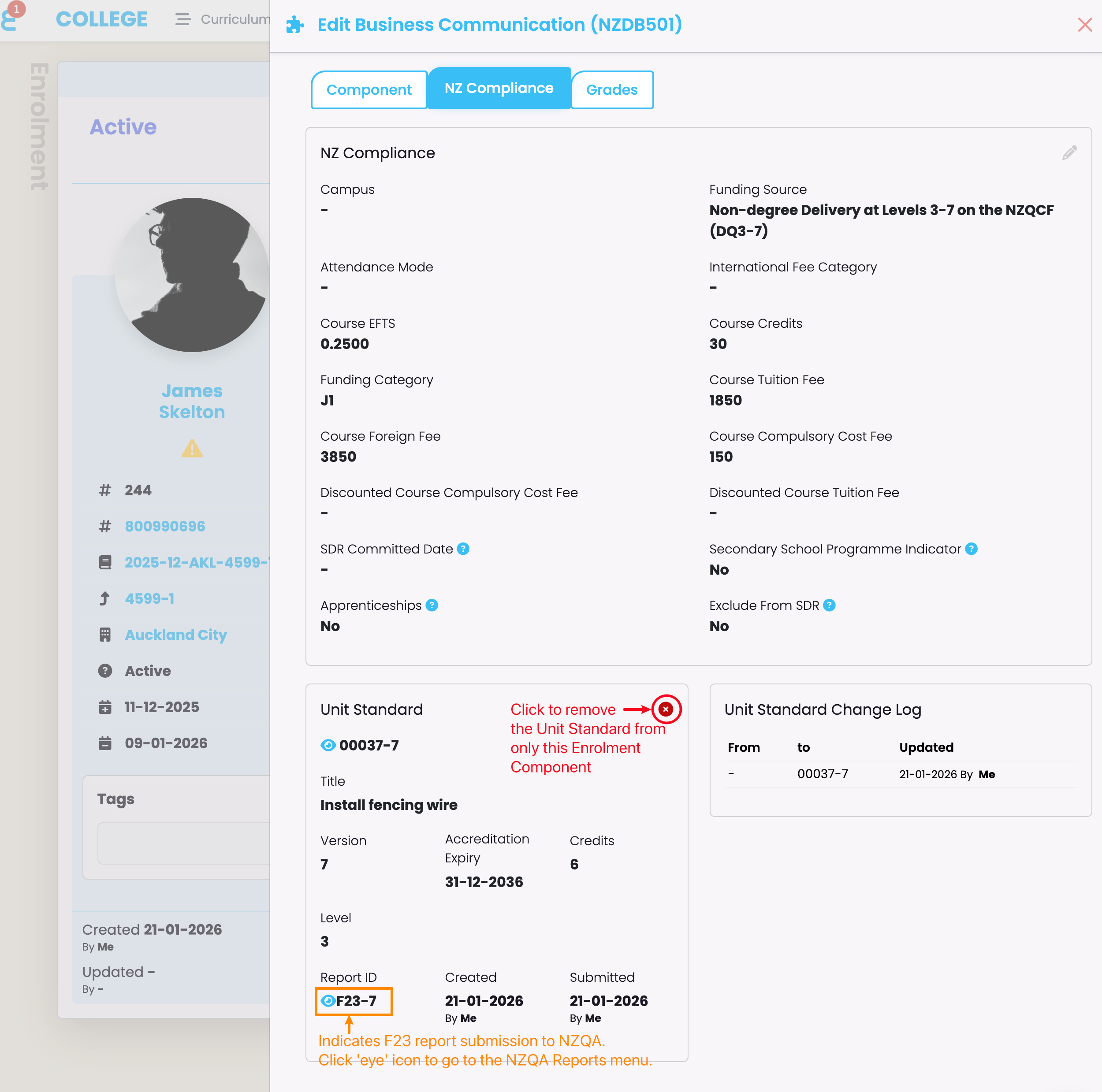
Figure 6. Verify the SELMA Update
Navigate to the Enrolment Component and check that there is a “Report ID” present, where the Unit Standard is linked (orange). This indicates that the Unit Standard has been reported to NZQA as a batch file submission.
Reporting Merit and Excellence Unit Standards
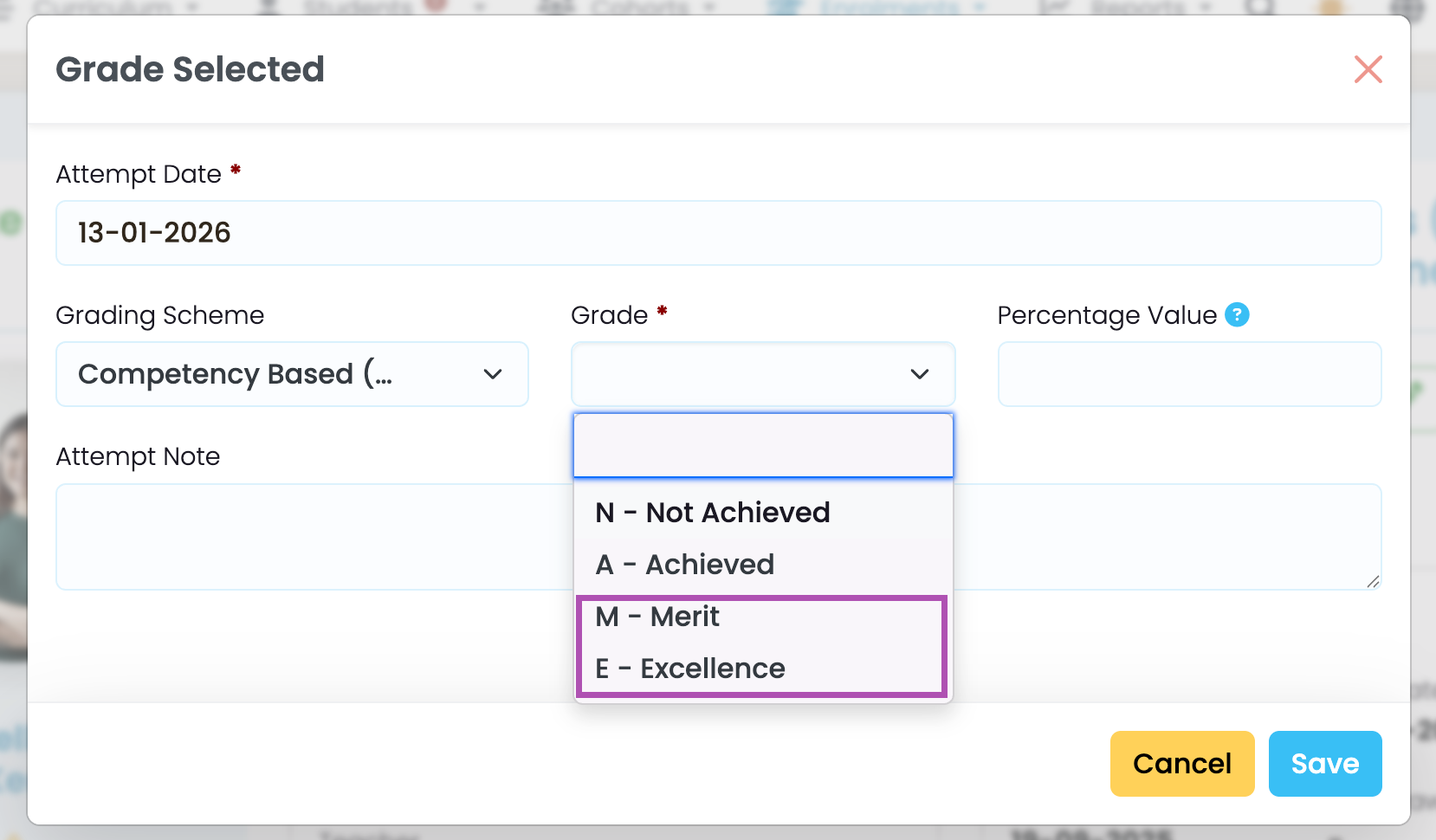
To ensure that a Unit Standard is reported as “Merit” or “Excellence” in a batch file, change the Enrolment Component “Grading Scheme” using the Actions button (Figure 7i-ii.), and grade it accordingly (Figure.
Figure 7i. Click the pencil icon on an Enrolment Component (red)
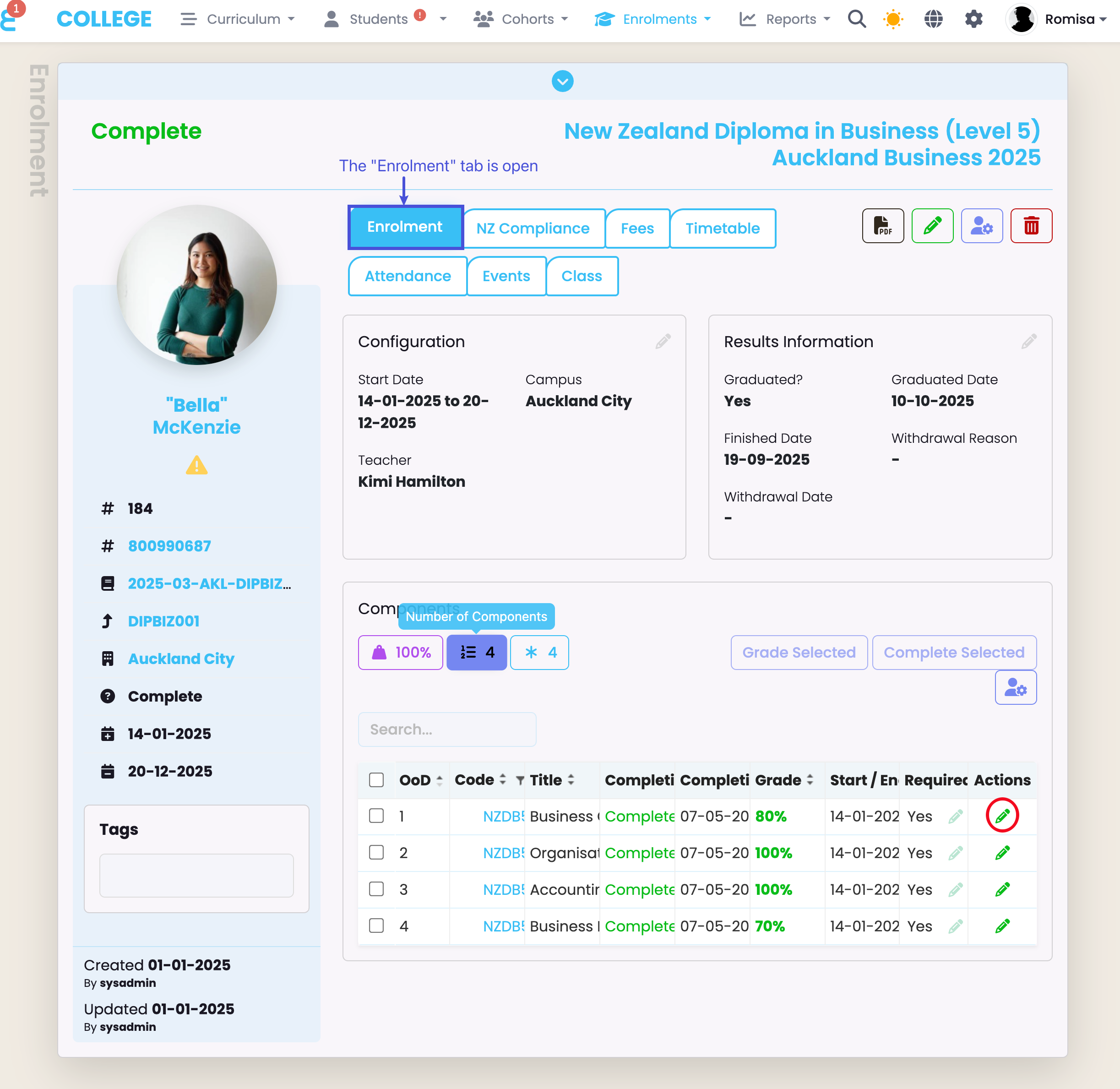
Figure 7ii. Set the “Grading Scheme” to “Competency Based (NZQA)”
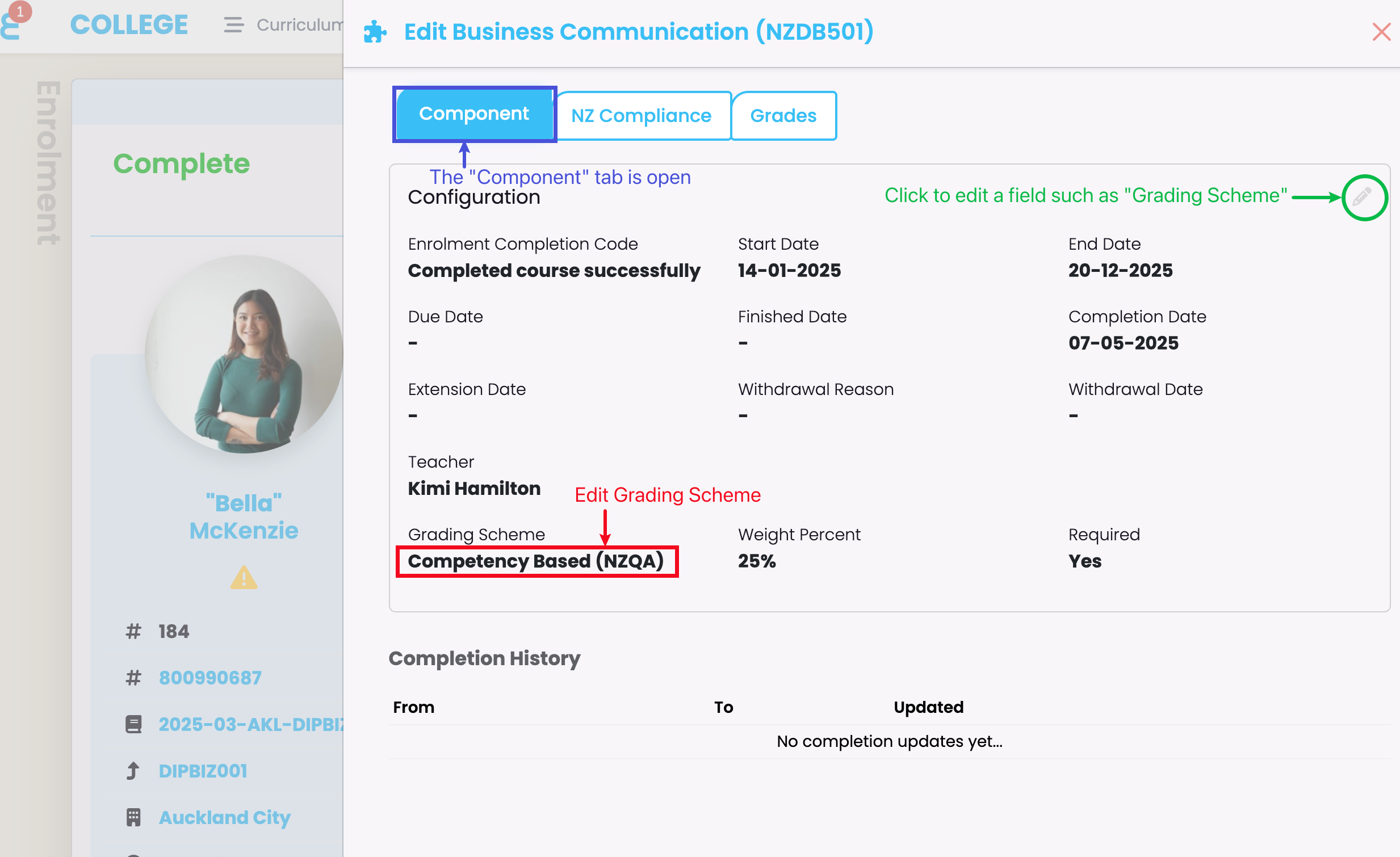
Figure 8i. Select Enrolment Component/s to grade (1-2)
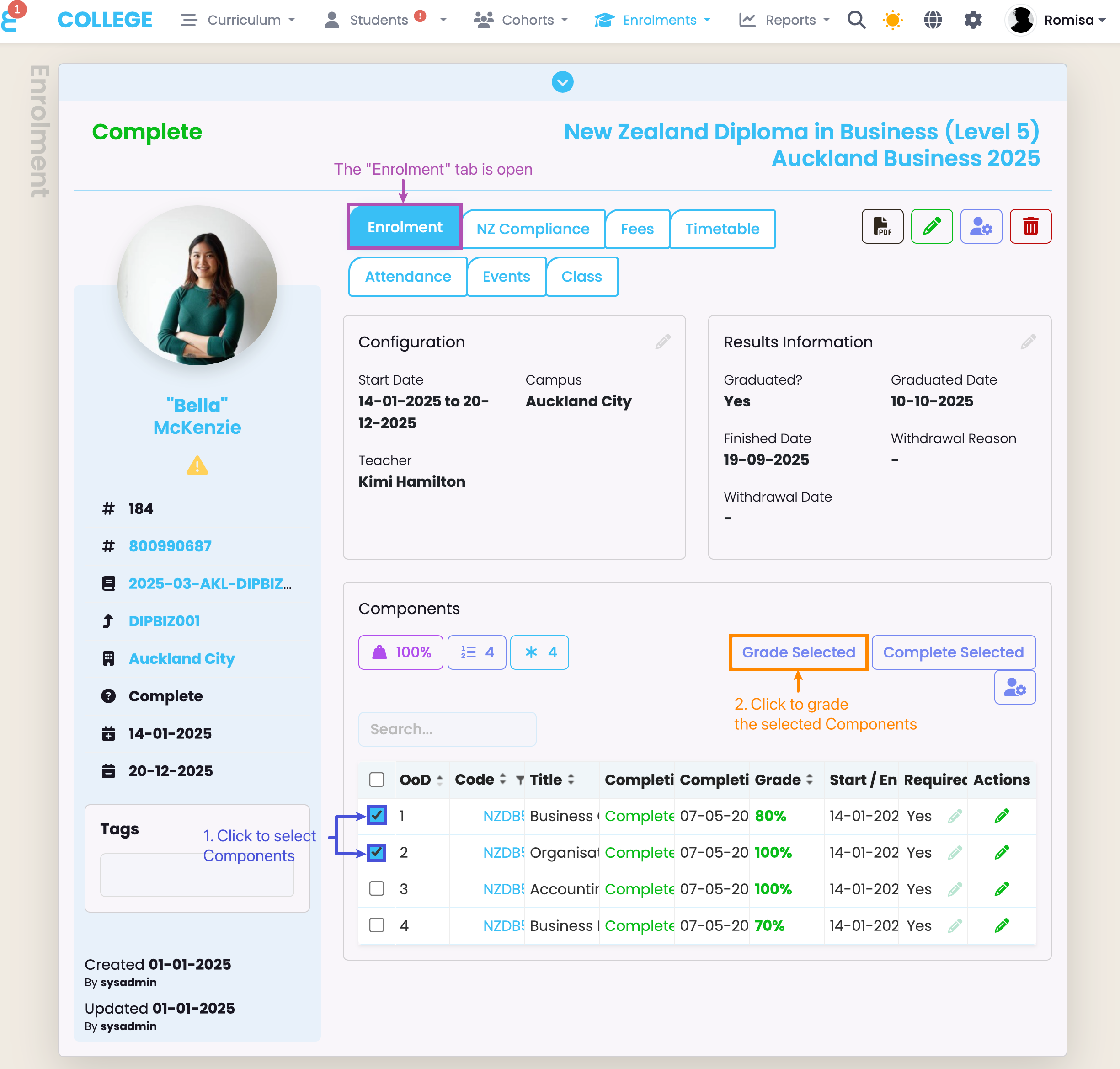
Figure 8ii. Grade the Component in due time, using “Merit” or “Excellence” (purple)
Unsuccessful Batch Upload
Reverse Reports with Errors
If your batch upload to NZQA was unsuccessful or has too many errors, you may choose to reverse the entire batch report and try again:
Figure 9. Reverse a Batch file
From the NZQA Reports menu, click the “Reverse” button.

Cancel a Unit Standard Linked to an Enrolment
If you have an error for a Unit Standard linked to a particular Enrolment, you may choose to remove that Unit Standard before generating a new batch file.
NOTE: NZQA will not charge you for re-submitting the same Unit Standard multiple times, unless you change the Version and Completion Dates.
Figure 10. Unlink a Unit Standard from the Enrolment Component
Click the cross icon to cancel the Unit Standard from the Enrolment and, therefore, the batch submission.