On this page:
Curriculum Index:
- View Programmes or Components
- Search Feature
- Advanced Search Feature
- Save Search Feature
- Download Search Results
Curriculum Index
View Programmes or Components
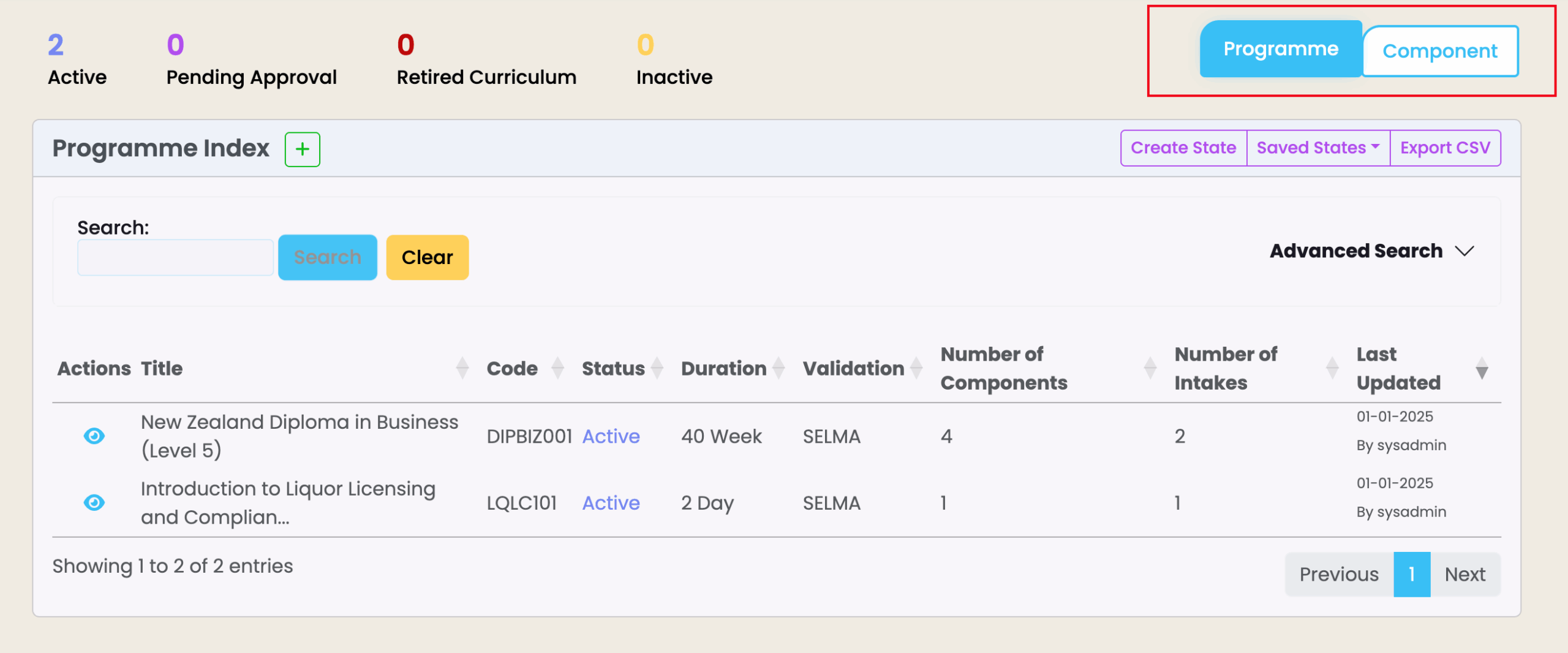
There are two buttons which function as tabs to switch between views within the Curriculum Index (Figure 1.).
To view the Programme Index, i.e. the list of all Programmes within the Curriculum, click the “Programme” button highlighted blue within the red box in Figure 1.
To view the Component Index, i.e. the list of all Components within the Curriculum, click the “Component” button adjacent to the Programme button.
Figure 1. The Programme and Component buttons (red) function as tabs to switch between Programme Index or Component Index
Search Feature
The “Search” function allows you to quickly find specific records within an index, and will produce results that match your criteria the closest.
Criteria can include words featured in titles or statuses, and codes.
Figure 2. The keyword “diploma” (red) has been used to find a Programme title including that word.
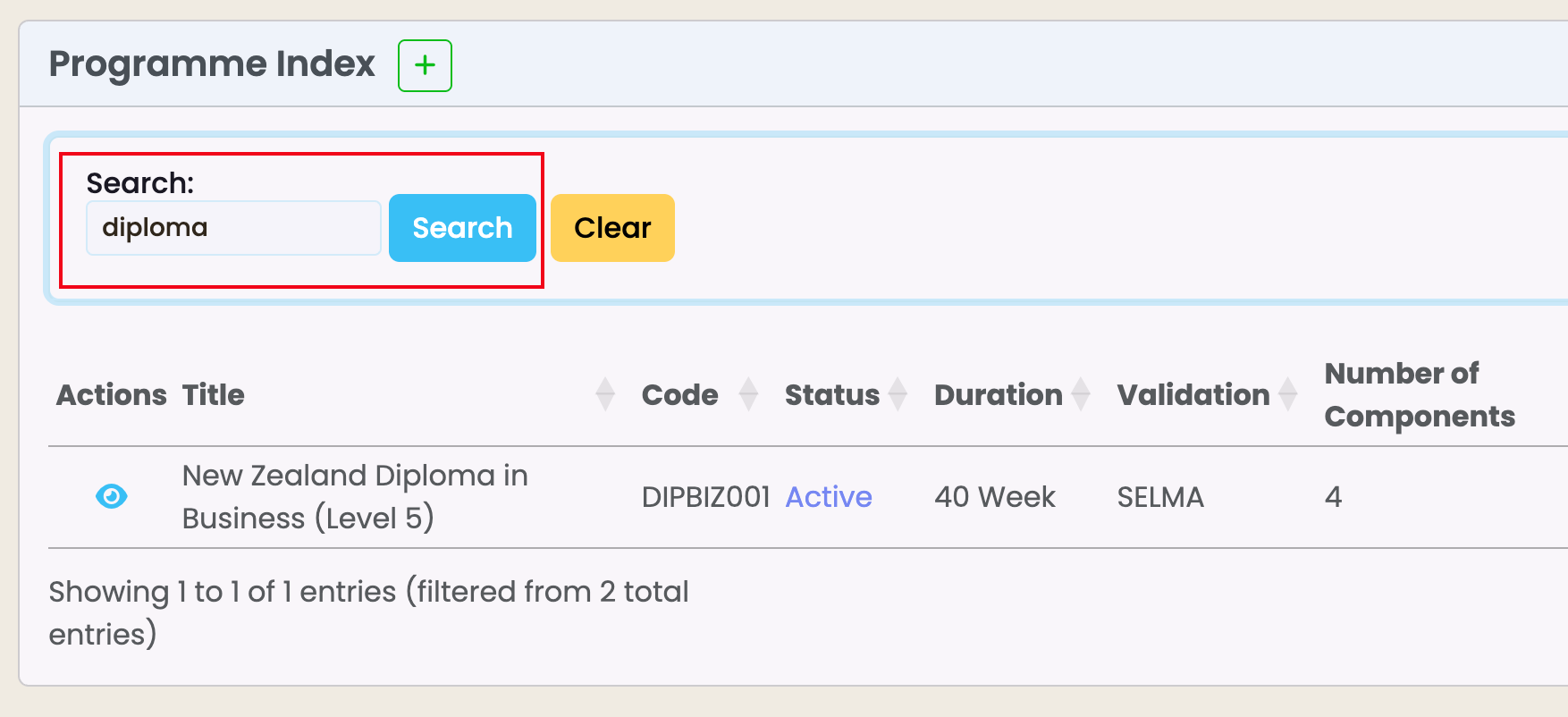
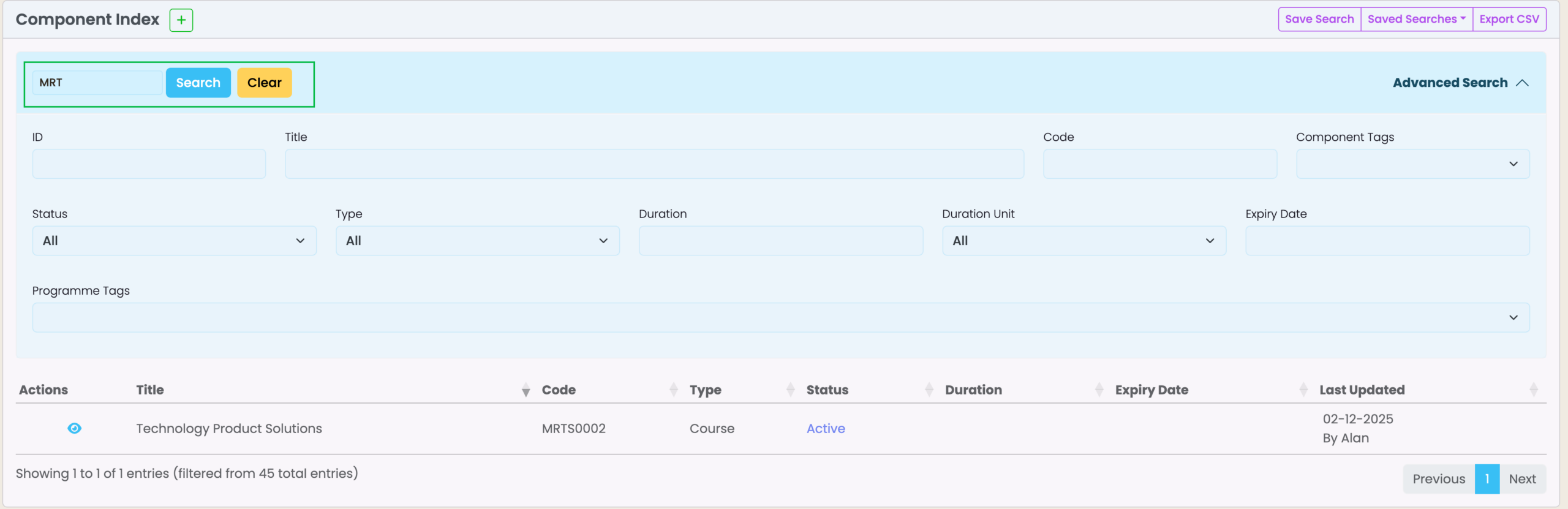
Figure 3. The letter sequence “MRT” (green) has been used to find Programmes with codes that include that sequence.
Advanced Search Feature
The “Advanced Search” is an interactive element.
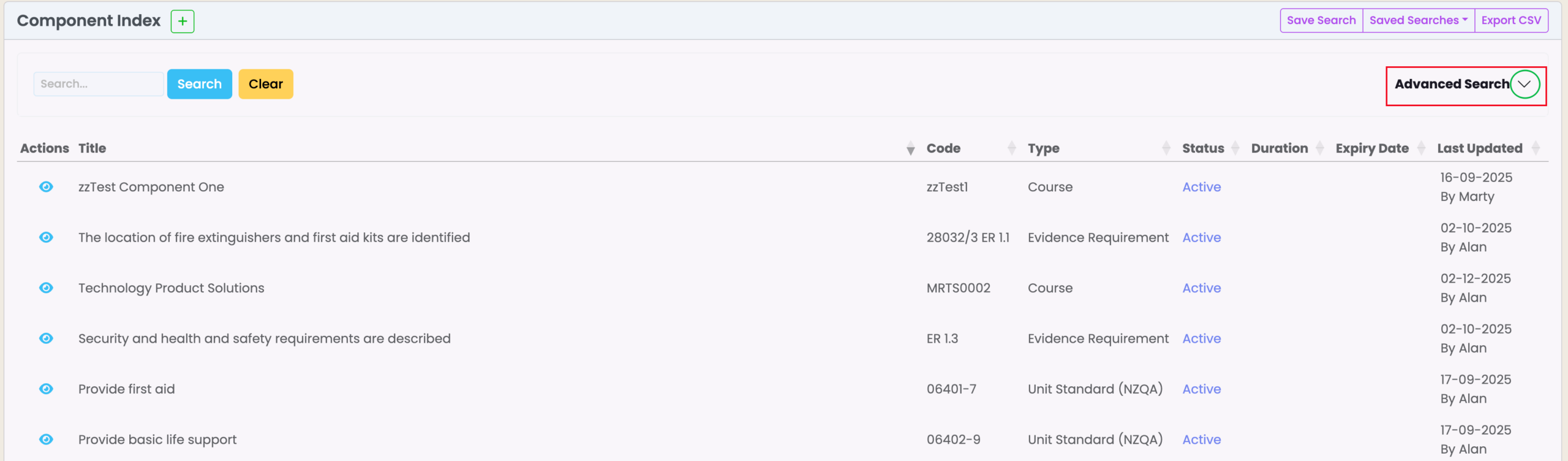
It contains fields which are hidden by default, and can be made visible by clicking the down arrow next to it (Figure 4.).
Figure 4. The Advanced Search feature (red) can be clicked (green) to filter for specific criteria.
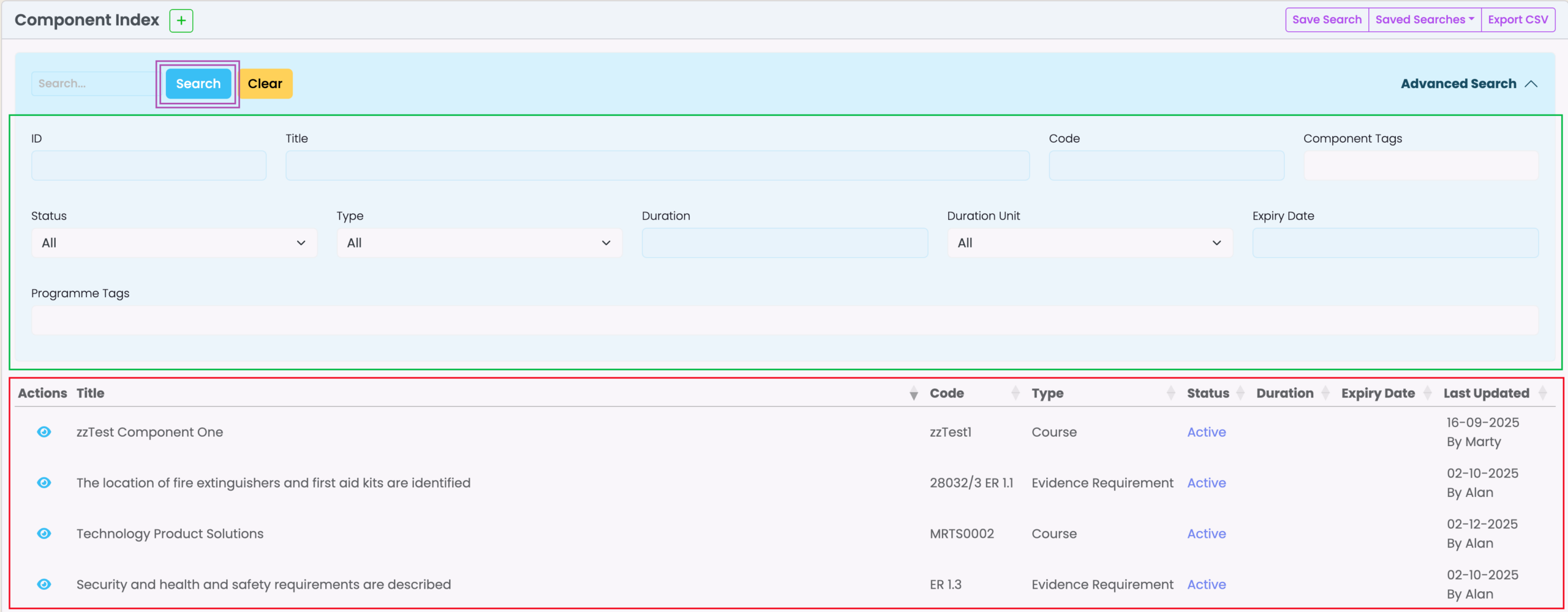
When the Advanced Search is opened and specific criteria are added in the different search types , the grid will filter to display items matching your specifications (Figure 5.).
Click the blue “Search” button to apply your settings, or the yellow “Clear” button to reset all fields.
Figure 5. Specific criteria can be input into the Advanced Search fields (green), to immediately display results (red) including your parameters. Remember to click the blue “Search button” (labeled purple in the image), to apply your settings.
Save Search Feature
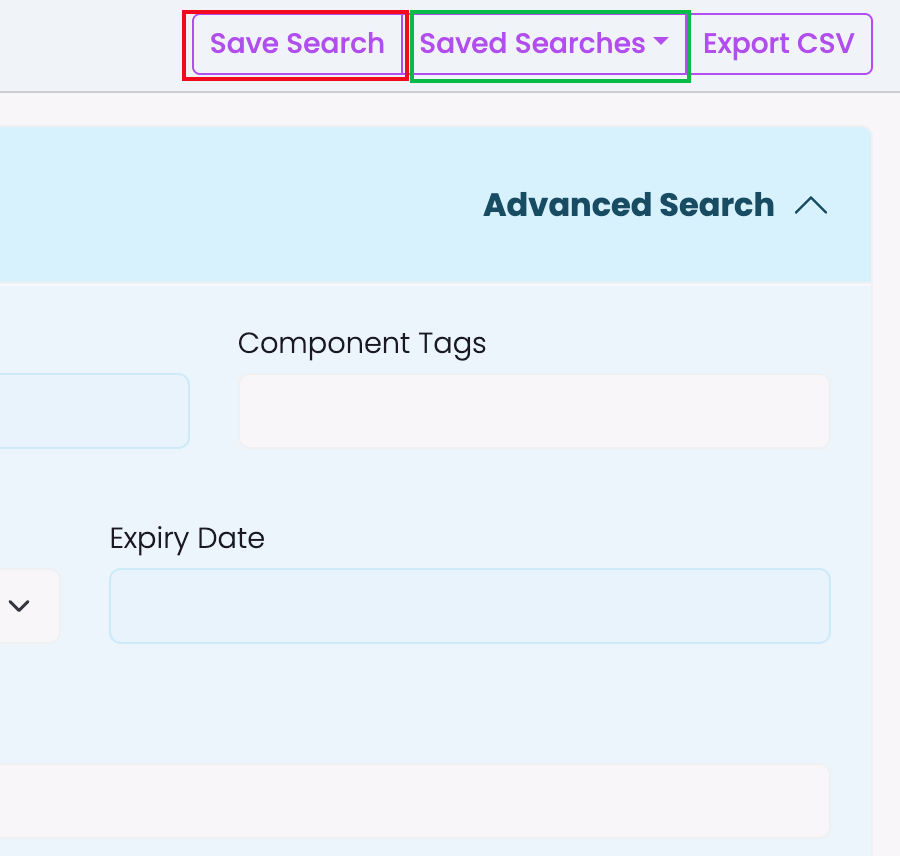
If there are Advanced Search criteria that you use often, you can save them by clicking the “Save Search” button (Figure 6).
Access your search settings again using the button “Saved Searches” (Figure 6).
Figure 6. You can save your specific Advanced Search settings by clicking “Save Search” (red) and viewing them by clicking “Saved Searches” (green).
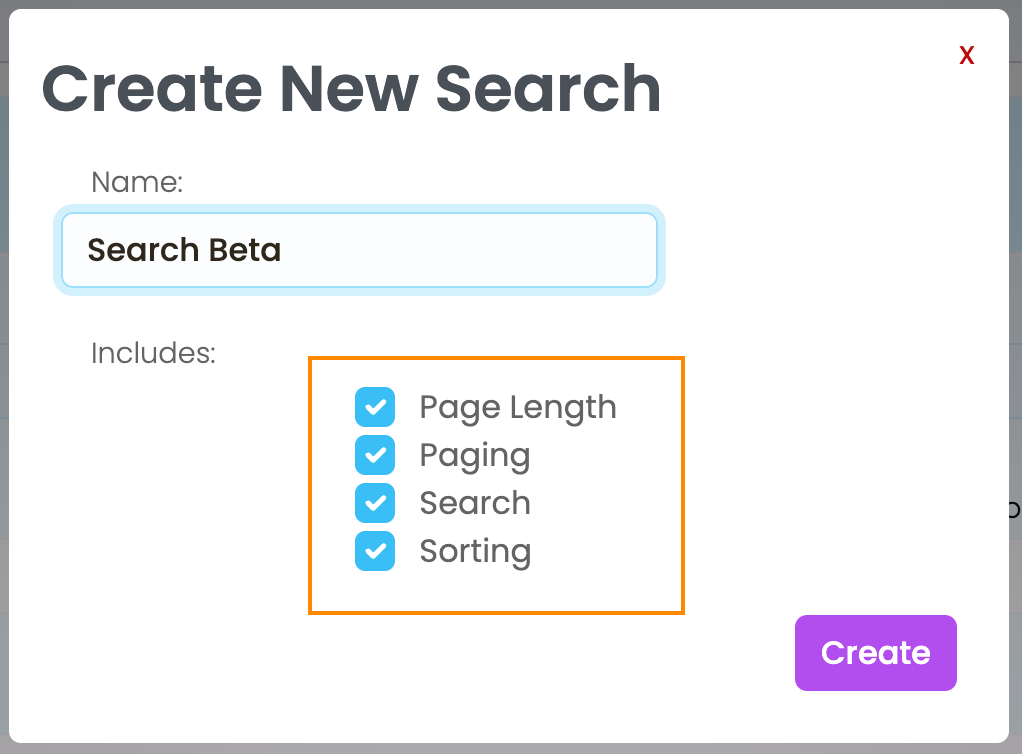
Note: A pop-up window will appear when creating a Saved Search, prompting you to confirm additional settings you would like saved (Figure 7.):
- Page length – saves the number of entries on the page you currently have displayed
- Paging – saves the page you are currently viewing
- Search – saves all search criteria you have indicated
- Sorting – saves your current column sorting display/s
Figure 7. Additional settings can be selected or de-selected (orange).
Rename or Remove Saved Searches
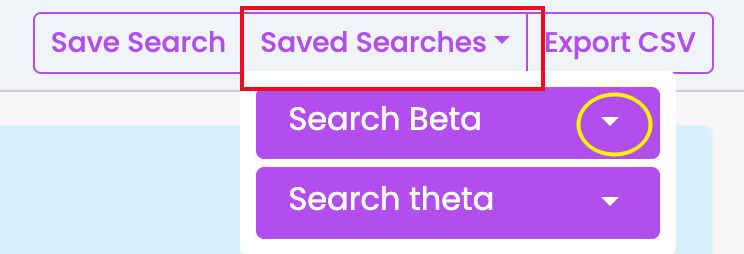
Click on the “Saved Searches” button to find your relevant search from a named list of Saved Searches (Figure 8.)
Figure 8. The “Saved Searches” button (red) reveals a list of named searches you have saved, any of which you can click (yellow) to “Rename” or “Remove” your selected Saved Search.
Download Search Results
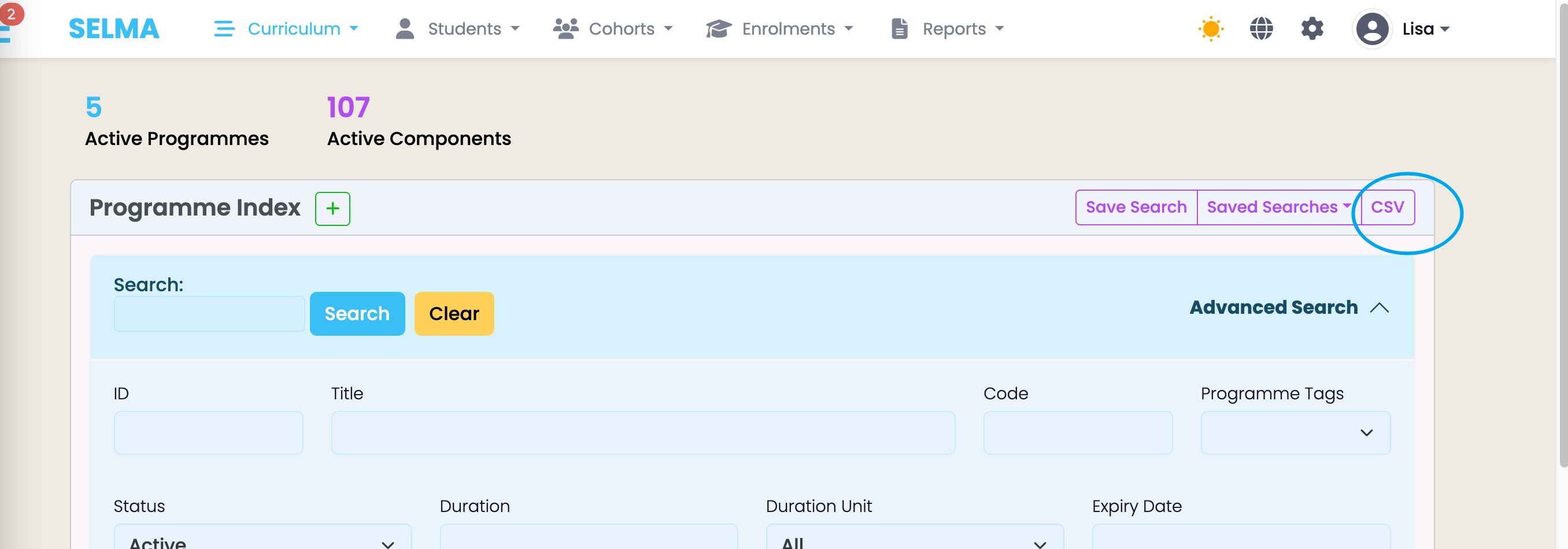
To download your Search Results as a CSV file, click on the “Export CSV” button (Figure 9).
Doing so will send an email to the address you provided in your system profile.
Figure 9. The CSV button (blue) sends a CSV file download to your email address.