In this Section:
- SELMA Configuration Steps
- Create Student Moodle Account
- Intake Components
- Enrolment Components
- Sync Staff to Moodle (Class Tab)
SELMA Configuration Steps
Figure 1. Navigate to Settings > Integrations
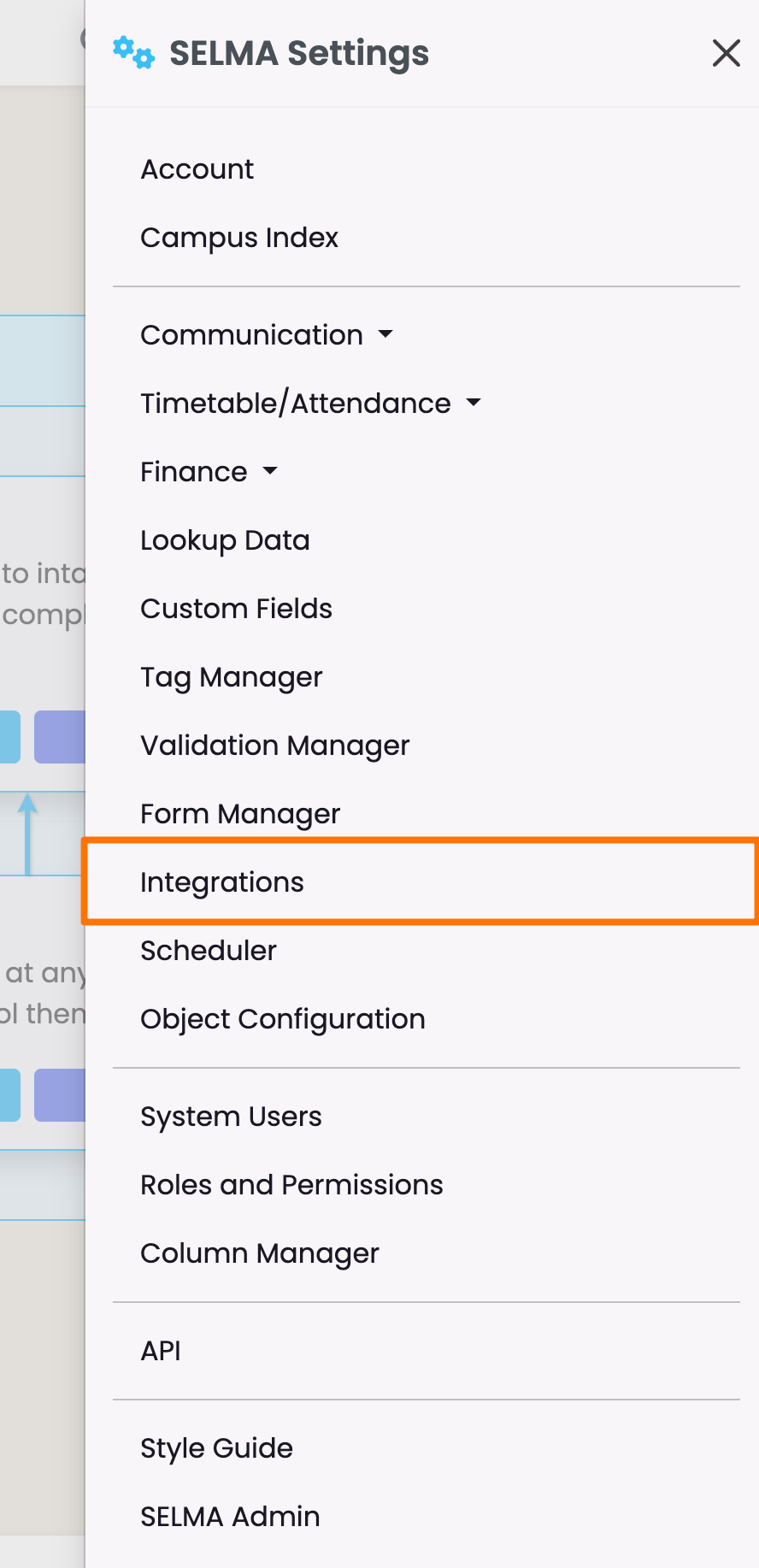
Figure 2. Navigate to Integrations > Moodle
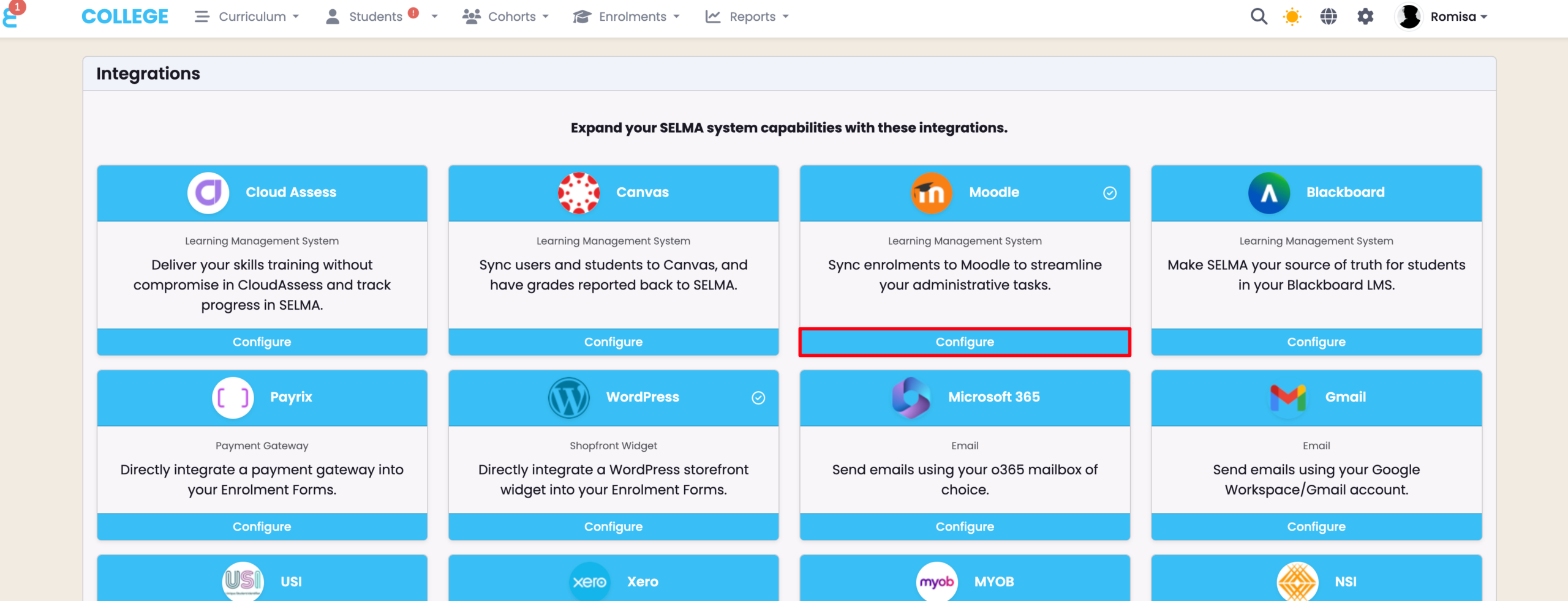
Figure 3i. Configuration Settings
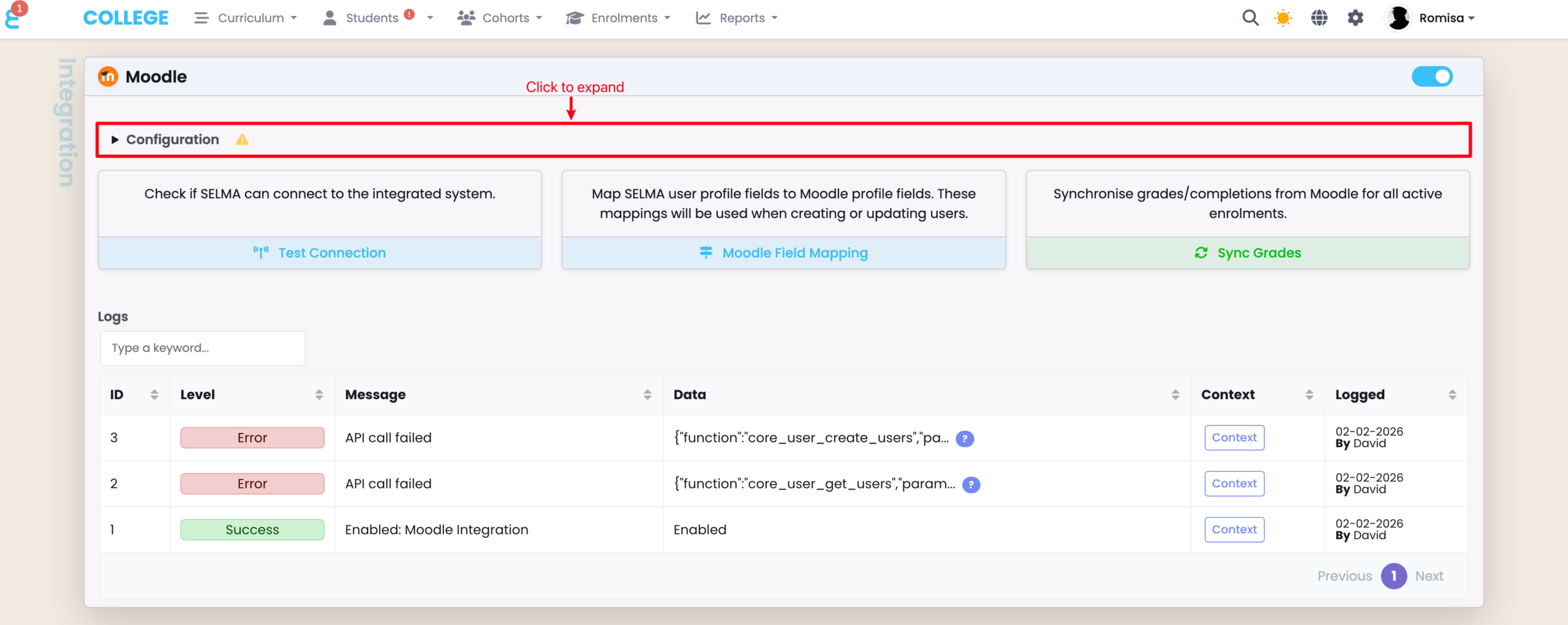
Figure 3ii. Provide Details and Save
The Endpoint will be your unique Moodle URL (e.g. https://moodle.yourdomain.com), and the Token will be the Web Service Token you created and saved, previously. The default Teacher Role and Student Role is usually 3 and 5, respectively, but please verify the “ID” in Moodle.
NOTE: Change “Groups Enabled” to “Yes” if you want to sync SELMA Classes to Groups in Moodle.
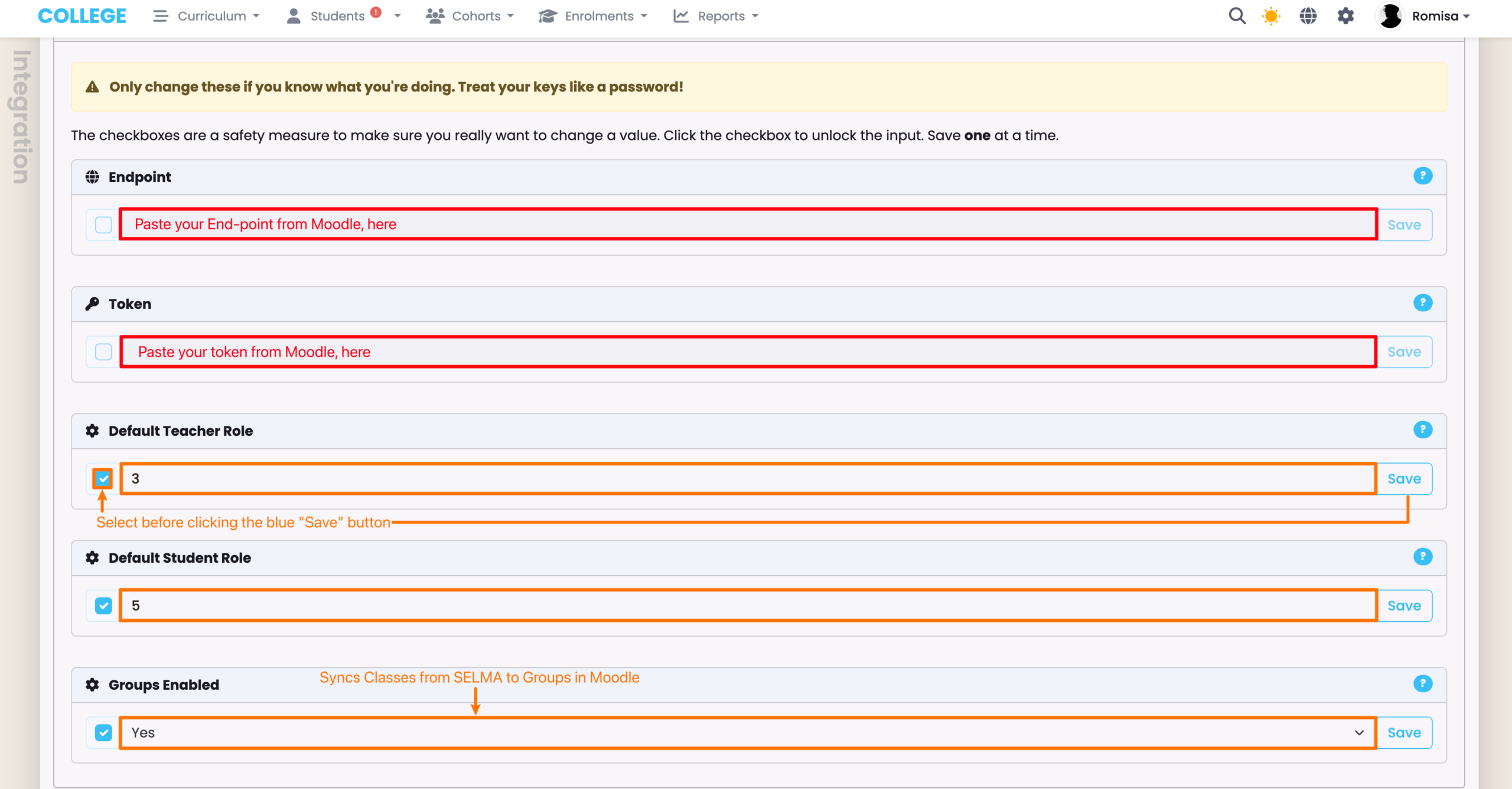
Figure 4i. Verify your Configuration
Click the “Test Connection” button to verify your configuration.
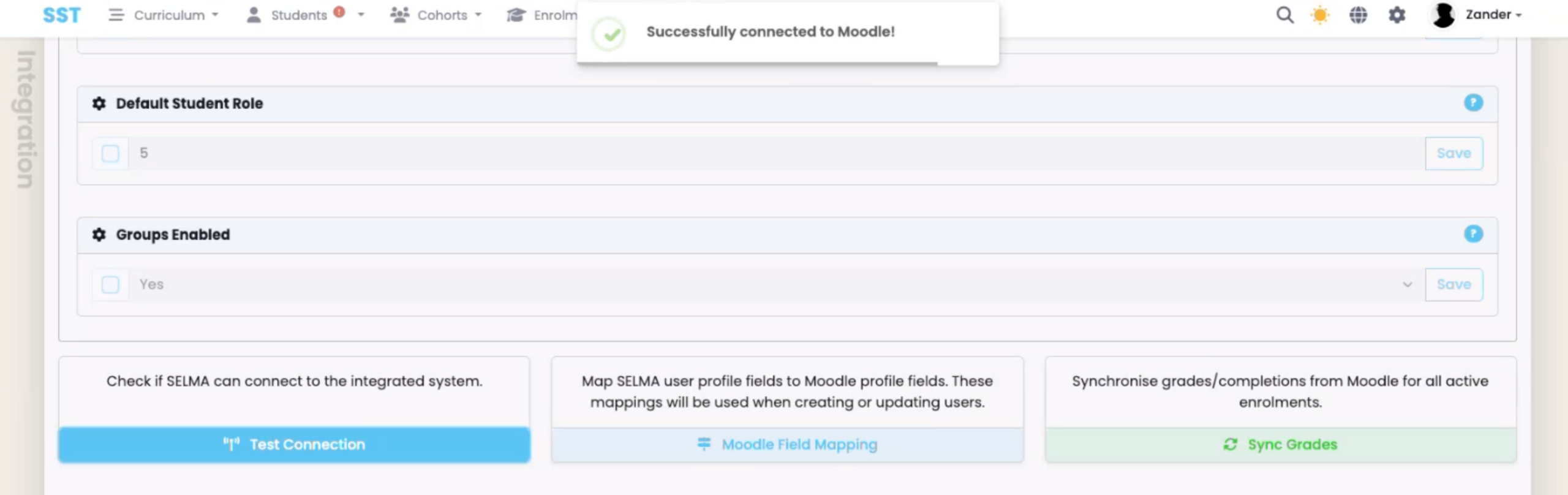
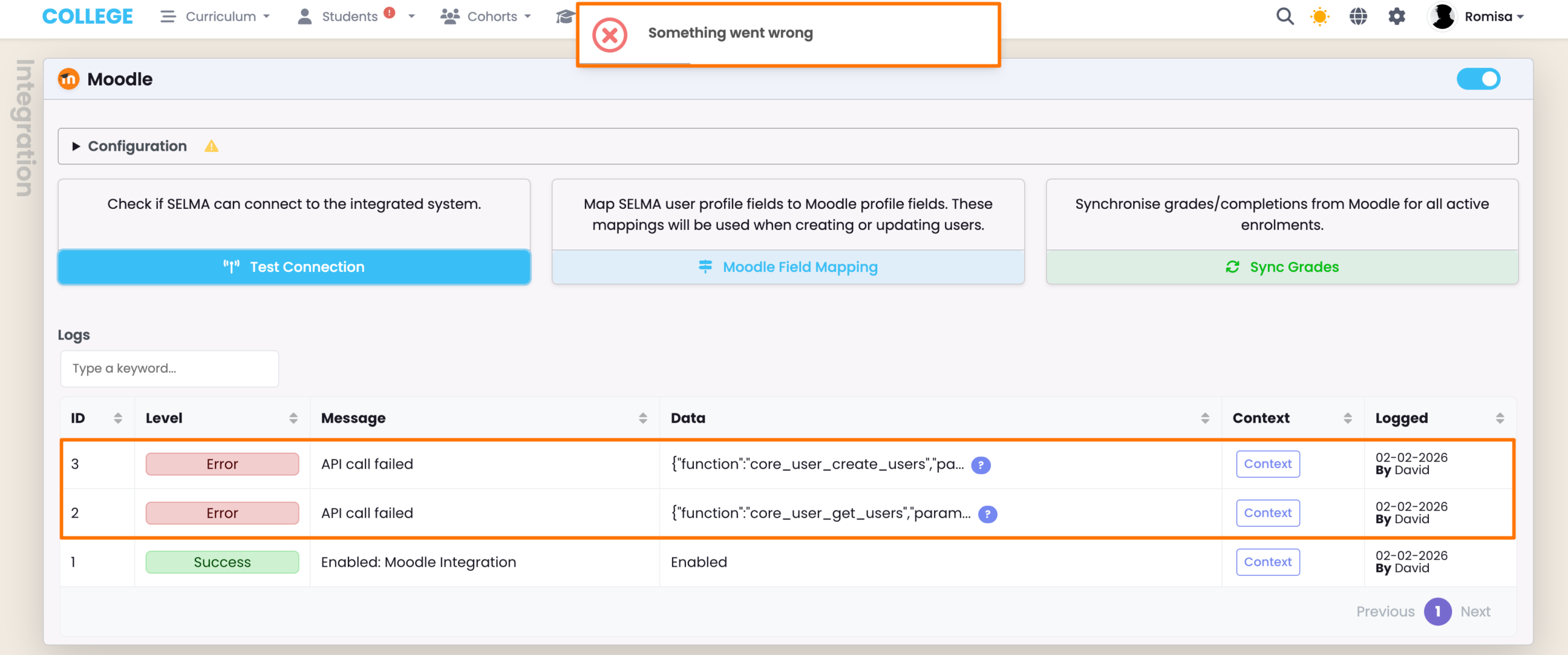
Figure 4ii. Check Logs
Check the Integration Logs for any error details if the test fails, as below.
Note: Please monitor the logs regularly for any sync issues, and reach out to SELMA Support for further assistance.
Moodle Field Mapping
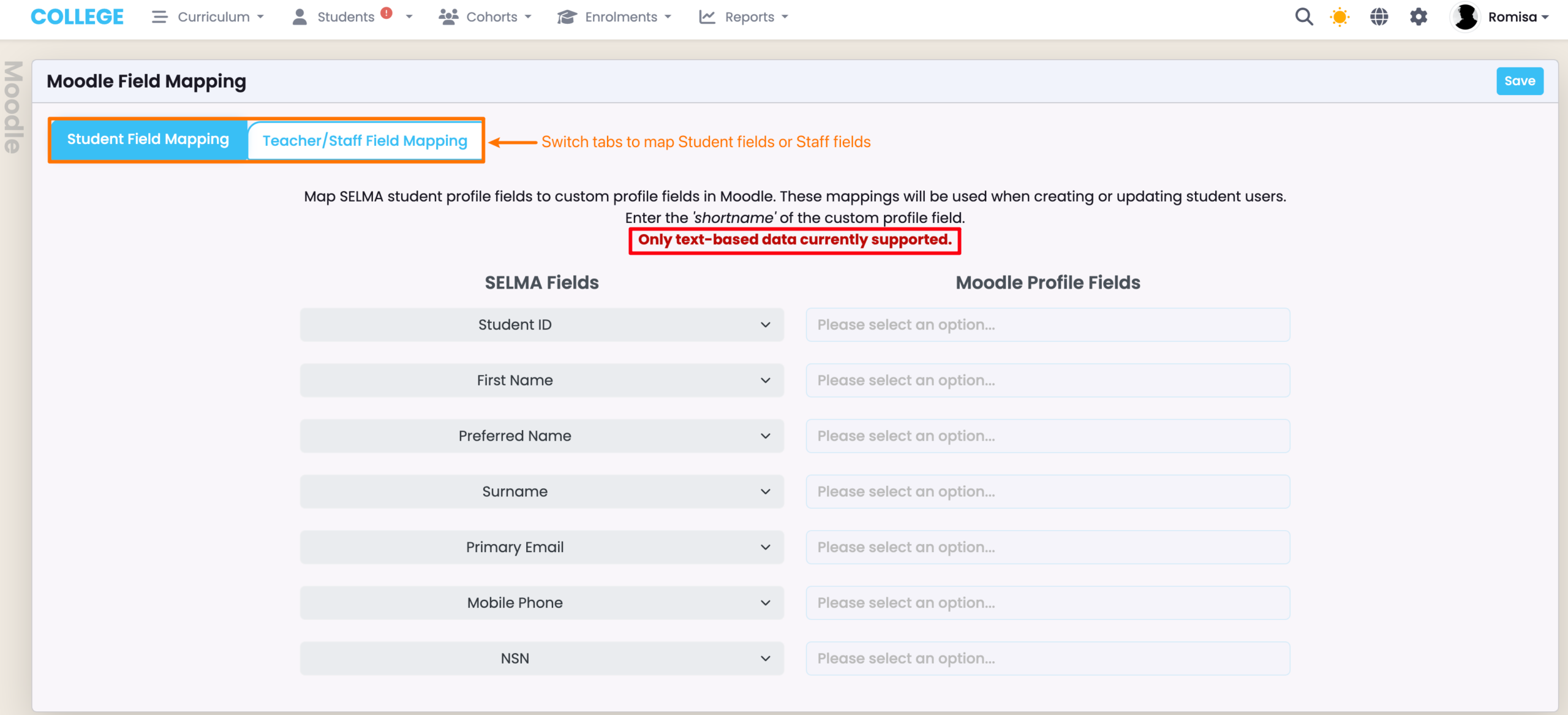
Map fields found on the SELMA Student profile or Staff User profile in Moodle.
- Please reach out to SELMA support to add other SELMA fields, which do not exist already by default.
Figure 5i. Navigate to Moodle Field Mapping
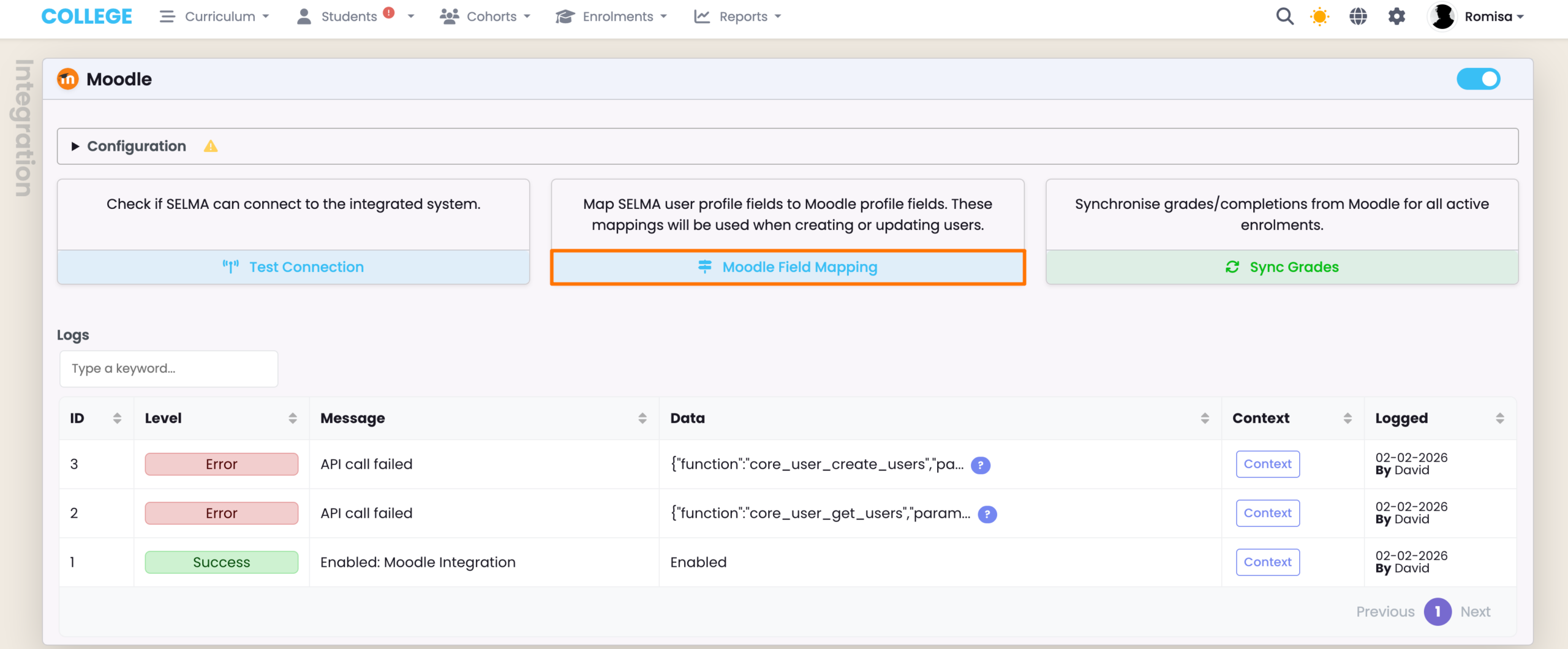
Figure 5ii. Moodle Profile Field Names
Enter the “shortname” of the custom profile field in Moodle, which the SELMA field would map onto; (please keep in mind that only text-based data can be used). The tabs at the top of the screen allow you to update SELMA Student fields or Staff fields (orange).
Sync Grades
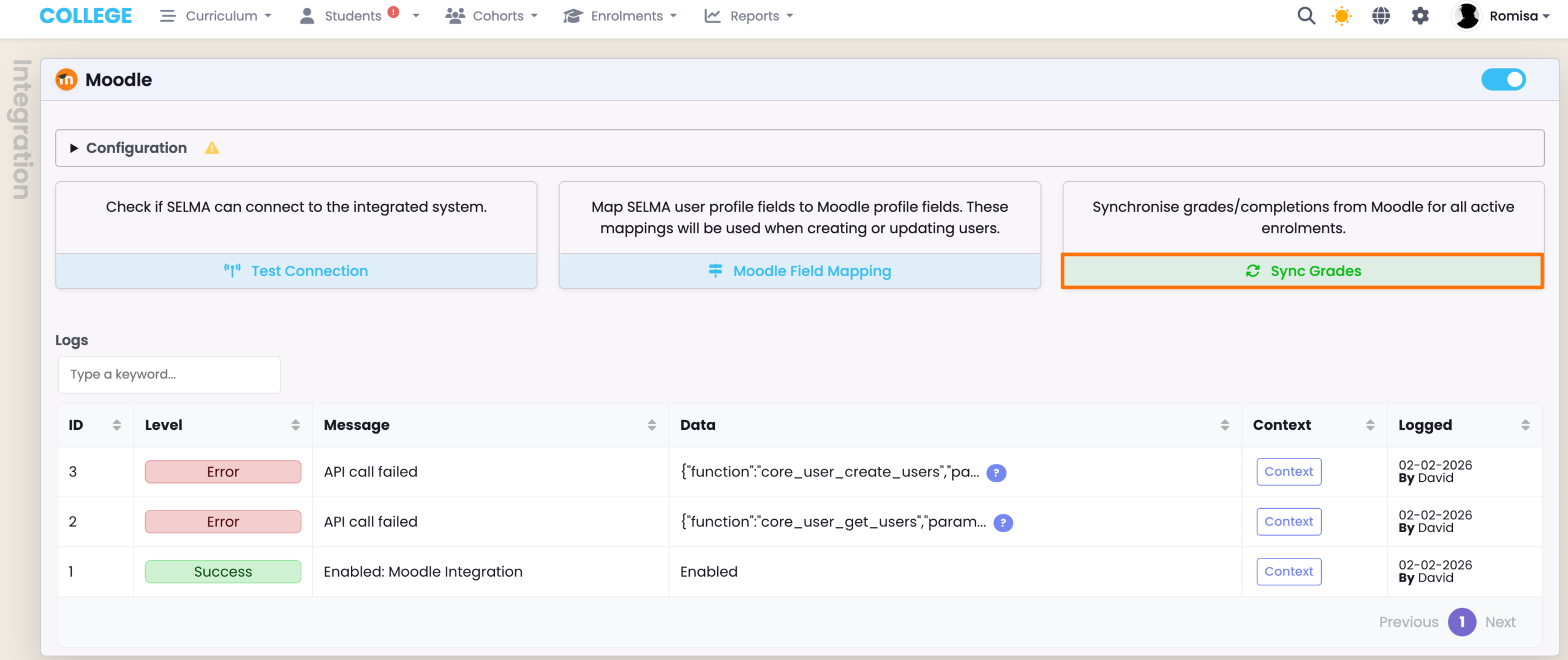
Manually fetch grades from Moodle and sync them with Enrolment Components in SELMA.
- It is recommended to manually sync grades as you transition into using the Moodle Integration. After gaining some familiarity and verifying that grades are syncing as intended, please contact SELMA Support to enable automatic syncing of grades from Moodle.
Figure 6. Navigate to Sync Grades
Create Student Moodle Account
Once Moodle Integration has been enabled and tested to be working, you can create a Moodle Account for a Student from SELMA, if it doesn’t exist already.
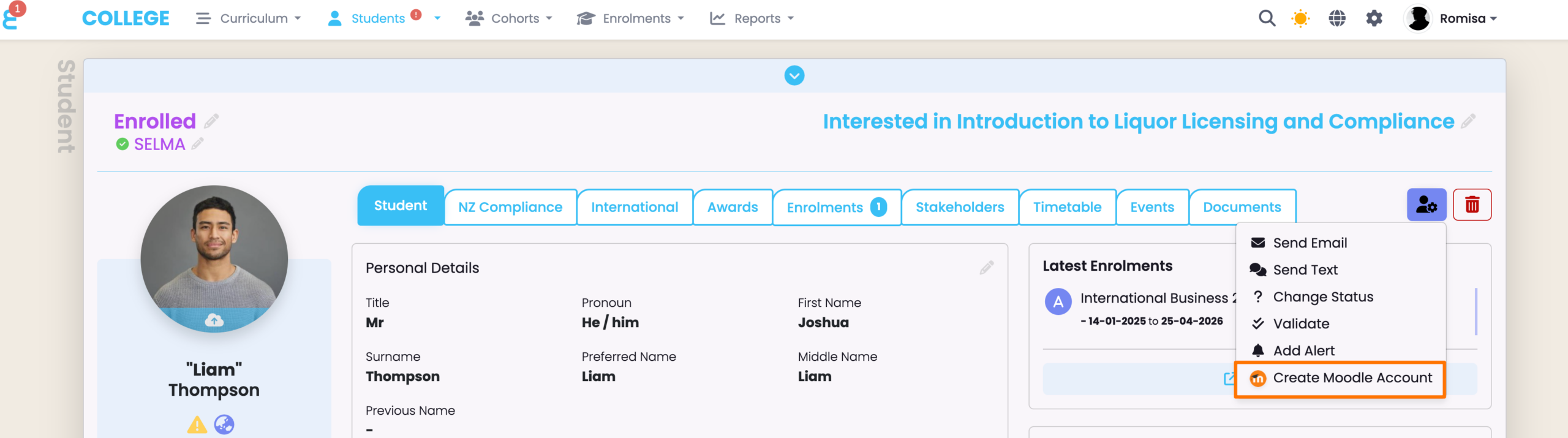
Figure 7. Click the Action Button
Click “Create Moodle Account” to create a Moodle account for a Student, using the SELMA Student record. If the Student already exists in Moodle, SELMA will pick this up from their email, and update the Moodle account accordingly.
Intake Components
Before creating Enrolments you must ensure, that their corresponding Intake Components have the correct settings enabled.
- Note: All Intake Component details are propagated to Enrolment Components.
Figure 8. Navigate from Intake > Component
Click the green “pencil icon” to view and edit an Intake Component.
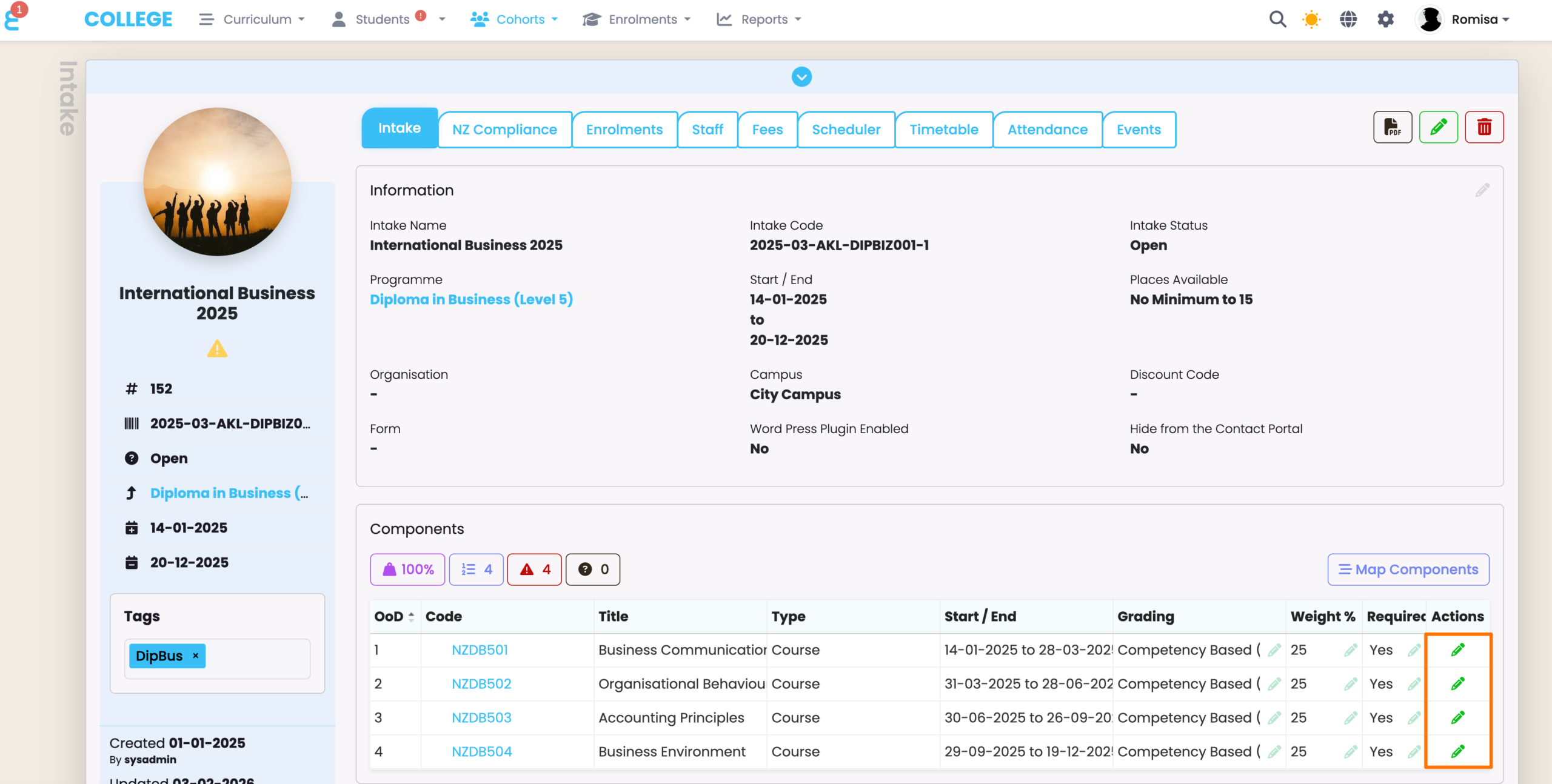
Figure 9i. Edit Moodle Fields on the Component Tab
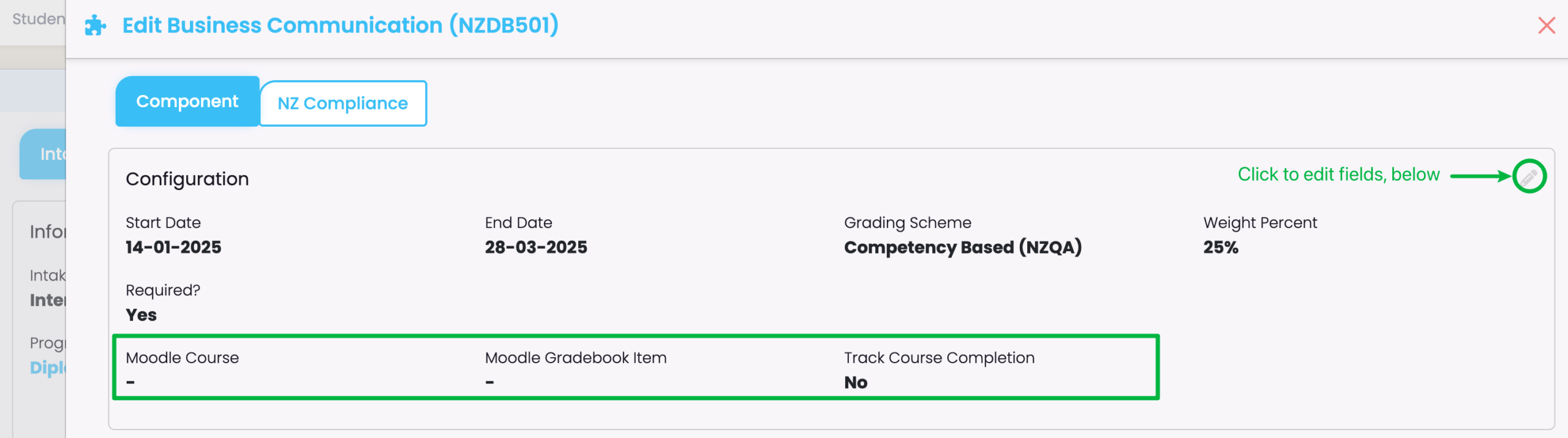
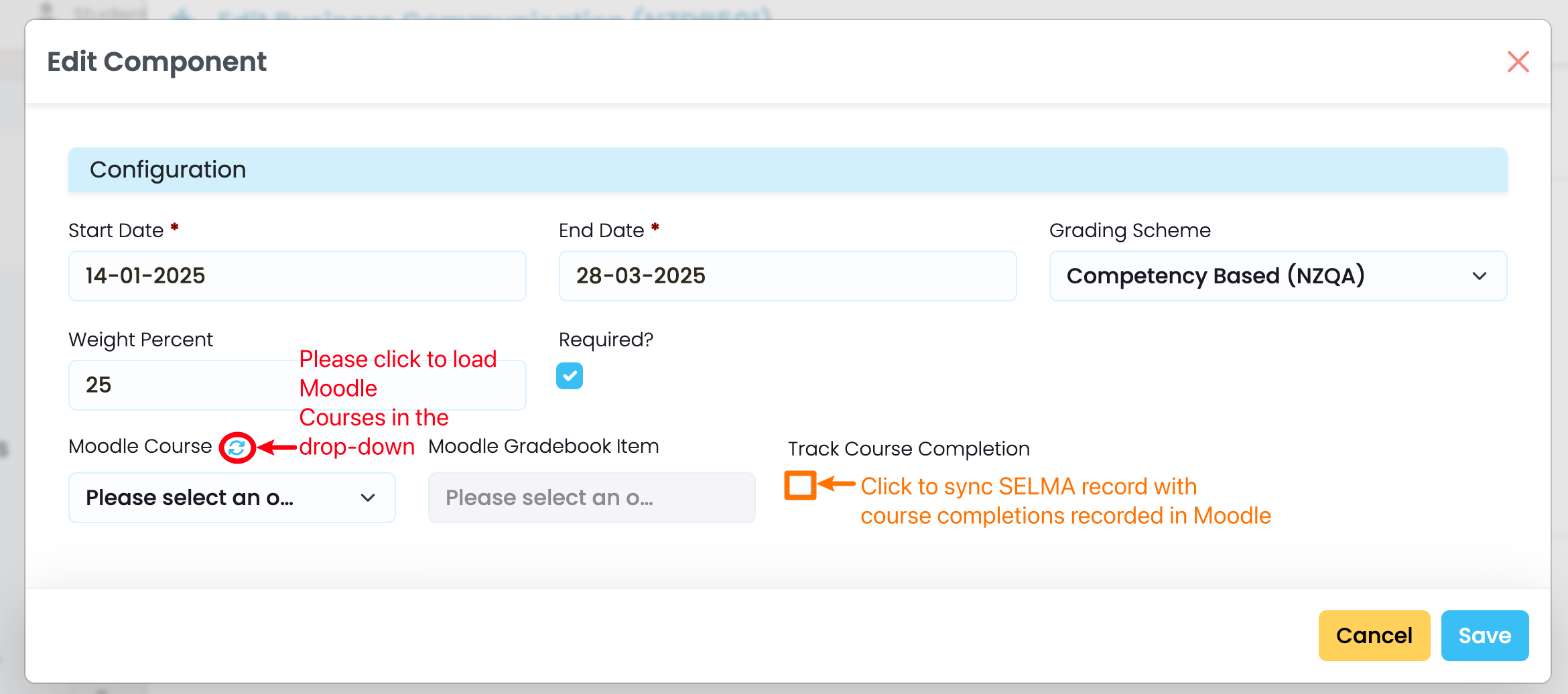
Figure 9ii. Select Moodle Courses and Track Moodle Course Completions
Make sure to select “Track Course Completion” to ensure SELMA grades are informed by the Student’s course completions in Moodle.
Gradebook Item: The dropdown allows you to select from a range of Gradebook item categories set-up in Moodle.
NOTE: Complex grading logic can only be set-up in Moodle, and the final result is imported into SELMA.
Enrolment Components
As previously mentioned, Intake Components are propagated to Enrolments.
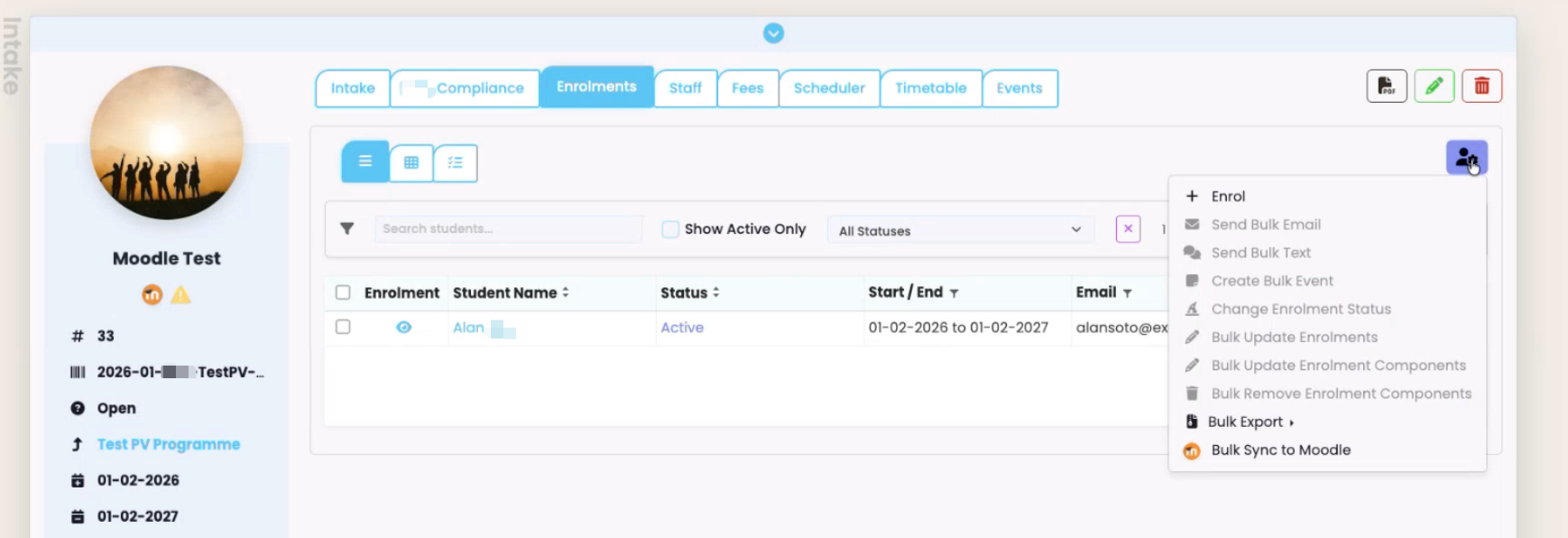
You can then sync individual Enrolment Components with Moodle, or perform a bulk update from the Intake level.
PLEASE TAKE NOTE OF THE FOLLOWING:
- When creating an Enrolment, Students are automatically enrolled into a selected Intake/s. However, Enrolments must be linked to Classes manually, afterwards, if applicable; (please see Cohorts – Creating and Managing Classes to guide you)
- IMPORTANT:
- Enrolments which belong to a Group in Moodle must be linked to the equivalent Class in SELMA before you sync Enrolment Components.
- The SELMA Class Code informs the Moodle group name.
- IMPORTANT:
- All Enrolments must have the Enrolment Status: “Active” to be synced to Moodle.
Sync Individual Enrolment Components to Moodle
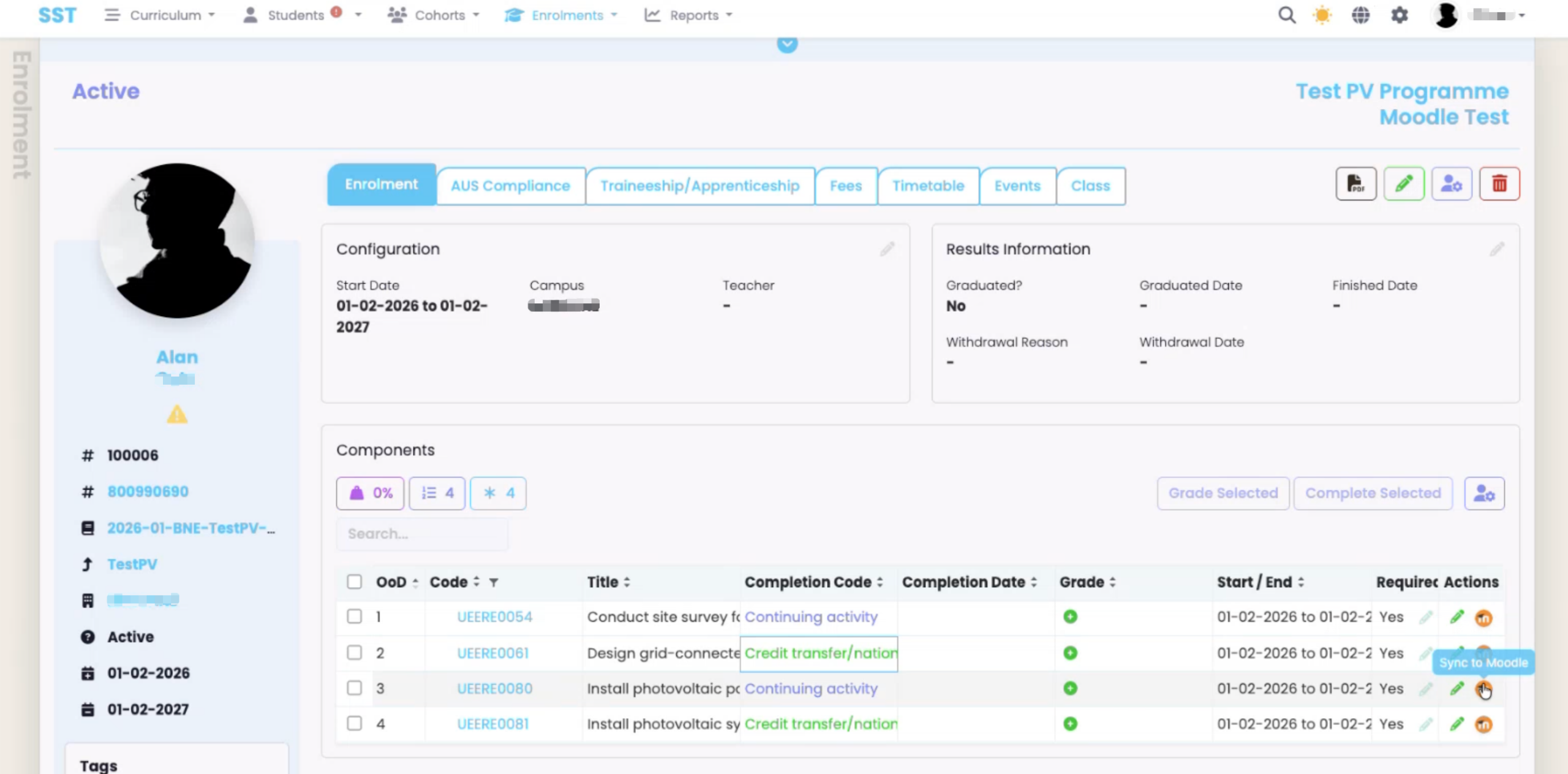
Figure 10. Navigate from Enrolment > Enrolment Tab
On the Enrolment tab, click the Moodle icon to sync a select Enrolment Component to Moodle.
Bulk Sync Enrolments to Moodle
Figure 11i. Bulk Sync Enrolments from Intake
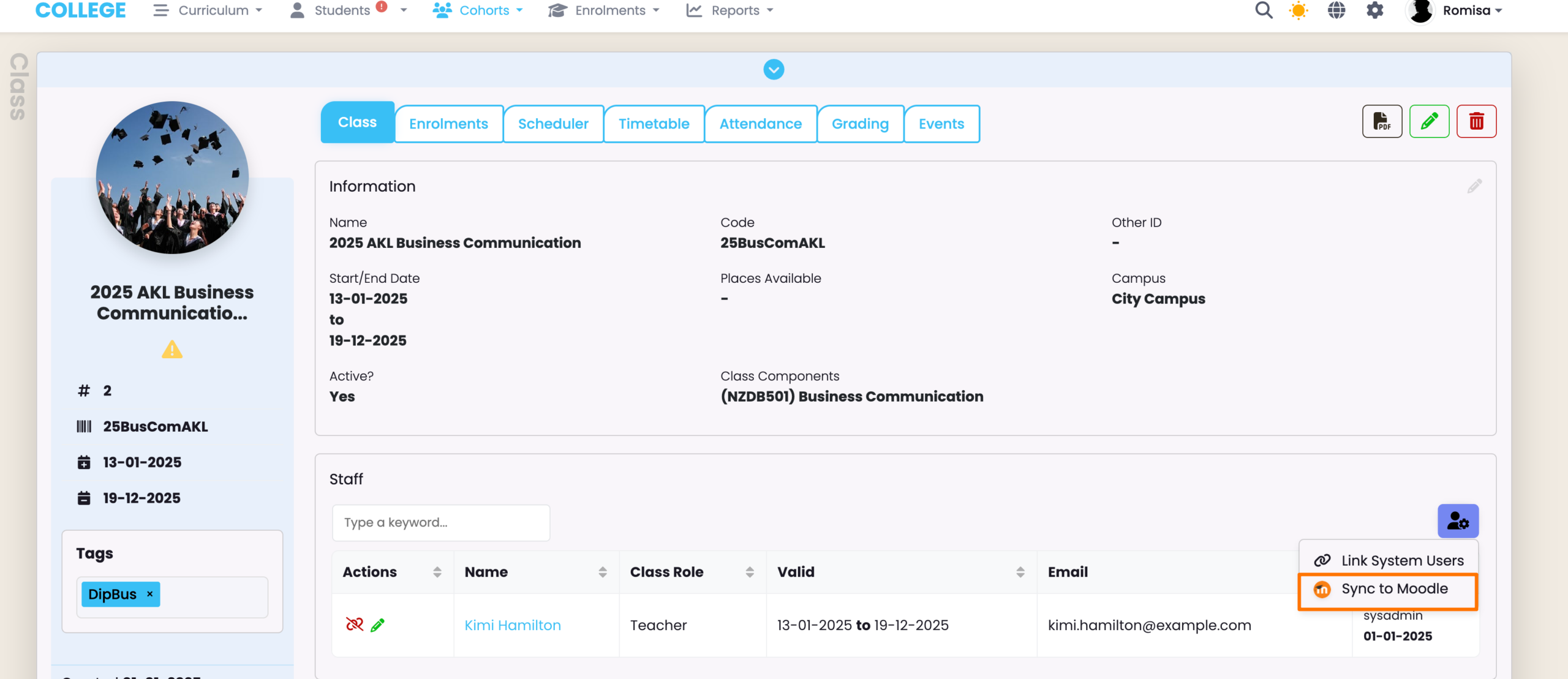
Sync Staff to Moodle (Class Tab)
You can sync Staff linked to a Class in SELMA, from the Class tab.
A use case for this capability could be teachers who need to grade assessments for a Class.
- NOTE: Moodle “Groups” are the equivalent of SELMA “Classes”.