Components are the building blocks that form the structure of a Programme.
They can be courses, modules, assessments, Unit Standards or subjects that are focussed to deliver specific learning outcomes, which learners must master to complete their programme and qualify for certification.
On this page:
Create New Component
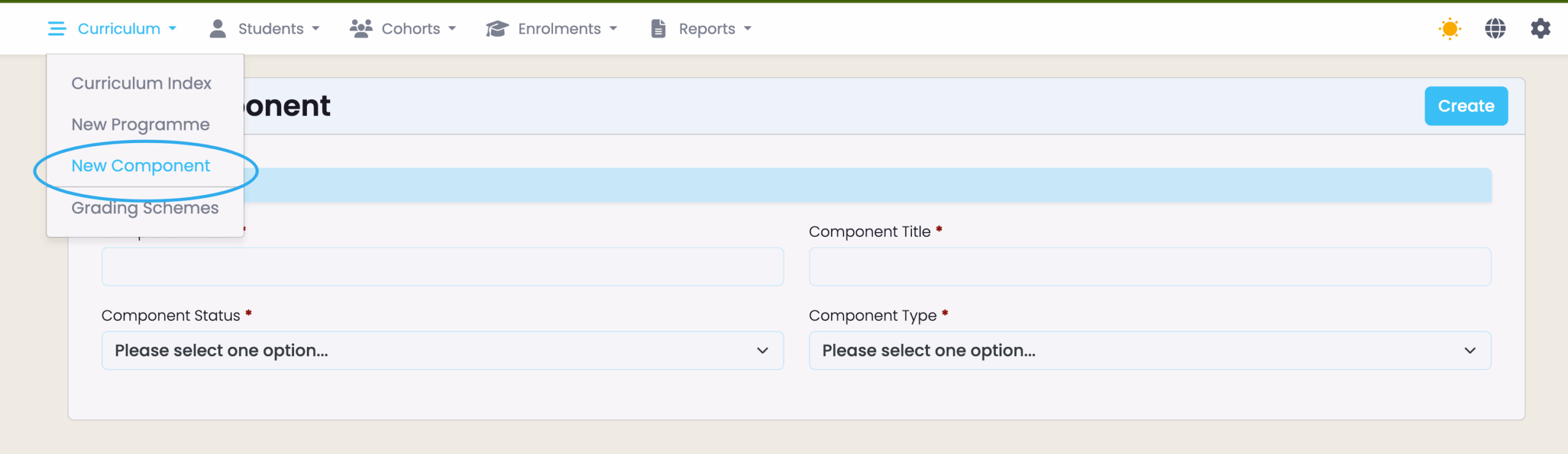
To create a component in SELMA, navigate to Curriculum > New Component (Figure 1.).
Figure 1. Hovering over “Curriculum” in the top navigation bar reveals a dropdown list, where you can navigate to and click “New Component” (blue).
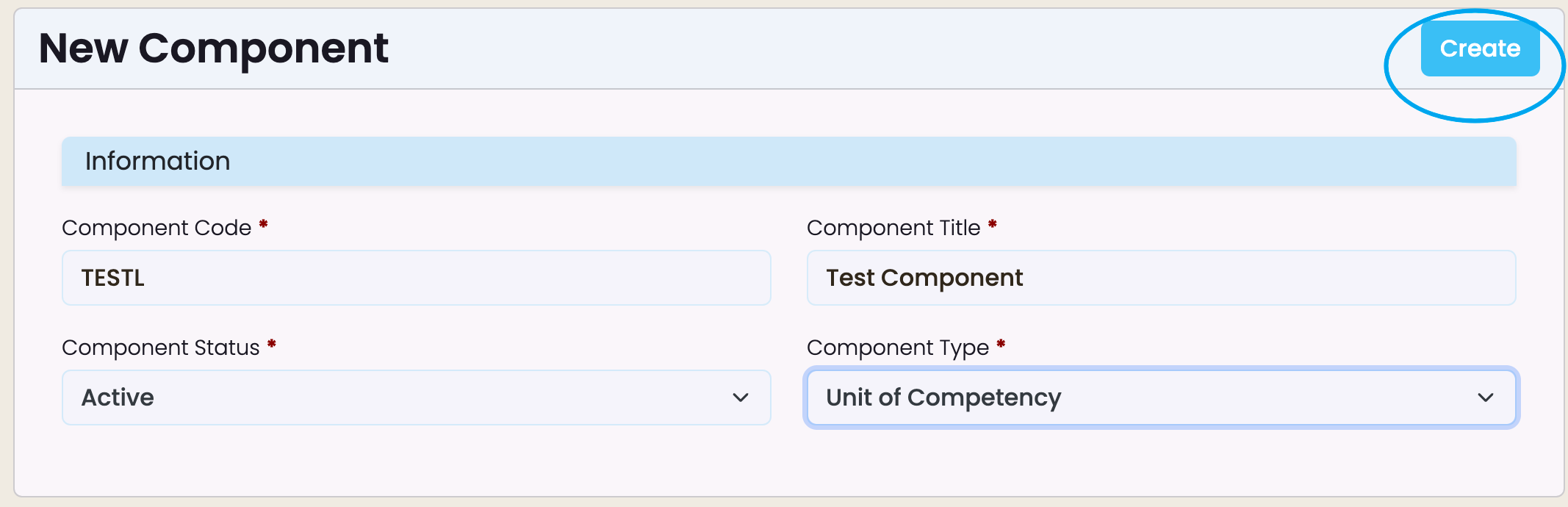
Once directed to the “New Component” information page, provide the necessary details and click the “Create” button to save the component (Figure 2.).
Figure 2. Clicking the “Create” button (blue) saves all changes to information fields.
Component Tab
You will now see a newly created Components page with empty fields.
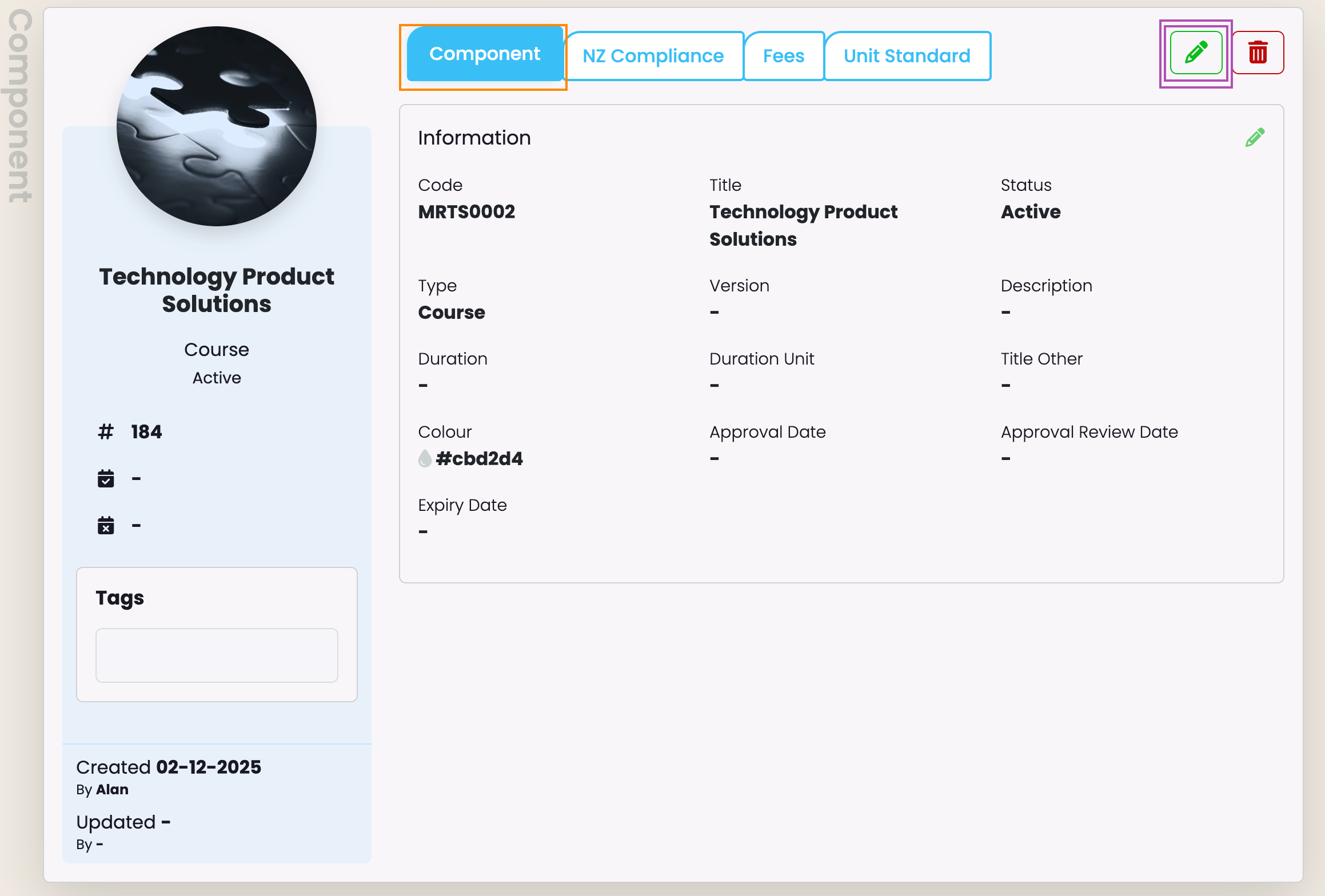
Make sure to fill these out by clicking the pencil icon to edit them (Figure 3.).
Note: Fill out required fields marked by red asterisks, when editing. Unmarked fields are optional, and should be filled out in the case that your institution wishes to track specific information.
Figure 3. The Components Profile will open on the Component tab (orange). You can edit this tab’s details by clicking the pencil icon (purple).
Component | Compliance Tab
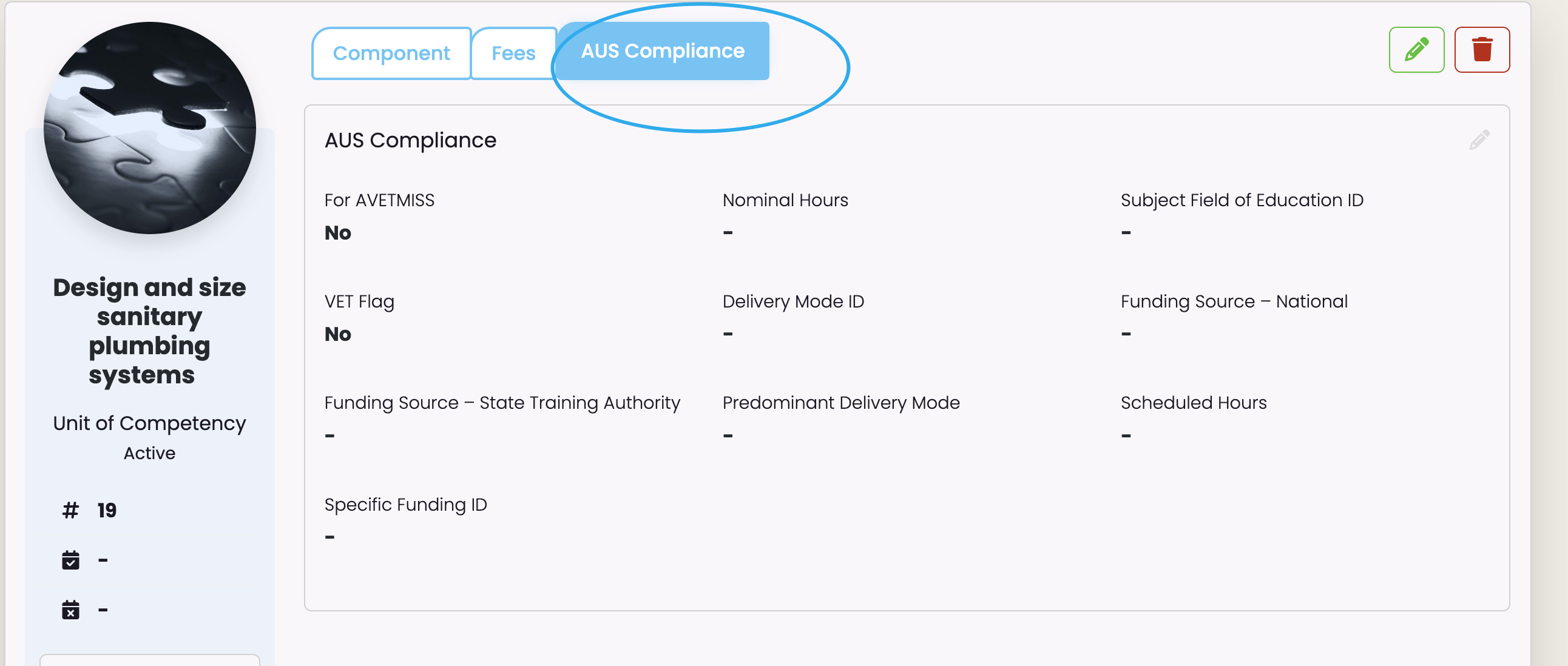
AUS Compliance
The AUS Compliance tab (Figure 4.) is visible to Australian providers only, and must be filled out accurately.
Note: In order to set-up an AUS Compliance Programme with the correct values, it is highly recommended to have your Programme Approval document on hand.
(Figure 4.) AUS Compliance Tab at the Component level.
NZ Compliance
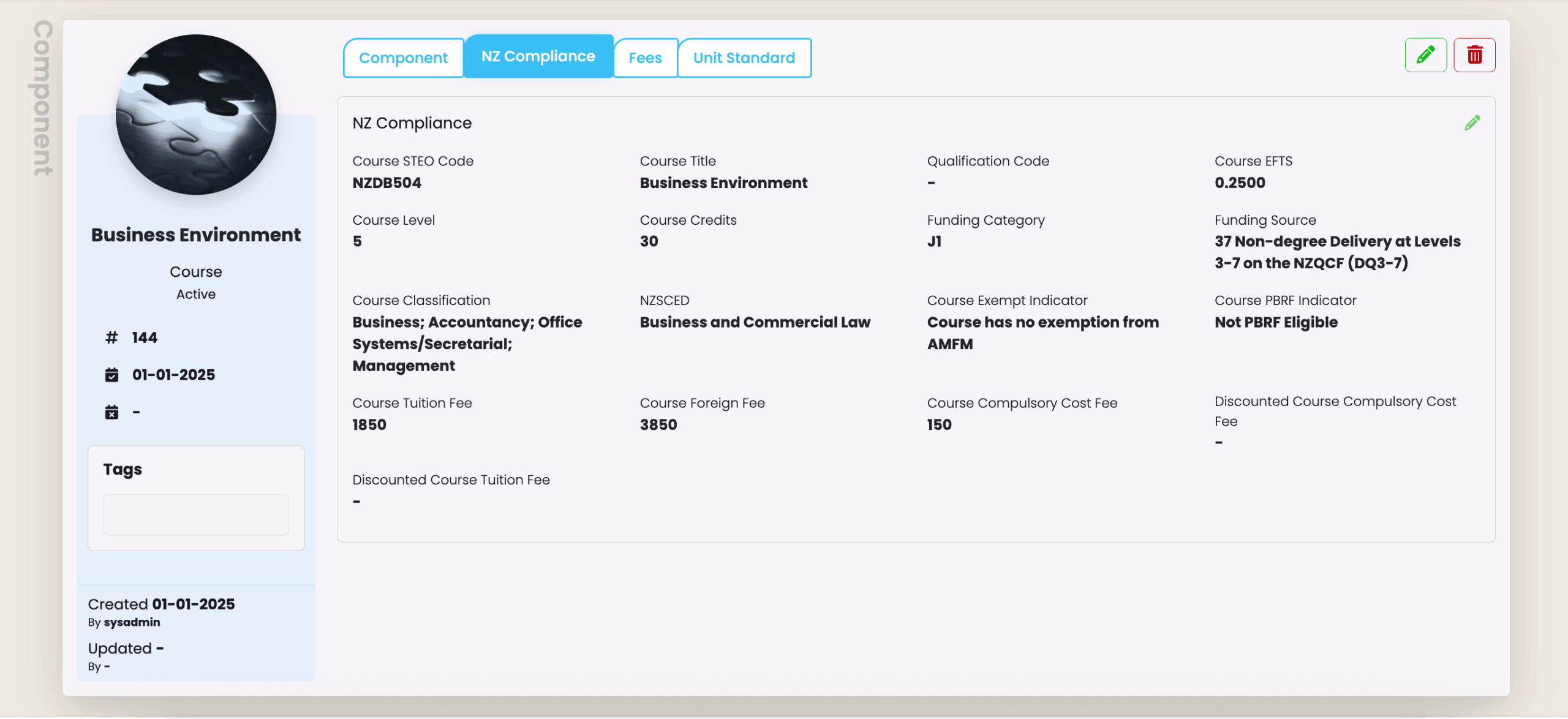
NZ Compliance tab (Figure 5.) is visible to New Zealand providers only, and must be filled out accurately.
Note: In order to set-up an NZ Compliance Programme with the correct values, it is highly recommend to have your Programme Approval document on hand, or your DXP Ngā Kete (formerly STEO) open in your browser.
(Figure 5.) NZ Compliance Tab at the Component level.
Component | Unit Standard tab (NZ)
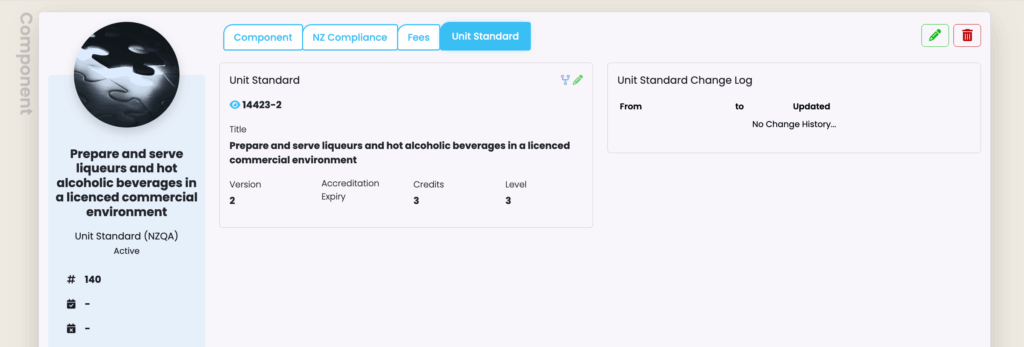
The Unit Standard tab is visible to New Zealand providers only.
(Figure 6.) Unit Standard Tab at the Component level.
Component | Fees Tab
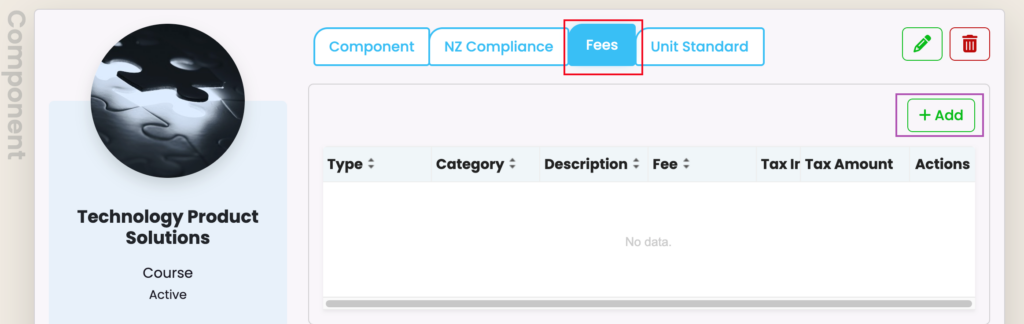
To list fees associated with a component, navigate to the Fees tab.
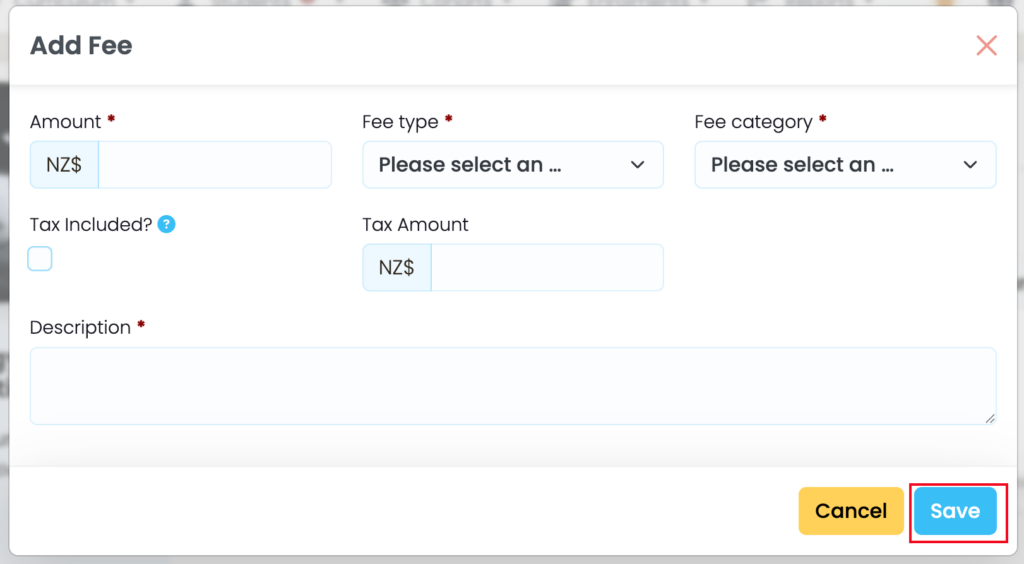
Click ‘+Add’ and complete all relevant details, then click ‘Save’ (Figure 7i. & 7ii.).
(Figure 7i.) Fees Tab at the Component level (red), where you can “+Add” fees (purple) to components.
(Figure 7ii.) When the pop-up appears, fill out the required fields marked by red asterisks and click “Save” (red).