
SELMA’s Contract Reconciliation feature enables Australian training organisations to compare expected government funding against amounts received and reconcile discrepancies efficiently.
SELMA calculates expected funding amounts using contract schedules and learner outcomes, and highlights differences against amounts received. This supports accurate reconciliation, follow-up, and audit readiness.
In this Section:
Accessing Contract Reconciliation
To access the Contract Reconciliation feature:
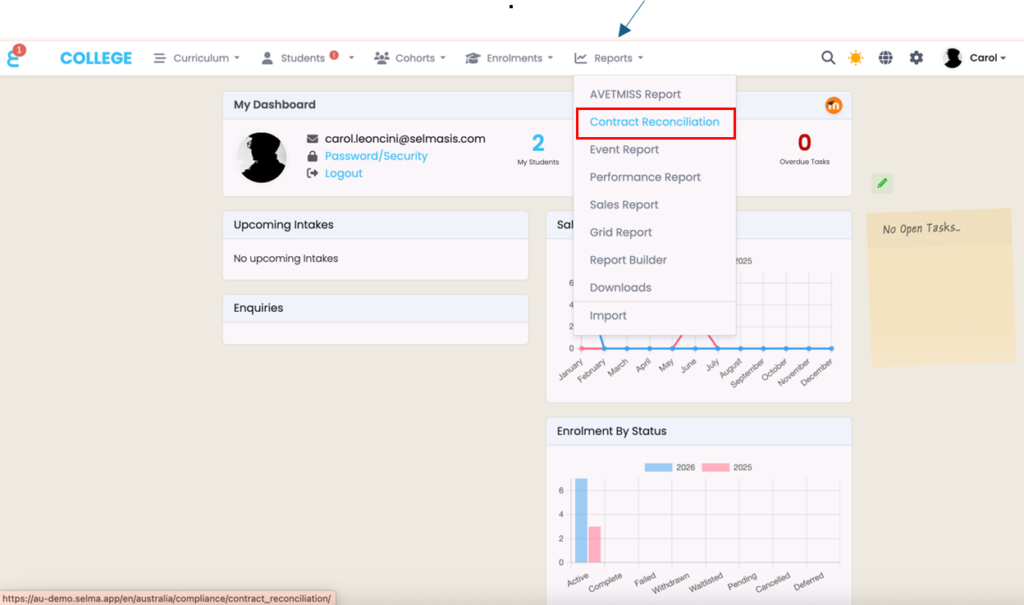
- Navigate to:
Dashboard → Reports → Contract Reconciliation
- Ensure you have the appropriate user permissions.
Figure 1: Contract Reconciliation navigation in SELMA
Preparing Your Reconciliation
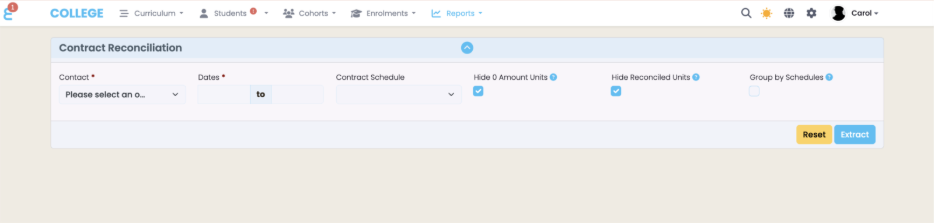
When you open Contract Reconciliation, the top section of the screen allows you to set up your reconciliation filters.
The Contract Reconciliation screen consists of:
- A filter panel at the top
- A results grid below
Before extracting data, you must select:
- A Contract
- A Date Range
These fields are mandatory. Optional filters can be adjusted to control how results are displayed.
Once configured, click Extract to load data into the results grid.
Figure 2: Contract Reconciliation Main Screen
After configuring your filters:
- Review all selected parameters.
- Click Extract.
The system processes the data and displays matching records in the results grid.
Large datasets may take additional time to load.
Understanding the Results Grid
The results grid displays extracted enrolment data in a hierarchical format.
- When Group by Schedule is enabled, schedules appear at the top level.
- When disabled, students appear at the top level with associated units listed underneath.
Figure 3: Contract Reconciliation results grid

Each row displays key reconciliation information, including:
- Student name
- Qualification or unit
- Schedule (if applicable)
- Dates
- Outcome
- Delivery mode
- Hours
- Expected amount
- Received amount
- Notes
The Received Amount and Notes fields are editable and can be updated directly in the grid before invoicing.
Any changes automatically update totals.
Expected Amount Calculation
Expected amounts are calculated based on the payment configuration defined within each contract schedule.
Payment rules may be configured by:
- Enrolment
- Subject
- Hourly calculation
Outcome rules determine whether:
- Full payment
- Partial payment
- Prorated payment
- No payment
applies.
All calculations are derived directly from the contract configuration.
For further setup details, refer to the Contracts resource page.
Importing a Funding Report
Funding reports from state training authorities can be imported to automatically populate received amounts.
Note: Before importing, ensure the file structure matches the required column format.
To import a funding report:
- Click Import Funding Report
- Upload a CSV, XLS, or XLSX file
- Submit the file for processing
Figure 4: Import funding report modal

The system matches records using:
- Contract code
- Student identifier
- Dates
- Unit code
Matching records update the grid and highlight any differences.
Creating an Invoice
Once discrepancies have been reviewed:
- Select the relevant rows in the results grid
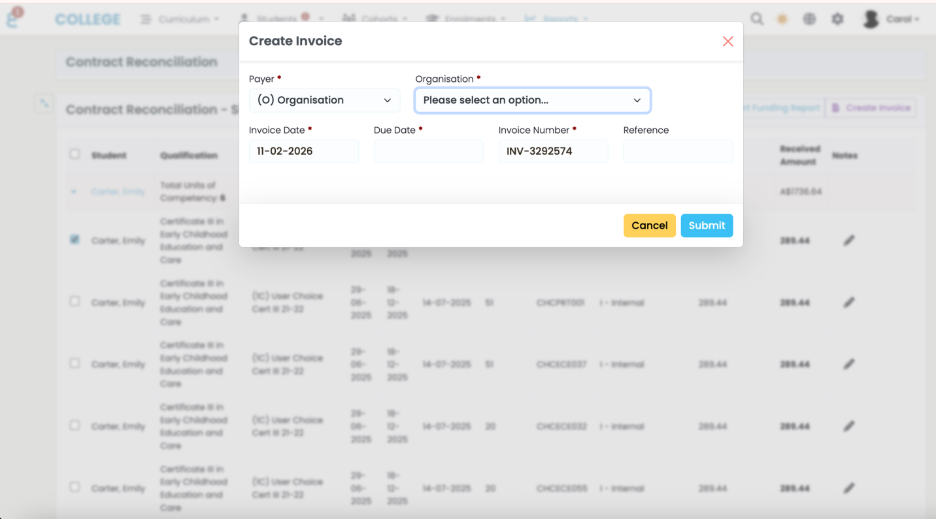
- Click Create Invoice
- Complete the invoice details and submit
Each selected unit is added as an individual invoice line item.
Descriptions include the student name, unit code, contract reference, and relevant dates.
Note: Invoices created through this process are issued to the funding body as an Organisation.
Figure 5: Creating an invoice from Contract Reconciliation
Exporting Data
To export reconciliation results:
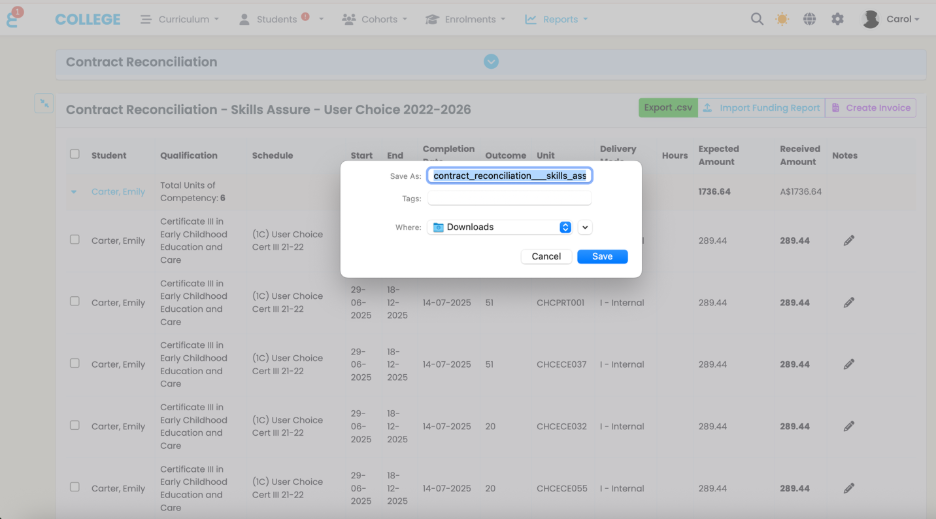
- Click the Export button in the results header
- Download the CSV file
The export includes all currently visible data in the grid.
Figure 6: Export reconciliation data
Automatic Exclusions
During extraction, the system automatically excludes:
- Enrolments not linked to a contract
- Components with outcome code “0”
- Deleted records
Additional exclusions may apply when optional filters are enabled, such as hiding $0 units or previously reconciled items.