In this Section:
Create an Organisation
Figure 1i. Navigate to Students > Organisations
Click on the green “+” icon to create a new Organisation and add it to the Organisation Index.
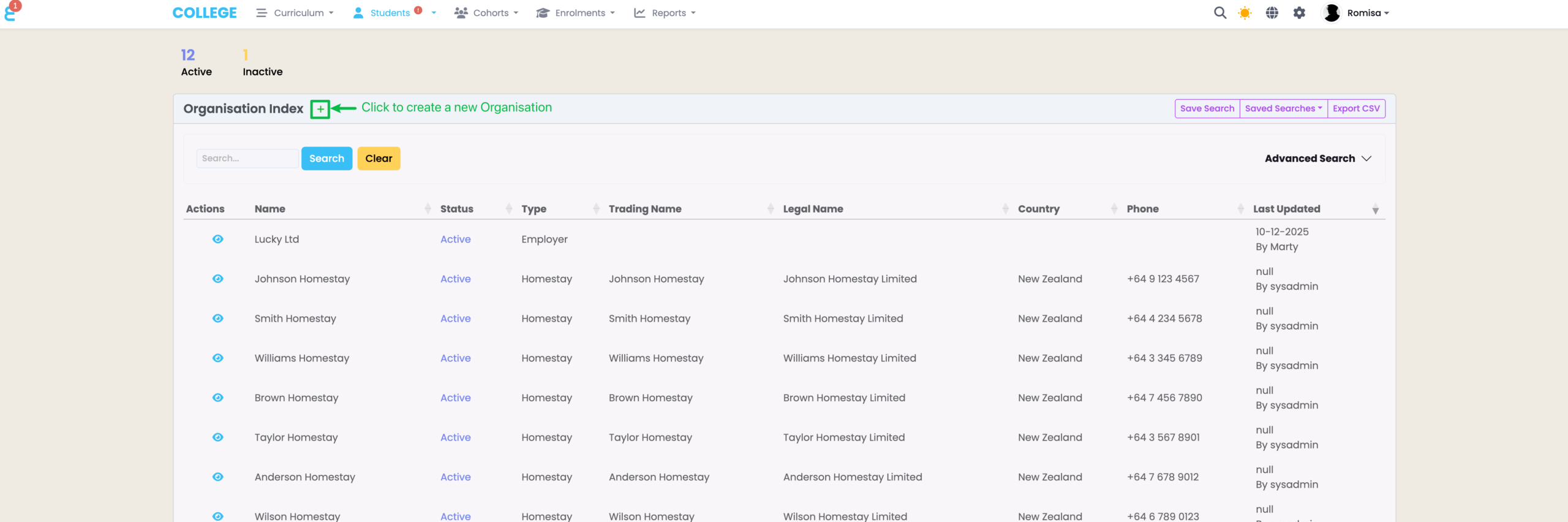
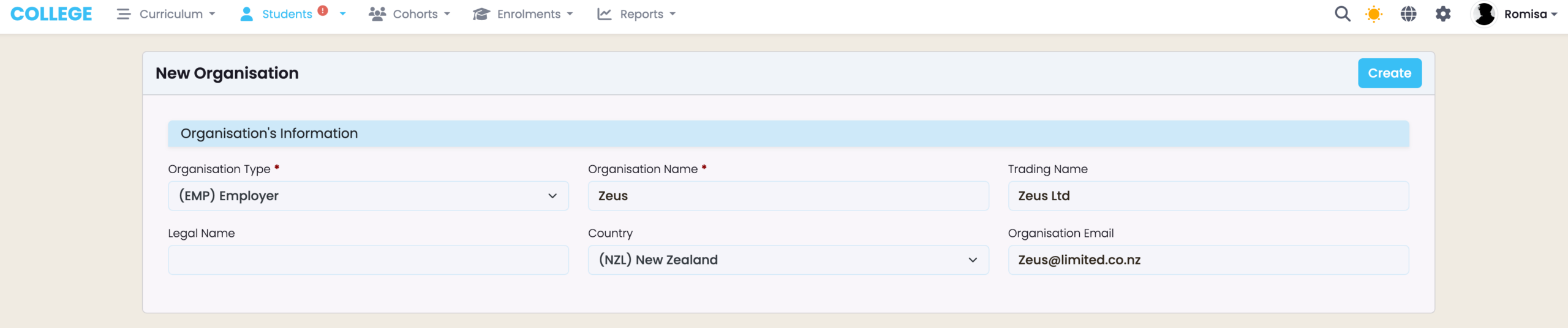
Figure 1ii. Add Organisation Details
Fill out the required fields, as indicated by red asterisks (red). Click the blue “Create” button to save the new Organisation to the Organisation Index.
Manage Organisations
Organisation Tab
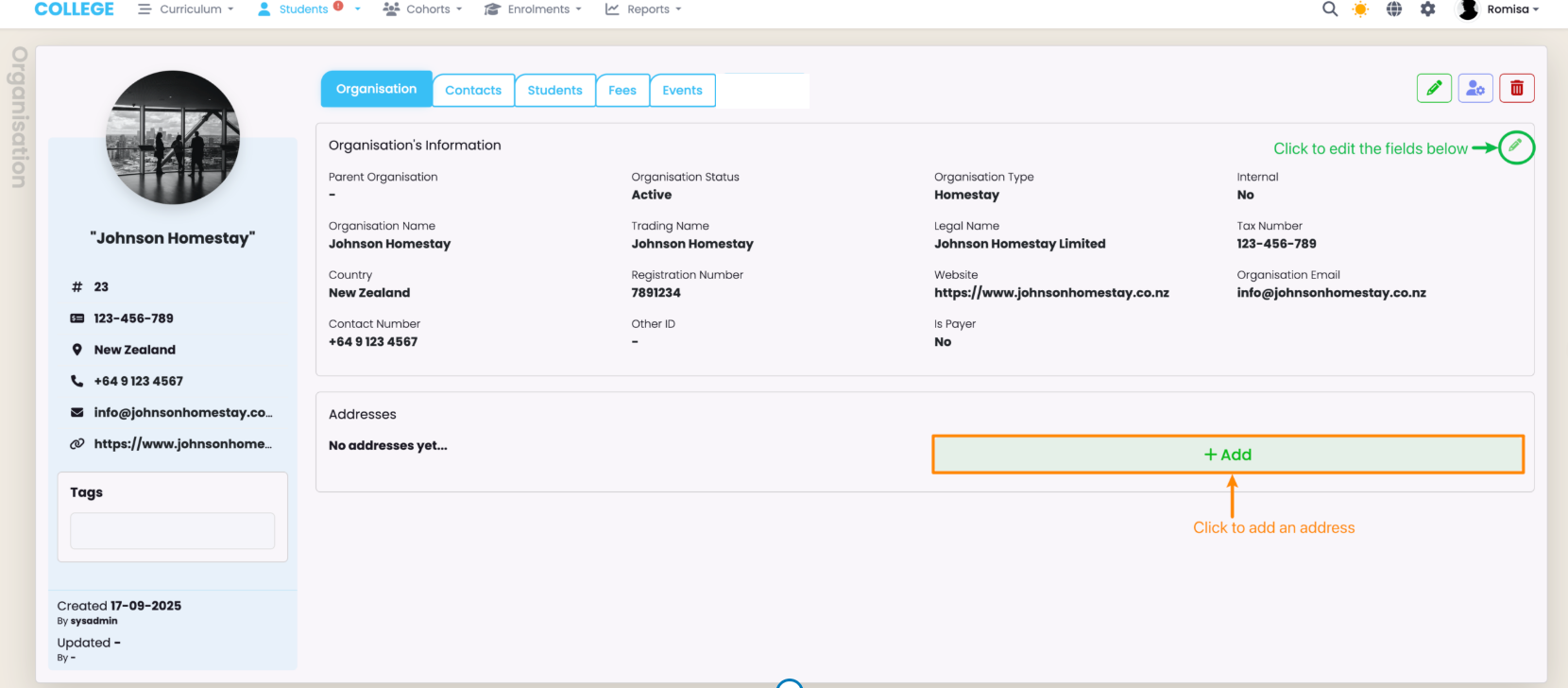
Figure 2i. Edit Organisation Information
Contacts Tab
Figure 3i. Link a Contact to the Organisation
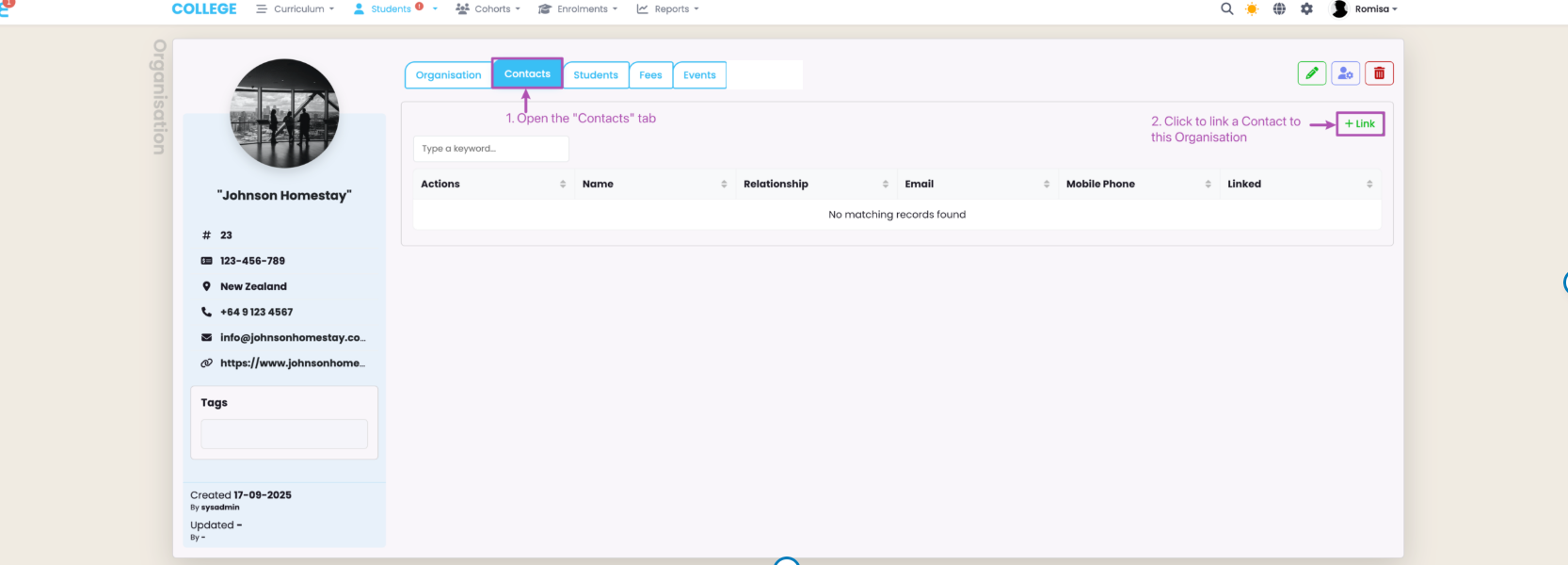
Figure 3ii. Add Required Details and Save
Specify the Contact you are linking, as well as the Contact-Organisation relationship. You can opt to add a note, too. Click “Save” to add the Student-Contact link.nisation Information
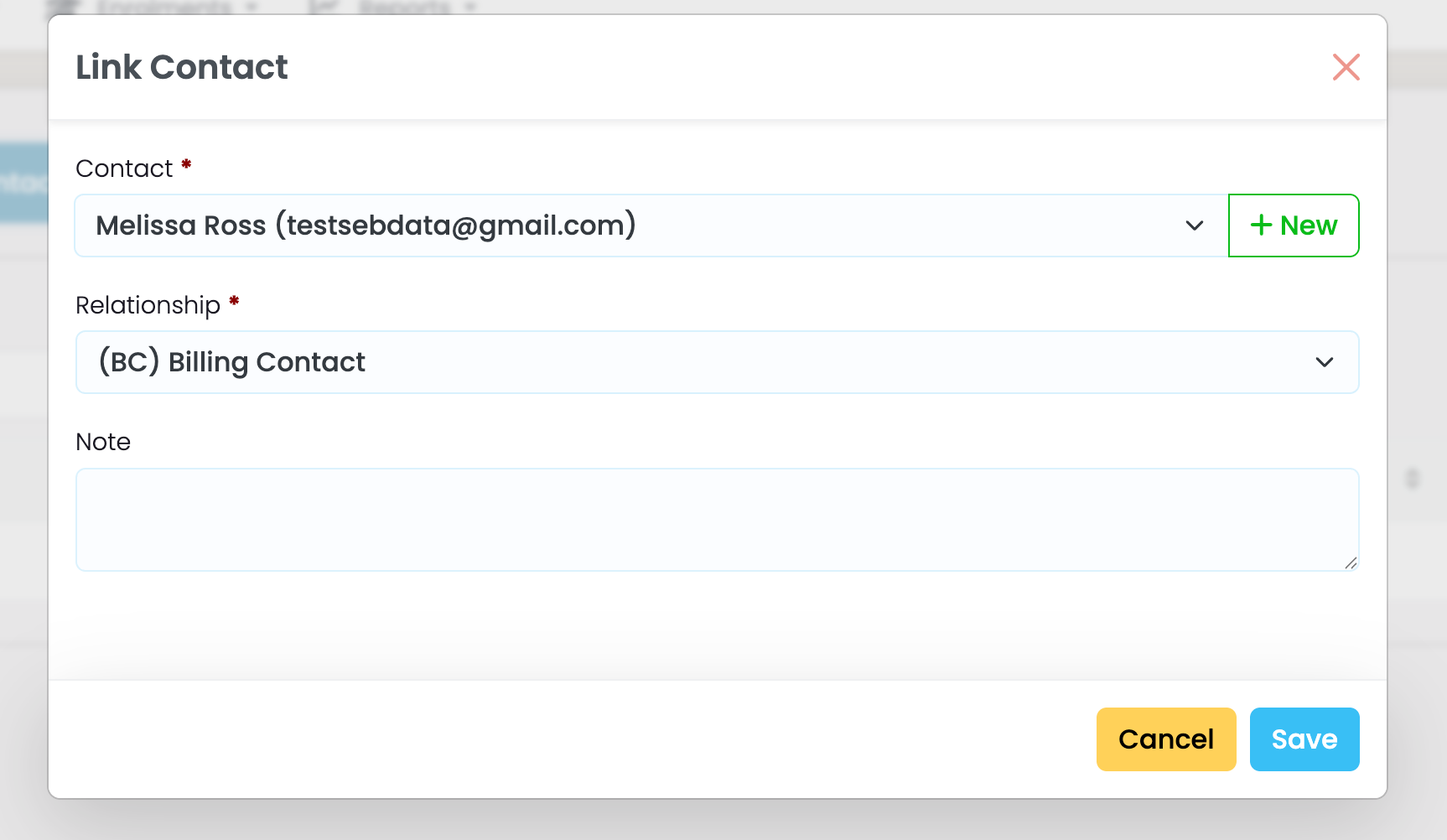
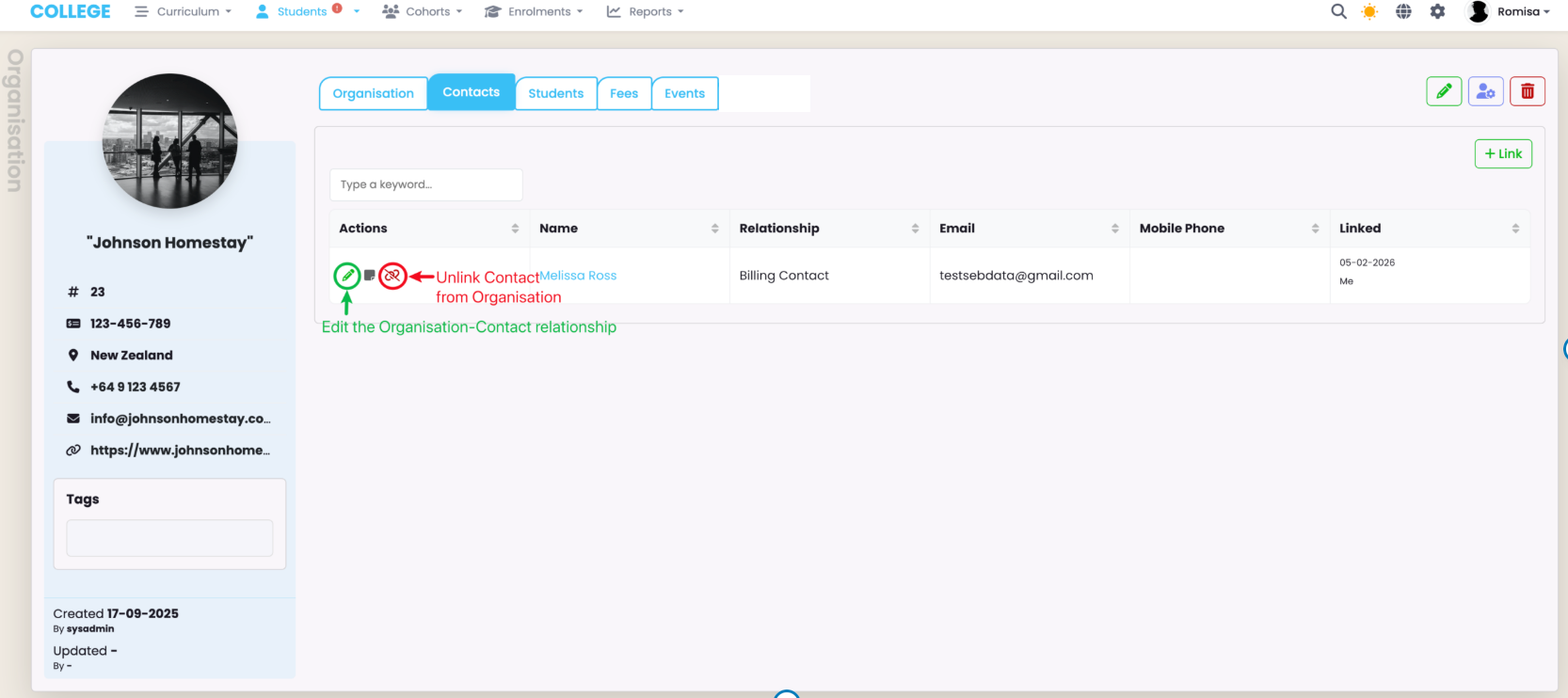
Figure 3iii. Edit and Remove the Organisation-Contact Link
Click the green pencil icon to edit a Organisation-Contact relationship, or remove (unlink) the relationship entirely (red).
Students Tab
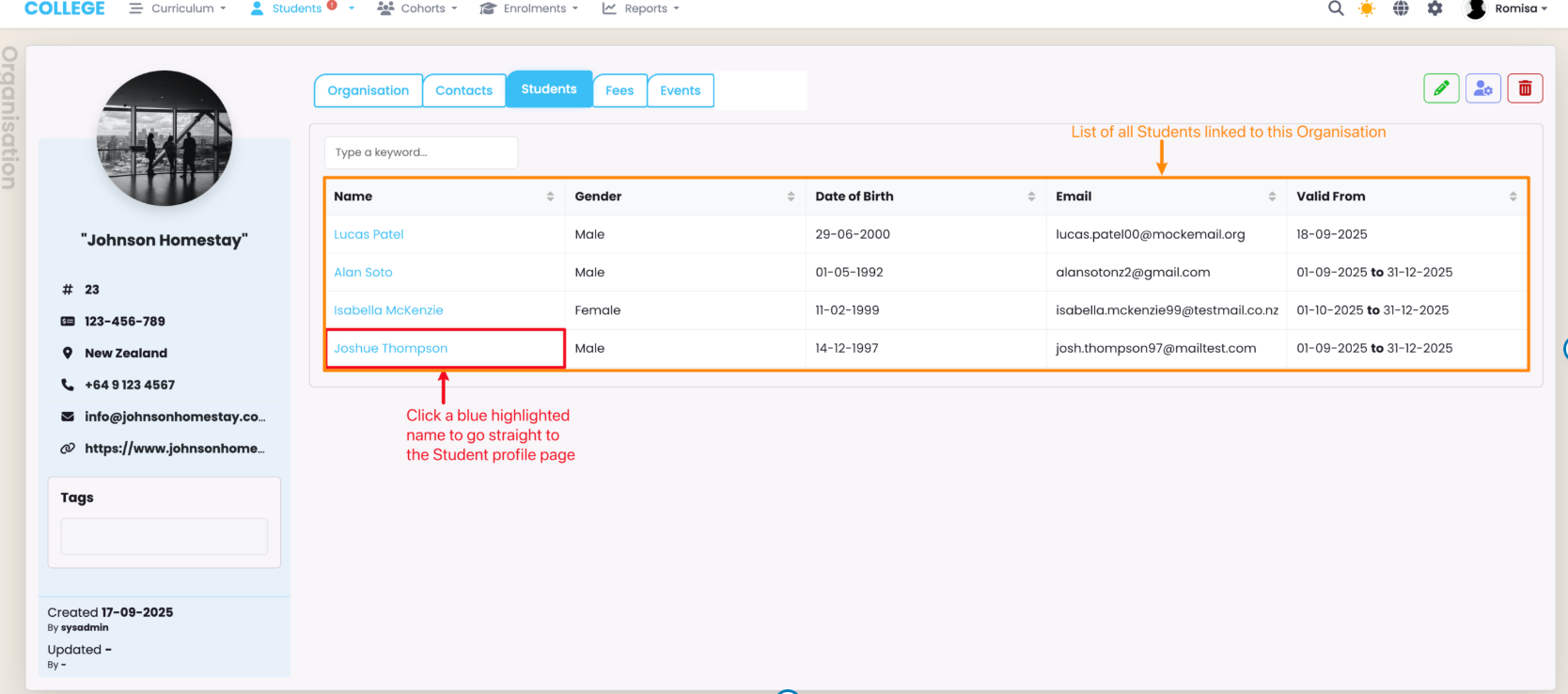
Figure 4. View List of Students Linked to the Organisation
Fees Tab
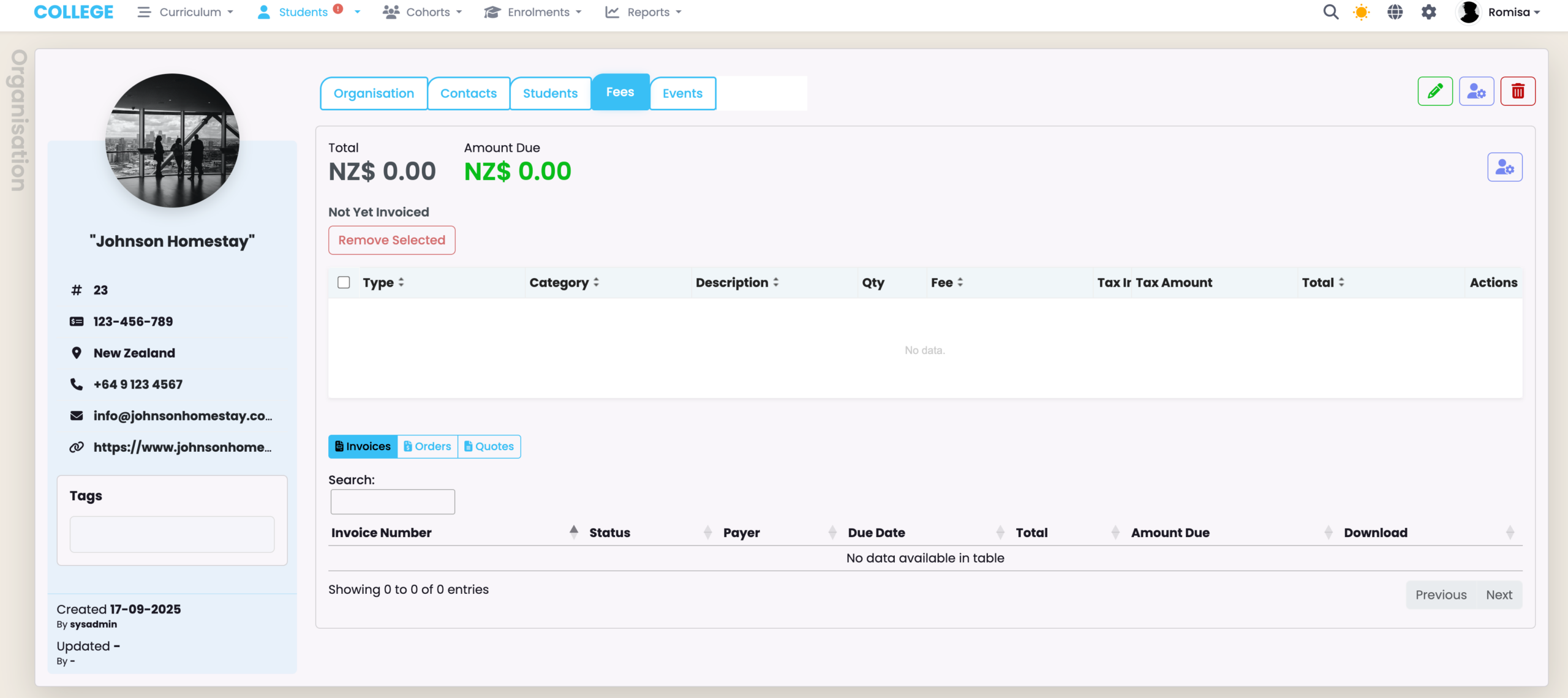
Figure 5. Financial Records linked to an Organisation
This is where you can see all Enrolment fees, and invoices and orders associated with an Organisation.
Events Tab
Use the Events tab to create a note on the Organisation profile, or assign a task to a SELMA user.
Figure 6i. Create an Event
Click the “+ Add Event” button to create notes on the Organisation page, or assign tasks to internal Users.
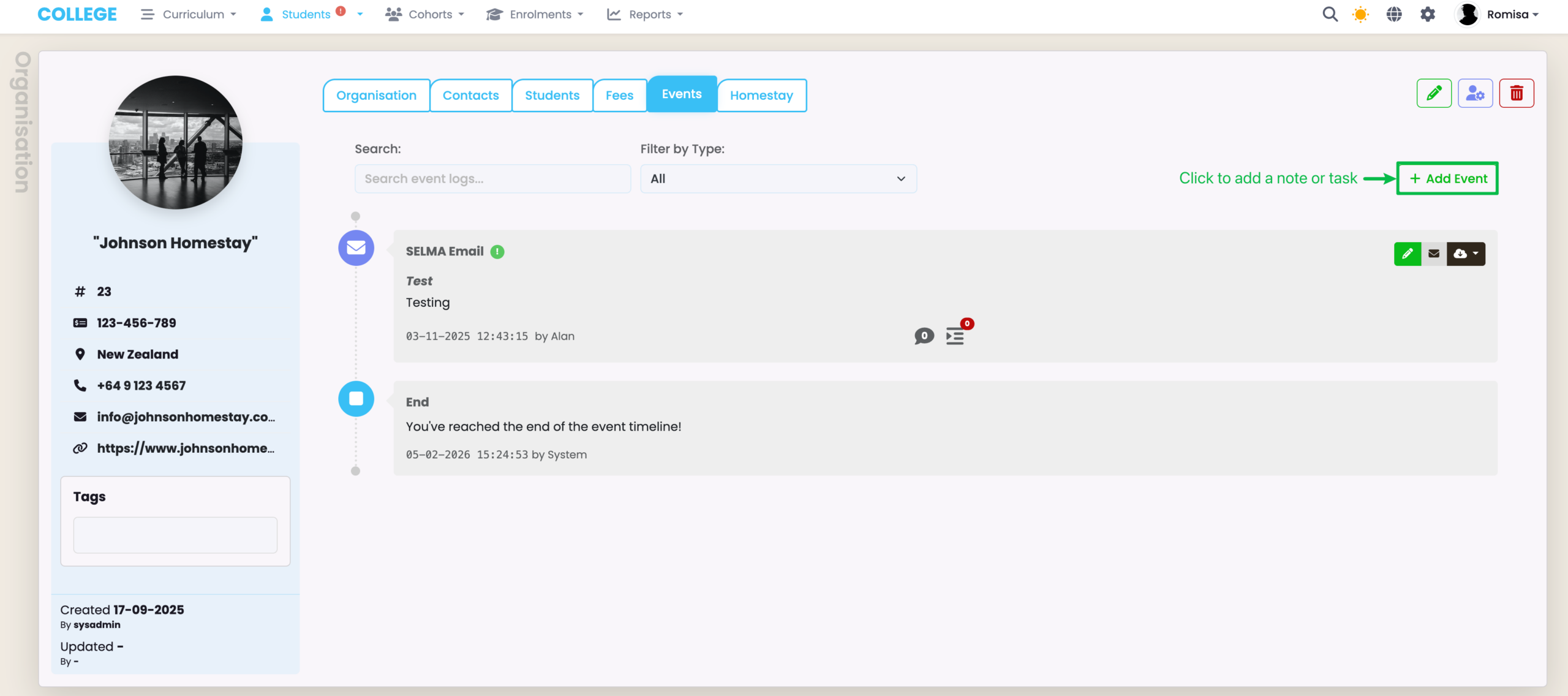
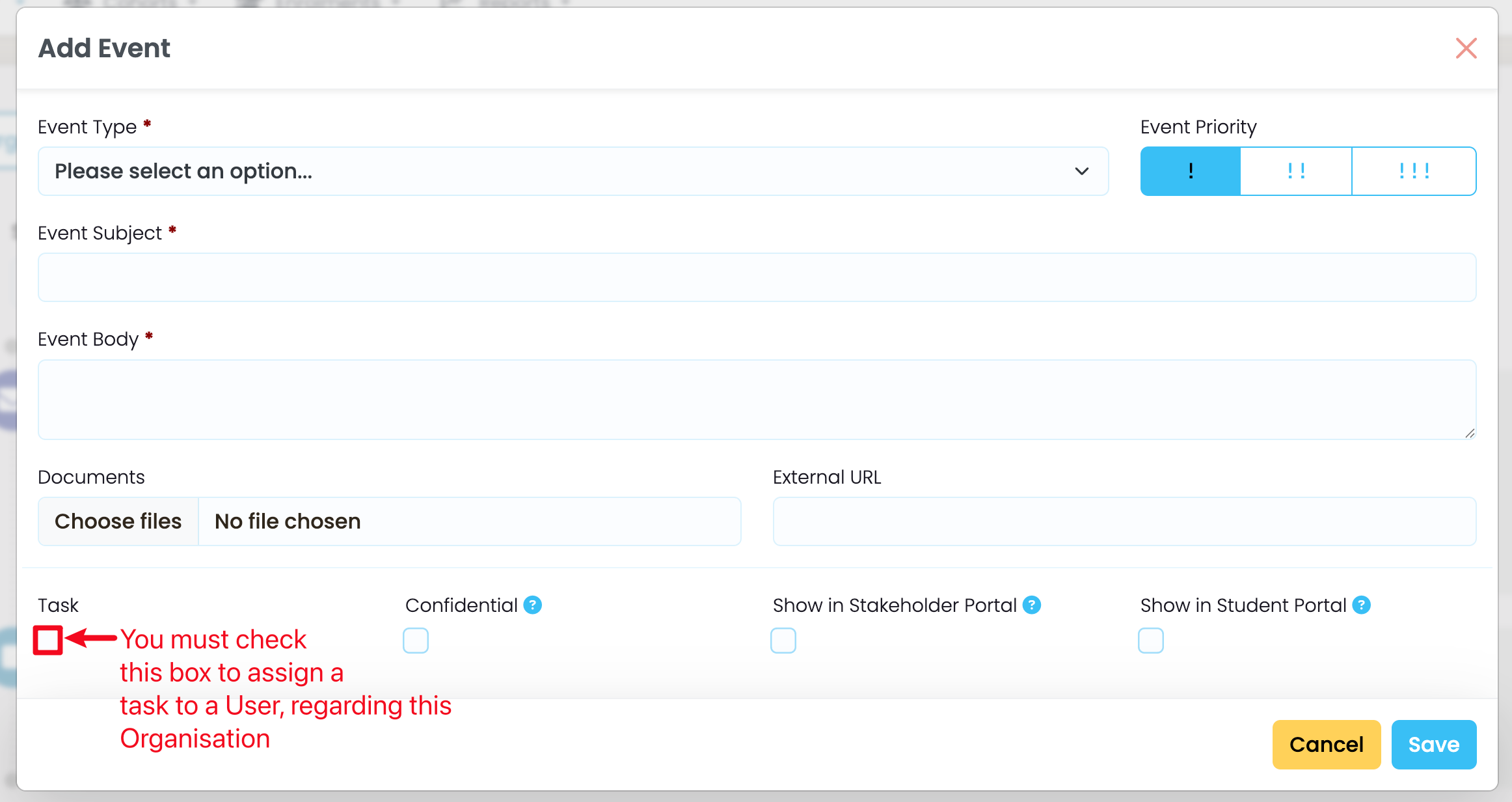
Figure 6ii. Add Required Details
Fill out the required fields, as indicated by red asterisks, and click the blue “Save” button.