
4. Custom Fields

In this Section:


Create and Manage Custom Fields

Include customised fields as a new tab on profiles by following the guide below.

Create a Custom Field

Figure 1. Navigate to Settings > Custom Fields
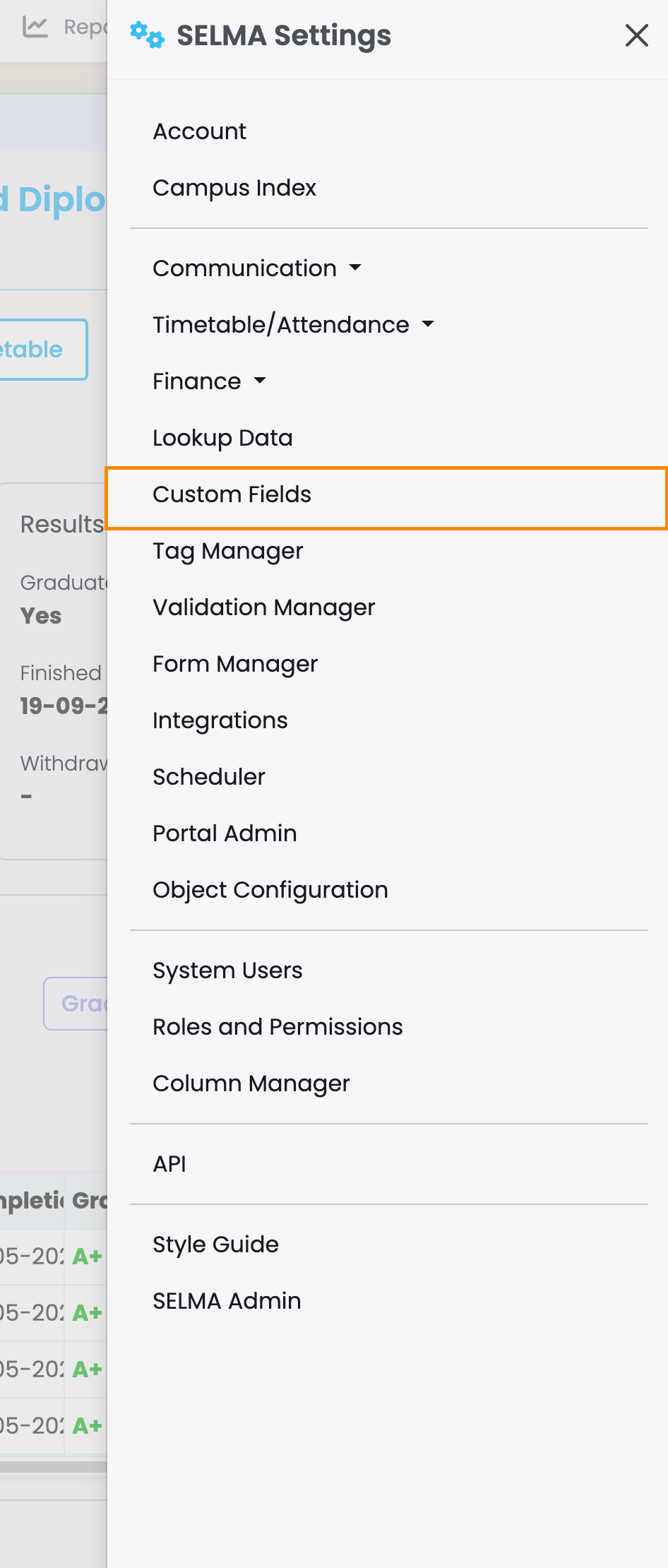
Figure 2. Custom Field Overview

See a list of custom fields under each Object heading, which corresponds with an “Object” in SELMA (orange). The blue “Data Workflow” button takes you to a screen showing how each object inherits data from one another.
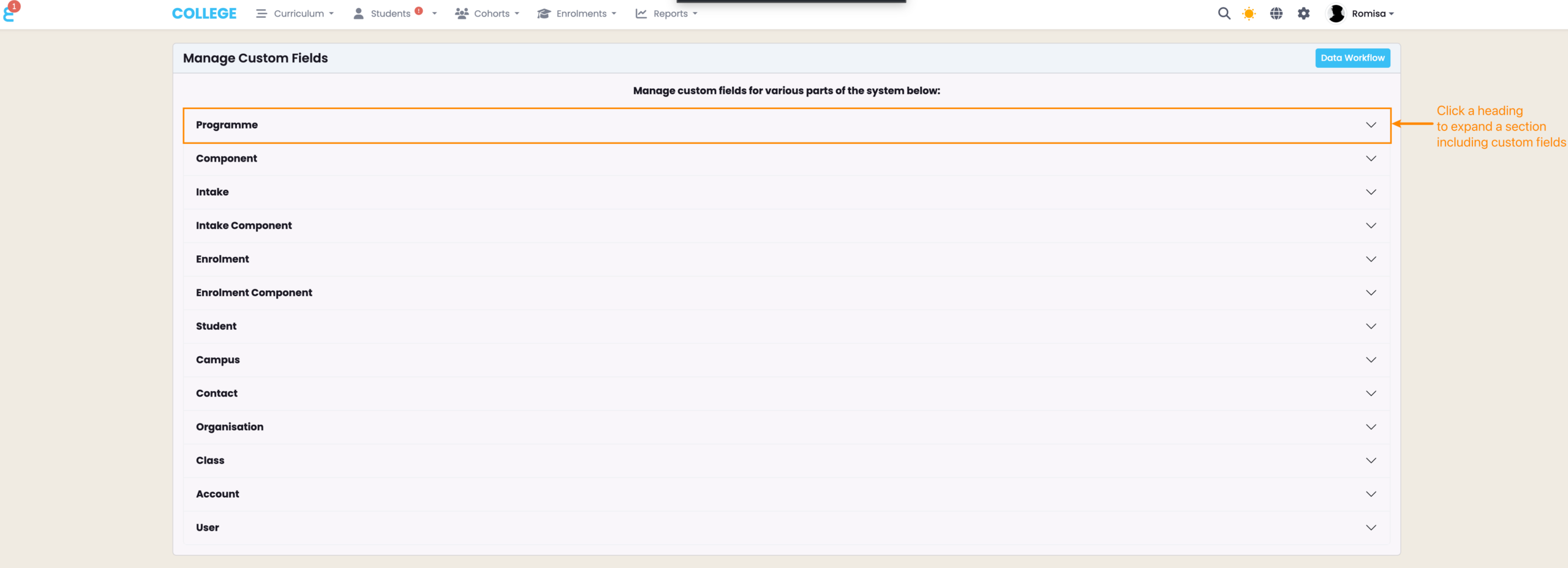
Figure 3i. Create a Custom Field

Click the “+Add” button to create a new custom field.
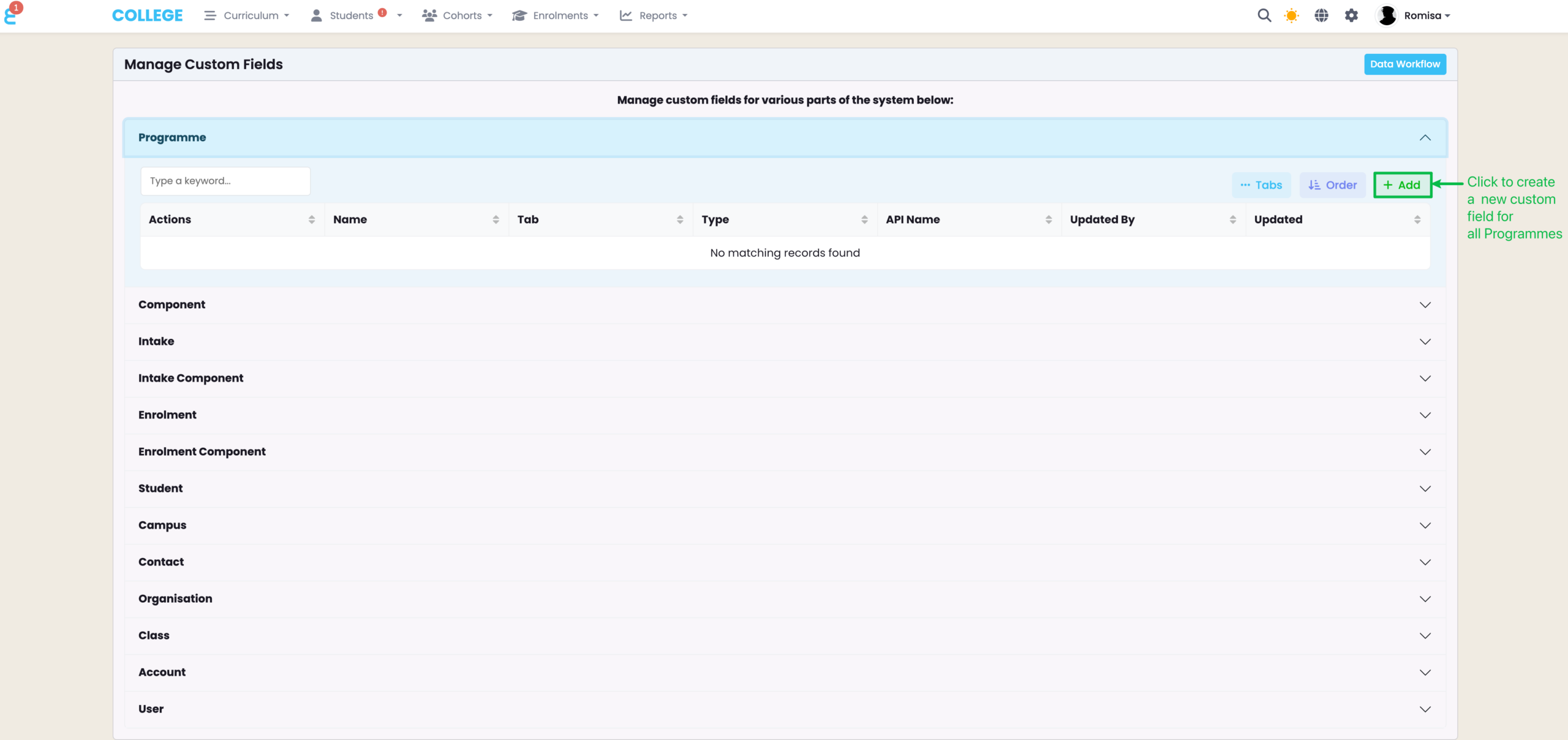
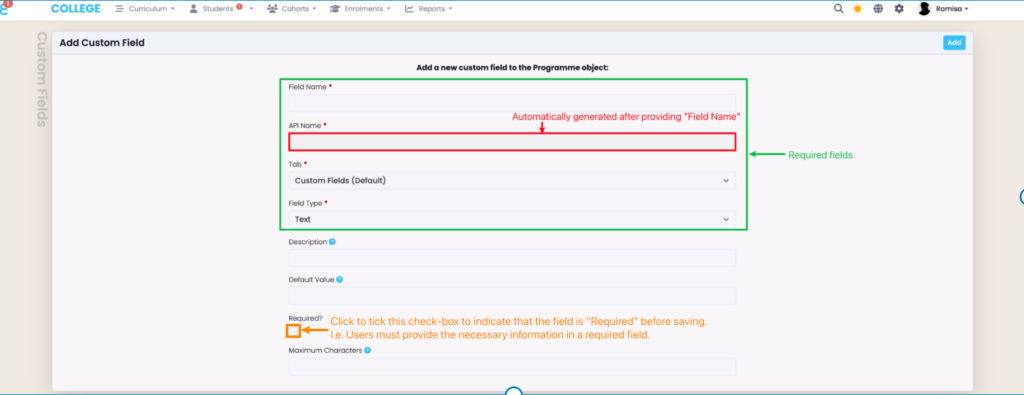
Figure 3ii. Add Custom Field Details

Required details include “Field Name”, “API Name” (generated automatically based on the Field Name), and “Field Type”. Click the checkbox to indicate, with a red asterisk, that the custom field is mandatory to fill out (orange).
Note: It’s recommended to avoid editing a custom field once it’s been created.

Reorder Custom Fields

Figure 4i. Select an Object

To reorder custom fields, expand an Object heading and click “Order”.
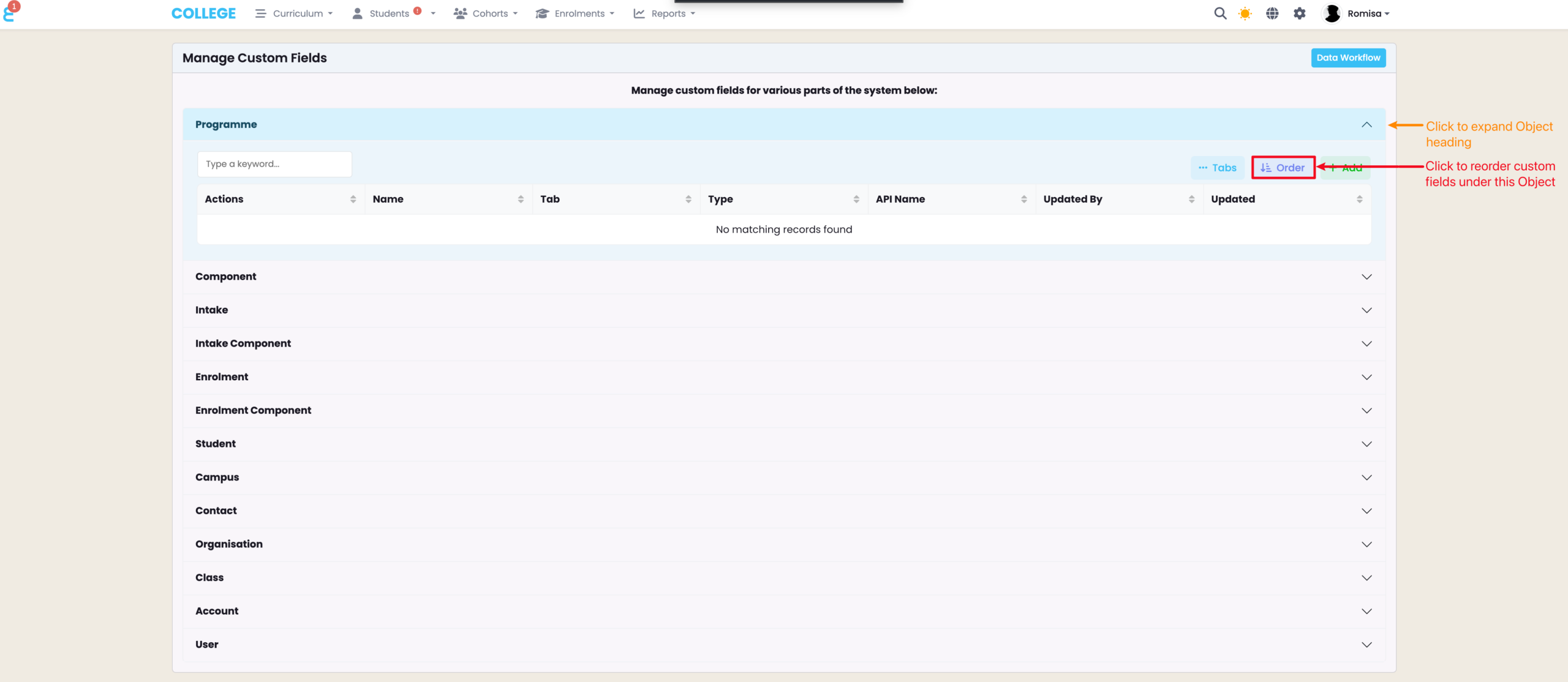
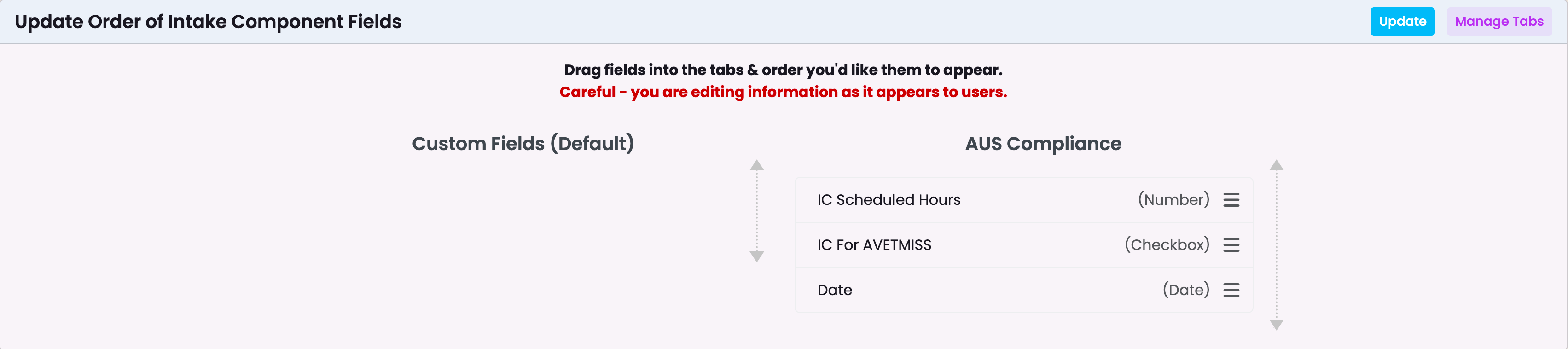
Figure 4ii. Reorder Custom Fields

Drag and drop the custom fields into the order you wish to have them presented on an Object tab.
A screenshot of a computer

Description automatically generated

Custom Fields Tab

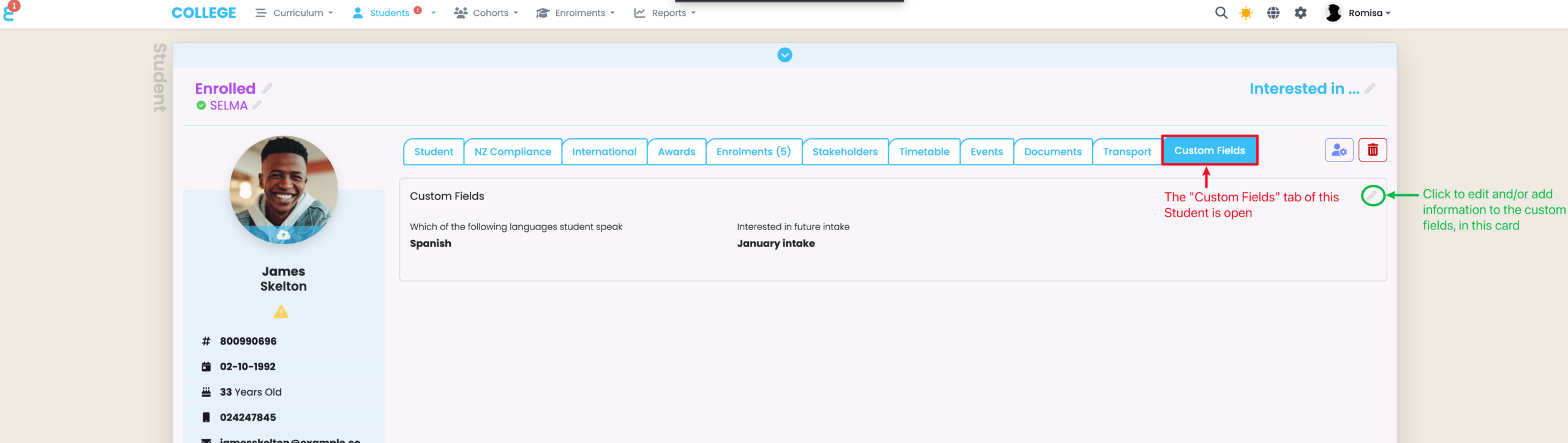
Figure 4. Use the Custom Field

In this example, the Student Profile page shows a Custom Fields tab (red) including information about fluent languages spoken by the Student, and the future Intake they are interested in. To alter or add relevant information, click the pencil icon in the corner of the card (green).
Related Articles

2. Campus Index, Rooms and Holidays

In this Section: Access the Campus Index Figure 1. Navigation Bar Click the cog icon in the top navigation bar. Figure 1ii. Settings Panel Click “Campus Index“. Add a New Campus Here, you can add new Campuses for your school, and view and manage them all in one place. Figure 2i. Create New Campus Click …

1. Account

In this Section: Find your Account Details Figure 1. Navigation Bar Click the cog icon in the top navigation bar (red). Figure 1ii. Settings Panel Click “Account“. Account Tab The Account tab is where you can make changes to the basic details set-up by SELMA. Figure 2. Key Details Set-up key parameters such as your …

6. Lookup Data

In this Section: Create and Manage Lookup Data Include customised fields as a new tab on profiles by following the guide below. Create a Data Type Figure 1. Navigate to Settings > Lookup Data Figure 2. Lookup Data Overview This page allows you to manage Lookup Data across multiple functions in SELMA. For example, the function …

3. Communication Templates

In this Section: Access Communication Templates Figure 1. Navigation Bar Click the cog icon in the top navigation bar. Figure 1ii. Settings Panel Click “Communication Templates“. Create a New Template The most effective way of using comms in SELMA is by creating templates. You can create templates for Emails, Email Attachments (PDF documents) and Text …