In this Section:
- Access Communication Templates
- Create a New Template
- Email Templates
- Text Message Templates
- PDF Templates
Access Communication Templates
Figure 1. Navigation Bar
Click the cog icon in the top navigation bar.
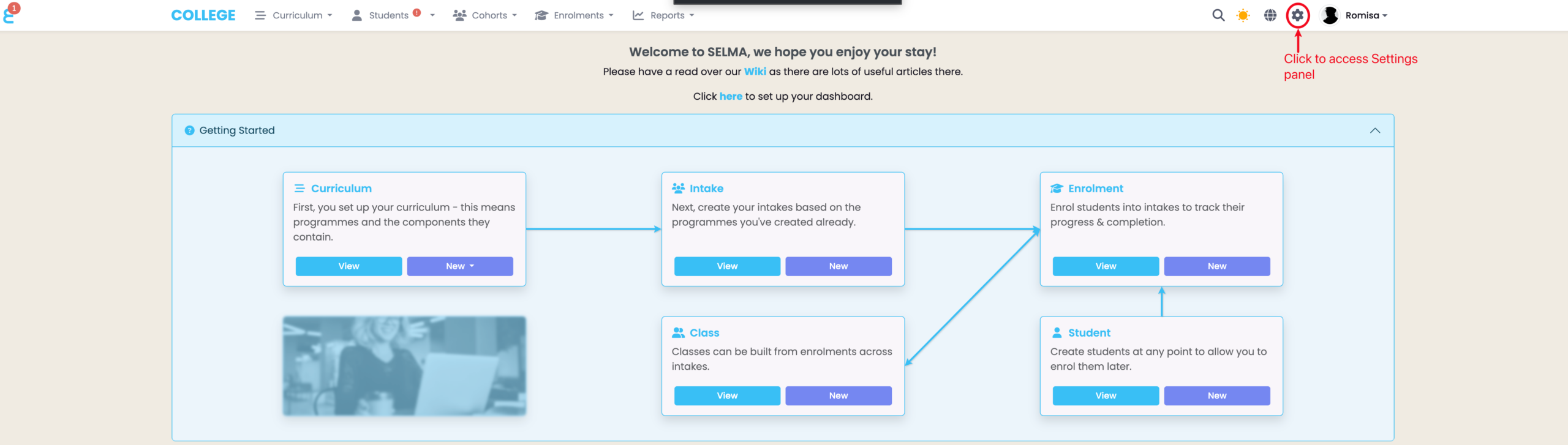
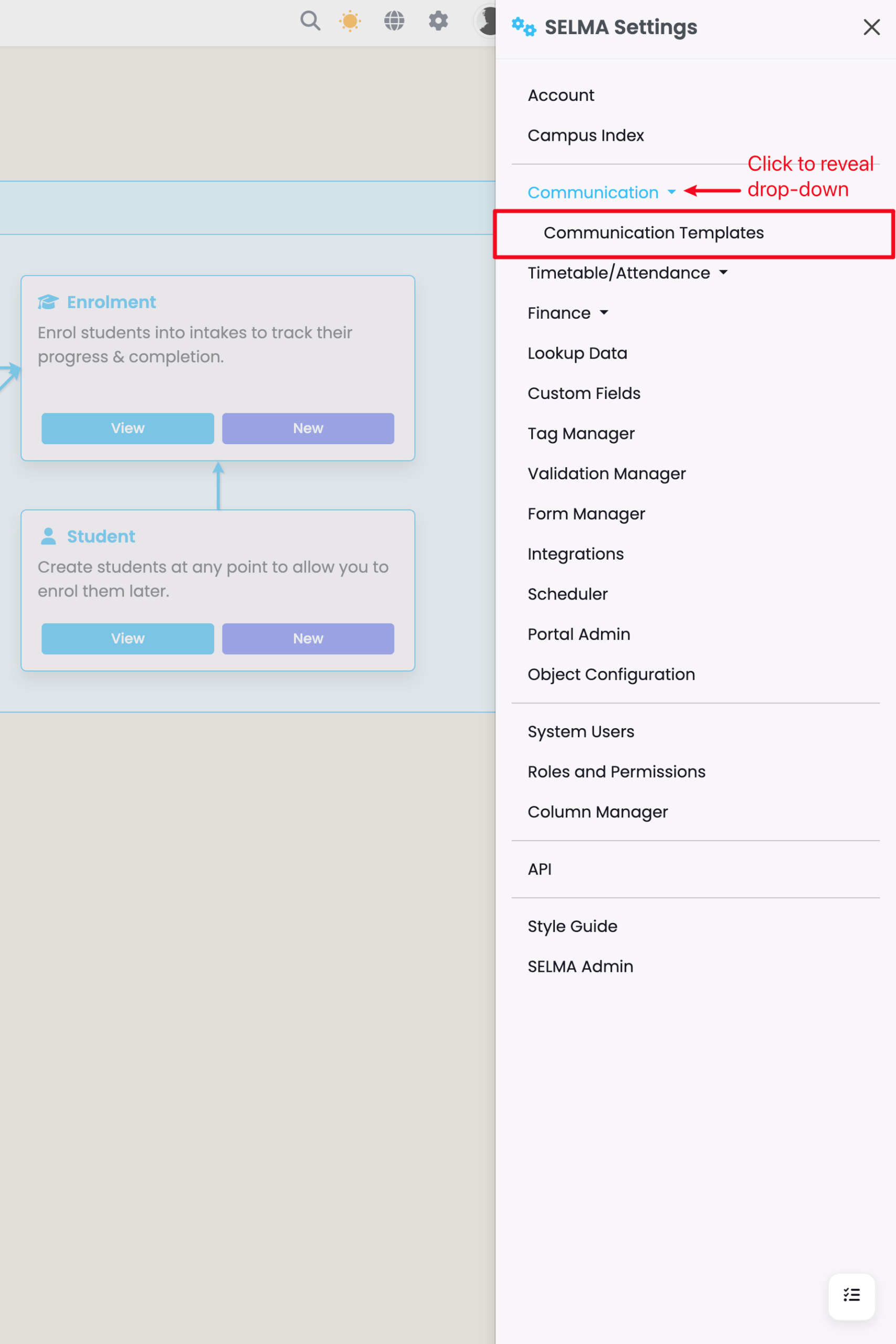
Figure 1ii. Settings Panel
Click “Communication Templates“.
Create a New Template
The most effective way of using comms in SELMA is by creating templates. You can create templates for Emails, Email Attachments (PDF documents) and Text Messages.
Figure 2i. Communication Templates Overview
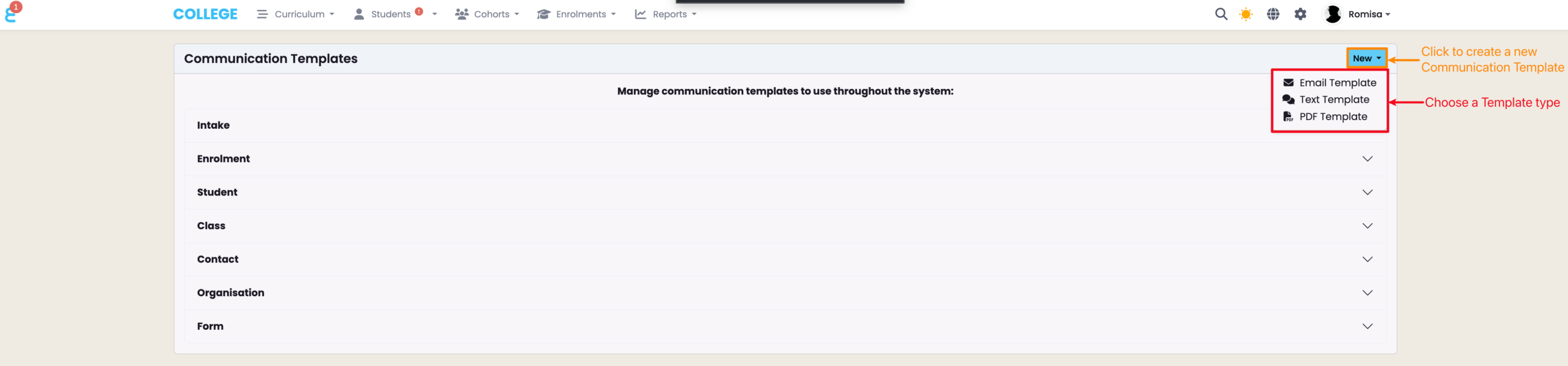
Templates are grouped by section headings, which expand on clicking (blue). Click the pencil icon to preview or edit (green), clone (purple) and remove a template (red).
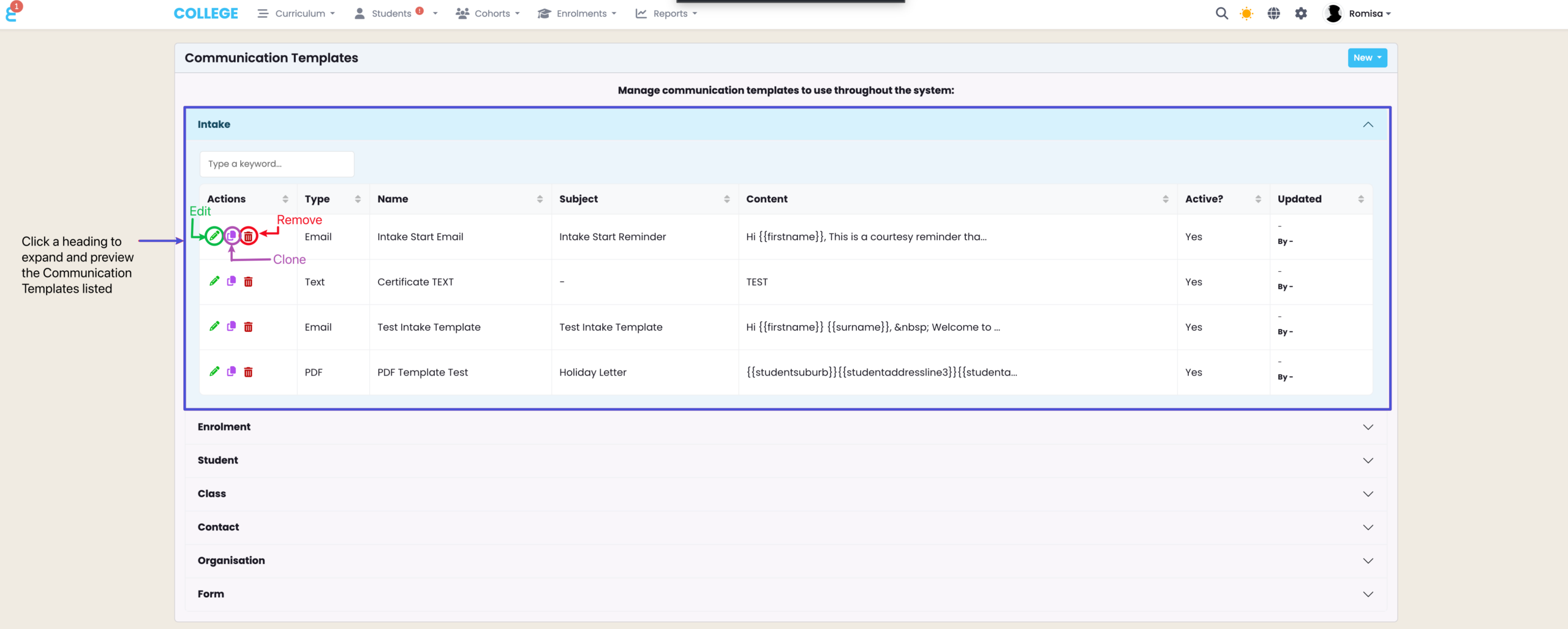
Figure 2ii. Add a Communication Template
To create a new template, click on “New” and choose a template type between Email, Text or PDF.
Email Templates
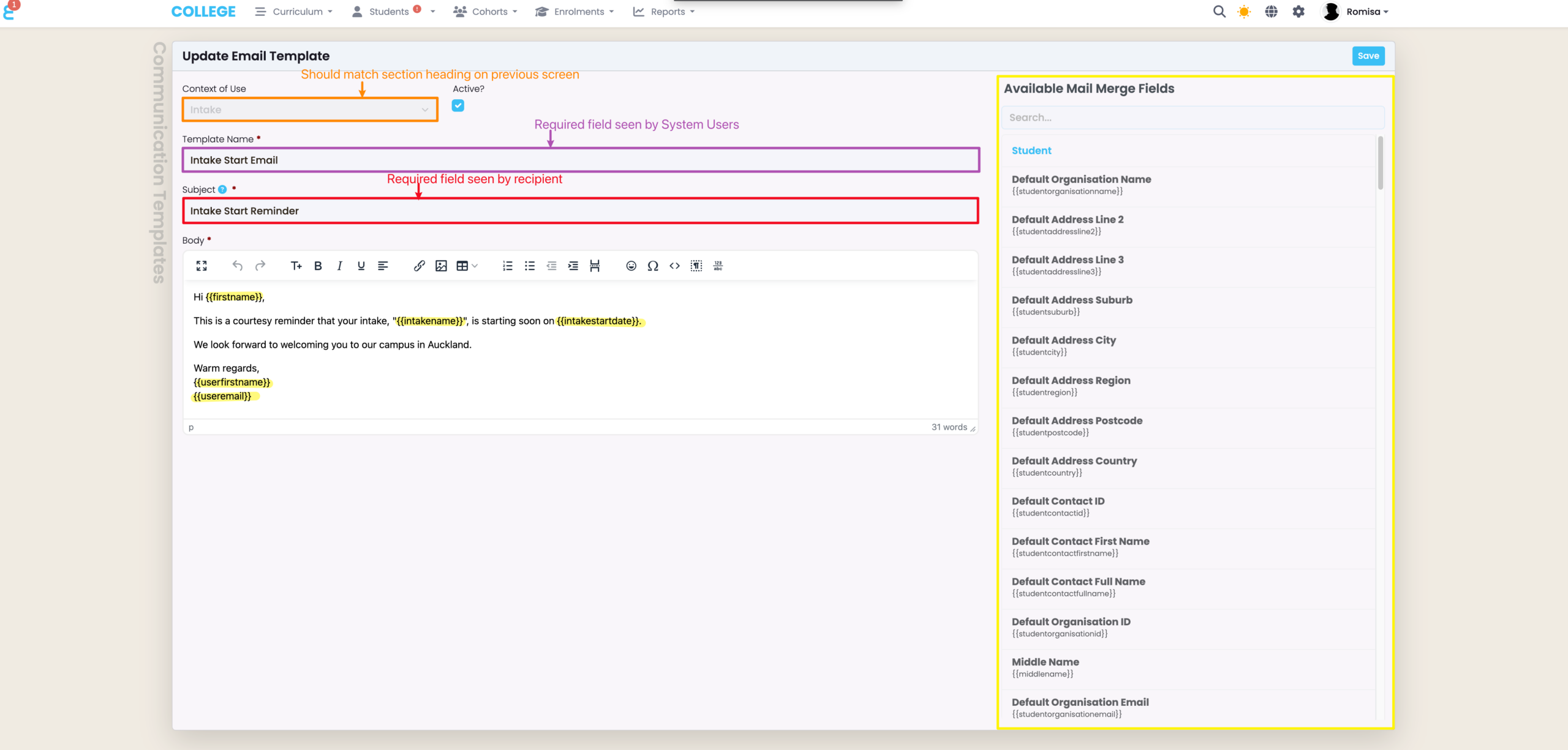
Email templates require Context of Use, Name, Subject and Body.
“Context of Use” (orange) restricts the Communication Template to map data from a specific object in SELMA e.g. “Intake” sends an email to a Student/s of an Intake, while “Student” sends an email to Student profiles.
Once an Email is set-up they can be accessed and sent from the Intake, Enrolment and Student levels.
Figure 4. Email Template Editor
Use Mail Merge Fields in the body of your email, to fetch dynamic data from SELMA (yellow). Use the formatting panel to stylise text.
Text Message Templates
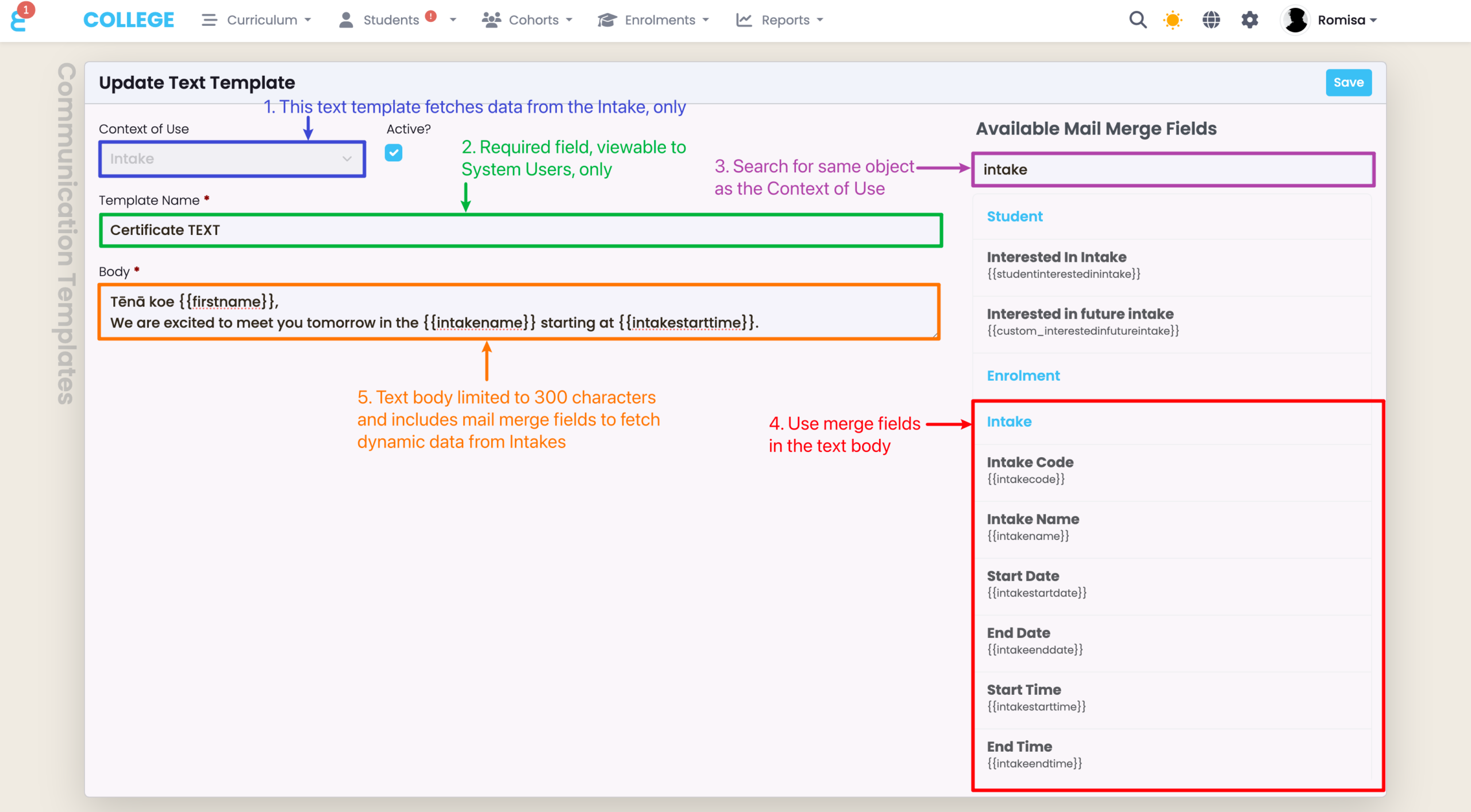
Text templates require Context of Use, Name and Body.
Once a Text is set-up, they can be accessed and sent from the Intake, Class, Enrolment and Student levels.
NOTE: The message body is limited to 300 characters. Exceeding this limit adds a text message unit, which counts as an additional feature depending on your SELMA subscription plan.
Figure 5. Text Message Template Editor
Use mail merge fields to fetch and insert dynamic data from SELMA.
PDF Templates
PDF attachment templates are attached to emails that can be sent to Students.
They also require a Context of Use, Name, Subject and Body.
Figure 6. PDF Template Editor
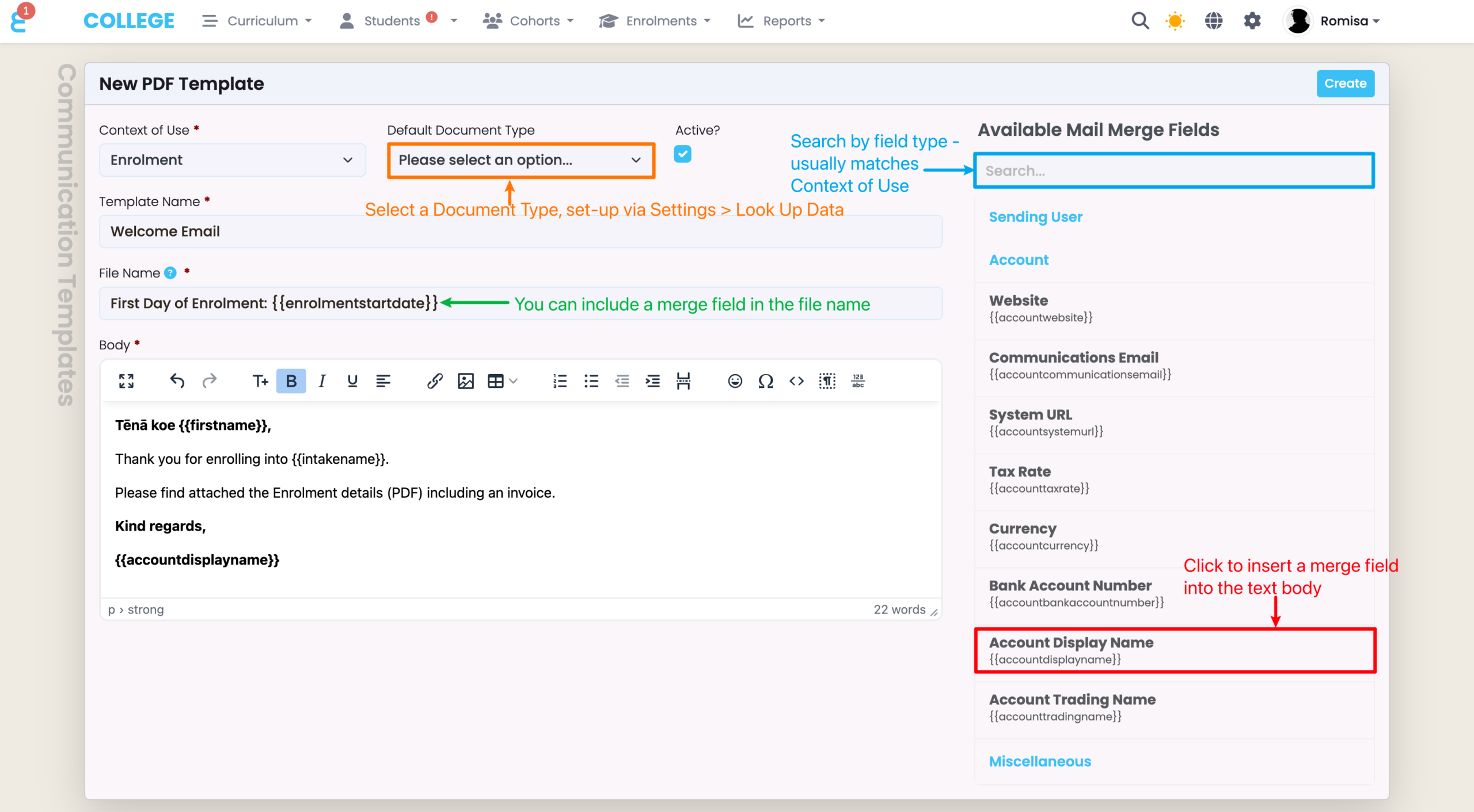
Use mail merge fields to fetch and insert dynamic data from SELMA (red).
Optional: Choose a “Document Type” (orange) to categorize this PDF template when it’s saved in the Documents tab of the Object profile from which you send an email.
Preview, Download and Print PDF Template
Figure 7i. Send Email
Navigate to the relevant page (in this case, the Context of Use is “Enrolment”, so the relevant page is a selected Enrolment profile). Then click “Send Email” from the actions menu (red).
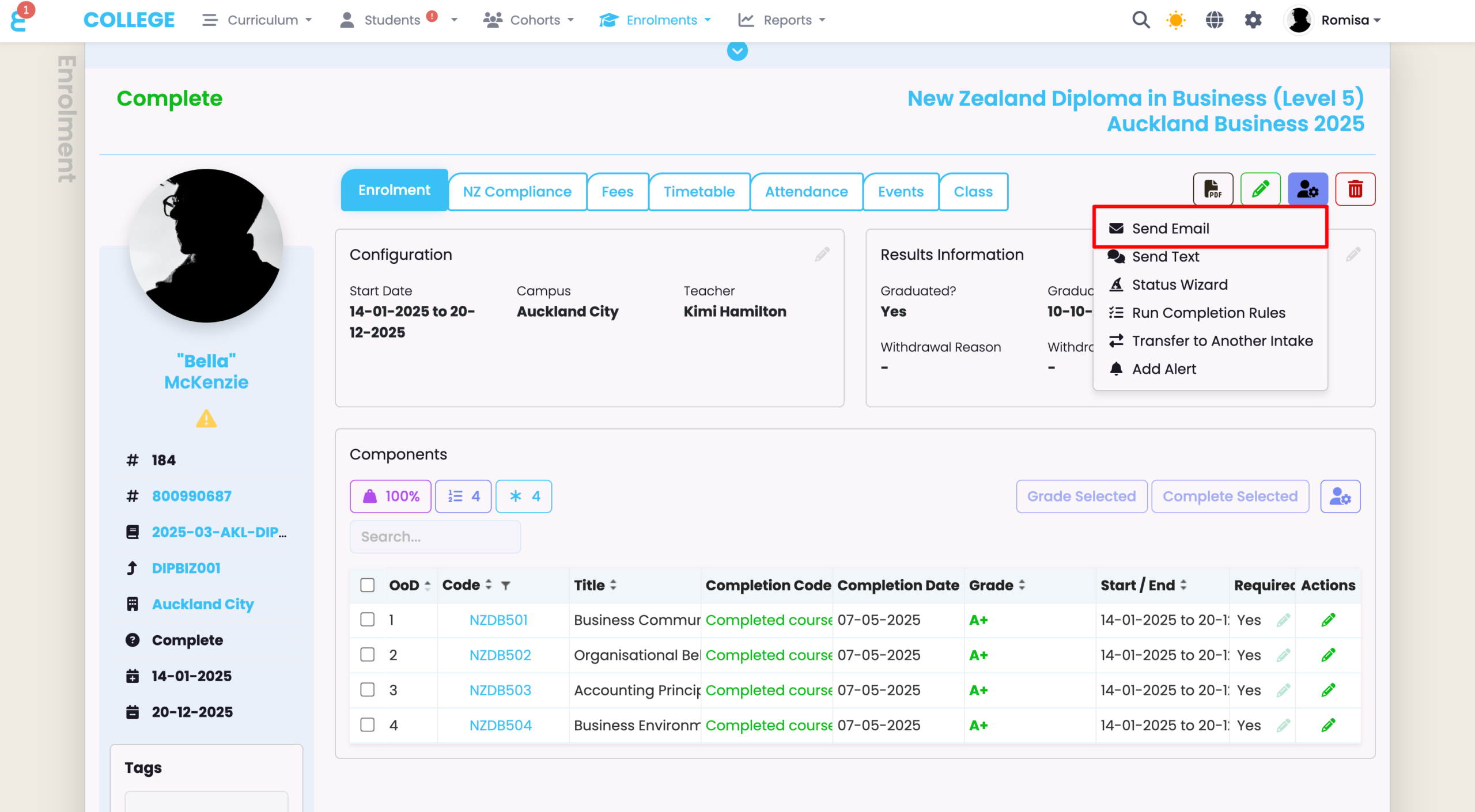
Figure 7ii. Select a PDF Attachment
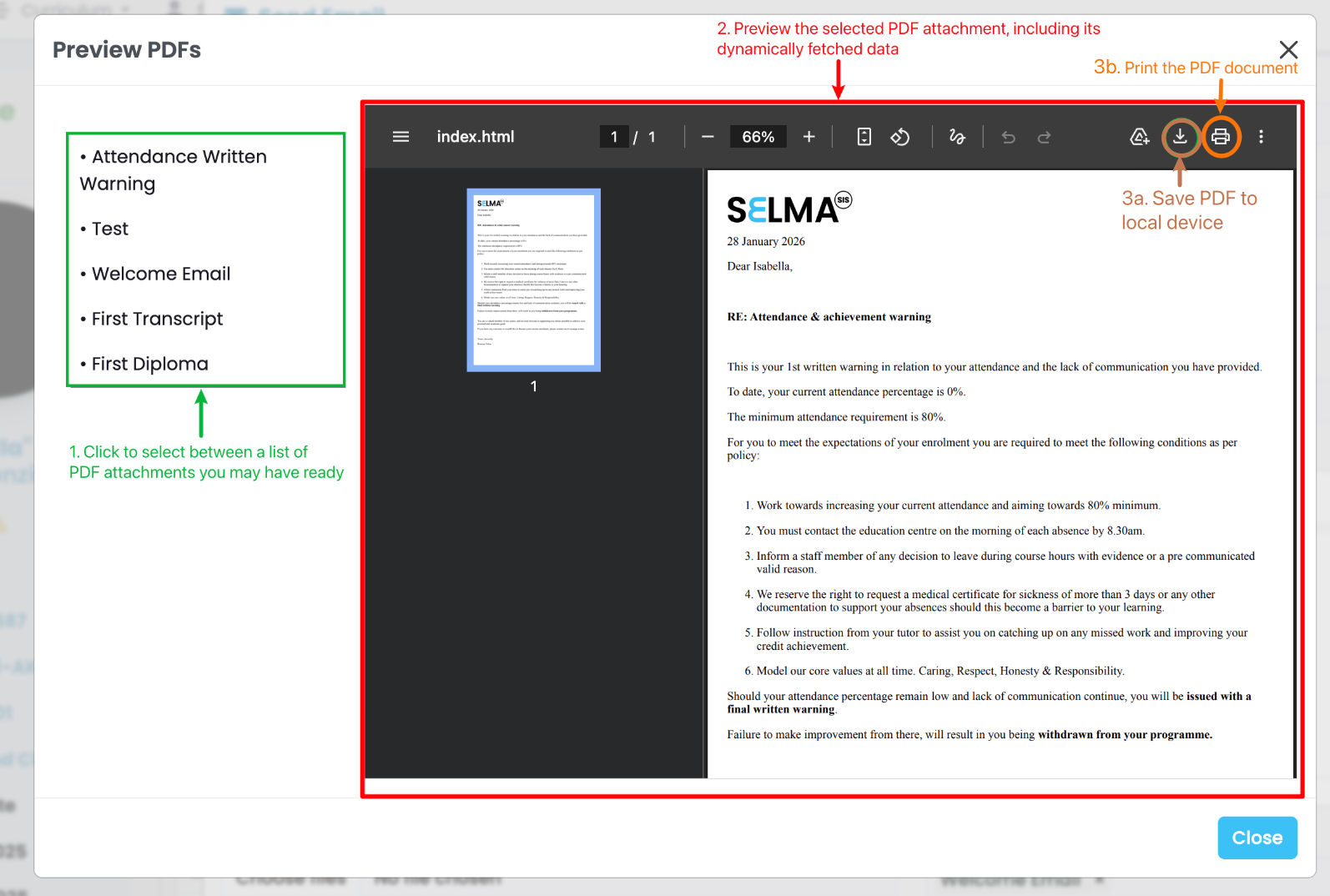
Navigate to “System Attachments” at the bottom of the email editor, and select a PDF attachment (red) to include in an email you may have an email template for (orange). Click on the eye icon, to the right of “System Attachments”, to preview the PDF template (green).
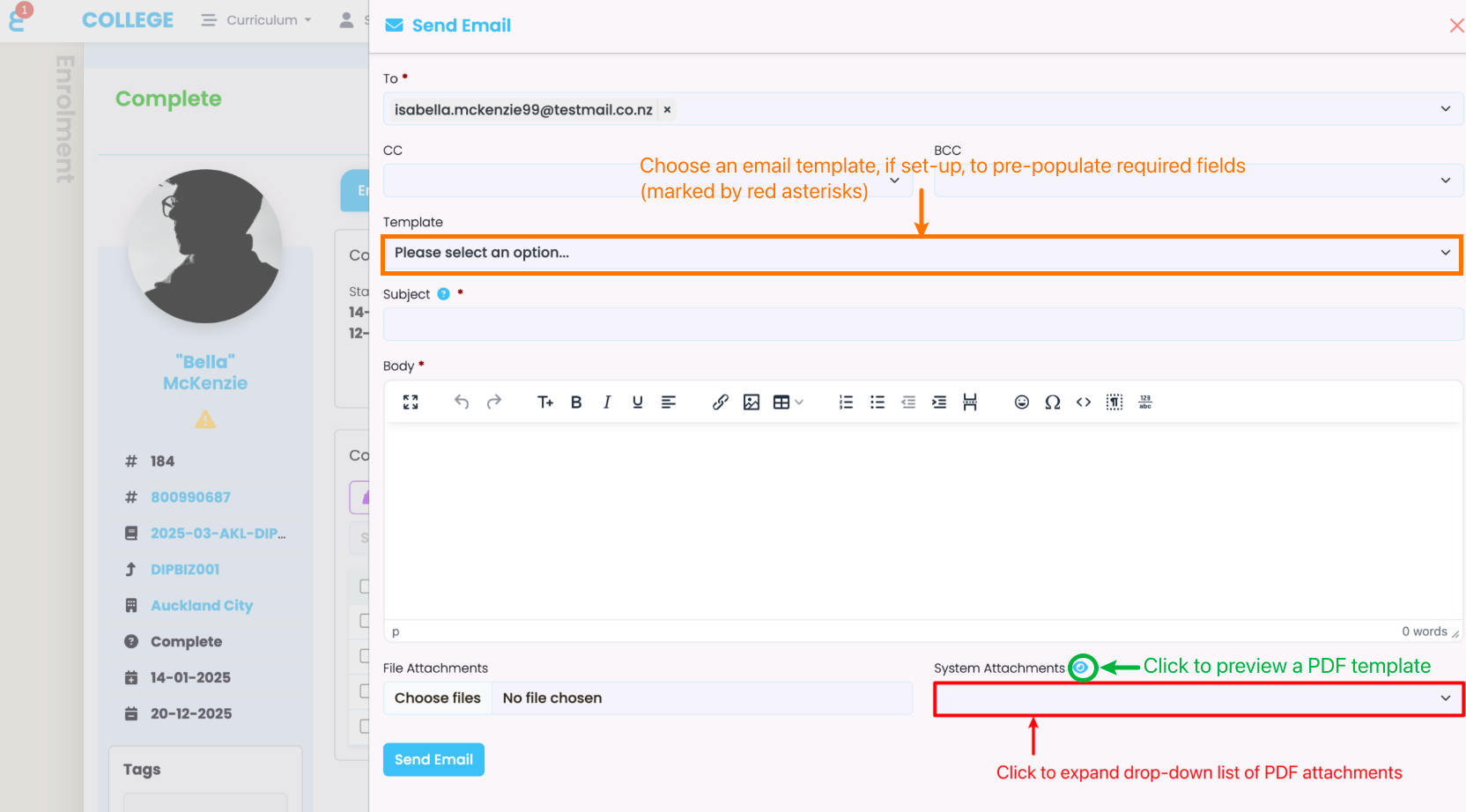
Figure 7iii. Preview, Download and Print a PDF Attachment