
The Tertiary Education Commission (TEC) requires Unfunded International Provider (UIP) Reports from New Zealand providers who deliver Programmes to primarily International Students, and do not receive funding.
- Note: If you are an unfunded provider that caters to both International and Domestic Students, the UIP report should include Domestic Students.
The UIP report includes all student enrolment and delivery data for Domestic Full Fee-Paying and International Fee-Paying students, and must be submitted twice per year to the UIP portal: https://uip.education.govt.nz.
Purpose of UIP Report
The TEC uses the UIP Report from you to:
- Monitor the performance and quality of education provided to International and Domestic students
- Ensure compliance with the Education (Pastoral Care of Tertiary and International Learners) Code of Practice 2021
- Collect data for policy development, immigration monitoring, and sector planning
UIP Reporting Periods
Period 1: For enrolments from January 1 to June 30
- Due: End of July
Period 2: For enrolments from 1 July to 31 December
- Due: End of January (following year)
NOTE: Failing to submit accurate and timely UIP data may result in compliance issues, or impact your registration status as a Private Training Establishment (PTE).
In this Section:
- Prepare SELMA for UIP Reporting
- Extracting the UIP Report
- Submit Report to the UIP Portal
- Resolve Errors
- Important Considerations
Prepare SELMA for UIP Reporting
There are some key data you should set-up before you can generate a UIP Report.
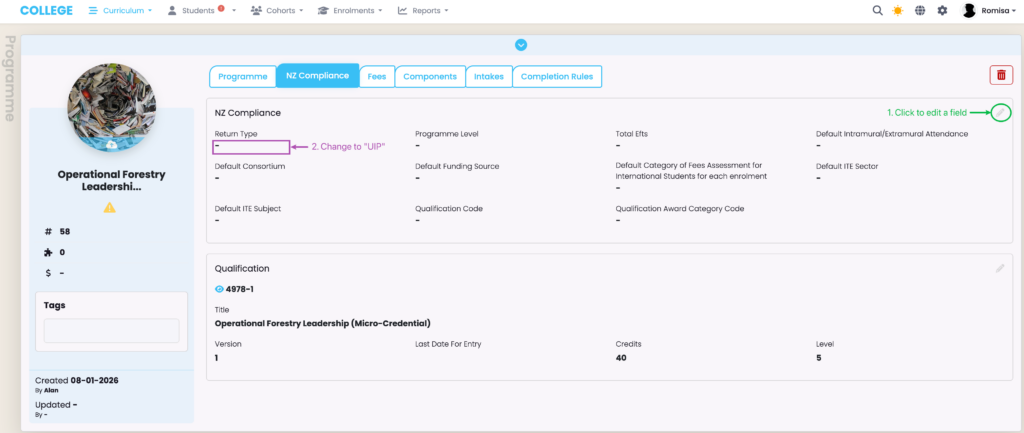
Set a Programme’s Return Type
Figure 1. Navigate to Programme
Navigate to the “NZ Compliance tab” of the relevant Programme, and set the “Return Type” to “UIP”. Note: You can set the return type at the Intake level, too.
Set Key Student Details
Figure 2i. Student Tab Details
Set a valid NSN, Date of Birth, and Gender. Set “Citizenship” to the appropriate country (not “New Zealand”).
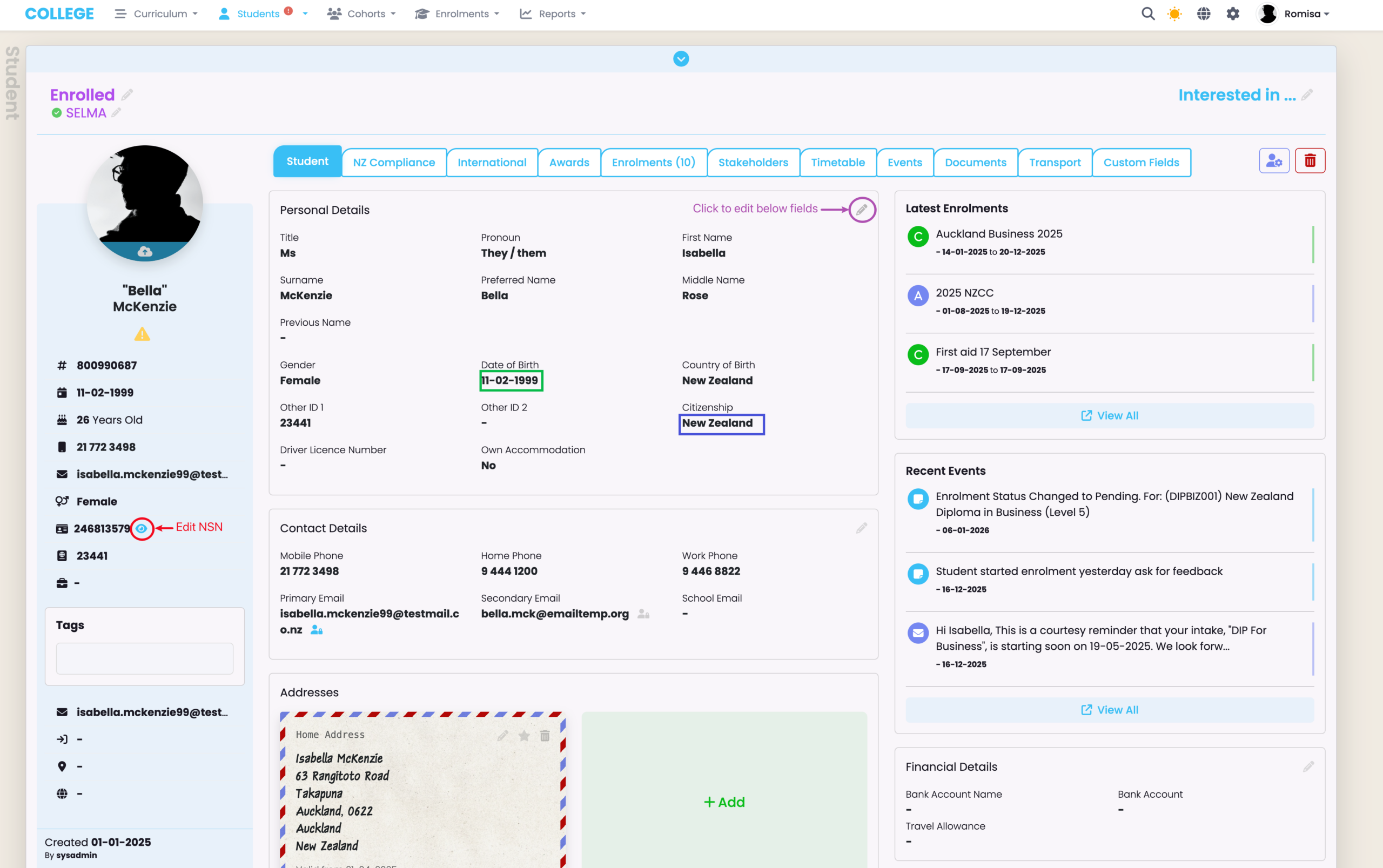
Figure 2ii. NZ Compliance Tab Details
Set the “Residency Status” as “Overseas” (purple), and select the relevant “Ethnicity” (red); (if the student is Māori, you must specify the “Iwi”(orange)).
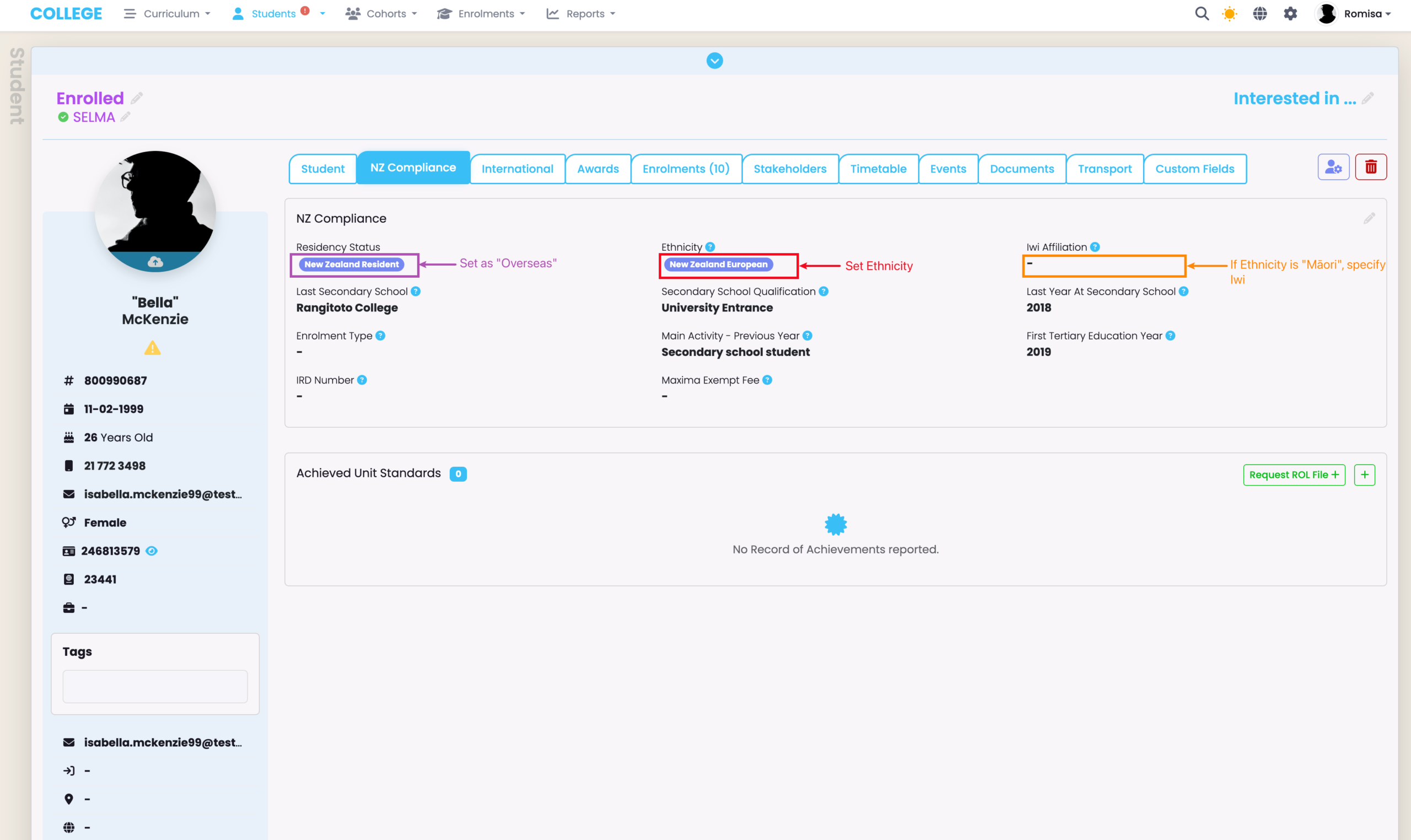
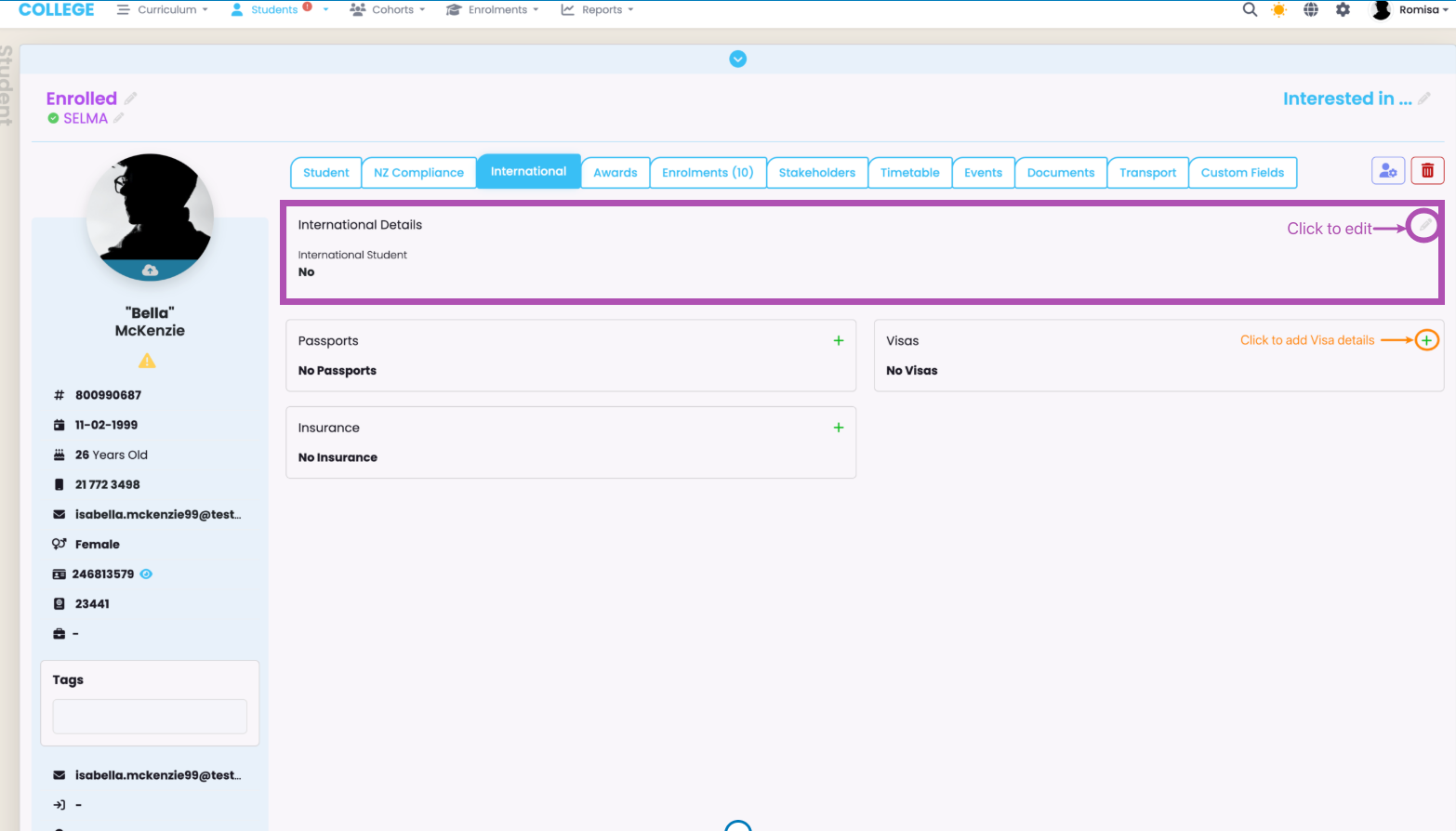
Figure 2iii. International Tab Details
Make sure to check the “International Details” as “Yes”, if it applies to the Student, and provide a valid “Visa Type” (orange).
Enrolment Requirements
To be included in UIP Reporting, the following must apply:
- Enrolment Statuses must be Active, Withdrawn or Complete
- An Enrolment must contain at least one Enrolment Component
- Funding Source must be set to International Fee-Paying or Domestic Full Fee-(Paying)
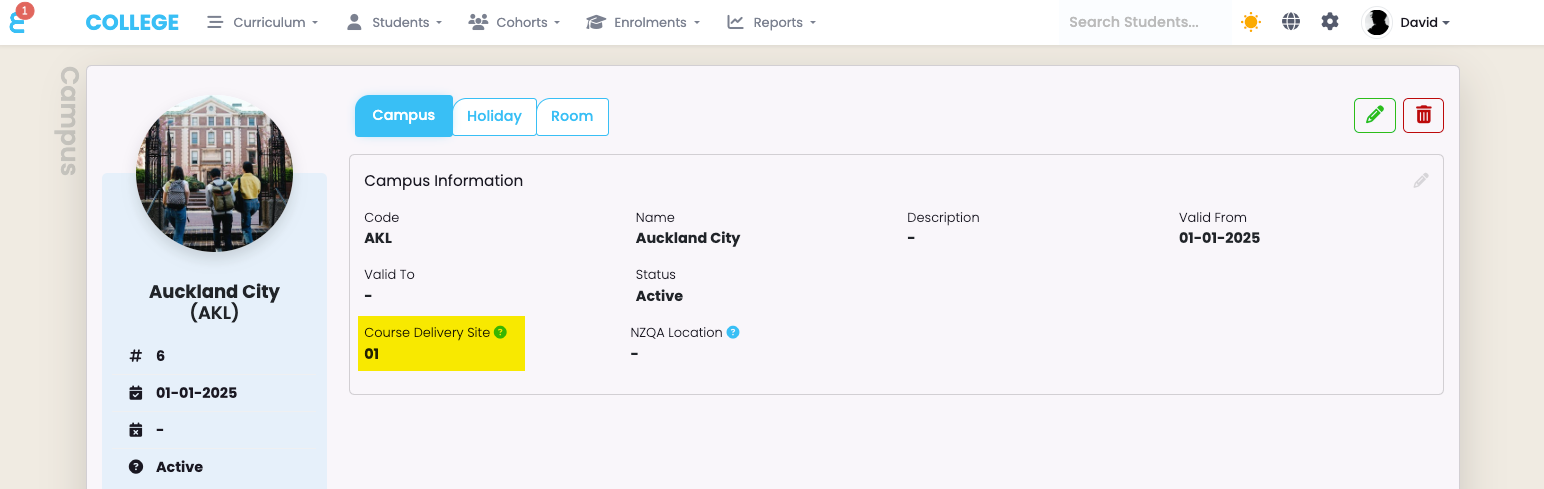
Delivery Site Requirement
Figure 3. Navigate from Settings > Campus Index
Set a valid “Course Delivery Site”, for all relevant Campuses, as issued to you by the TEC.
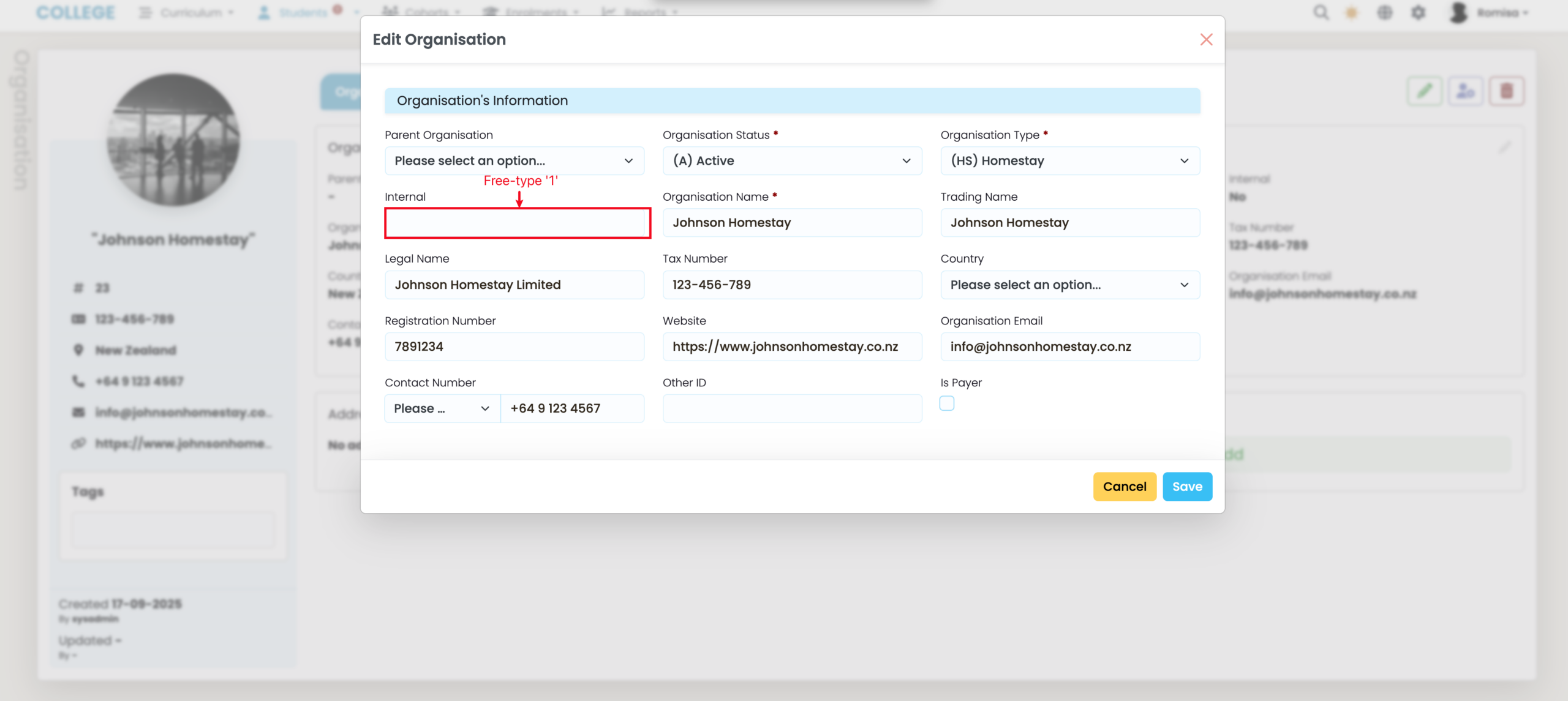
Organisation Requirement
Figure 6iii. Set a Valid Organisation
A conglomerate provider should record their internal organisations in SELMA. To do so, navigate from Students > Organisations, then select an Organisation profile and edit it’s details: type in the number “1” in the “Internal field” (blue).
Extracting the UIP Report
Generate a UIP Report from SELMA, and upload it to the New Zealand Ministry of Education’s UIP Portal.
Figure 4. Navigate to UIP Report
Click the “+” icon to create a new UIP Report (orange).
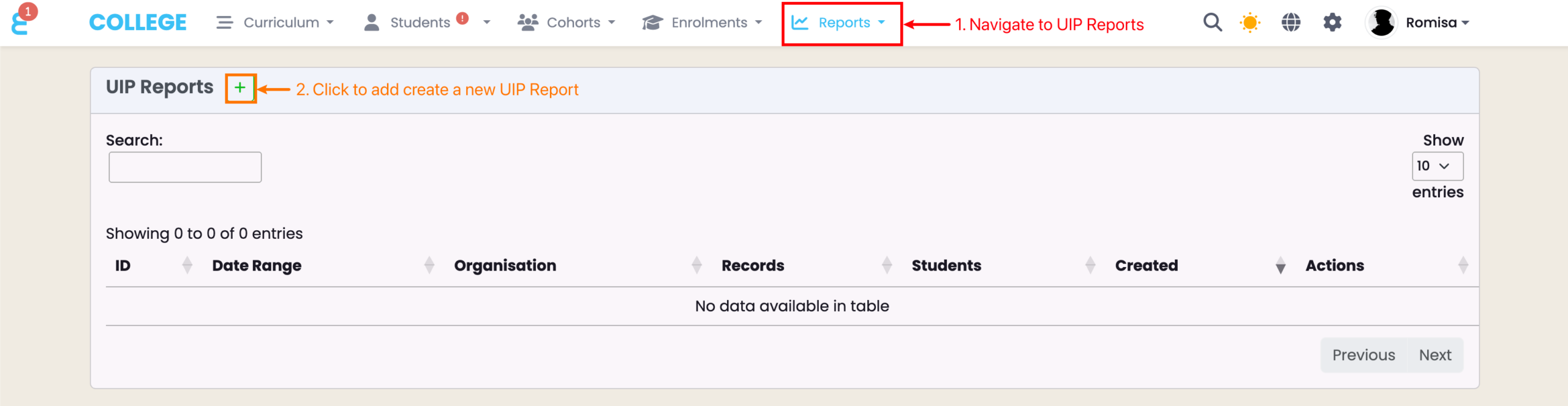
Figure 5. Filter and Validate UIP Report
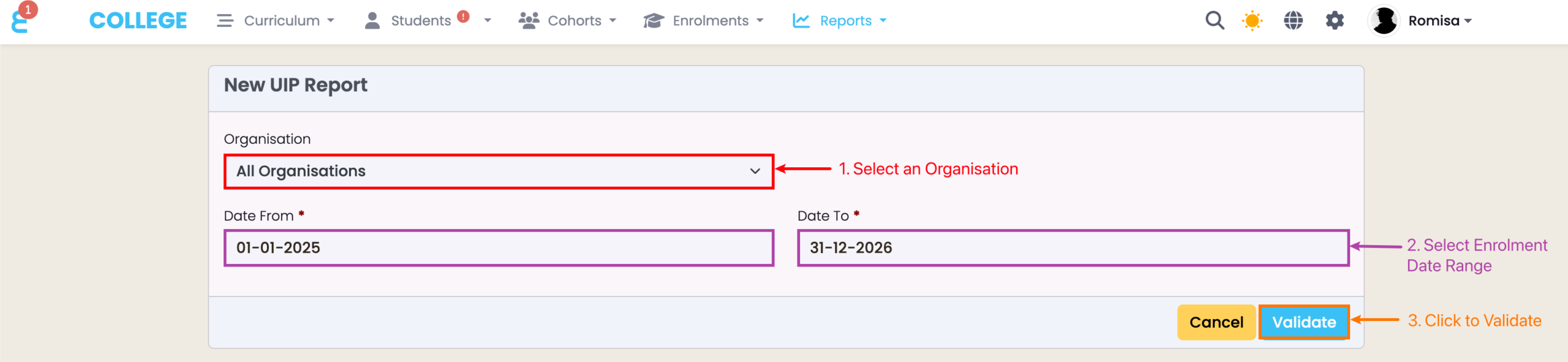
Figure 6i. Resolve Errors and Warnings
Expand error and warning messages, and click the corresponding hyperlinks to be taken to the affected page for resolution. While while warnings are optional, all errors must be resolved before the “Generate Report” button is enabled; revalidate the report to check.
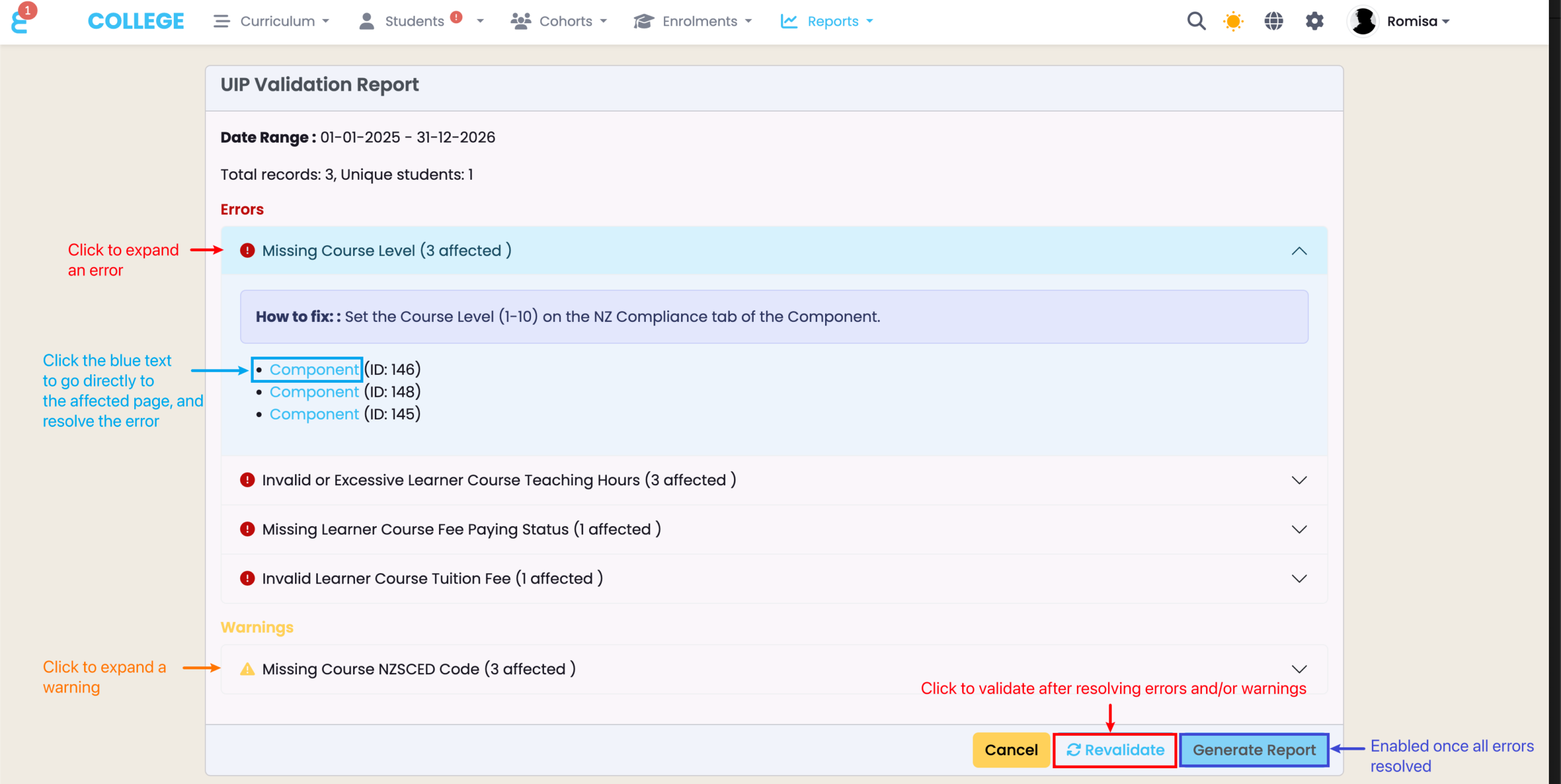
Figure 6ii. Error – Learning Hours Per Week
Learning hours per week varies per Enrolment, and is calculated from Enrolment duration.
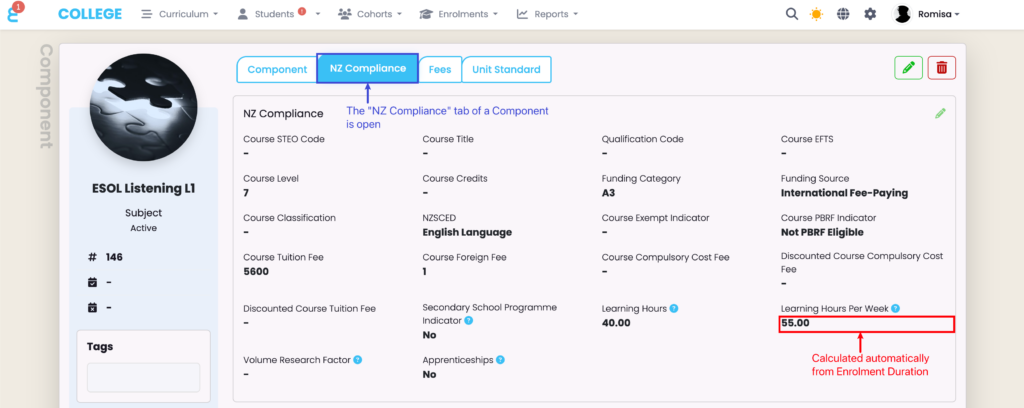
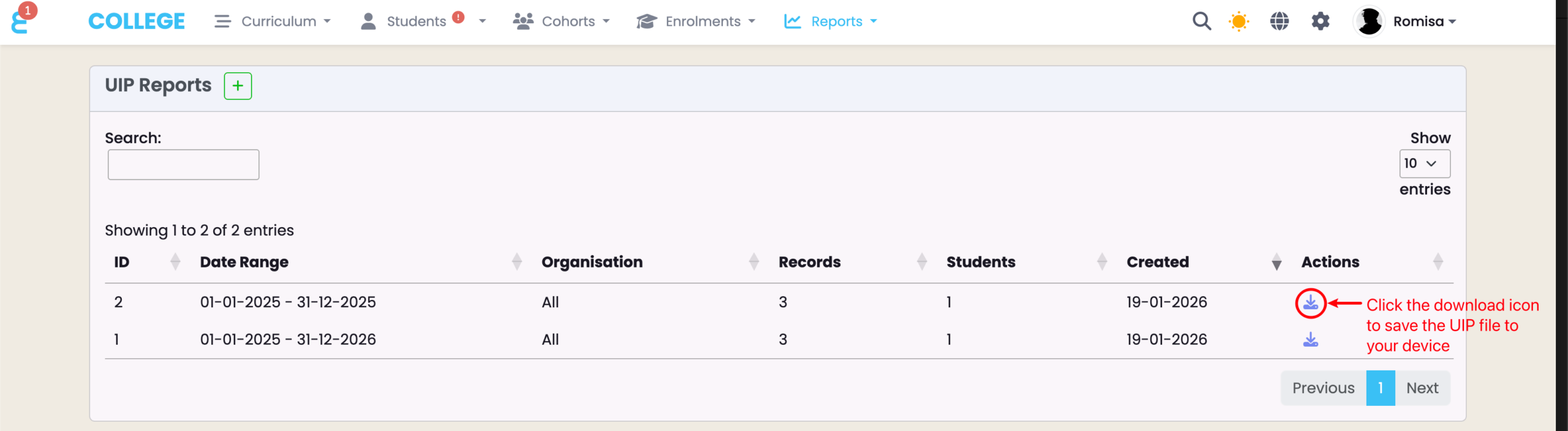
Figure 7. Download the UIP File
Submit Report to the UIP Portal
Login to the UIP Portal site, using your provider credentials: https://uip.education.govt.nz , then read the following steps:
- Select Submit Data
- Upload the UIP .txt file
- Review any error messages shown in the portal
Resolve Errors
If your submitted UIP report returns errors in the UIP Portal, perform the following steps:
- Go back to SELMA
- Use the UIP Validation Report to resolve Errors
- Re-validate to check for remaining Errors and/or Warnings
- Generate a new UIP Report
- Re-submit the UIP Report via the UIP portal
Important Considerations
- Always retain a local copy of the uploaded file for audit purposes
- Run the export as close as possible to the submission deadline to ensure data is current
- Contact SELMA support if you require mapping customisations or encounter persistent formatting issues
- Do not submit a UIP report if you already submit SDR reports.
- If any Students are funded by the TEC, you must submit an SDR report of all Students – including unfunded International Students. Similarly, you must submit a UIP report if you have solely unfunded Students, including International and Domestic Students.
- Please read important information in the UIP Portal Guidelines as outlined by the TEC.