
SELMA allows you to request a file of the Unit Standards that a Student has achieved from NZQA. The file type is called a Record of Achievement (RoA) or Record of Learning (ROL), and can be imported into SELMA to cross-credit Unit Standards a Student has already completed.
In this Section:
- Request RoA File
- Request Bulk RoA File
- Upload RoA Request File to NZQA
- Import RoA File to SELMA
- Review RoA
- Add a Manual RoA Entry
- Cross-Crediting of Achieved Unit Standards
Request RoA File
To obtain the RoA of an individual Student, you need to create a request file and upload it to NZQA.
Figure 1i: Navigate to Student Profile
On the NZ Compliance tab, navigate to the “Achieved Unit Standards” section and click the “Record of Achievement” button.
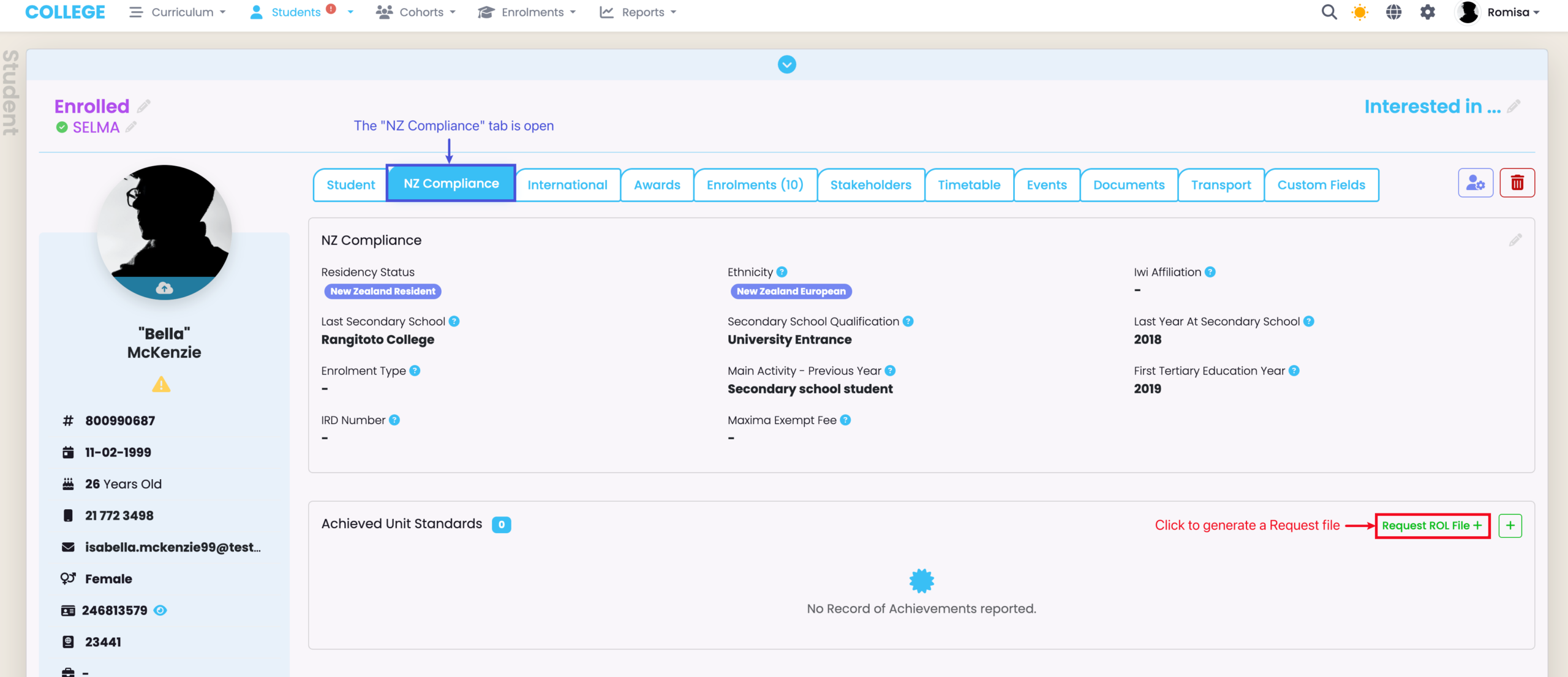
Figure 1ii: Generate ROL Request File
Click “Continue” to generate the Request File.
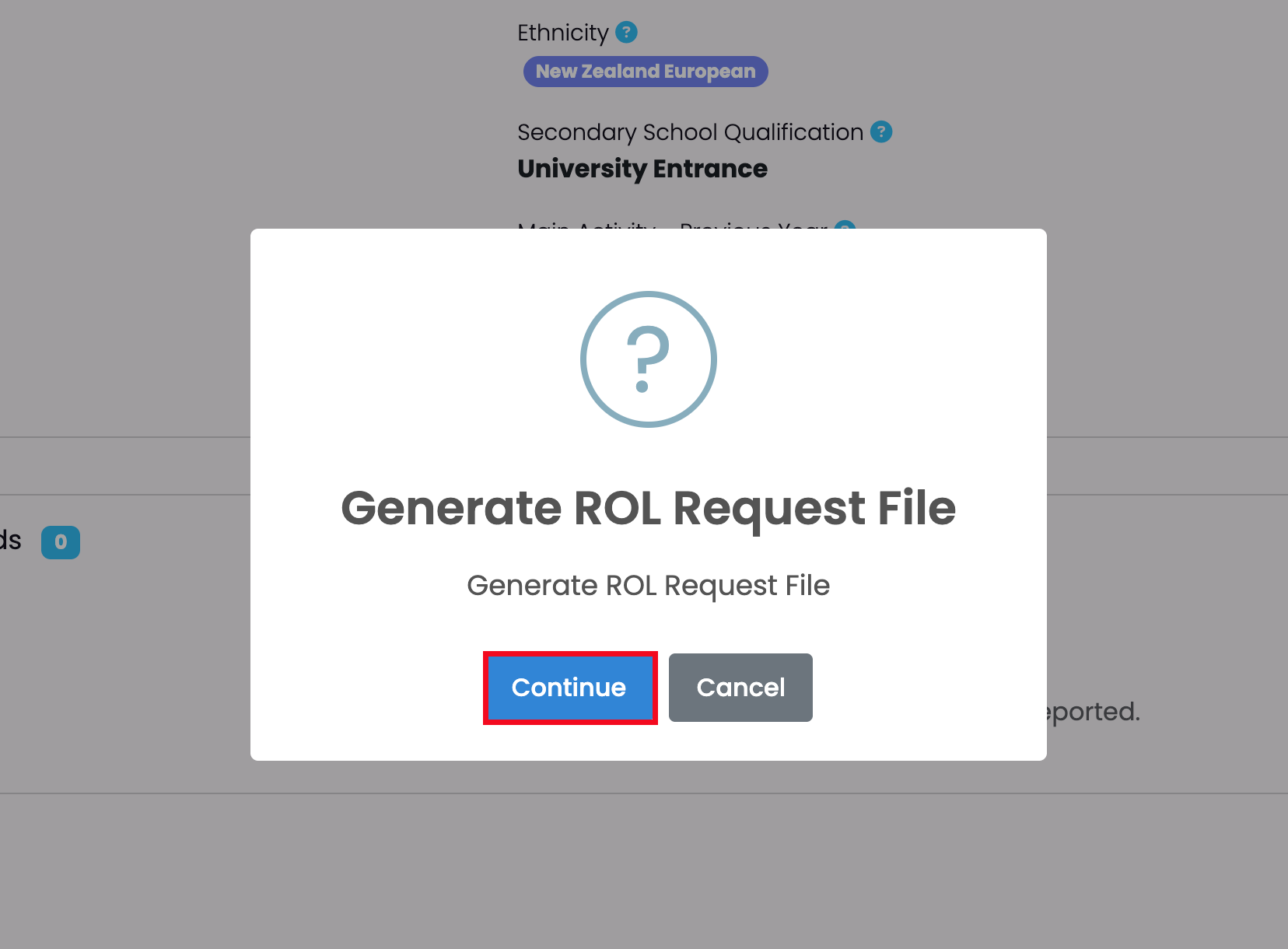
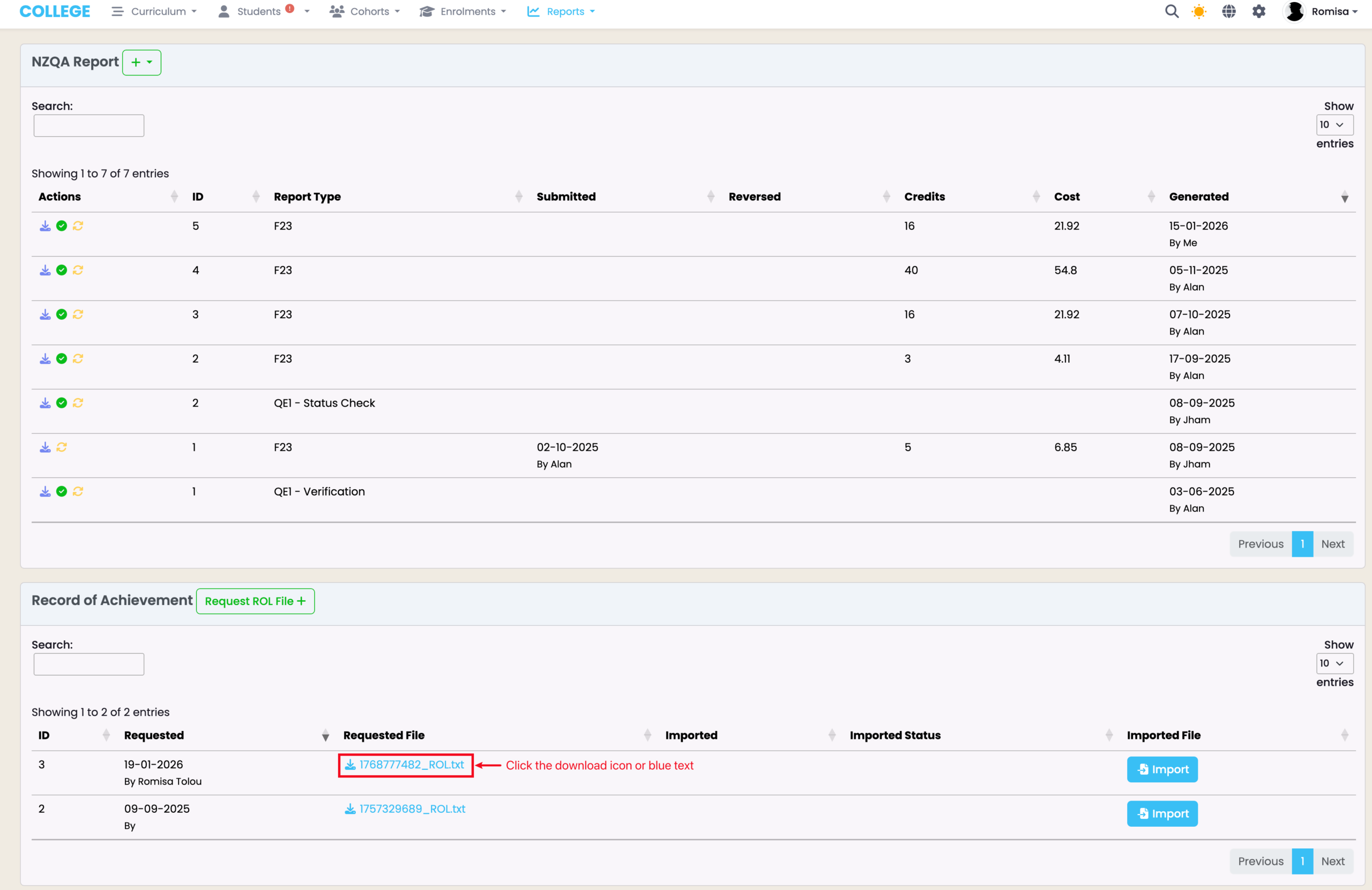
Figure 1iii: Download ROL Request File
Once you have generated your ROL Request file, you will be taken to the RoA processing table where you can download it to your device.
Request Bulk RoA File
To obtain the RoA of multiple Students, you need to create a bulk request file and upload it to NZQA.
Figure 2i. Navigate to NZQA Reports
Navigate from Reports > NZQA Reports, and find the green “Request ROL File” button.
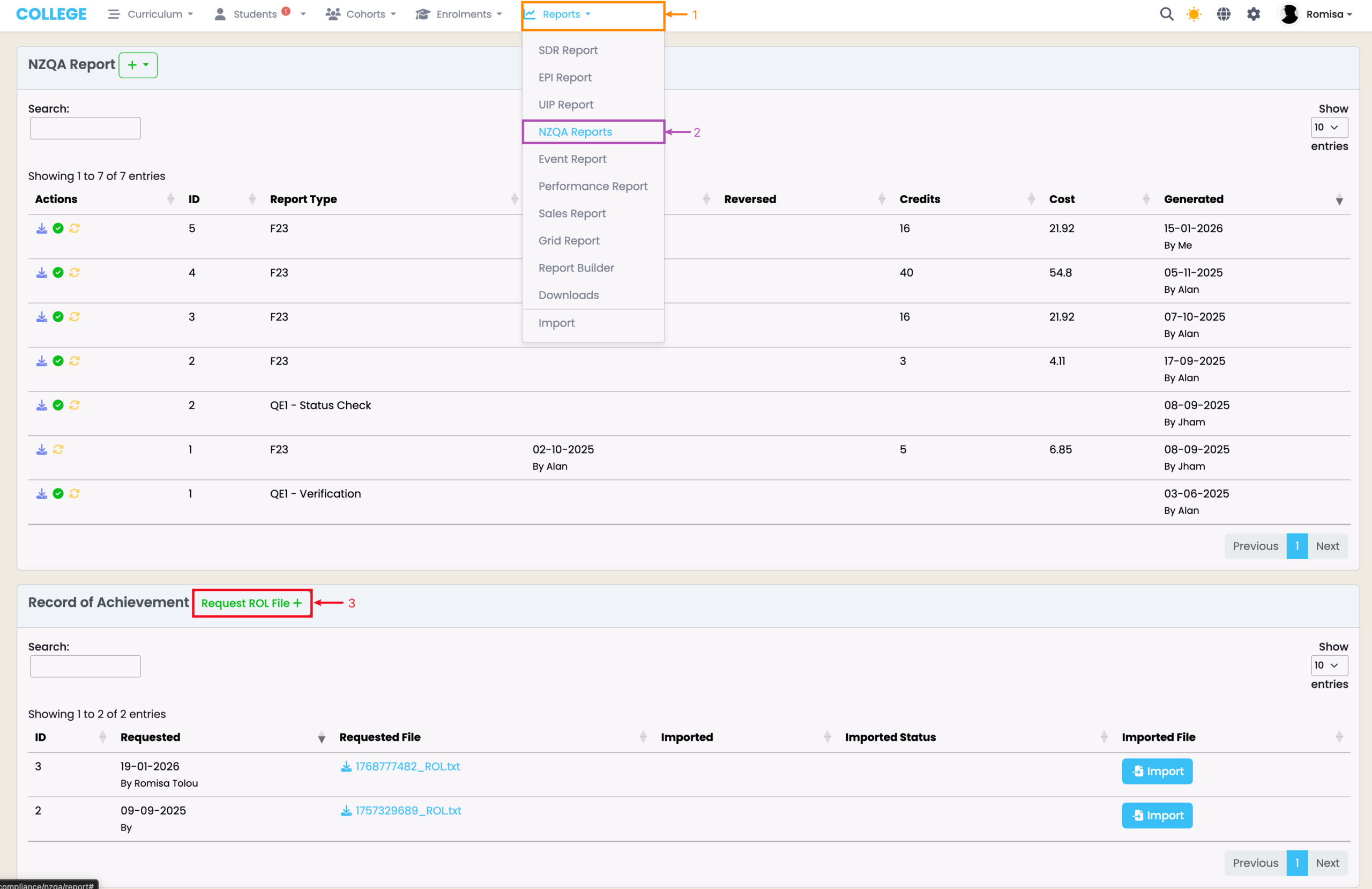
Figure 2ii. Select Enrolments
Use the search filters to search for specific Enrolments (orange), or leave the filters empty and click the “Search” button to list all Enrolments (red).
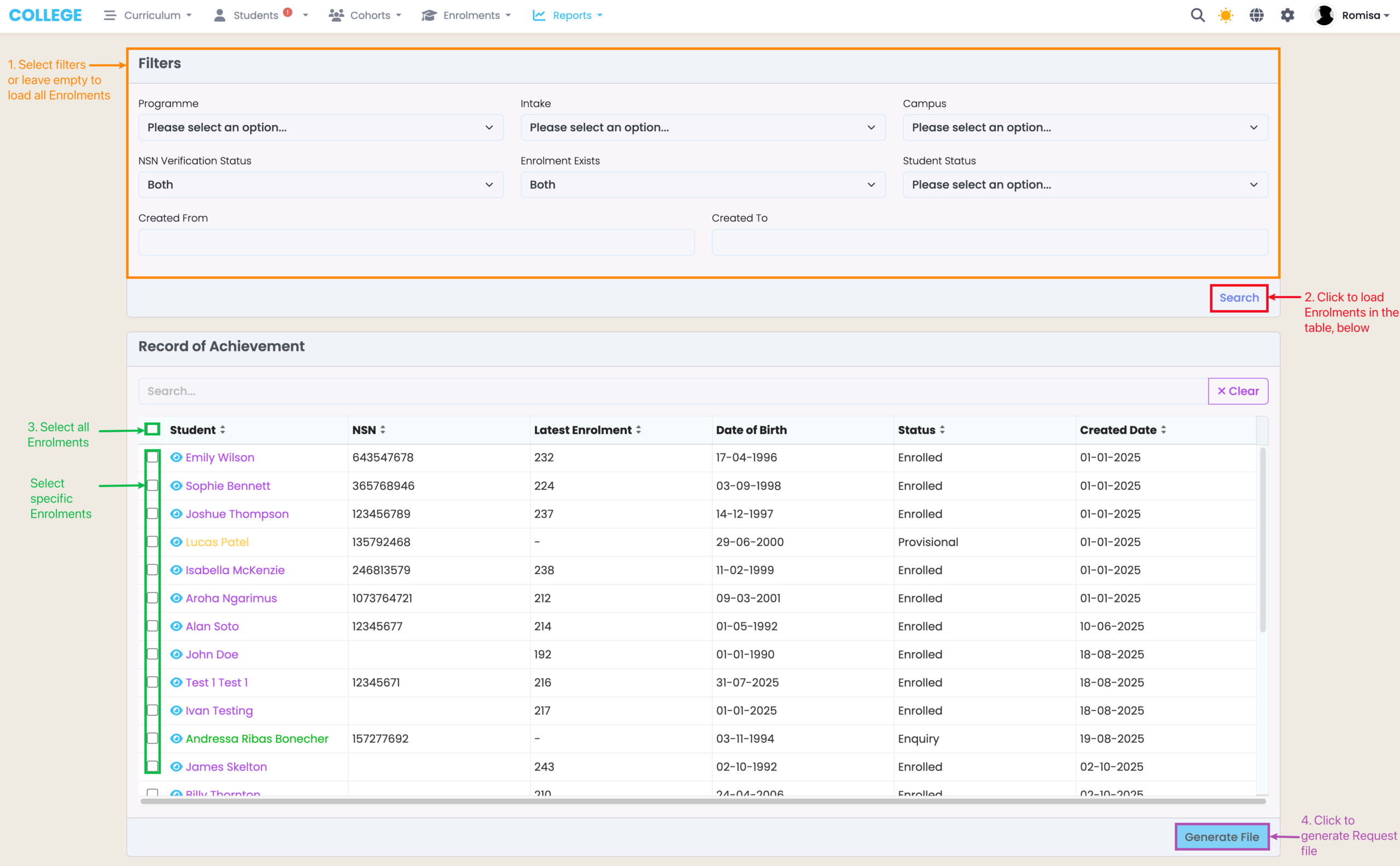
Figure 2iii. Generate ROL Request File
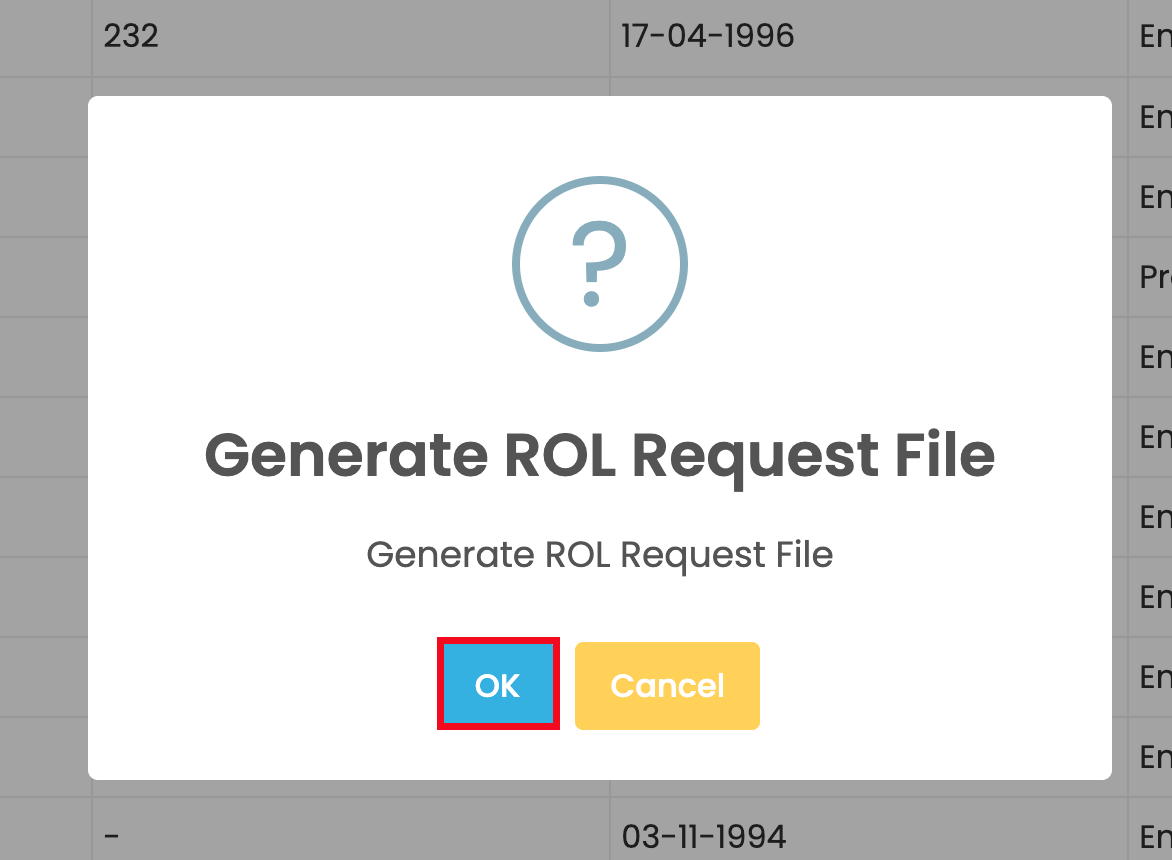
Figure 2iv. Download ROL Request File
Once you have generated your bulk ROL Request file, you will be taken to the RoA processing table where you can download it to your device.
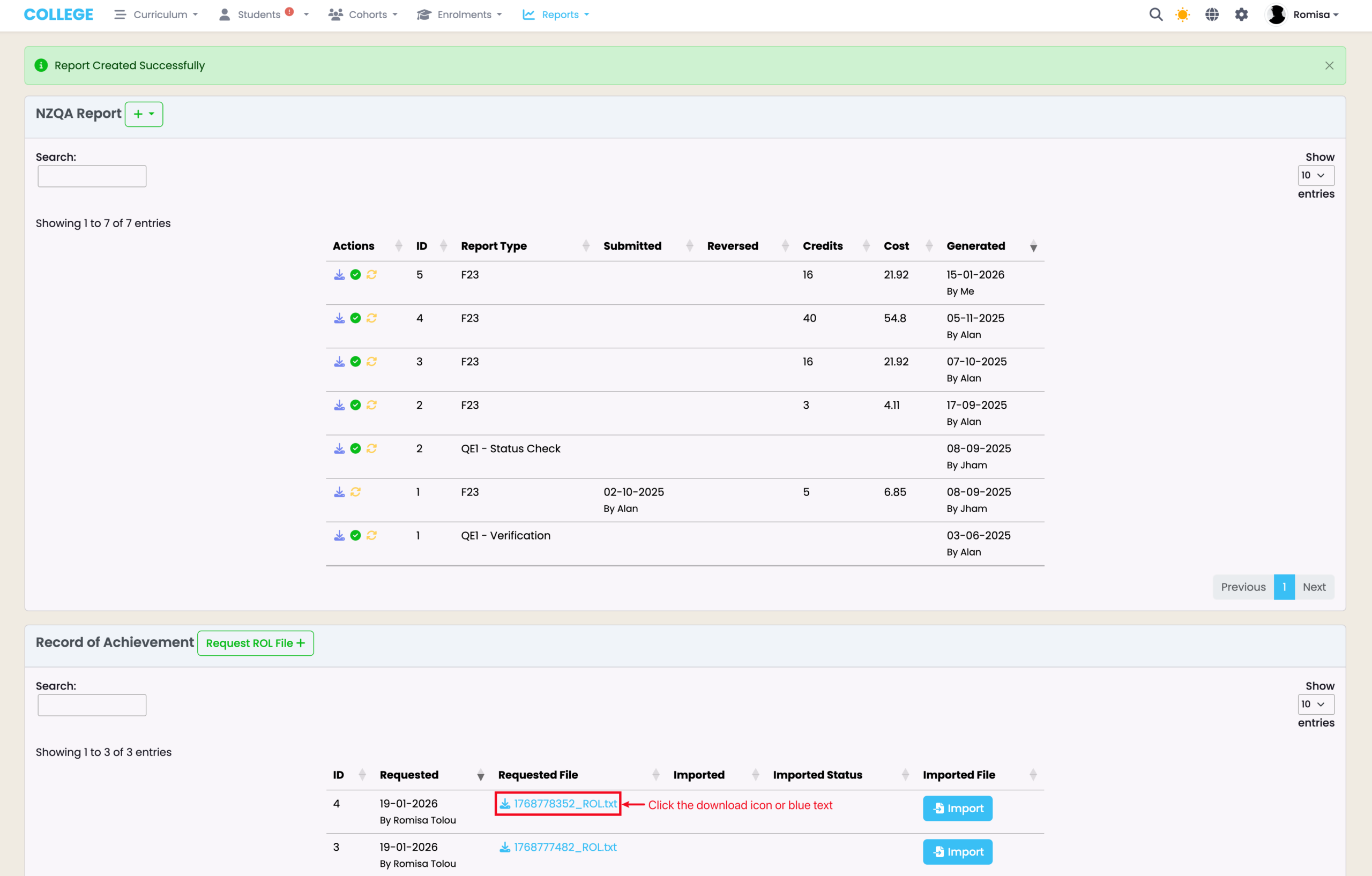
Upload RoA Request File to NZQA
Once you have the ROL Request file downloaded, head to NZQA to upload it.
Figure 3i. Navigate to the NZQA Site
Click “ROA Turnaround” on the homepage.
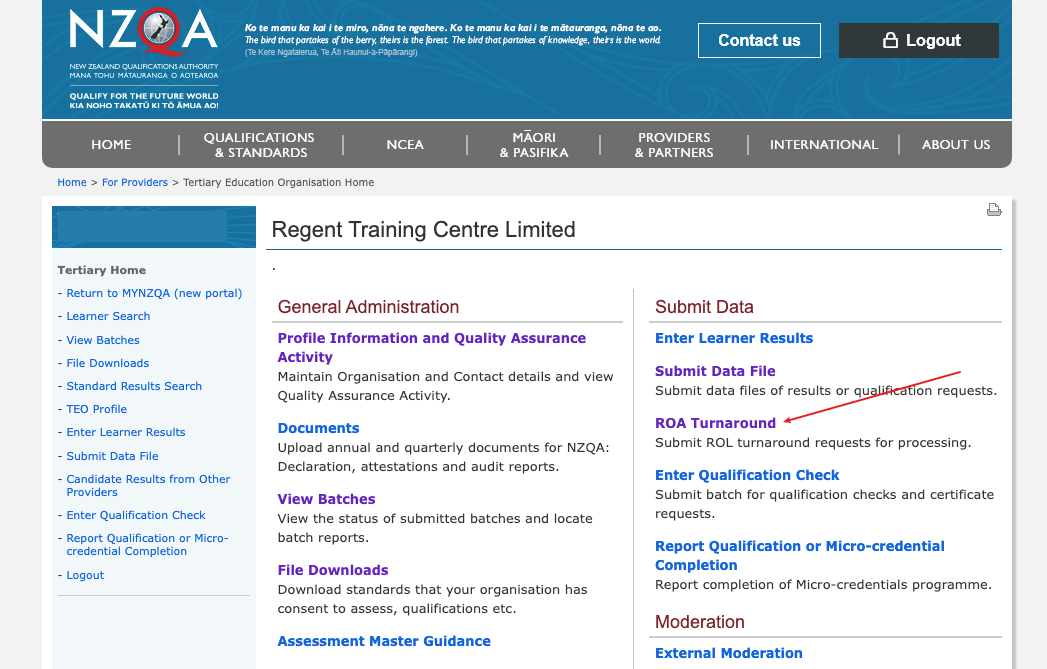
Figure 3ii. Submit ROL Request File
Select the ROL Request file you have downloaded, and upload it to NZQA.
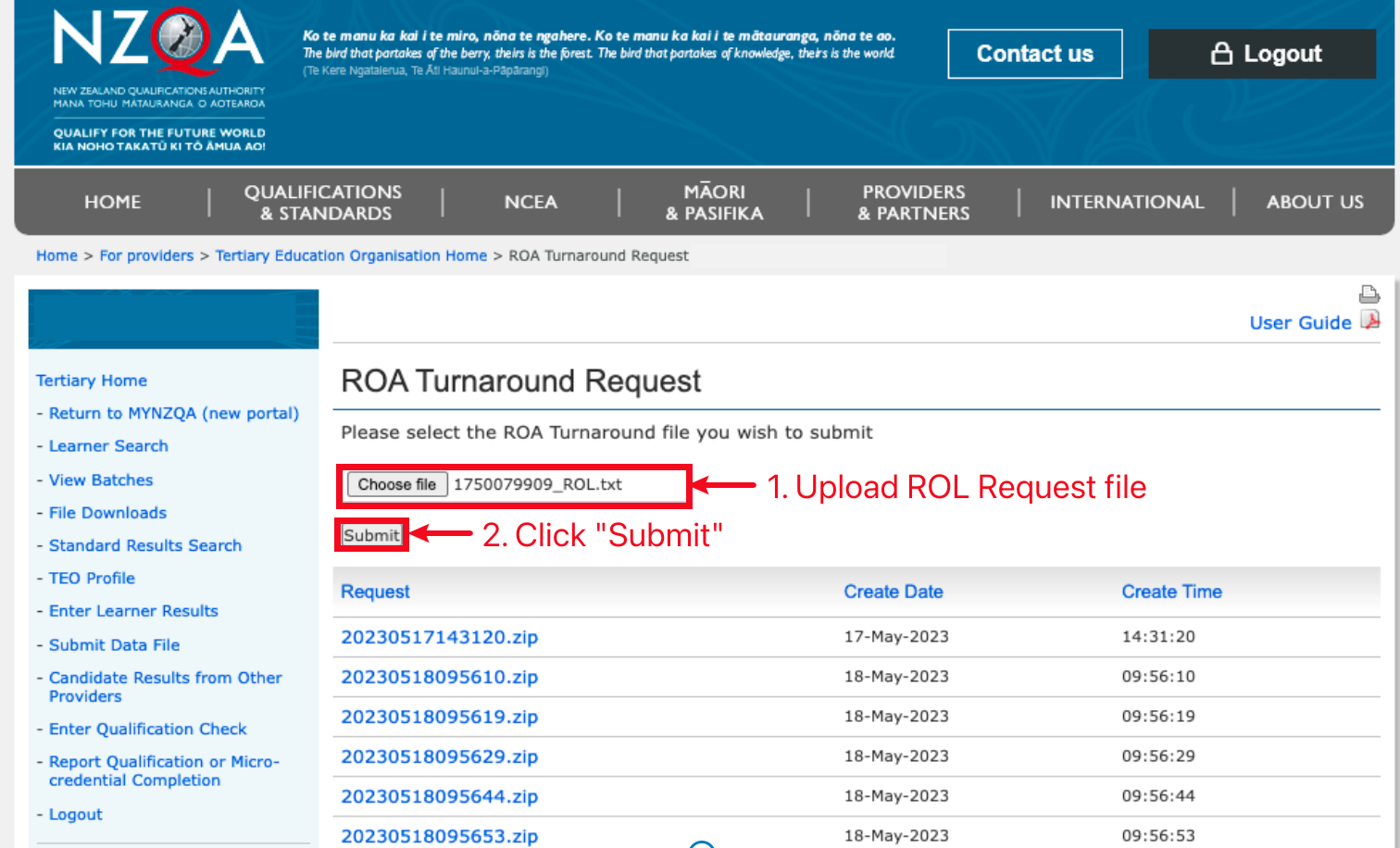
Figure 3iii. Confirmation Message
After submission, you should see a confirmation message indicating that the ROL Request file was submitted. Refresh this page.
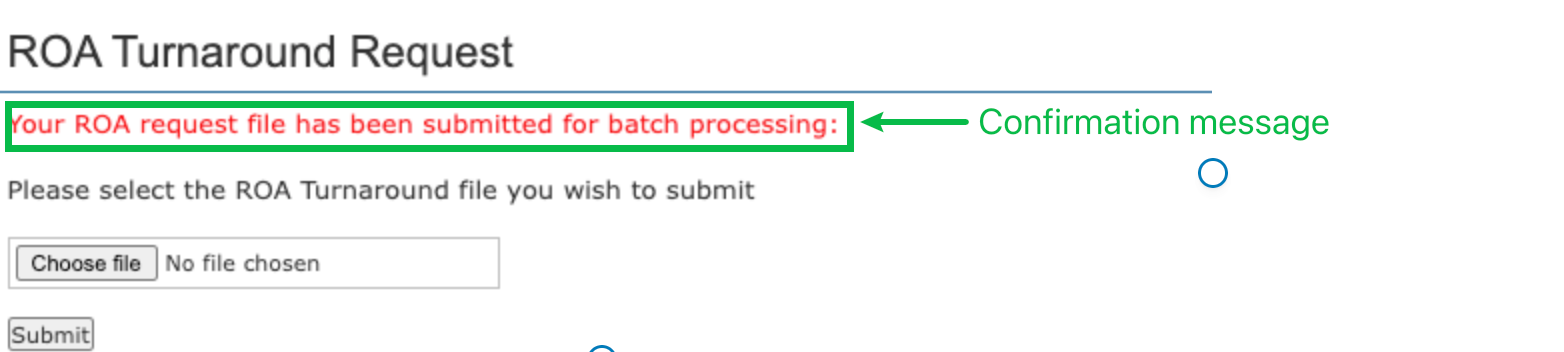
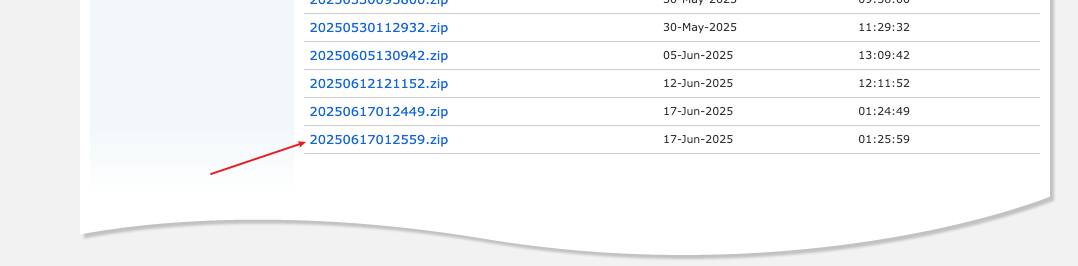
Figure 3iv. Download Response File
Wait up to several minutes after the page refresh for a Response file to be generated; (the wait time depends on the number of unique RoA records you request). Then, scroll to the bottom of the page to download the file.
Import RoA File to SELMA
Once you have the RoA file downloaded, head to SELMA to upload it.
Figure 4i. Navigate to NZQA Reports
Click the blue “Import” button to upload the NZQA RoA file from your device.
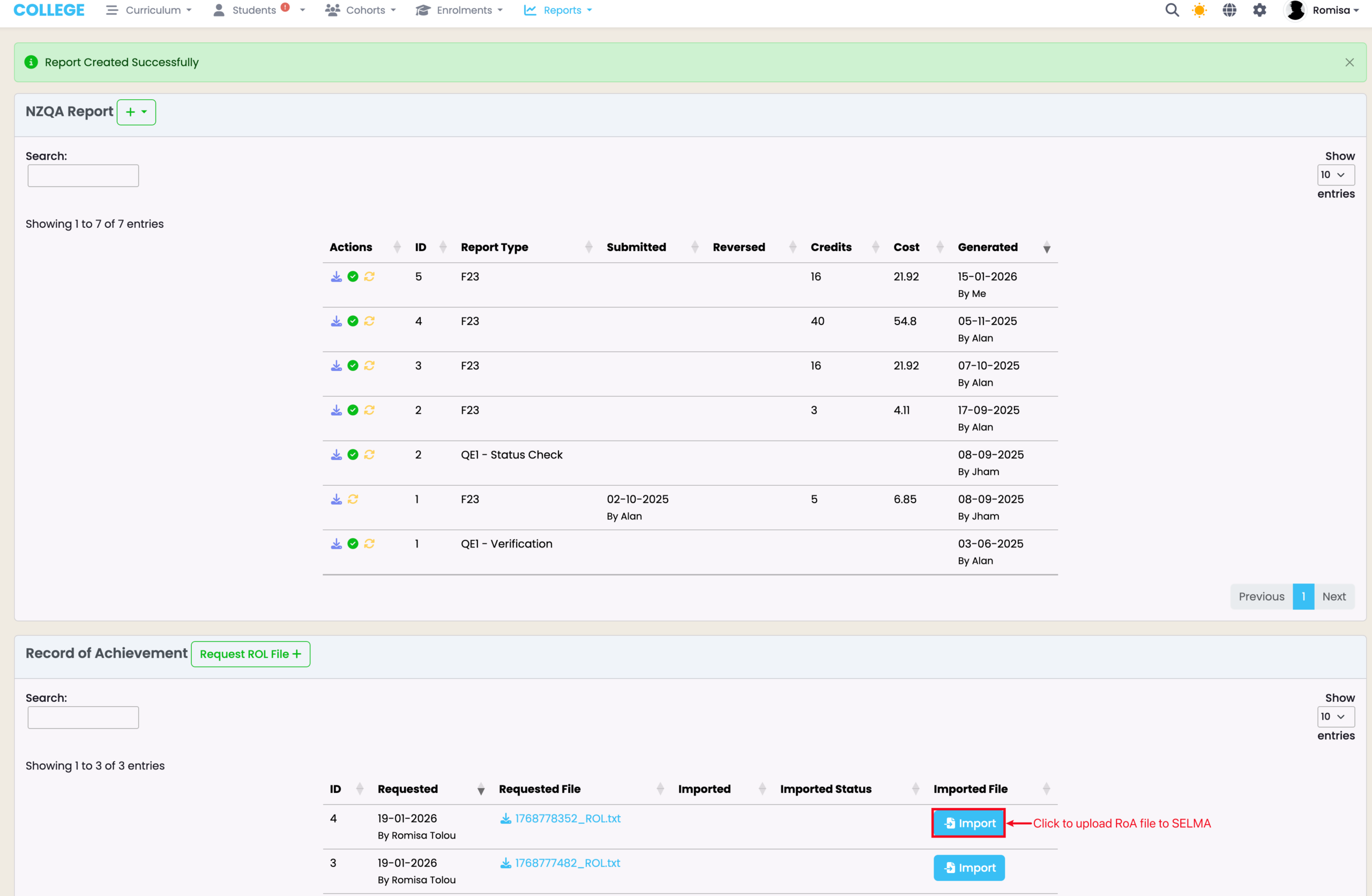
Figure 4ii. Upload RoA File
Select the file name starting with “ROLT” and click “Import“.
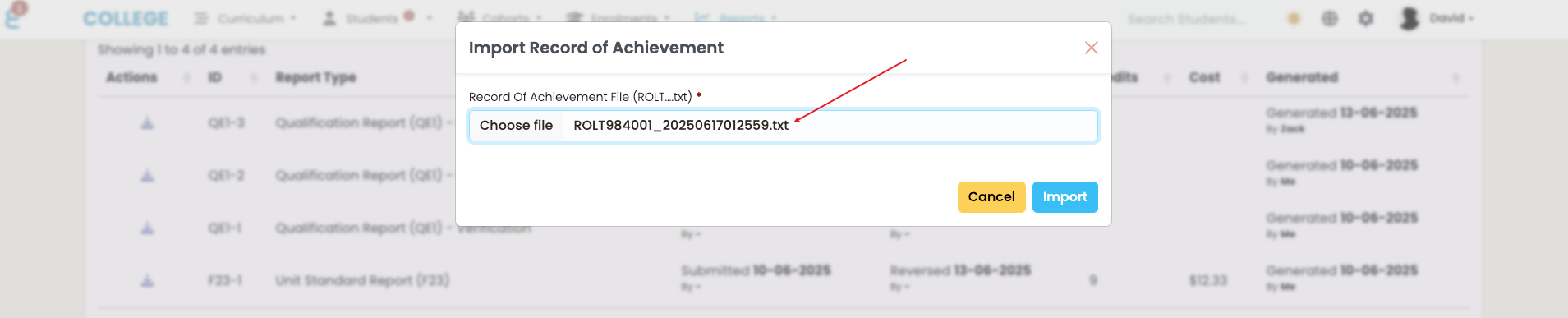
Figure 4iii. Wait for Processing
Allow up to 20 minutes for the file to upload. You may navigate away from this screen as the processing occurs in the background.

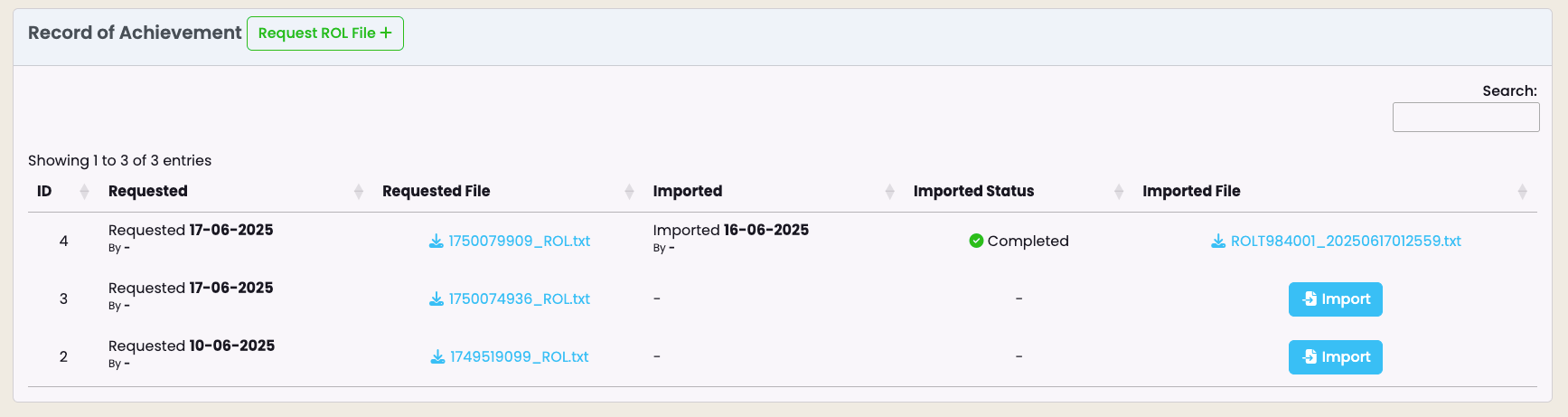
Figure 4iv. Successful RoA Import
Once the file has completed processing, the status will show as “Completed”:
Review RoA
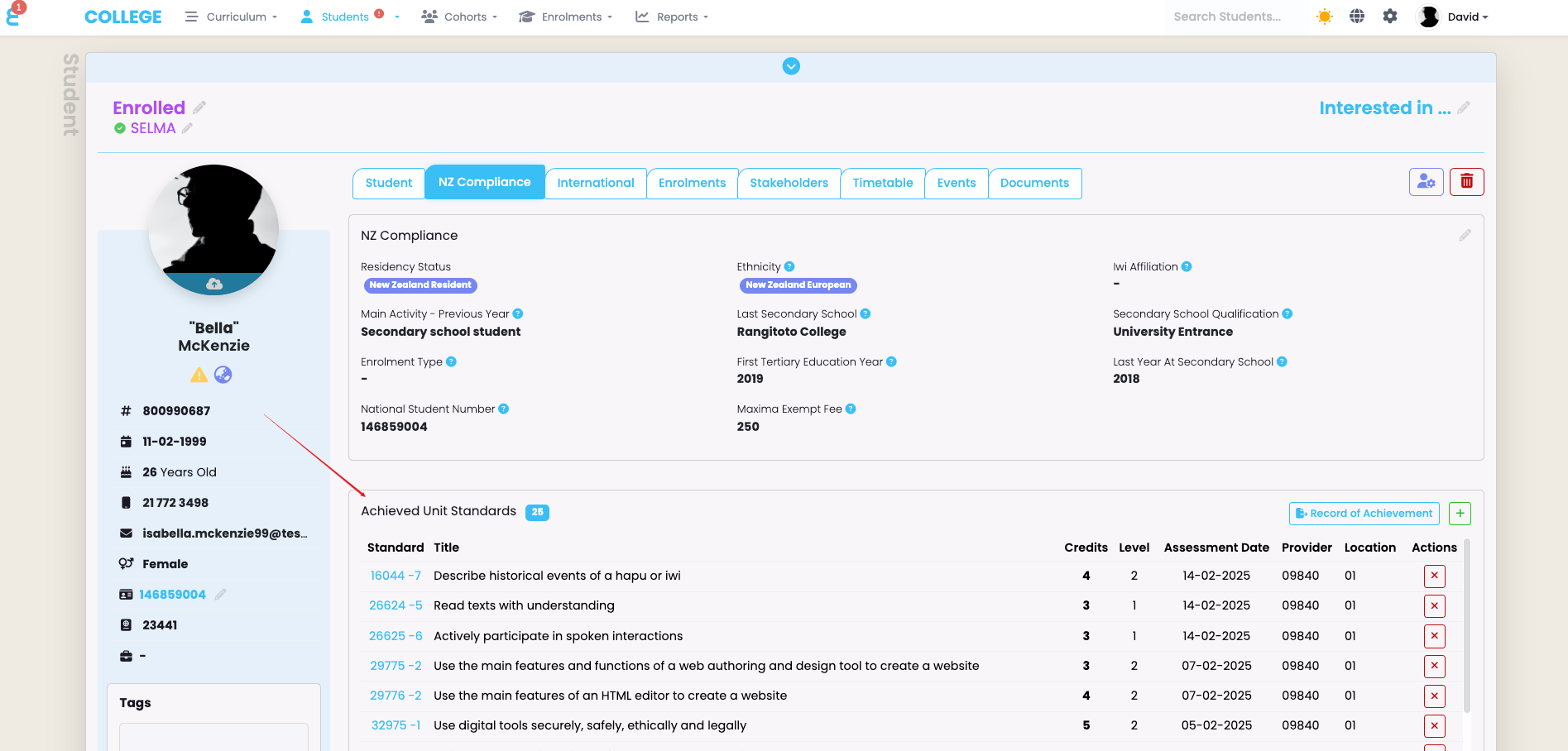
Once the RoA has been imported, the list of achieved Unit Standards will be visible on the Student profile, under the NZ Compliance tab.
Figure 5. Navigate to Student Profile
For more information about a Student’s RoA, see the “Achieved Unit Standards” section on the Student profile. Click to go directly to a Unit Standard (), or delete a Unit () if it has been reported in error and you have requested NZQA to remove it.
Add a Manual RoA Entry
If the NZQA system is temporarily unavailable, a previous provider has failed to report an achieved Unit Standard, or the total number of achieved Unit Standards is small, you may want to enter a Unit Standard into a student’s RoA, manually.
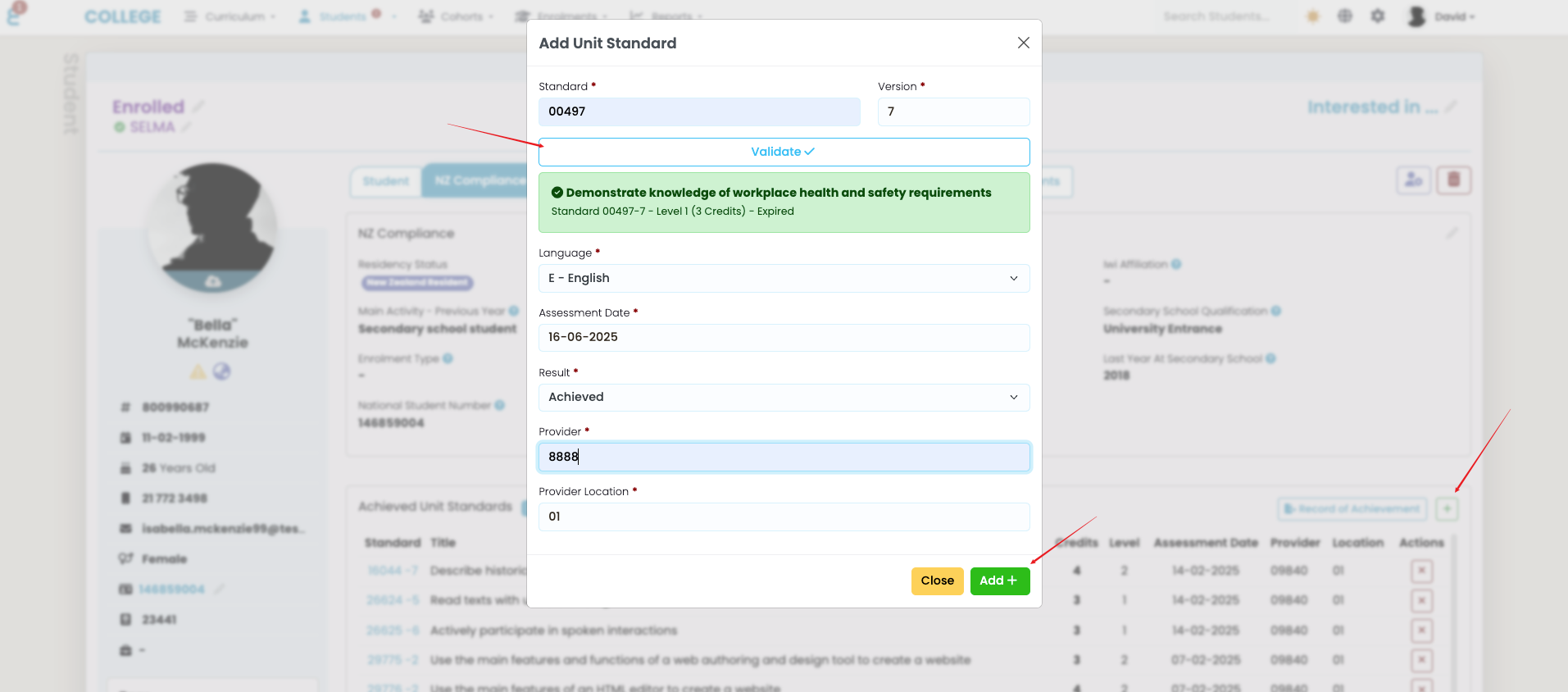
Figure 6. Validate and Add a Unit Standard | Student – NZ Compliance
Click the “+” button in the Achieved Unit Standards section.
Enter the Unit Standard code and version, and click “Validate” to check if it exists in SELMA, and is completed. If it does, the window expands to reveal more required details. Once you have provided all information, click “Add +” to add the Unit Standard to the RoA.
Cross-Crediting of Achieved Unit Standards
After an RoA is imported, or manually updated, SELMA automatically changes the Completion Code of an Enrolment Component linked to an achieved Unit Standard to “Cross-Credit“.