
The Single Data Return (SDR) is a set of delivery data that must be submitted by Tertiary Education Organisations (TEOs) to the Tertiary Education Commission (TEC), throughout the year.
This data must be presented as accurate SDR reports, which ultimately determines if your institution is eligible for funding, and by how much.
This section discusses the process of extracting an accurate SDR report in SELMA, before submitting it to the TEC via the DXP Ngā Kete.
In this section:
Enable SDR Reporting
If you are on an eligible SELMA subscription, including all but SELMA Swift subscribers, the “SDR Report” feature is enabled and available under the “Reports” tab (Figure 1.).
- If you wish to upgrade your SELMA plan, please contact SELMA support.
Follow the next steps to prepare for reporting:
- Navigate from Settings > Accounts, and check that the “Provider Code” is correct (Figure 2.).
- Ensure all campuses have a “Course Delivery Site” established.
- Navigate from Settings > Campus Index to select a Campus (Figure 3.).
- At least one enrolment must be eligible for reporting to be included in the SDR report. An Enrolment is eligible for SDR reporting if …
- The Enrolment Status is:
- Active
- Complete
- Failed
- Withdrawn
- Pending
- Deffered
- Withdrawn Special (31 SOF) (Figure 4.).
- The “Return Type” is set to “SDR” on the NZ Compliance tab of the Enrolment profile (Figure 5.).
- Components linked to the Enrolment have completion codes between 0 and 8, and more than 0 EFTs (Figure 6i-ii.).
- At least one of the following dates fall into the SDR period you select on extraction:
- Component start or end date (or the start and end dates are outside of the SDR period) (Figure 6ii.)
- “Completion Date” of a Enrolment Component (Figure 6ii.).
- “Withdrawal Date” of an Enrolment Component (Figure 6ii.)
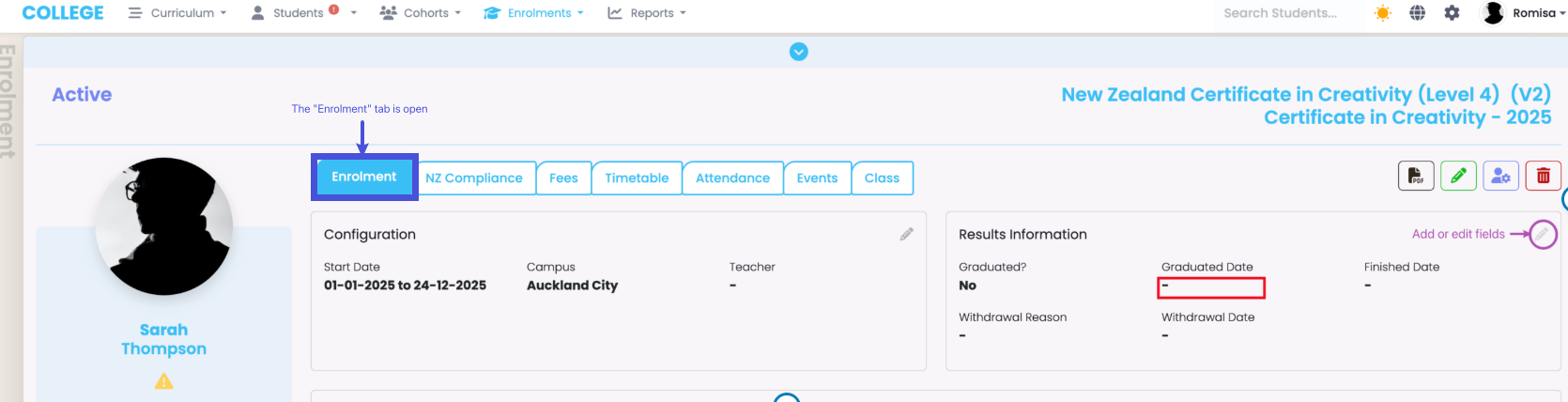
- The “Graduated Date” of an Enrolment (Figure 7.).
- The Enrolment Status is:
Figure 1. Navigate from Reports > SDR Report (orange). You won’t see this button if you are on the SELMA Swift plan.
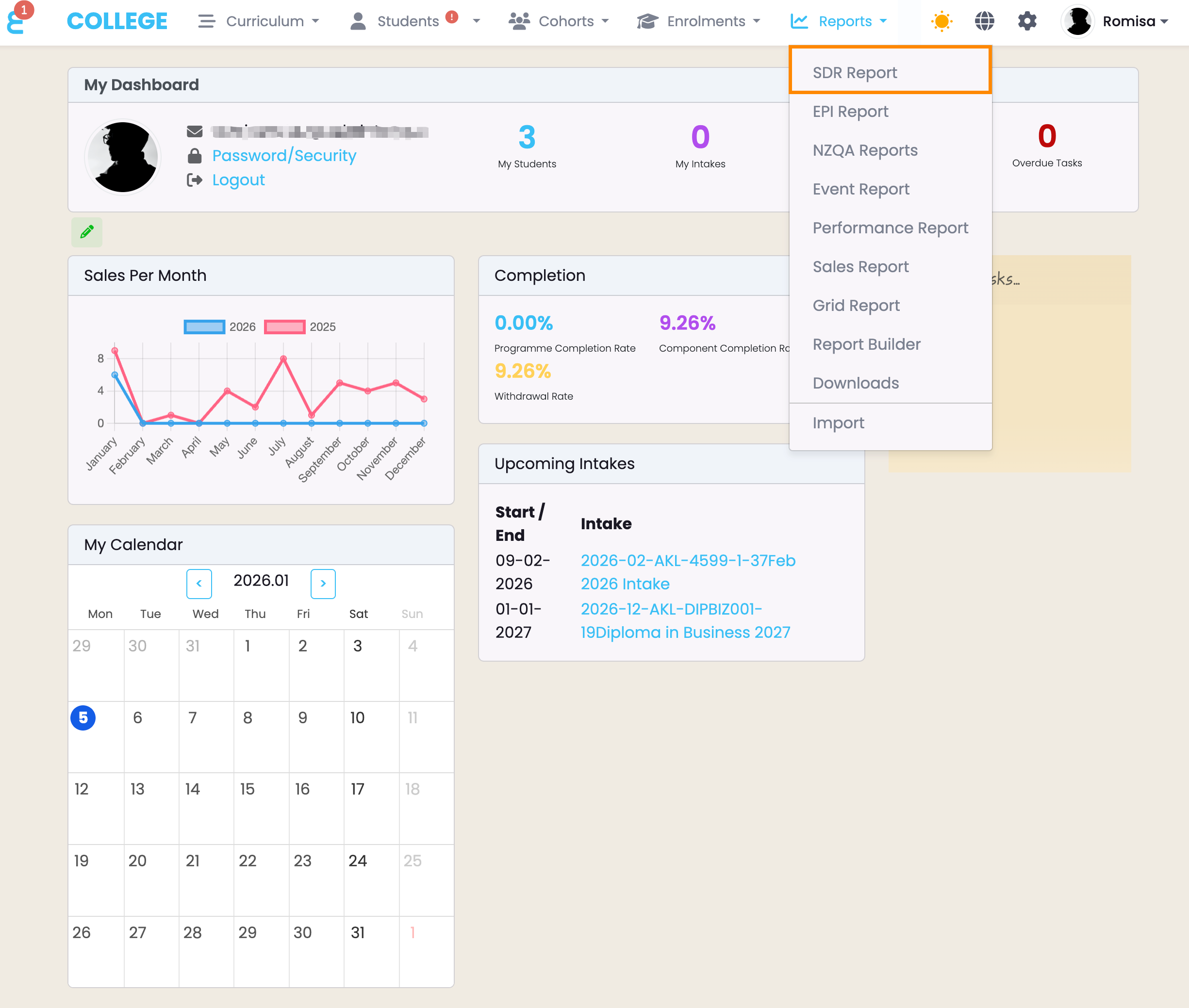
Figure 2. Check that your “Provider Code” is correct (orange), to ensure an error-free SDR extraction process.
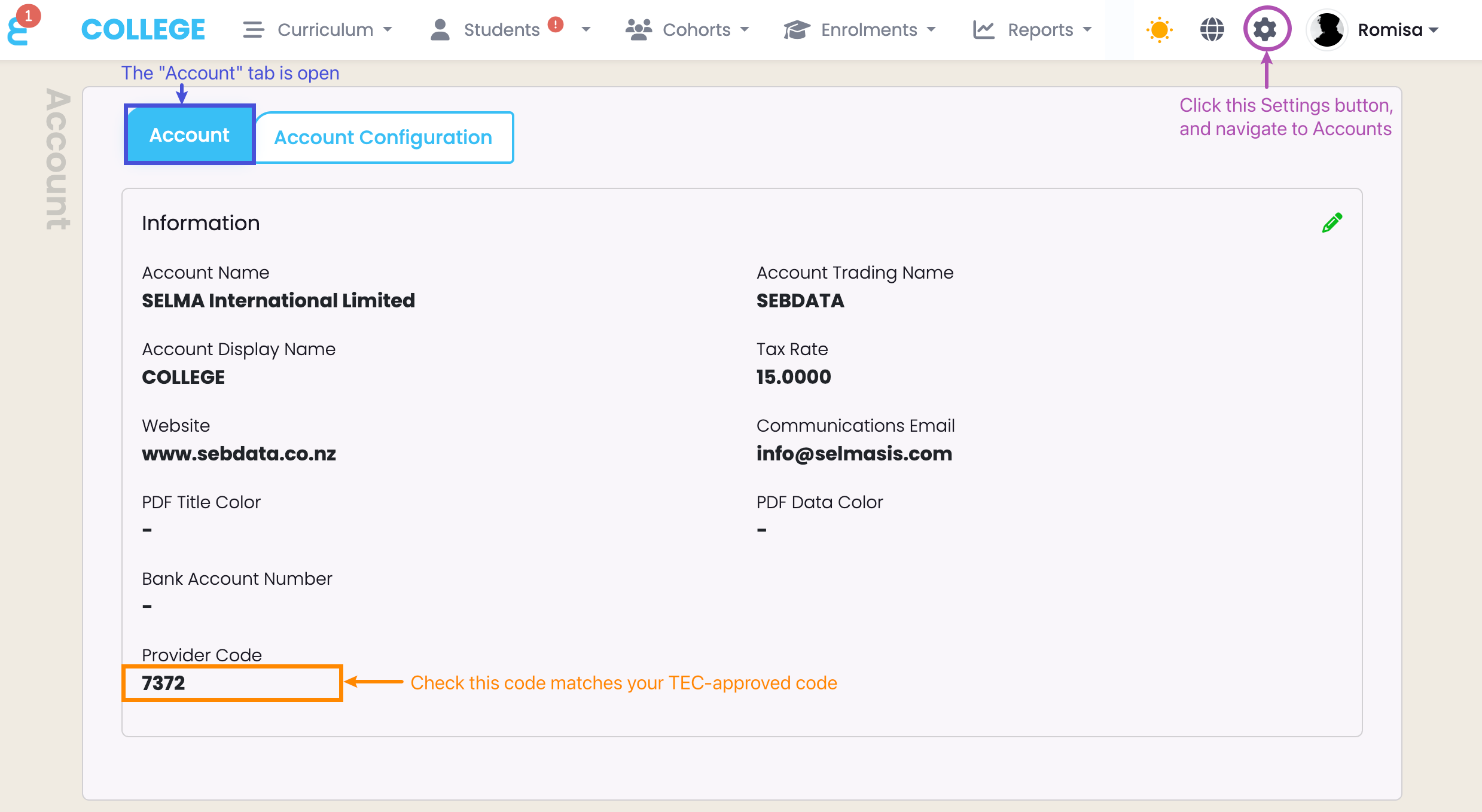
Figure 3. Check (red) and edit the “Course Delivery Site” (purple), to ensure an Enrolment is eligible for SDR reporting.
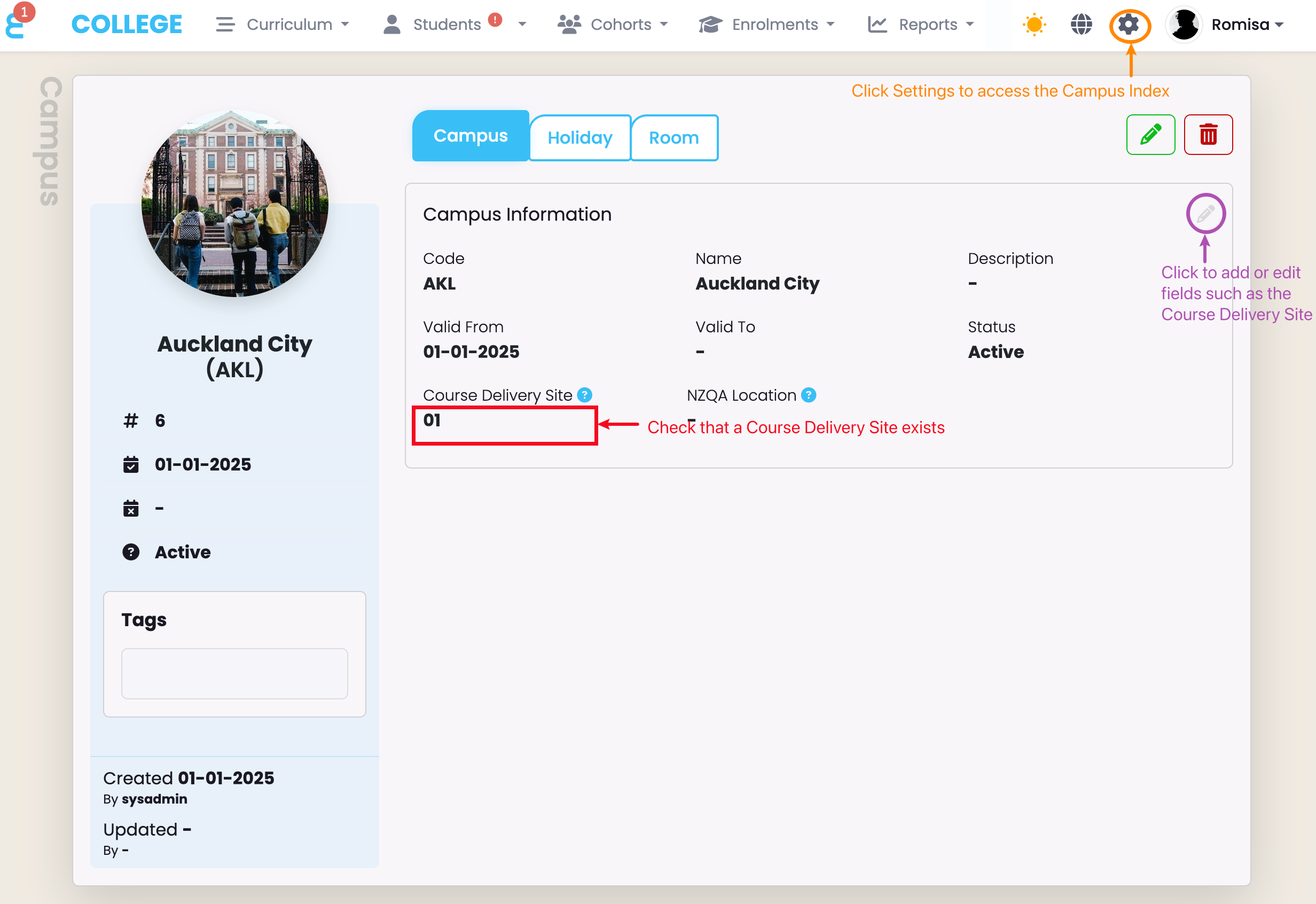
Figure 4. The following Enrolment Statuses are eligible for SDR reporting.
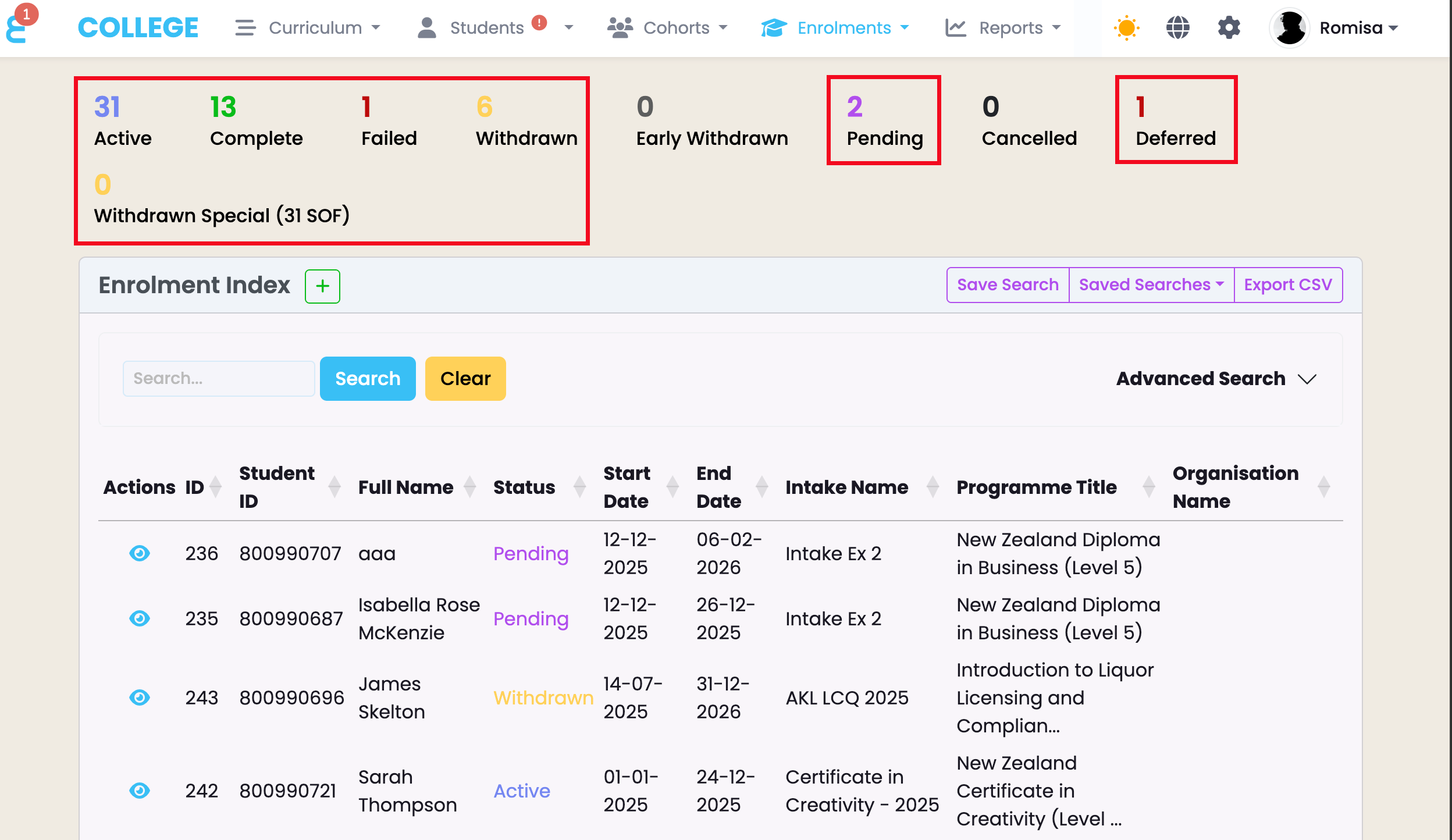
Figure 5. Check (red) and edit the “Return Type” field (purple), to ensure an Enrolment is eligible for SDR reporting.
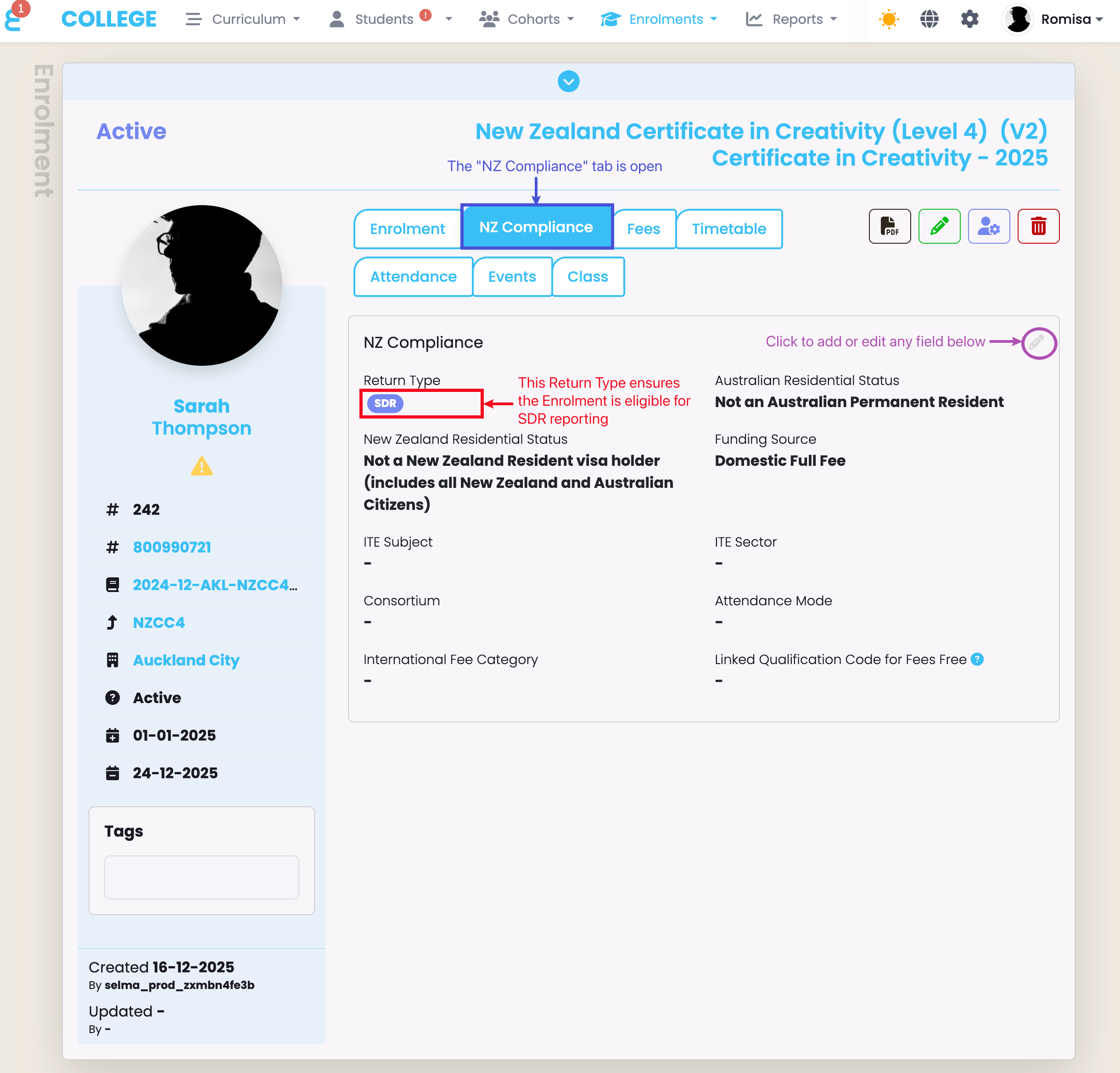
Figure 6i. Click on the pencil icon (red) to view and edit Configurations and Compliance information of a Component. You can check the Completion Code immediately (blue).
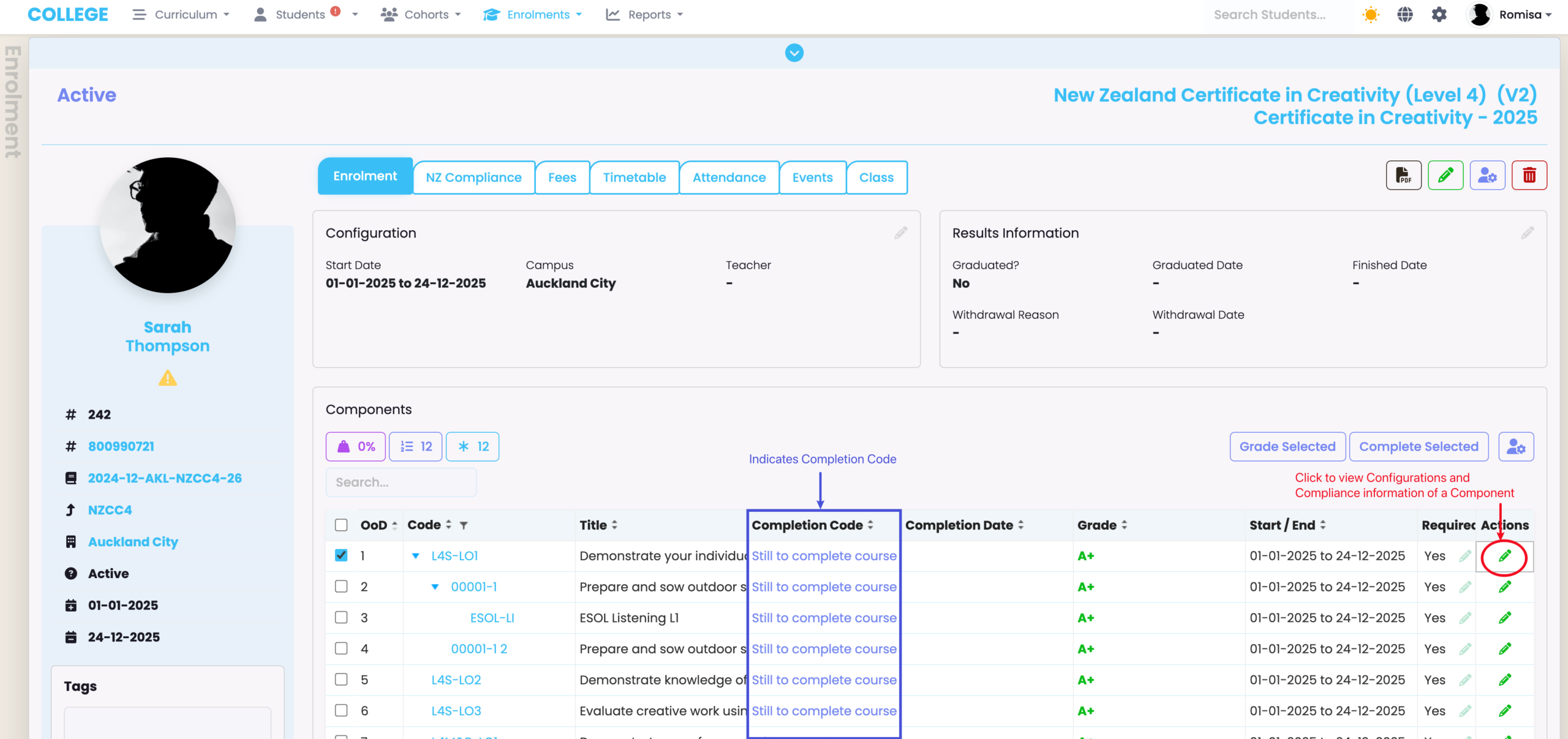
Figure 6ii. Completion codes are stated again, here (light blue). Check that the “Start” and “End” dates (orange) of an Enrolment Component fall within or outside the SDR extraction period, and the Completion Date (red) and Withdrawal Date (purple) within the SDR extraction period.
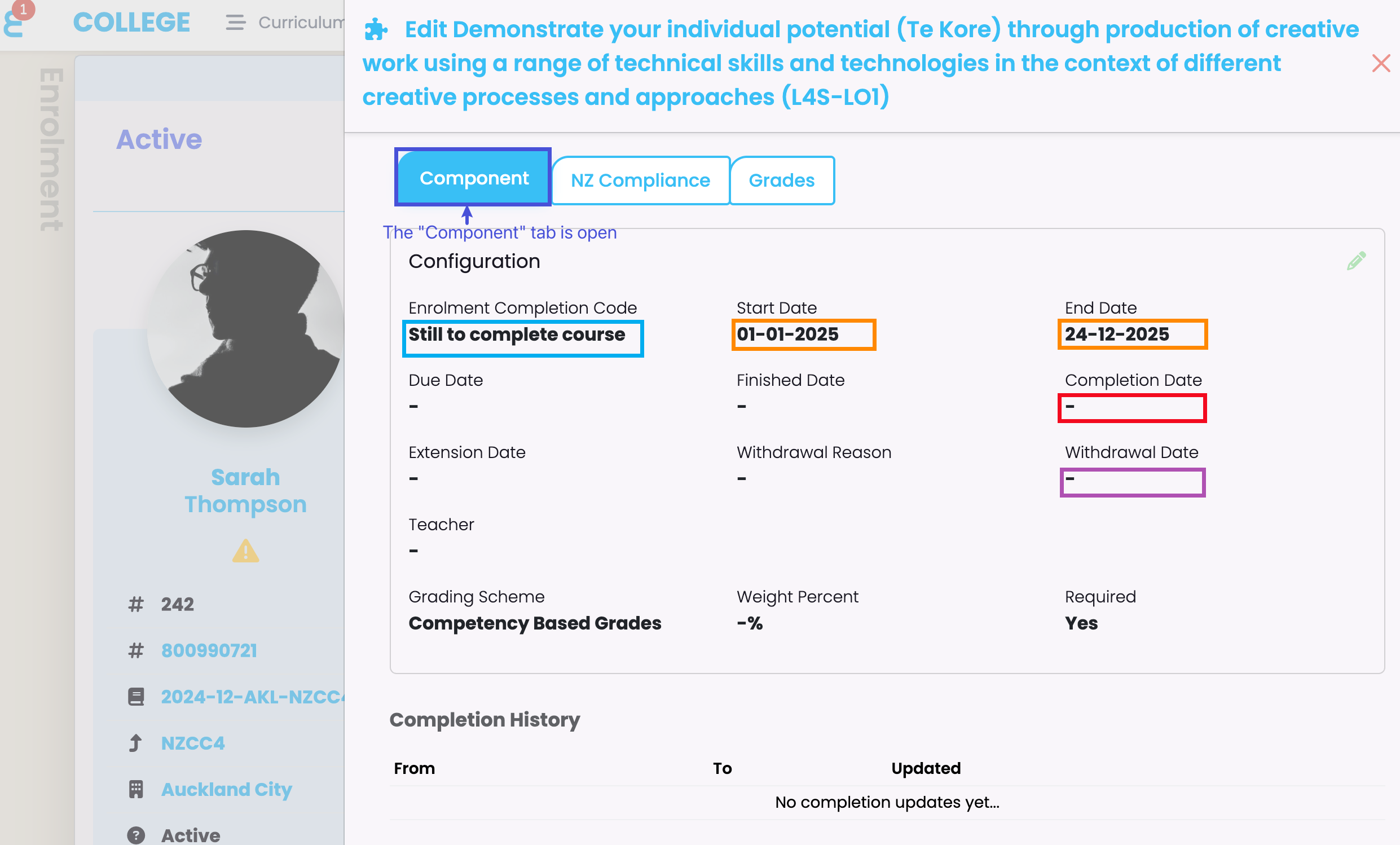
Figure 6iii. Ensure that the Enrolment Component EFTs are greater than 0 (purple). Click the pencil icon to add or edit a field (green).
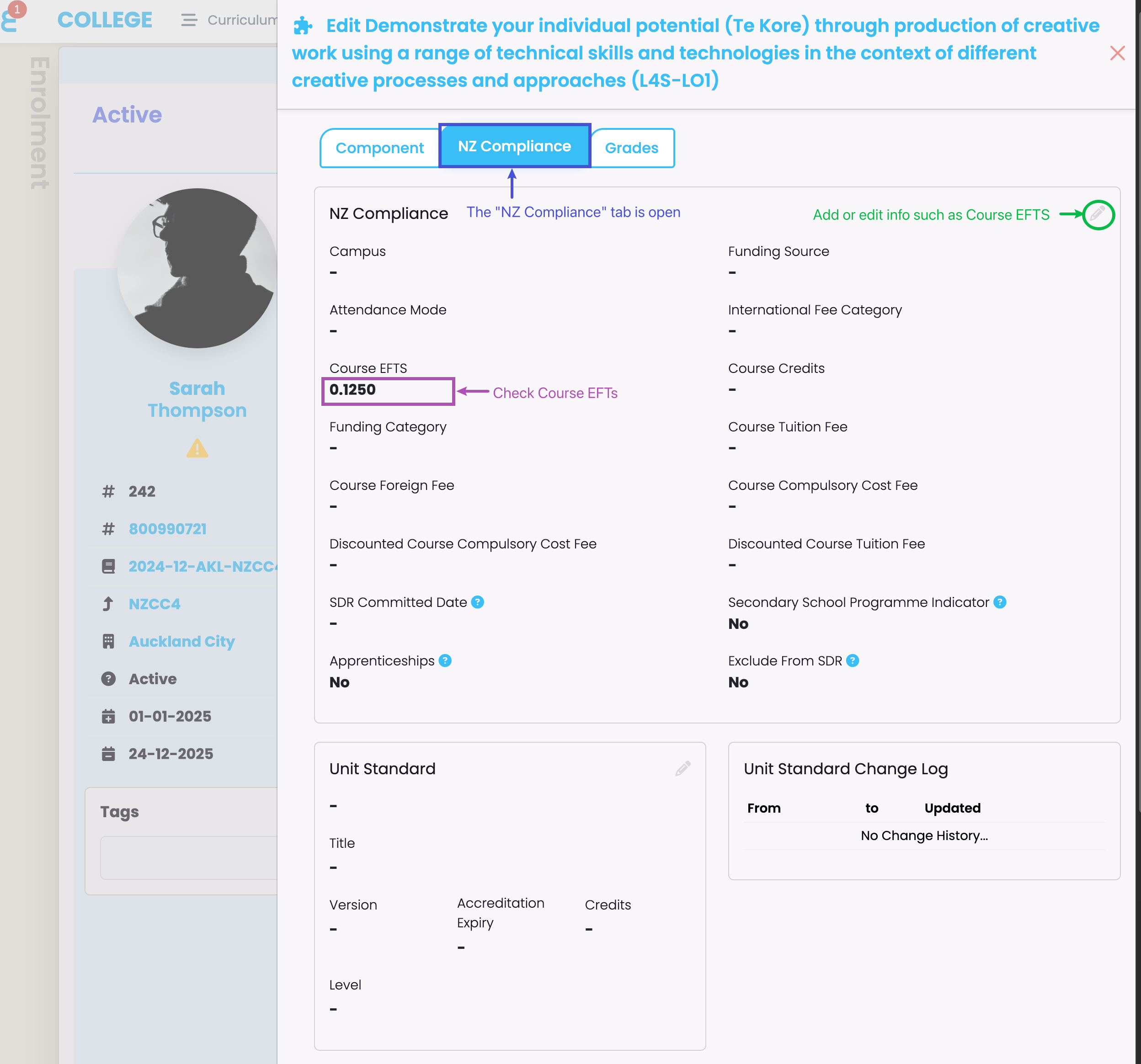
Figure 7. The “Graduated Date” (red) can be found on the “Enrolment” tab (blue). Click the pencil icon to add or edit a field (purple).
Data Requirements
An SDR report must be error-free to be approved by the TEC.
Ensure you configure the following data settings within SELMA to generate an error-free SDR report.
Programme Requirements
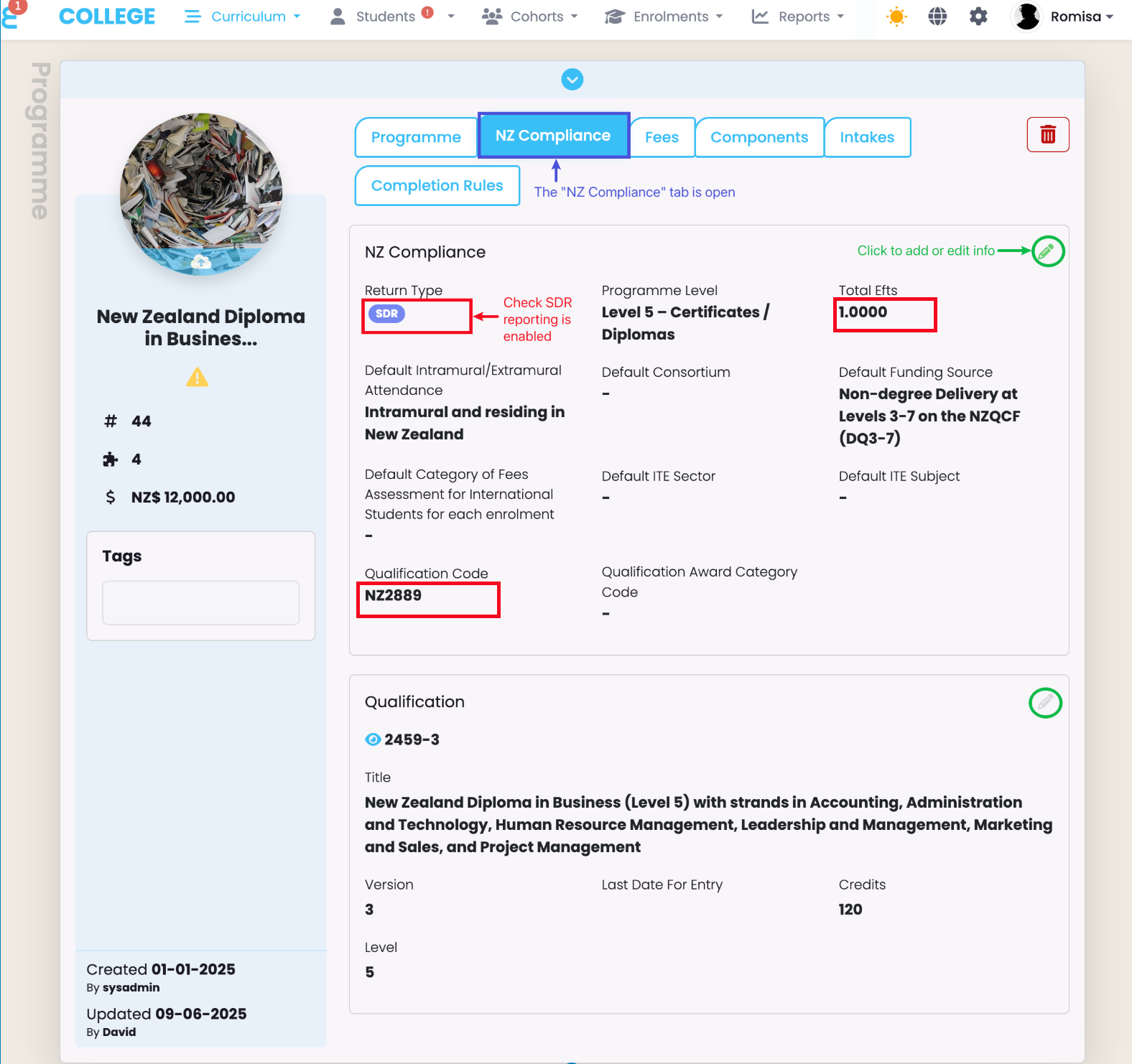
To upload Programme details in the SDR report, navigate from the Curriculum Index to a Programme. Then, in the Programme’s NZ Compliance tab, set the “Return Type” as “SDR” and fill the remaining fields with your provider’s unique Programme information (Figure 8.).
Note: You must define the Return Type, Total EFTS and the Qualification Code. The rest may or may not be necessary depending on your programme approvals.
Figure 8. Fill out a Programme’s Compliance information. Ensure Return Type, Total EFTS and Qualification Code is provided (red).
Component Requirements
The SDR report considers all SELMA Components as “courses“. Therefore, a Unit or Module will be described as a “course”, and included in the SDR report, if the relevant Compliance details are established.
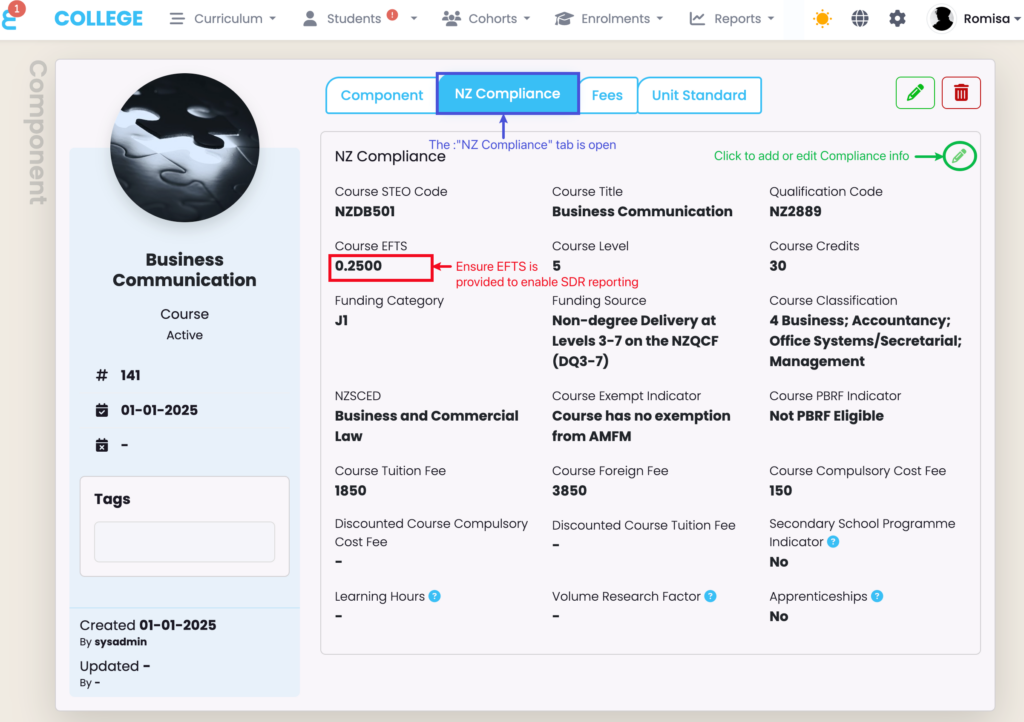
To upload course details in the SDR report, navigate from the Curriculum Index to a Component. Then, in the Component’s NZ Compliance tab, provide the “Course EFTS” to include it in the SDR report, and fill the remaining fields with your provider’s unique Course information (Figure 9.).
Notes:
- Course EFTS must be provided to include your Component in an SDR report.
- Compliance information provided at the Component level is inherited by linked Enrolments.
- Change Compliance information at the Enrolment level, if you wish to change details specific to an Enrolment.
Figure 9. Include your “Course EFTS” to include the Component in an SDR report (red). Click the pencil icon to add or edit fields (green).
Student Requirements
To upload Student details in the SDR report, navigate from the Student Index to a Student profile. Then, in the Student’s NZ Compliance tab, fill all fields with their relevant information.
Field Notes:
NZ Compliance Tab (Figure 10.)
- The “Residency Status” field may be left empty if the student is an NZ or AUS citizen (specified on the “Student” tab).
- The “Ethnicity” and “Iwi Affiliation” fields may include up to 6 entries for a single Student.
- The “Iwi Affiliation” field may be left blank if the student does not identify as Māori.
- The “Maxima Exempt Fee” are compulsory fees charged for student services.
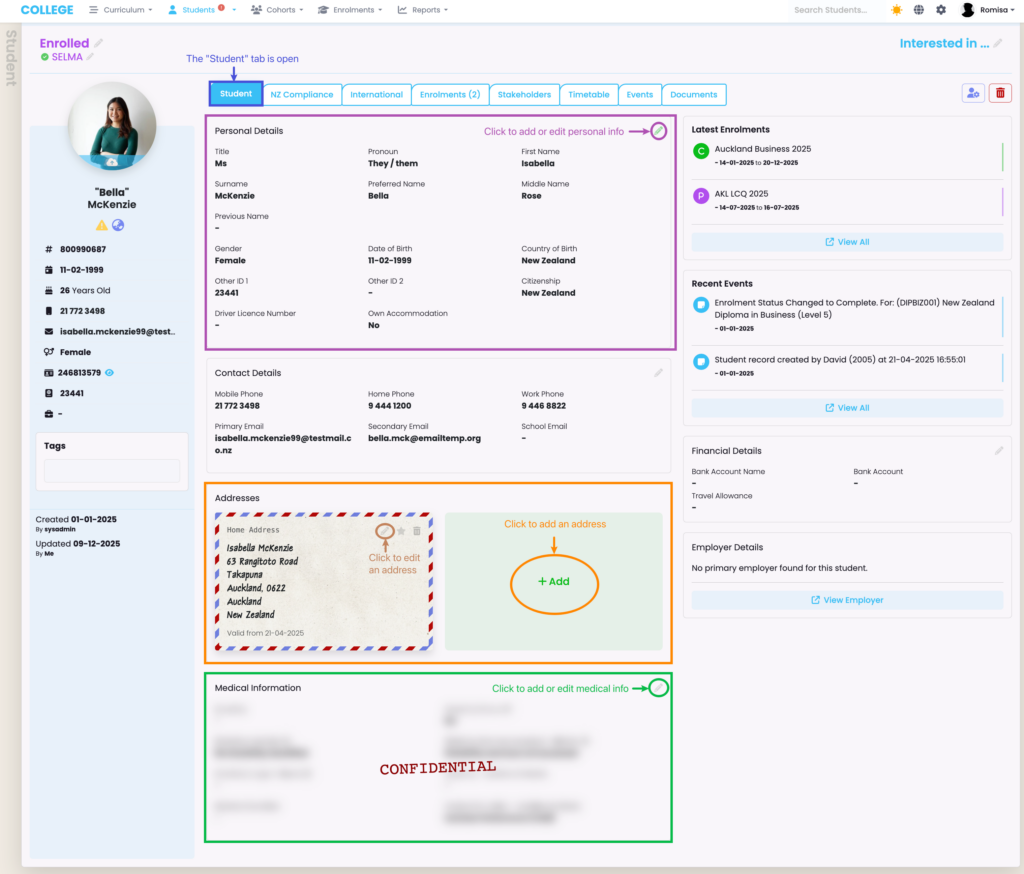
Student Tab (Figure 11i-iii.)
- In addition to the Compliance tab information, the SDR report includes details from the “Student tab”, including (Figure 11.):
- Personal Details:
- Name
- ID Code
- Date of Birth
- Citizenship
- Addresses:
- Home and Mail addresses
- Displayed under “Permanent Post Code” in the SDR report
- Temporary Address
- Displayed under “Term Post Code” in the SDR report
- Home and Mail addresses
- Medical information
- Disability details
- Personal Details:
Figure 10. View and edit the Compliance information on a Student Profile.
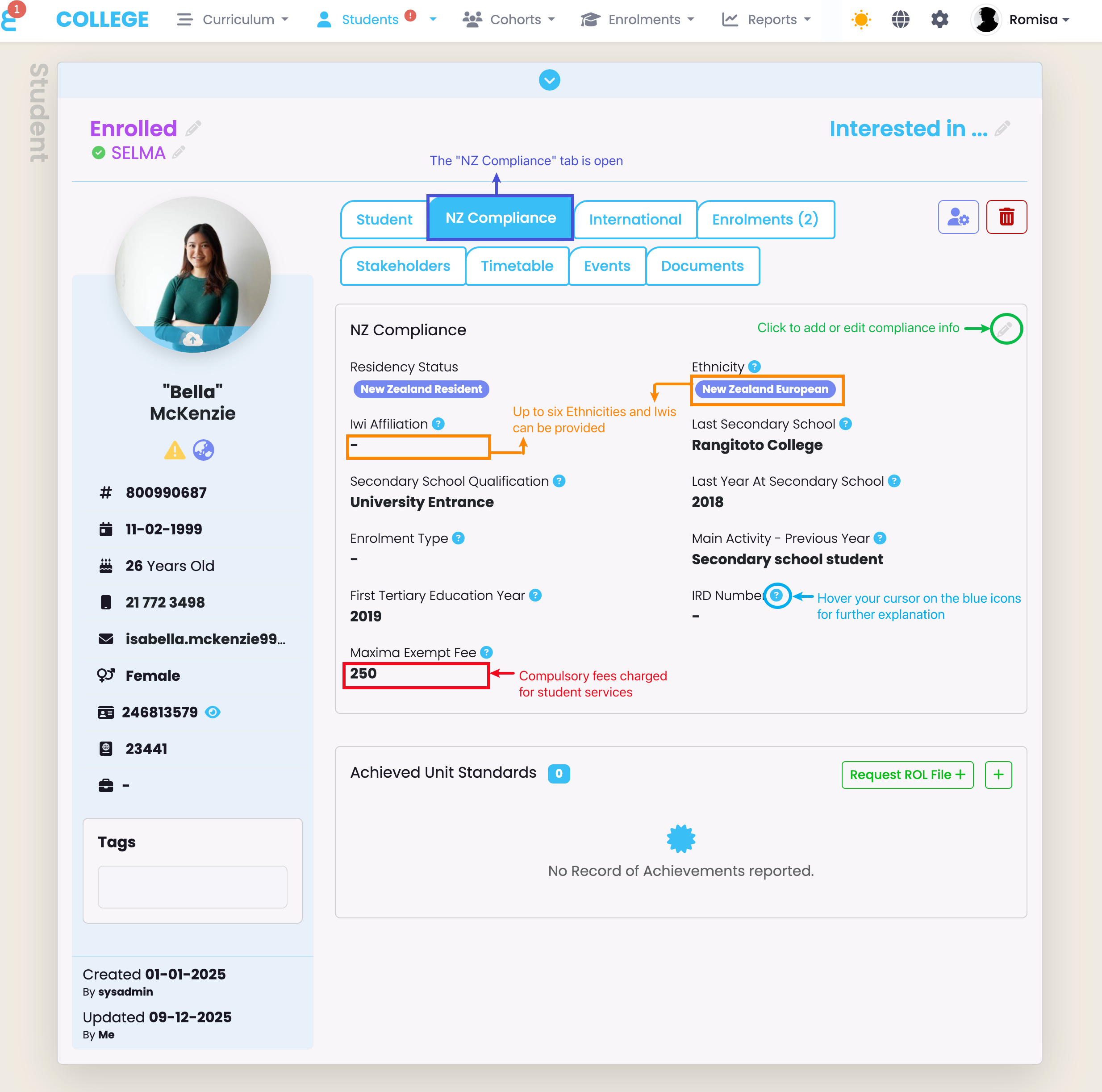
Figure 11. The “Student” tab includes some information which will be included in an SDR report, including “Personal Details” (purple), “Addresses” (orange) and “Medical Information” (green). Click the associated icons in the screenshot below, to add and/or edit details.
Enrolment Requirements
To upload Enrolment details in the SDR report, navigate from the Enrolment Index to an Enrolment. Then, in the Enrolment’s NZ Compliance tab, set the “Return Type” as “SDR“.
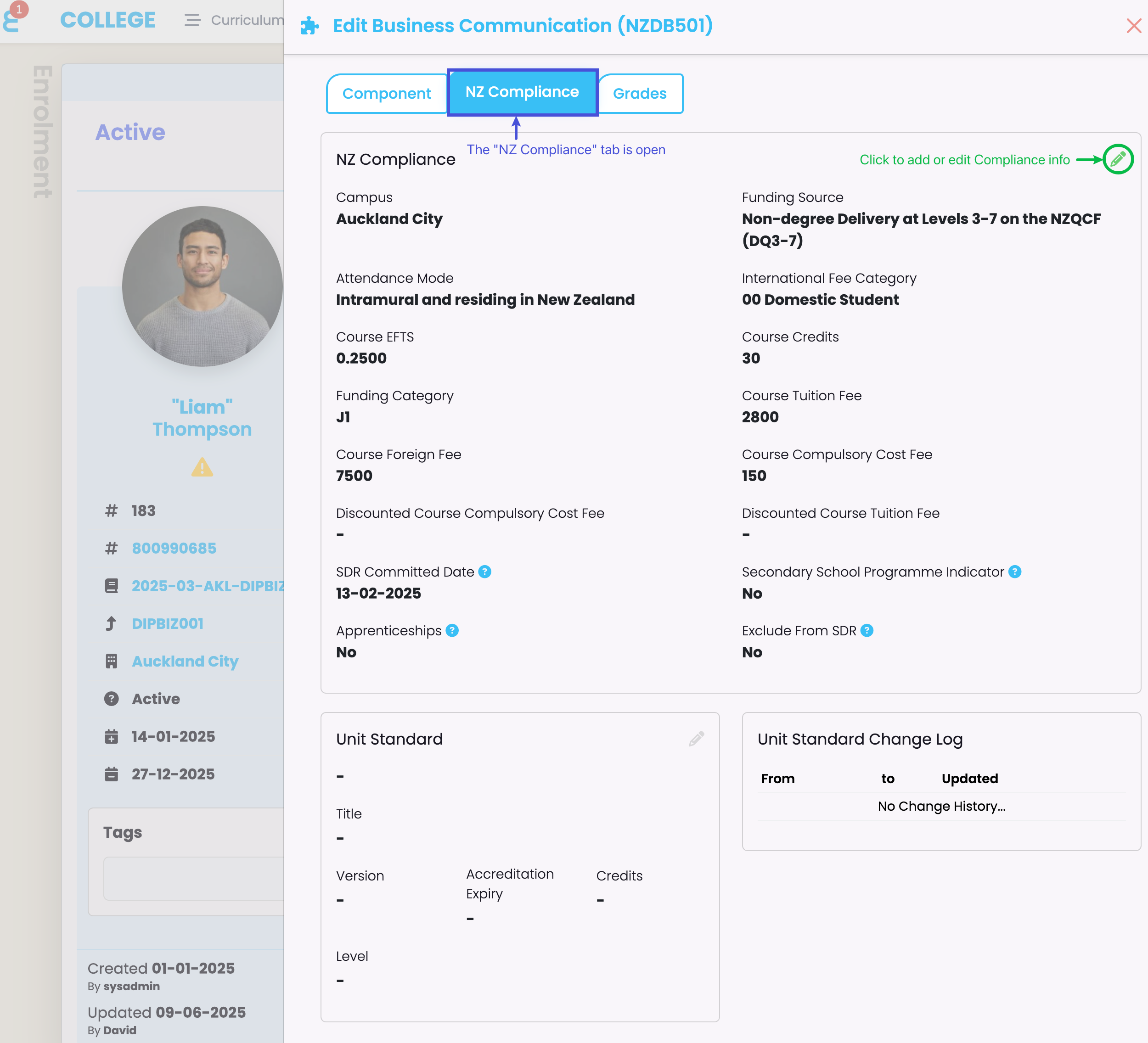
Notice the remaining fields are already filled out with the Compliance information you provided at the Curriculum | Component level (Figure 12.).
If you wish to edit some of the Compliance details of a specific Enrolment, make adjustments to the Components linked to the Enrolment from the “Enrolment” tab (Figure 13i-ii.).
Figure 12. Set the “Return Type” to “SDR” to include an Enrolment in an SDR report (red). The remaining fields are auto-filled with Component information at the Curriculum level (orange), unless you adjust them at the Enrolment level.
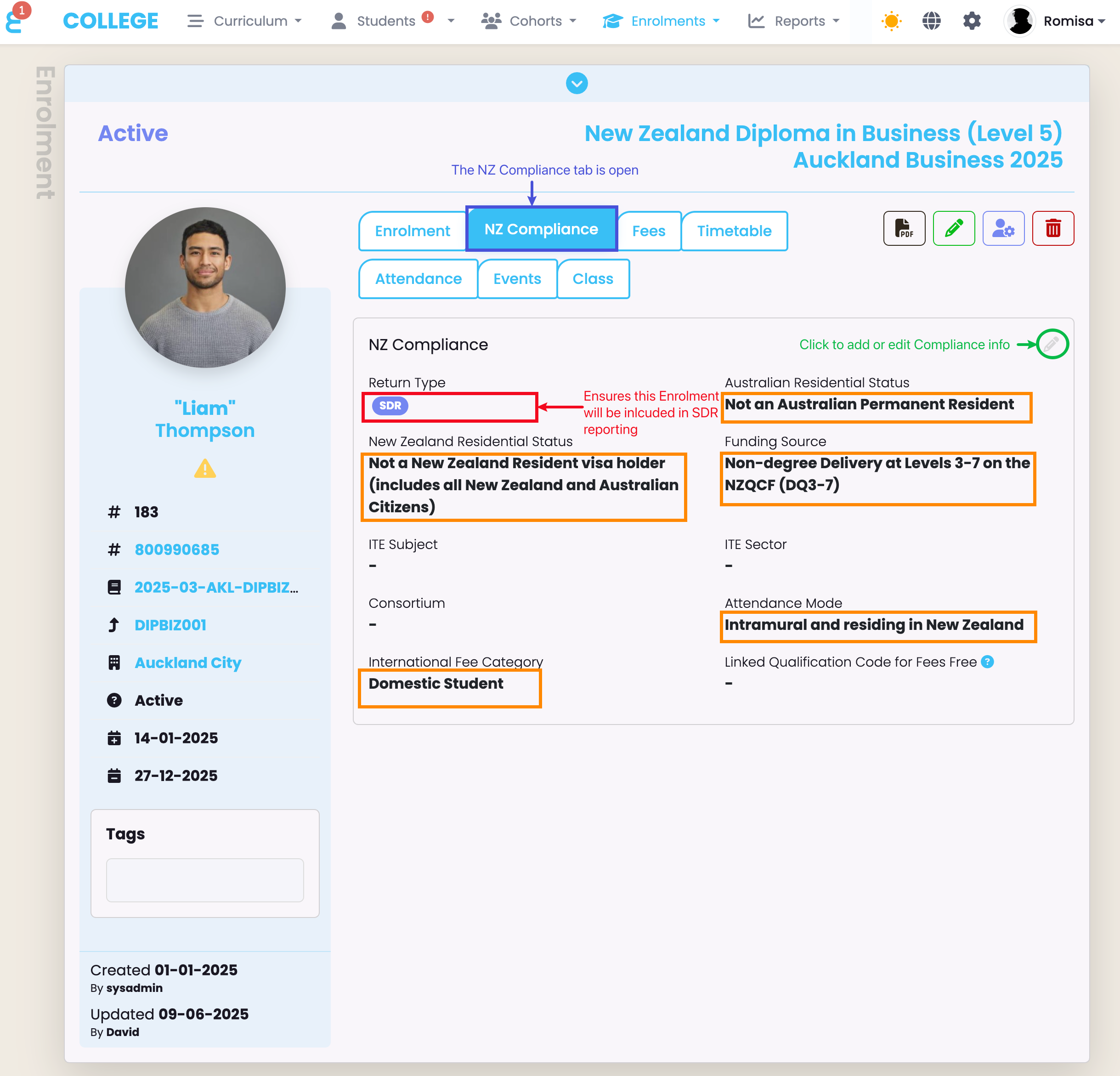
Figure 13i. To edit Compliance information for a Component linked to a select Enrolment, click the pencil icon (red).
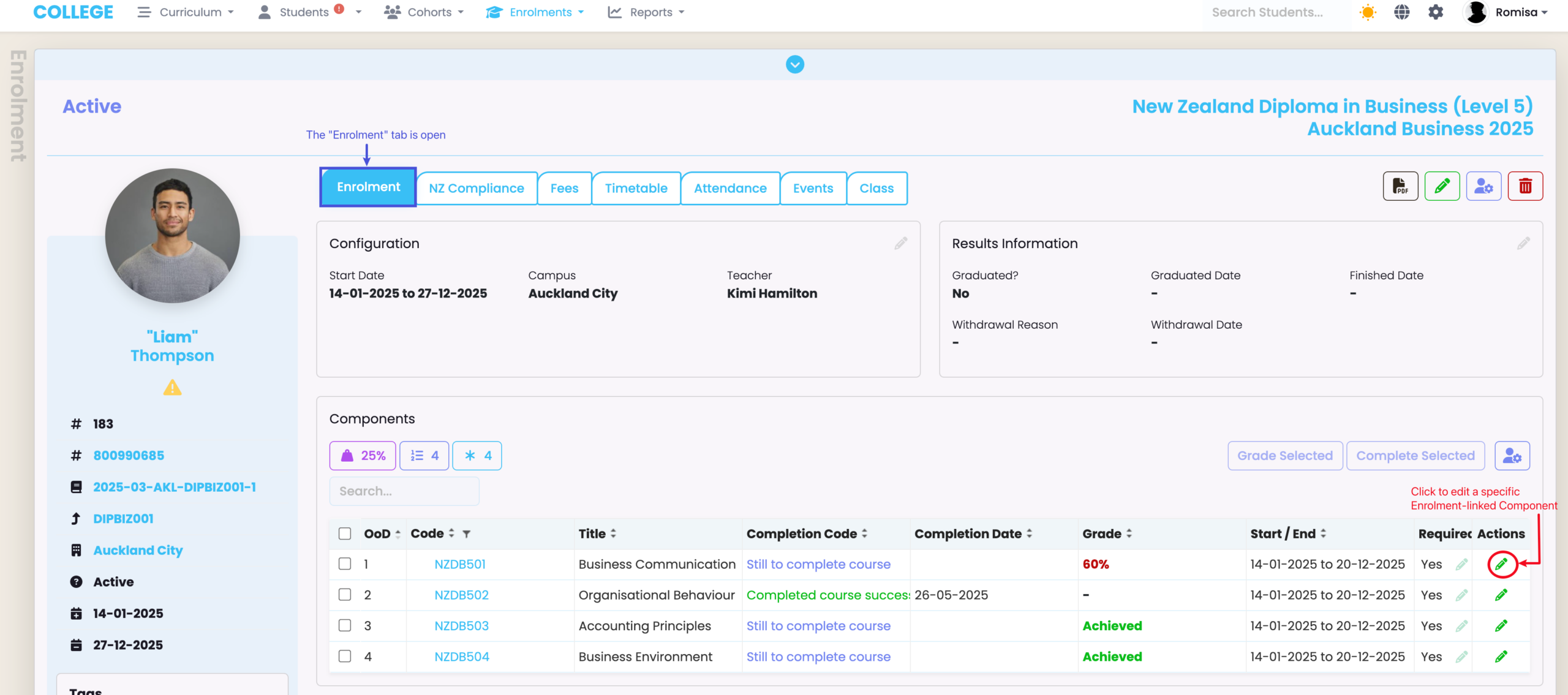
Figure 13ii. Make changes to specific Enrolment-linked Components.
Extracting an SDR Report
Generate an SDR Report
Navigate from Reports > SDR Report to see a list of previous SDR extractions and/or choose to extract new SDR report files (Figure 14.).
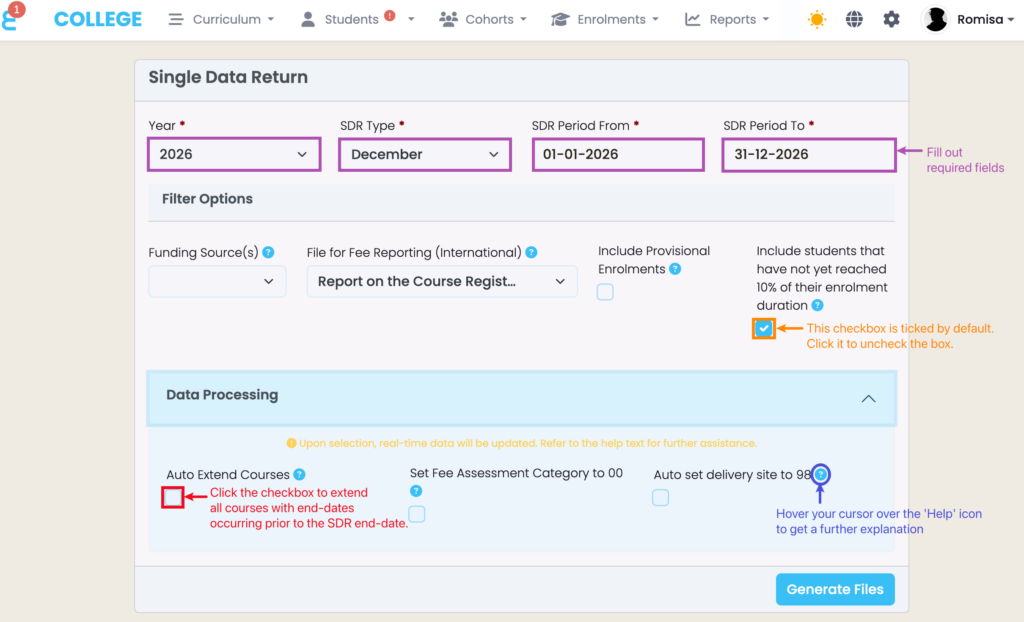
The SDR extraction menu shows compulsory fields to fill, as indicated by red asterisks, and the remaining fields feature blue ‘help’ icons for further explanation (Figure 15.).
Notes:
- SELMA includes Enrolment Components that have not yet met the threshold of 10% Enrolment duration or 30 days (whichever is shorter), by default. Click the “Include students …” check-box to exclude them in the August SDR.
- Avoid SDR errors by choosing to “Auto Extend (all) Courses”, if you know some or all of your courses have end dates prior to the SDR Period end date (Figure 15.).
Figure 14. View a list of previous SDR extractions, or rerun and download them. Click the cross button (green) to generate a new report file with new filters.
Note: A re-run sends the selected report file to your email address.
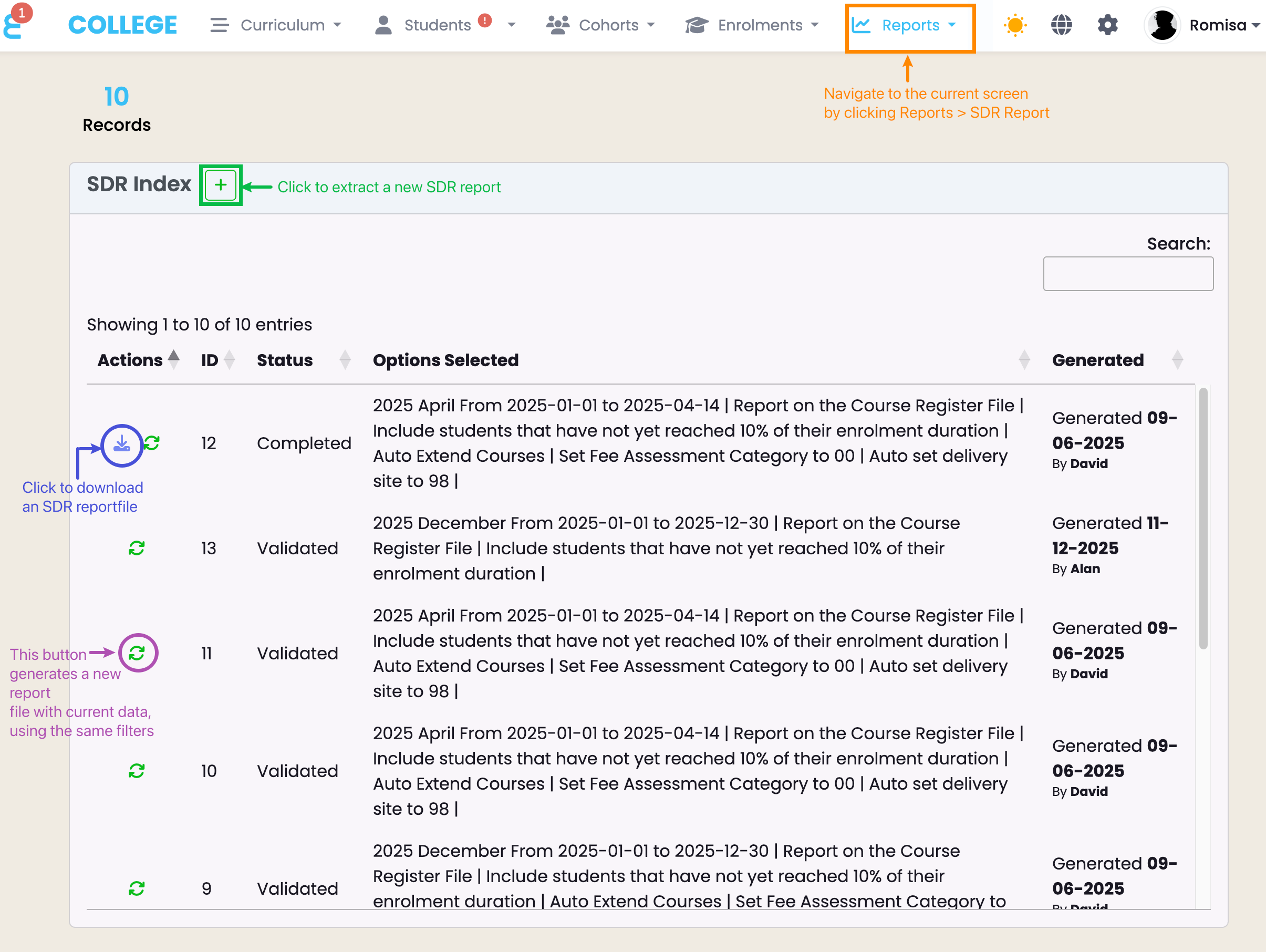
Figure 15. Set parameters for a new SDR report extraction, before clicking the blue “Generate Files” button.
Prepare to Submit
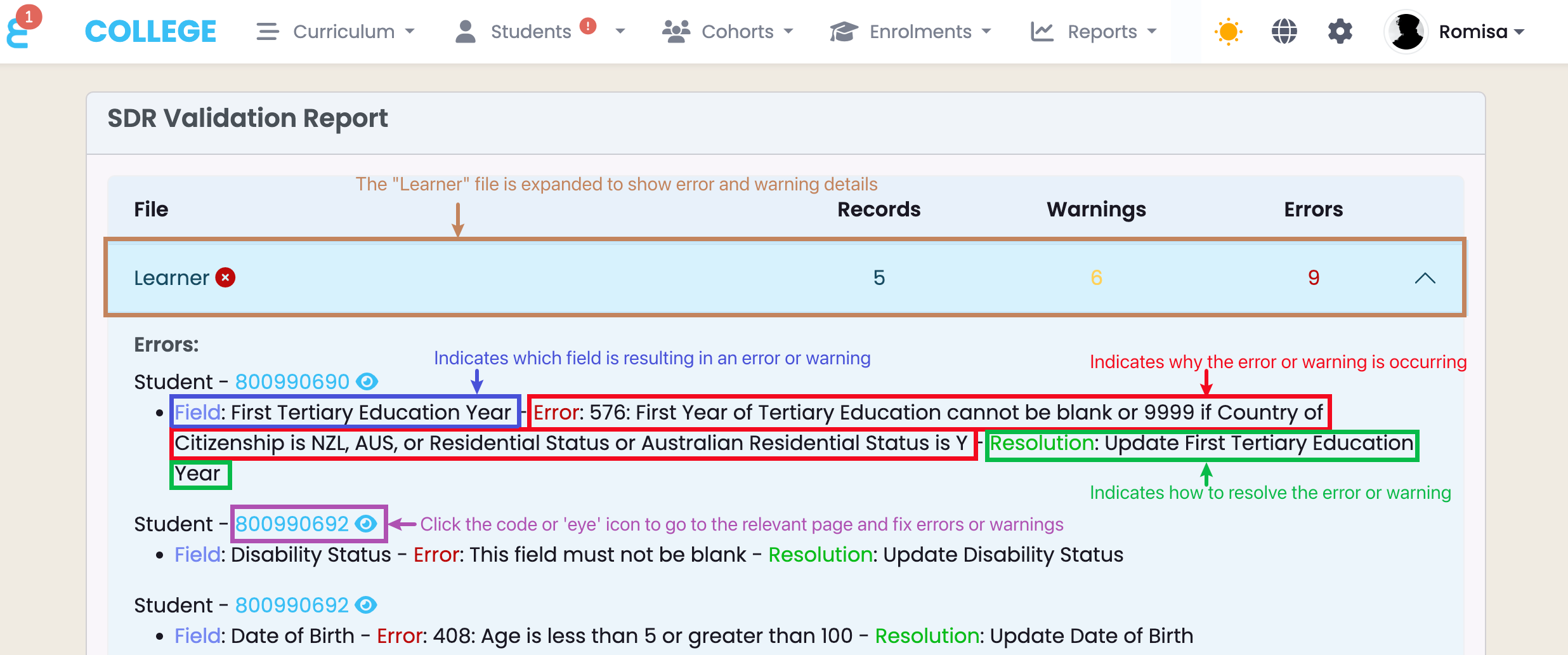
Once you have clicked the button to “Generate Files“, your file will be automatically checked and any warnings and errors will be displayed in a Validation Report. You can click the issues directly to fix issues on the spot, and re-validate the files until you have an error-free Validation Report (Figure 16i-ii.).
Note: Sometimes, SELMA can display an error count even if the error is fixed. Click to generate the report with errors, or contact SELMA support to verify before doing so.
Figure 16i. The Validation Report is generated before generating a final SDR report. Click the drop-down arrow to read where and why warnings and errors are occurring, and how to resolve them (dark blue). Once you have resolved any issues, we recommend clicking the purple “Re-Validate” button to double-check that your final report will be error-free.
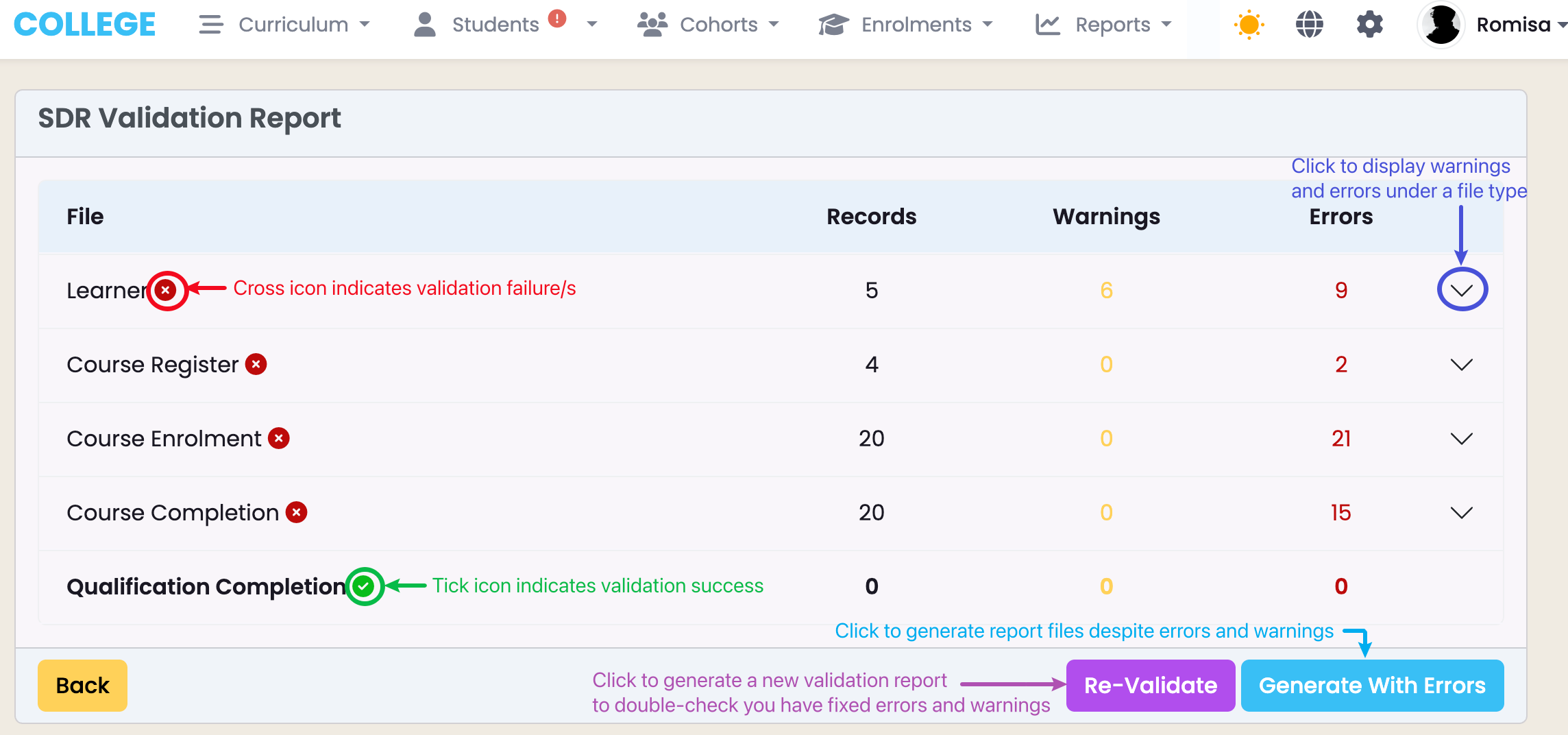
Figure 16ii. Please take a note of where and why an error or warning is occurring (blue, red) and how to resolve it (green), before clicking to be directed to the corresponding page to fix the issue/s (purple).
EPI Report
The Education Performance Indicator (EPI) report is a useful tool for keeping track of your live SDR data.
We highly recommend using the EPI Report regularly throughout the year, and particularly before SDR submissions, to see how your provider is doing against your year-long SDR forecast i.e. the Indicative SDR.
Notes:
- The EPI Report contains live, dynamic data. So, any current updates to data reported in the previous year affects the results of the EPI report of that previous year.
- E.g. If you have reported extended Enrolments in December 2024, and those Enrolments are completed February 2025, the 2024 EPI report will now reflect results after those changes.
- EFTS measurements include future SDR committed dates*.
- *As pertaining to Enrolments yet to reach 10% or 30 days of the Enrolment duration
SDR Reporting Periods
All SDR reports are submitted on the same secure online platform (DXP Ngā Kete), but there are multiple report types that have different considerations.
For all but the Indicative SDR Report, check your EPI report at the time of submission to get a picture of how the TEC will see your performance over the past year.
March SDR (Indicative Report)
The Indicative SDR Report is only sent to the Ministry of Education (MoE) to evaluate how many enrolments they can expect across New Zealand in a given year.
This report type contains three files and includes all enrolments processed for the given year, including current and future enrolments.
Error Notes:
- Make sure that the correct SDR date is selected upon SDR extraction in SELMA. Submitting the wrong files to the MoE will result in an instant error.
- You can expect fewer error and/or warning messages when validating an Indicative SDR report compared to later SDR reports, as the data provided is an estimate.
April SDR
The April SDR Report is sent to the TEC to evaluate how many enrolments they can expect across New Zealand in a given year.
This reporting period is your final chance to report Course completions for Students with extensions from the previous year.
Please double-check that the Completion Date for Course extensions is correct, otherwise you could run into the following problems:
- Course Completion dates backdated to the previous year exclude the course from the report.
- Course Completions reported after the April SDR period exclude the course from the report.
August SDR
It is critical to report every Enrolment in the August SDR report, including those that begin later in the year and those that are rolling enrolments.
IMPORTANT NOTE: For August SDR extractions, SELMA does not include Enrolments with an SDR committed date occurring after August. Generate a December file in SELMA, and submit it as an August SDR file in DXP Ngā Kete.
December SDR
Ensure that you lock-in all end-dates to courses for the next year, and process all early withdrawals before extraction.
Use the EPI Report to track:
- Course Extensions
- If the report shows a Course Completion rate lower than the Possible Course Completion rate, you have students that are on extension. They will have to complete their course before the April SDR in the new year.
- EFTS Consumption
- Check that your EFTS consumption is as expected, and the count of enrolments and students is correct.
- SDR Raw Data
- Download the raw data into Excel and check that all students are included, all completions are processed, and all extensions are justified.
- You can do this using Grid reports or the EPI report.
Please see SDR – Important Considerations following this article.