
SELMA supports Australian training providers in delivering state-funded training in a compliant and audit-ready way.
State-funded training refers to training delivered under government funding contracts between a Registered Training Organisation (RTO) and a state or territory funding authority. These contracts set the rules for how funded training must be delivered and reported.
Each contract typically defines:
- Which programs are funded
- Who is eligible to enrol
- Funding rates and delivery conditions
- Reporting and compliance requirements
- Audit expectations
Because each state and territory operates its own funding programs, providers must ensure their delivery aligns with the specific rules of each contract.
SELMA provides the structure needed to support this delivery across the training lifecycle.
In this section:
State & Government Contract Management
- Overview of State-Funded Training in SELMA
- Regulatory Context
- Examples of State-Funded Programs
- How SELMA Supports State-Funded Training
- Configuring State Contracts in SELMA
- Assigning a Contract Schedule to an Enrolment
- Managing Contract Changes in SELMA
Regulatory context
State-funded training operates under both state funding agreements and the national VET regulatory framework.
Providers delivering government-funded training must comply with:
- Funding rules set by the relevant state or territory authority
- National reporting requirements administered by NCVER
- Regulatory oversight administered by ASQA
More information:
- ASQA: https://www.asqa.gov.au
- NCVER: https://www.ncver.edu.au
Examples of state-funded programs
State-funded training programs vary by jurisdiction. Common examples include:
- Smart and Skilled (NSW)
- Skills First (VIC)
- User Choice (QLD)
How SELMA supports state-funded training
SELMA provides tools to manage funded delivery across the enrolment lifecycle, including:
- Contract and schedule setup
- Funding source assignment
- Learner eligibility tracking
- Enrolment validation
- Delivery and progress monitoring
- Reporting support
- Audit documentation
These features help providers deliver funded training in line with contract requirements and reduce compliance risk.
Configuring State Contracts in SELMA
This guide explains how to set up state-funded contracts in SELMA, including:
- Creating a Purchasing Contract
- Creating Contract Schedules
Use your official funding agreement as reference when completing each step.
What you are configuring (quick context)
- Purchasing Contracts = the overall funding agreement with a state or territory authority
- Contract Schedules = the delivery rules under that contract
- Enrolments are linked to Contract Schedules, not directly to the contract
1. Create a Purchasing Contract
A Purchasing Contract represents the funding agreement you hold with a state or territory funding authority.
Step 1: Access Contracts
- Log in to SELMA
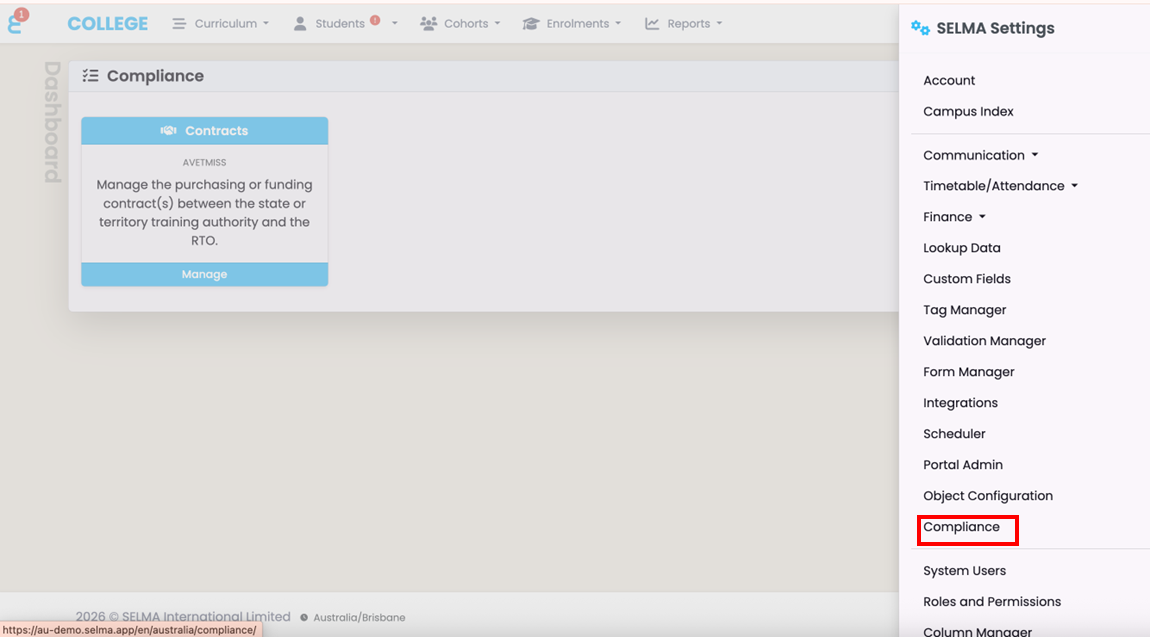
- Go to Settings → Compliance → Contracts
- Click Manage
Figure 1: Accessing Contracts under Settings → Compliance
Step 2: Add a new Purchasing Contract
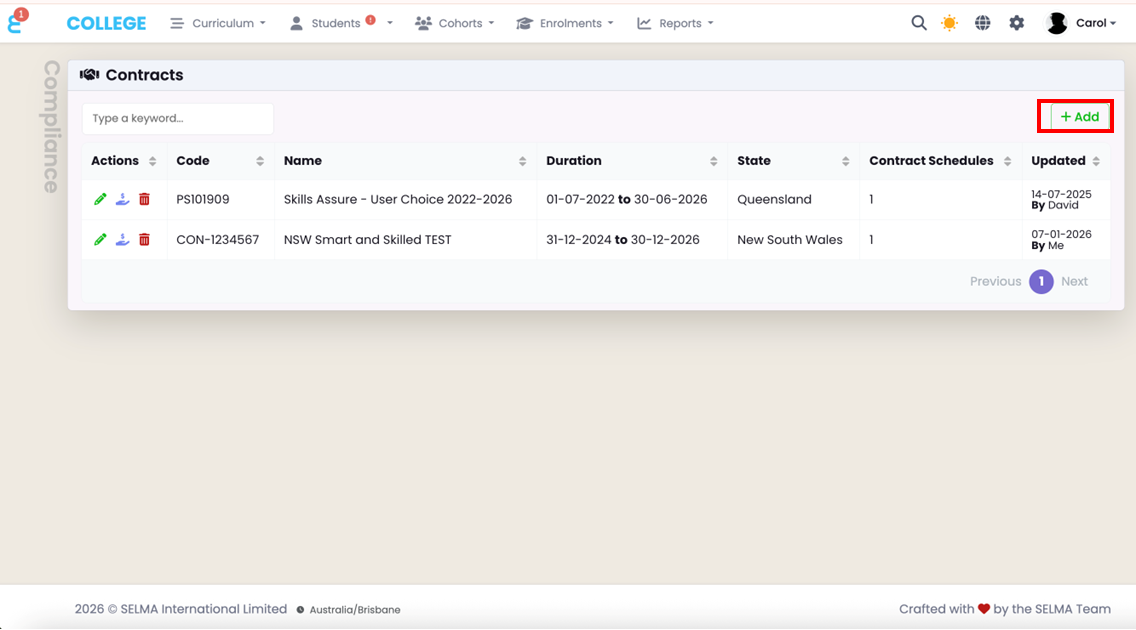
- Click + Add
- The New Contract screen opens
Figure 2: Creating a new Purchasing Contract
Step 3: Complete the contract details
Complete the fields using your funding agreement.
Code
Enter the official contract code issued by the funding authority.
Name
Enter the contract name as it appears in the agreement.
State
Select the relevant state or territory.
Duration
Enter the contract start and end dates.
Funding Body
Select or enter the funding authority (e.g. DESBT, Skills First).
Contact
Optional — assign a contact if required.
Schedule Code Override (optional)
Only use this if the funding authority requires a specific schedule identifier.
Figure 3: New Purchasing Contract form
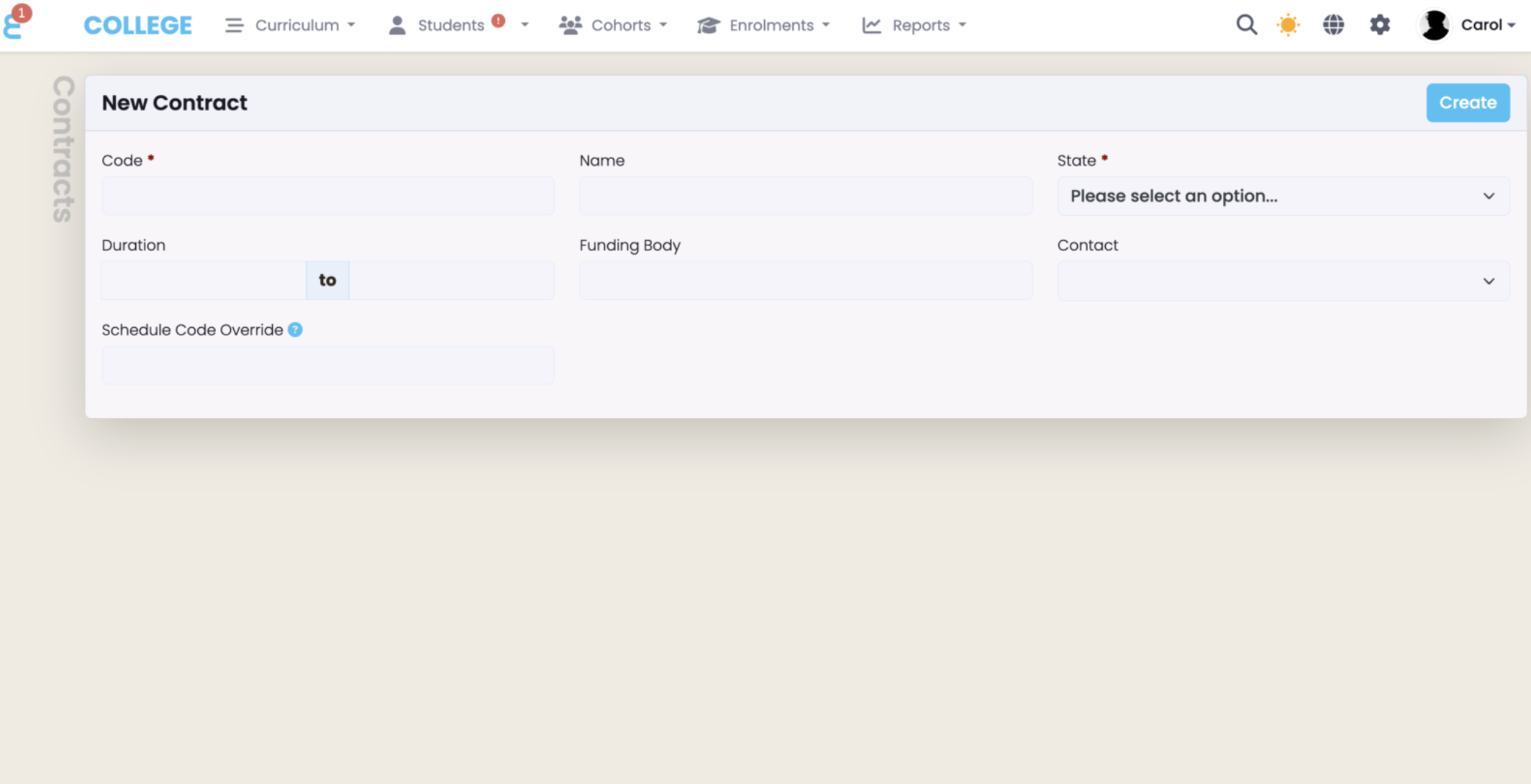
Click Create to save the Purchasing Contract.
2. Create Contract Schedules
Contract Schedules define how training is delivered and funded under the Purchasing Contract.
Step 1: Access Contract Schedules
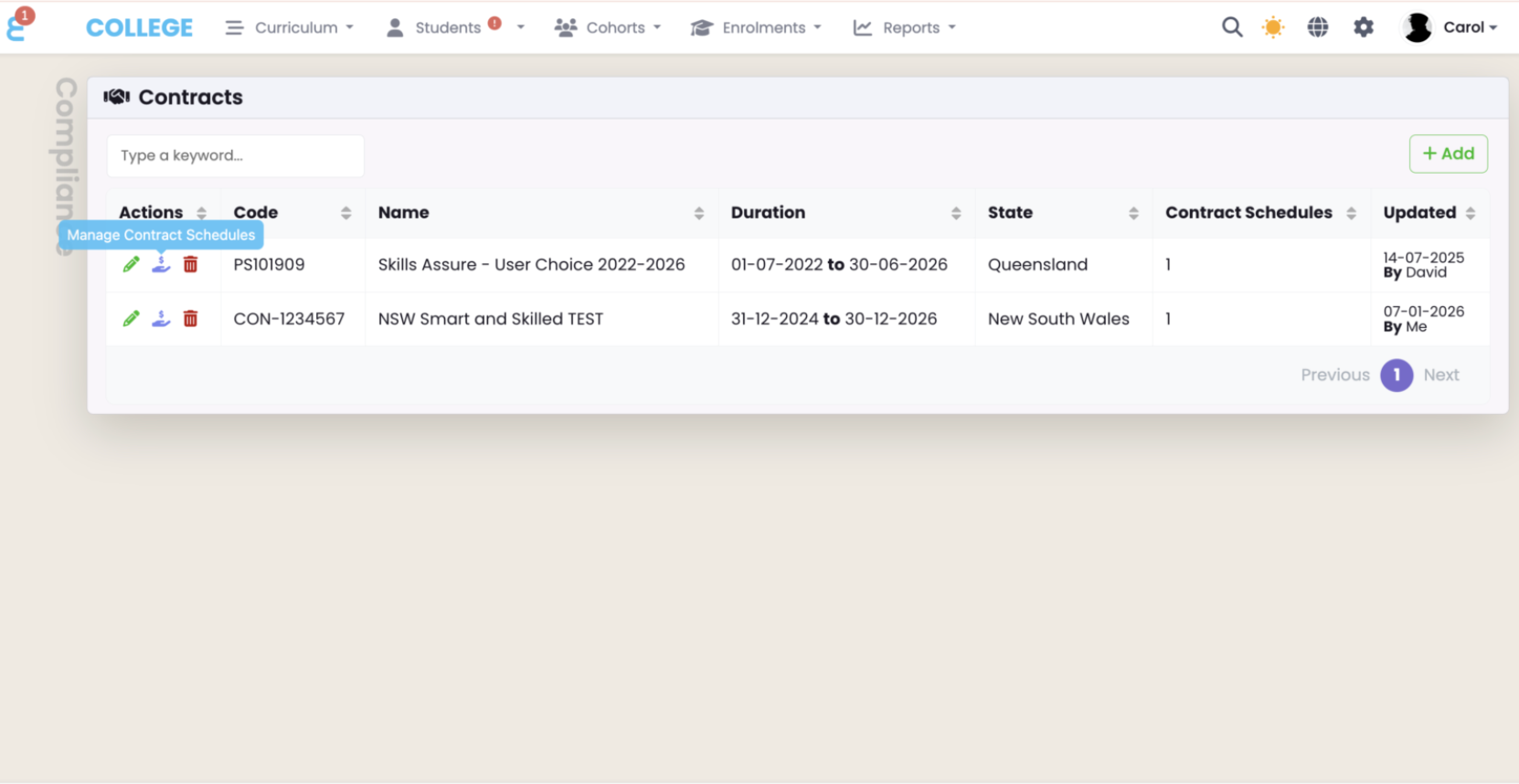
- From the Contracts list, locate the relevant Purchasing Contract
- Click the Manage Contract Schedules icon (middle icon under Actions)
Figure 4: Contracts list with Manage Contract Schedules option
Step 2: Add a new Contract Schedule
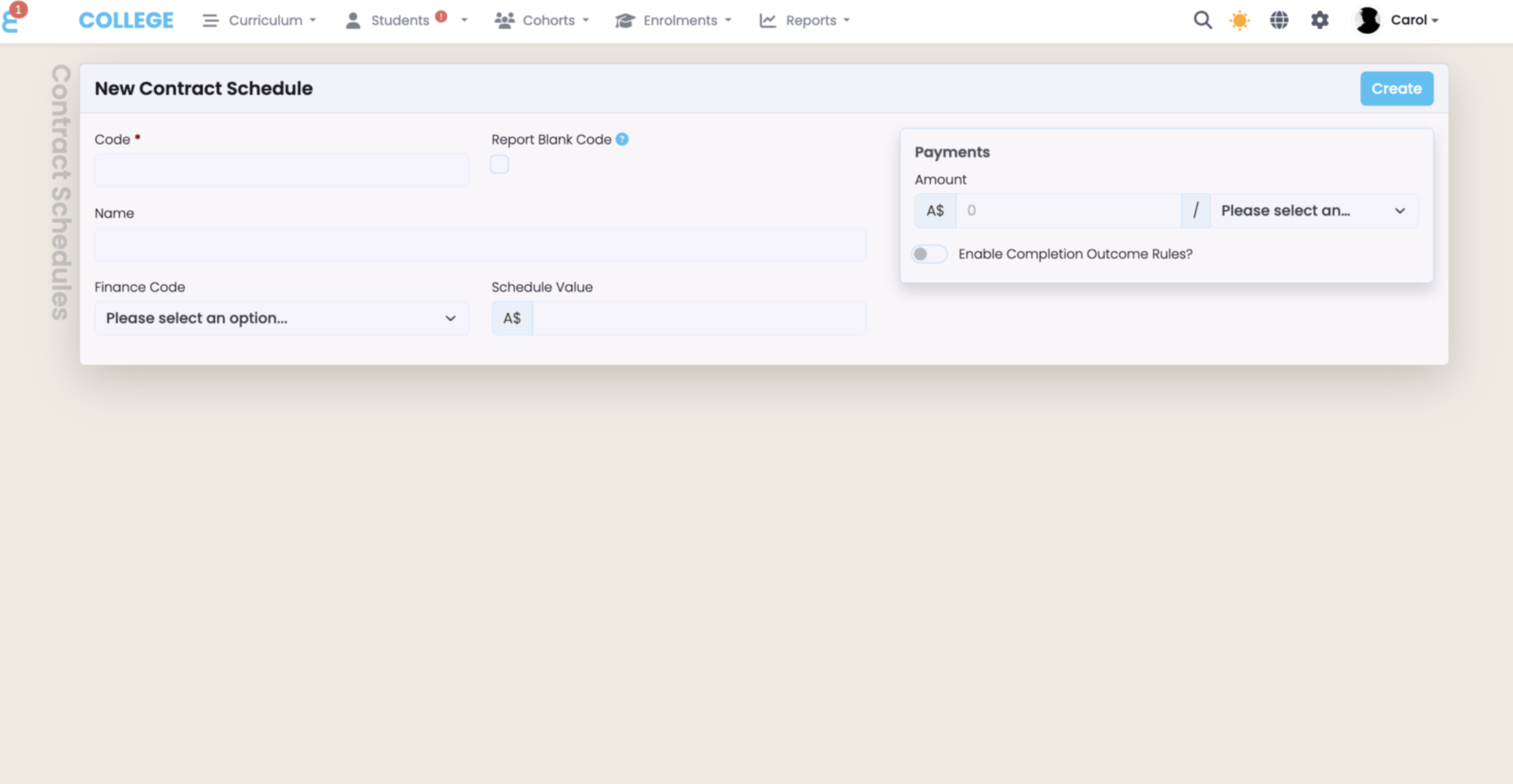
- Click + Add
- The New Contract Schedule screen opens
Figure 5: New Contract Schedule screen
Step 3: Complete the schedule details
Use the funding agreement or schedule documentation.
Code and Name
Enter the schedule code and description as provided by the funding authority.
Finance Code (if applicable)
Use this field only if required.
Value and Payment Structure
Define how funding is calculated:
- Per enrolment
- Per unit or subject
- Per hour
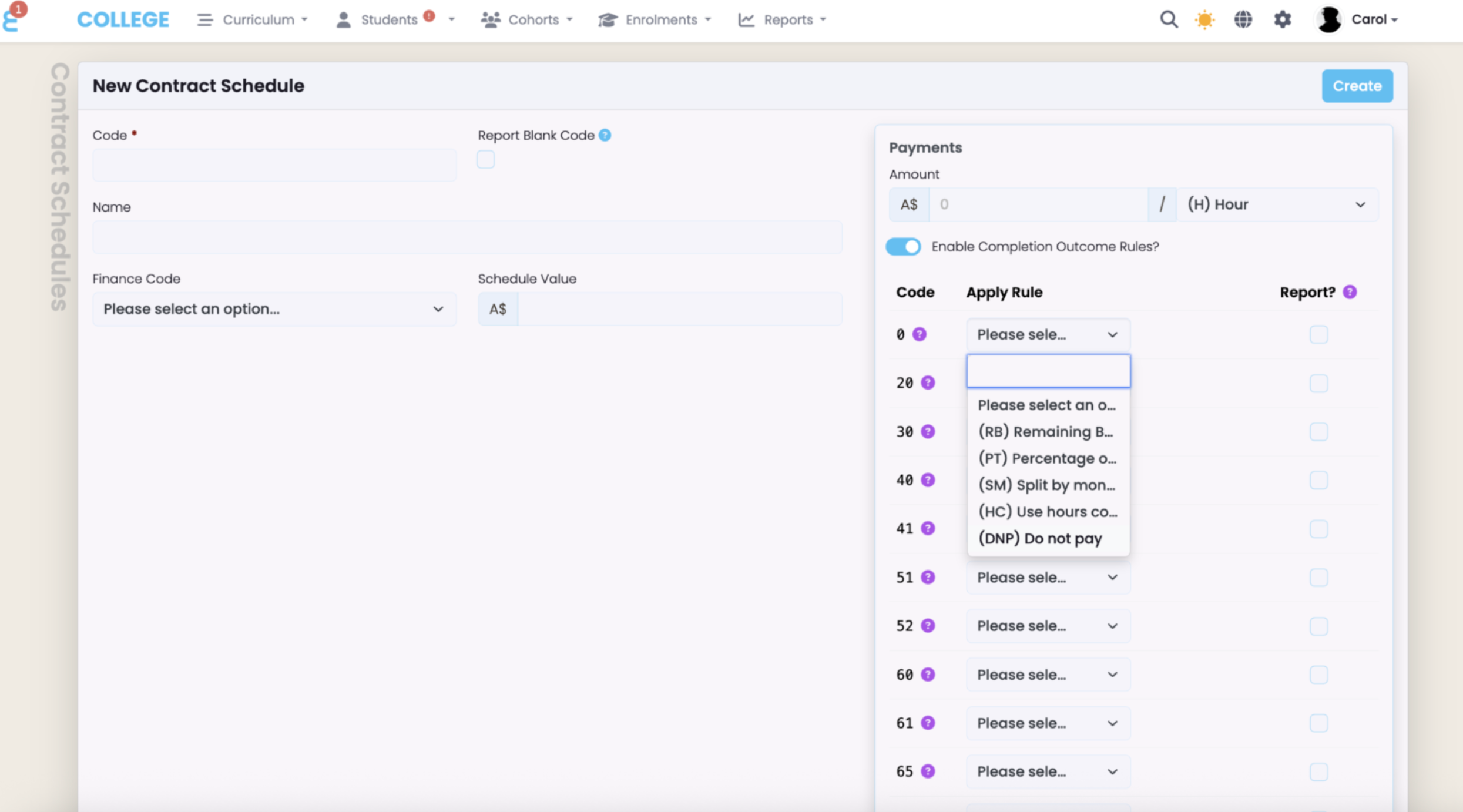
Rules
- Configure any outcome-based payment rules or restrictions that apply under the contract.
Figure 6: Contract Schedule configuration fields
Click “Create”. The Contract Schedule is now active and available to assign to enrolments.
Assigning a Contract Schedule to an Enrolment
Contract schedules can be assigned to an enrolment during the enrolment process or after the enrolment has been created.
Option 1: Assigning a Contract Schedule to an Existing Enrolment
Use this option when an enrolment already exists and needs to be linked to a purchasing contract and schedule.
Accessing the enrolment
To assign a contract schedule to an existing enrolment:
- Log in to SELMA
- Navigate to Enrolments
- Open the relevant learner enrolment record
This opens the Enrolment Details screen.
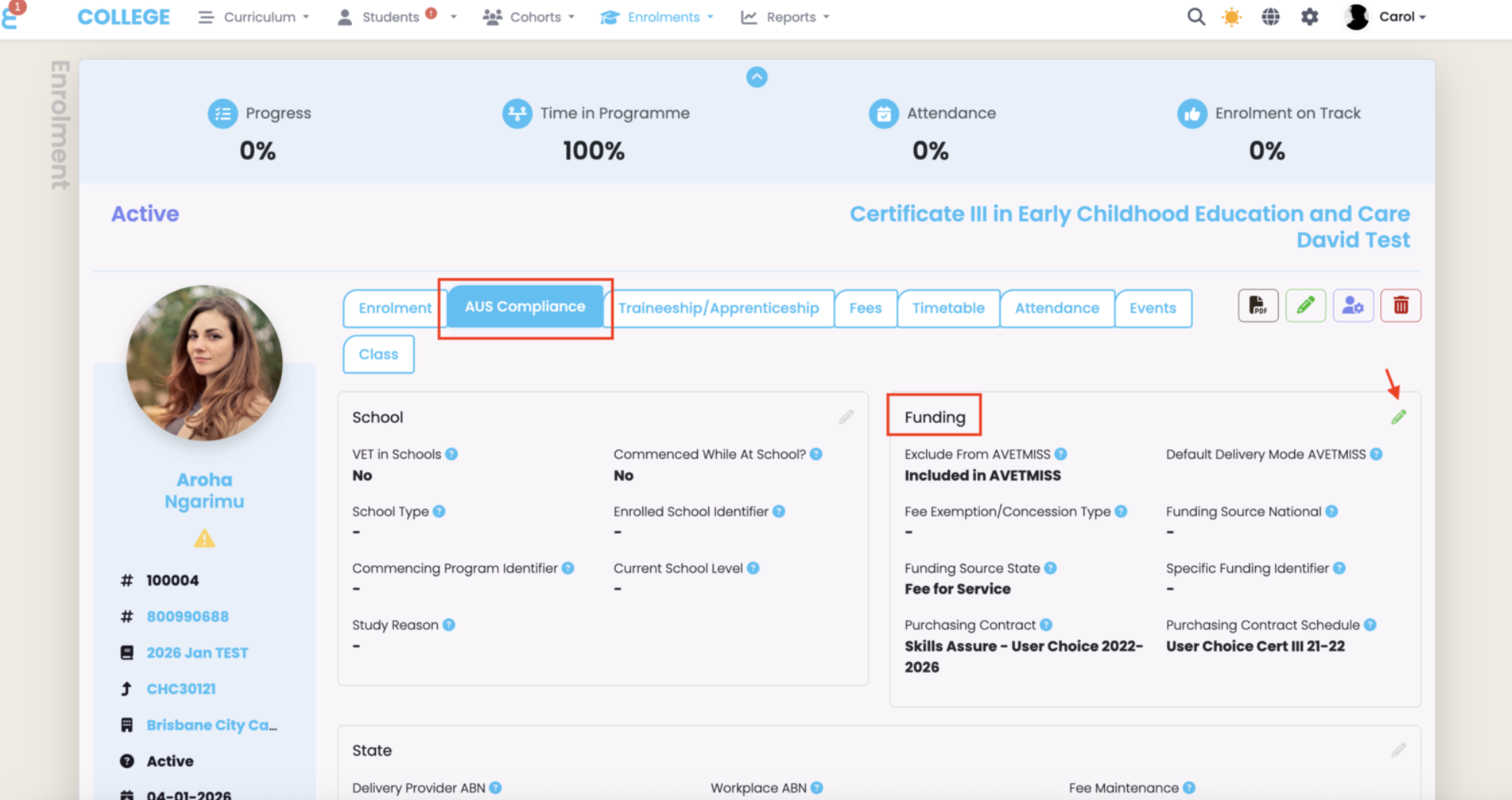
Figure 7: Assigning a Contract Schedule to an enrolment
Assigning the contract schedule
Within the enrolment record:
- Click AUS Compliance
- Click Edit
- Select the appropriate Funding Source (State)
- Select the relevant Purchasing Contract
- Select the appropriate Purchasing Contract Schedule
- Click Save
Option 2: Assigning a Contract Schedule During Enrolment
Use this option when creating a new enrolment.
Starting the enrolment
After completing Steps 1–3 of the enrolment process:
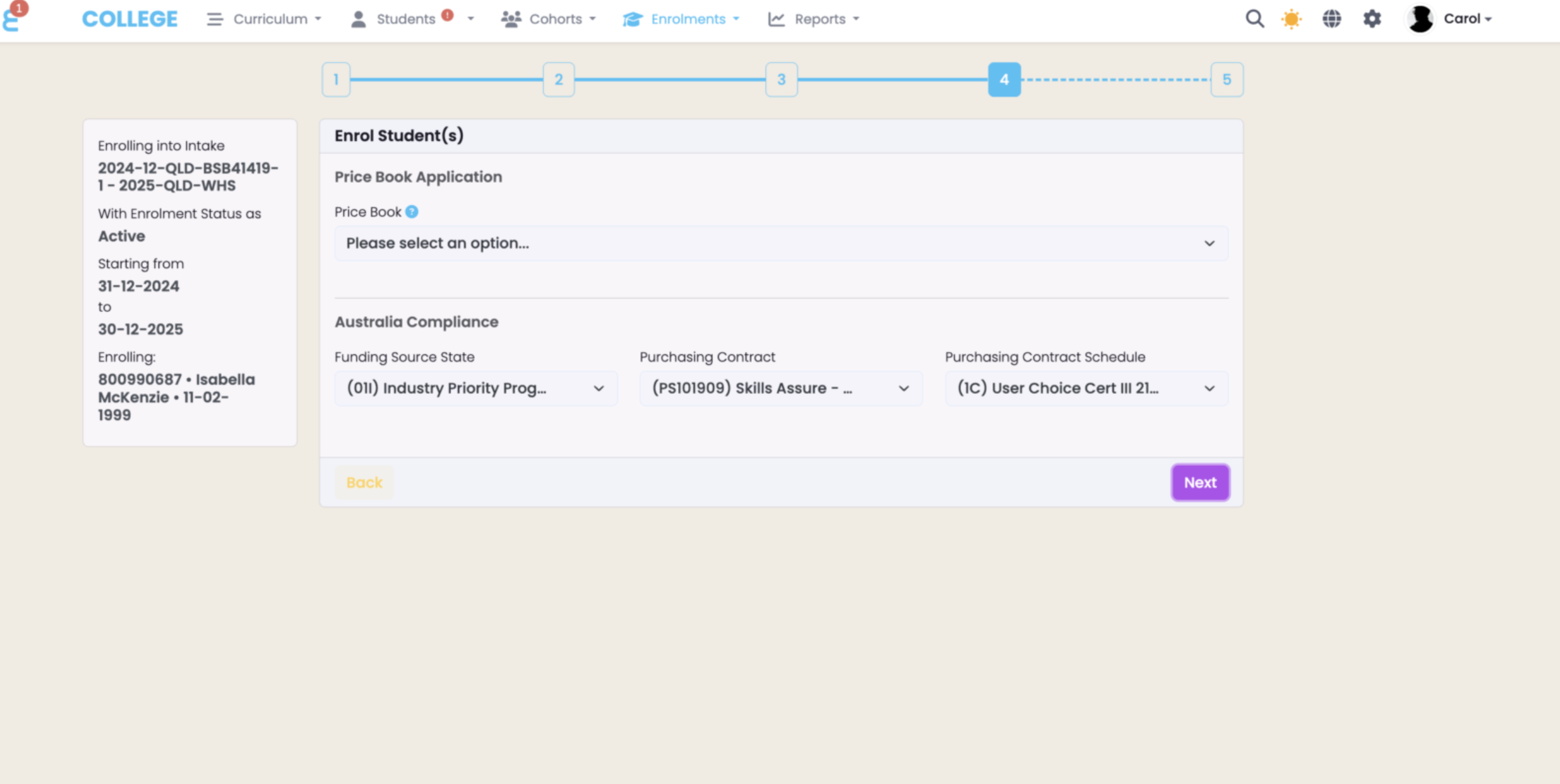
- Proceed to Step 4: Fees & Compliance
- Complete the following fields:
- Funding Source (State)
- Purchasing Contract
- Purchasing Contract Schedule
Figure 8: Step 4: Fees & Compliance during enrolment
Managing Contract Changes in SELMA
1. Revised caps or new delivery conditions
What to do in SELMA:
- Keep the existing Purchasing Contract
- Create a new Contract Schedule under that contract
- Configure the updated caps, scope, or rules in the new schedule
- Assign new enrolments only to the new schedule
What not to do:
- Do not edit the existing schedule if it already has enrolments
2. Additional schedules issued by the funding authority
What to do in SELMA:
- Add the additional Contract Schedule under the same Purchasing Contract
- Use each schedule to represent a distinct set of funding rules or delivery parameters
Existing schedules remain unchanged.
3. Funding extensions or new contract periods
What to do in SELMA:
- Create a new Purchasing Contract with the new contract dates
- Configure Contract Schedules under the new contract
- Assign new enrolments to the new contract and schedules
Important:
- Do not change the dates on an existing contract that already has enrolments
4. Updated qualification or unit scope
What to do in SELMA:
- Create a new Contract Schedule reflecting the updated scope
- Leave previous schedules unchanged so historical delivery remains traceable
5. Program closures
What to do in SELMA:
Do not delete contracts or schedules
- Stop assigning new enrolments to the closed contract or schedule
- Allow existing enrolments to complete or be managed according to funding rules
Historical data remains available for reporting and audits.
This approach supports accurate reporting, funding claim validation, and audit traceability.