
Student Portal (For SELMA Users)

The Student Portal is a paid feature which grants Students access to SELMA to review their information, upload submissions and download documents.

  • Please reach out to SELMA Support for enquiries about this subscription.

In this Section:


Portal Configuration

Only Users assigned with the Role: Primary User can enable Portal settings.

  • Please contact SELMA Support to assign Primary Users, bearing in mind this Role grants access to SELMA entirely.

Figure 1i. Navigate to Settings > Portal Admin
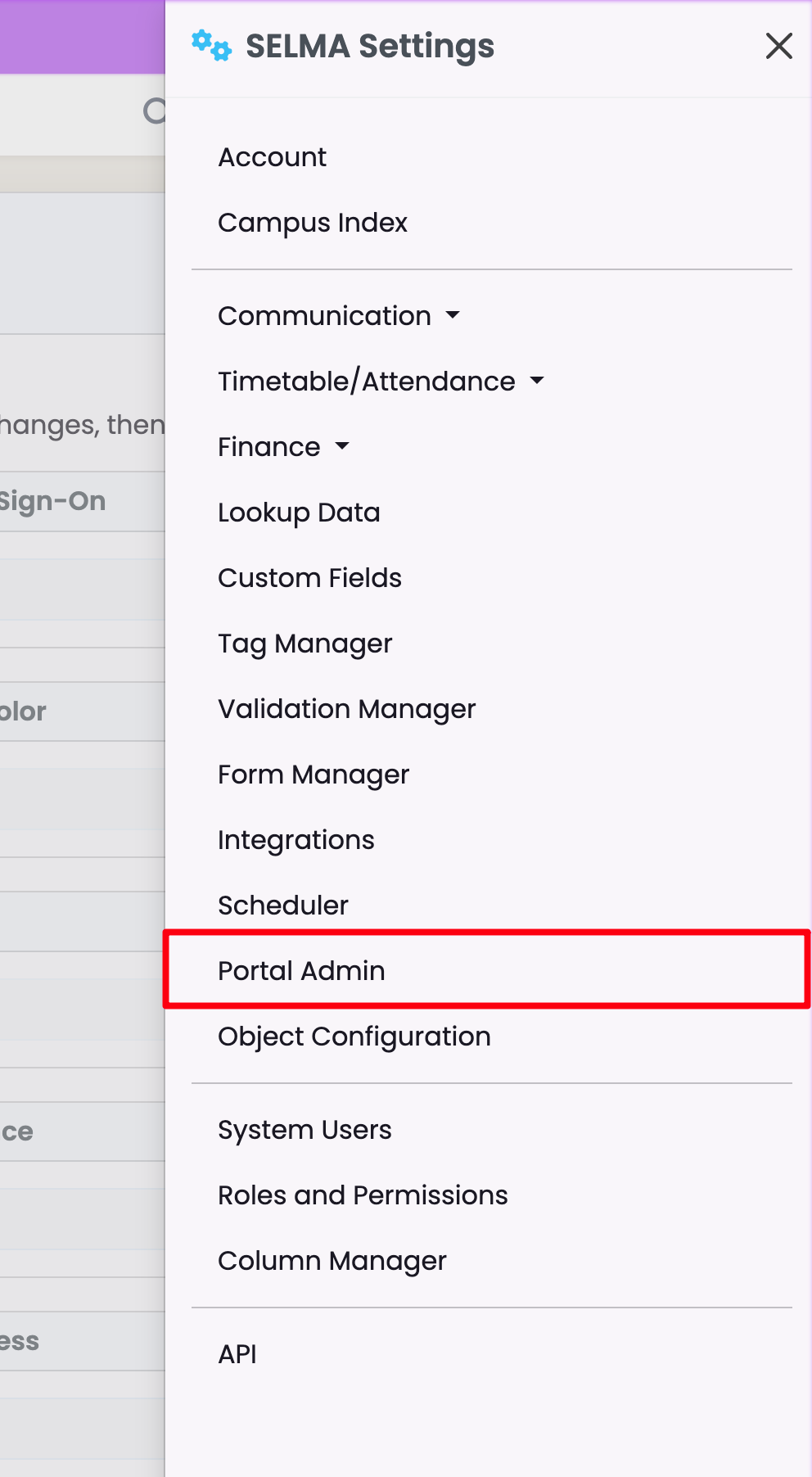
Figure 1ii. Toggle Student Portal

Please note: the Portal Configuration area allows you to enable multiple settings, such as how the Student signs-in to the Portal, via Microsoft and Google Single Sign-Ons, and what the Student sees on the Portal, such as their Addresses and Attendance. You can also allow Students to add information to their profile.
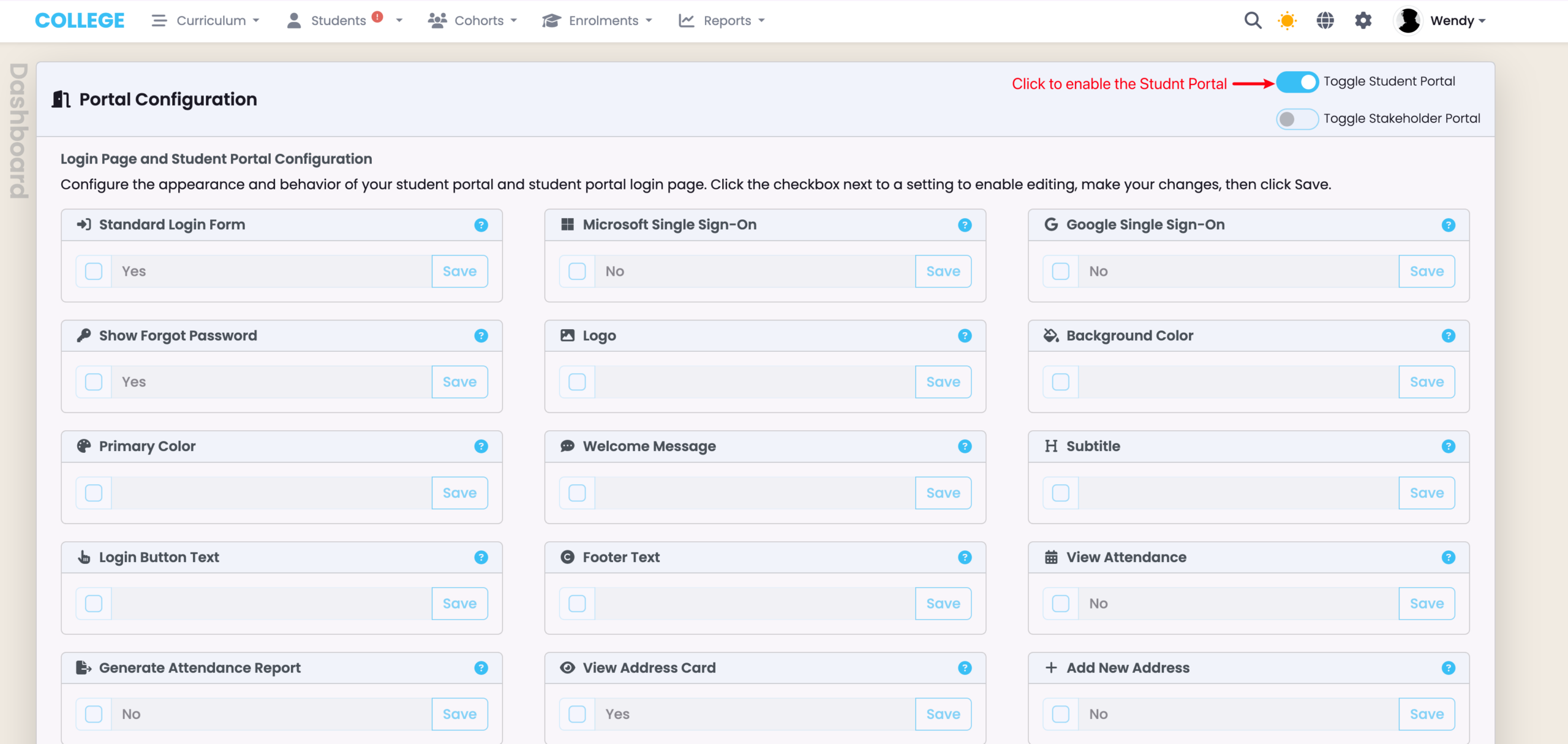
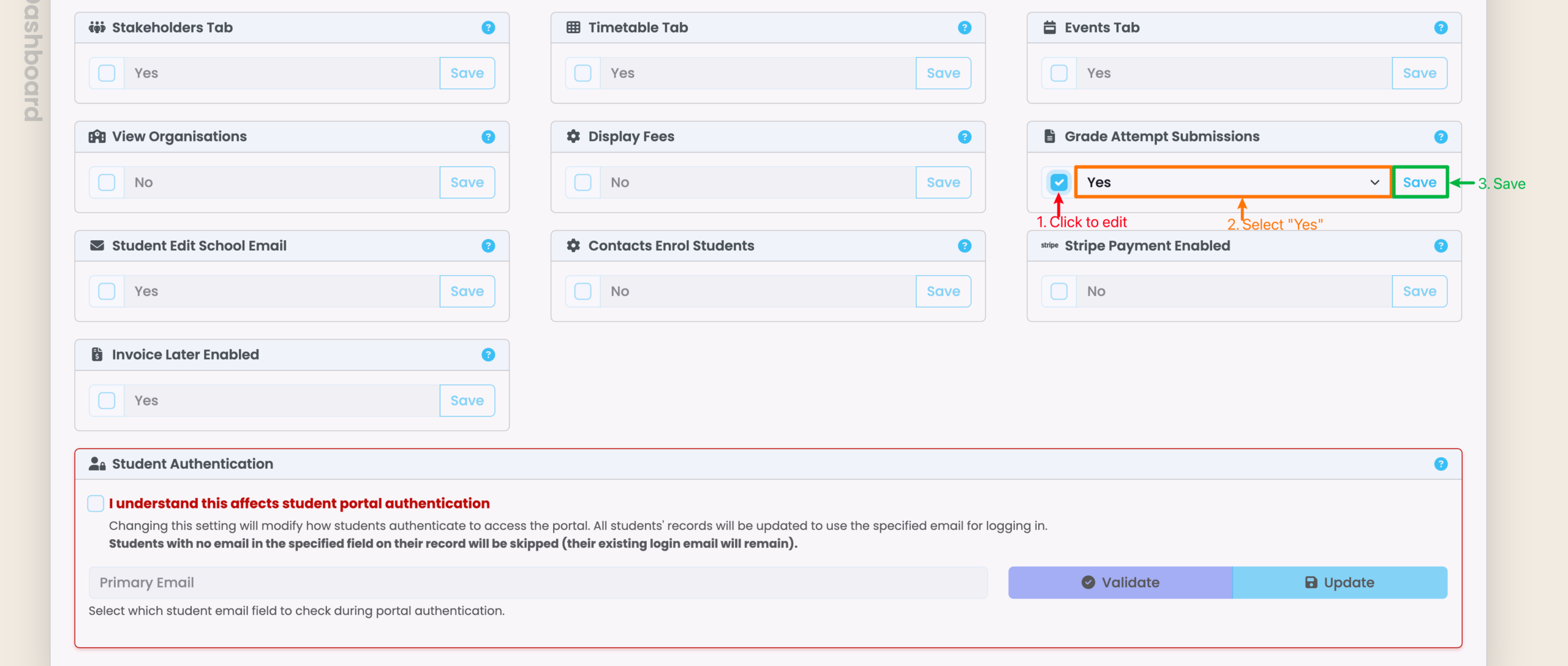
Figure 1iii. Enable Grade Attempt Submissions

Please note, for future reference, that you can only save changes on this screen one at a time.

Student Impersonation

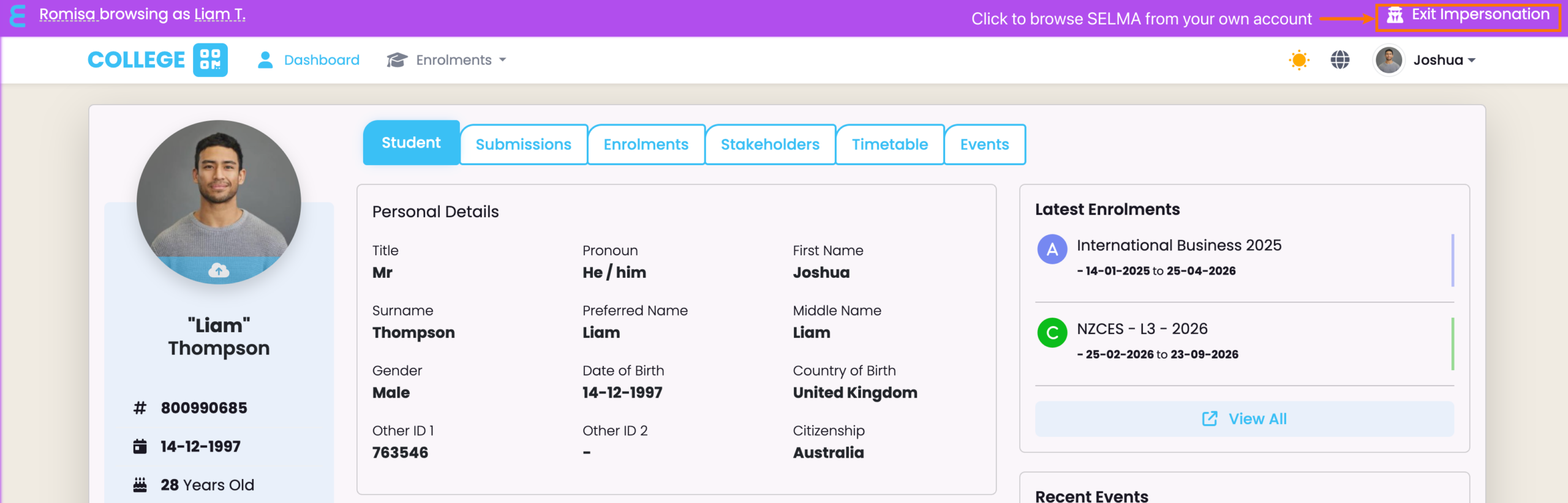
Impersonation allows you to see the Student Portal from the Student’s view.

Only Users assigned with the Role: Primary User can impersonate Students.

Figure 2. Navigate to the Student Tab
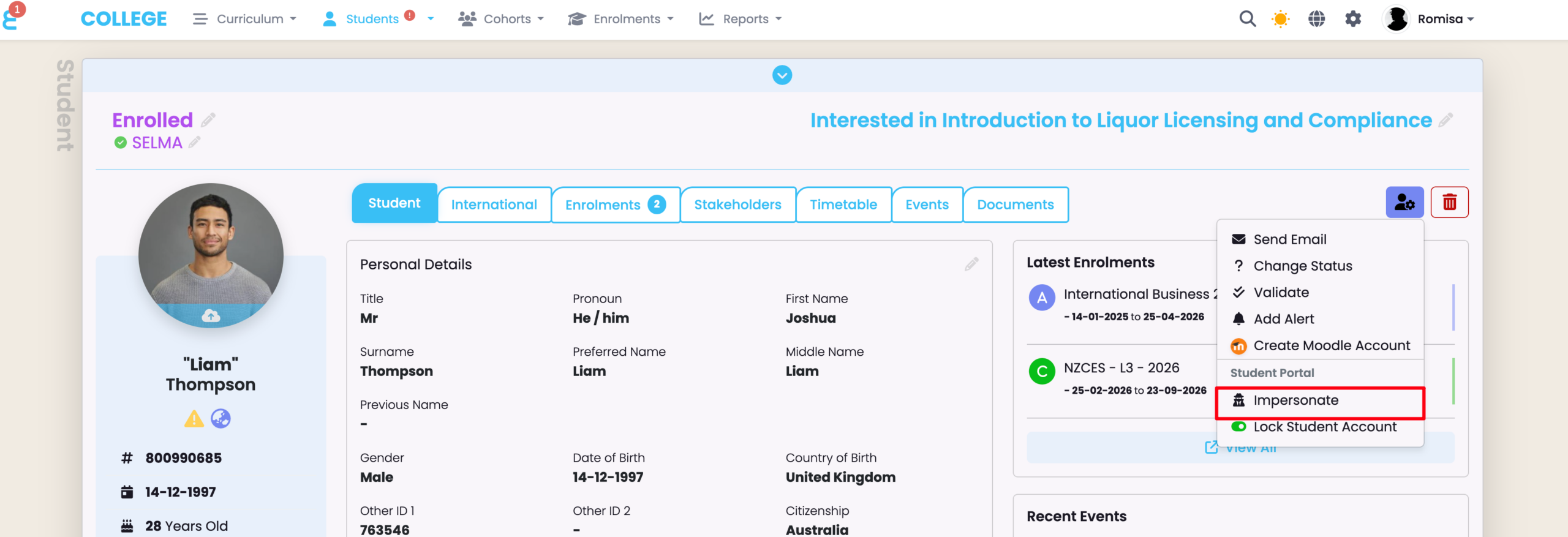
Figure 3.

Impersonation mode is indicated by the purple banner at the top.
Related Articles

Contact Portal (For SELMA Users)

The Contact Portal grants the Stakeholder access to associated Student and Enrolment records, and allows them to enrol Students into Intakes. In this Section: Assign Students to Stakeholders Enable Stakeholder access to specific Student and Enrolment records, by creating Student-Contact Associations. Figure 1i. Add a Related Contact Navigate to a Student profile and add a …

Microsoft 365 (Account-Level Emails)

Enabling the Microsoft 365 integration in SELMA allows you to use your organisation’s Microsoft mailbox(es) to send emails directly from SELMA. Emails sent within SELMA are also stored in the mailbox’s Sent folder. Note: Individuals with administrator access to your Microsoft tenancy should follow the steps below. In this Section: Setting up the integration involves …

Google (User-Level Emails) – Setup

Enabling the Google Integration in SELMA lets your organisation’s users use their Gmail mailbox for emailing directly in SELMA. As such, emails sent from within SELMA are stored in the user’s Gmail ‘sent’ folder as well (and replies will go to the user’s inbox). Note: The below instructions serve as a guide only – please …

WordPress Integration Set-Up

The SELMA-WordPress integration uses a WordPress plugin to display Programmes and Programme Campuses on your website. Students can select their preferred option, and are then directed to your SELMA enrolment form to complete their application. Note: Please contact SELMA Support to include this paid feature in your subscription plan. In this Section: Upload the WordPress …