
Marking in Bulk
As an institution, you might want to allow your teachers to grade components, but not mark them as completed or failed. If you have permissions to access the bulk marking menu, you can review the teachers grades in bulk and approve and process the marks.
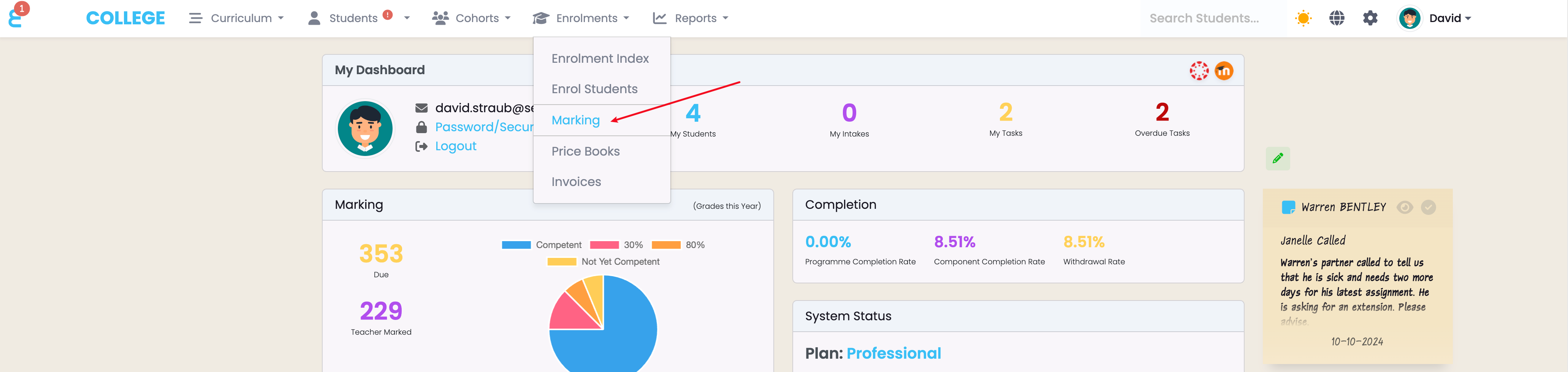
To open bulk marking, click on Enrolments -> Marking:
You will be presented with the marking screen. From here, you can apply multiple filters to generate a list of components to be marked (Completed).
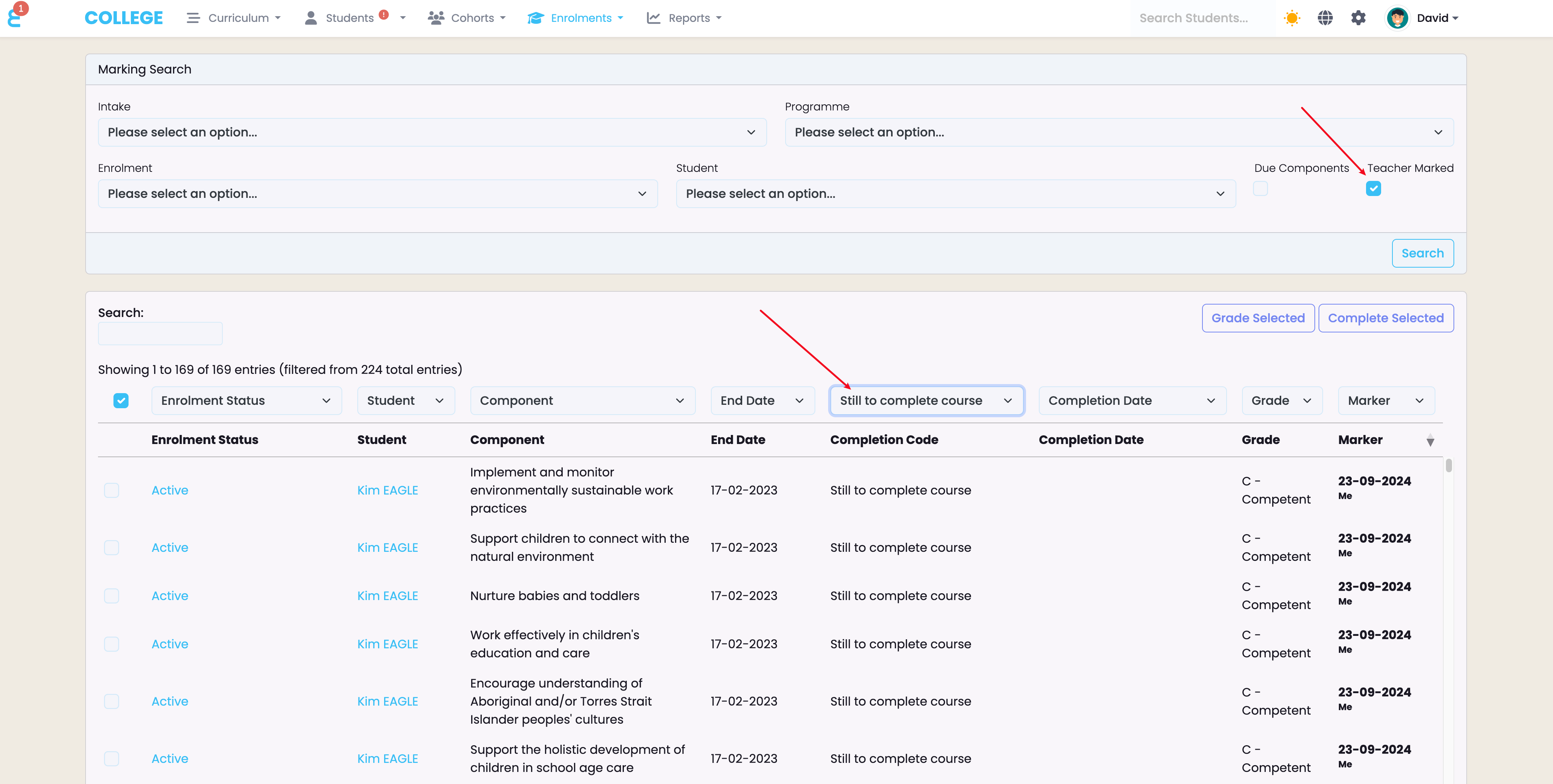
In the above example, the “Teacher Marked” filter is selected, which will reduce the list down to components that have a grade assigned to it. The completion code filter of “Still to Complete” has also been selected. The screen now shows a list of components ready to be marked as completed.
To complete (mark) the selected, select one or many records and click the “Complete Selected” button:
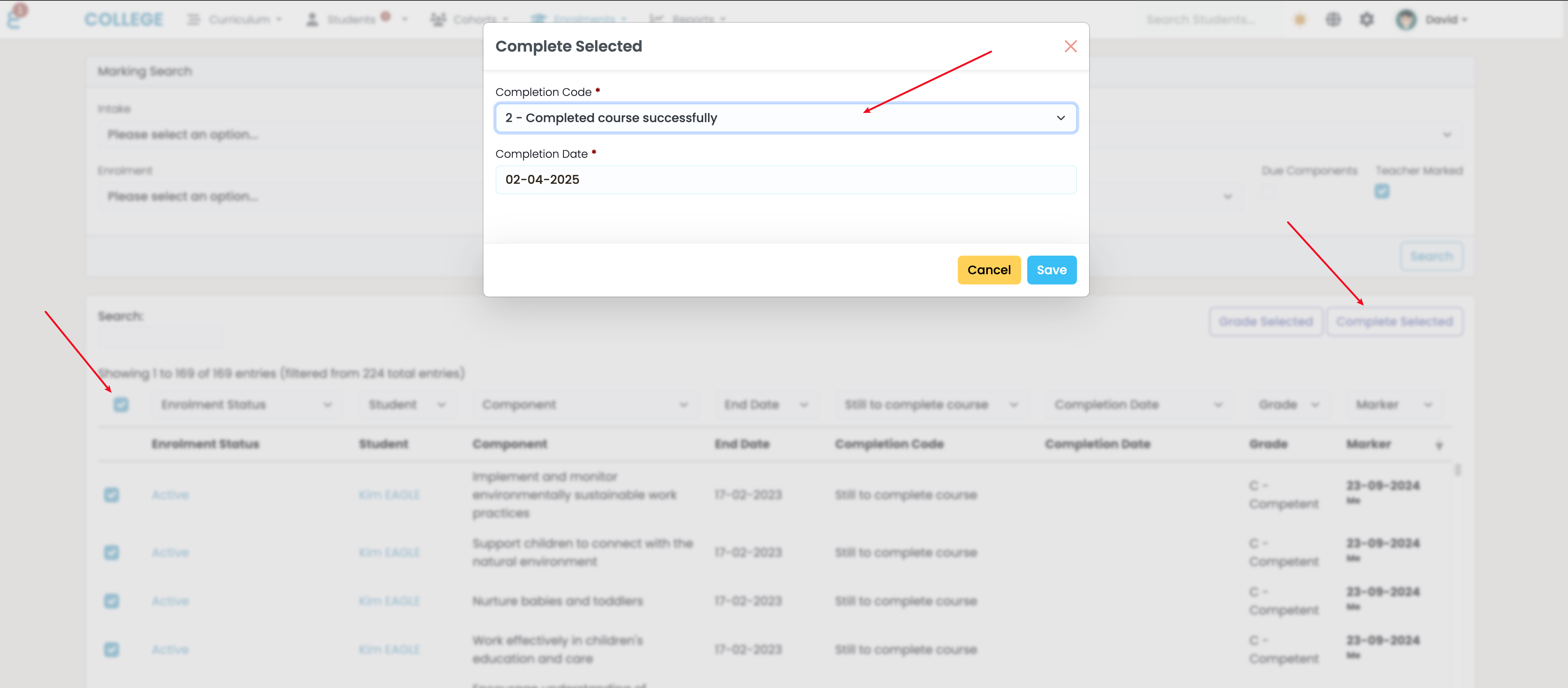
Assigne a completion code, and change the date (defaults to current date). Once you save, the selected components will be marked as Successfully Completed.