Grading a Class in Bulk
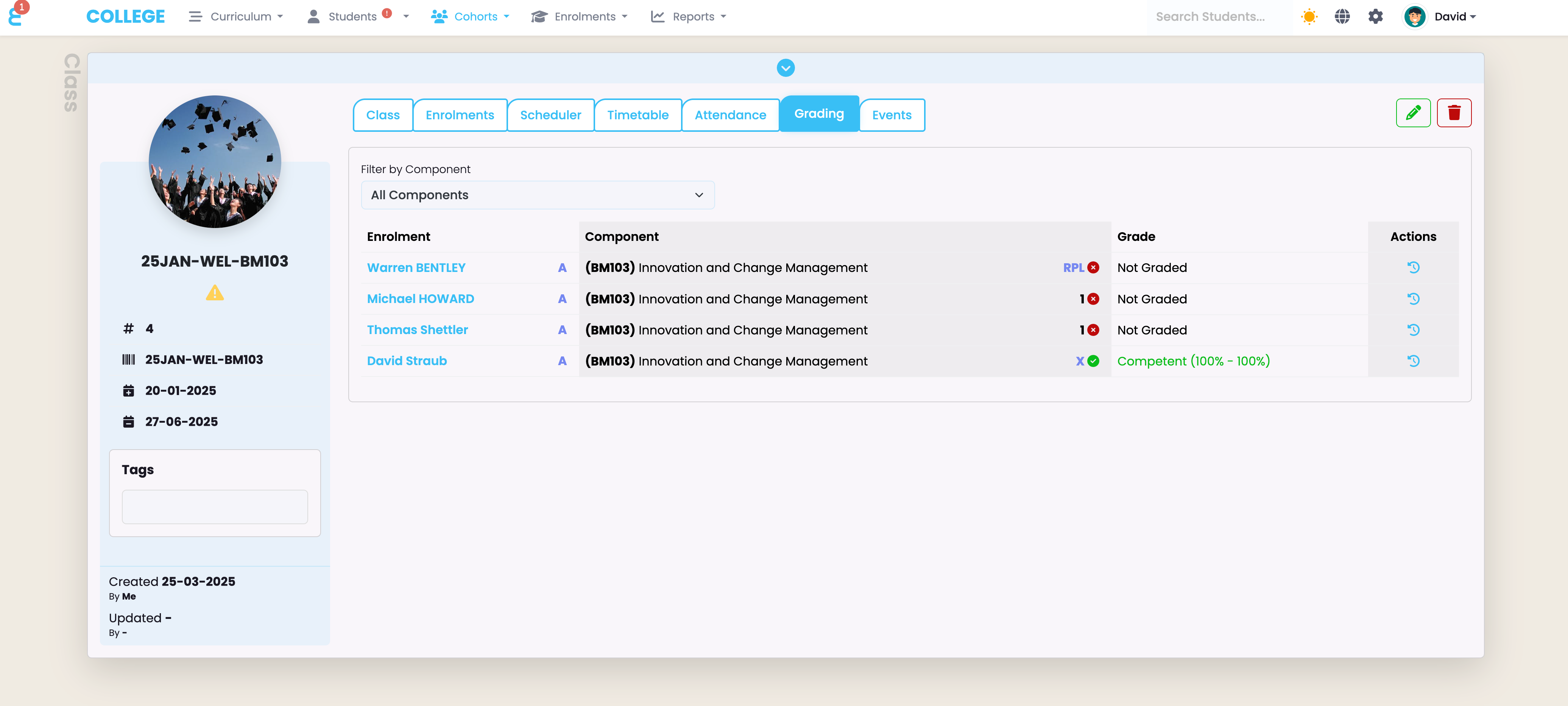
As a teacher, particularly in a Higher Education provider, you might want to mark a component (subject) in bulk on a class. The “Grading” tab on a class shows all relevant components for grading:
Relevant components are the components that are linked to the class on the “Class” tab:
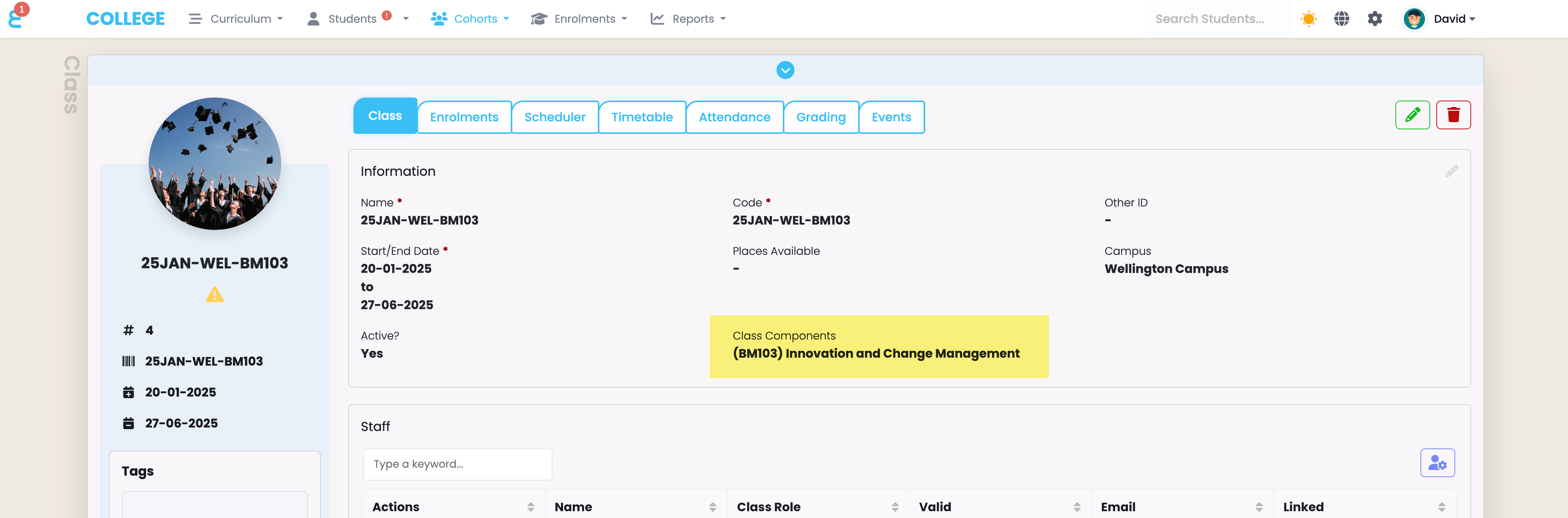
If no “Class Components” are selected, the grading will show all available components and the “Filter by Component” option will help you sorting the table to perform the grading.
To grade a component, click into the grade area, and a pop up will appear to allow you to select a grade and leave a note. If you have a range based grading scheme, there will also be a field to enter a value in the range and calculate the grade based on it:
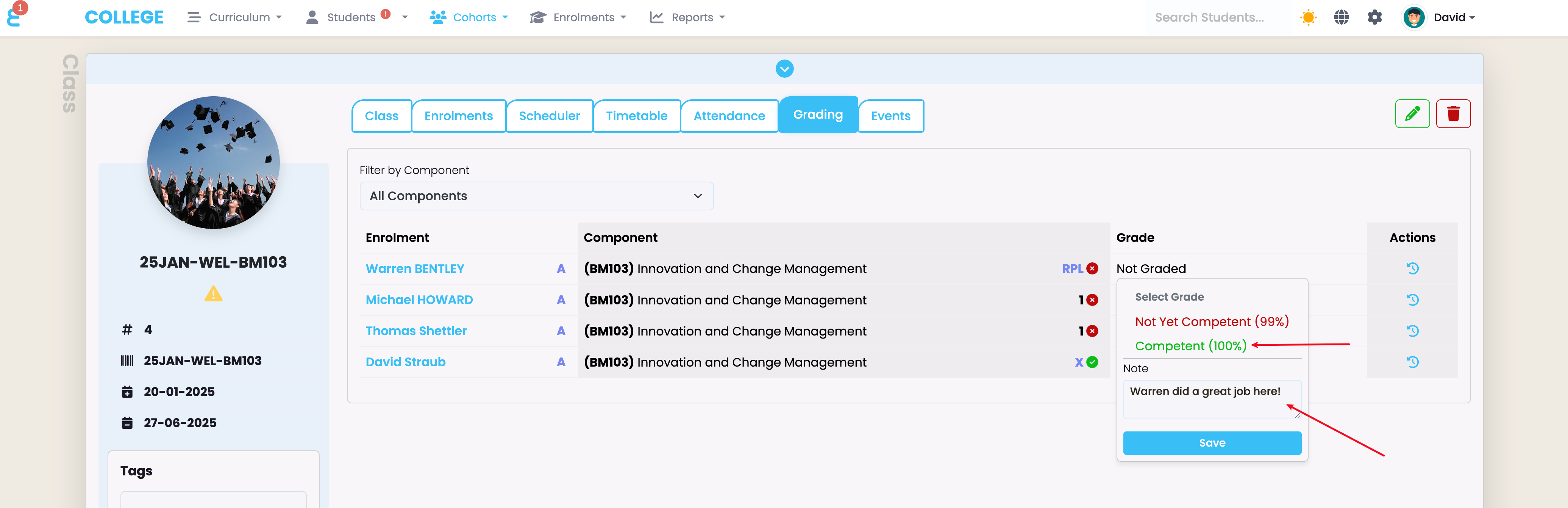
You can now conveniently grade the components of all your students on one screen:
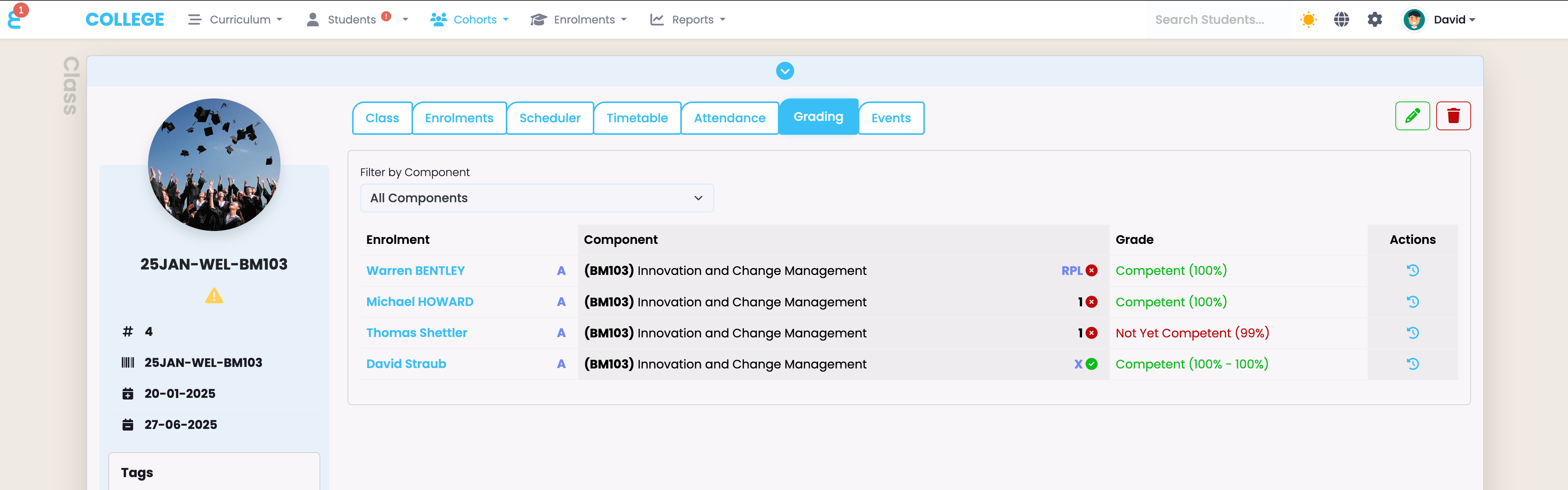
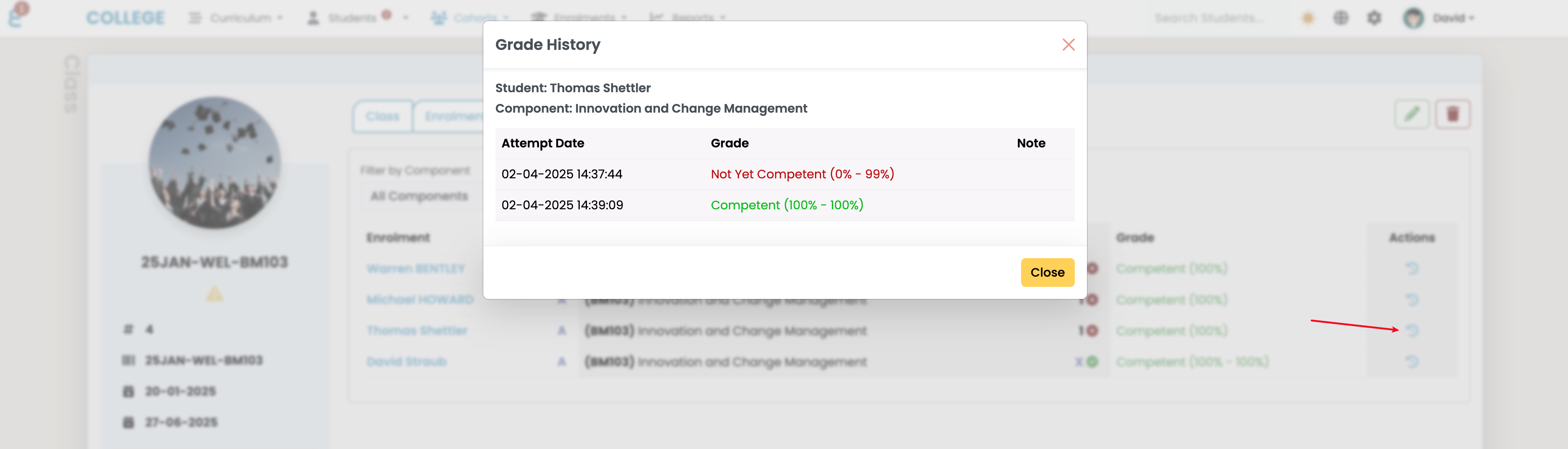
Under “Actions” you will see a history button. Clicking on it will open the grading history on the component, this is particularly helpful if the component was graded multiple times: