Events record logs of changes made within the System, and can be created to maintain communication with other SELMA Users, internally.
You can create Events on all Objects, including:
- Student
- Class
- Intake
- Enrolment
- Note: Events created against an Enrolment will show on the Events tab on both the Enrolment and Student levels.
- System User
- Organisations
- Contacts
In this Section:
Create an Event Log
An Event log records, in the Events tab of an Object, a chronological history of key actions and changes made within SELMA.
The events that are captured include, but are not limited to:
- Status changes
- Outbound Emails
- Outbound Text messages
- Notes
- Reminders
Figure 1. Navigate to the Events Tab
On the Events tab of an Object, such as the Enrolment, you will see a list of all Event log entries. Click the “+Add Event” button to create a new Event against the Object (in this case, the Enrolment).
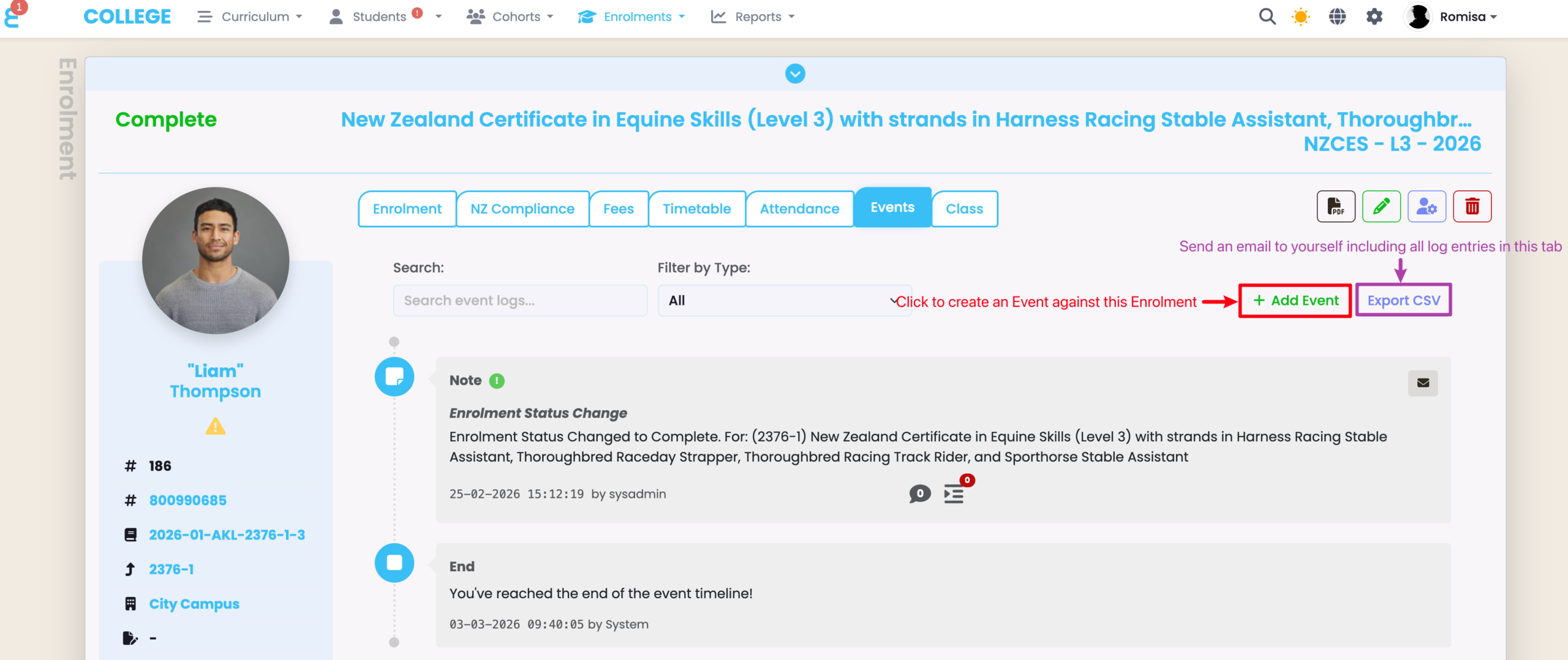
Figure 2i. Create a Task
The following example shows the set-up of Event Type: Task. Complete the required fields, as indicated by red asterisks, and ensure that the “Task” checkbox is selected, if you are also setting up a task for a User.
NOTE: If you are setting up an event to record a task that was completed in the past, select the “Complete” checkbox and specify a Completion Date.
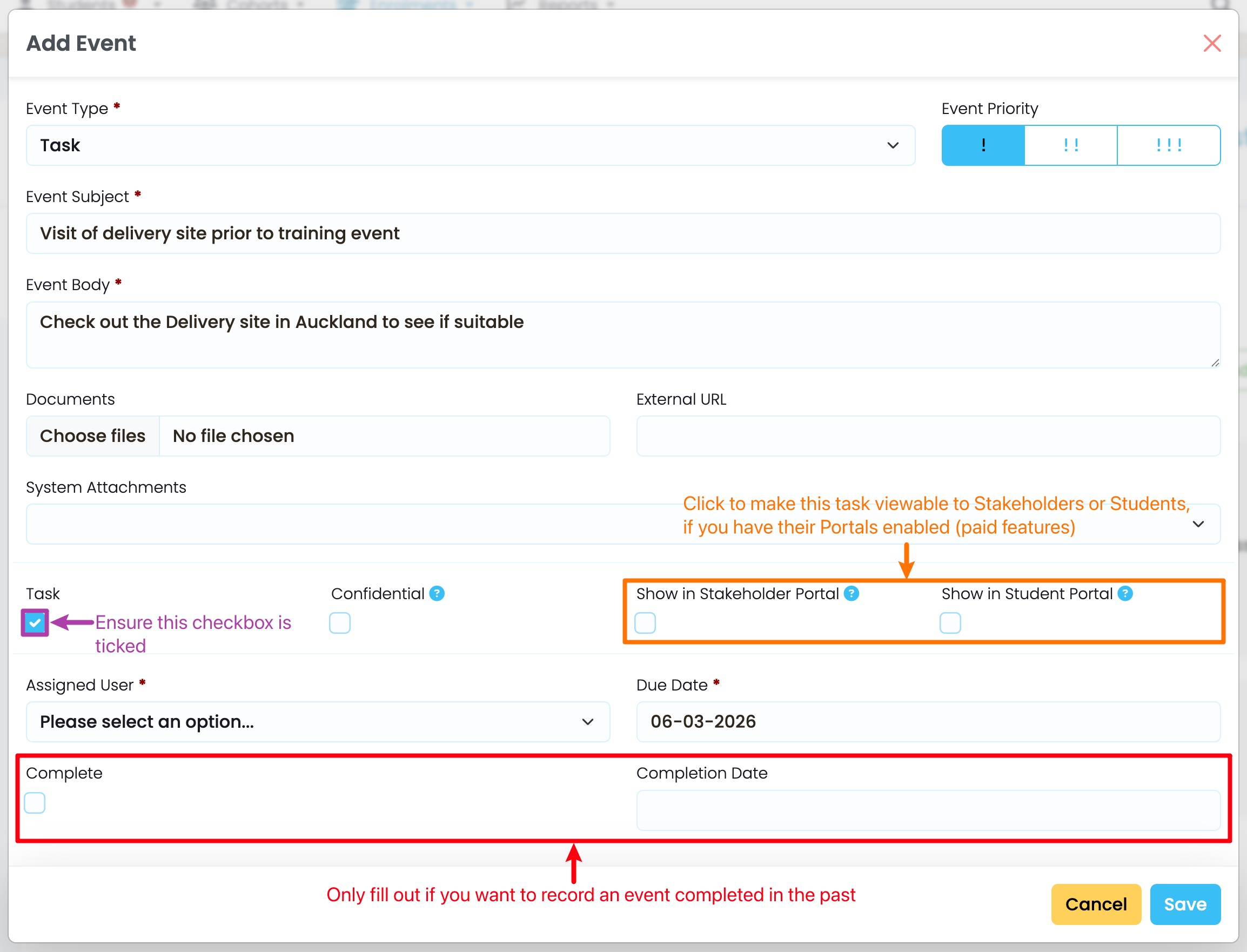
Figure 2ii. Create a Note
The following example shows the set-up of Event Type: Note. Complete the required fields, as indicated by red asterisks, and ensure that you have documents uploaded if you need.
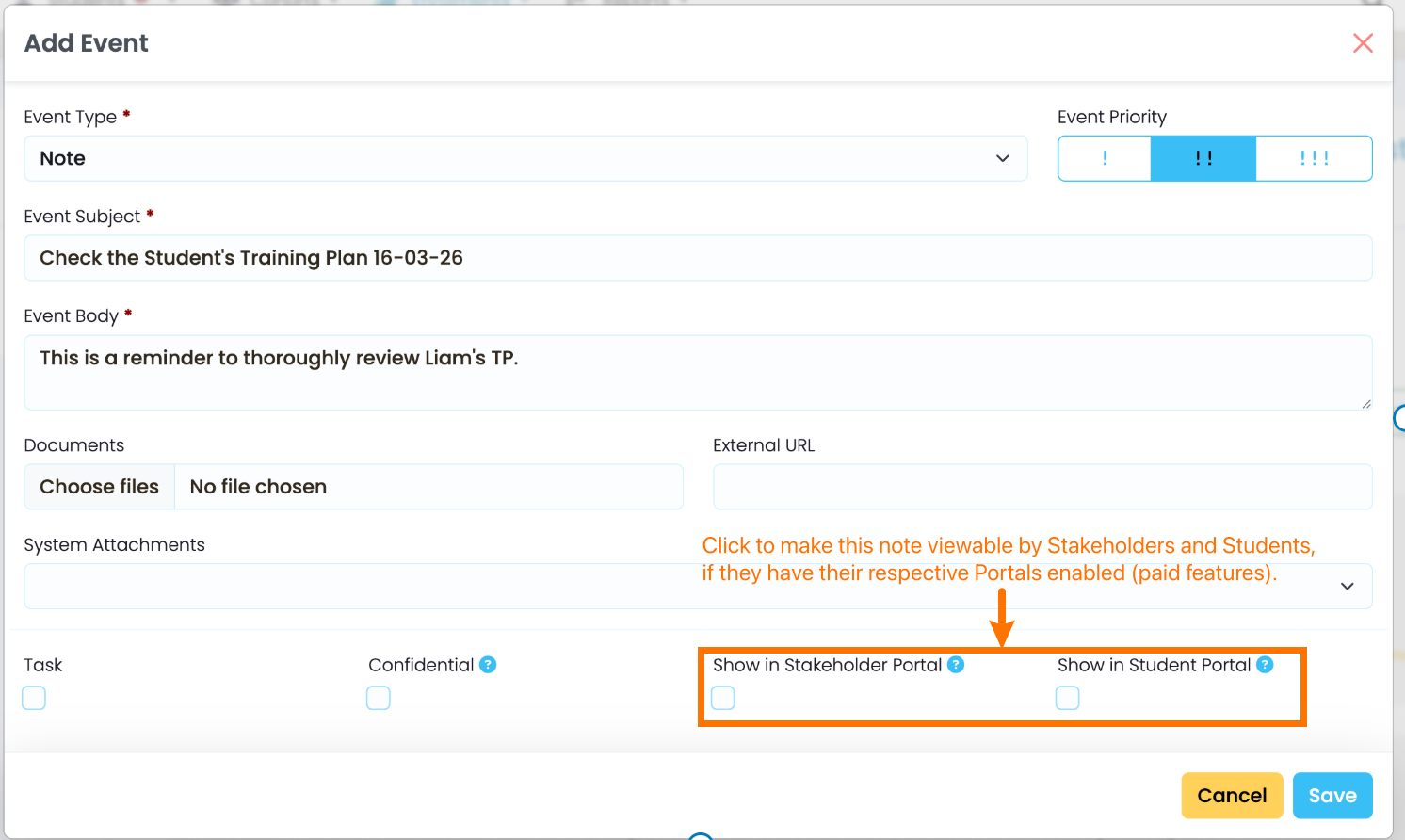
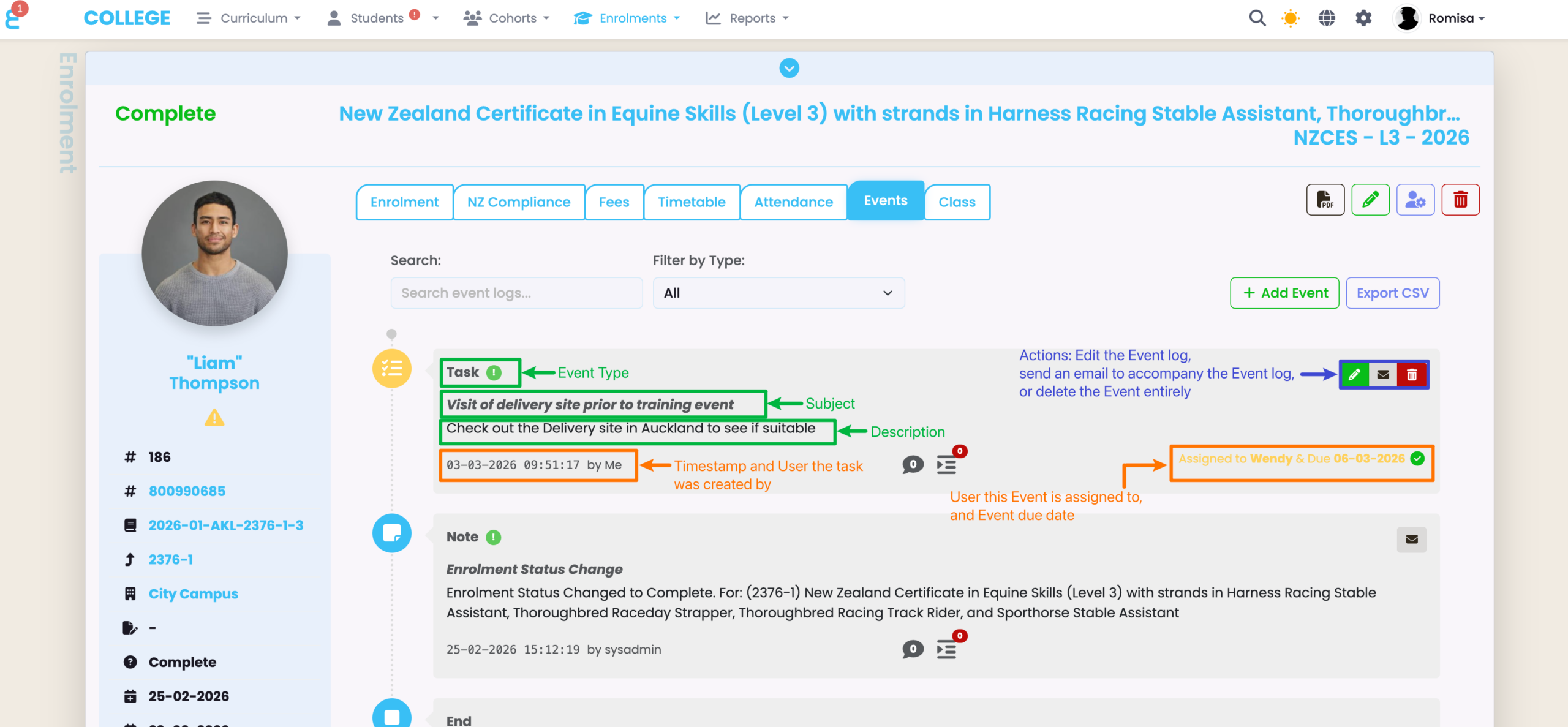
Figure 3. See Saved Event
Specific details of the Event, and who is associated with it, is provided on the Events tab of the Object. You can click the pencil icon to edit the Event, the mail icon to send an email to accompany the Event, or the trash bin icon to delete the Event entirely (from the User’s Assigned Events tab and the Object’s Events tab).
Assigned Tasks: User’s Perspective
The User that has been assigned an Event, of Event Type: task, will see their assignment on their dashboard, and their Profile’s Assigned Events tab.
Note: If you have access rights, you can impersonate a User to see their account from their perspective.
- Please refer to System Users – User Roles and Permissions for more.
Figure 4. Dashboard Tasks
The User can view the task details on the sticky note to the right. They can click the “eye” icon to be taken directly to the Enrolment the task is associated with, and they can mark the task as “Completed” (green).
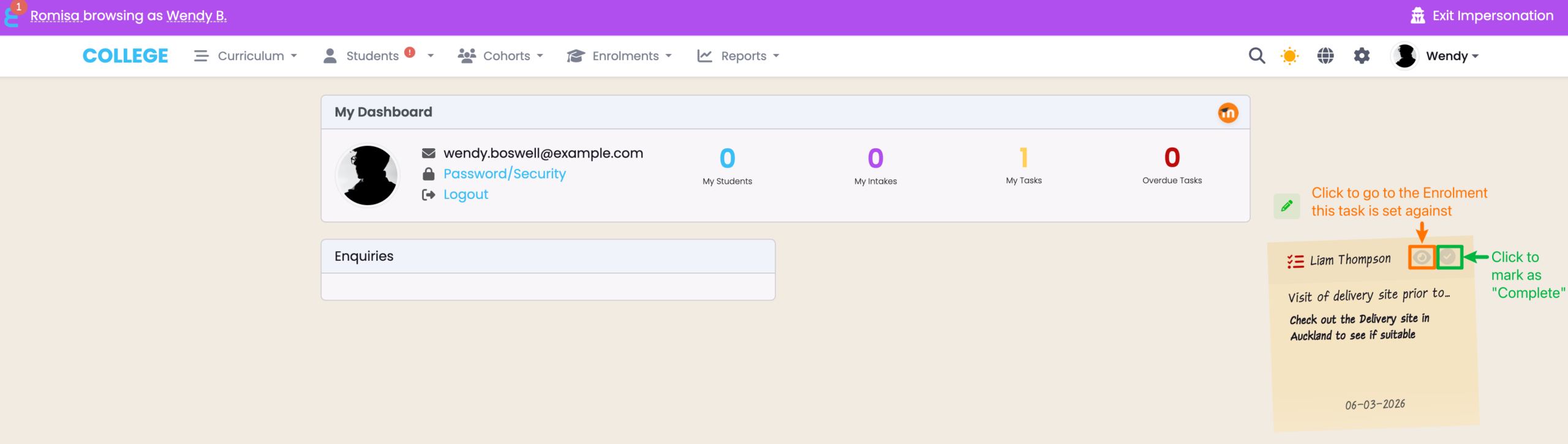
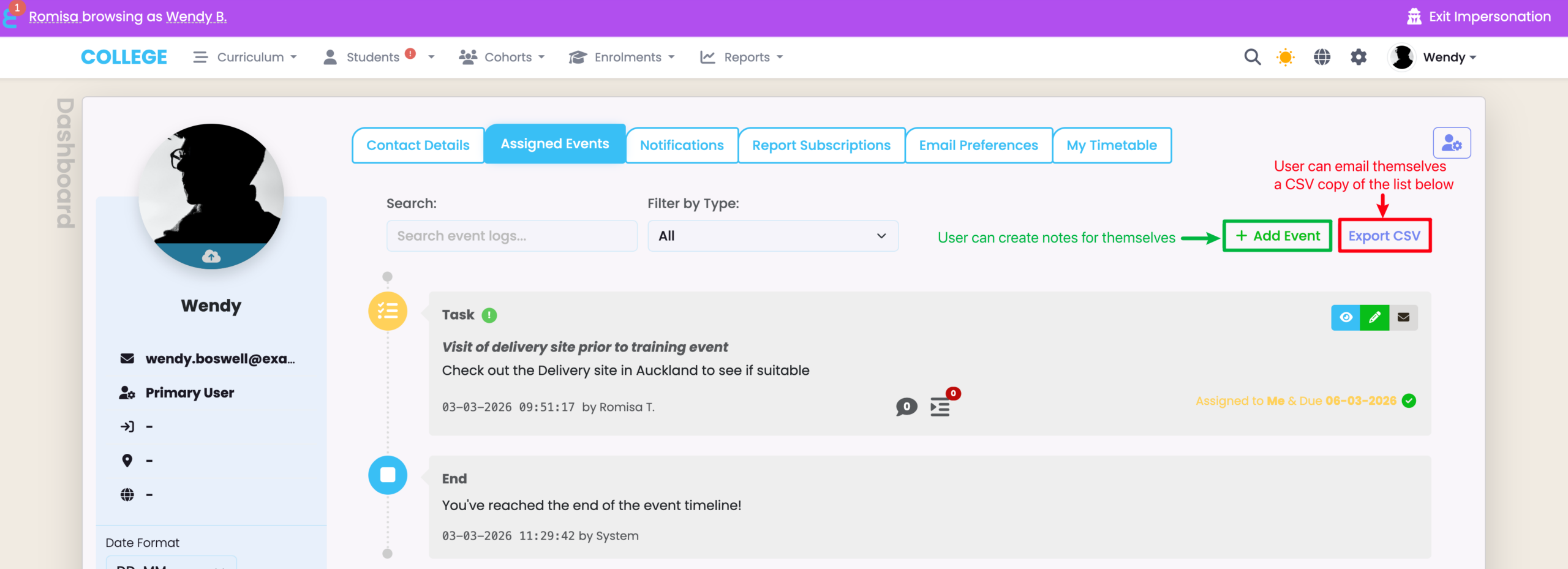
Figure 5i. Navigate to Profile > Assigned Events Tab

Figure 5ii. List of Assigned Events
Just like the Dashboard, the User can click the “eye” icon to be taken directly to the Enrolment the task is associated with. The User can create notes for themselves, here, too.
System-Logged Events
Please remember that events are created against Objects to indicate automated changes made within SELMA. You can set-up automations using Completion Rules, and Schedulers.
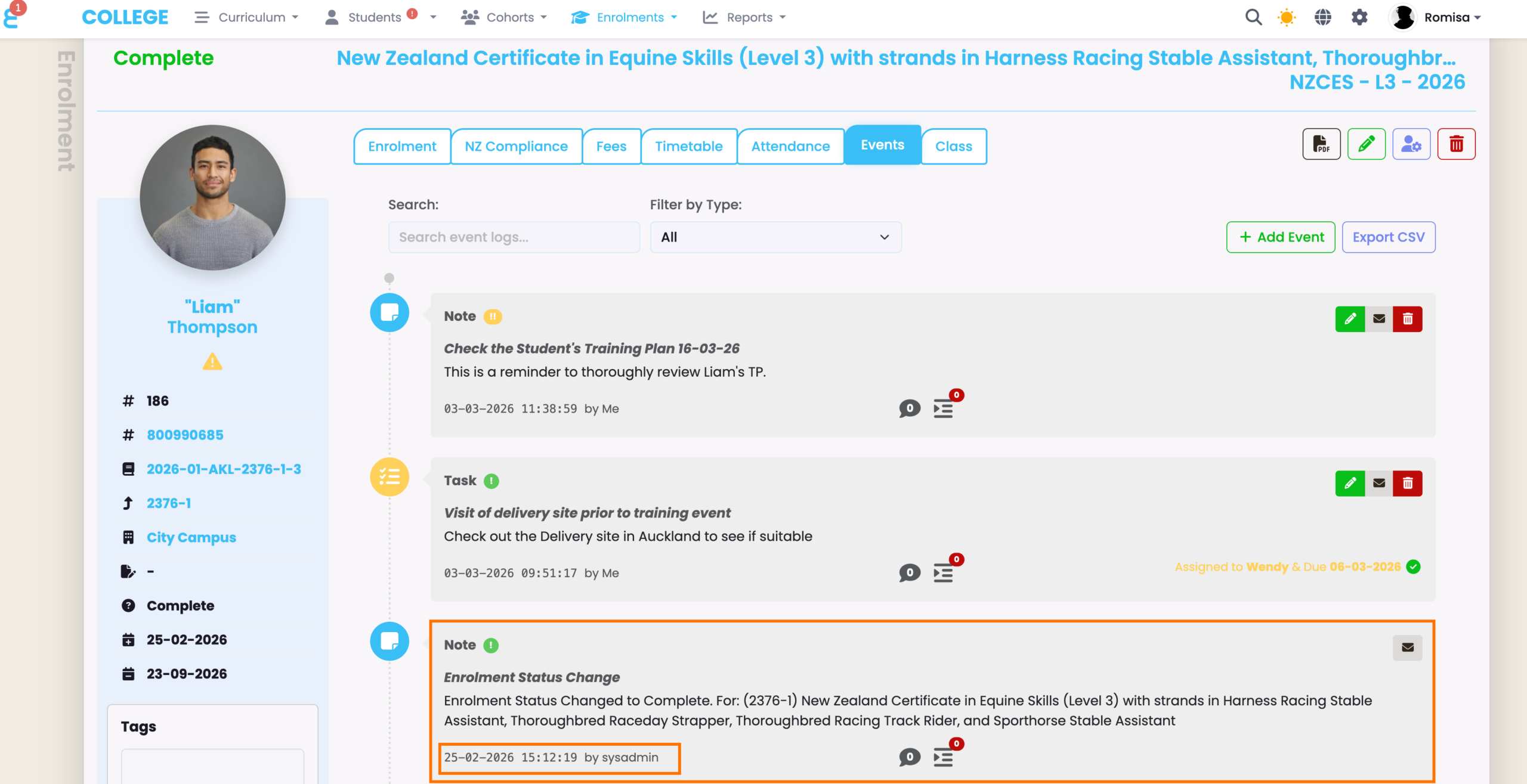
Figure 6. User: Sysadmin
“Sysadmin” on the Note, below (orange), indicates that the change was automatic and done by the system, using automations you have set-up previously.
Event Comments and Sub-Events
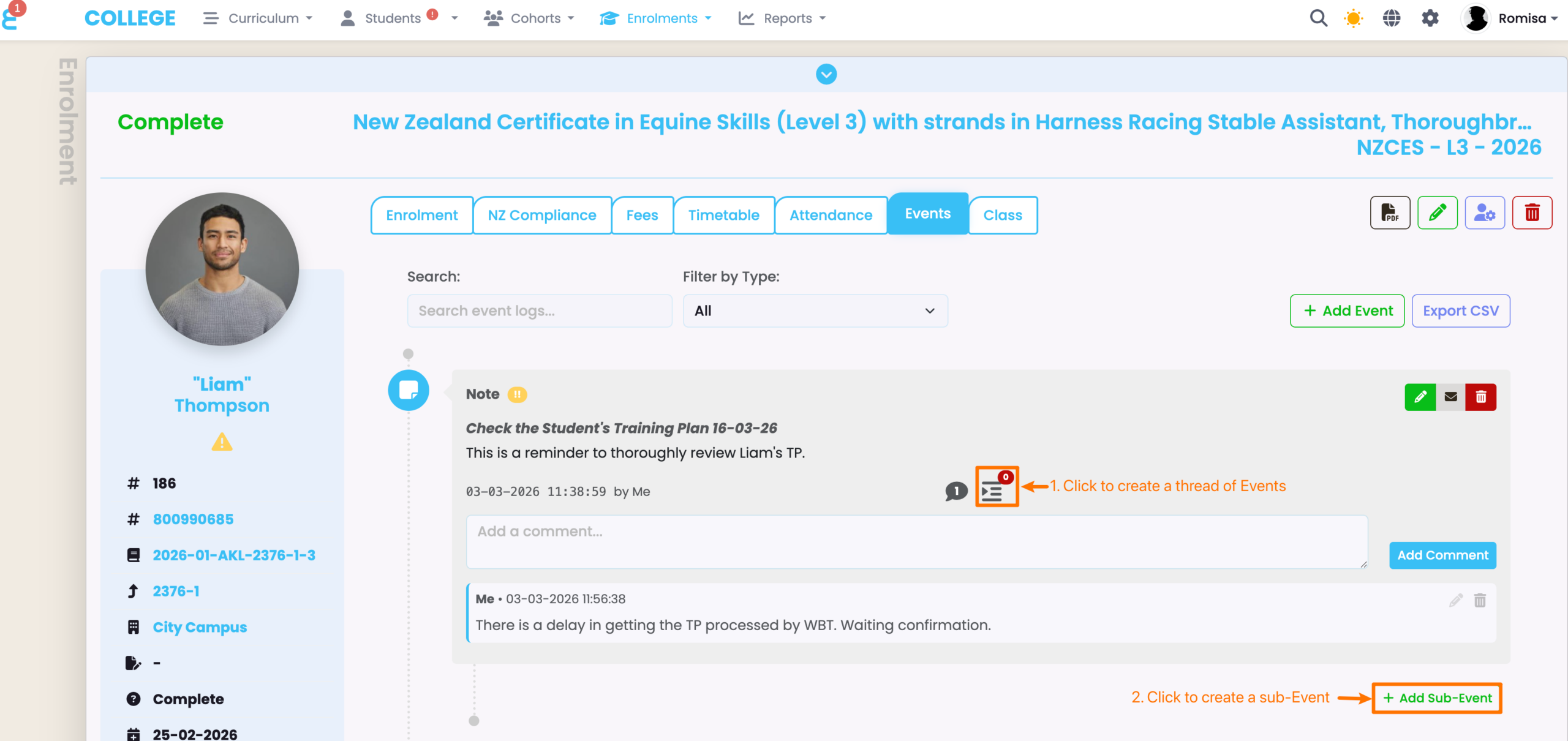
Users can save comments to Events on the Events tab of an Object. These comments are viewable by other Users.
Users can also create sub-events, which branch off from the main Event.
Figure 7. Add a Comment To An Event
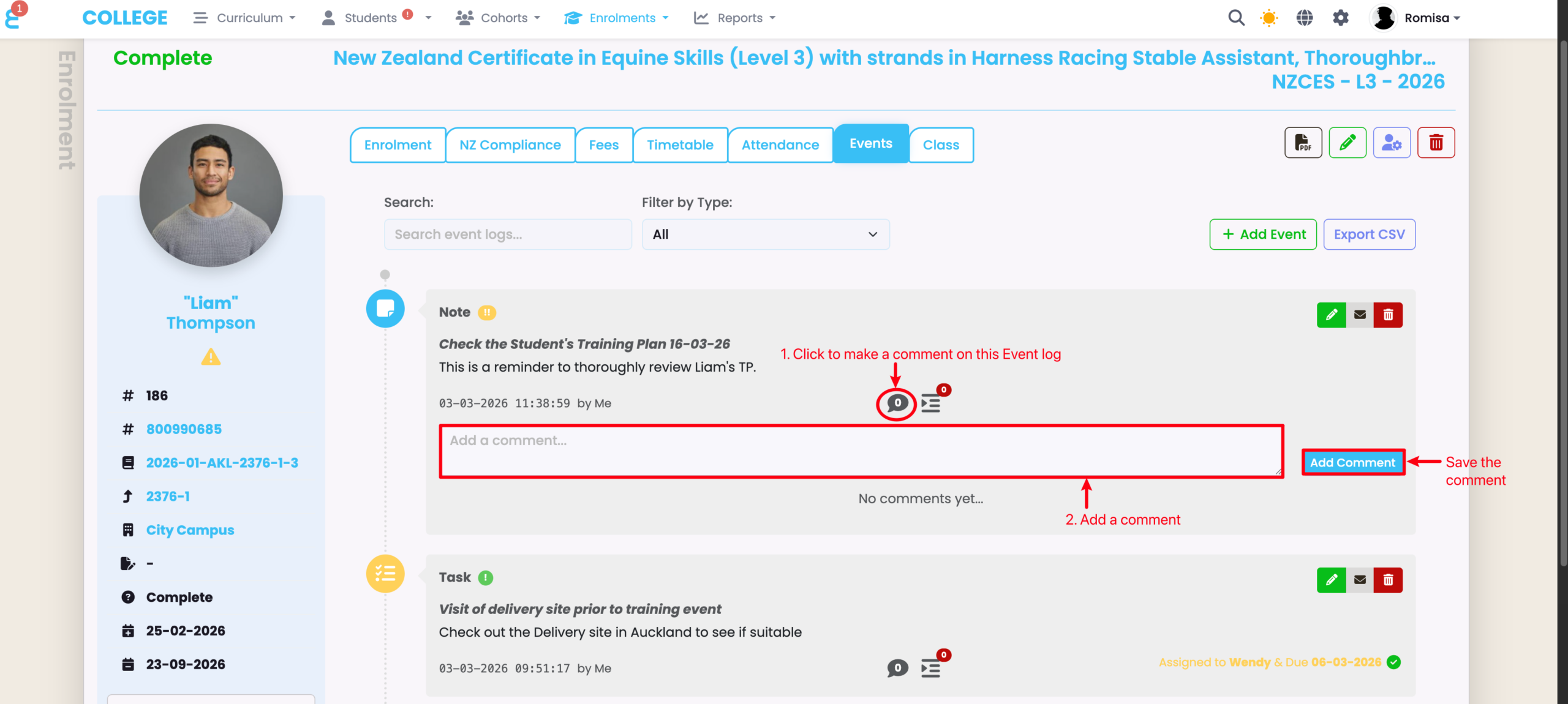
Figure 8. Add A Sub-Event to an Event