Grading schemes can be created via the Grading Scheme Manager (follow Figure 1i.-iv.) before they can be assigned to components at the Programme level, or used to mark components at the Enrolment level.
Figure 1i. Hovering over “Curriculum” (orange) in the top navigation bar reveals the “Grading Schemes” button (red) in the dropdown list. Click it to access the page “Grading Scheme Manager”.
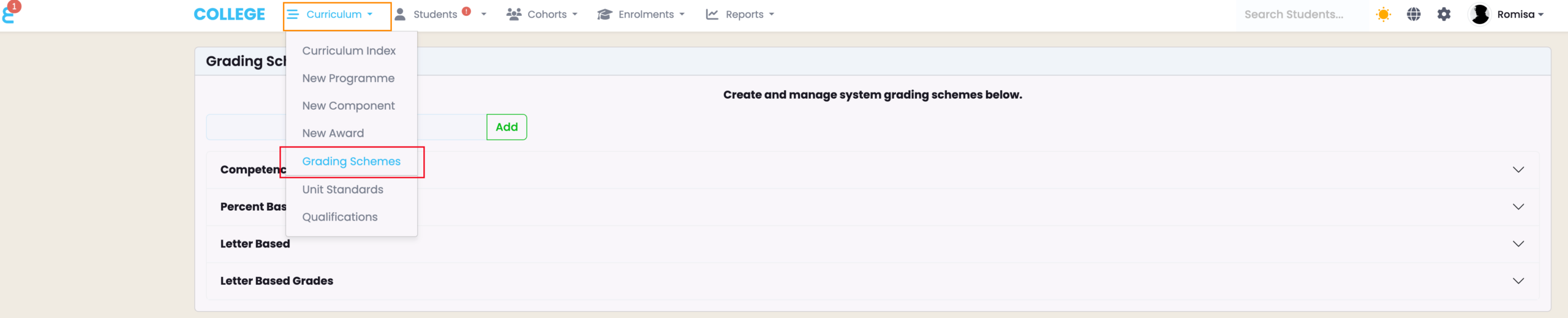
Figure 1ii. The page “Grading Scheme Manager” where you must add a Grade Scheme name (orange), and edit it to add grades (blue circle).
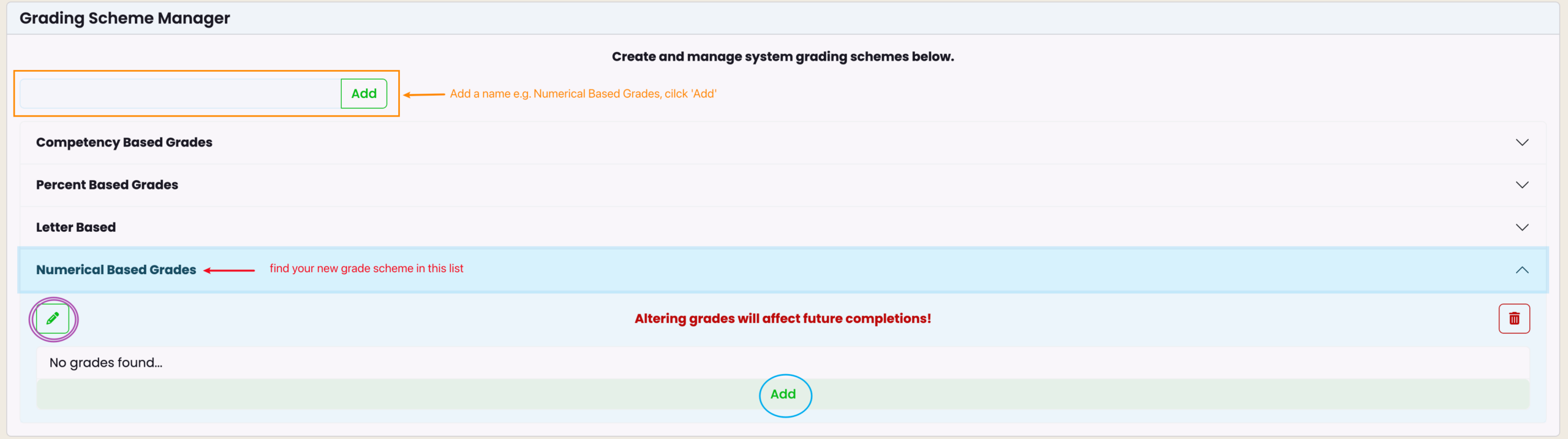
Figure 1iii. Define a single grade by filling out the required fields marked by red asterisks and clicking the blue “Save” button.
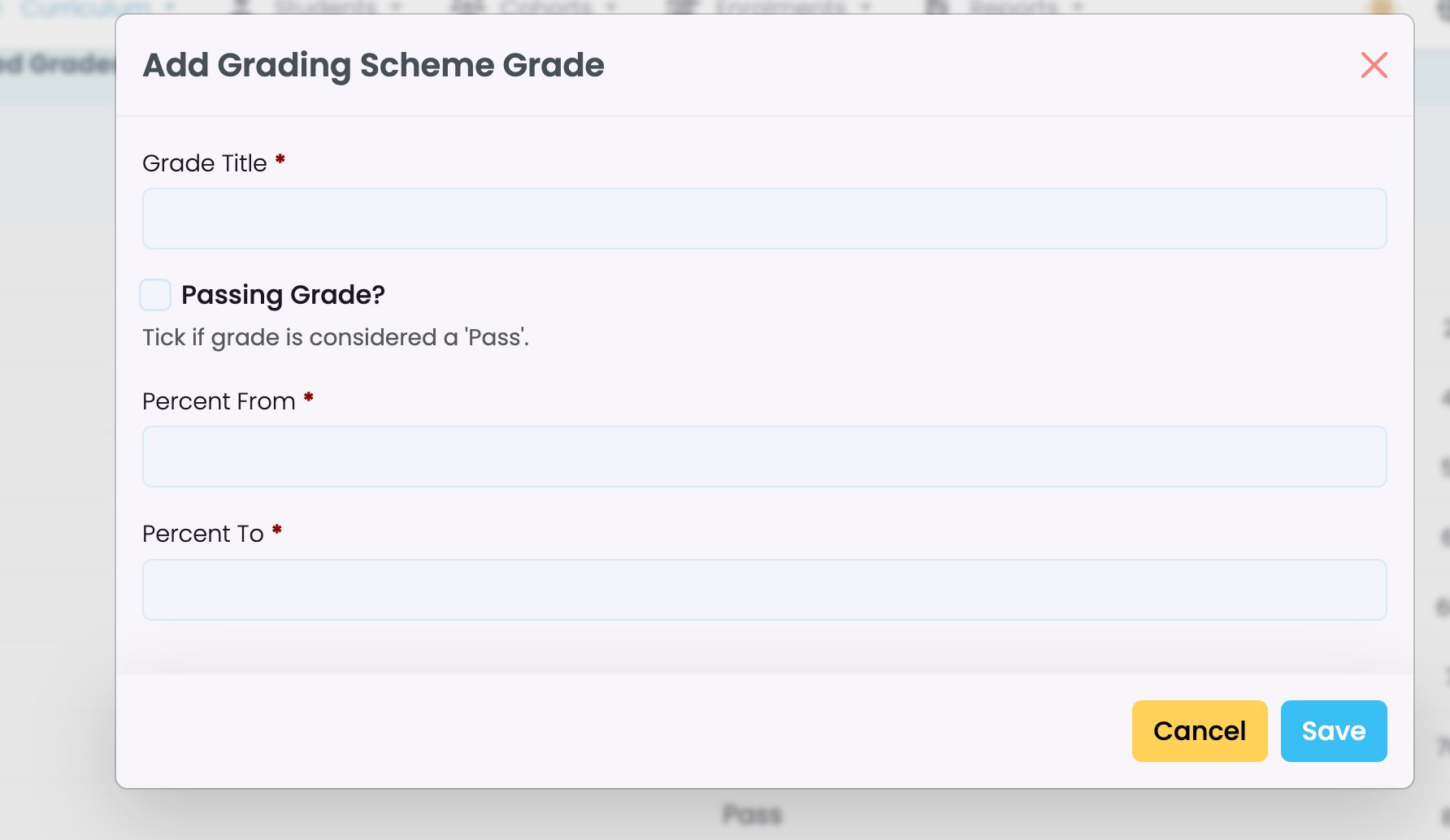
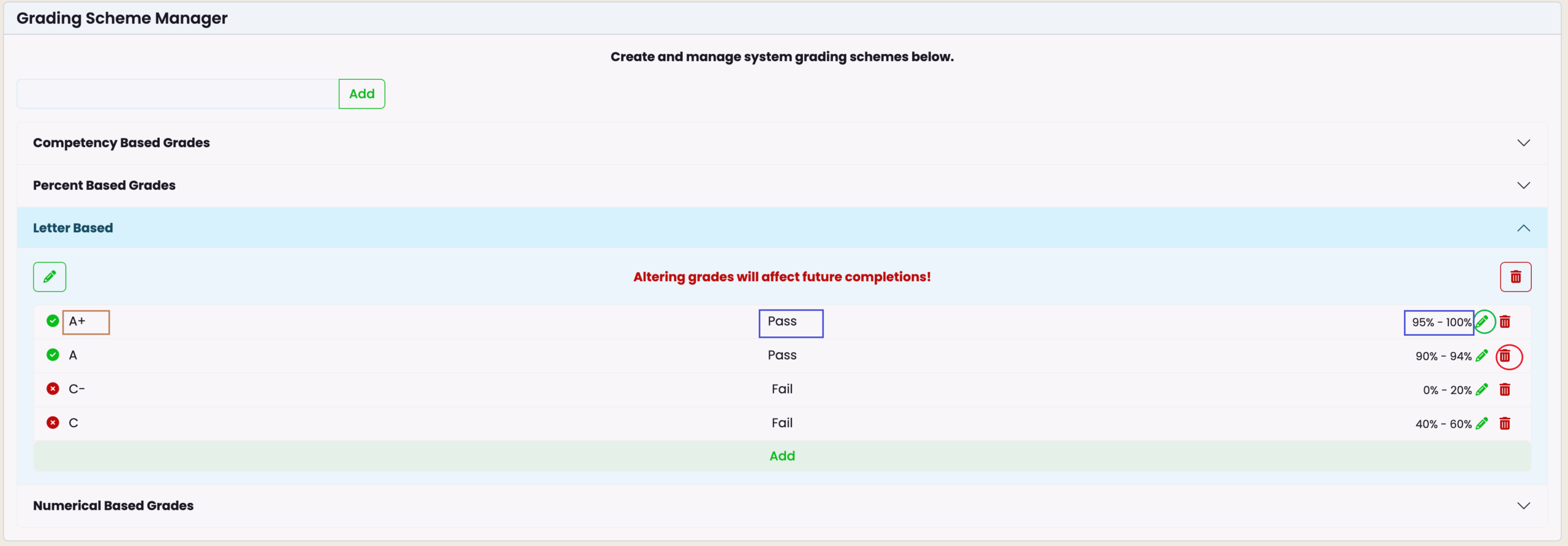
Figure 1iv. The newly created grade will now show as its name (brown) and defining characteristics (blue) on the Grading Scheme Manager. You can edit a grade (green circle) or remove it (red circle) on this page.
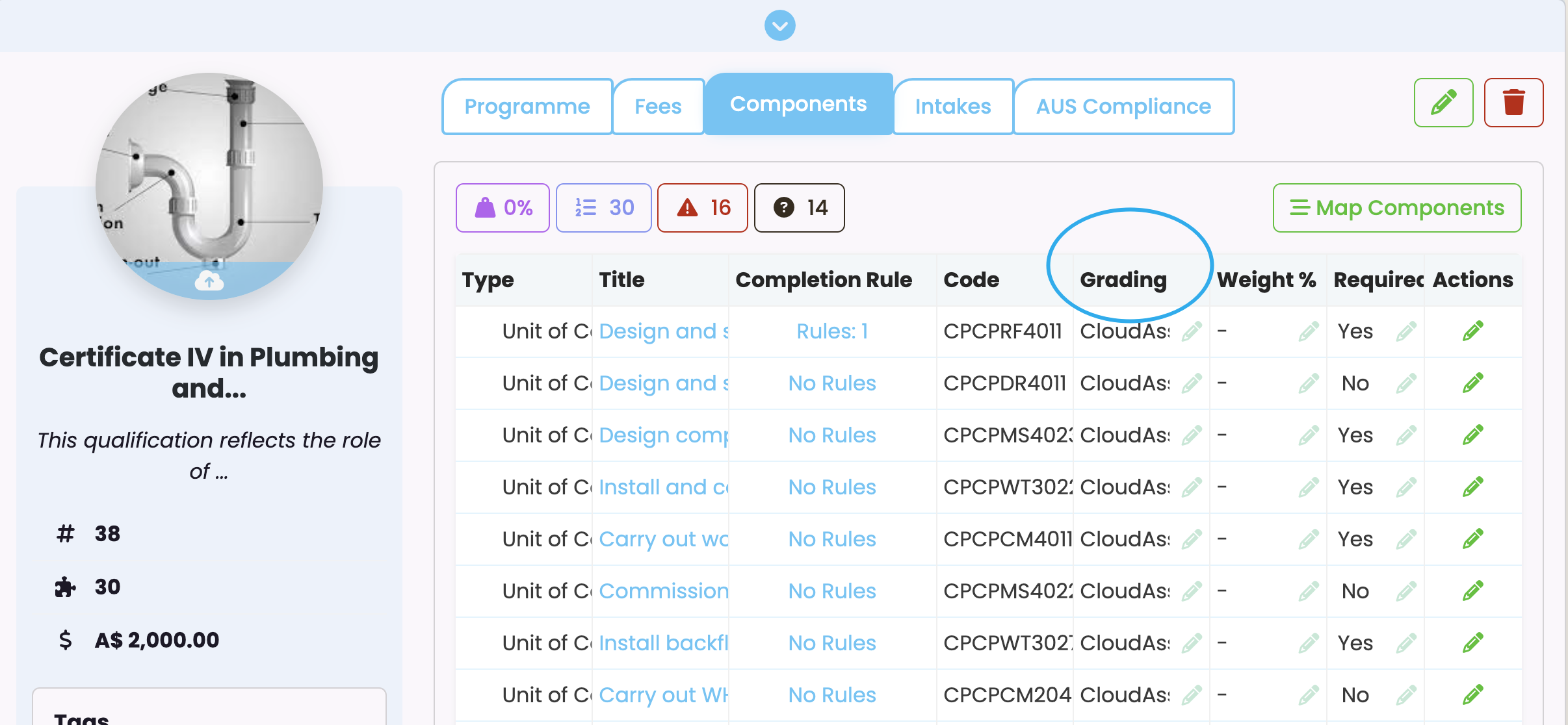
Your grading schemes can now be assigned to components at the Programme level (Figure 2.), or used to mark components at the Enrolment level (See Enrolments – Edit and Progress Enrolments in this resource for more).
Figure 2. A grade scheme can be assigned to a Programme Component once it has been created in the Grading Scheme Manager.