SELMA allows you to grade Enrolment Components, after an assessment has been made, which can then be exported as a transcript in the form of a PDF template.
Grading is usually accompanied by the marking of Completion Codes; however, you can do one instead of the other according to your compliance requirements.
- Note: Grades are reported to the NZQA, while Completion Codes are reported to the TEC.
In this Section:
- Grading Scheme Manager
- Assign Grading Schemes
- Grade Individual Enrolment Components
- Bulk Update Enrolment Components
Grading Scheme Manager
Grading schemes should be set-up in the Grading Scheme Manager, before assigning them to Components at the Programme or Intake level.
Grading schemes are then propagated, along with Components, to the Enrolment level. Grading can then be done against Enrolment Components.
Create a Grading Scheme
Figure 1. Navigate to Curriculum > Grading Schemes

Figure 2. Create a New Grading Scheme

Figure 3i. Edit the Grading Scheme
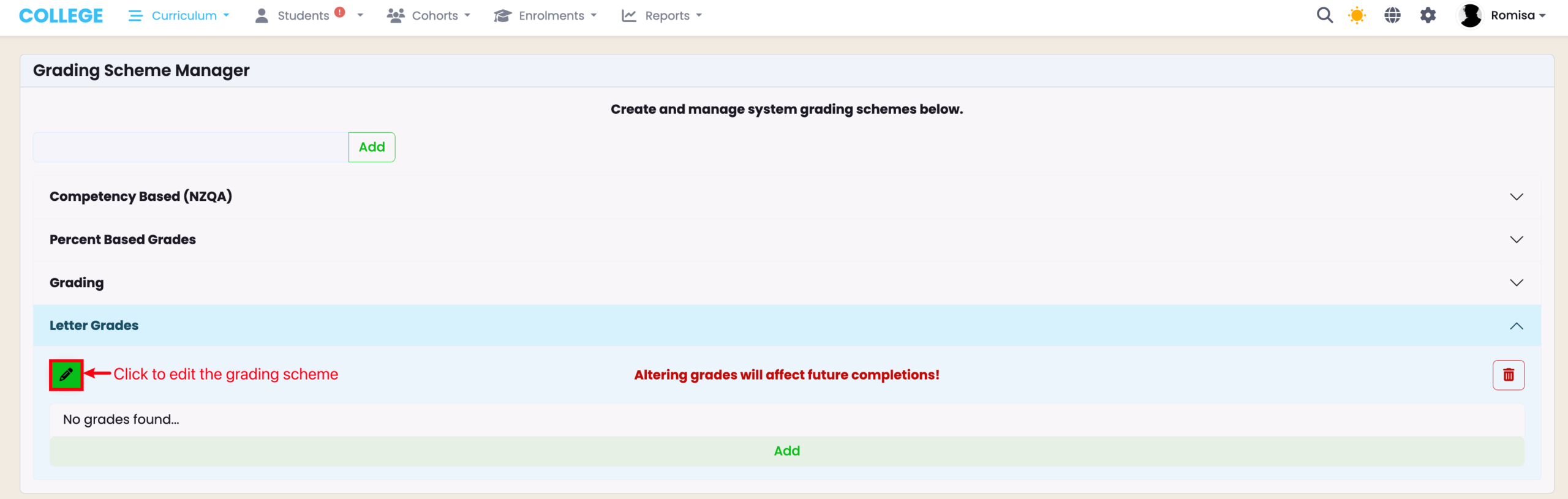
Figure 3ii. Establish Grading Type and Activate
If the “Numerical Grading” checkbox isn’t selected, you can use other types of grading (such as Competency-based grading). Please make sure the “Active” checkbox is selected so that the grading scheme can be applied throughout SELMA.
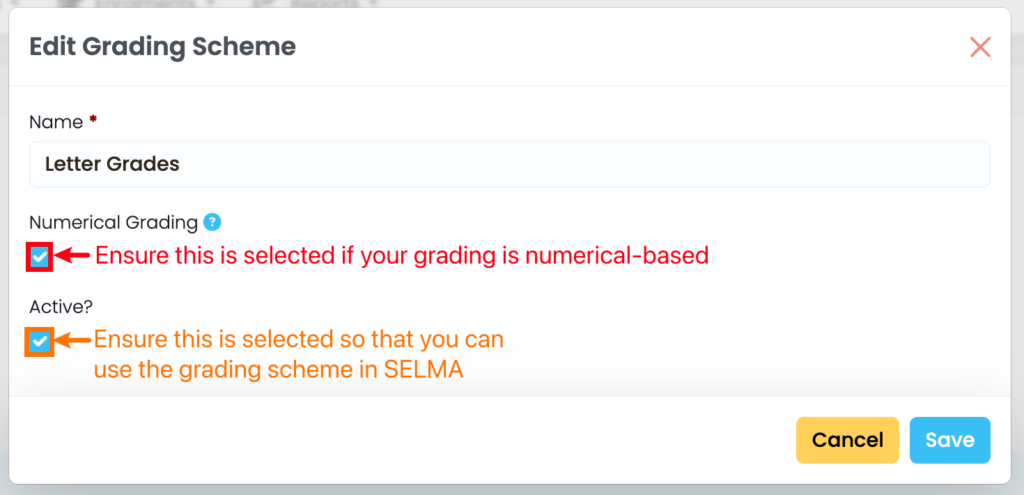
Add Grades to the Grading Scheme
Figure 4i. Add a Grade to your Grading Scheme
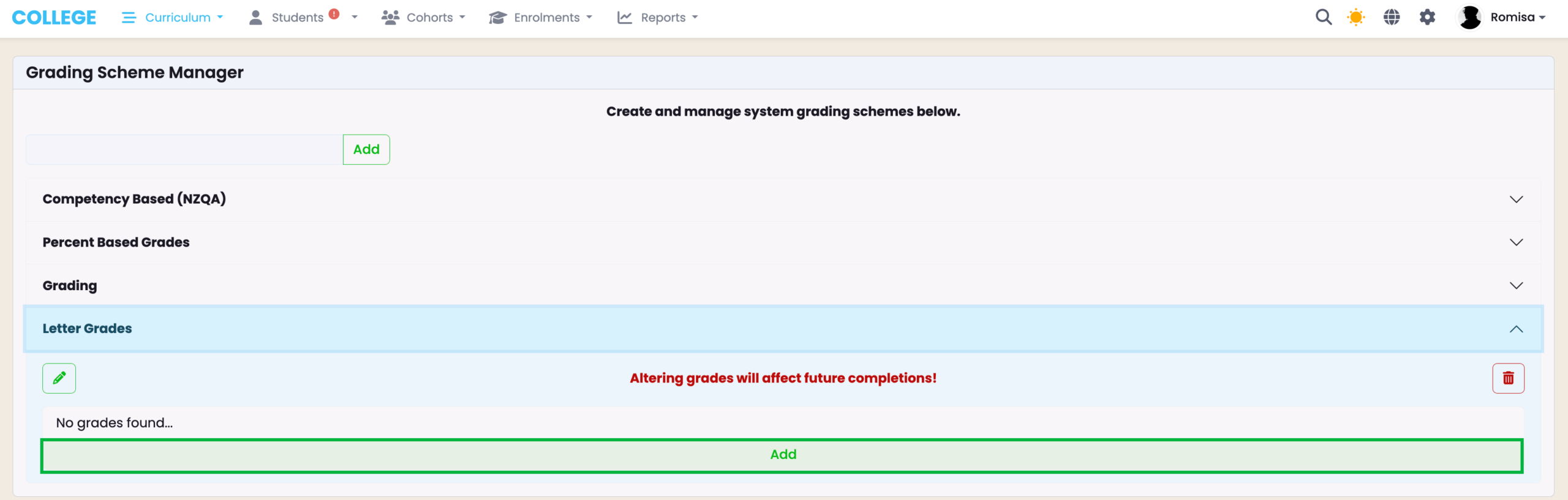
Figure 4ii. Provide details
Provide the grade label, and determine whether or not it is a passing grade.
Note: If your grades are numerical-based, provide the percent values (orange).
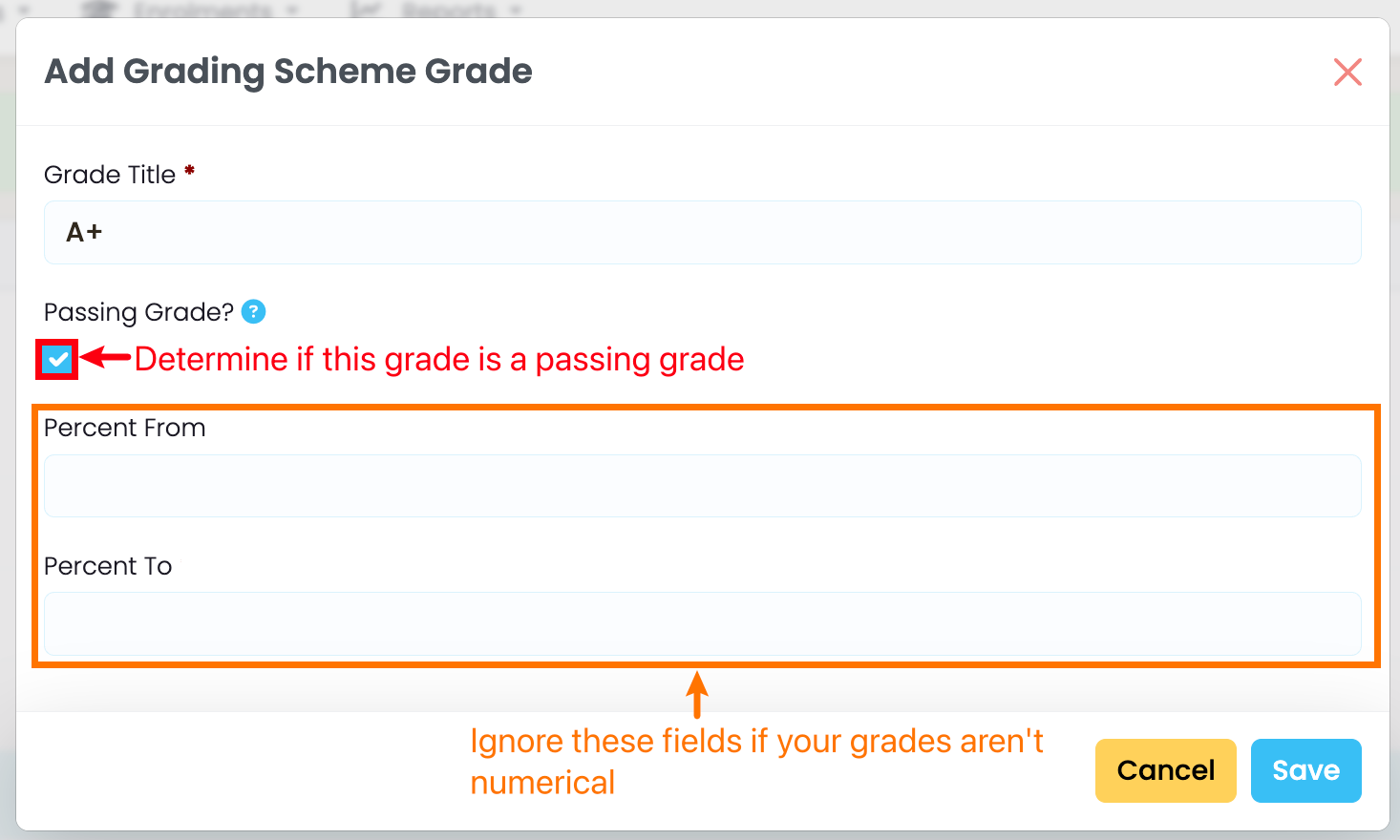
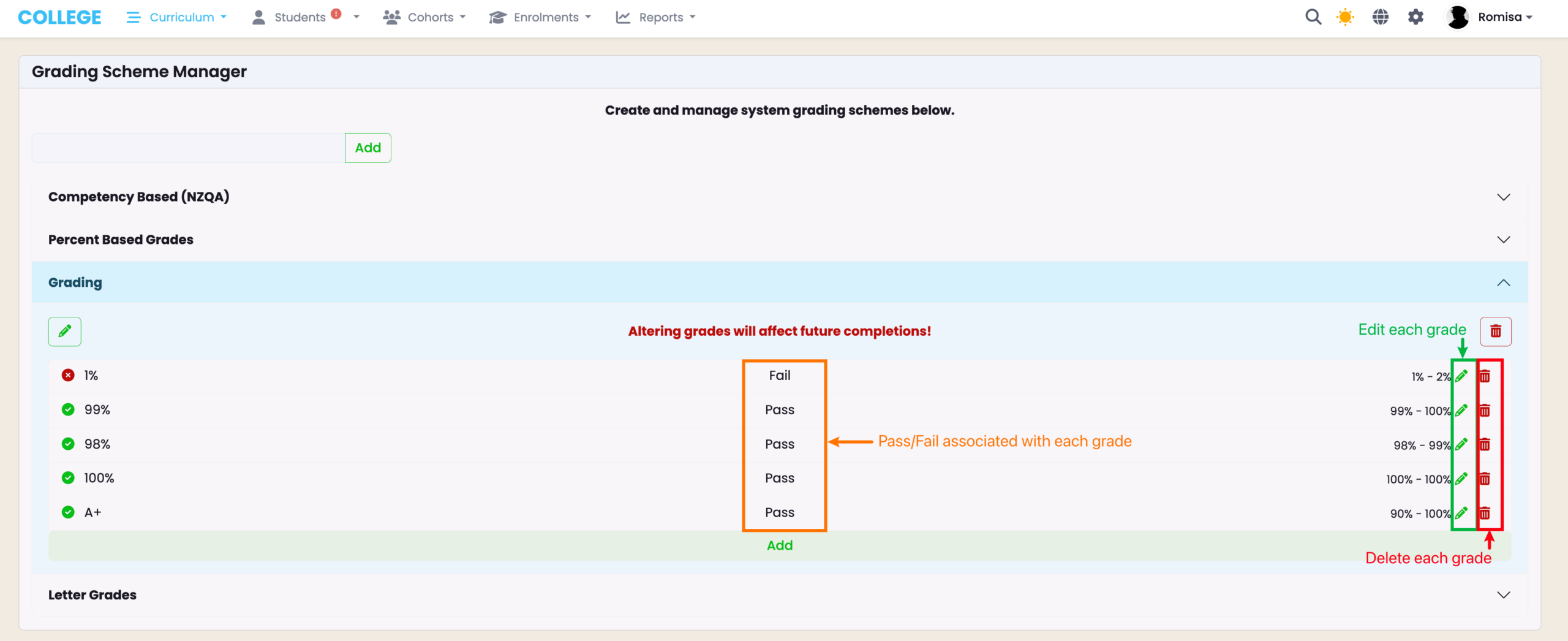
Figure 4iii. Grading Scheme Overview
Assign Grading Schemes
Once you have mapped Components to the Programme or Intake, you can assign grading schemes to them, at either level.
How are Grading Schemes propagated?
- Propagation occurs from Programme > Intake > Enrolment, sequentially. Therefore,
- Enrolment Components will inherit grading schemes that have been assigned at the Programme or Intake level.
- Intake Components will inherit grading schemes that have been assigned to Programme Components.
Figure 5i. Edit Programme Components
Navigate to the “Components” tab to edit Programme Components. If you have not mapped Components to the Programme already, please follow the steps in the annotated screenshot, below.
Note: Mapped components show a default grading scheme which should be edited.
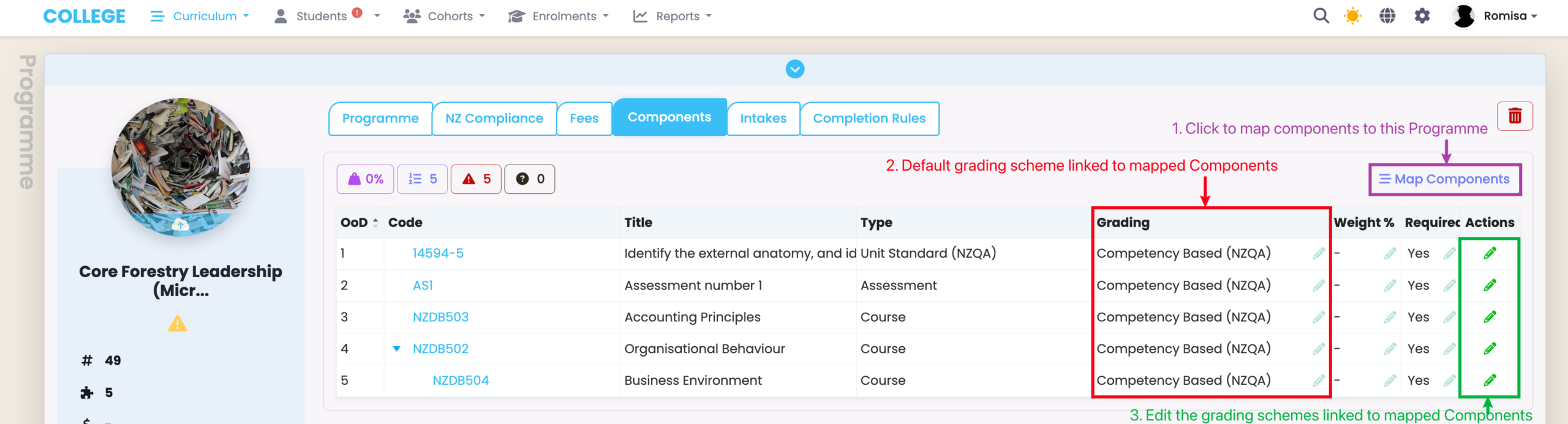
Figure 5ii. Select Grading Scheme
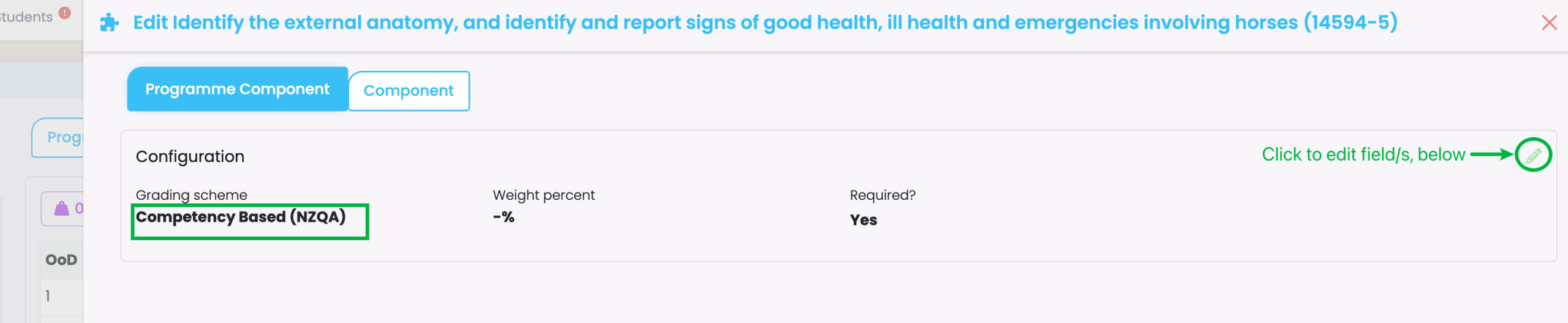
Figure 6i. Edit Intake Components
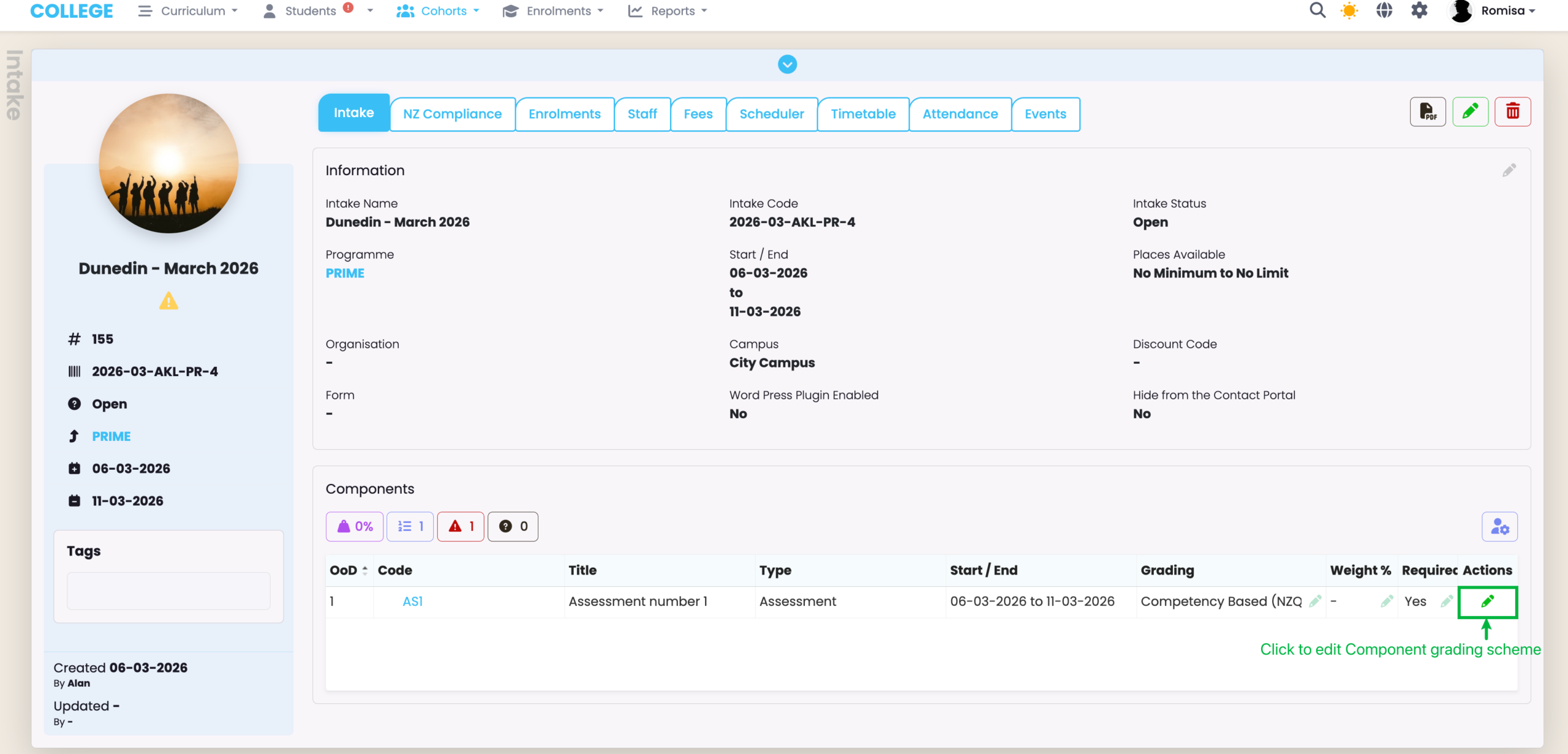
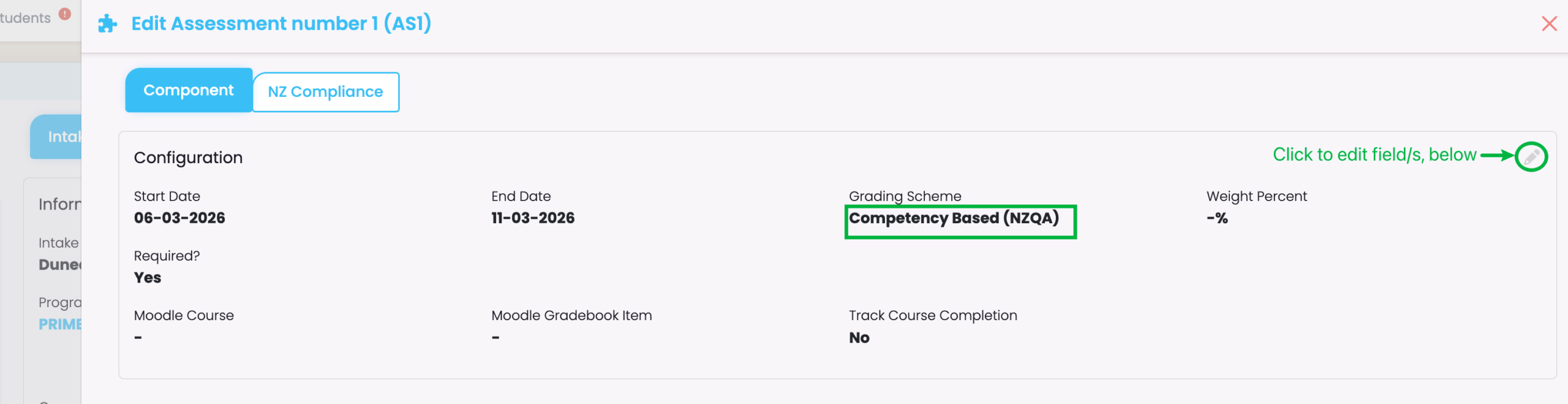
Figure 6ii. Select Grading Scheme
Grade Individual Enrolment Components
Figure 7. Methods of Grading
Please ensure you select at least one Enrolment Component, then click the green “+” icon (blue) via the grid display, or the green pencil icon (red), to grade the Component.
See Figure 8, and Figures 9i-9ii for the screens that follow each method, respectively.
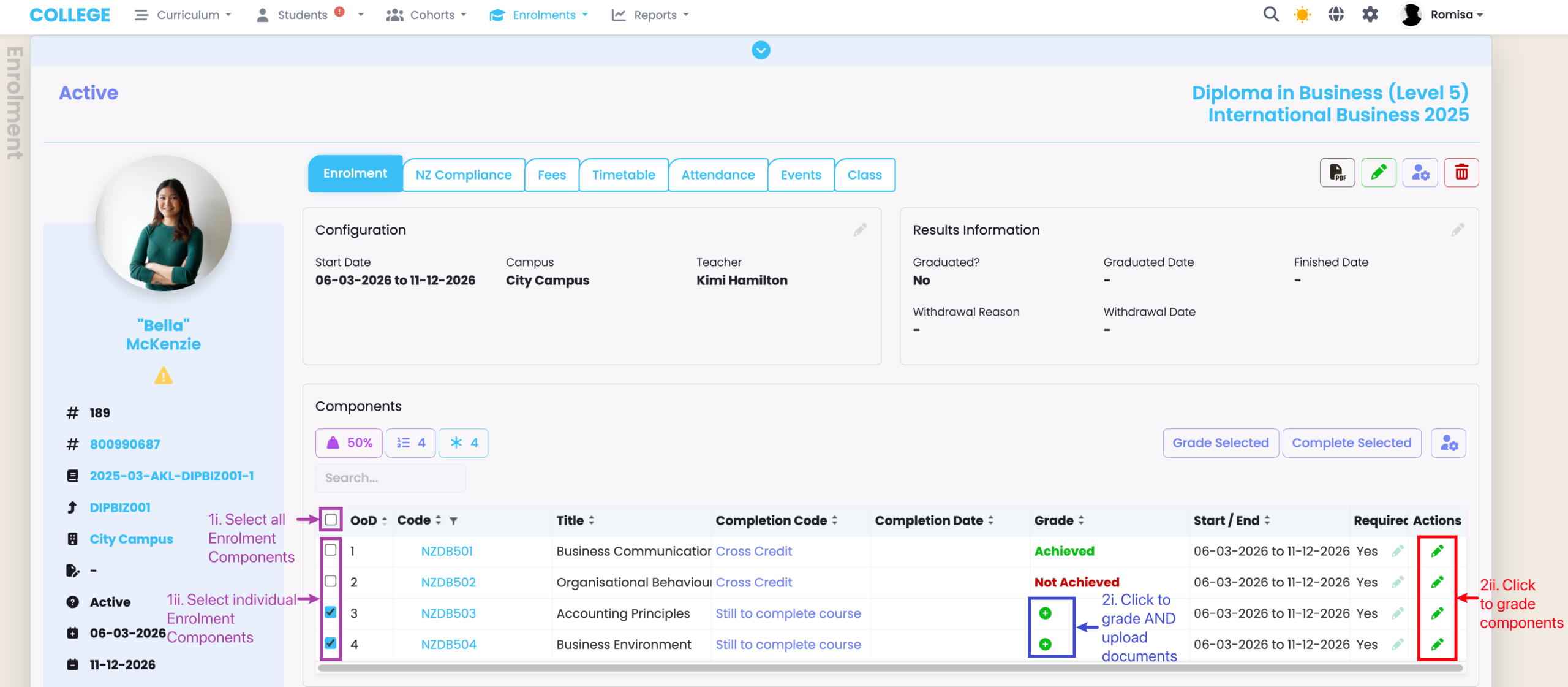
Figure 8. Grading By Grid Display
Provide the required details, as marked by red asterisks, and click the blue “Save” button on the bottom right of the screen on completion.
Note: The grade selections you can choose from depend on the Grading Scheme you have attached to the Component, previously, at the Programme or Intake level (see more).
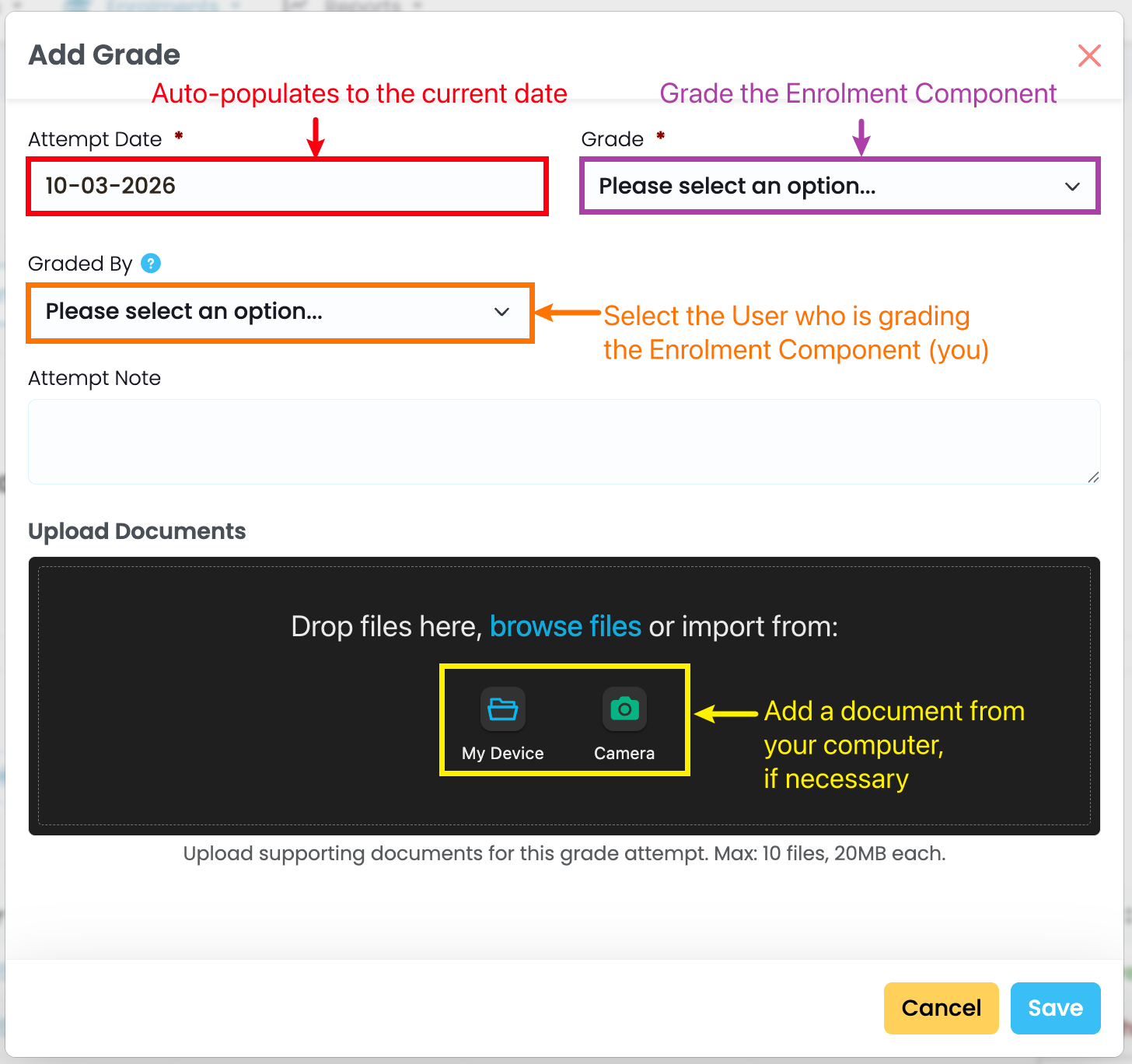
Figure 9i. Grading by Editing | Navigate to Grades Tab
On the Grades tab, click the green “+” button to add a grade to the Enrolment Component.
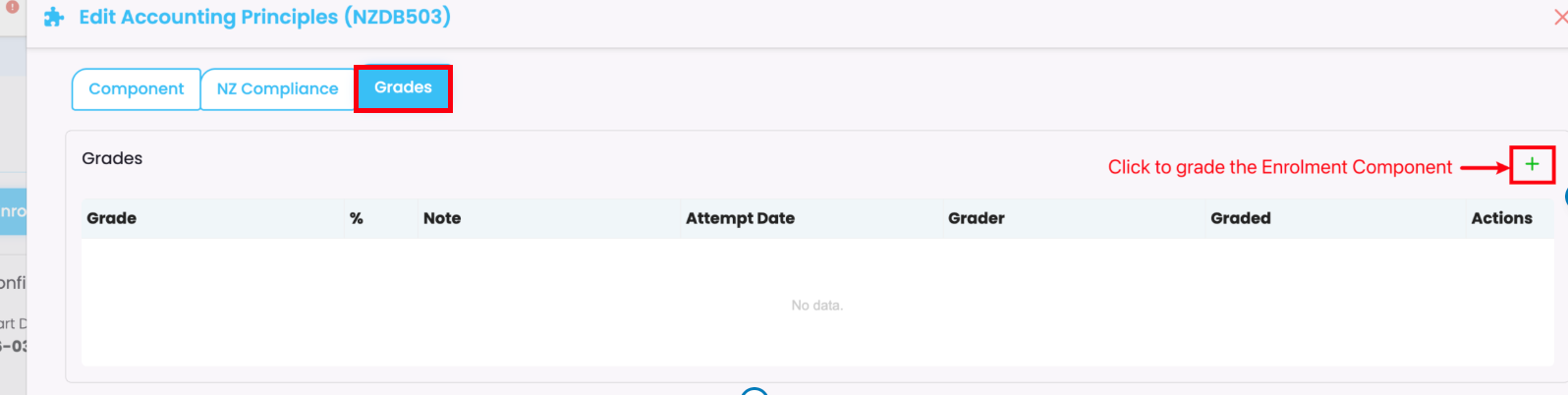
Figure 9ii. Provide Required Details
As in Figure 8., provide the required details, as indicated by red asterisks, and remember to click the blue “Save” button at the bottom right of the screen on completion.
Note: The grade selections you can choose from depend on the Grading Scheme you have attached to the Component, previously, at the Programme or Intake level (see more).
Bulk Update Enrolment Components
Grade Enrolment Components or update the completion codes of Enrolment Components, in bulk, at the Enrolment or Intake level.
Bulk Update at the Enrolment Level
Figure 10i. Grade Enrolment Components
On the Enrolment tab of the Enrolment profile, follow the steps annotated in the screenshot below.
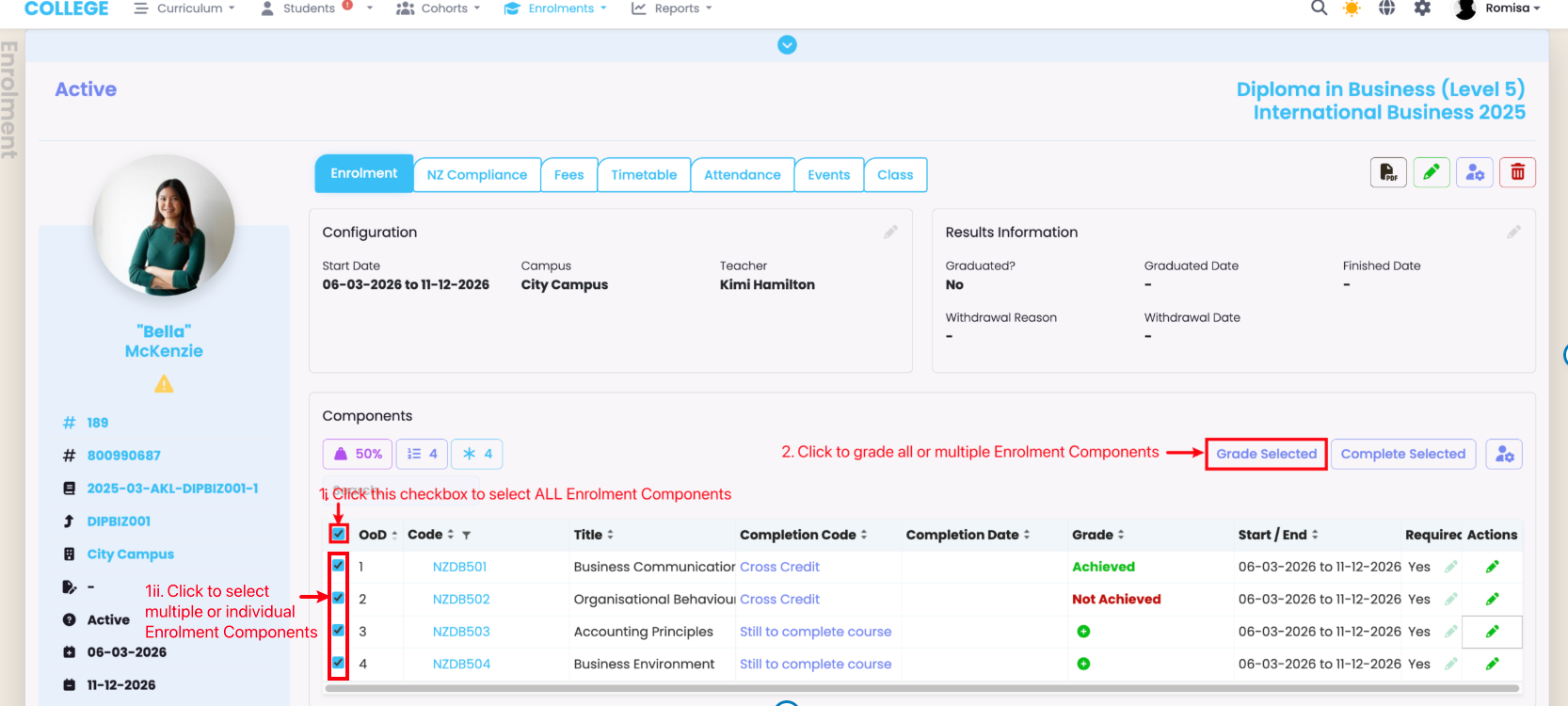
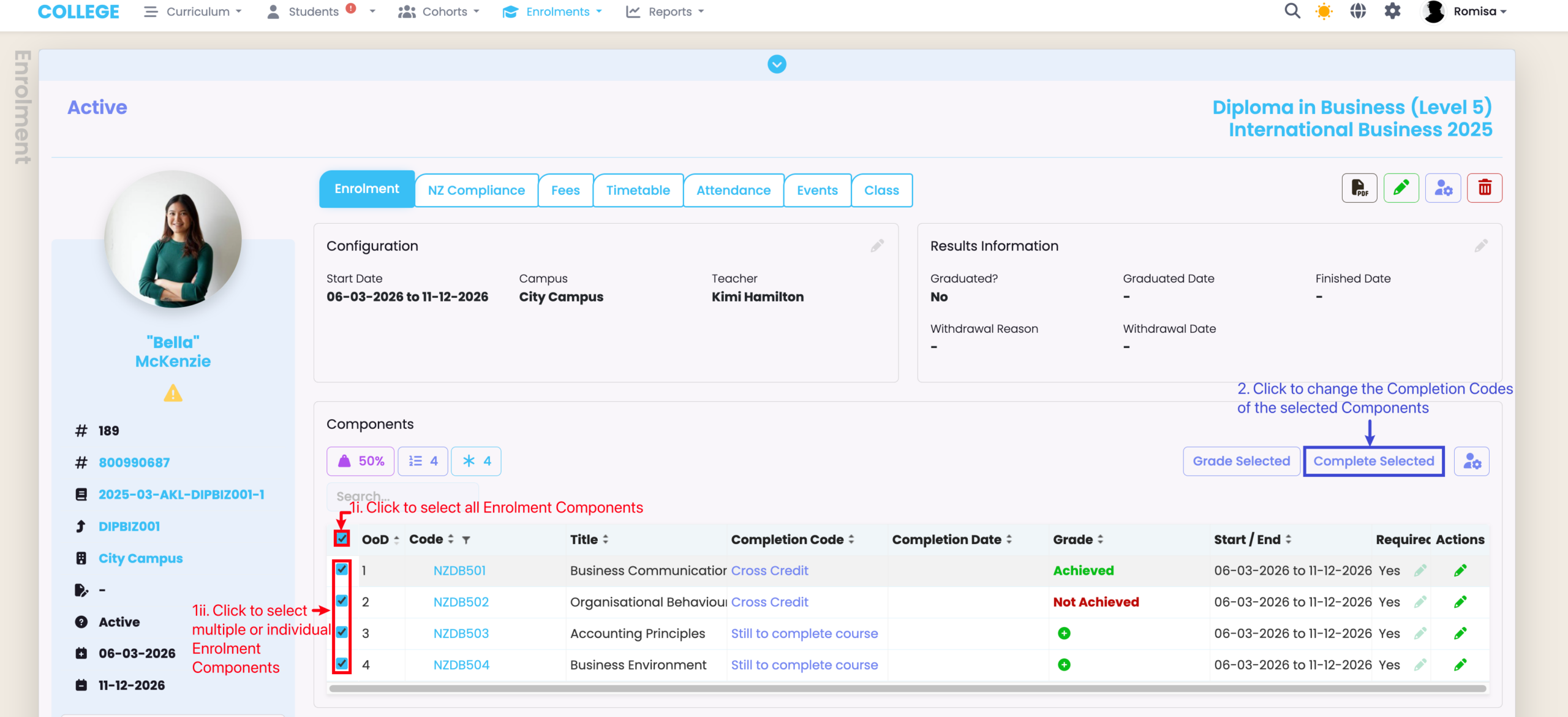
Figure 10ii. Update Completion Codes
On the same Enrolment tab of the Enrolment profile, follow the steps annotated in the screenshot below.
Bulk Update at the Intake Level
Figure 11i. Grade Enrolment Components
Navigate to the Enrolments tab on an Intake, and follow the steps annotated in the screenshot below.
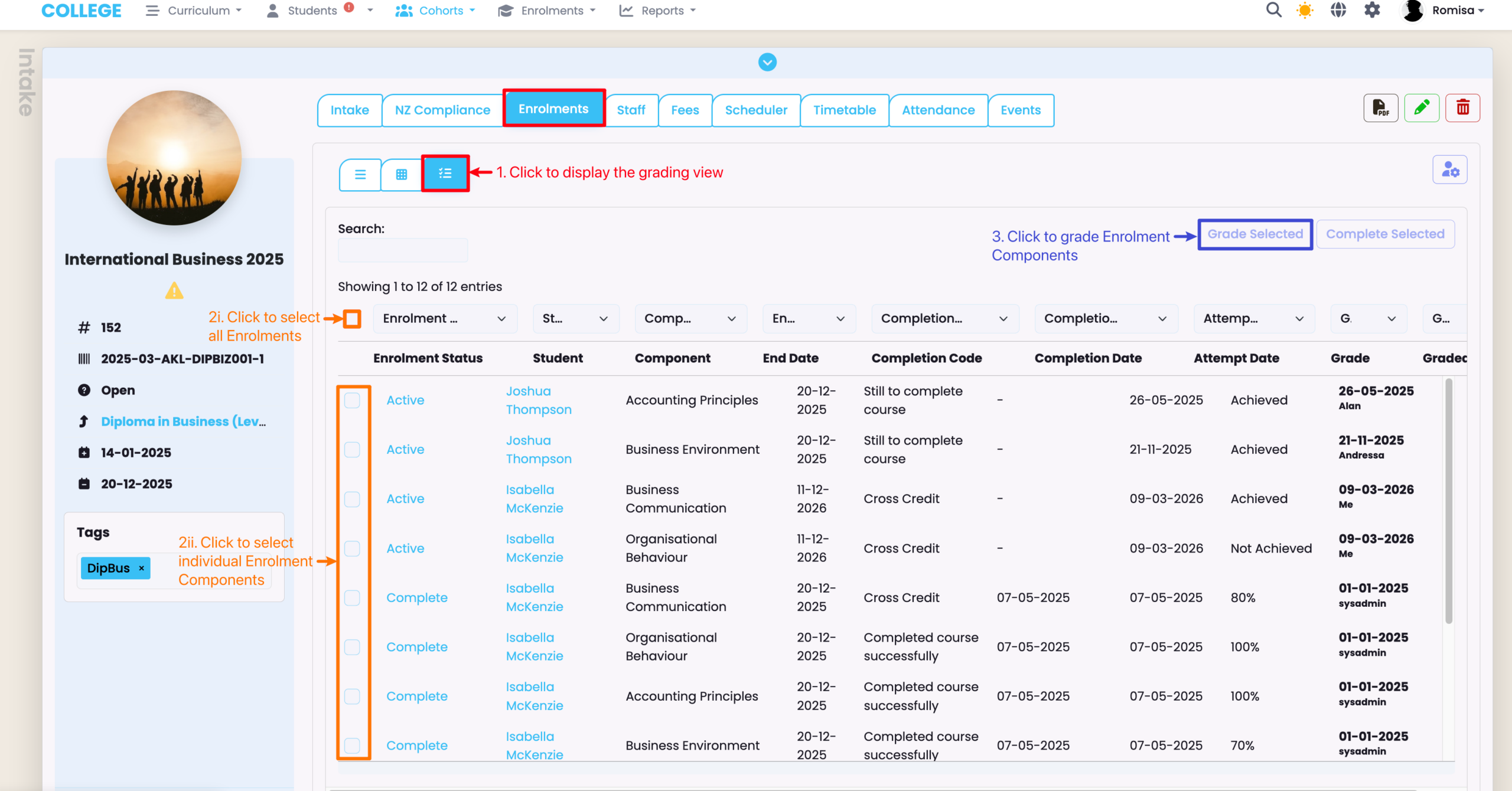
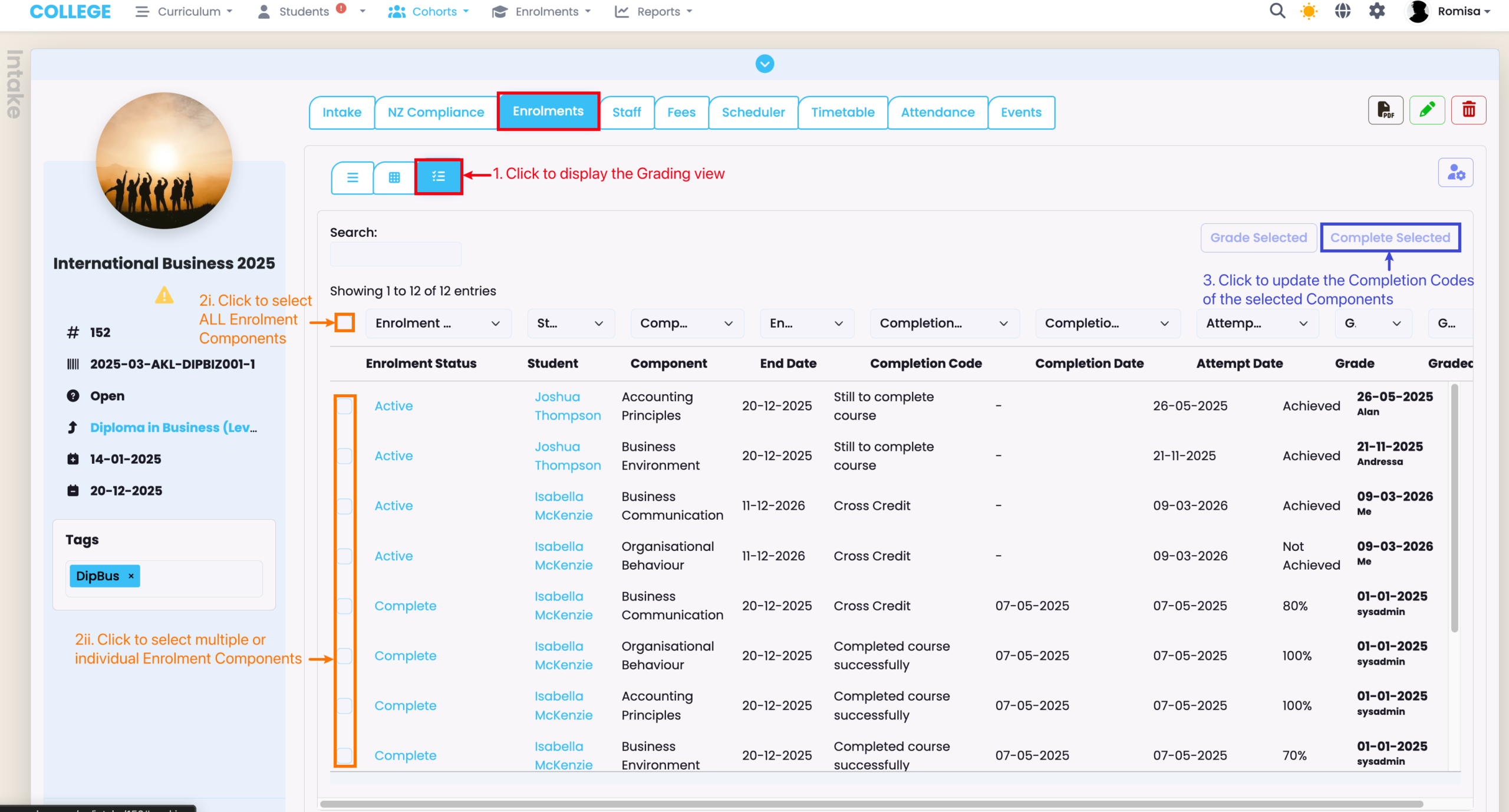
Figure 11ii. Update Completion Codes
On the same Enrolments tab on an Intake, follow the steps annotated in the screenshot below.
Bulk Update at the Class Level
Although you cannot grade Enrolment Components from the Class, you can update any field associated with the Enrolment Component at the Class level.
Figure 12i. Update Enrolment Component Fields
On the marking view (orange), click the purple action button and select “Bulk Update Enrolment Components” (blue).
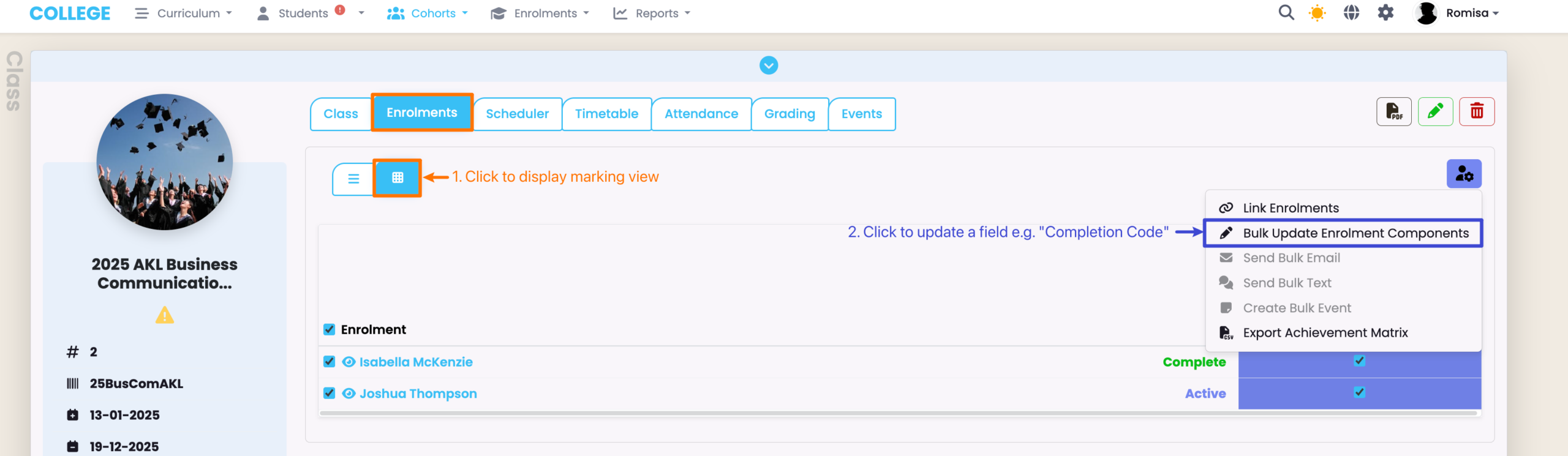
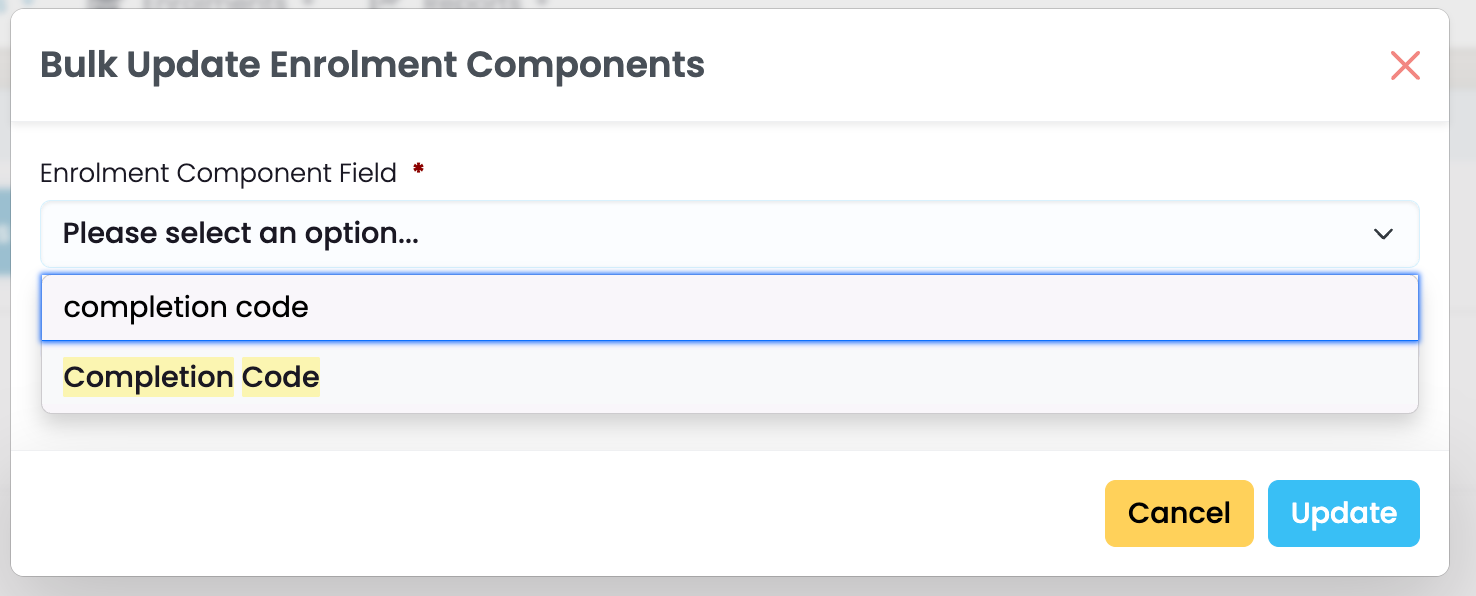
Figure 12ii. Update an Enrolment Component Field
The dropdown selection is limited to about 20 items. Please type to search for the field, if you cannot find it in the dropdown list. The following example shows how you would update the Completion Code for multiple Enrolment Components.
Note: Another field will appear on selecting an Enrolment Component field, so that you can assign a value to it.