Emails and text messages can be sent to Students from SELMA.
If you have set-up a Communication Template, you can pre-populate the email or text with the details you have specified, previously.
- Please refer to System Settings – Communication Templates for more.
In this Section:
Send an Email
Figure 1. Navigate to Students > Student Index
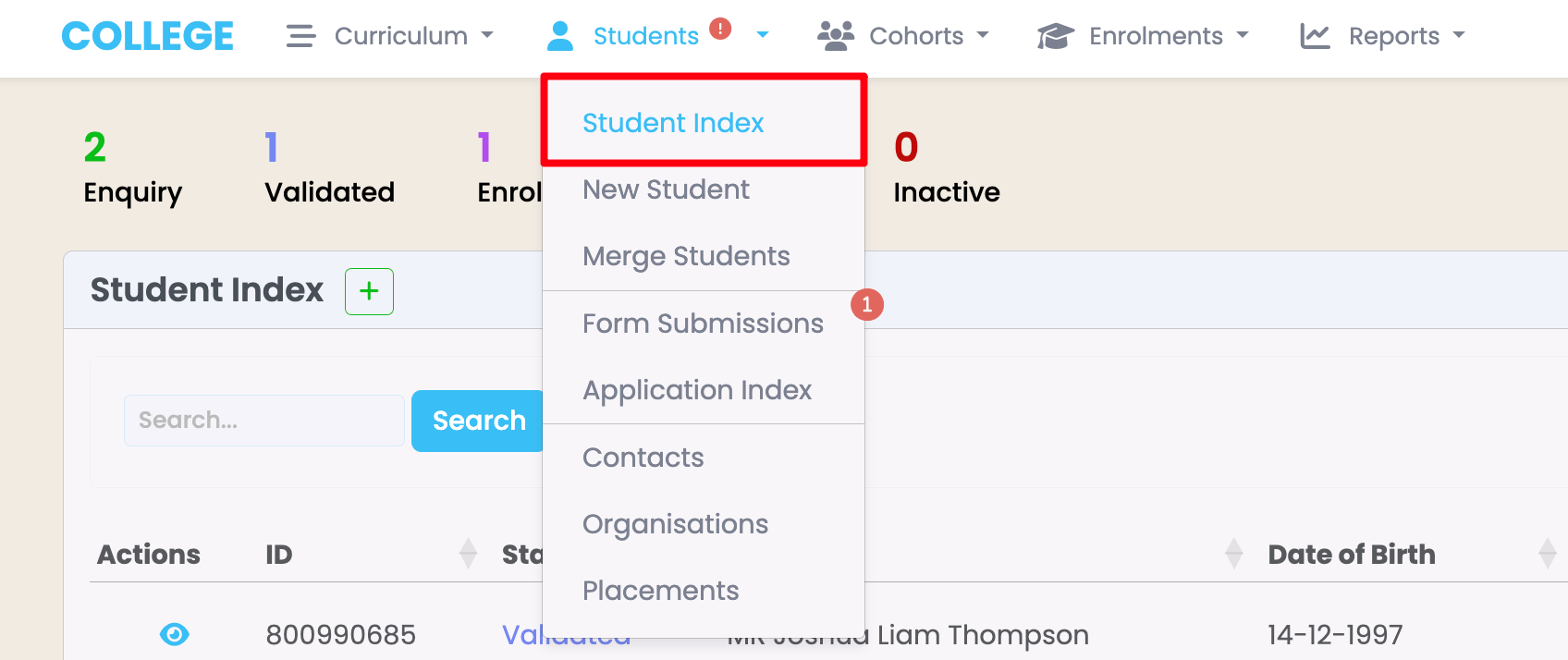
Figure 2. Student Profile | Action Button
On a Student profile page, click the purple action button, then select “Send Email” from the list.
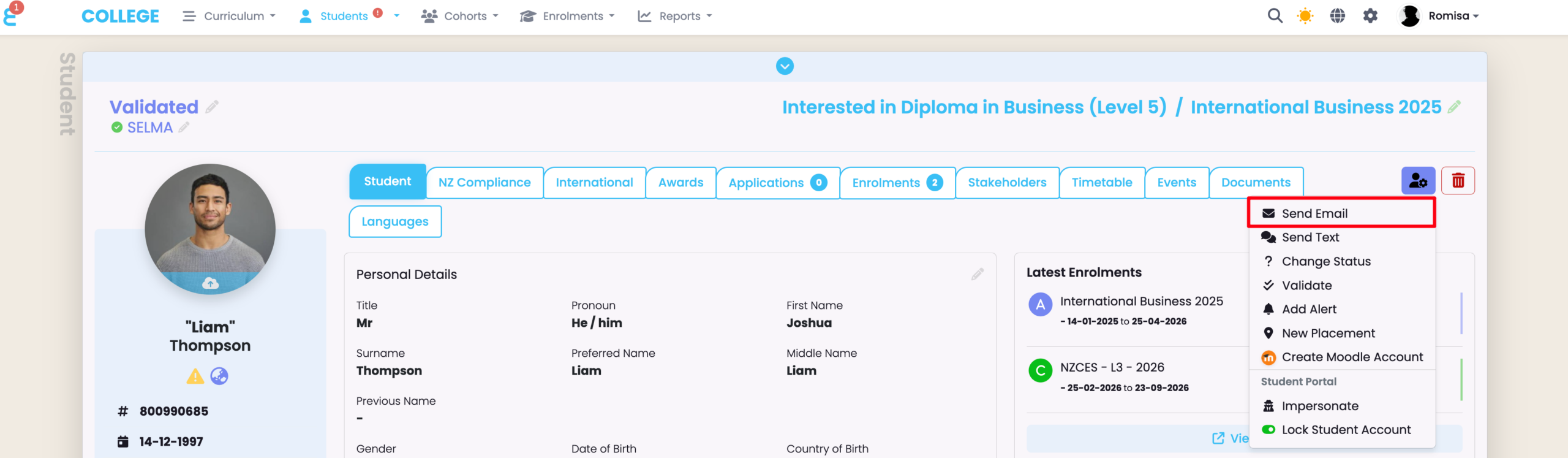
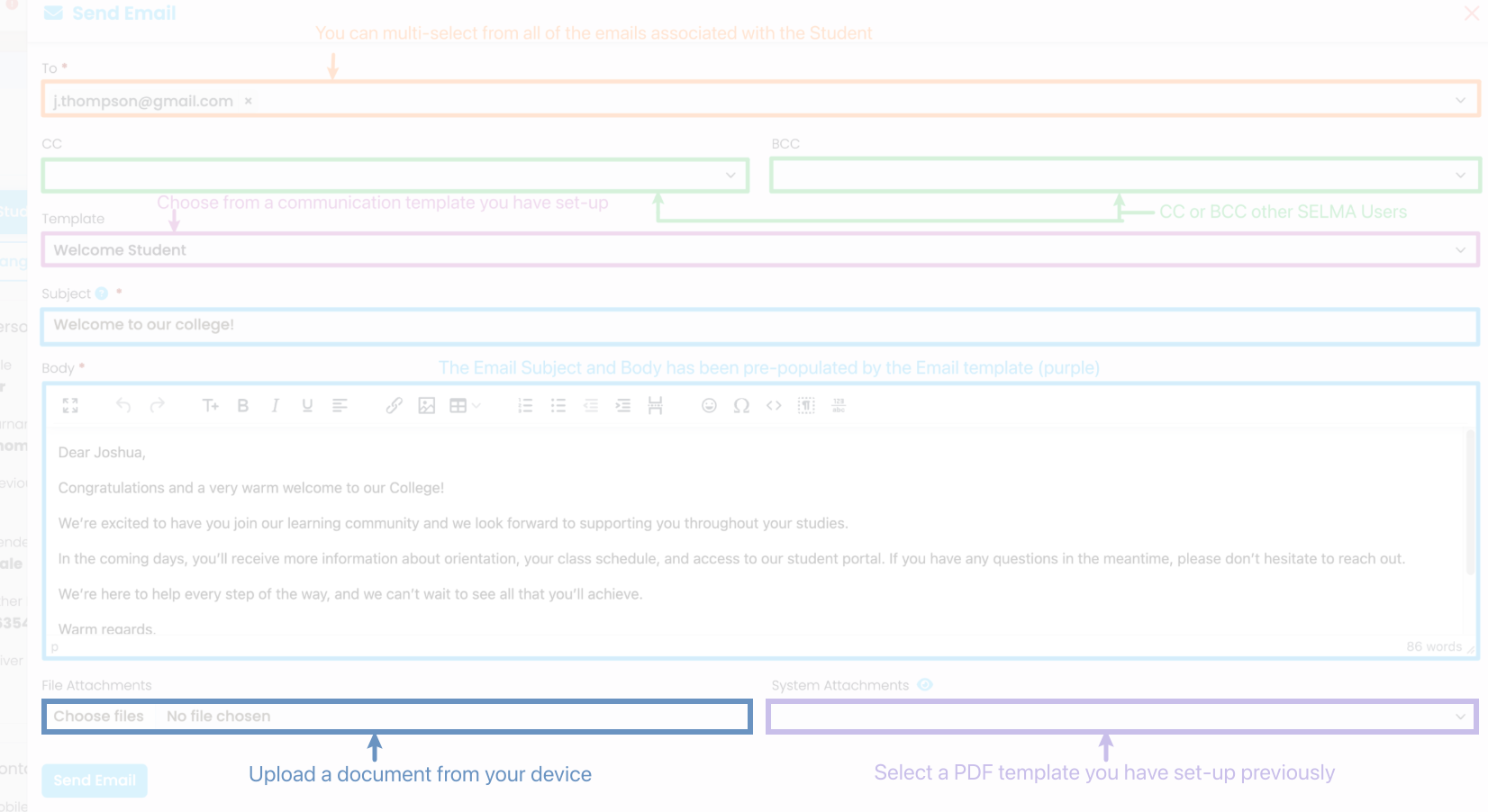
Figure 3. Fill out the Email and Send
Provide the necessary details, or add an email template (i.e. Communication Template) you have set-up, previously (purple).
Note: “System Attachments” are PDF Templates which are a type of Communication Template you can attach to emails (lavender). If you would like to manually upload a document, please select “File Attachments” (blue-grey).
Send Emails in Bulk
Figure 4. Navigate to Cohorts > Intake Index

Figure 4. Intake Profile | Enrolments Tab
Navigate to the Enrolments Tab of an Intake, and select all or individual Enrolments.
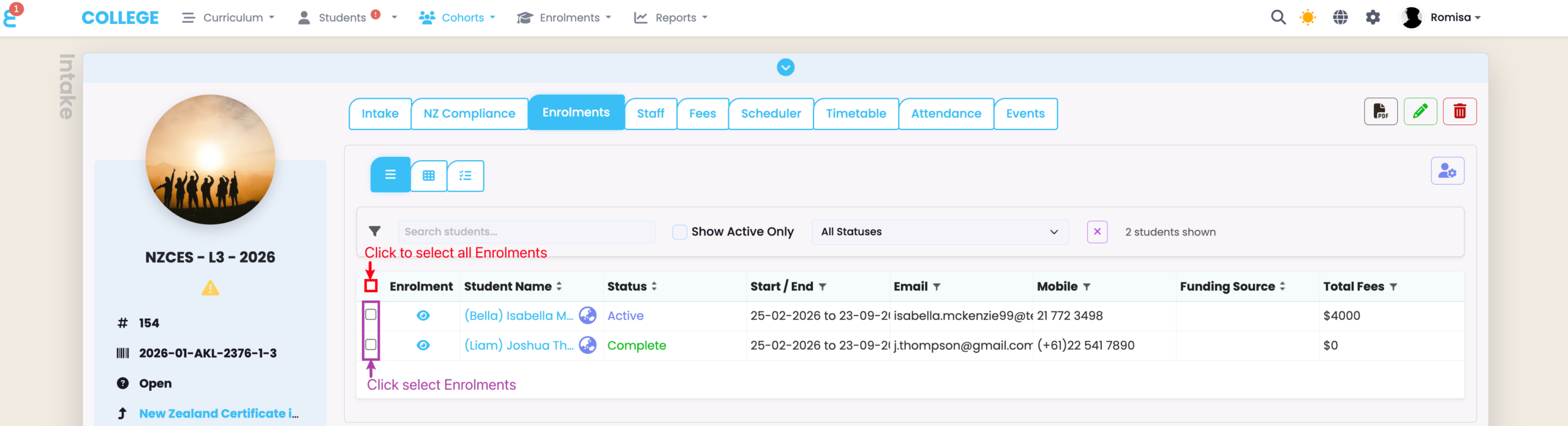
Figure 5. Intake Profile | Action Button
On the Enrolments tab, click the purple action button, then select “Send Bulk Email” from the list.
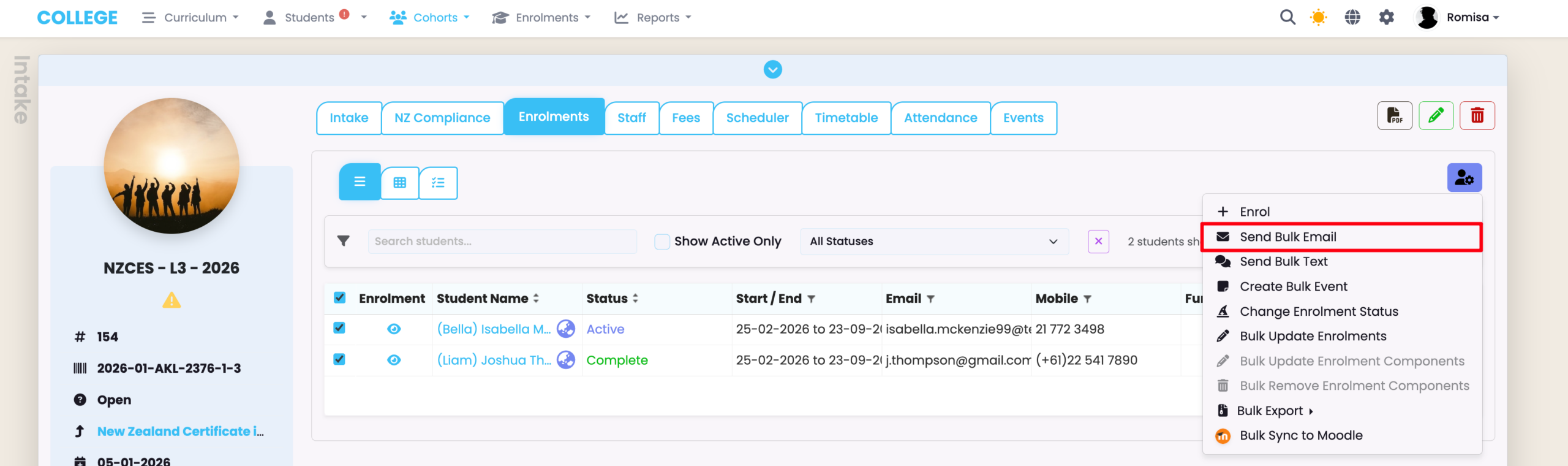
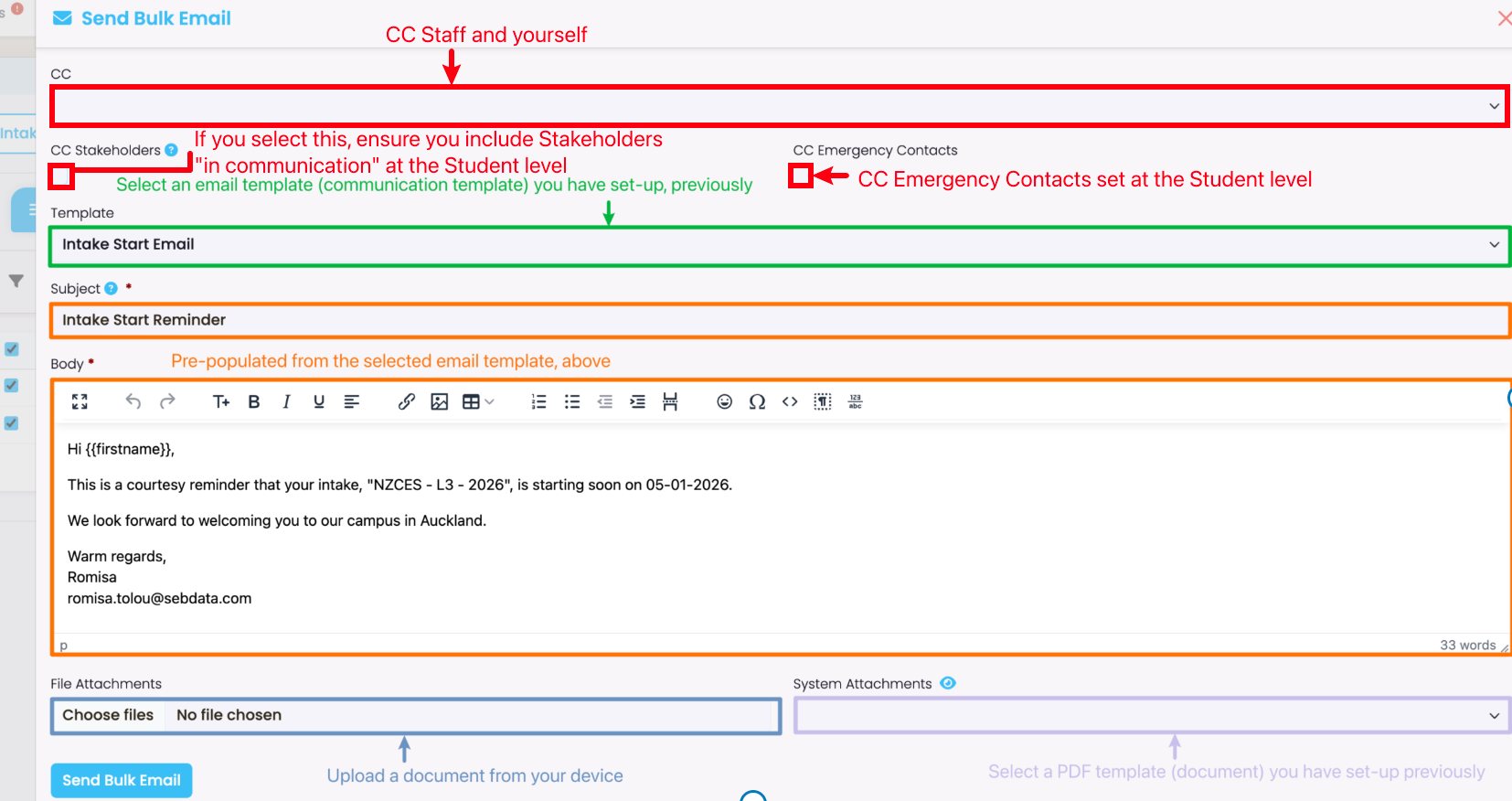
Figure 6. Fill out the Email and Send
Provide the necessary details, or add an email template (i.e. Communication Template) you have set-up, previously (purple).
Note: “System Attachments” are PDF Templates which are a type of Communication Template you can attach to emails (lavender). If you would like to manually upload a document, please select “File Attachments” (blue-grey).
Send a Text Message
Figure 7. Navigate to Students > Student Index
Figure 8. Student Profile | Action Button
On a Student profile page, click the purple action button, then select “Send Text”.
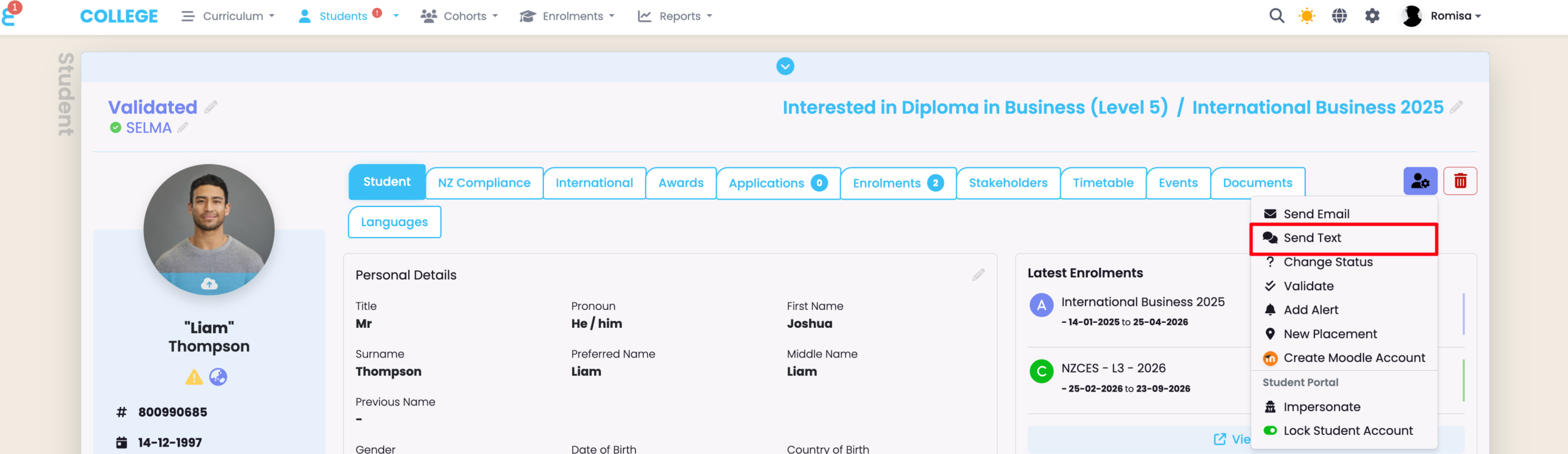
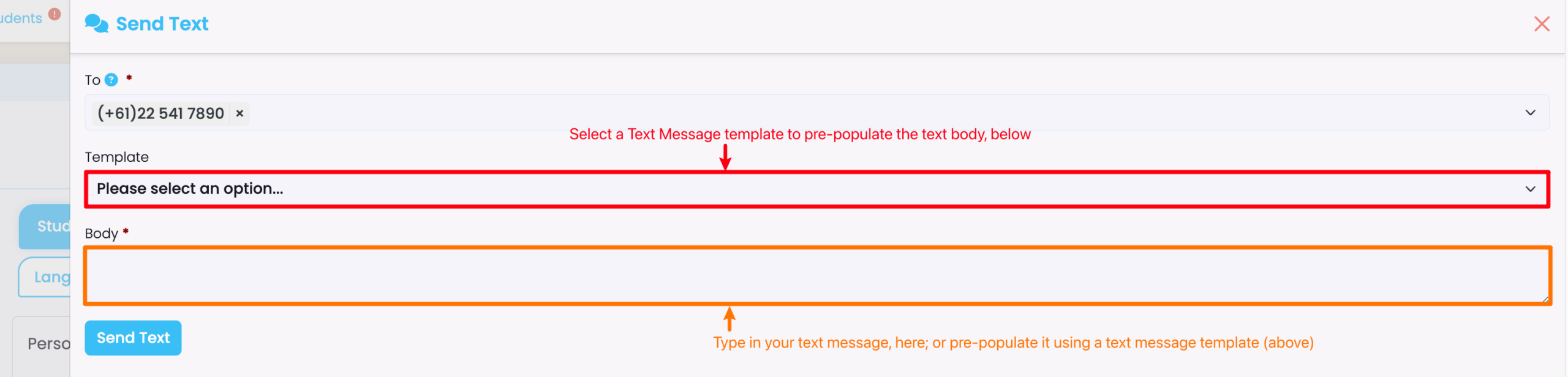
Figure 9. Enter Text Message and Send
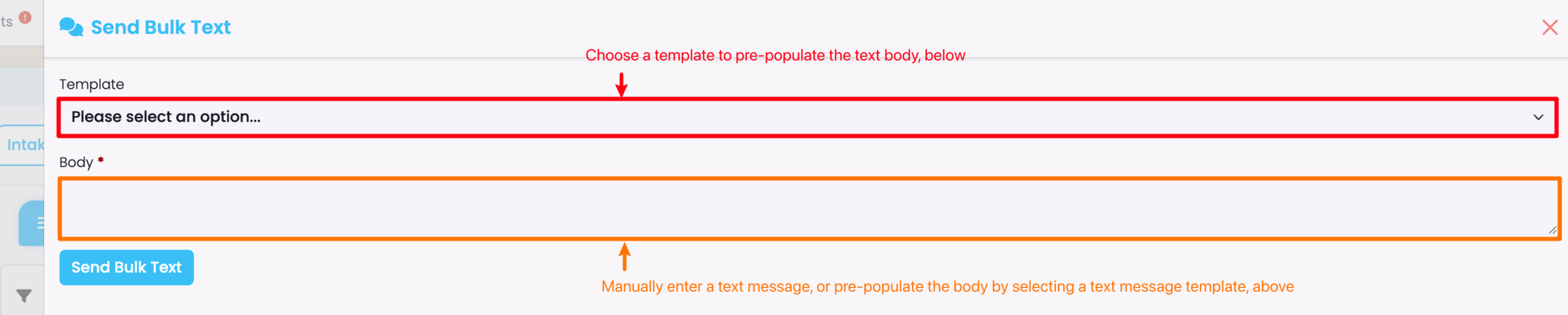
Use a Text Message template to populate the text body for you. The “To” field will be automatically filled with the Student’s mobile number.
Note: A Text Message template is a type of Communication Template, and should be set-up previously.
Send Text Messages in Bulk
Figure 10. Navigate to Cohorts > Intake Index
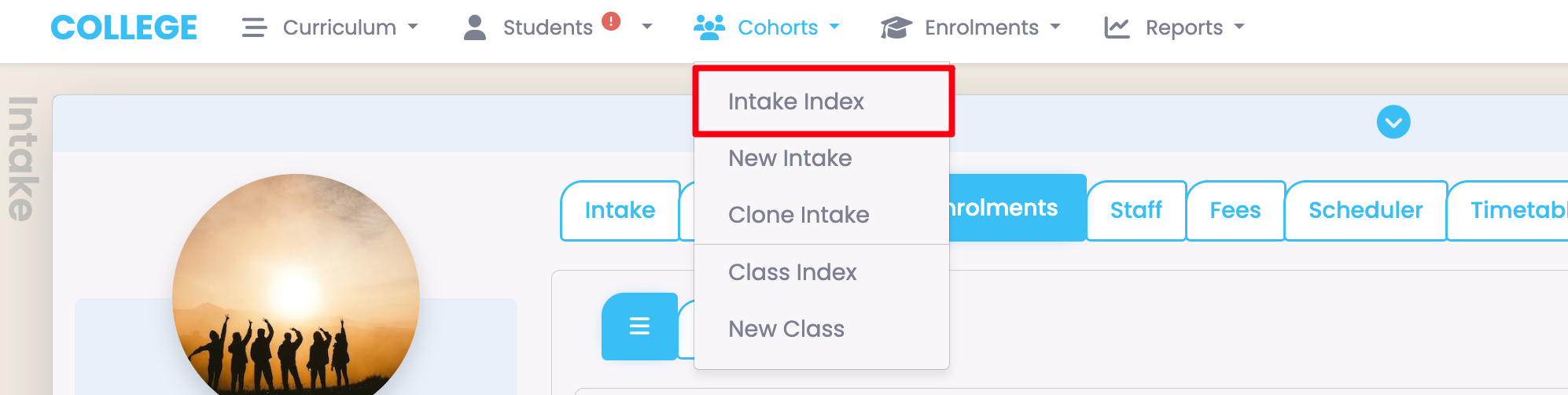
Figure 11. Intake Profile | Action Button
On the Enrolments tab of an Intake profile page, click the purple action button, then select “Send Bulk Text”.
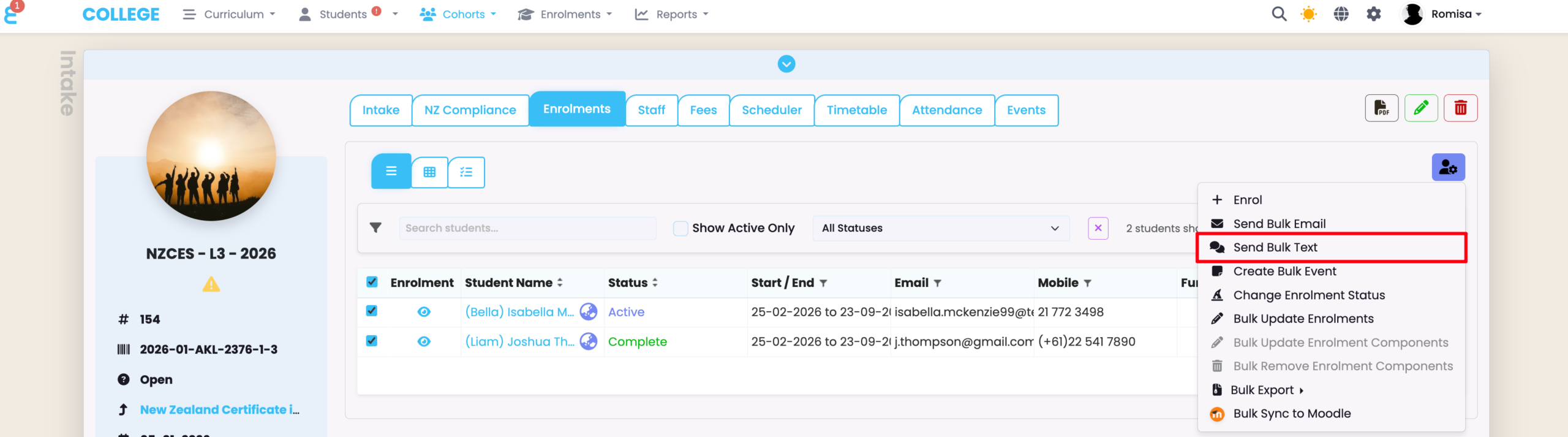
Figure 12. Enter Text Message and Send
Use a Text Message template to populate the text body for you.
Note: A Text Message template is a type of Communication Template, and should be set-up previously.