
4. Custom Fields

To access Custom fields, navigate to Settings (Cog) -> Custom Fields
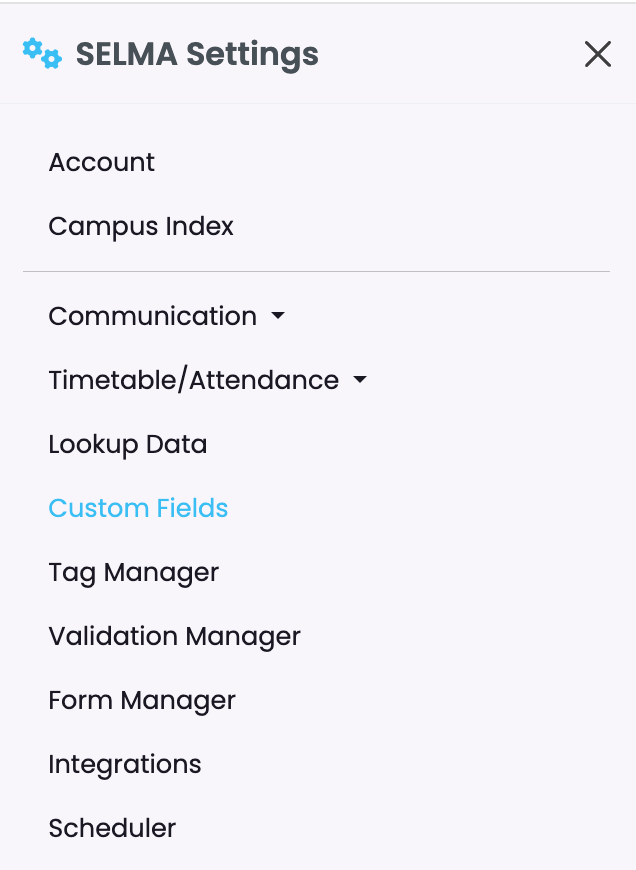
You can personalise your SELMA instance by adding, editing and re-ordering Custom Fields and tabs for the following sections:
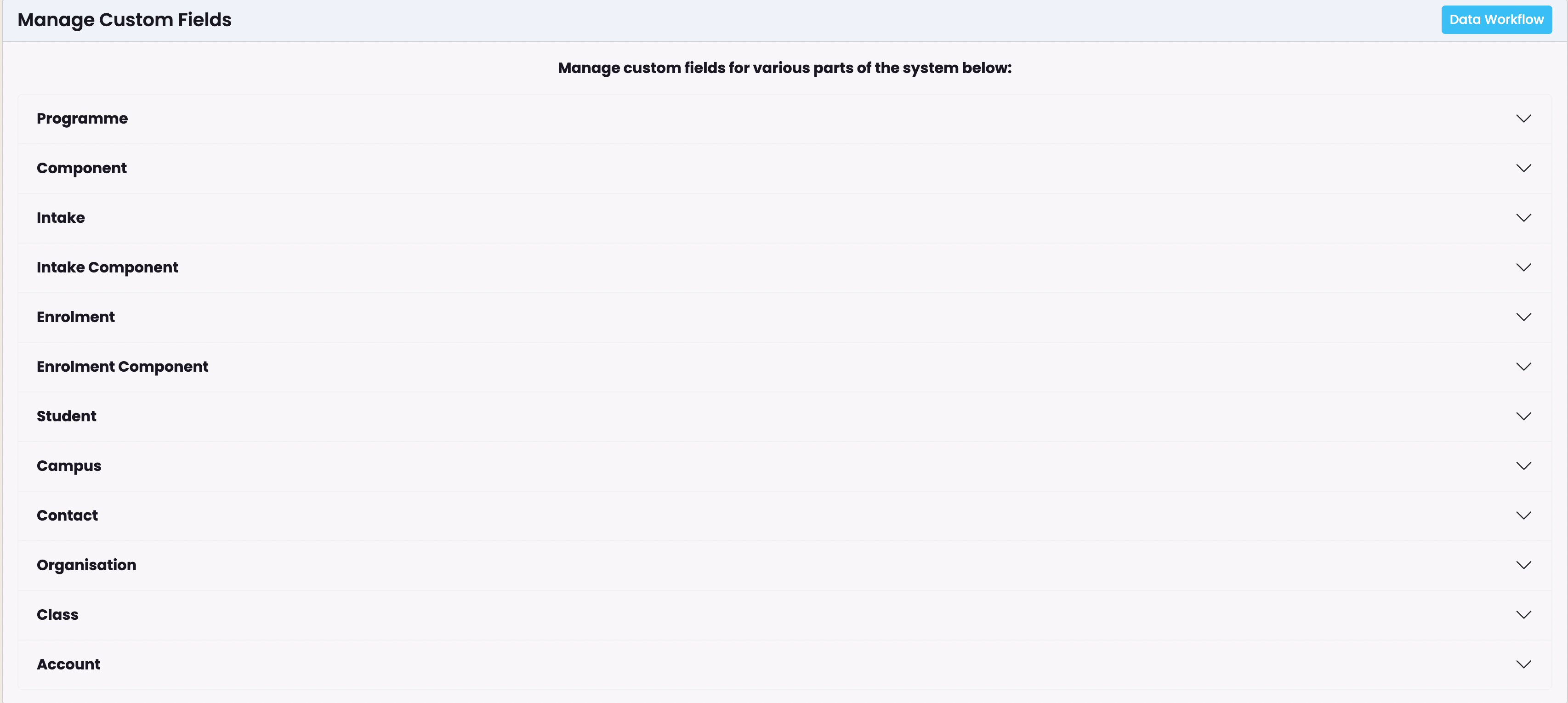
A screenshot of a computer

Description automatically generated

To add a new Custom Field click on ‘ +Add ‘

A screenshot of a phone

Description automatically generated

Required information – Field Name, API Name (generated automatically based on the Field Name) and Field Type. It’s recommended to avoid editing a custom field once it’s been created.
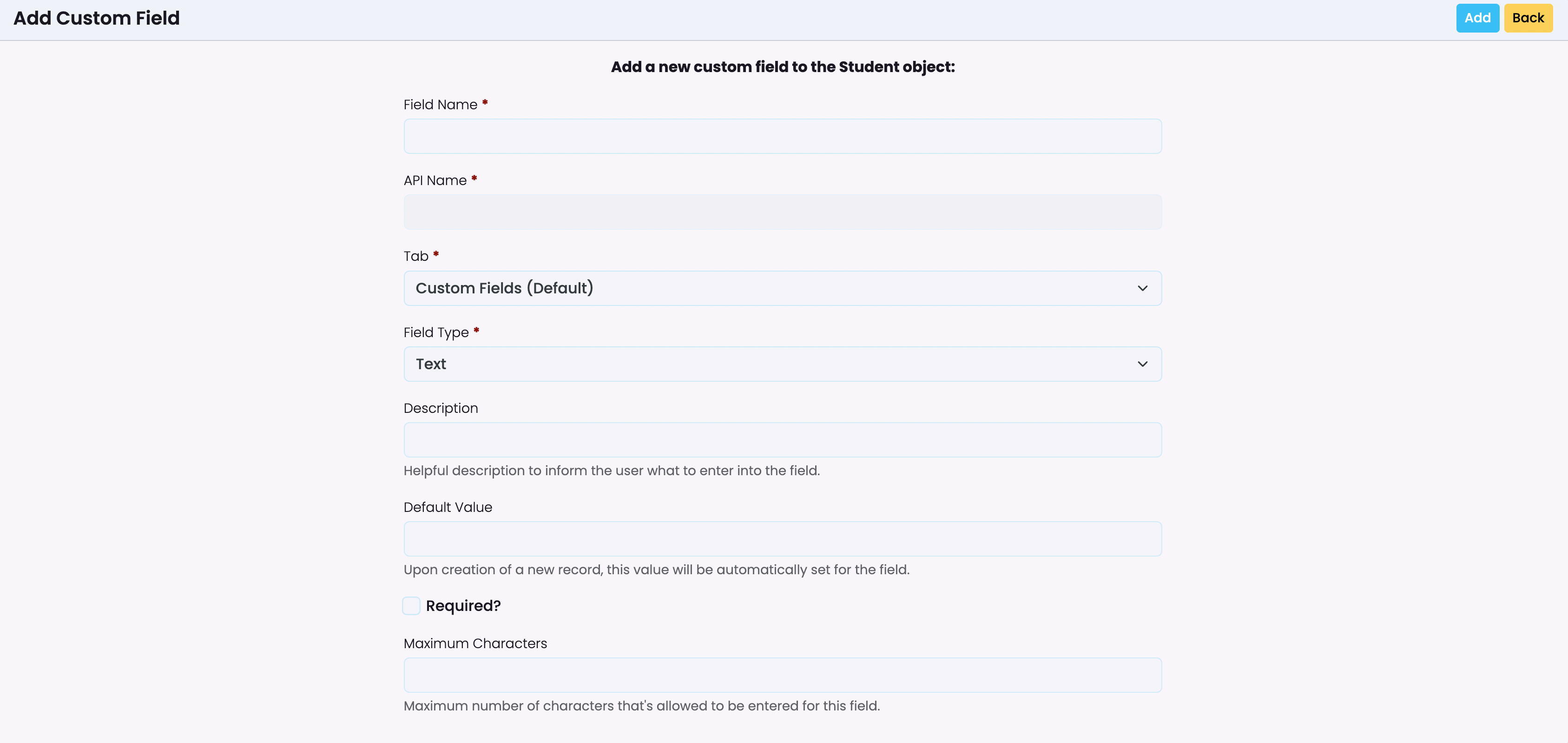
Once the details have been entered, click ‘Add’
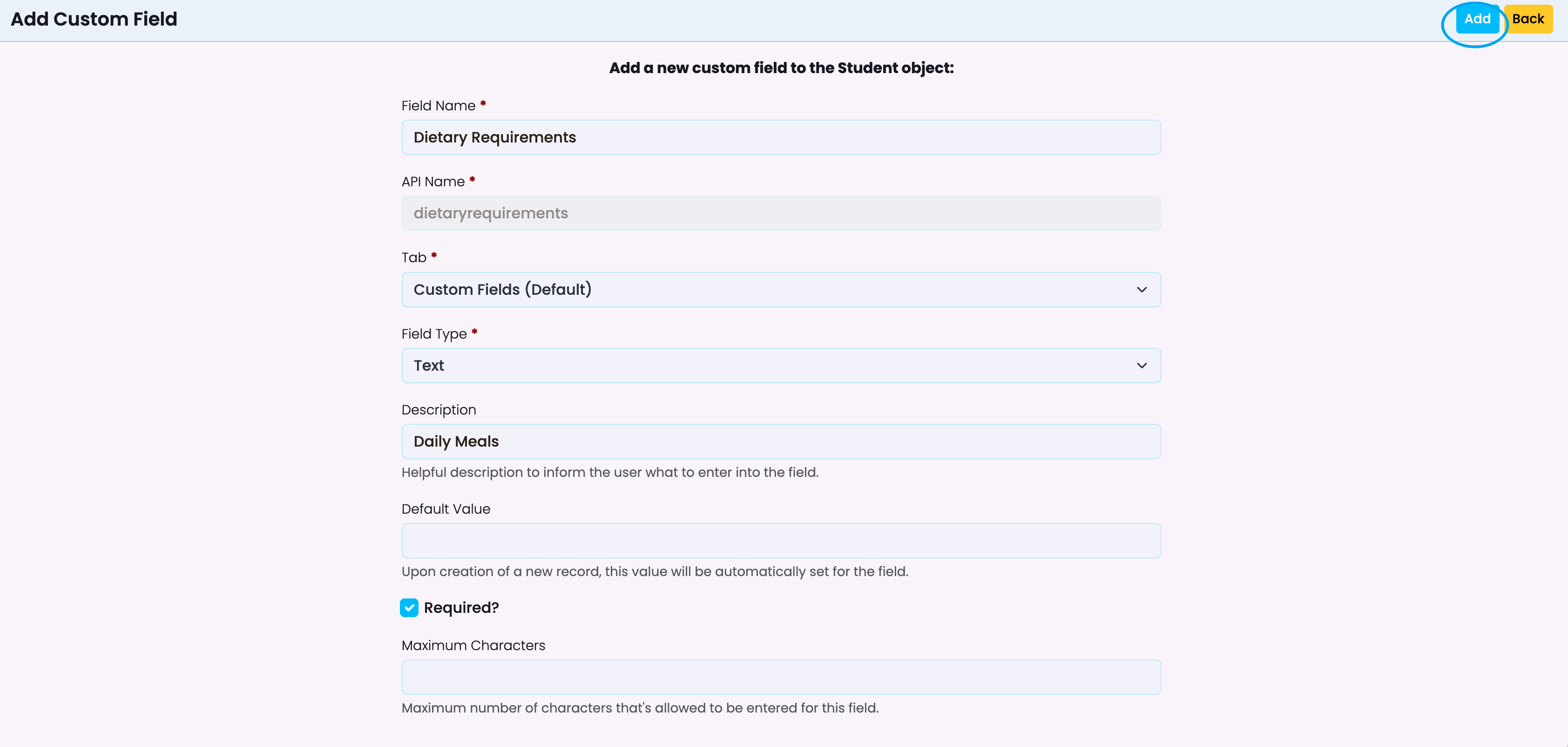
The field created in this example – Dietary Requirements, in Students – can now be viewed under the Custom Fields tab within a student profile:

A screenshot of a computer

Description automatically generated

To reorder custom fields, click on Order and drag/drop the fields into the order you wish to have them presented:
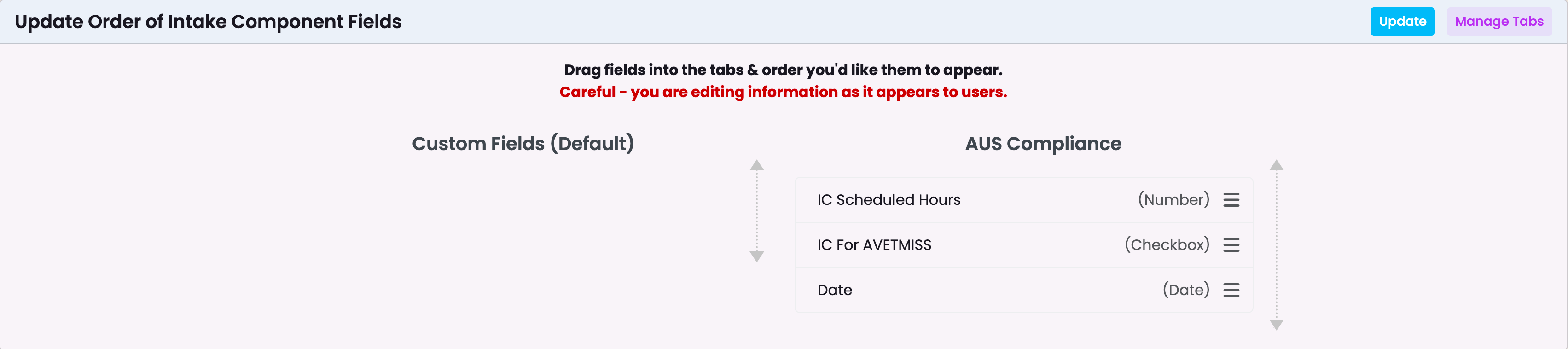
A screenshot of a computer

Description automatically generated

Related Articles

7. Tag Manager

A tag manager in a student management system is a tool that allows administrators, teachers, and other staff to assign and manage tags (or labels) to students, courses, or other entities within the system. To access the Tag Manager in SELMA click on Settings -> Tag Manager From here tags can be managed for various …

9. Form Manager

In this Section: Access the Form Manager The Form Builder is an additional paid feature to your SELMA subscription plan. Figure 1. Navigation Bar Click the cog icon in the top navigation bar. Figure 1ii. Settings Panel Click “Form Manager“. Form Manager Overview The Form Manager allows you to create and store Enquiry and Enrolment …

3. Communication Templates

On this page: . Navigate to Settings (Cog) -> Communication Templates The most effective way of using comms in SELMA by creating templates. You can create templates for Emails, Email Attachments (PDF documents) and Text Messages. Templates are managed in sections on the comms grid where you can create, search, edit, preview or delete. To …

1. Account

In this Section: Find your Account Details Figure 1. Navigation Bar Click the cog icon in the top navigation bar (red). Figure 1ii. Settings Panel Click “Account“. Account Tab The Account tab is where you can make changes to the basic details set-up by SELMA. Figure 2. Key Details Set-up key parameters such as your …