SELMA Awards transforms completed Programmes, Components, and Component Groups into credentials.
Define requirements, track progress in real time, and issue diplomas and certificates the moment they’re earned.
In this Section:
Award Configuration
Figure 1i. Navigate to Settings > Account
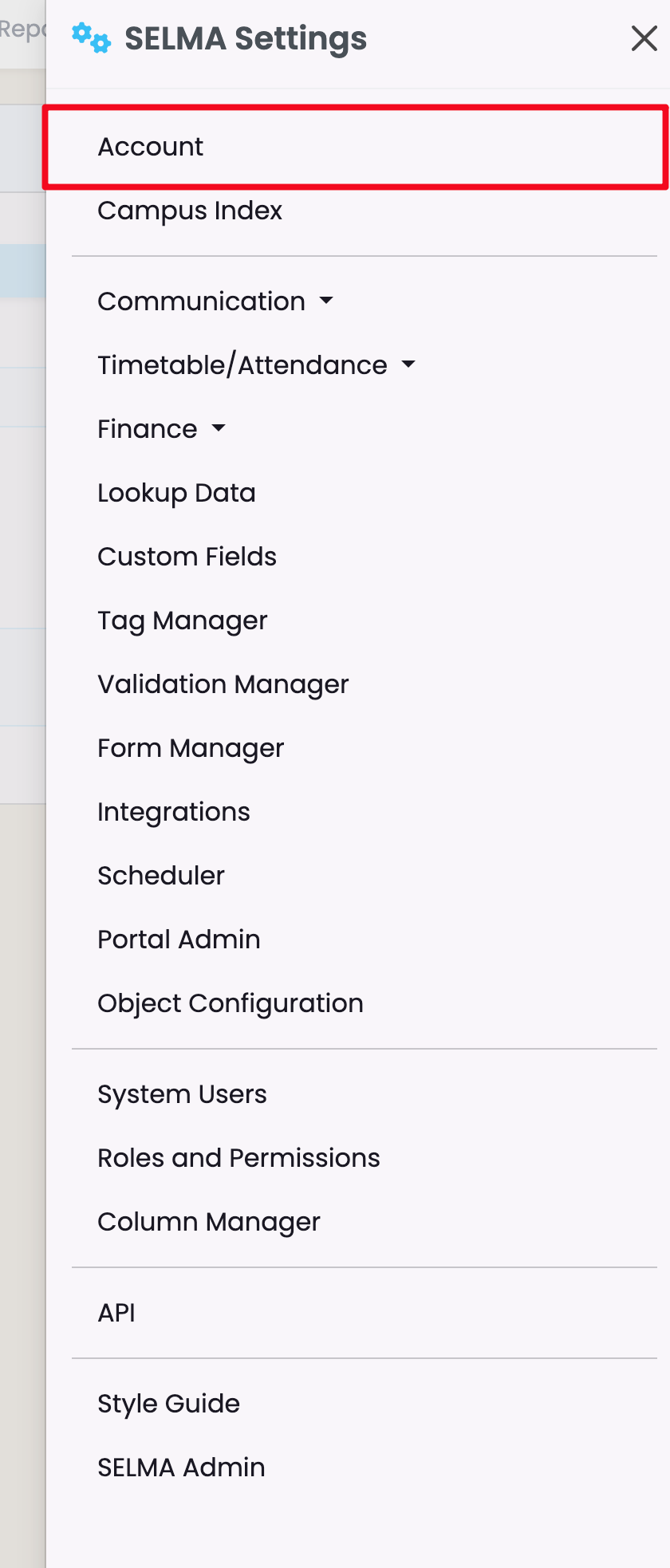
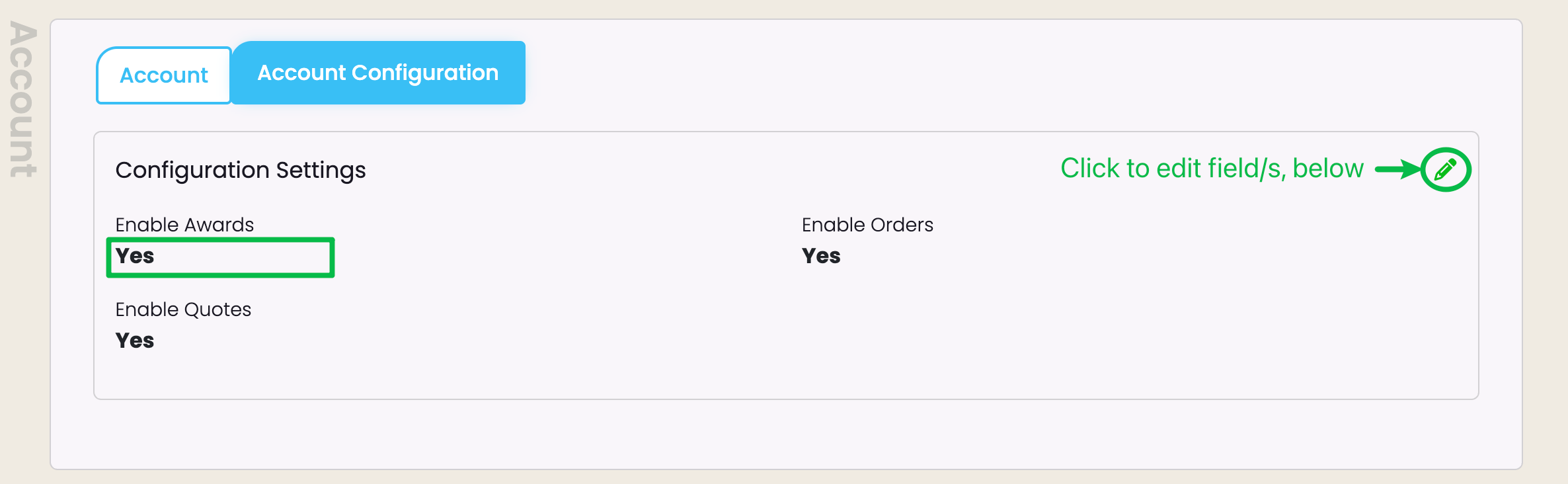
Figure 1ii. Enable Awards
Under the tab “Account Configuration”, change the field “Enable Awards” to “Yes”.
Create a New Award
There are two ways to create new Awards:
- Navigate to Curriculum > New Award
- Navigate to Curriculum Index > Award > Add New Award
Figure 2i. Navigate to Curriculum > New Award
Quickly create a new Award by navigating to the “New Award” form, directly/
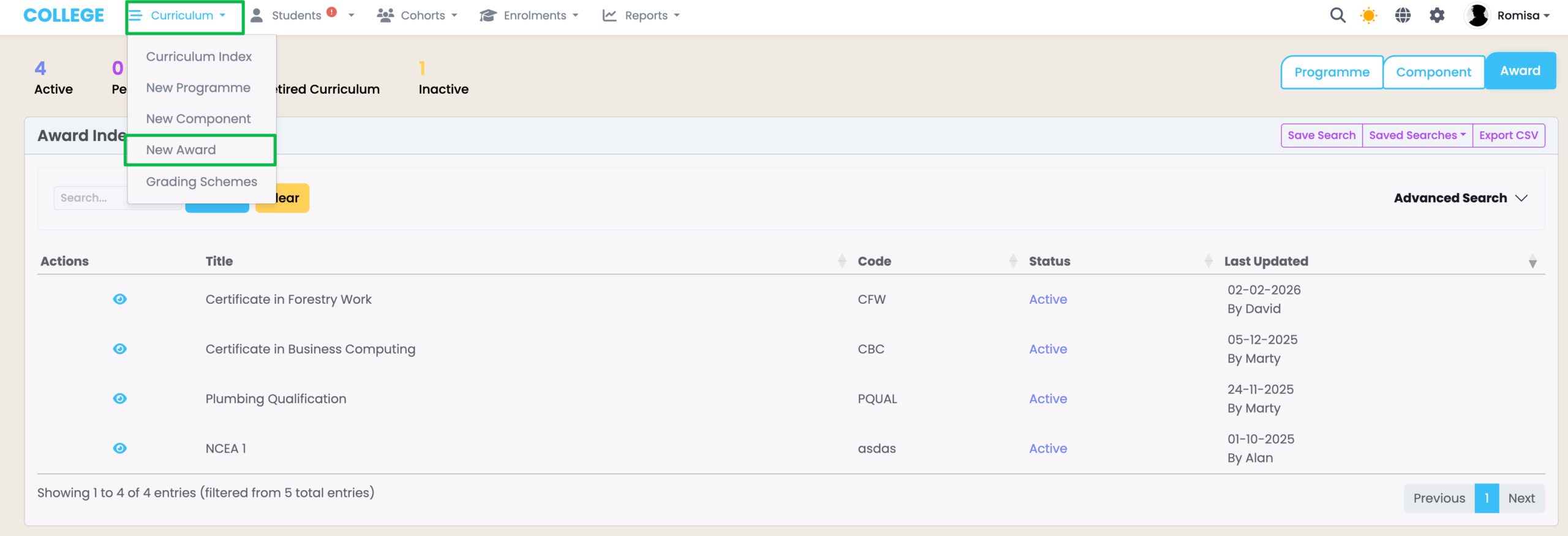
Figure 2ii. Navigate to Curriculum Index > Award Index
Click the green “+” button to create a new Award and add it to the Awards Index.
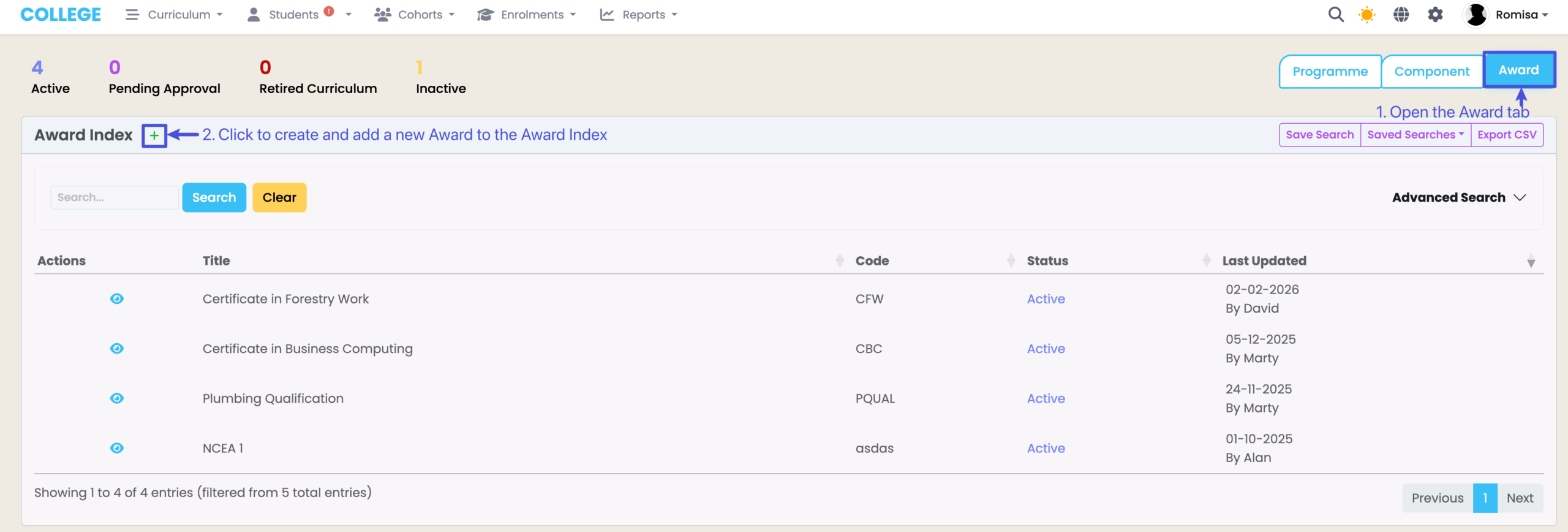
Figure 3. Add New Award Details
Fill in the required fields, as indicated by red asterisks, and click the blue “Create” button.
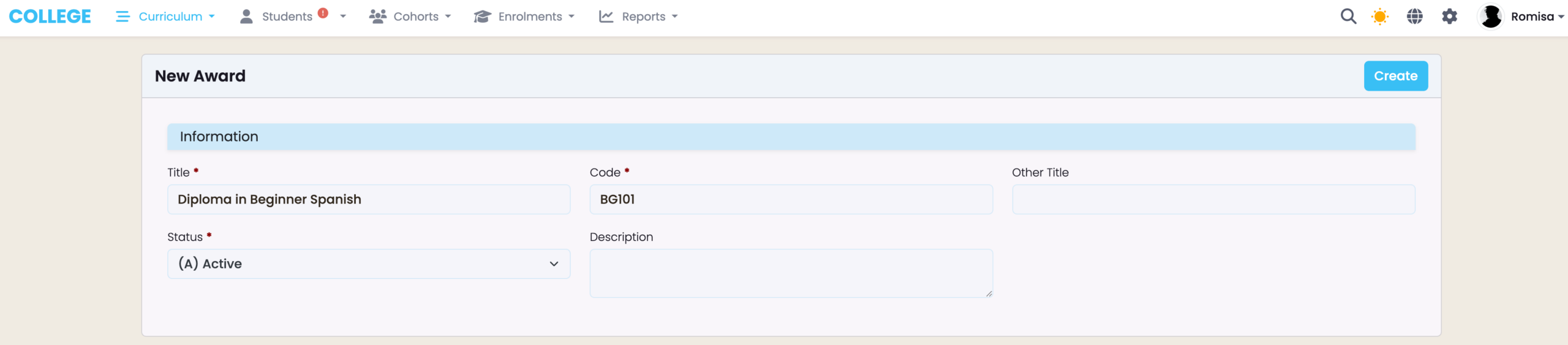
Figure 4. Add Award Rules
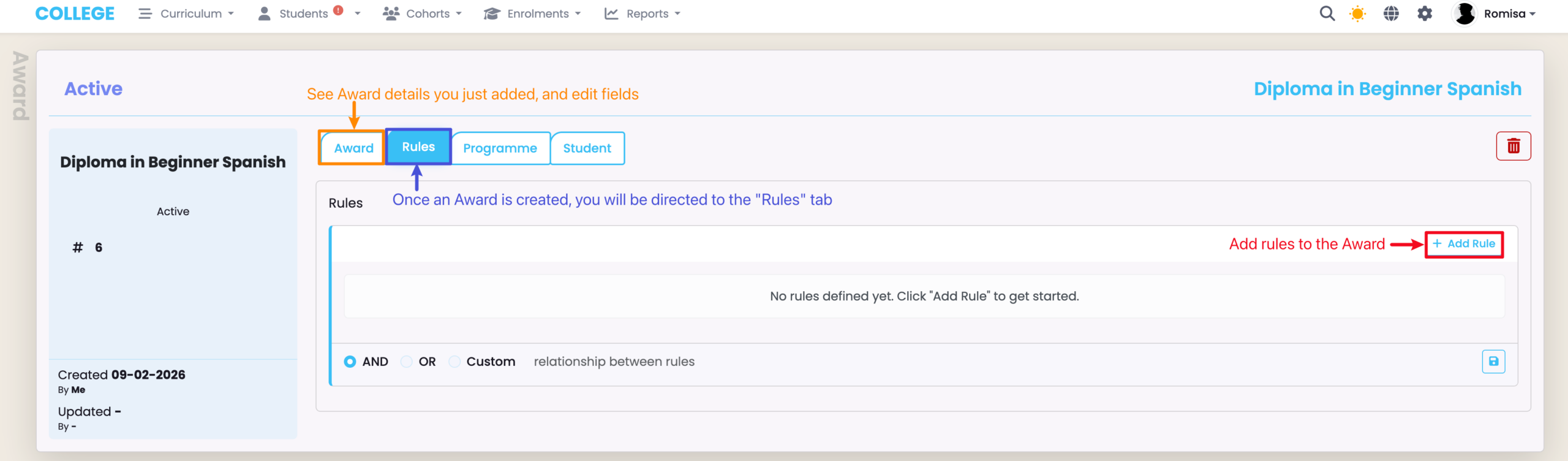
Award Rules
You can three Award rule types:
- Programme
- Component
- Component Group
- I.e. A batch of Components
Figure 5i. Programme Rule
Select a Programme for an Award to be achieved.
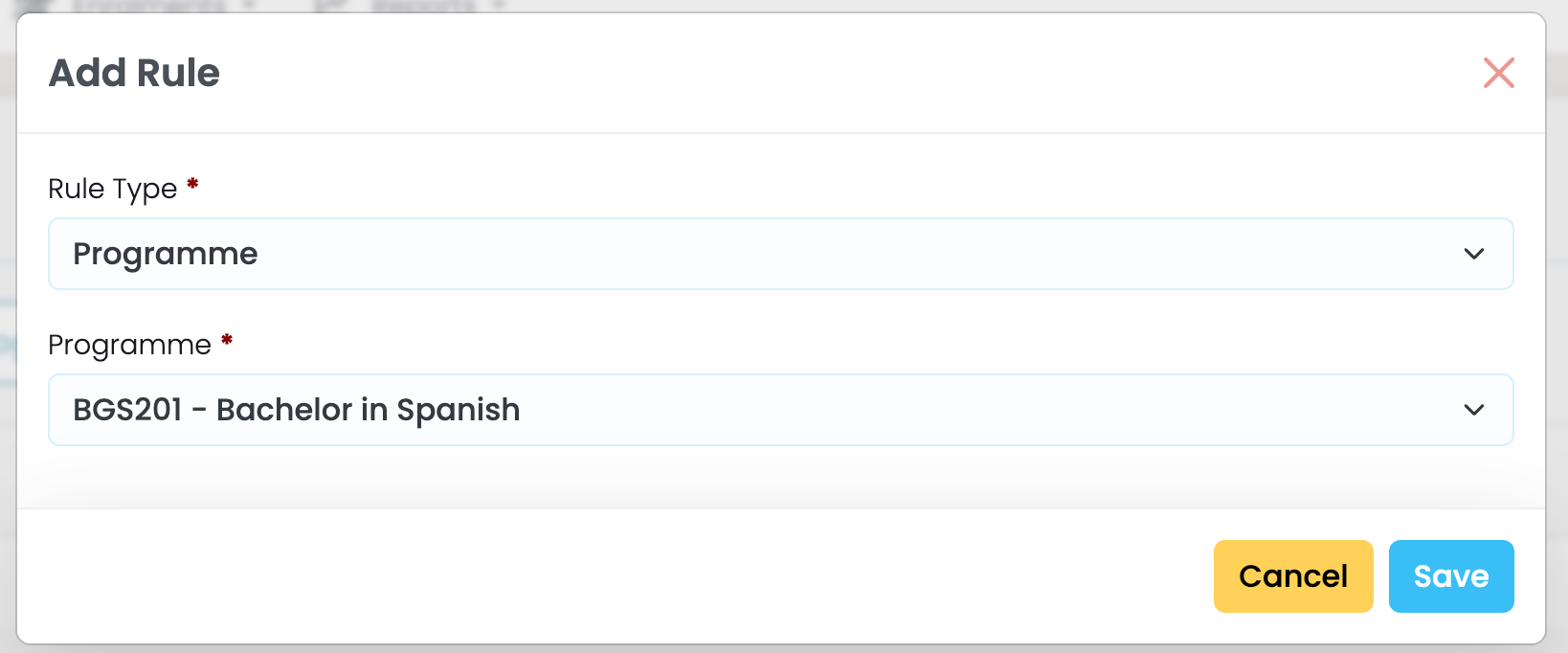
Figure 5ii. Component Rule
Select a Component for an Award to be achieved.
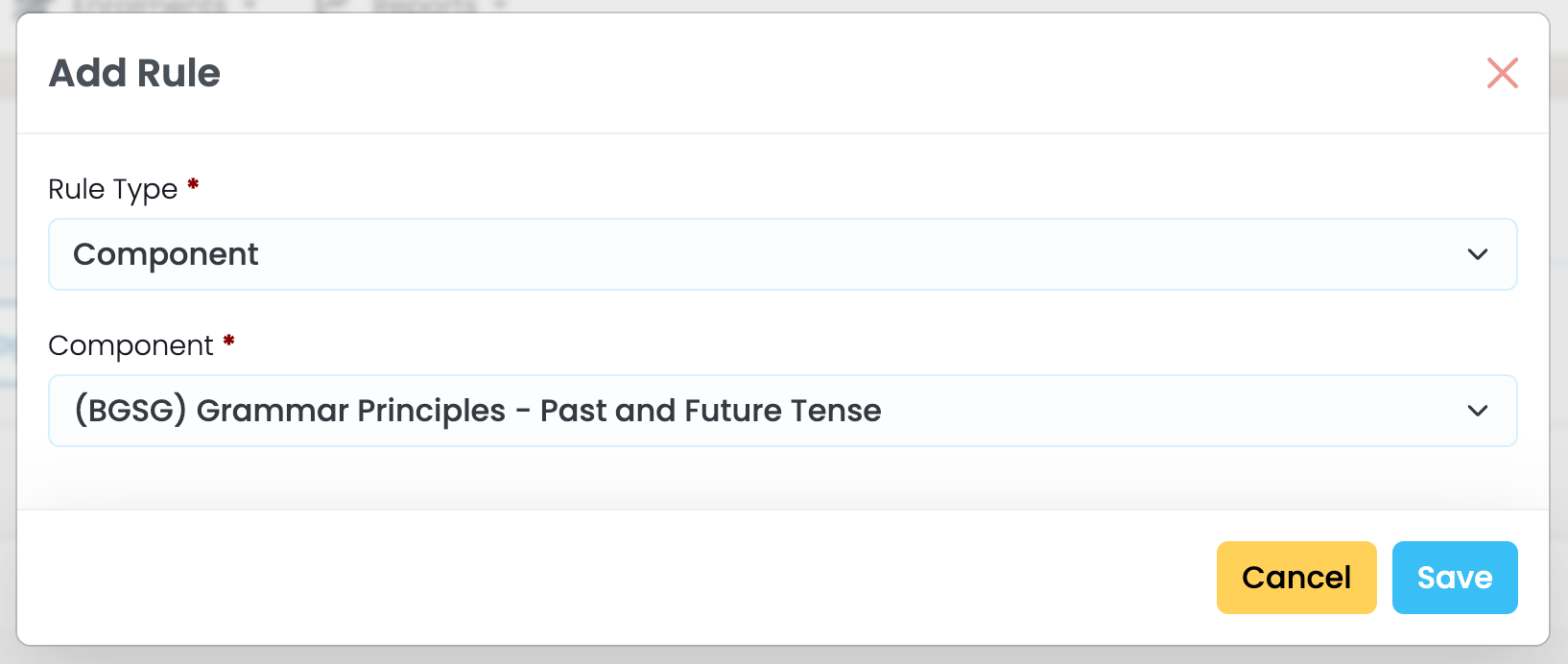
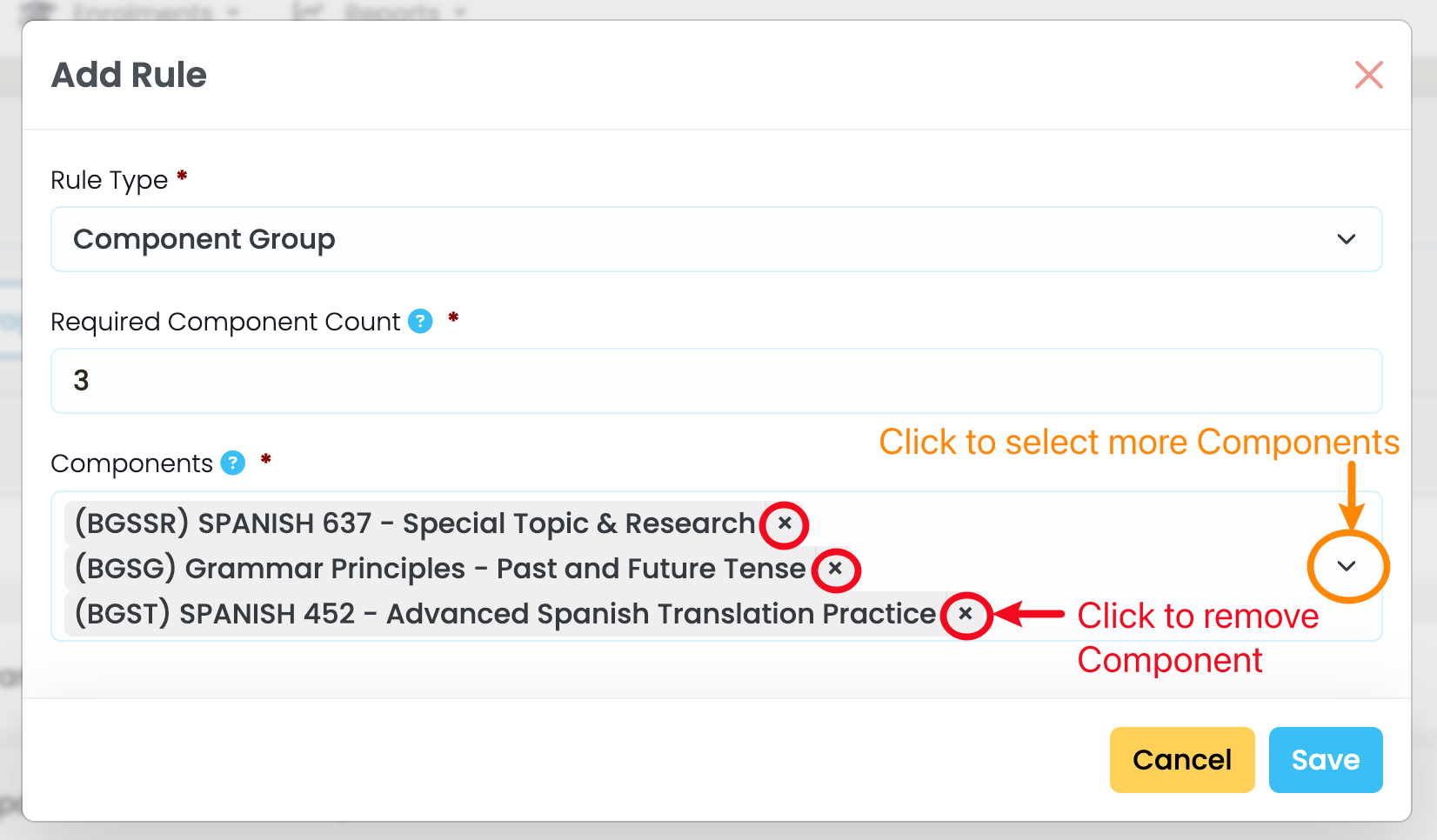
Figure 5iii. Component Group Rule
Multi-select Components that must be completed for an Award to be achieved.
NOTE: the Component Count isn’t specific to a Component, but rather the number of Components from a Component Group.
Relationships Between Multiple Rule Types
An award can be achieved when one or more rules have been met.
If you have multiple rules set-up, you can create relationships between them that solely consist of:
- AND statements
- OR statements
- AND/OR combination statements
- These are complex, custom relationships
NOTE:
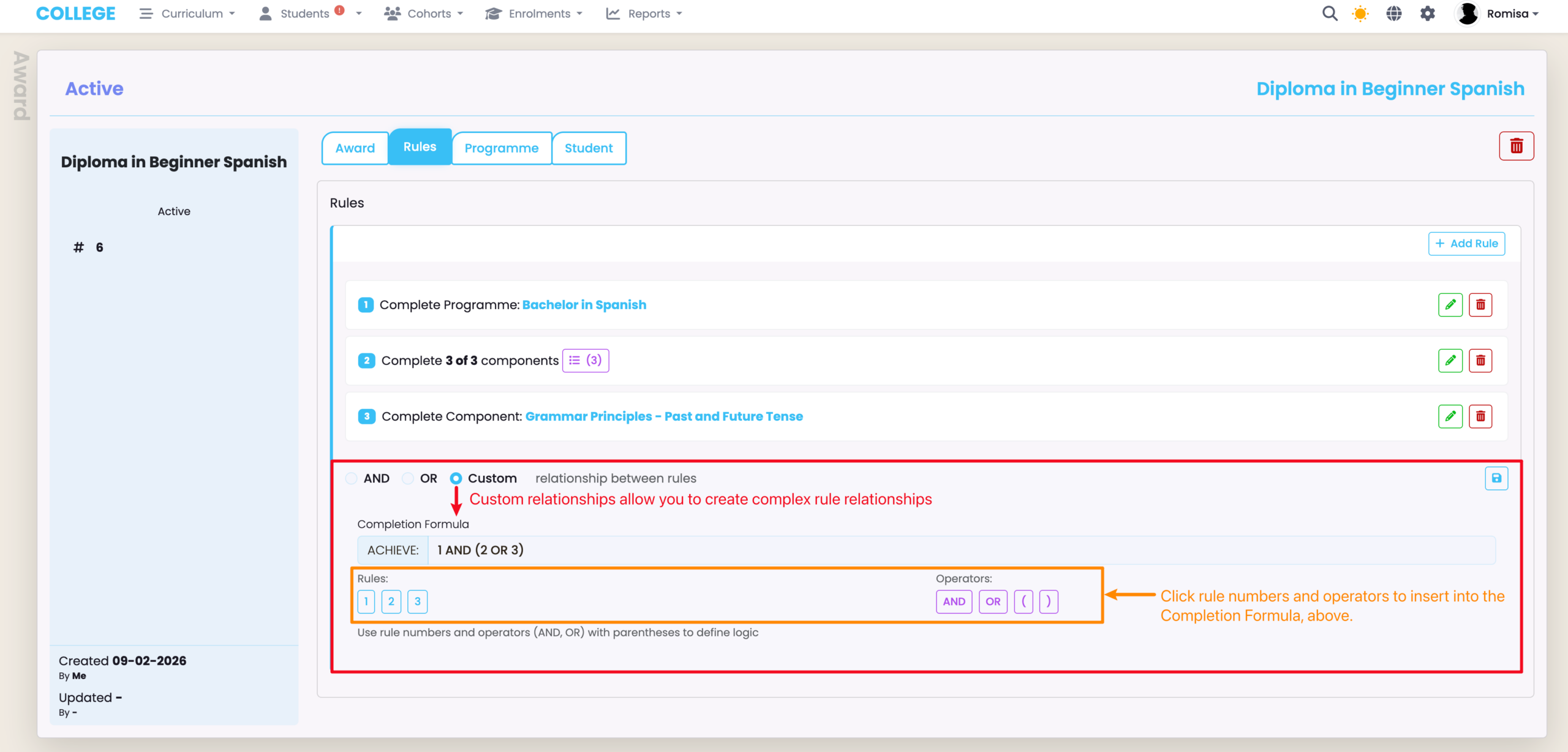
- Once you select the “Custom” option, you should establish rule relationships using the “Completion Formula” field:
Figure 6i. Establish Rule Relationships
Use parentheses (brackets) within the Completion Formula, where possible.
Modify Award Rules
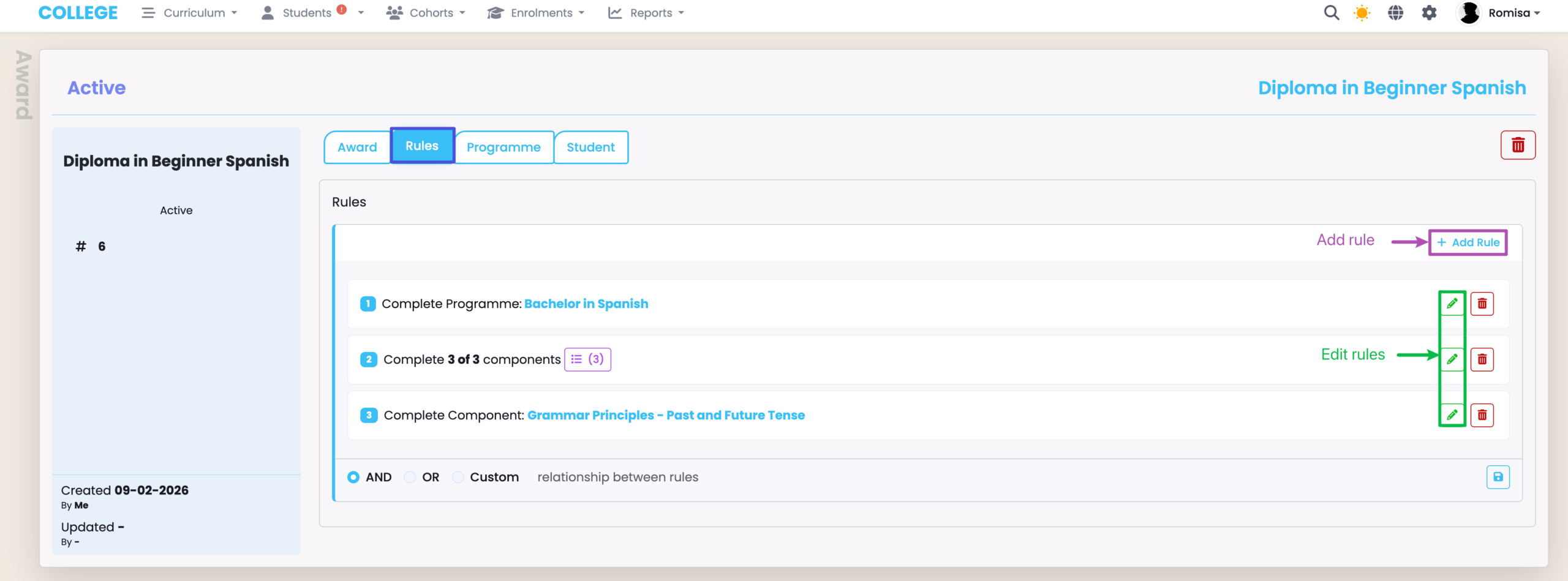
You can edit existing rules or add new rules, only if the Award has not been issued to a Student.
Figure 6ii. Modify Rules
Issue an Award
Figure 7i. Award Status
Check that the Award Status is “Active”. If not, open the Awards tab and change the status.
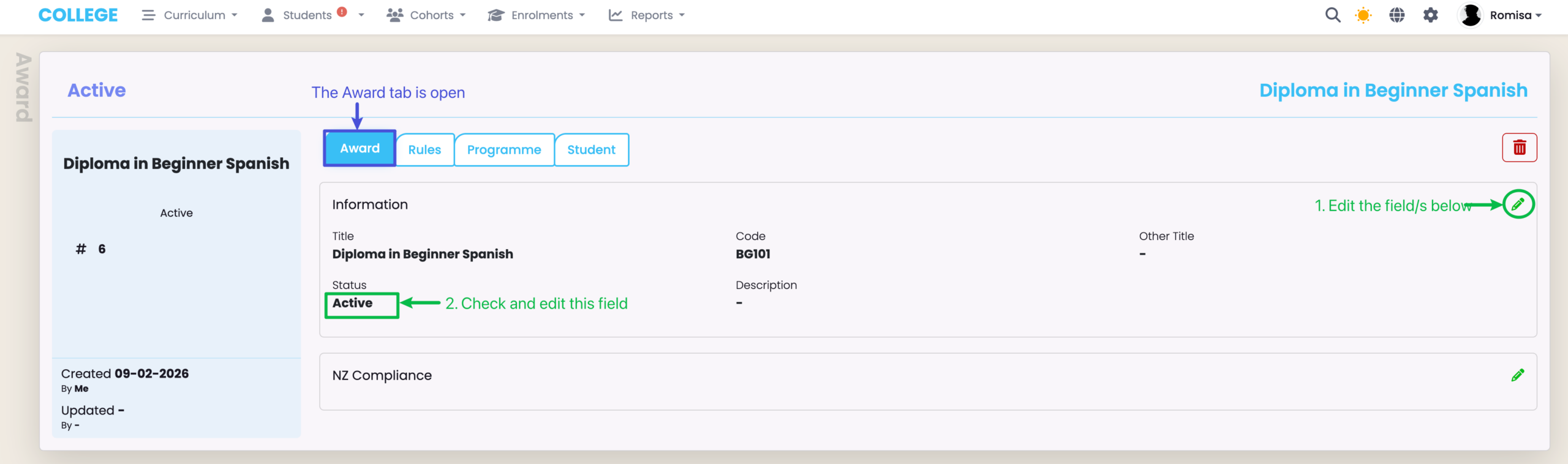
Figure 7ii. Link the Award to the Programme
Navigate to Curriculum Index > Programme, then add the Award/s to propagate to the Enrolments of the Programme.
NOTE: This step is optional. An award can be linked to a Student directly, without being linked to one Programme.
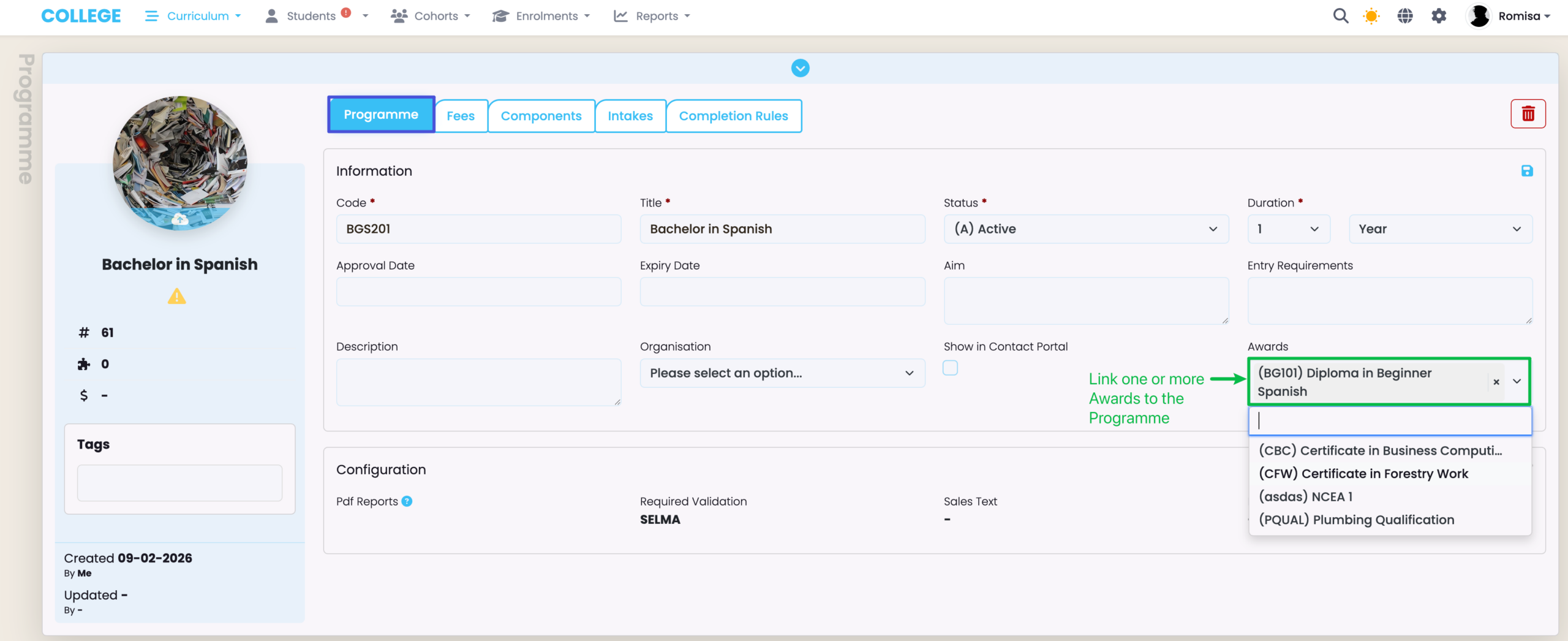
Figure 7iii. Navigate to Student > Awards
On a Student’s Awards tab, click the green “+” button to link an Award.
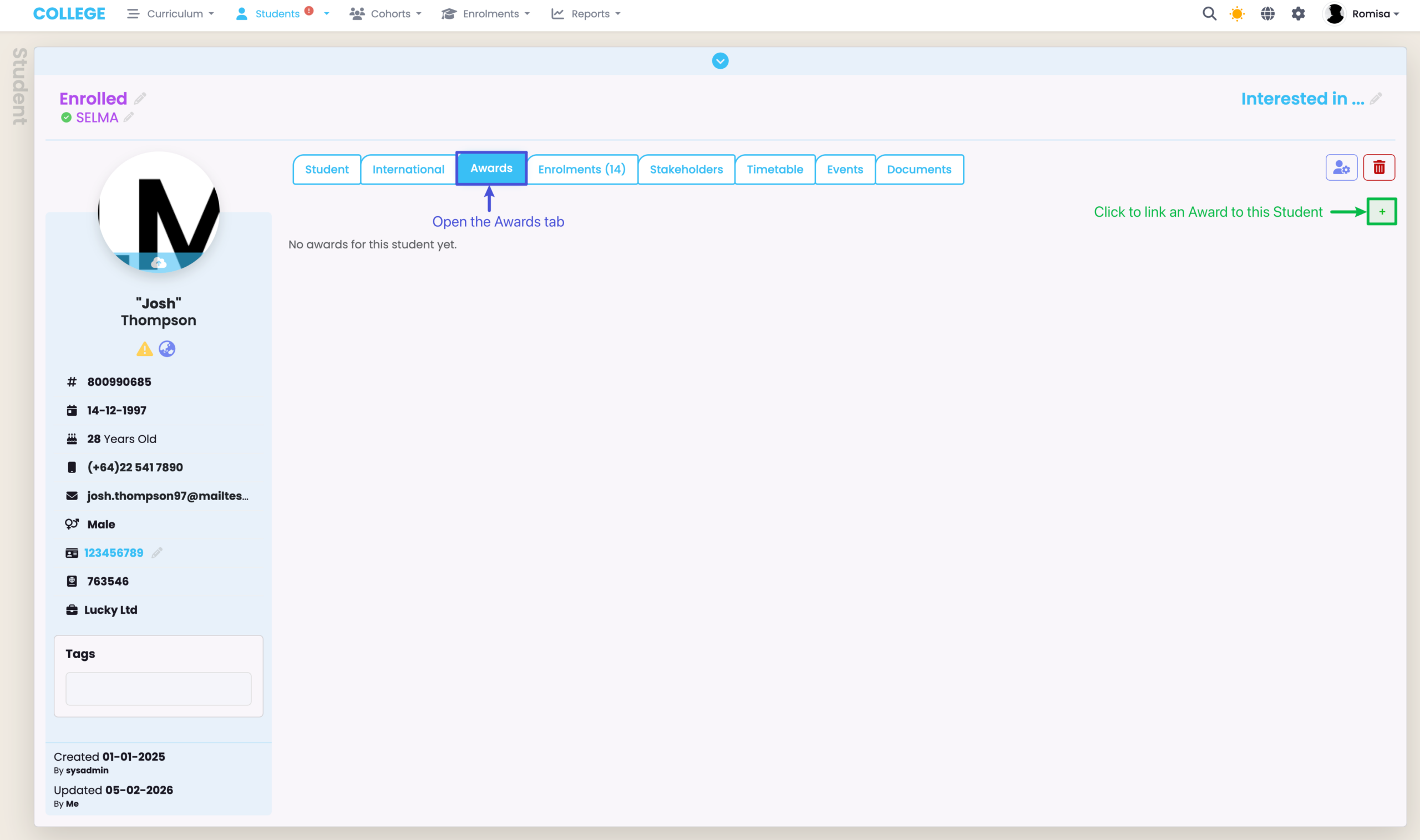
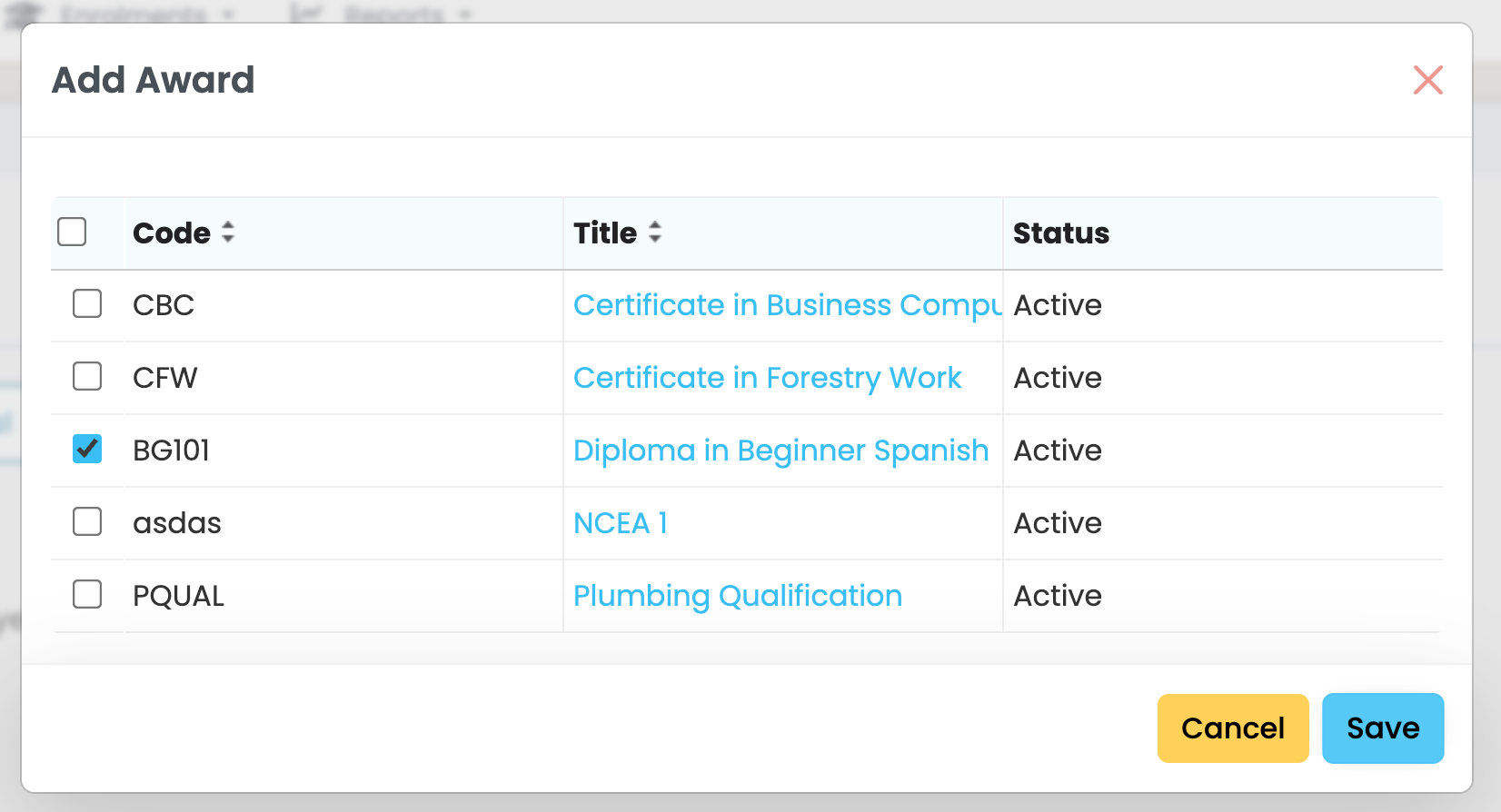
Figure 7iv. Link the Award to the Student
Select and save one or more Awards.
Student Award Tracking and Completion
The Student Award Status can be automatically updated to “Completed” if the Award has rules attached to it.
Student Awards without rules must be marked, manually.
Figure 8. Open Student Award Details
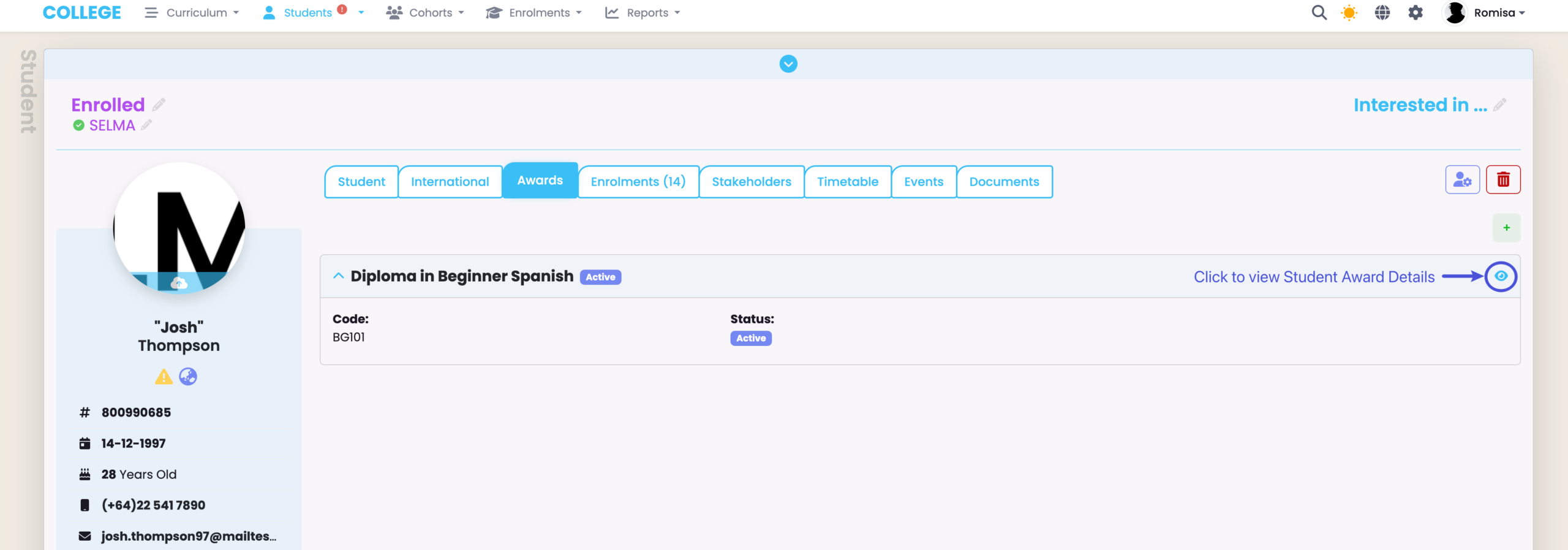
Figure 9i. Monitor Progress and Auto-Complete Student Award
The progress bar (green) and coloured rule tags indicate the Student’s progress in completing rules which earn them an Award. Click the refresh button (orange) to automatically update the Student Award to “Completed”.
NOTE: Deactivating a student award (purple) conceals the other action buttons.
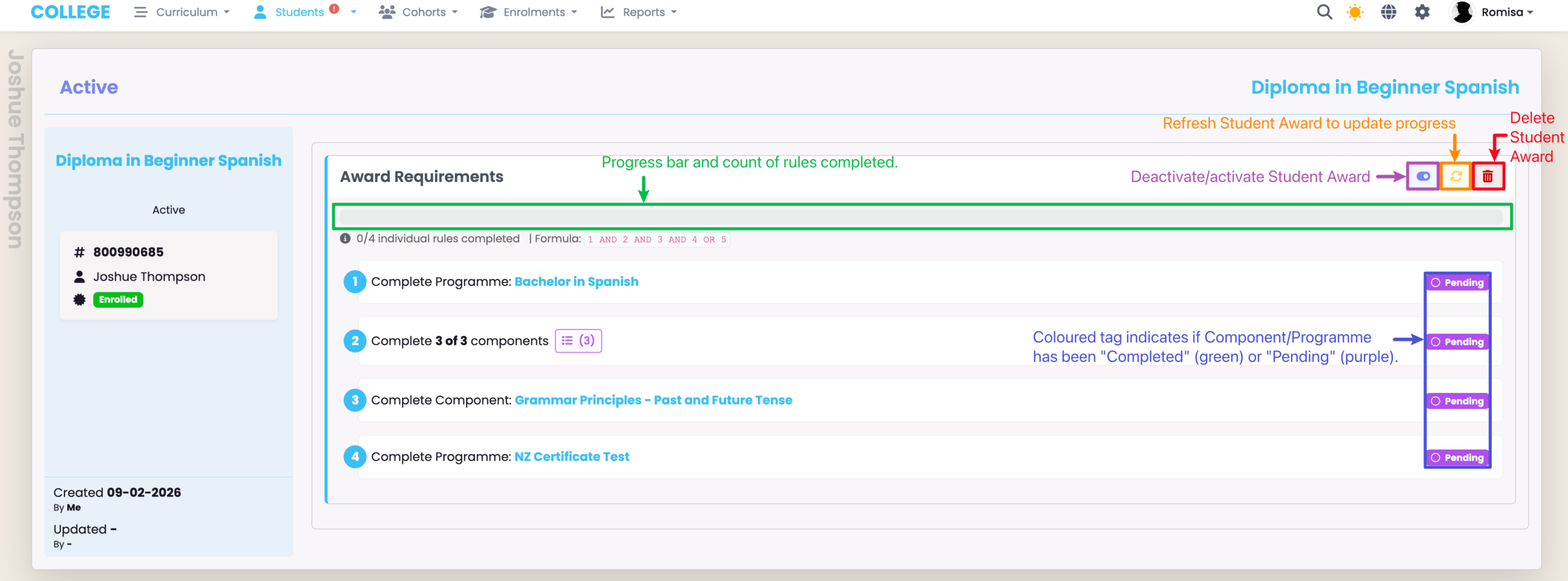
Figure 9iia. Manually Complete Student Award
If the Award has no rules, update the Student Award, manually.
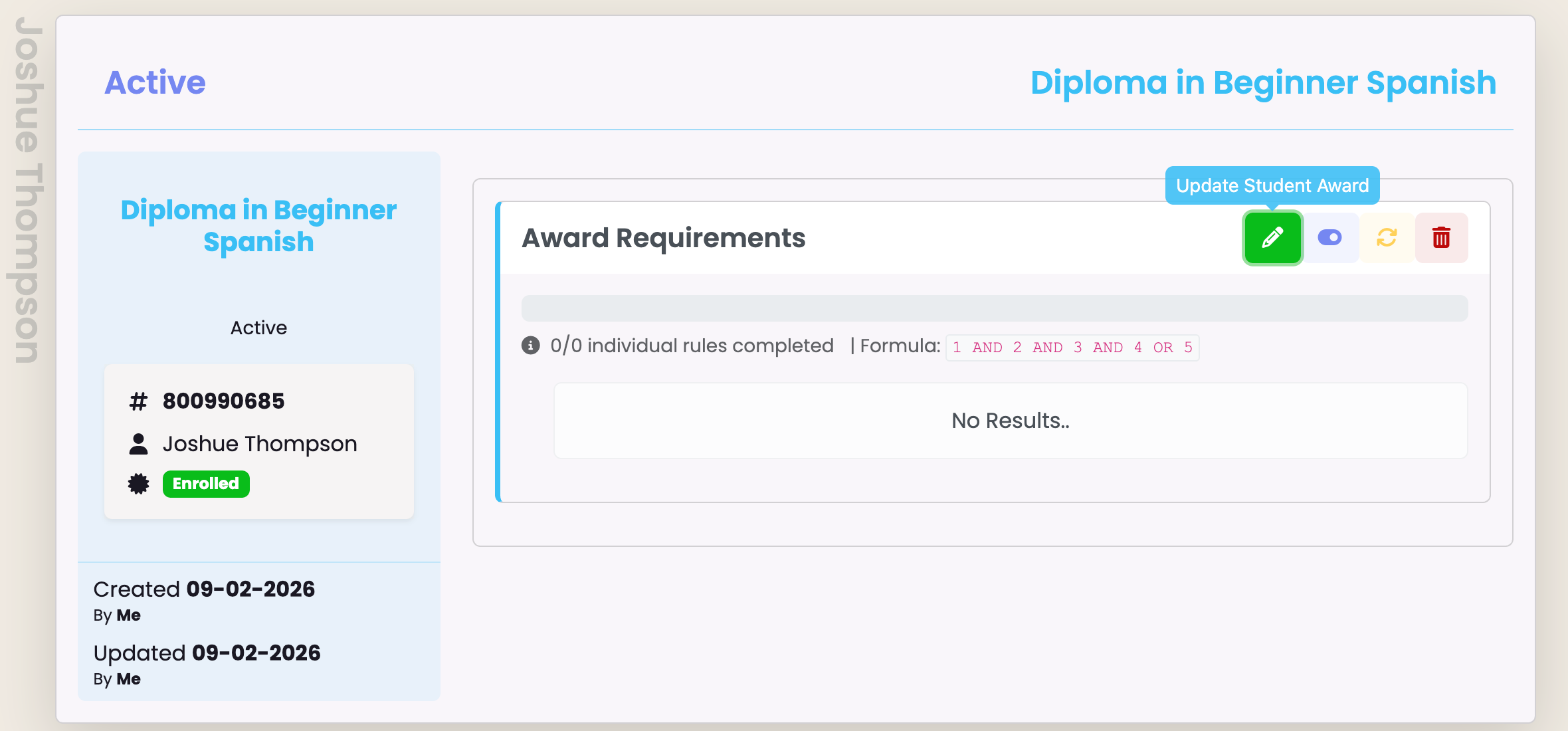
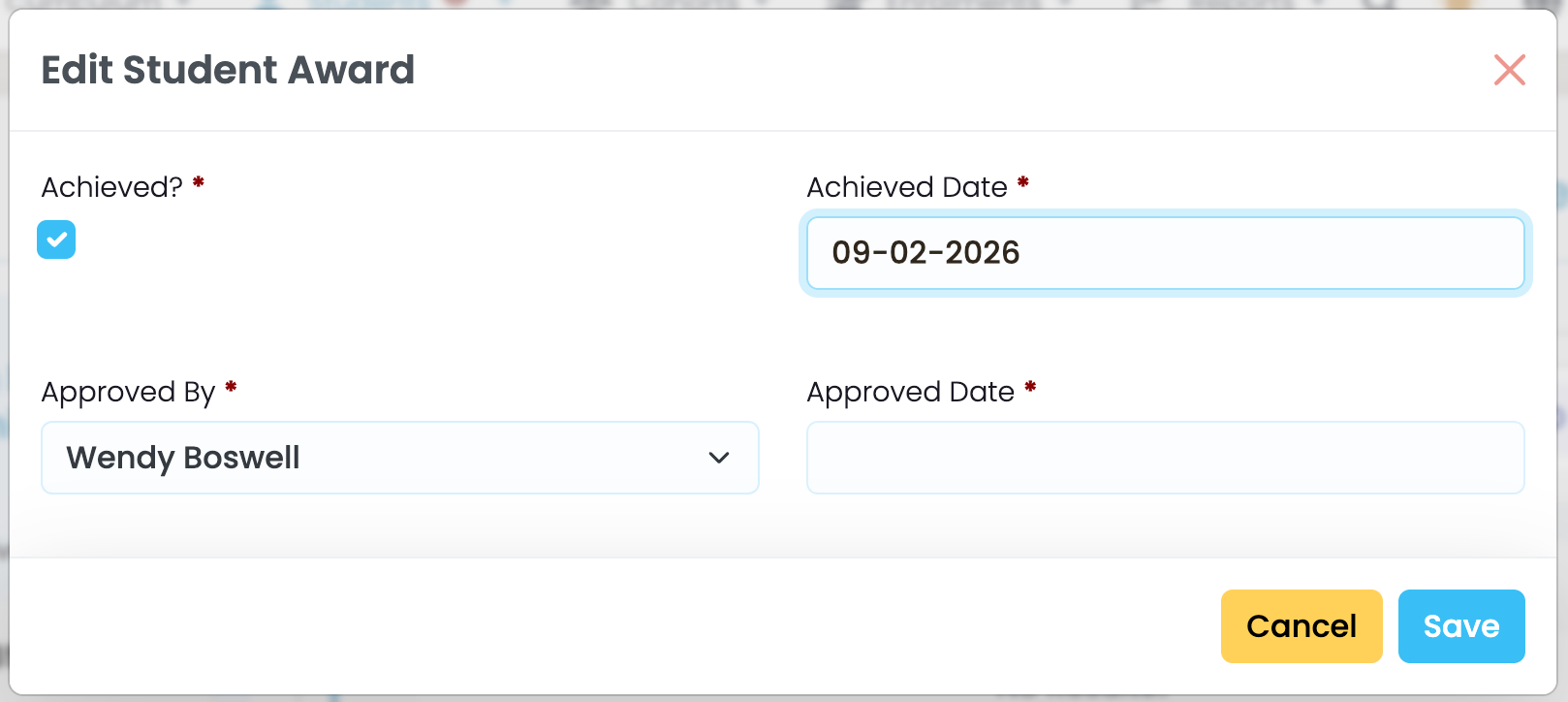
Figure 9iiia. Add Required Details
Edit the Student Award to mark it as “Achieved” and provide the “Achieved Date”.