
In this Section:
- Overview
- Allocating Payments
- Credit Notes
- Refunds
- Student & Contact Fee Tabs
- Debtor Management
- Write-Offs & Bad Debt
- T-Account View
- Quick Actions on the Indexes
- Deletion & Voiding Rules
- Notes
Overview
The Finance module has been extended with a full payment-allocation, credit-note and refund lifecycle, alongside a dedicated debtor-management view and a brand-new T-Account display. Where previous releases recorded a payment as a single line against a single invoice, payments are now first-class objects that can be split across many invoices for the same payer, partially refunded, or written off.
The changes cover every screen where money moves in SELMA — the Invoices index, the Payments index, the Credit Notes index, the Debtor Accounts index, and the per-student / per-contact / per-organisation Fees tab.
NOTE: The features described below are available to all users with the relevant finance permissions. The Write Off action and the Remove Bad Debtor action are gated by additional permissions and are not visible to every role by default.
What Has Changed from the Previous Finance Module
If you are moving from the previous Finance module, here is what is different and why it matters:
Payments are now independent records. Previously, recording a payment immediately settled a single invoice. Now, a payment sits in an unallocated pool first — you decide how much to apply to each invoice. This makes part-payments, advance payments, and payments covering multiple invoices straightforward to manage without creating duplicate or adjusted records.
Credit notes are a first-class object. Previously, credits required adjusting invoice lines or handling outside SELMA. There is now a dedicated Credit Notes index, with full create-apply-refund workflows that mirror the invoice and payment flows.
Refunds are recorded inside SELMA. You can now issue a refund directly against a payment or credit note from within SELMA, rather than recording it externally and trying to reconcile it later.
The Fees tab replaces cross-referencing multiple indexes. Every invoice, payment, and credit note for a student, contact, or organisation is visible in one consolidated place — with a summary of their full financial position at the top.
Debtor management is automated. A Debtor Account is created and kept up to date automatically the first time an invoice is sent to a payer. There is no manual debtor tracking required.
Write-offs are a formal, auditable action. Bad debt can now be written off directly inside SELMA — it flags the payer, records a clear audit line on the invoice, and is reversible. This replaces the previous approach of handling bad debt as a workaround outside the system.
Deletion is now guarded. Records with active allocations, credit notes, or refunds against them cannot be deleted until those links are cleared first. SELMA will tell you exactly what needs to be resolved — nothing is silently removed.
Allocating Payments
A payment is now an object in its own right. When a payment is recorded, the amount sits in an unallocated pool against the payer; the user then decides how much of that pool to apply to each outstanding invoice. The same payment can be applied to several invoices, and an invoice can receive several payments — both are shown clearly on the invoice and on the payment.
Where you can allocate
There are three entry points, all of which open the same allocation panel:
- Payment Detail — open the payment and click Allocate beside the allocations table. This is the most common path when a payer pays in advance or sends a lump sum covering multiple invoices.
- Invoice Detail — Add Payment & Apply — fom the invoice actions menu, create a new payment that is automatically allocated to the invoice in front of you. Use this when taking a payment against a specific invoice in a single step.
- Fees tab on a Student, Contact or Organisation — the Add Payment button records a payment and lets you allocate it across that payer’s invoices in one step.
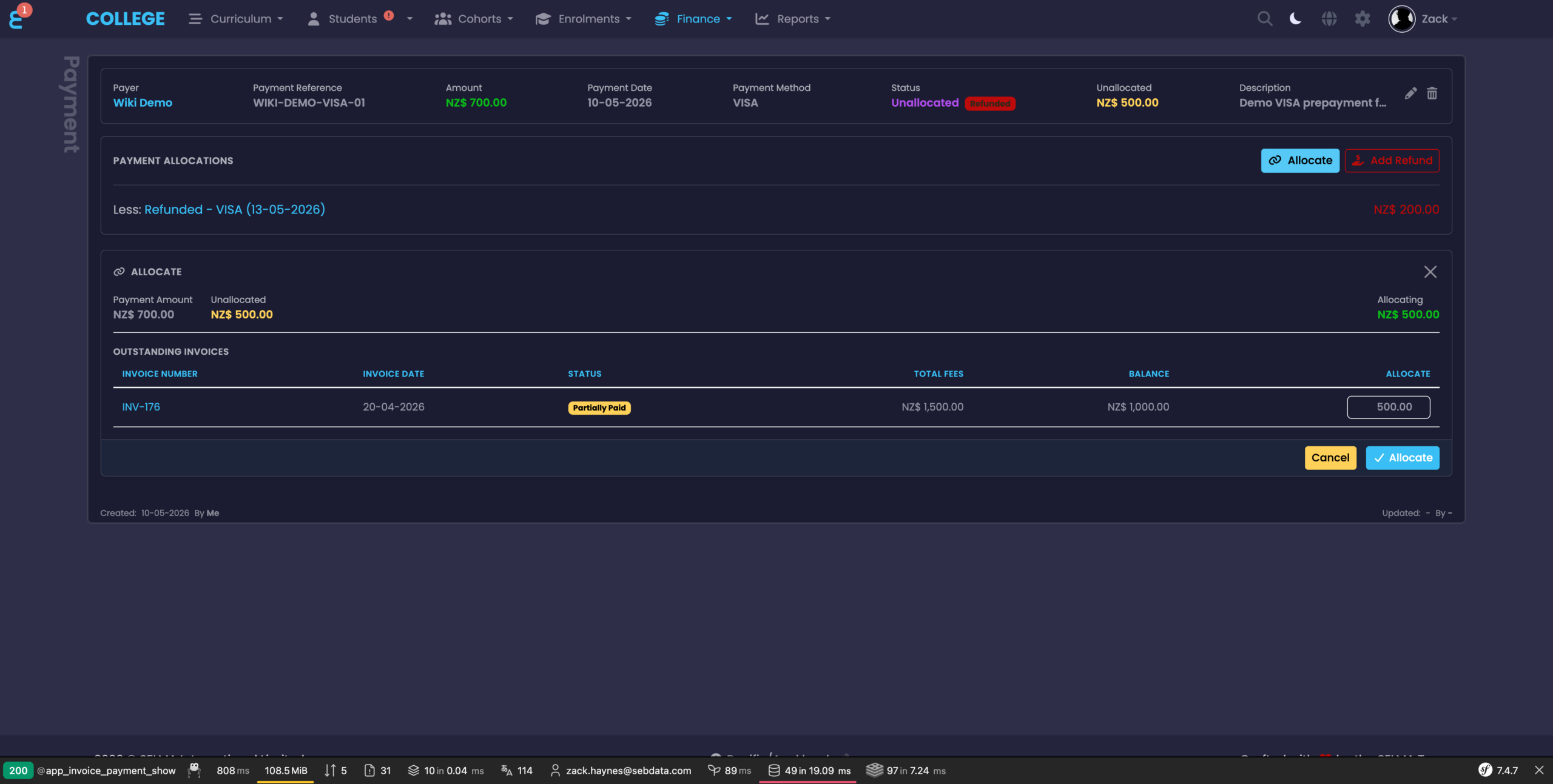
The Allocate panel lists every outstanding invoice for the payer with its current balance and a single editable Allocate column. The running totals at the top of the panel show the payment’s unallocated balance and the live Allocating total as you type, so you can never allocate more than is available.
How allocations appear on the invoice
Each allocation is shown as its own “Less:” line on the invoice, with the date and the payment method or credit note number. Multiple payments and credit notes can sit on the same invoice and are all visible at a glance.
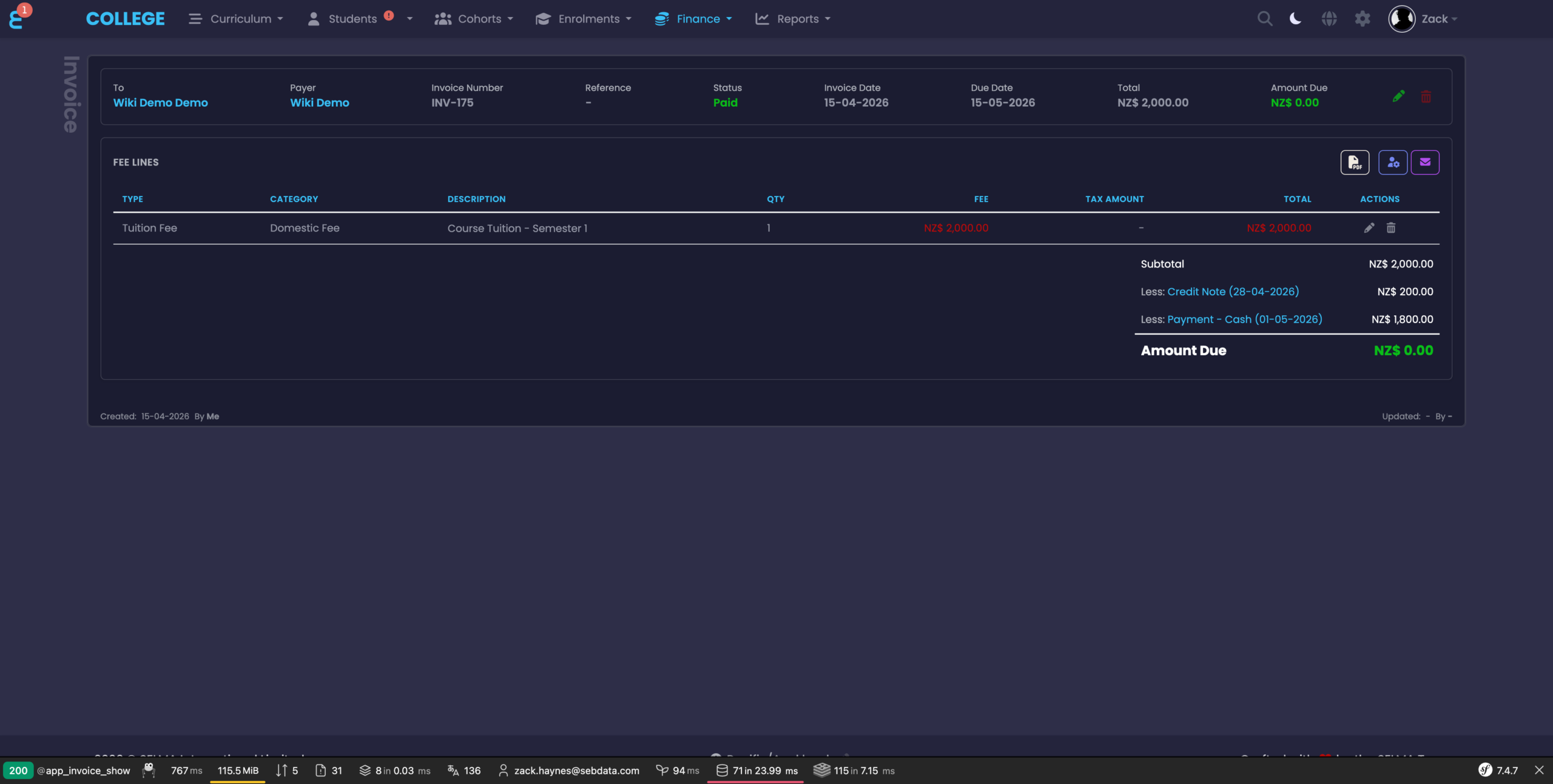
In the example above, INV-175 has been settled by a $200 credit note and an $1,800 cash payment, leaving a $0 balance.
Payment statuses
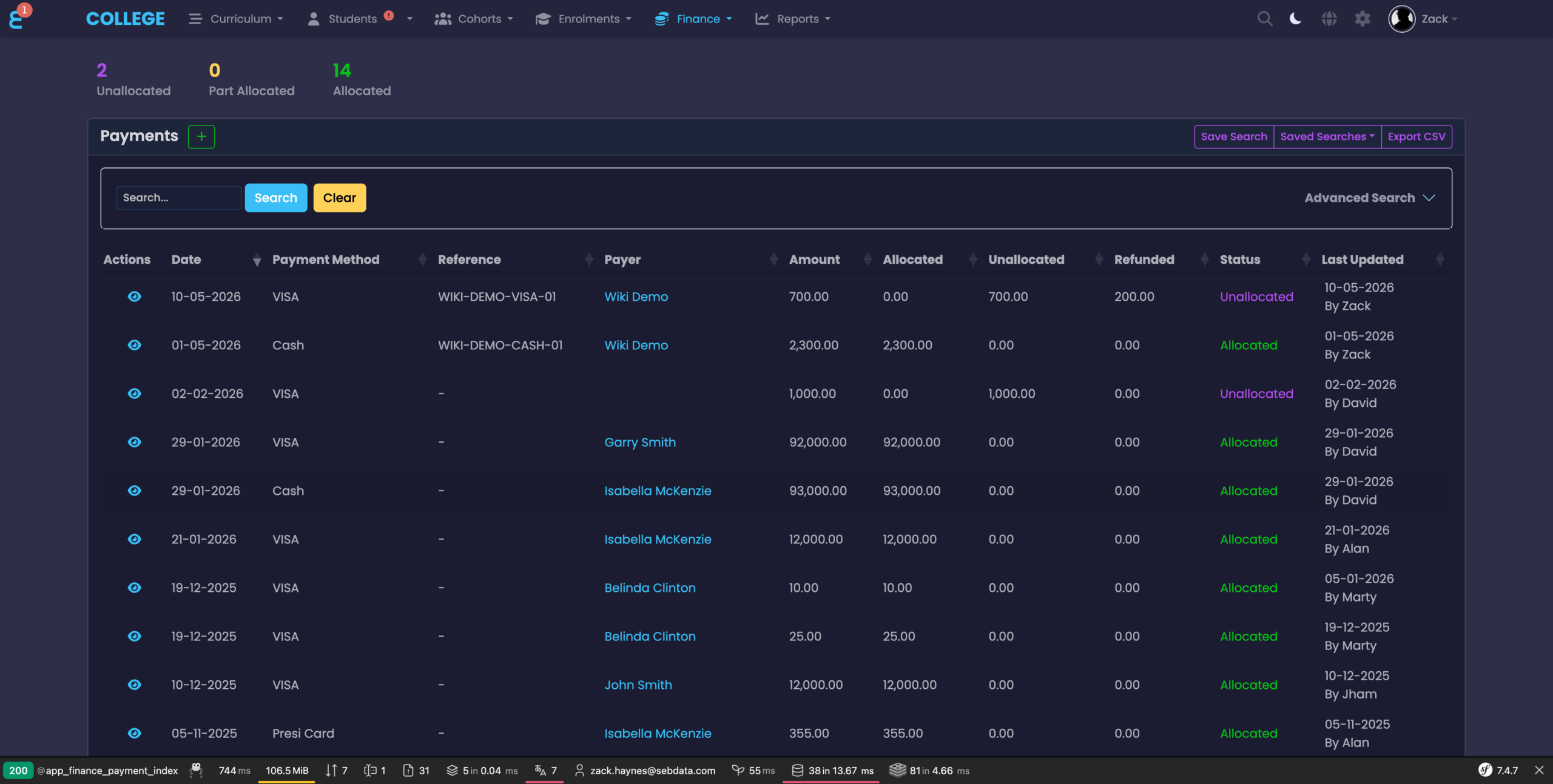
The Payments index has three status counters at the top — Unallocated, Part Allocated and Fully Allocated — matching the three states a payment can be in. The grid also gains a Refunded column, so any payment with a direct refund is immediately visible.
Credit Notes
Credit notes are managed alongside invoices and share the same record structure. They can be created in two ways:
- From an existing invoice — the Create and Apply Credit or Create Credit Note actions on the invoice raise a credit note linked back to that invoice as the Originating Invoice. Use this when you need to reduce or cancel a charge that has already been invoiced.
- Standalone — the + button on the Credit Notes index, or Create Credit Note on the Fees tab, raises an unattached credit note for a payer. This is useful for goodwill credits and discounts that should sit on the payer’s account until they are applied to an invoice later.
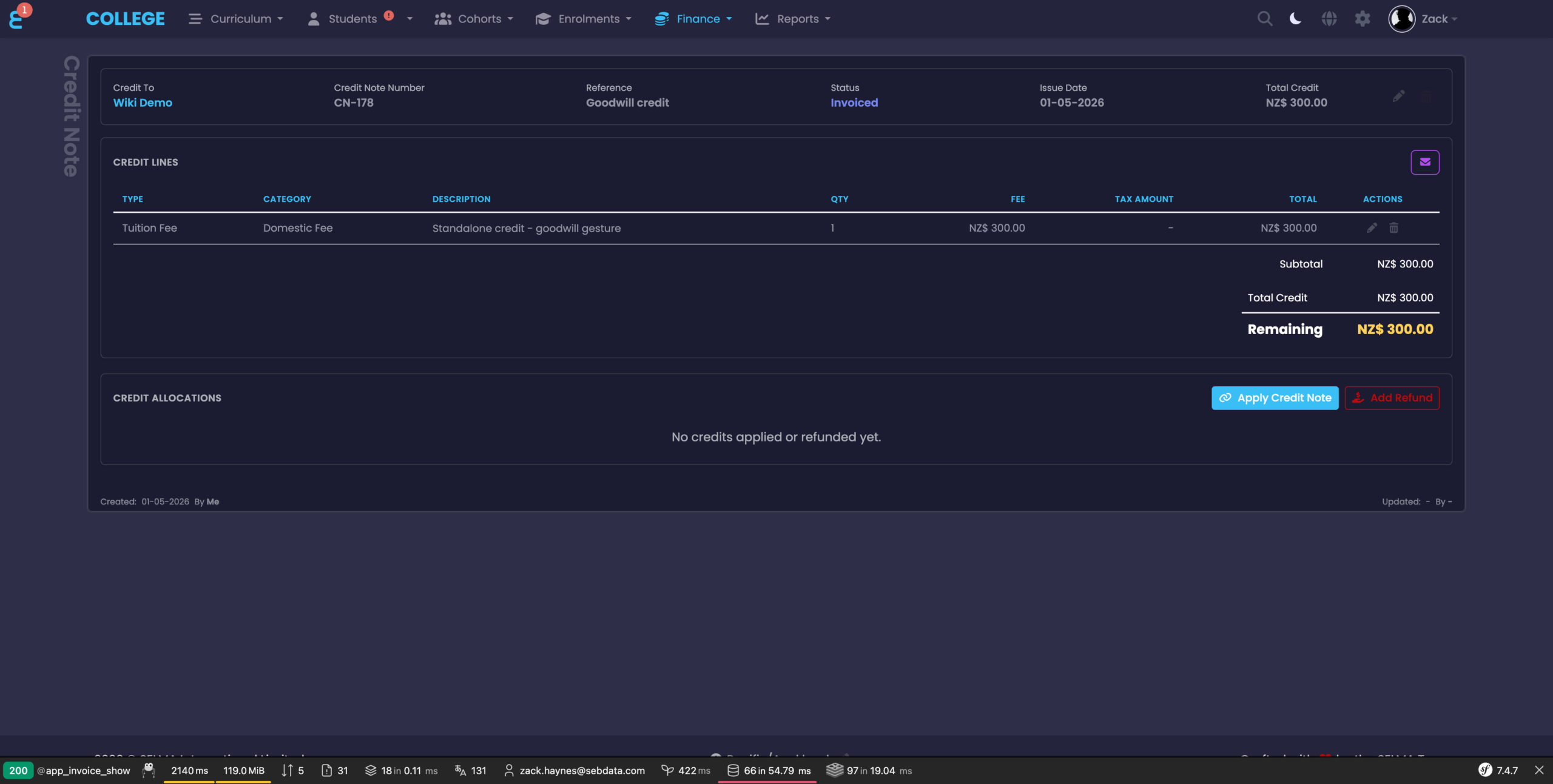
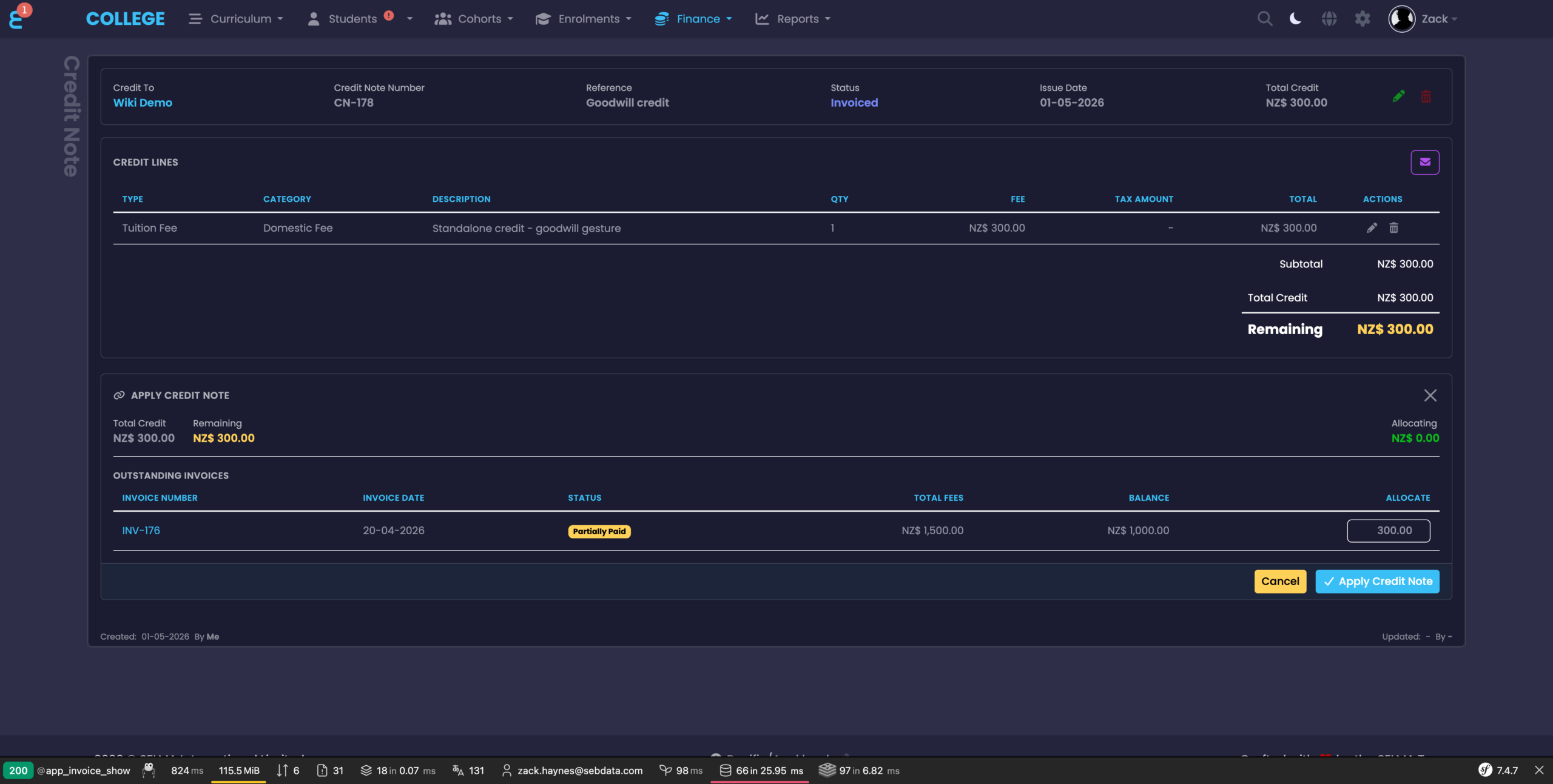
The credit note detail page mirrors the invoice layout. The header shows the Credit To payer, the Credit Note Number, Status, Total Credit, and a running Remaining figure. The Credit Allocations panel underneath lists every invoice the credit has been applied to, plus any refunds taken against it.
Applying a credit note to an invoice
Click Apply Credit Note on the credit note detail page to open the allocation panel. It lists the payer’s outstanding invoices with their balances and an Allocate column, exactly like the payment allocation panel.
Finding credit notes
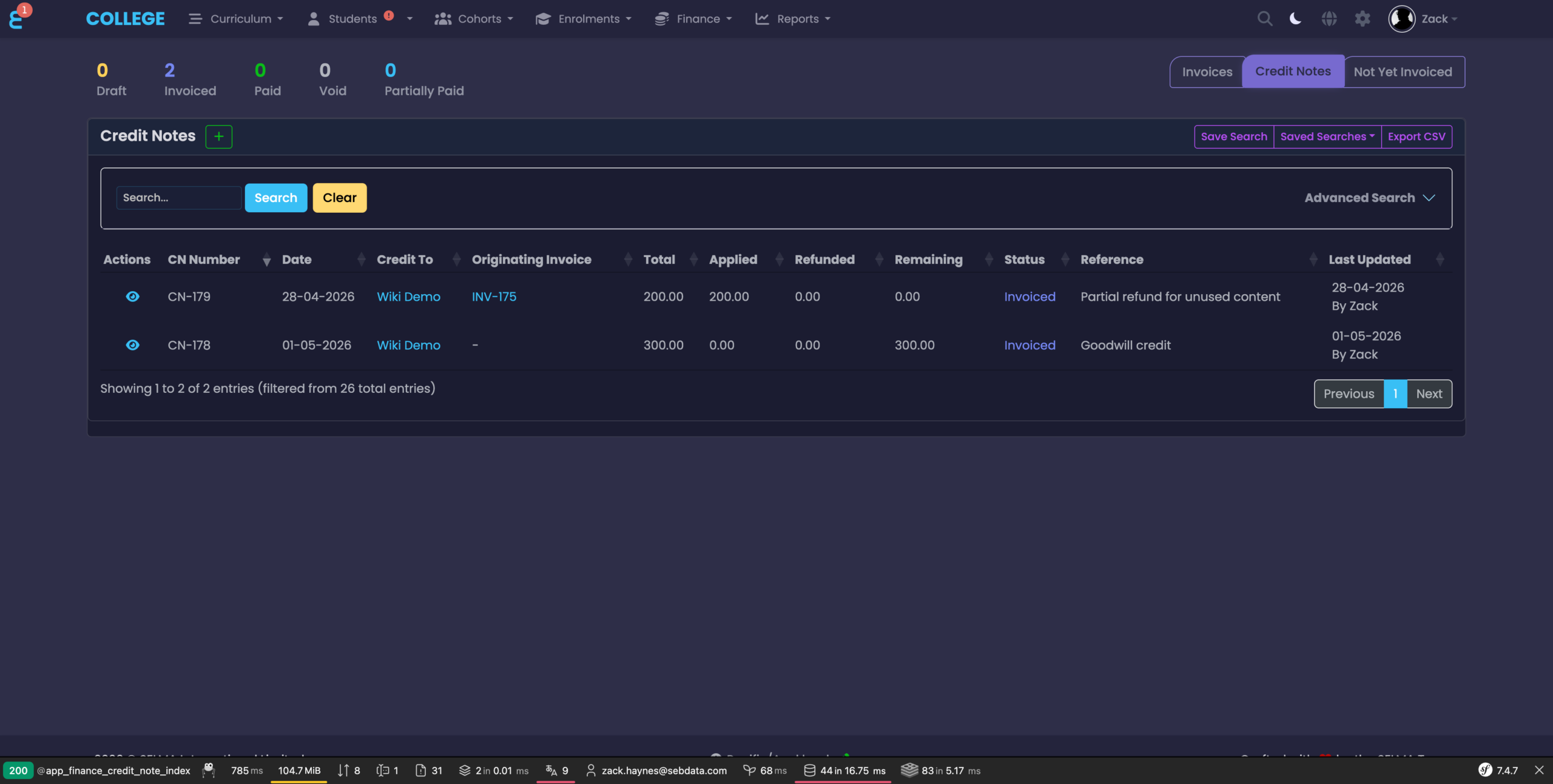
The Credit Notes index lives on its own toggle on the invoice index page. The grid shows the credit note number, originating invoice (blank for standalone), Total, Applied, Refunded and Remaining columns, so the state of every credit note is visible at a glance.
Refunds
Refunds can now be issued directly against a payment or against a credit note from inside SELMA. Both flows reach the same modal and produce the same record — the only difference is which object the refund is drawn from.
Refunding a payment
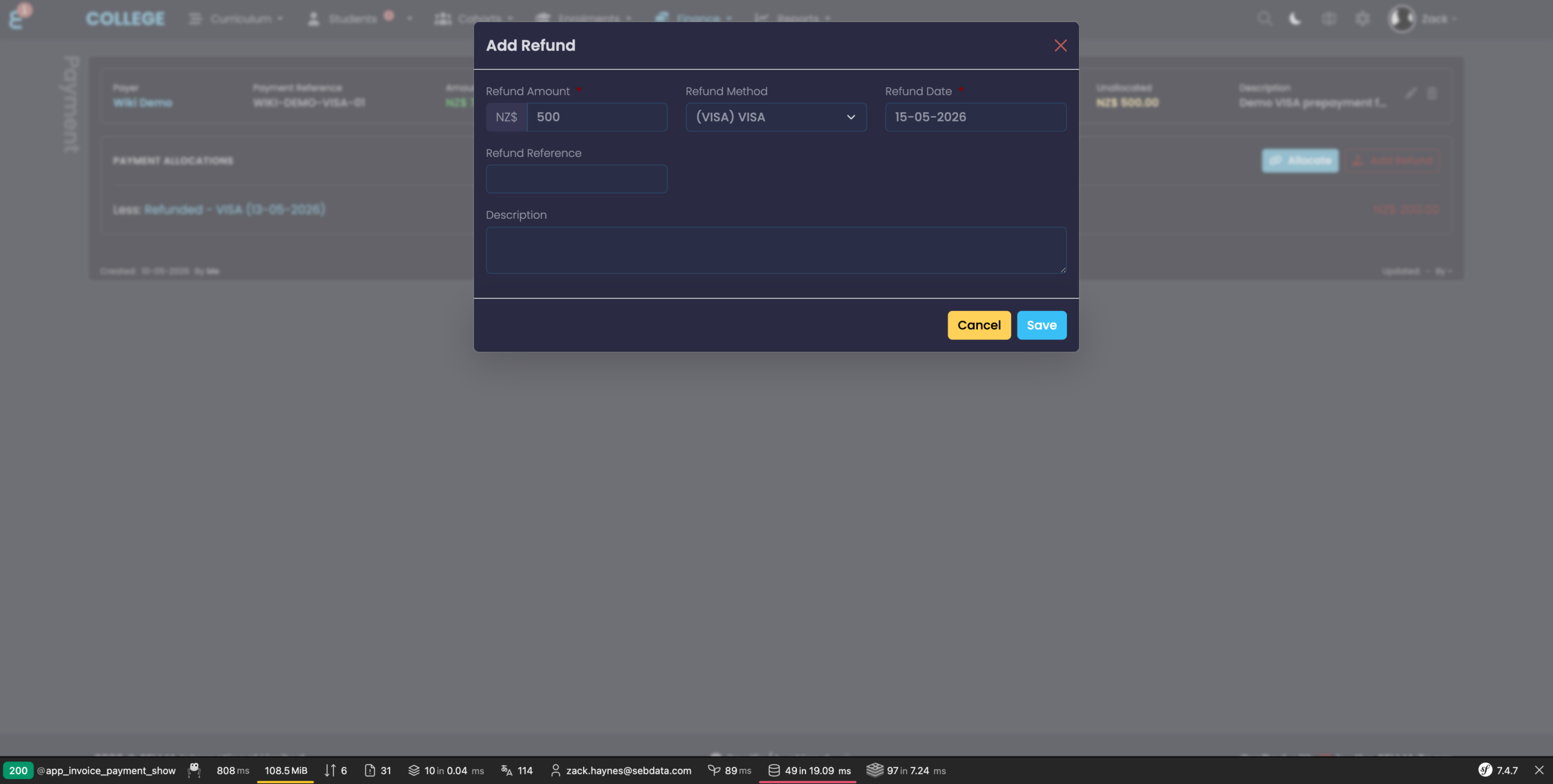
On the Payment Detail page, an Add Refund button is shown whenever the payment has an unallocated balance remaining. The modal pre-fills the refundable amount and the payment method, leaving only the reference and the description for the user to complete.
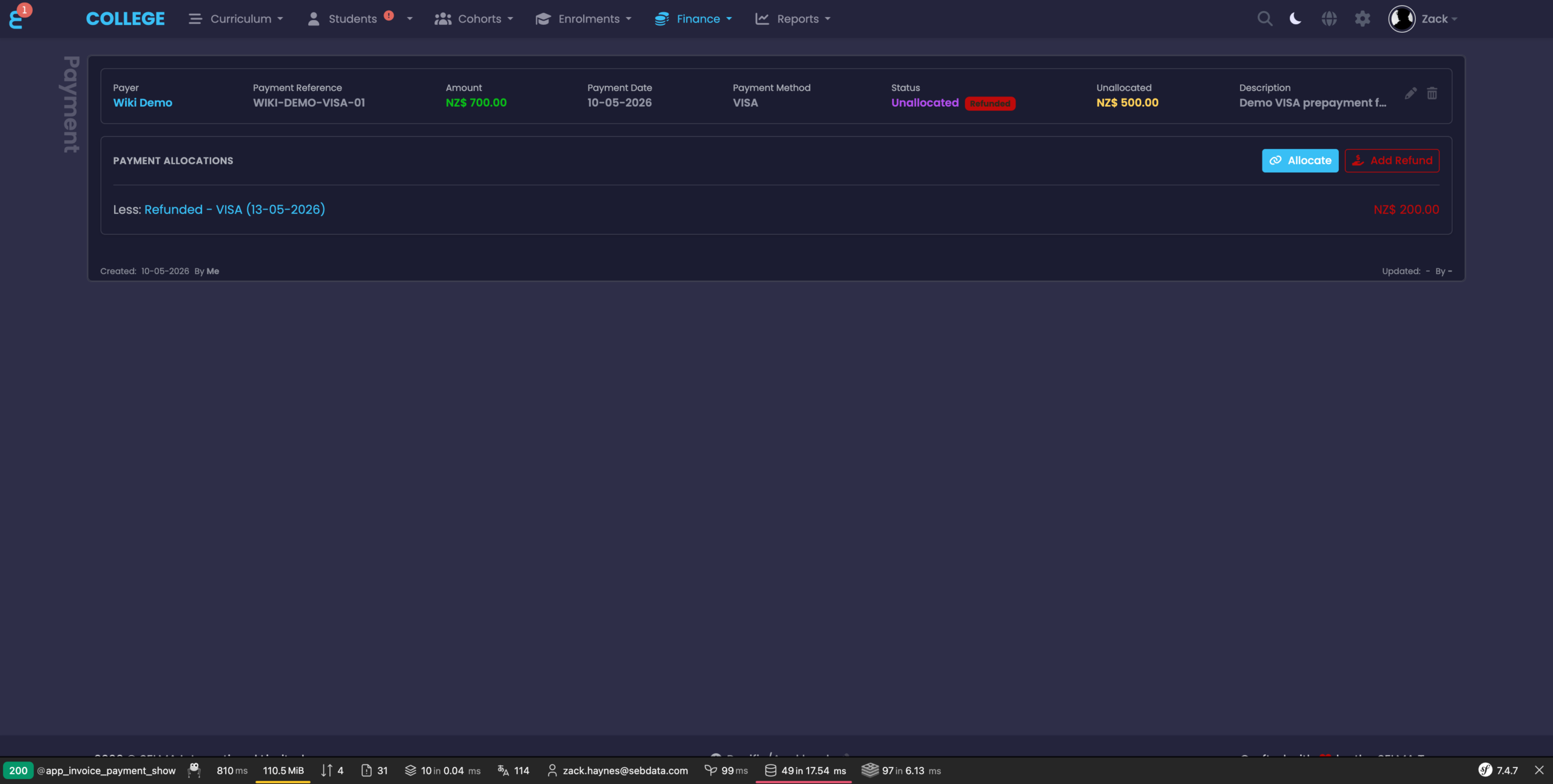
Once saved, the refund appears as a Less: Refunded line on the payment, the Refunded total on the payment header updates, and the Refunded column on the Payments index reflects the new figure.
Refunding a credit note
The Add Refund button on a credit note works the same way — it refunds value out of the credit note’s remaining balance and records a refund line in the Credit Allocations panel.
NOTE: Refunds are capped at the available balance. SELMA will not allow a refund that would take a payment or credit note below zero, and partial refunds are fully supported.
Student & Contact Fee Tabs
Every Student, Contact and Organisation now has a Fees tab that consolidates every financial record for that payer in one place. Previously, staff had to cross-reference the Invoices index, the Payments index, and individual enrolment fee tabs to build a picture of a payer’s financial position — the Fees tab replaces that workflow.
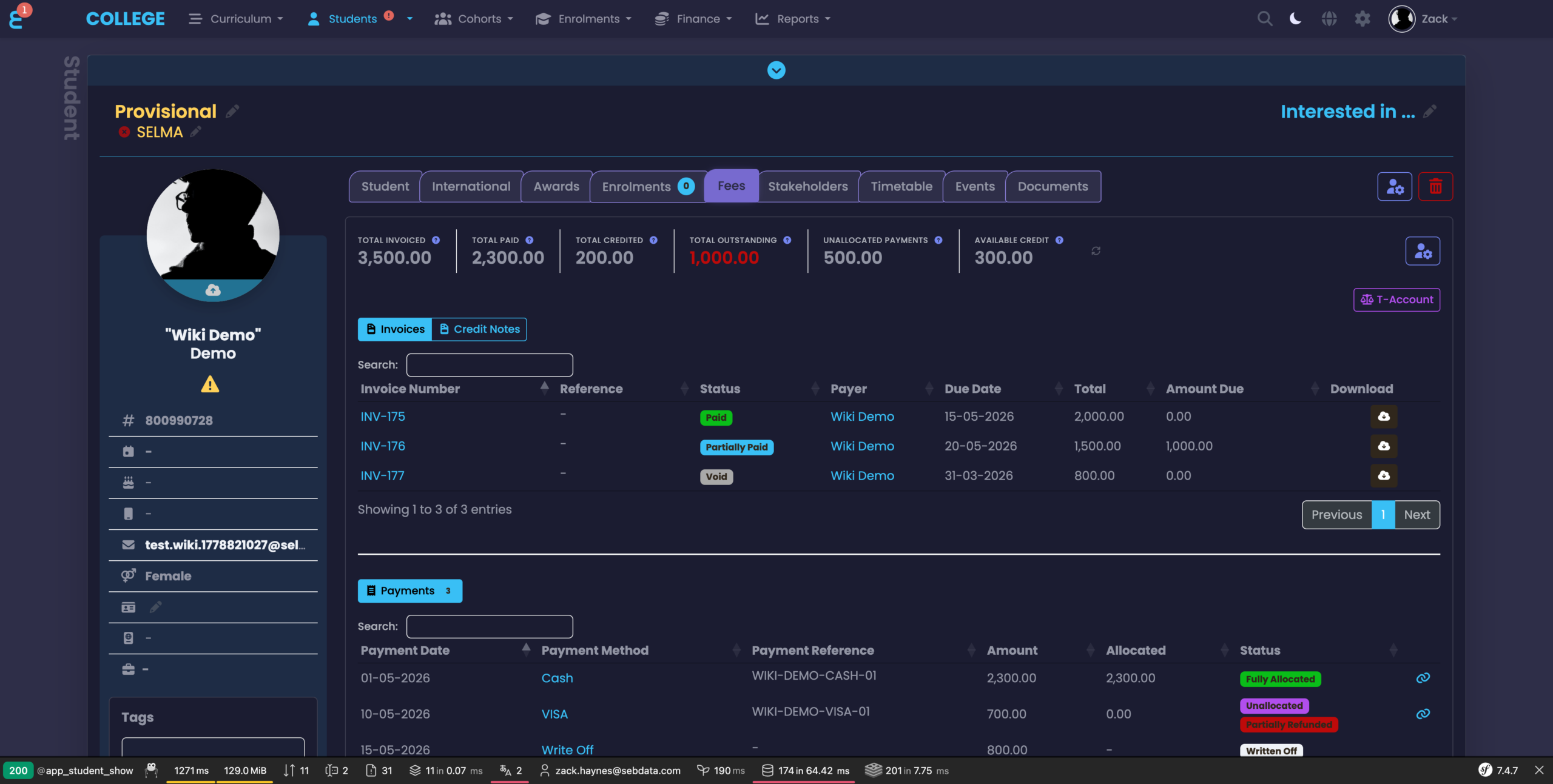
The header summarises the payer’s position with six metric cards: Total Invoiced, Total Paid, Total Credited, Total Outstanding, Unallocated Payments, and Available Credit. Below the metrics, action buttons sit alongside the data:
- Add Fee — add a stand-alone fee line that is not yet on an invoice.
- Add Payment — record a payment for this payer and optionally allocate it.
- Create Invoice — raise a new invoice from the “Not Yet Invoiced” fee lines or from scratch.
- Create Credit Note — raise a standalone credit note for this payer.
- T-Account — toggle the running ledger view, described below.
Three sub-tabs — Invoices, Credit Notes and Payments — let you drill into any of the payer’s records. A Not Yet Invoiced section at the bottom shows fee lines that have been added but not yet placed on an invoice.
Debtor Management
The new Debtor Accounts index (under Finance > Debtor Accounts) consolidates outstanding balances across every payer in your account. Debtor records are created and maintained automatically — there is no manual setup required.
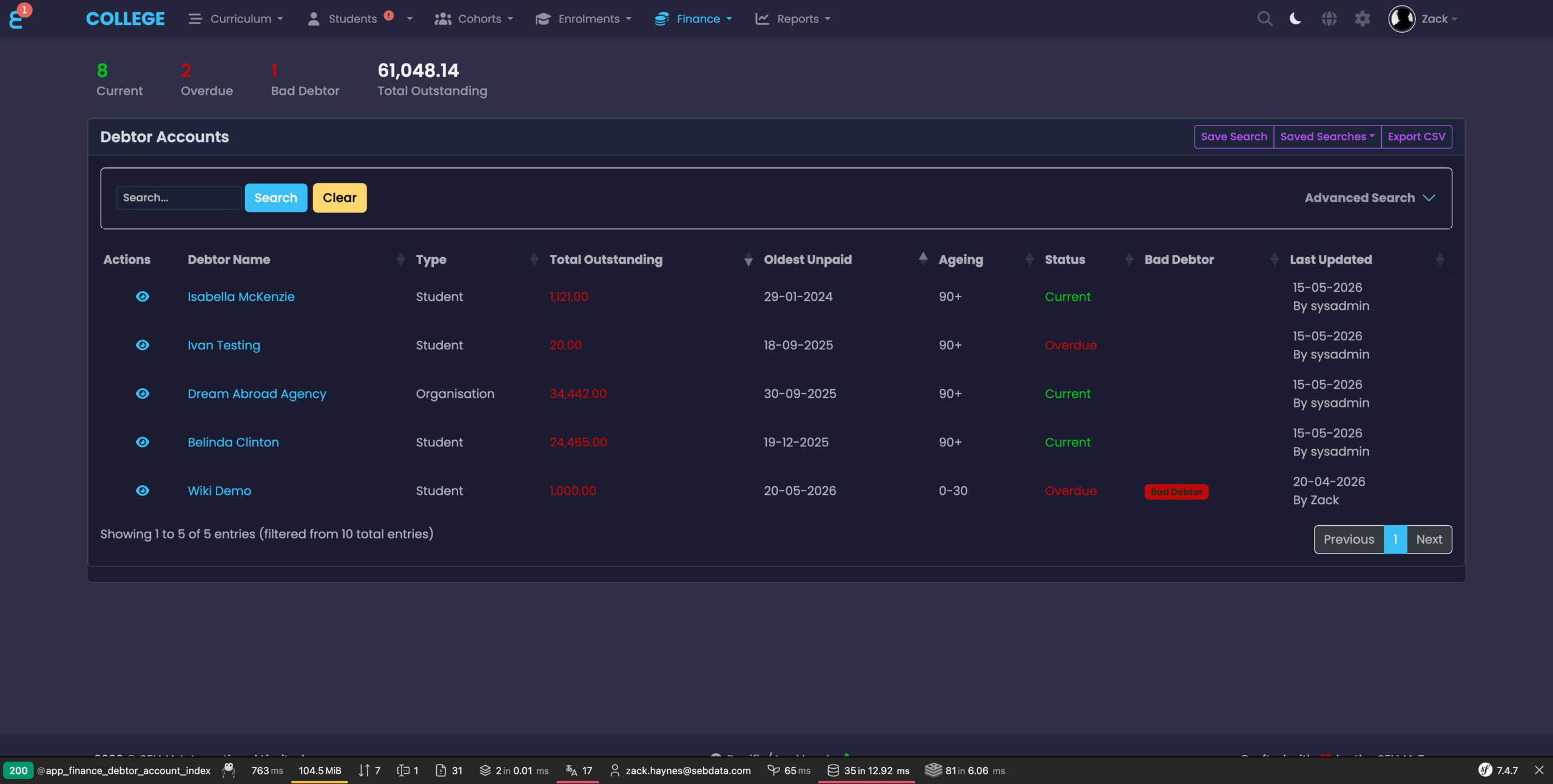
The header counters show how many debtors are currently Current, how many are Overdue, how many carry the Bad Debtor flag, and the total outstanding figure across the account. The grid shows each debtor’s name, type (Student, Contact, Organisation), Total Outstanding, Oldest Unpaid date, Ageing bucket (0–30, 31–60, 61–90, 90+), Status and a Bad Debtor badge where applicable.
A debtor record is created automatically the first time a payer is sent an invoice, and is kept up to date by the overdue scheduler that runs in the background. Clicking a debtor name takes you to the payer’s Fees tab, where the full transaction history is available.
Write-Offs & Bad Debt
An overdue or uncollectible invoice can now be written off in full or in part directly inside SELMA, creating a formal audit record rather than requiring an external workaround. The Write Off action lives in the invoice actions menu and is gated by a dedicated permission. Once a write-off is recorded:
- The remaining balance on the invoice is settled by a special write-off line, shown on the invoice as Less: Write Off with the date.
- The invoice status moves to Void and its amount due becomes zero.
- The debtor account for the payer is automatically flagged as a Bad Debtor.
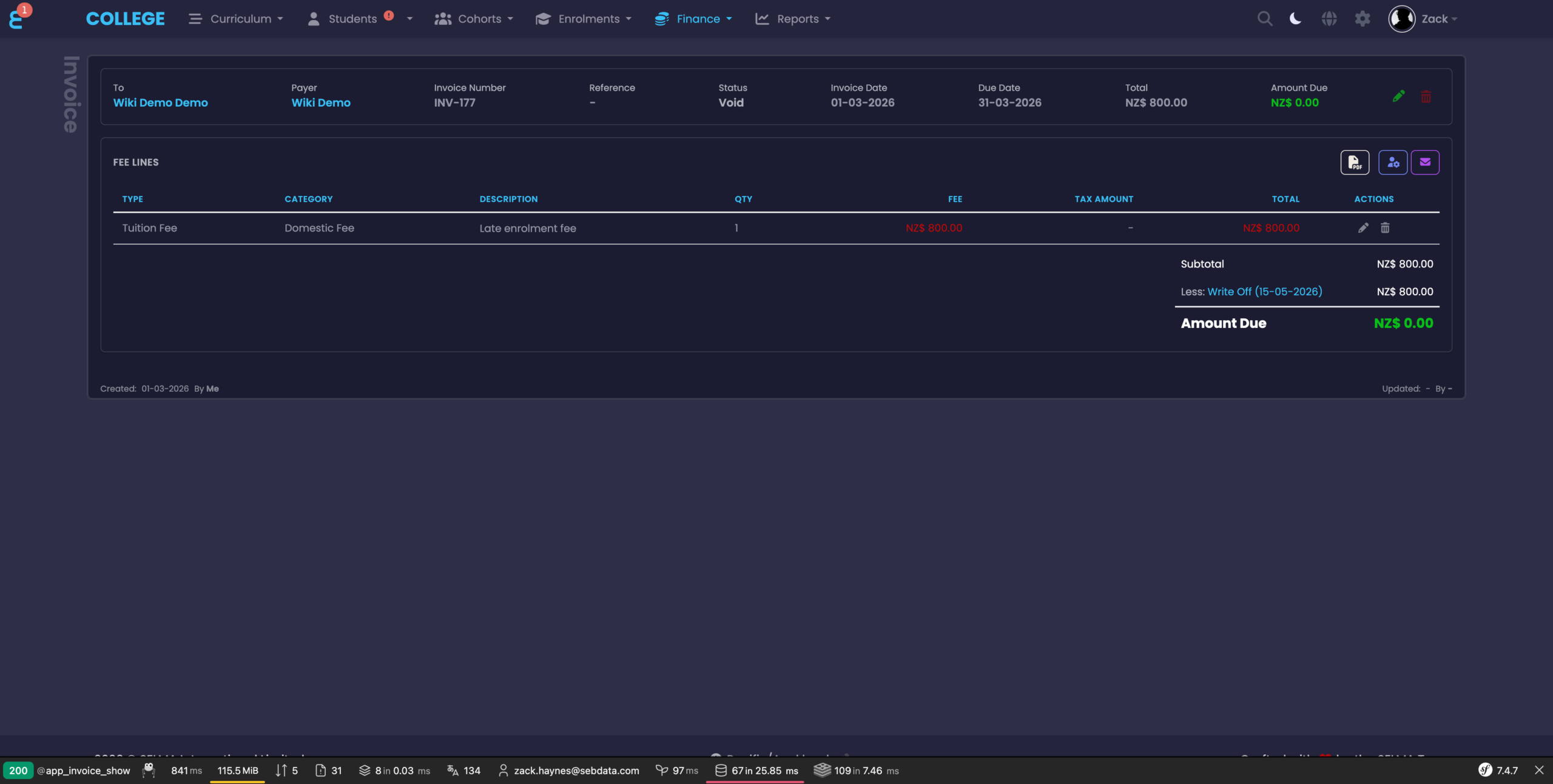
On the Payments grid, a write-off shows with a distinct orange Written Off badge so it is never mistaken for a real cash receipt. Write-offs are not editable like normal payments — they must be reversed using the Reverse Write-Off action if circumstances change. Reversing a write-off also re-evaluates and clears the bad debtor flag automatically, provided no other active write-offs remain against that payer.
Bad debtor warnings
When a payer carries the Bad Debtor flag, SELMA surfaces a yellow inline warning when you select them as the payer on a new invoice. The warning shows the outstanding amount and any written-off amount, but does not block the action — staff with the relevant permission can proceed when appropriate.
NOTE: The Bad Debtor flag can only be removed by a user with the Remove Bad Debtor permission. This protects against the flag being lifted accidentally in the course of normal data entry.
T-Account View
The T-Account toggle on the Fees tab switches the standard grid for a traditional ledger view. Charges (debits) sit on the left, credits sit on the right, and a single balance figure sits underneath.
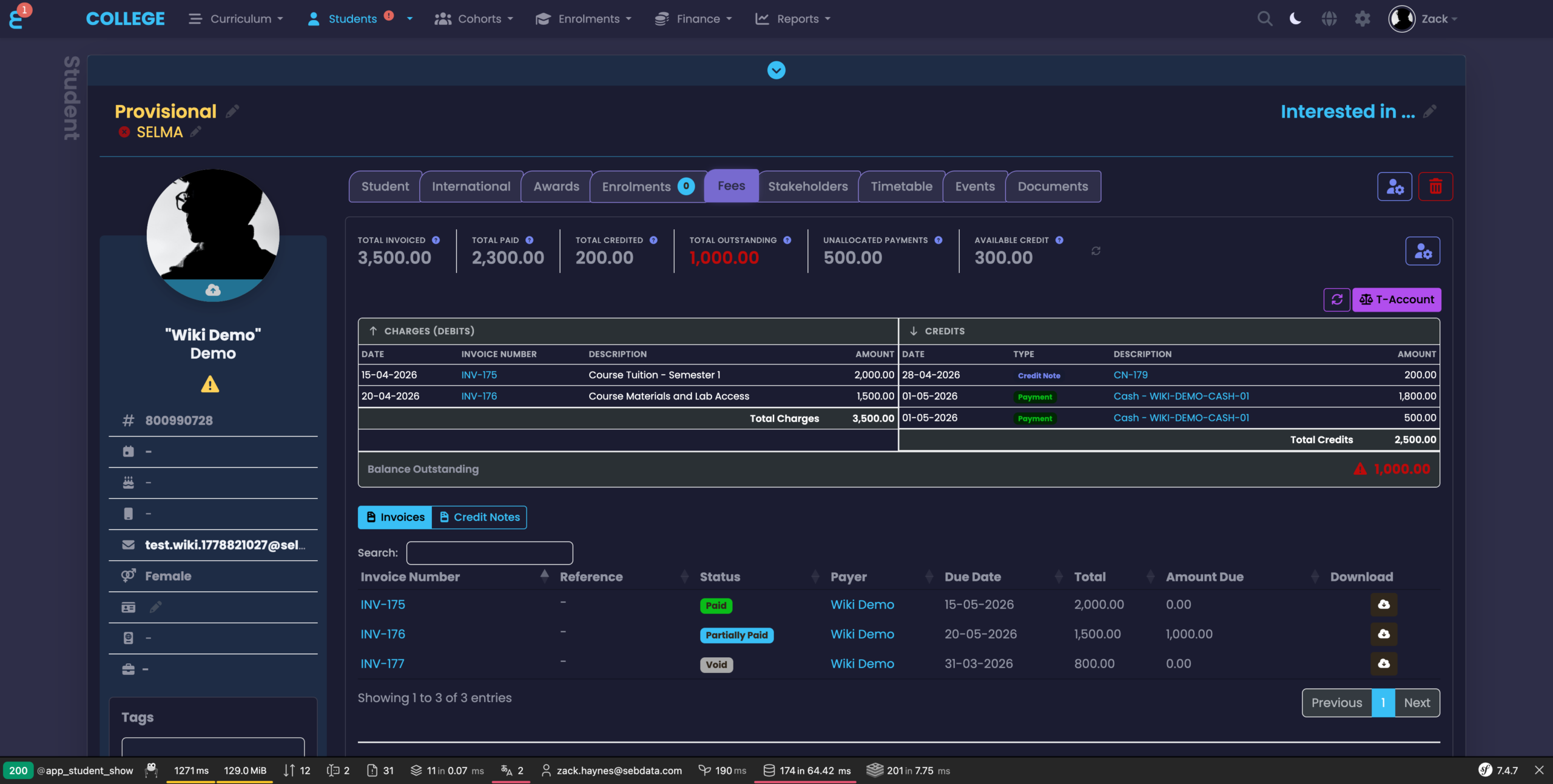
The left column (Debits) lists every invoice fee line as a charge, plus any refunds issued — money returned to a payer is a debit against the account balance. The right column (Credits) lists every payment allocation, credit note application, and write-off, each tagged with a Payment, Credit Note, or Write-Off type badge so the source is always obvious. Write-offs are shown in a distinct colour and are excluded from real-money totals, so they are never conflated with genuine cash receipts.
The T-Account is available on the Student, Contact and Organisation fees tabs. It is not shown on the narrower enrolment and application fee tabs, where the standard grid view continues to be used.
Quick Actions on the Indexes
A + button now sits beside the title on both the Payments index and the Credit Notes index, opening a quick-create modal without leaving the page.
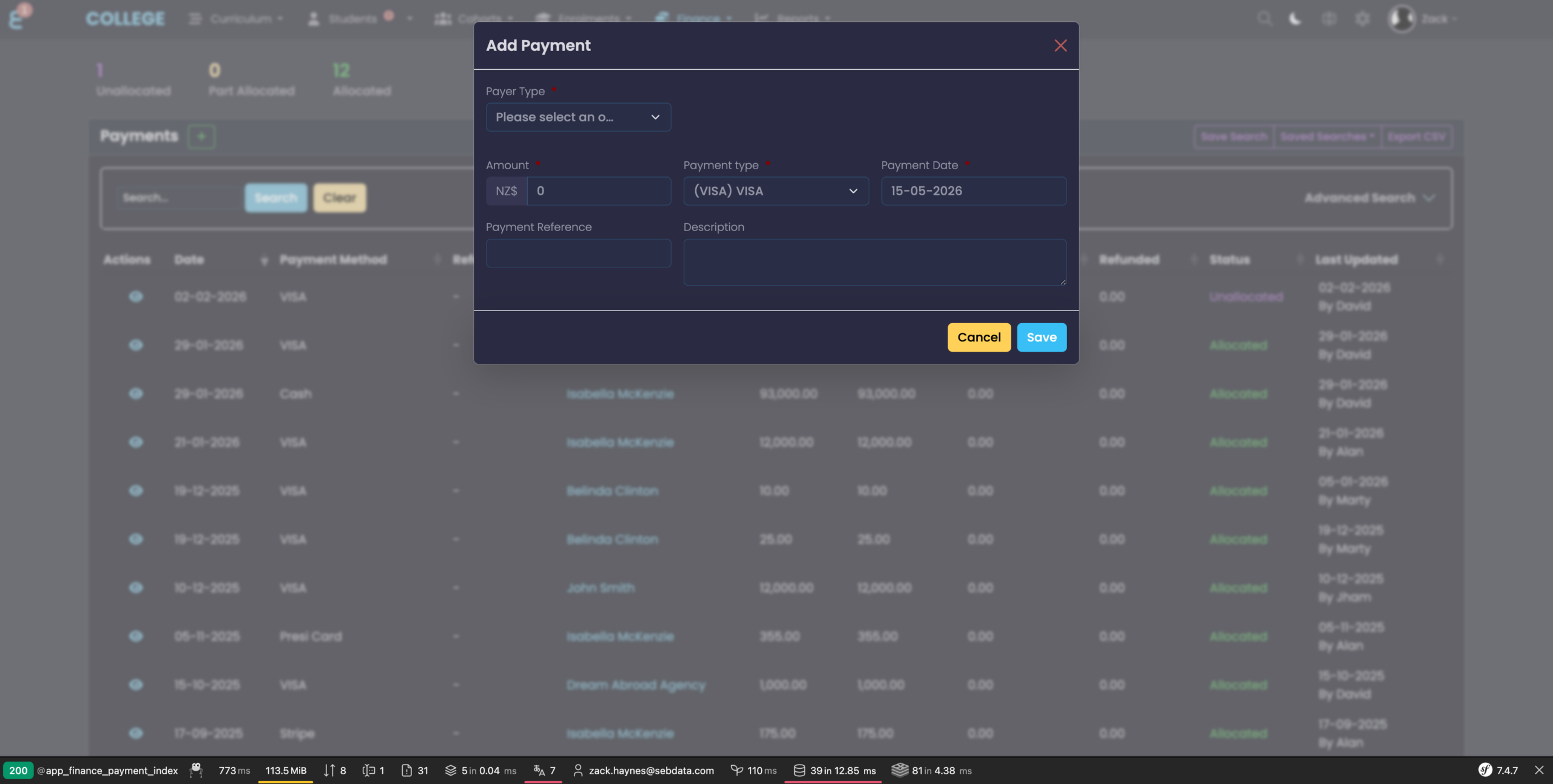
The standalone Add Payment modal asks for the payer type, amount, payment method, payment date, reference and description. On save, SELMA opens the new payment’s detail page with the Allocate panel ready for use, so the user can record a payment and allocate it in one continuous flow.
The Credit Notes index + button works the same way for standalone credit note creation.
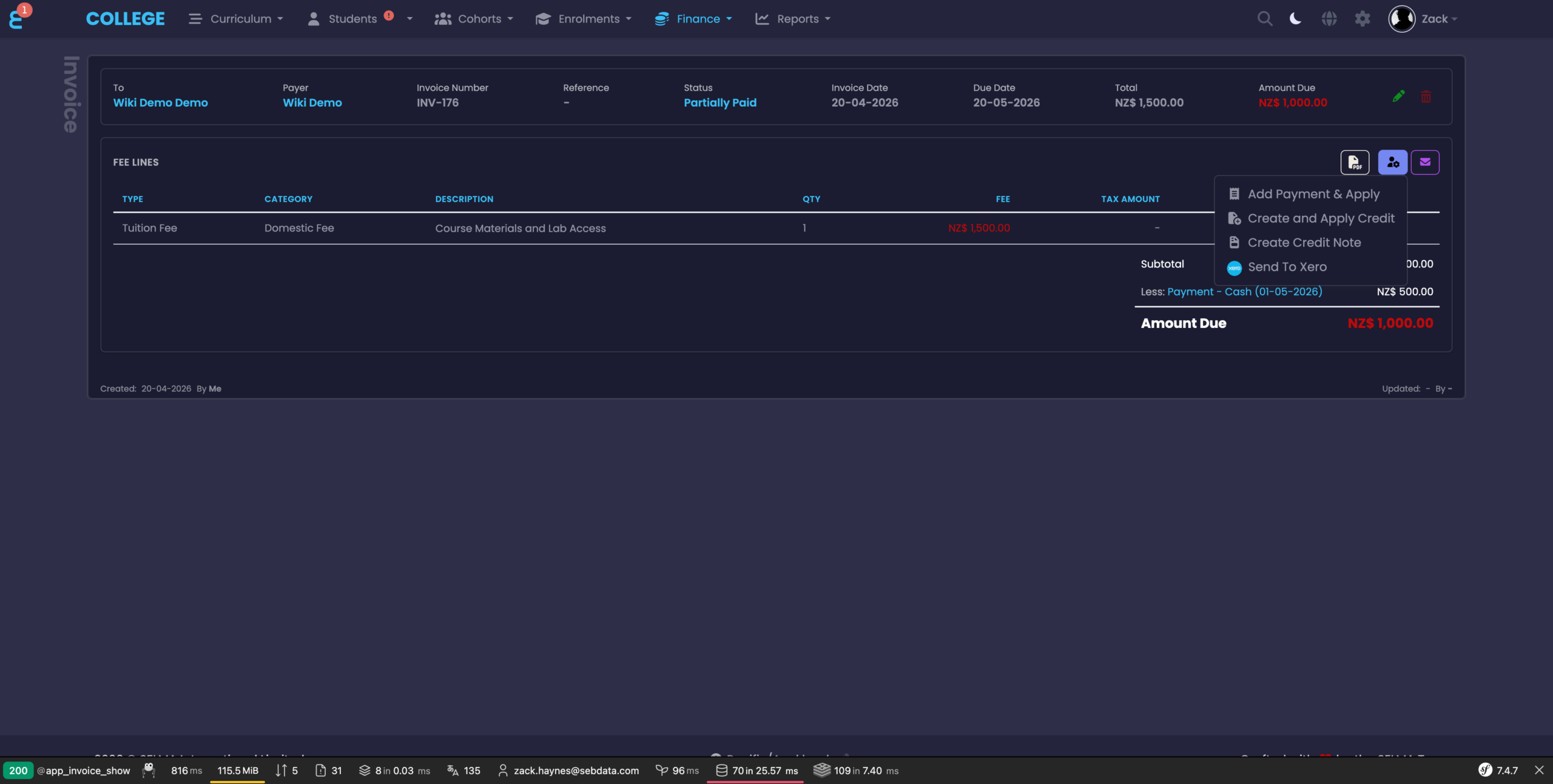
The same actions are reachable from the Actions menu on every invoice detail page — the cog icon at the top right of the fee lines panel exposes Add Payment & Apply, Create and Apply Credit, Create Credit Note, Write Off (where permitted) and Send To Xero.
Deletion & Voiding Rules
To keep financial records consistent, SELMA now enforces a set of deletion rules. The same rules apply whether the action is initiated from the index, the detail page, or the Fees tab. These rules replace the previous behaviour where records could sometimes be removed without clearing associated transactions first.
- Payments — cannot be deleted while any allocation remains active. An unallocated payment can be deleted; any direct refunds against it are removed at the same time.
- Invoices — cannot be deleted while they have active payment allocations or credit notes applied. Draft and Void invoices can be deleted freely; when a draft has fee lines, the user is prompted to release the lines back to “Not Yet Invoiced” or delete them with the invoice.
- Credit Notes — cannot be deleted while they have active allocations or refunds. Credit note lines are always removed together with the credit note itself.
- Refunds — can be deleted; the parent payment or credit note’s remaining balance is recalculated automatically.
- Payment Allocations — are not deleted directly. Use the Reverse action on the allocation, which marks it as voided and frees up the balance on both sides.
- Write-Offs — cannot be deleted; they must be reversed via the Reverse Write-Off action, which also re-evaluates the bad debtor flag.
- Voiding an invoice — uses the same guard rails as deletion. An invoice with active allocations cannot be voided until the allocations are reversed.
NOTE: Where an action is blocked, SELMA shows an inline explanation pointing at the active allocation, refund, or credit note that needs to be cleared first. Nothing is ever silently cascaded.
Notes
- Permissions: the new actions are gated by existing finance permissions where possible. The Write Off, Reverse Write-Off and Remove Bad Debtor actions sit behind their own permissions and need to be granted to custom roles via the role editor.
- Xero: the existing Xero sync continues to work. Invoices, credit notes, payments and refunds are mirrored across to Xero through the Send To Xero action, and Xero state is shown on each record where applicable. Syncing is a manual step — staff choose when to push each record.
- Currency & timezone: all amounts are recorded in the payer’s account currency. Dates on every screen are displayed in the user’s timezone, while records are stored in UTC.
- Data integrity: behind the scenes the allocation, refund and credit-note services now hold a write lock and re-check the balance under the lock, so two staff members allocating against the same payment or invoice at the same time can no longer overspend an amount.