
In this Section:
- Overview
- Prerequisites
- Setting Up the Integration
- Syncing Courses
- Sending an Assessment
- Viewing Results & Gap Analysis
- Importing Existing Results
- Downloading Reports
Overview
The LLN Robot integration connects SELMA with the LLN Robot ACSF System by The Learning Resources Group (TLRG). It allows staff to send Language, Literacy and Numeracy (LLN) assessments to students and view their results directly from the student profile.
The LLN Robot system assesses learners against the Australian Core Skills Framework (ACSF) across five core skills:
- Learning
- Reading
- Writing
- Oral Communication
- Numeracy
Assessment results can be compared against course profiles to identify skill gaps and generate personalised support recommendations.
NOTE: This integration is Australian-only and appears on the AU Compliance tab of the student profile.
Prerequisites
Before setting up the integration, you will need:
- An active LLN Robot subscription with API access enabled
- Your Deployment Name — this is the subdomain from your LLN Robot login URL (e.g. if you log in at
mycompany.lln.training, the deployment name ismycompany) - Your API Key — generated in the LLN Robot admin portal under “API & SMS Integrations”
Setting Up the Integration
Navigate to Settings > Integrations to find the LLN Robot card.
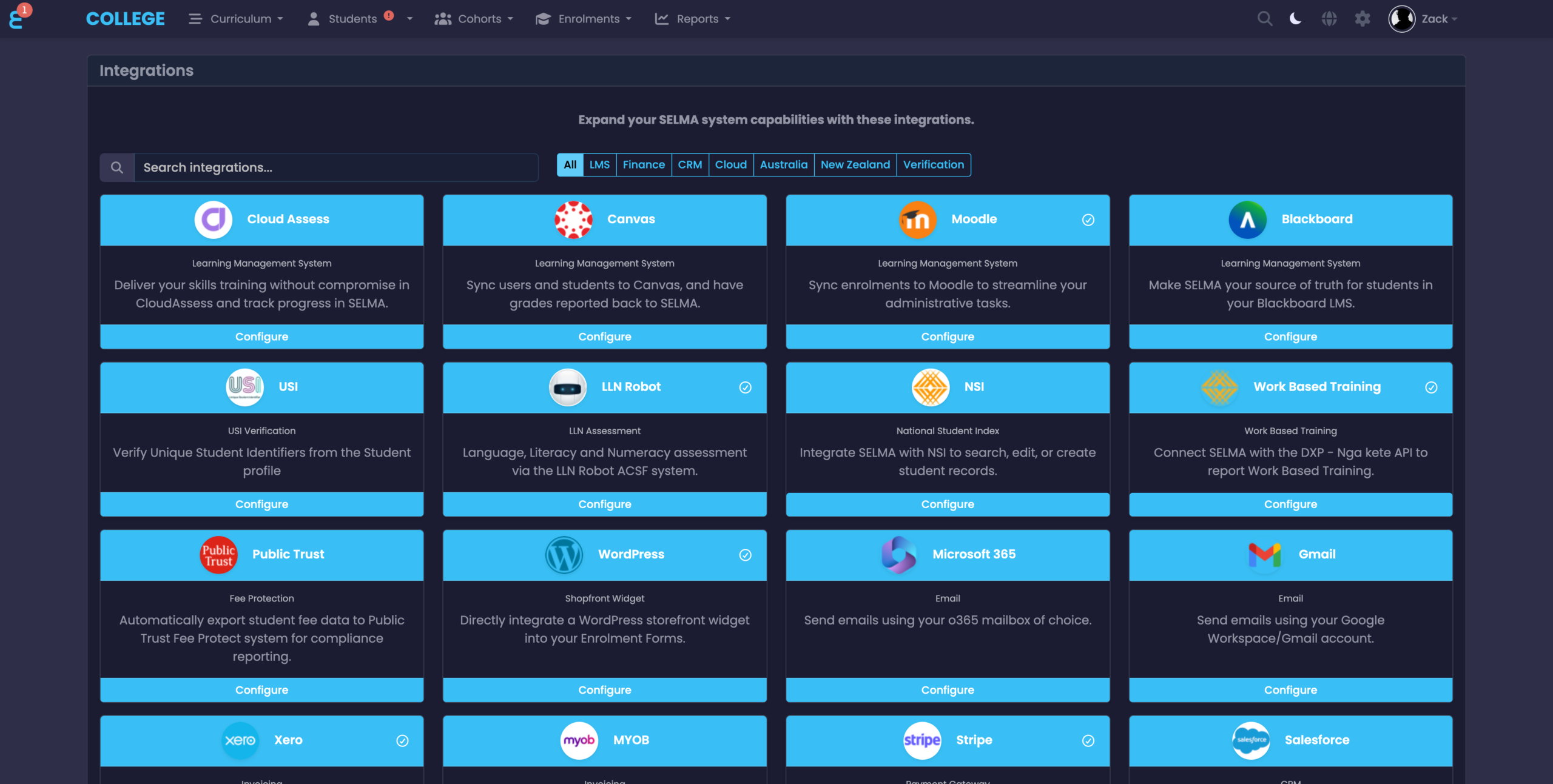
Click “Configure” to open the LLN Robot configuration page.
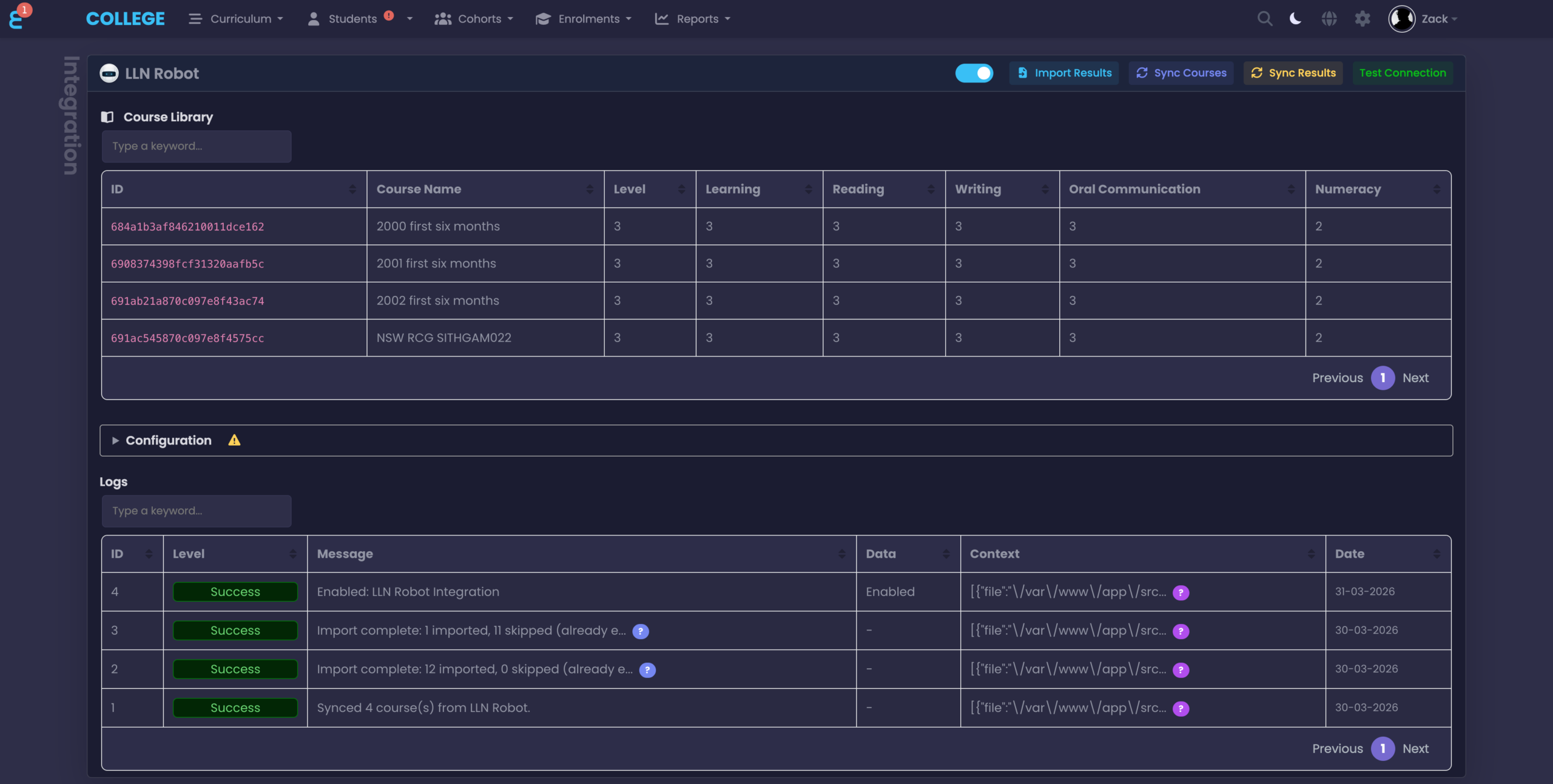
To configure the integration:
- Toggle the integration on using the switch in the top-left of the header
- Expand the “Configuration” section by clicking it
- Tick the checkbox next to “Deployment Name”, enter your deployment name, and click “Save”
- Tick the checkbox next to “Api Key”, enter your API key, and click “Save”
- Click “Test Connection” in the header to verify the credentials are working
NOTE: The configuration fields are locked by default to prevent accidental changes. You must tick the checkbox next to each field before editing.
Syncing Courses
After configuring the integration, click the “Sync Courses” button in the header to pull the course library from LLN Robot.
The Course Library table displays all synced courses with their ACSF profile requirements — the minimum skill levels a learner needs for each course. This data is used for the gap analysis feature on the student profile.
You can search and sort the course library using the built-in search bar above the table.
Sending an Assessment
To send an LLN assessment to a student:
- Go to the student’s profile and click the “AU Compliance” tab
- Find the LLN Robot card and click the “Send” button
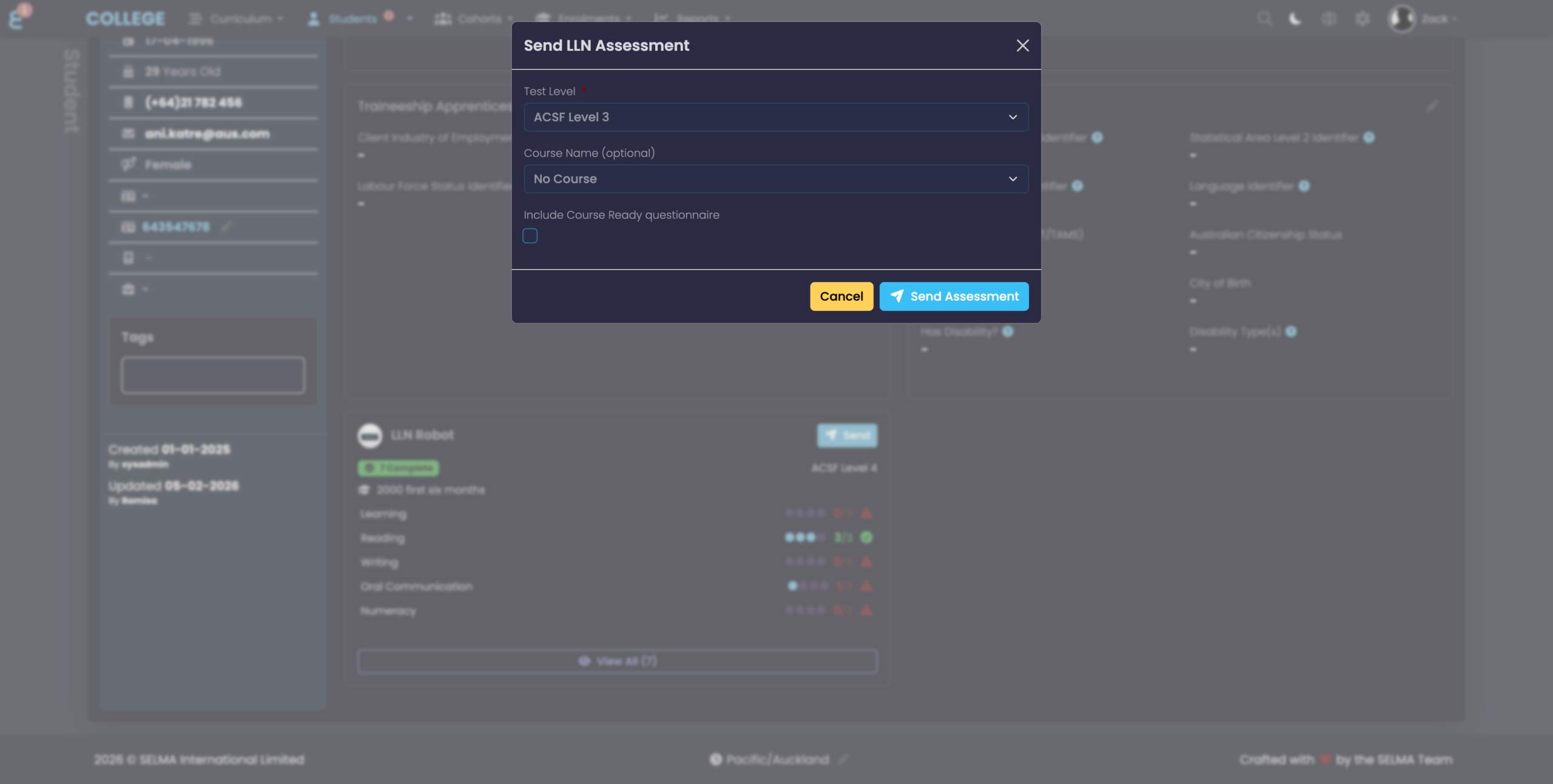
- Select a Test Level:
- ACSF Level 3 — assesses all 5 core skills up to level 3 (15–30 minutes)
- ACSF Level 4 — assesses all 5 core skills up to level 4 (30–60 minutes)
- ACSF Level 3 Short Course — assesses Reading, Writing, and Numeracy only
- VSL (VET Student Loans) — Reading and Numeracy, pass/fail
- Course Ready (DLRQ) — digital learning readiness questionnaire
- Optionally select a Course from the dropdown — this enables gap analysis in the results
- Optionally tick “Include Course Ready questionnaire” to send the digital readiness assessment alongside the LLN quiz
- Click “Send Assessment”
The student will receive an email directly from LLN Robot with a link to complete their quiz. SELMA does not send the email — it is sent by the LLN Robot system.
NOTE: The student must have a valid email address set on their profile for the invitation to be sent.
Viewing Results & Gap Analysis
Once a student completes their assessment, results appear on the LLN Robot card on the AU Compliance tab.
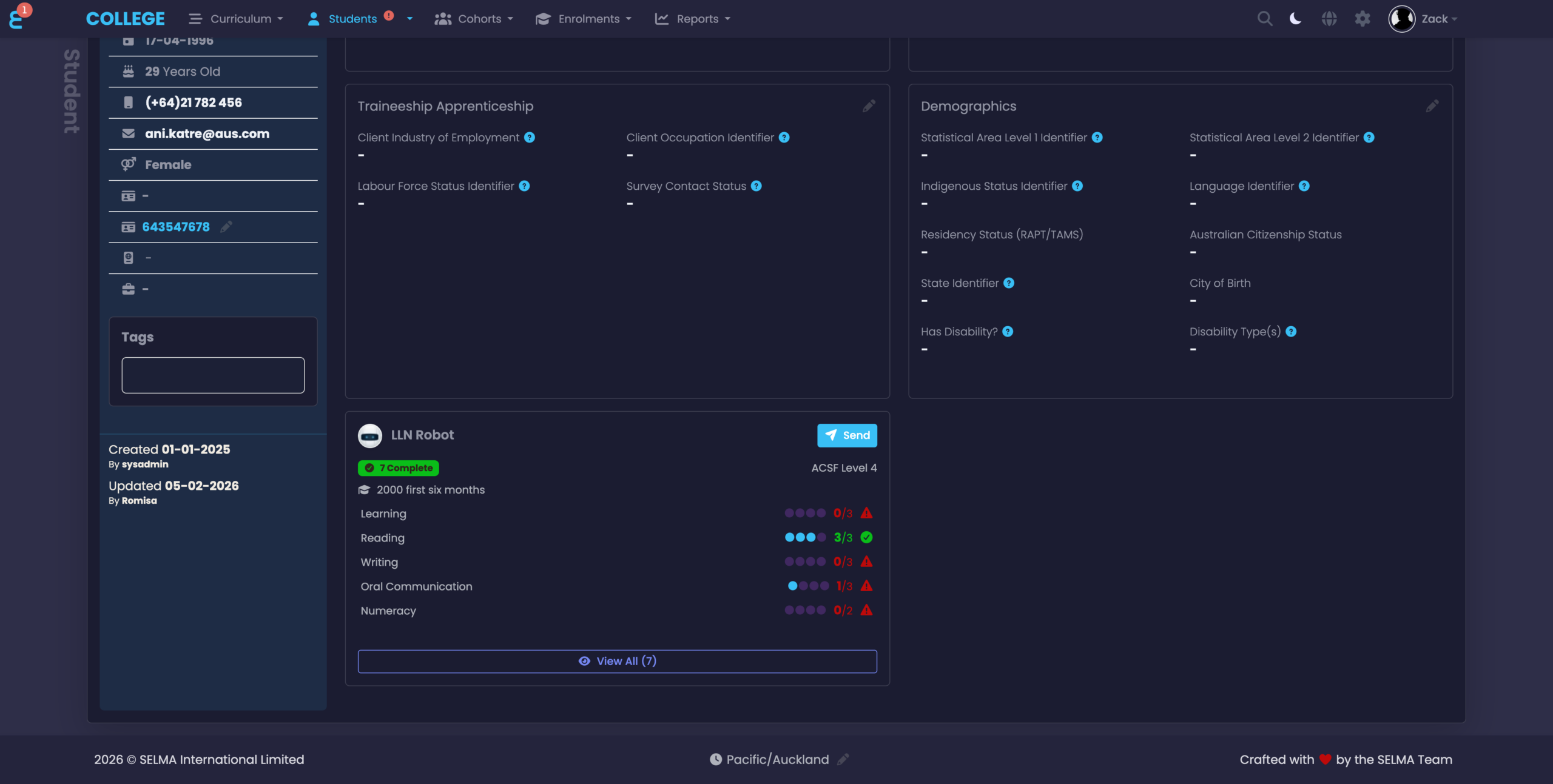
The card displays:
- Completion badge — how many assessments have been completed
- Test level — which quiz was taken (e.g. ACSF Level 4)
- Score dots — a visual indicator for each skill (filled dots = achieved level, empty dots = remaining)
- Gap analysis — when a course is linked, each skill shows the score against the course requirement (e.g. 3/3 with a green tick means the student meets the requirement; 0/3 with a red warning means they fall below it)
- Course name — shown when a course profile comparison is active
Hover over the gap analysis indicators to see a tooltip explaining whether the student meets or falls below the course requirement for that skill.
View All Assessments
Click “View All” to open a modal with the full assessment history.
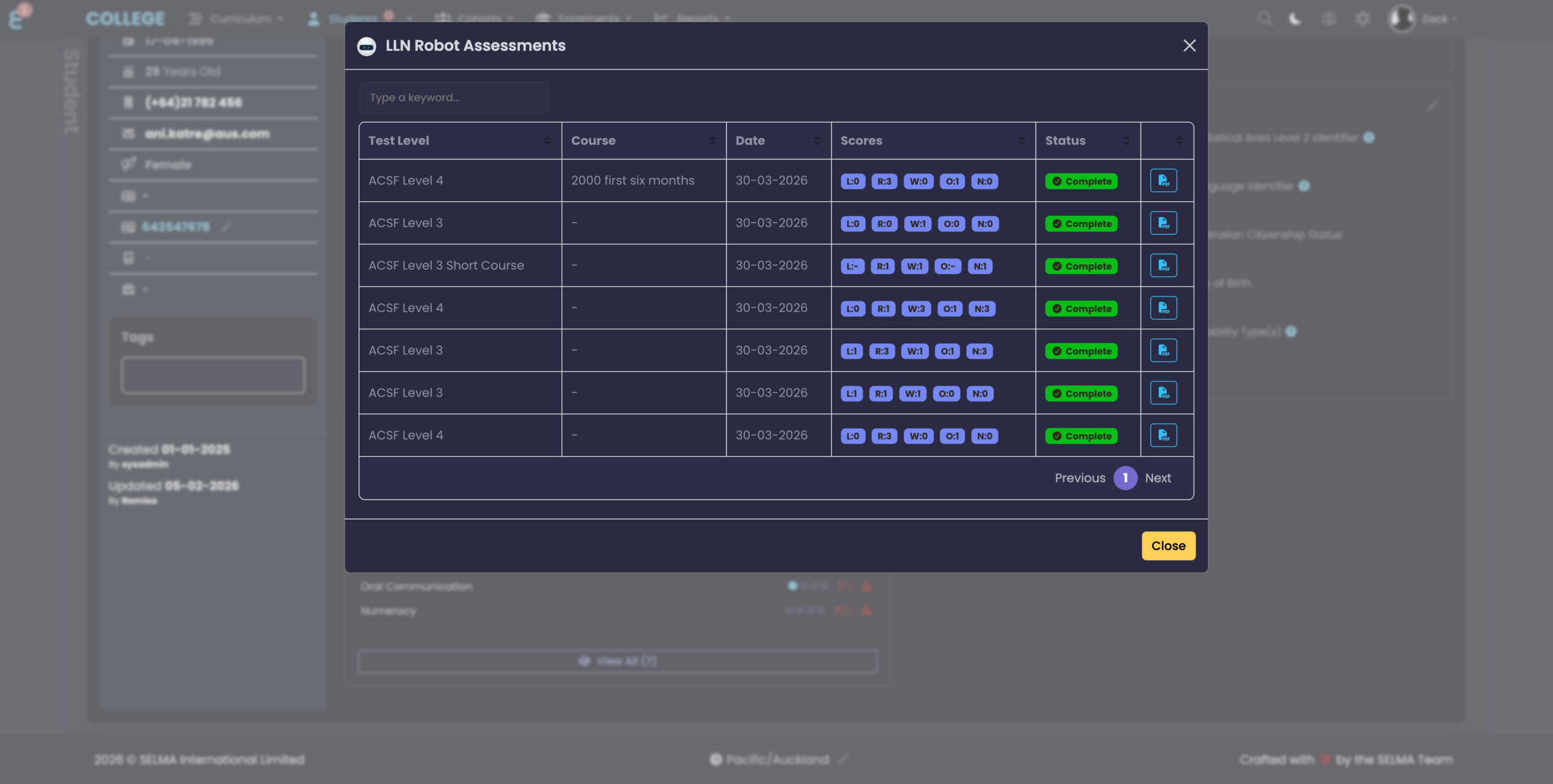
The modal displays a searchable, sortable table with:
- Test Level — which quiz was taken
- Course — the course linked to the assessment (if any)
- Date — when the assessment was created
- Scores — ACSF scores as badges (e.g. L:3, R:3, W:2, O:3, N:1)
- Status — Complete or Pending
- PDF download — for completed assessments with a stored report URL
Importing Existing Results
If your organisation already uses LLN Robot and has existing learner results, you can import them into SELMA without re-assessing students.
- Go to the LLN Robot integration configuration page
- Click the “Import Results” button in the header
- The system will fetch all completed learners from your LLN Robot deployment
- It matches learners to SELMA students by email address
- A summary is displayed showing how many were imported, skipped (already exist), and unmatched
NOTE: Students must have the same email address in both SELMA and LLN Robot for the match to work. Unmatched learners are skipped — no data is lost.
Downloading Reports
LLN Robot generates PDF reports for completed assessments. These can be downloaded from the “View All” modal by clicking the PDF icon next to a completed assessment.
The Summary Report provides an overview of the learner’s ACSF scores. If a course was selected when the assessment was sent, the LLN Report compares the learner’s results against the course profile and includes personalised support recommendations.