
Grid reports are created by the SELMA team, on request, and allow you to fetch data from multiple records which cannot be done by the Report Builder.
- Note: The Report Builder allows you to create your own report, but it is limited in the number of base entities it can handle.
- Please see the article: Reporting – Report Builder for more.
If the Grid Report you require should include complex calculations, as the data isn’t directly available in SELMA, the development required would need to be scoped and quoted.
- Please contact SELMA Support for grid report requests and other enquiries.
In this Section:
Grid Report Overview and Managing User Access
Figure 1. Navigate to Reports > Grid Reports
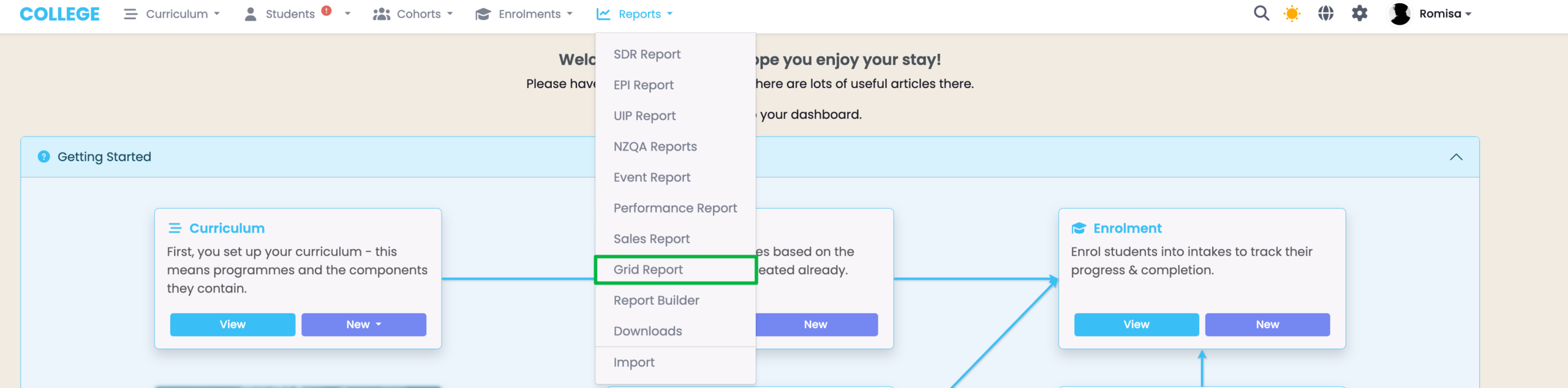
Figure 2i. Grid Report Overview
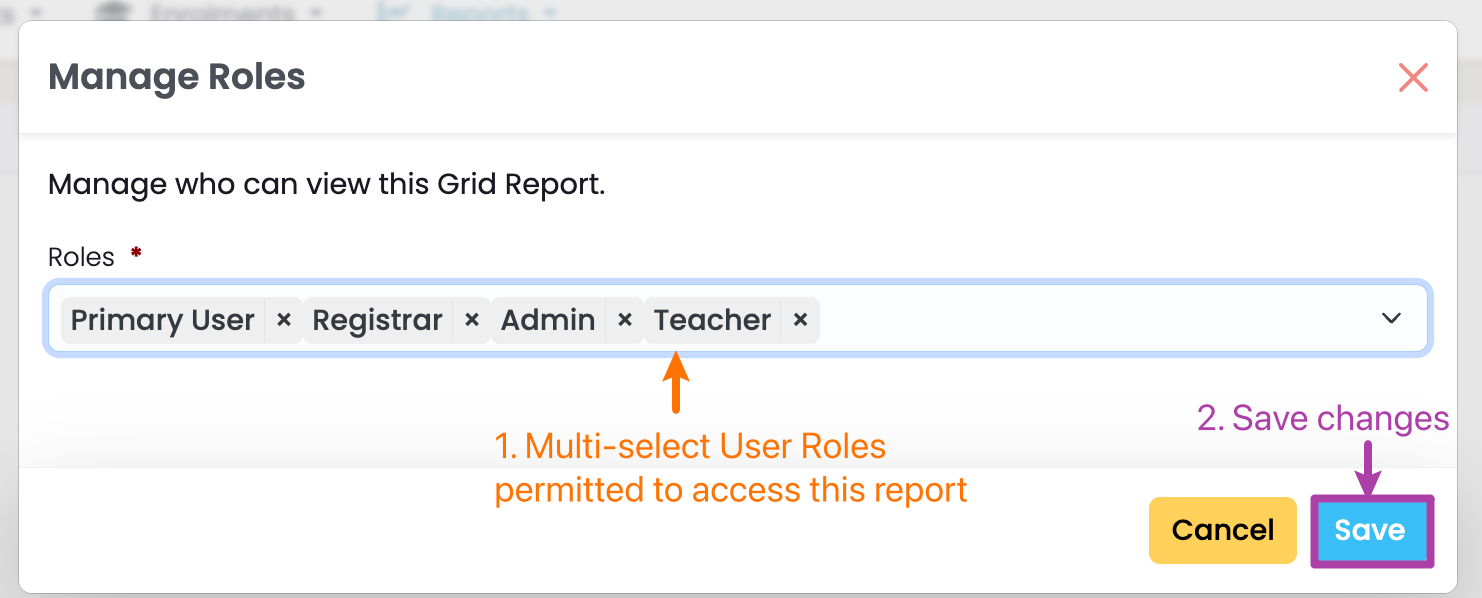
From here, you can click the blue hyperlink text to run a Grid Report, or manage which User Roles are permitted to access each report.
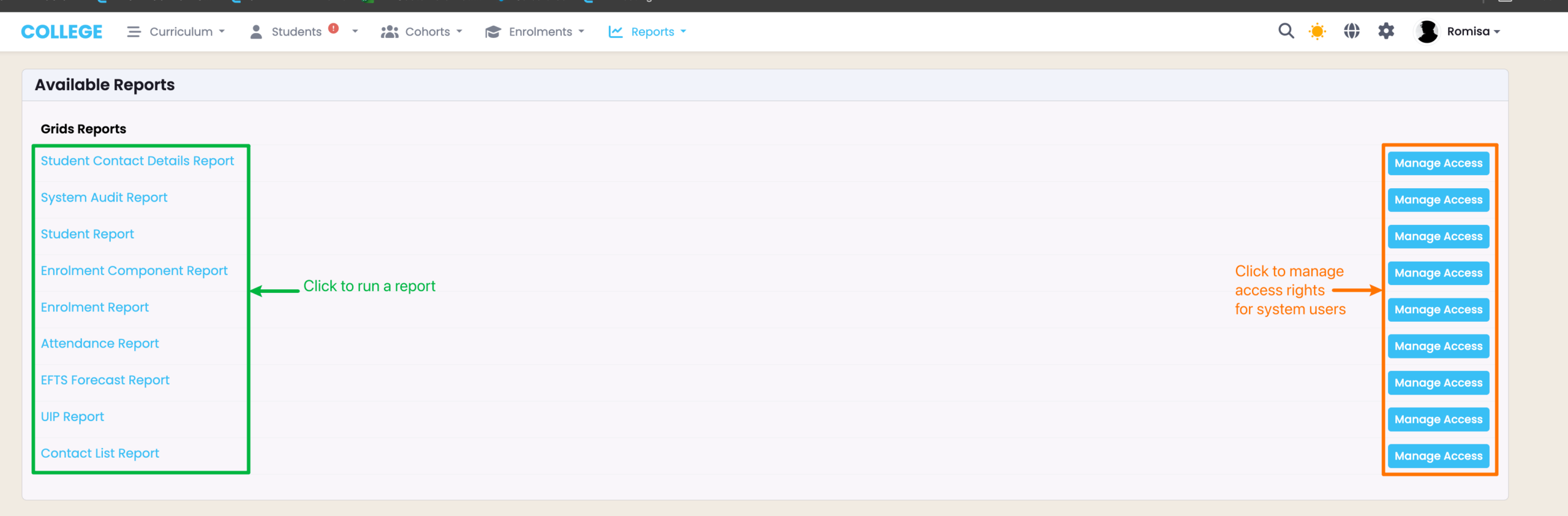
Figure 2ii. Manage Access to A Report
Run a Grid Report
Grid Reports have can have multiple filter types:
Figure 3. Drop-down Filter
The drop-down filter includes single-select drop-down values.
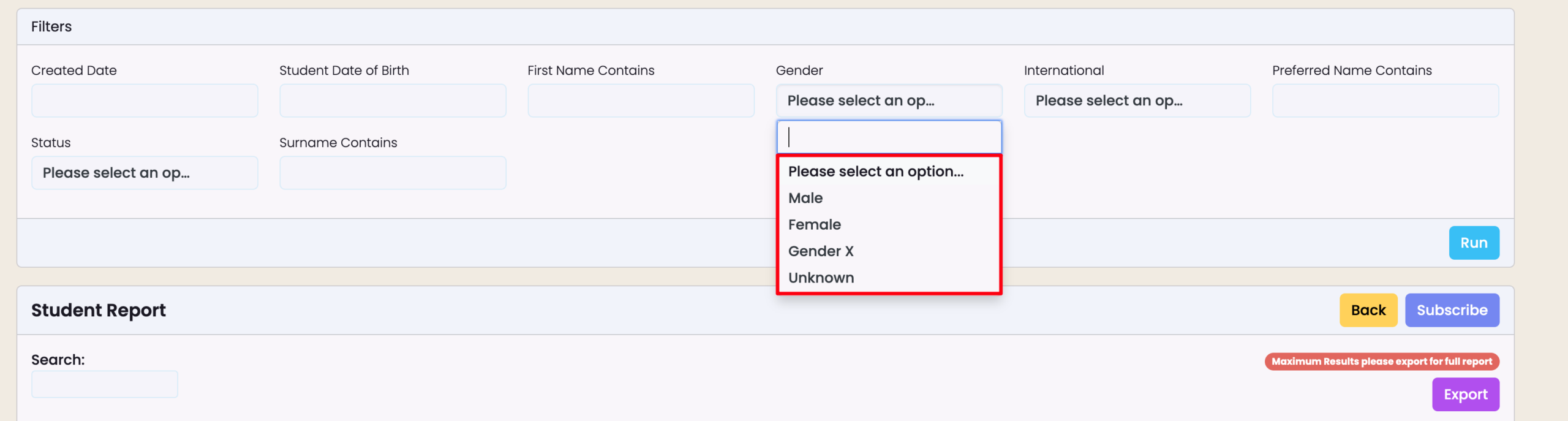
Figure 4. Like Filter
This is a free-text field, where you can type to search for a character/s within names or words.
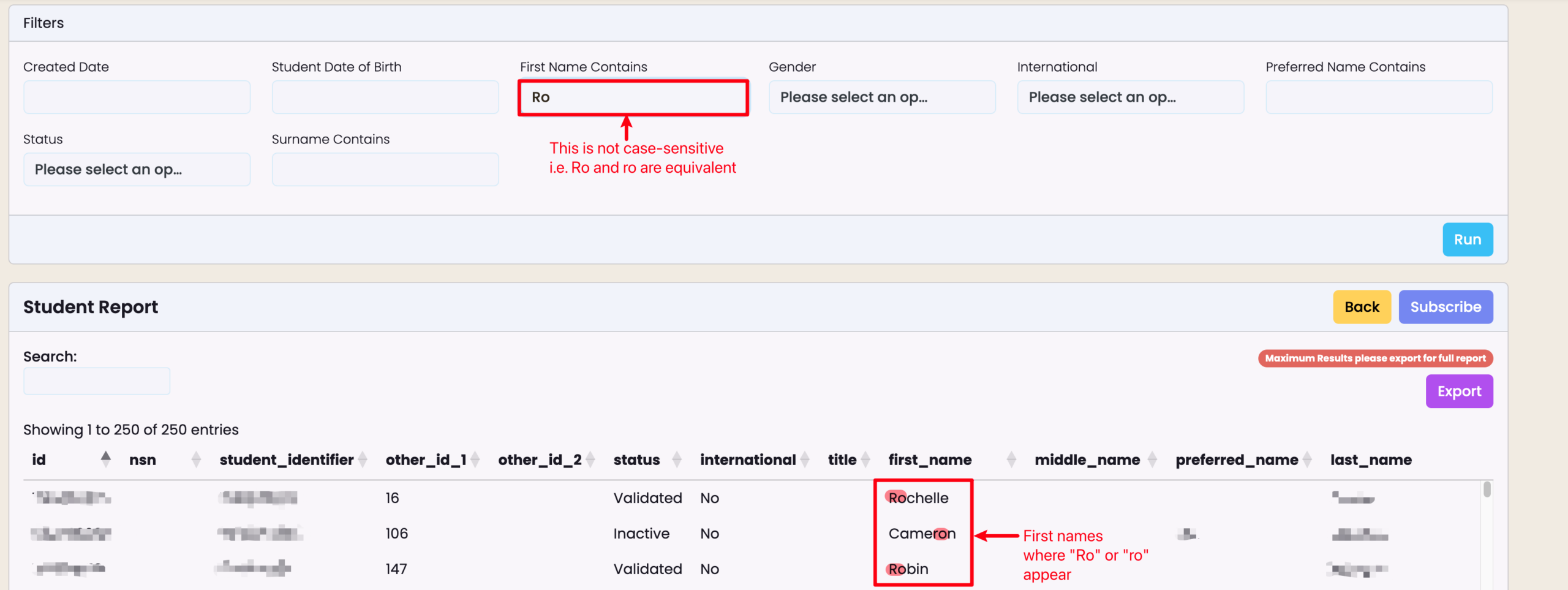
Figure 5. Date Filter
Click twice on a date in the calendar to select one date, or click once each time (orange, purple) for a date range (red).
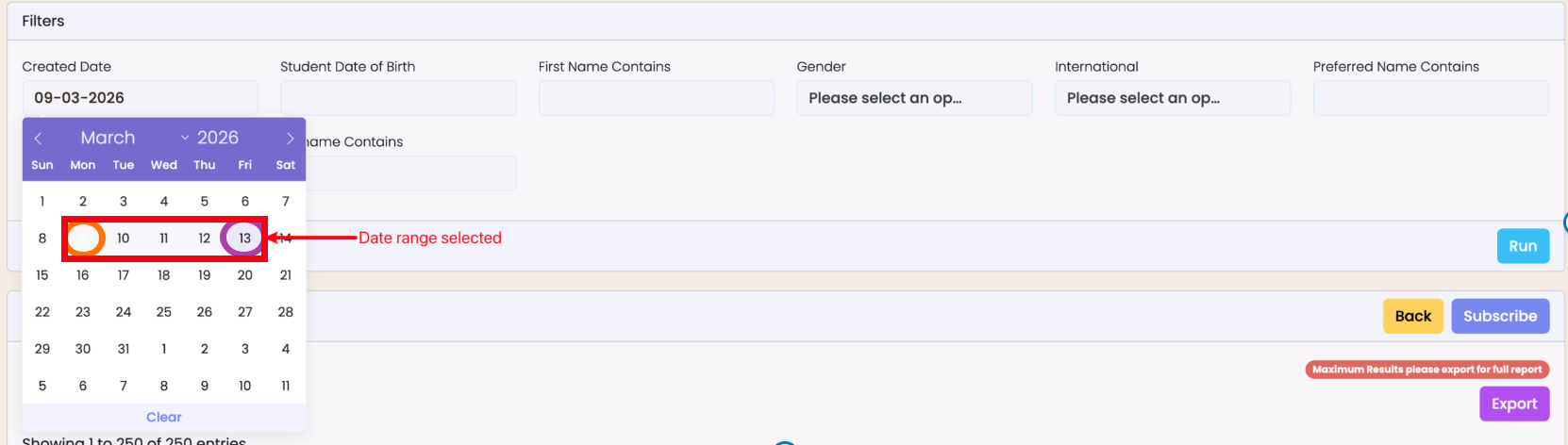
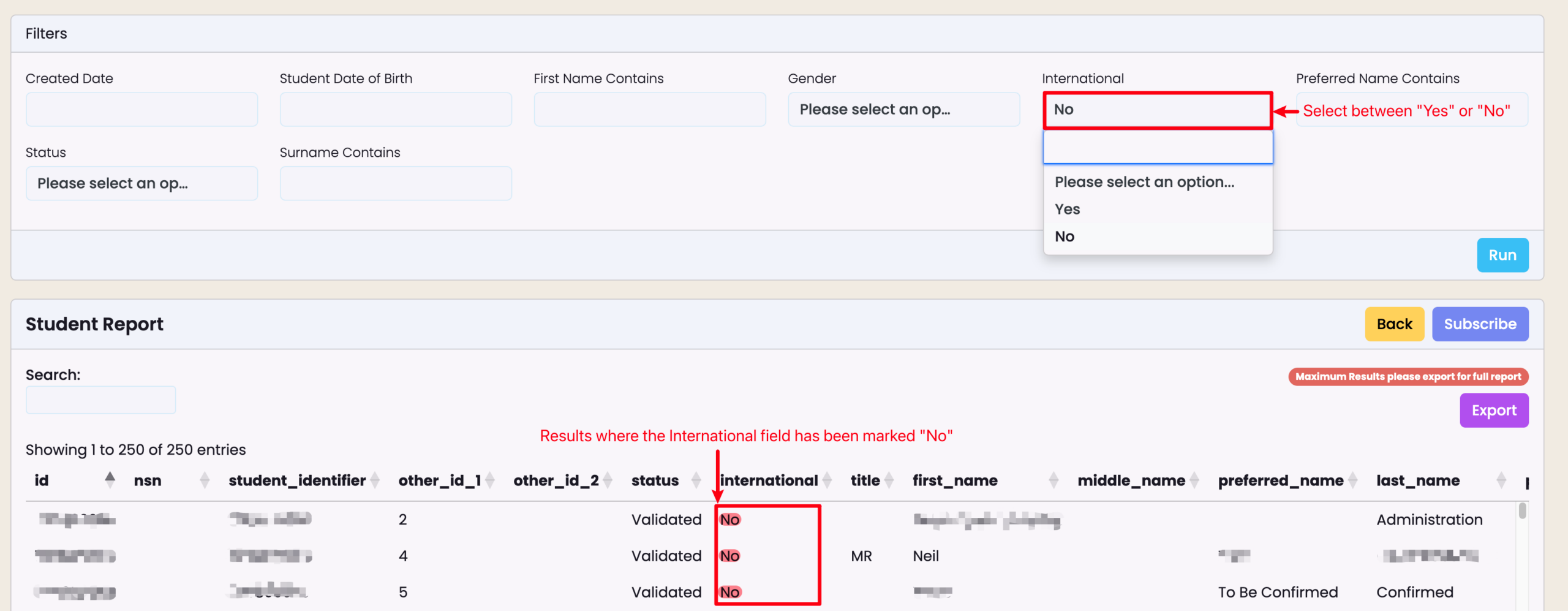
Figure 6. Boolean Filter
The Boolean filter applies to fields in SELMA which list the values “Yes” or “No”.
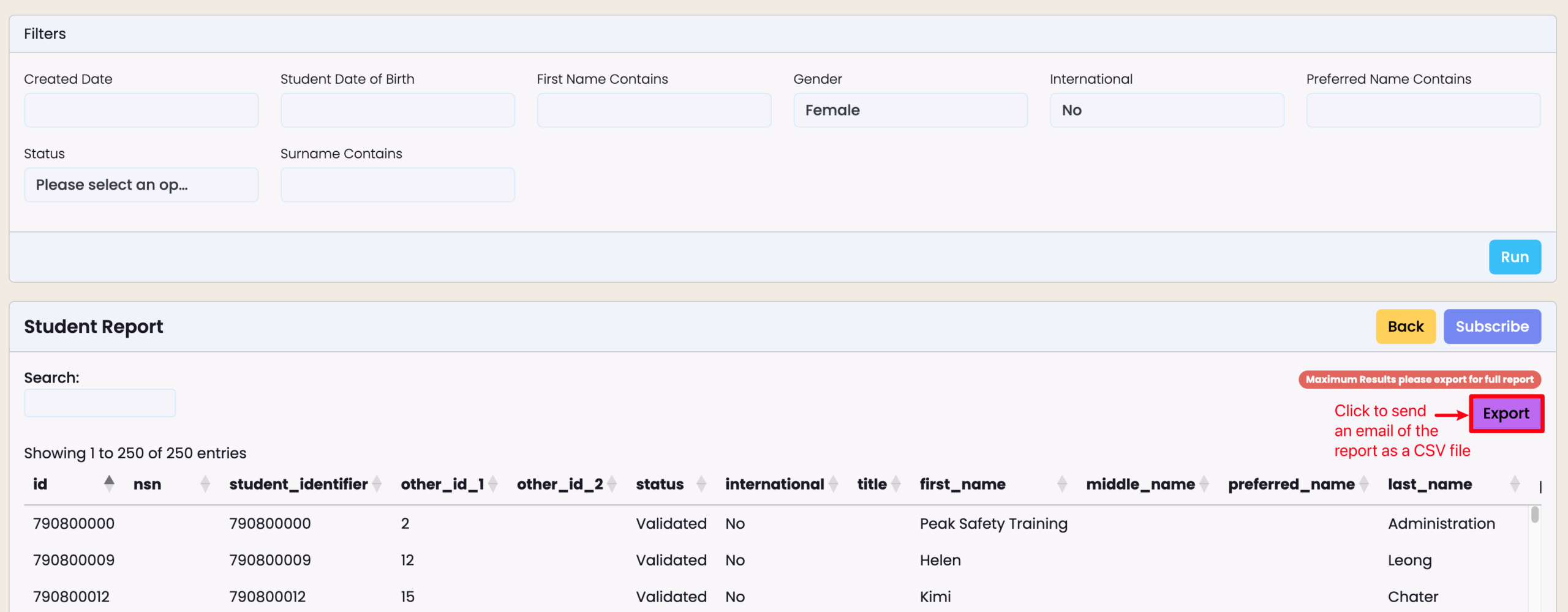
Grid Report Export
The Grid Report display is limited to 250 rows on the SELMA User Interface.
To view the full dataset, export the Grid Report to your email address.
- Note: If you do not see an email in your inbox immediately, please ensure you check your spam or junk folder.
Figure 7. Export a CSV File
Grid Report Subscription
Subscribe to select Grid Reports if you want to receive report updates, automatically, based on a self-appointed time schedule.
- Note: The report will be emailed to your primary email address, and can be accessed on your SELMA Profile page, too.
Figure 8i. Click “Subscribe” on the Report
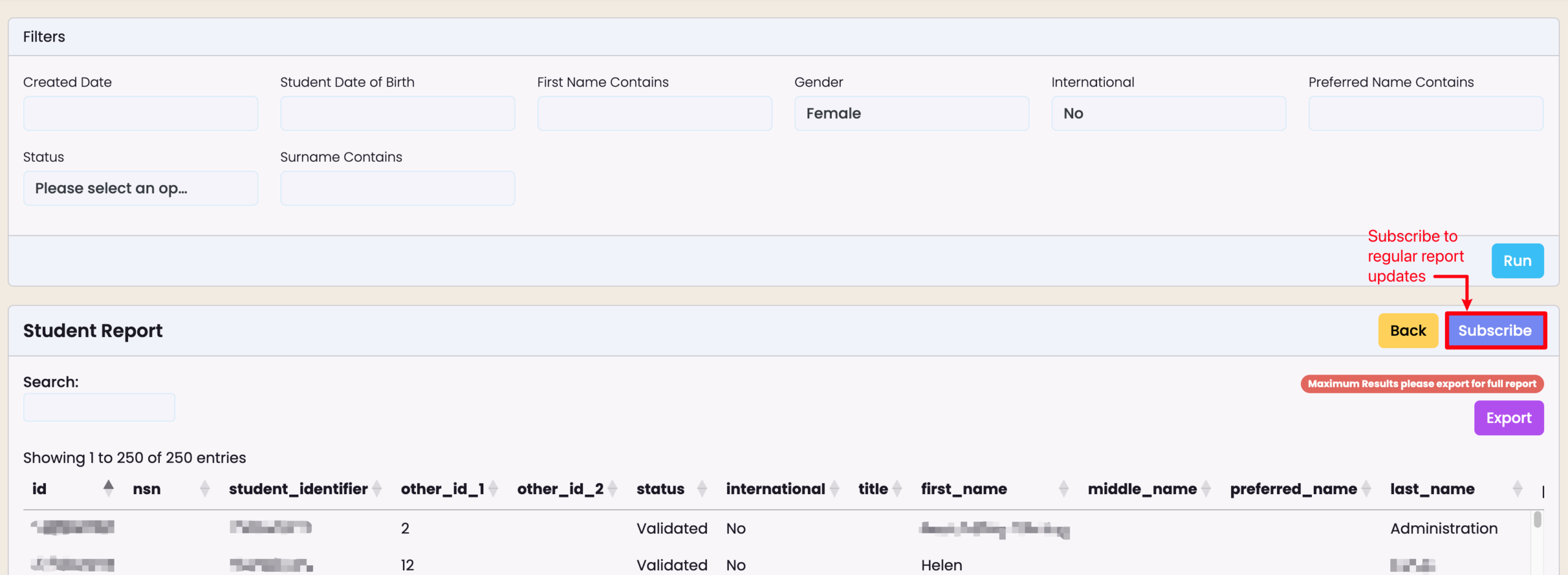
Figure 8ii. Specify Details and Save
Provide the required details, as indicated by red asterisks, and remember to click the purple “Subscribe” button. An email of the report will then be sent to you based on your schedule, starting on the date you specify.
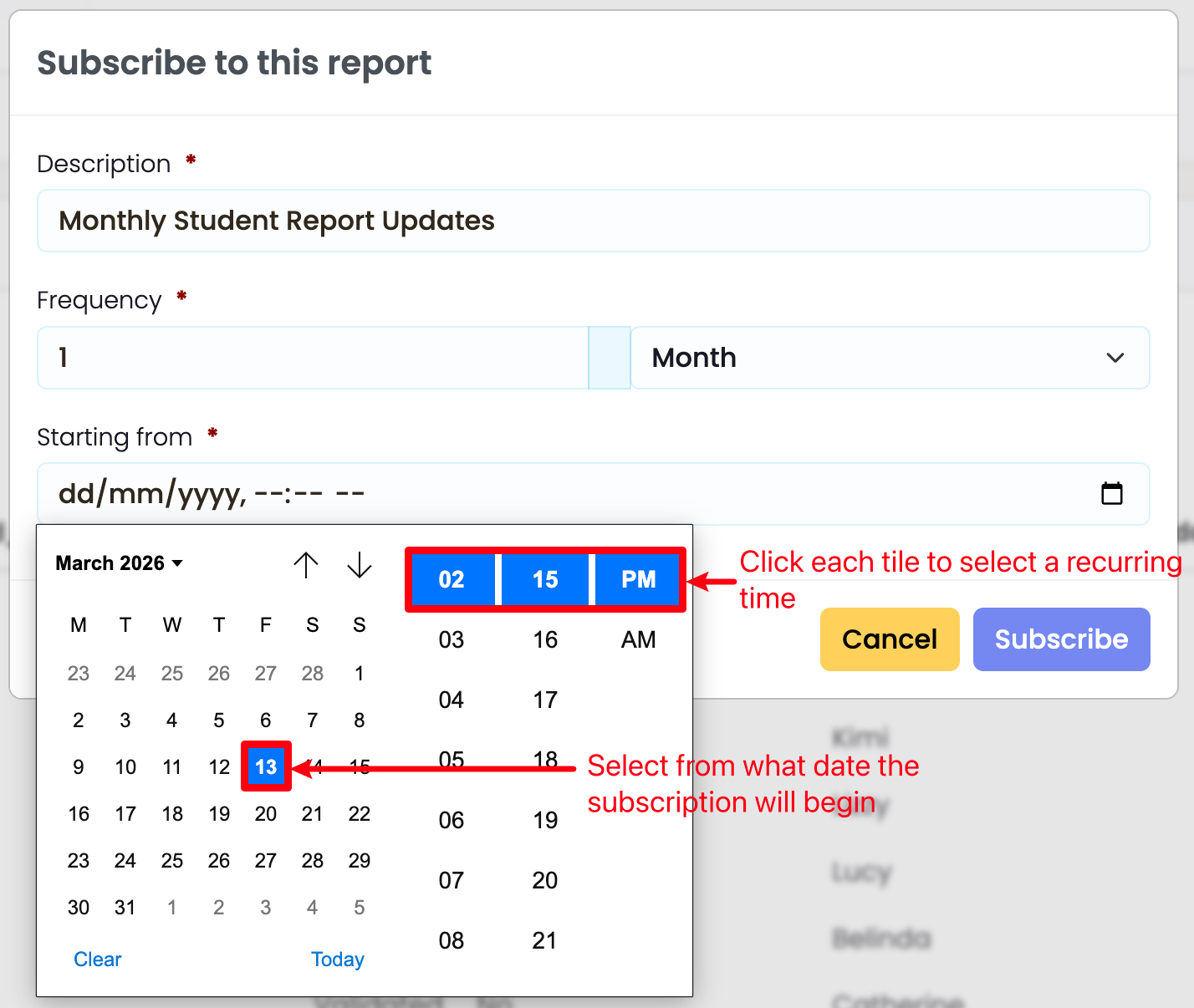
Figure 9i. Report Subscription Email
This is the report that will be emailed to your primary address, as per your subscription. Click the “Downloads” hyperlink text to go to SELMA downloads.
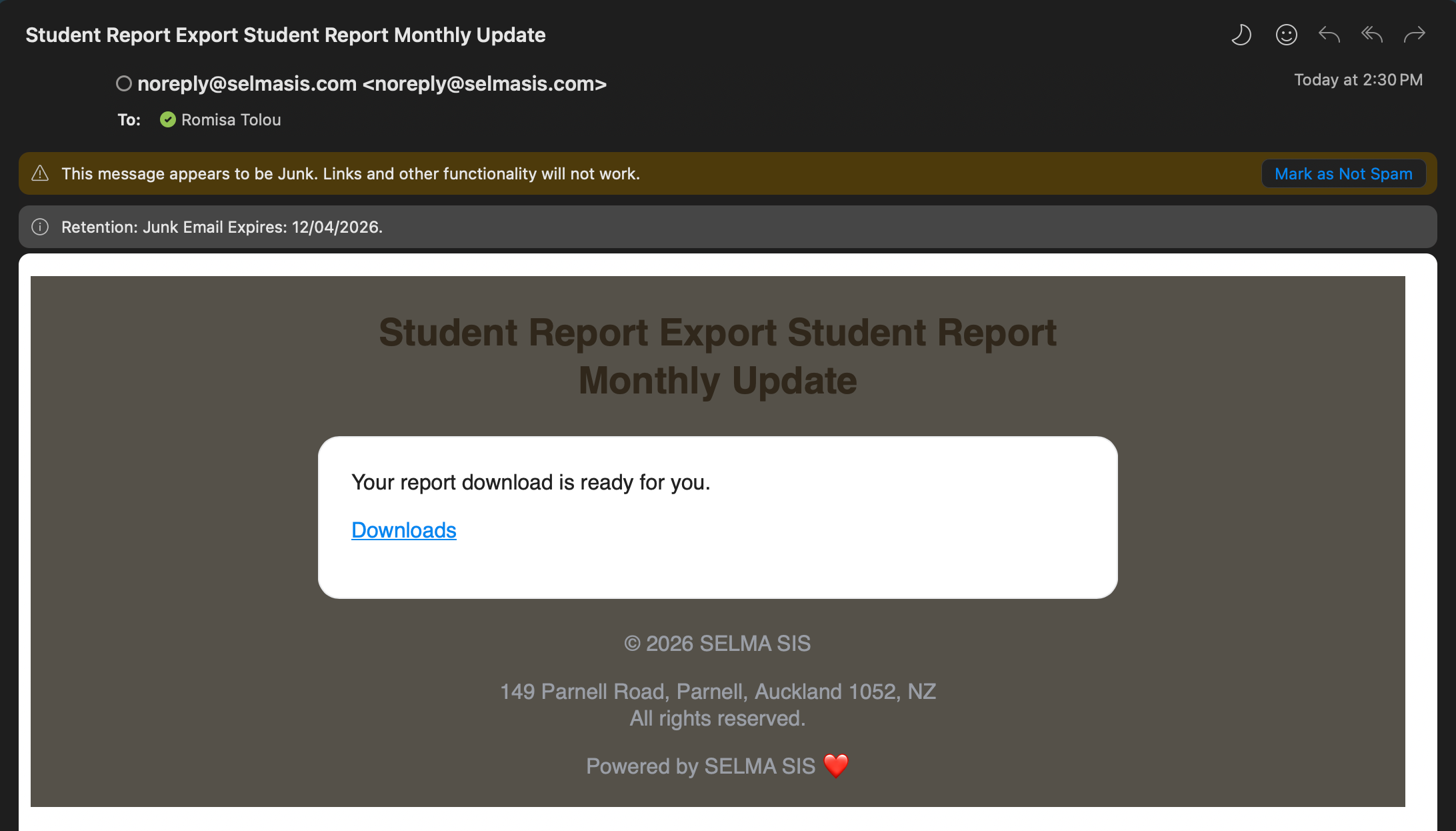
Figure 9ii. Download CSV File
This is where you can download files to your computer. You can access this page via your Report Subscription email, or navigate to Reports > Downloads in SELMA.

Figure 10. Navigate to Profile > Report Subscriptions Tab
See a list of your scheduled Report Subscriptions, and click a report name to open the report in SELMA, directly. Click the red trash bin icon to delete a Report Subscription.

Delete a Grid Report Subscription
Figure 11i. Navigate to your Profile Page
Click your name in the top right corner of the navigation bar, then select “Profile”.

FIgure 11ii. Report Subscriptions Tab
