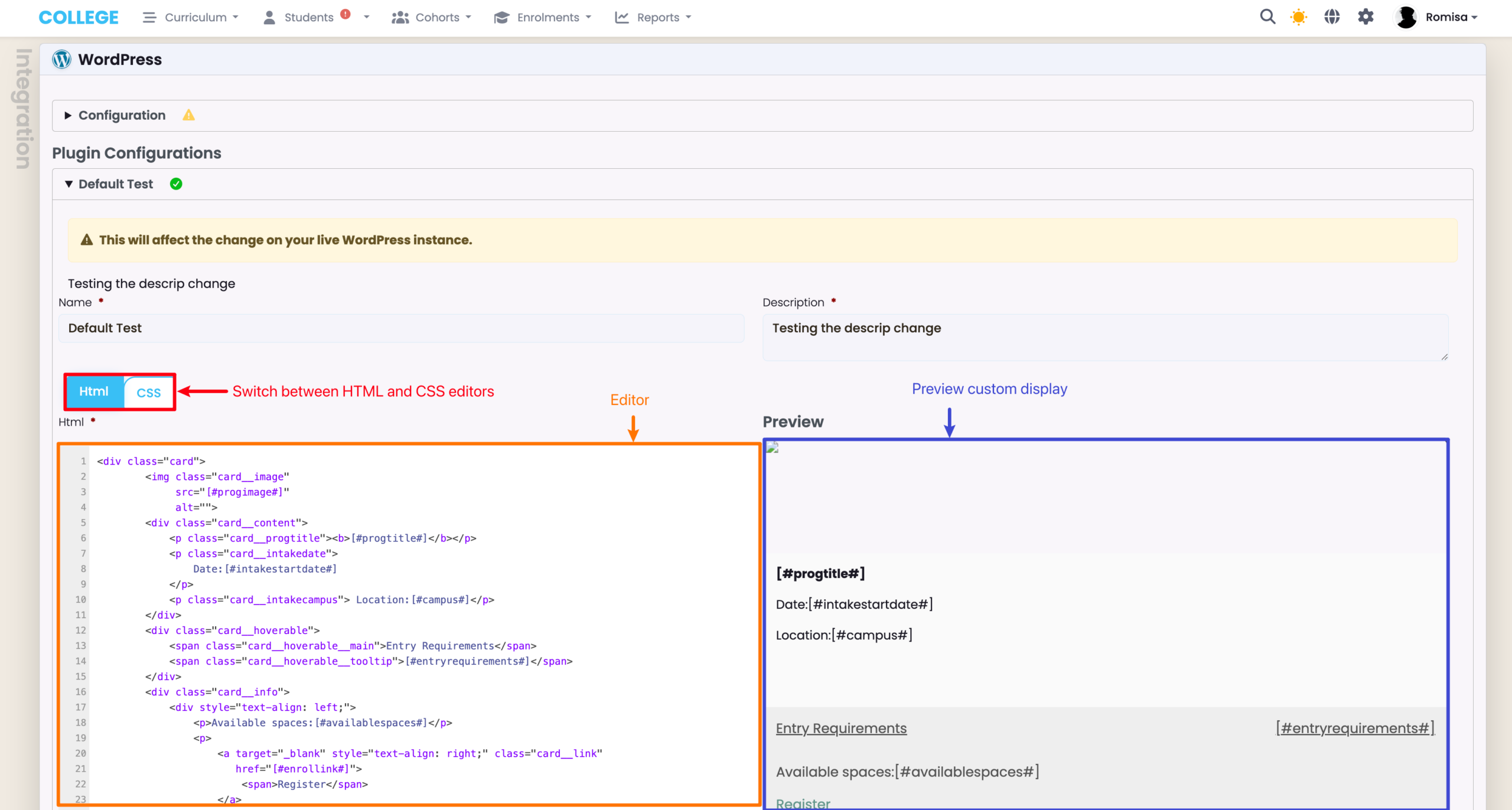
The SELMA-WordPress integration uses a WordPress plugin to display Programmes and Programme Campuses on your website. Students can select their preferred option, and are then directed to your SELMA enrolment form to complete their application.
Note: Please contact SELMA Support to include this paid feature in your subscription plan.
In this Section:
Upload the WordPress Plugin
Before you proceed with the following steps, please contact SELMA Support to provide you with the relevant WordPress zip file.
Figure 1i. Add Plugin
On the left-hand panel, navigate to “Plugins” and select “Add Plugin”.
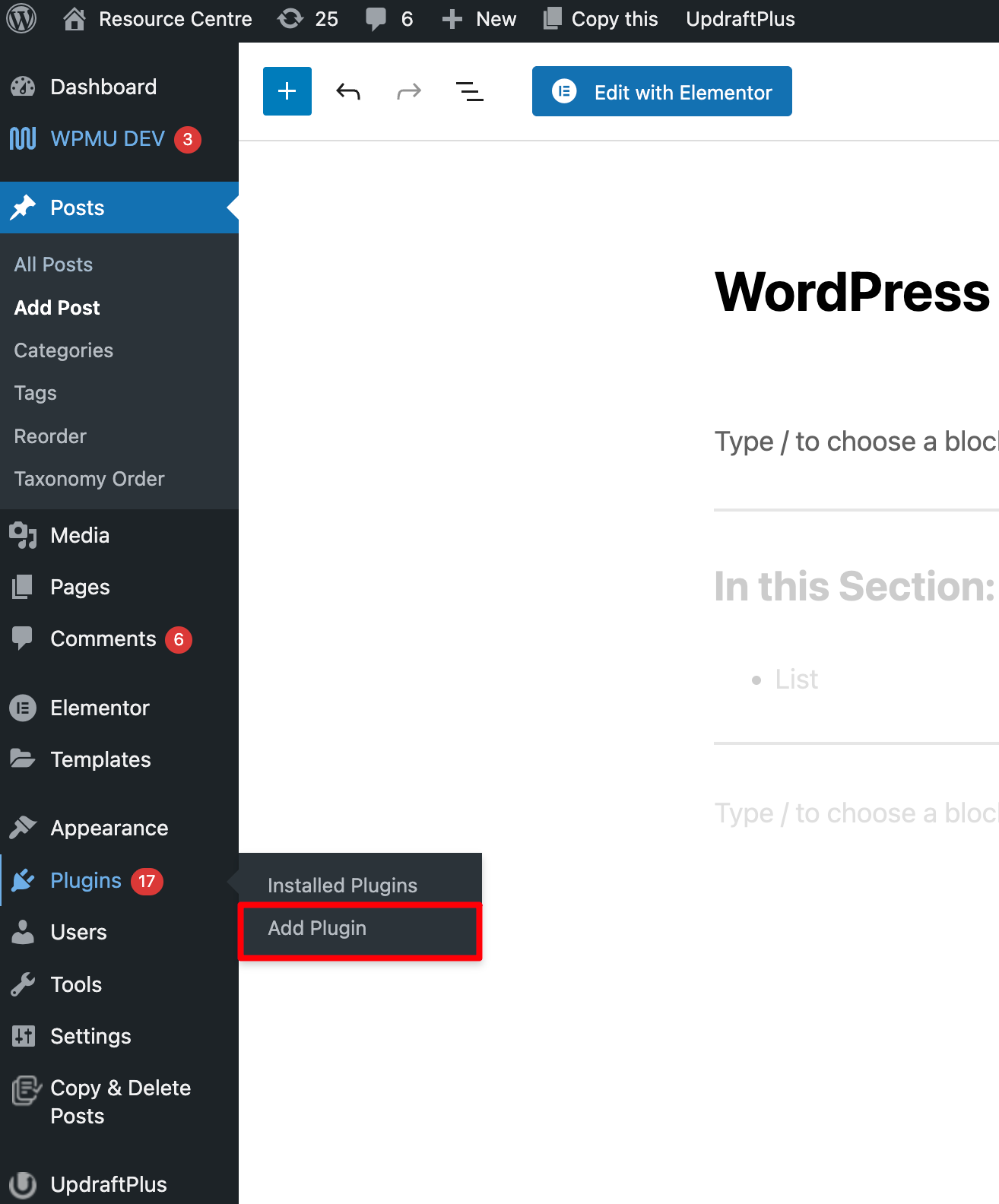
Figure 1ii. Upload Plugin
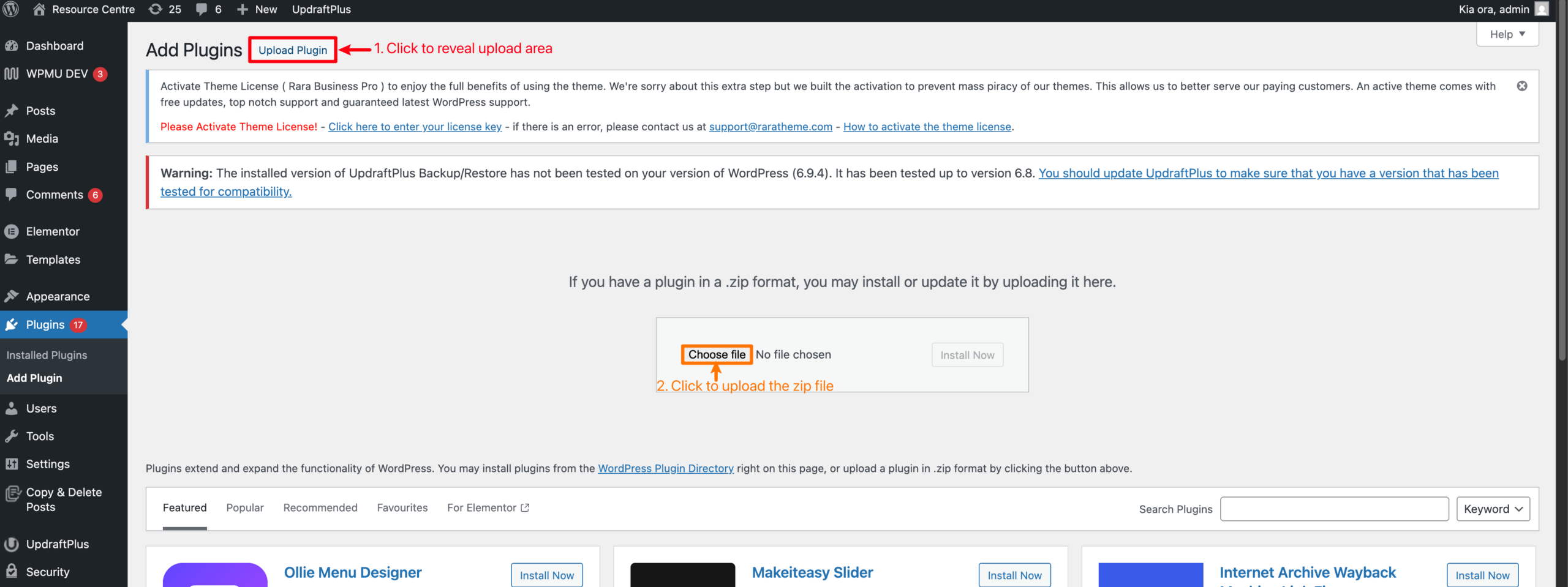
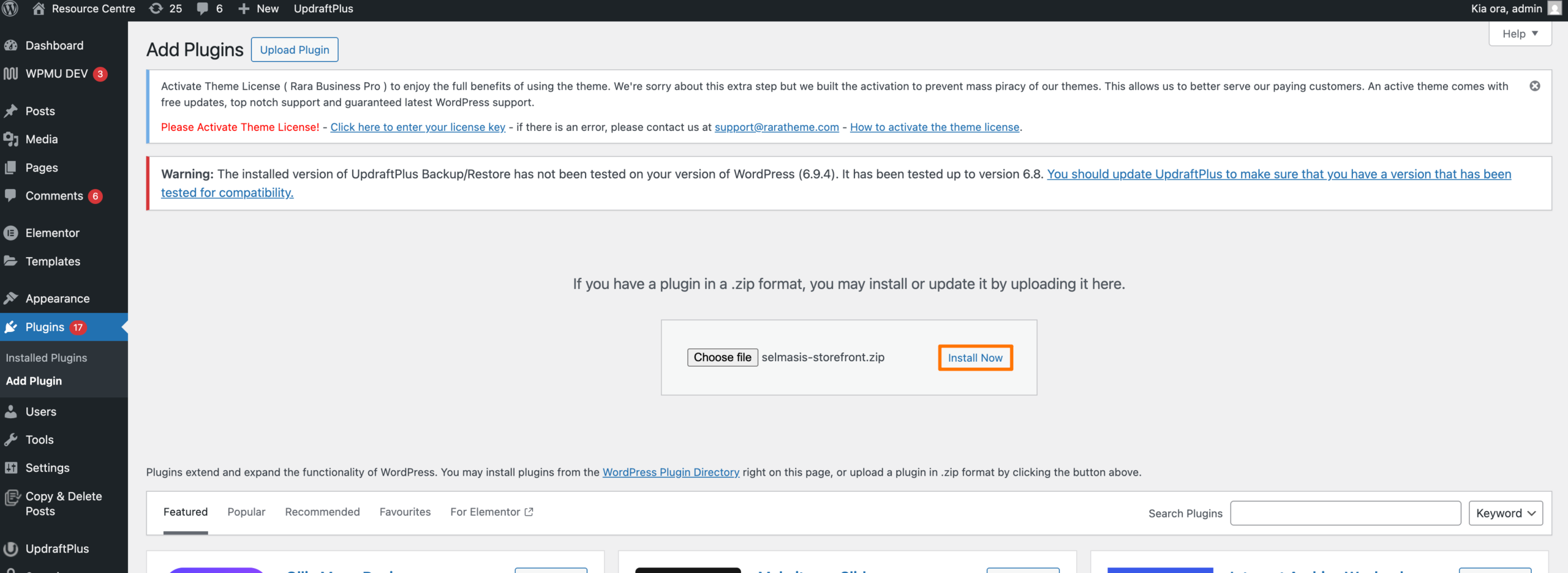
Figure 1iii. Install WordPress Plugin
Click the “Install Now” button once you’ve uploaded the zip file.
Fetch API User and API Key
Log a support ticket and request from one of our SELMA staff to create an API user for you. Then, navigate back to SELMA and follow the steps, below:
Figure 2i. Navigate to Settings > API
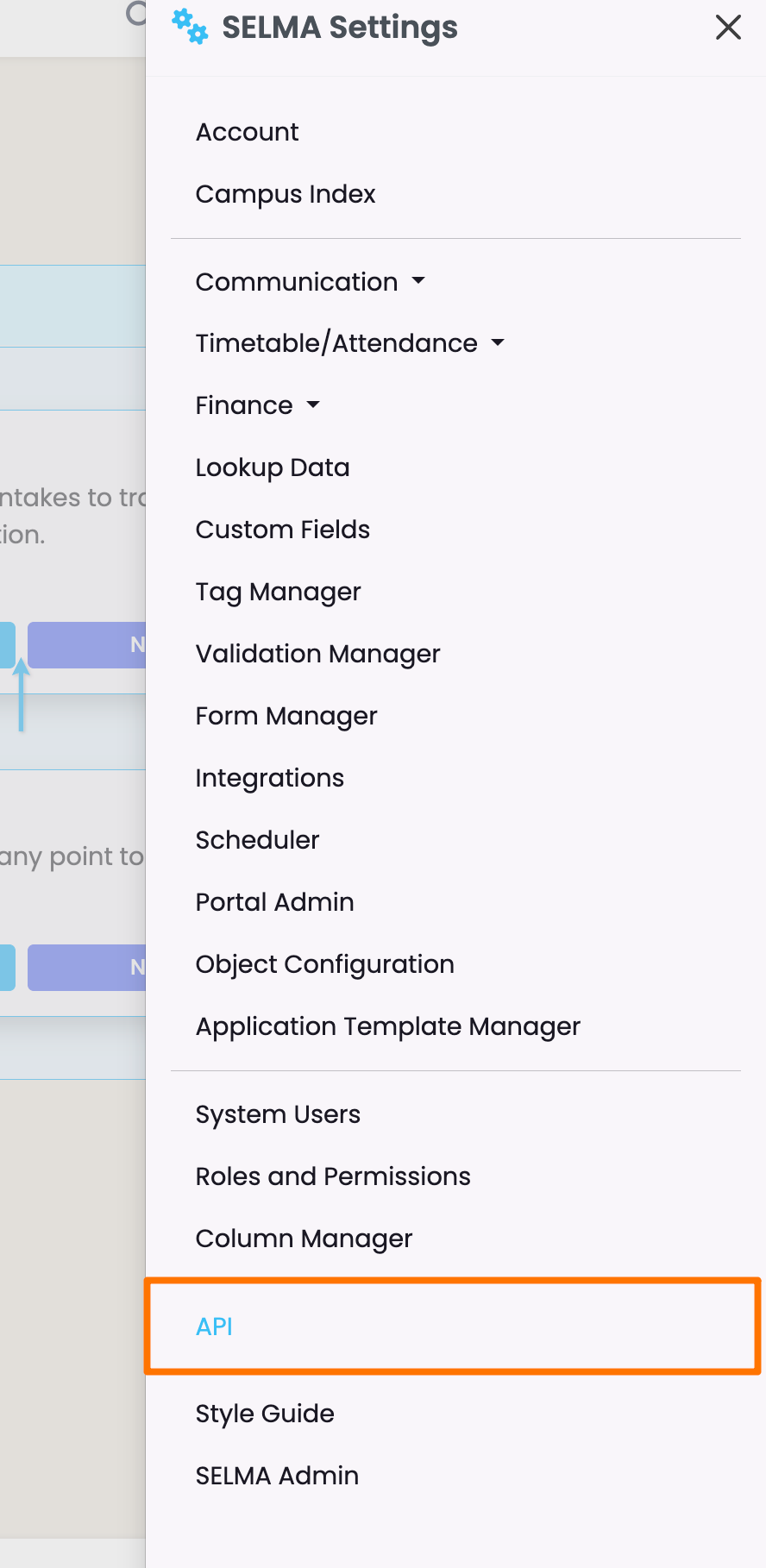
Figure 2ii. API User and Secret API Key
On the API Users tab, copy and save your API user name somewhere secure; then, generate a new API key (orange).
Note: You must click the checkbox, then click “regenerate” to generate a new API key.
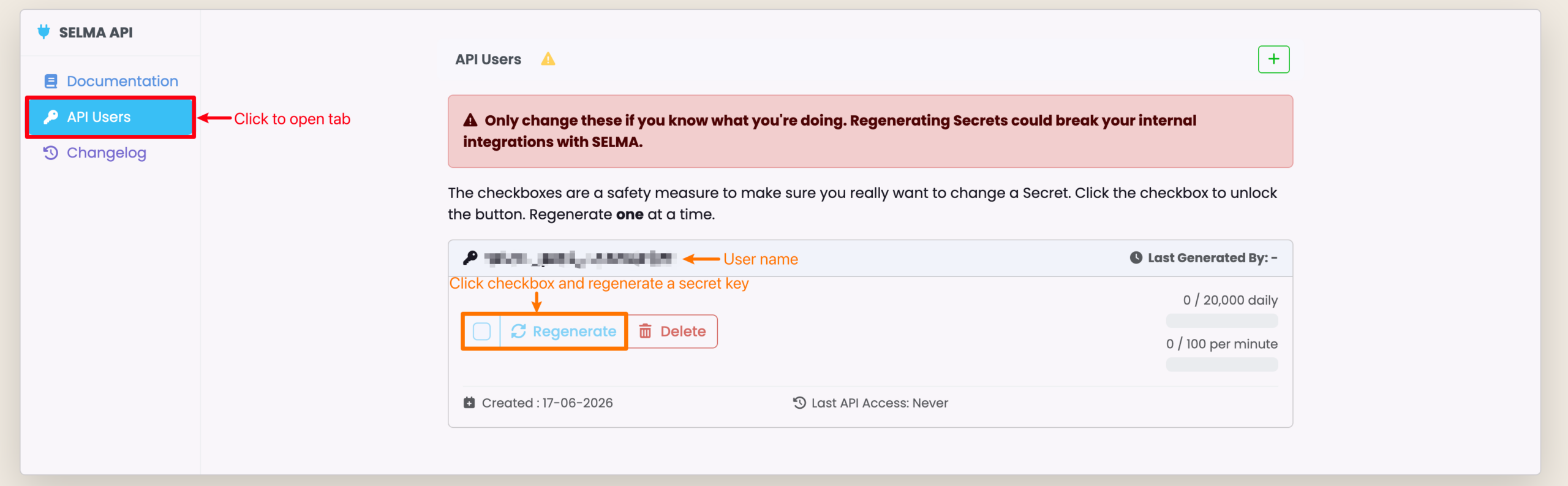
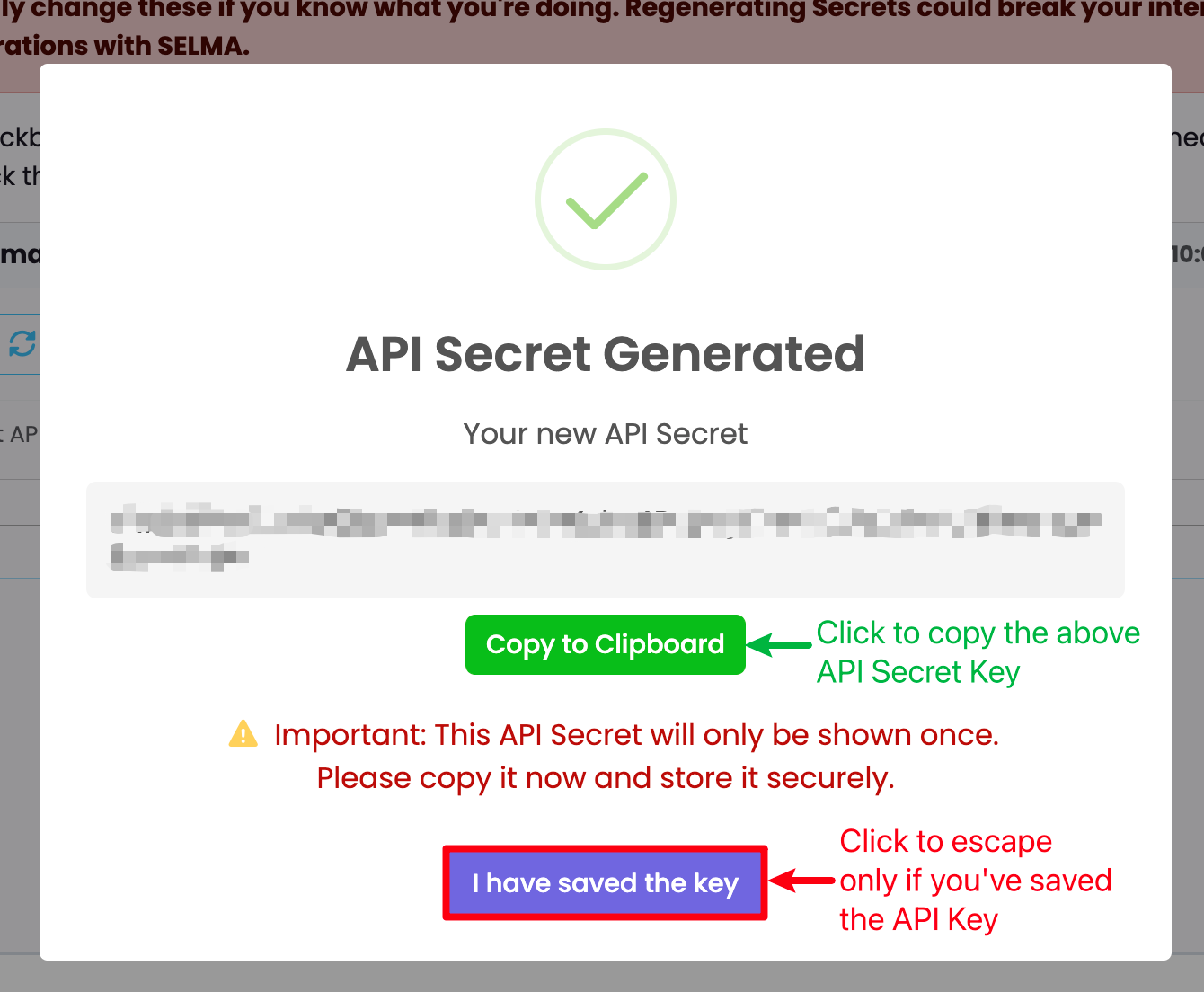
Figure 2iii. Copy API Key
Copy the API Secret Key to your clipboard (green), and store it somewhere secure.
WordPress PlugIn Configuration
Figure 3. Navigate to Plugins > Installed Plugins
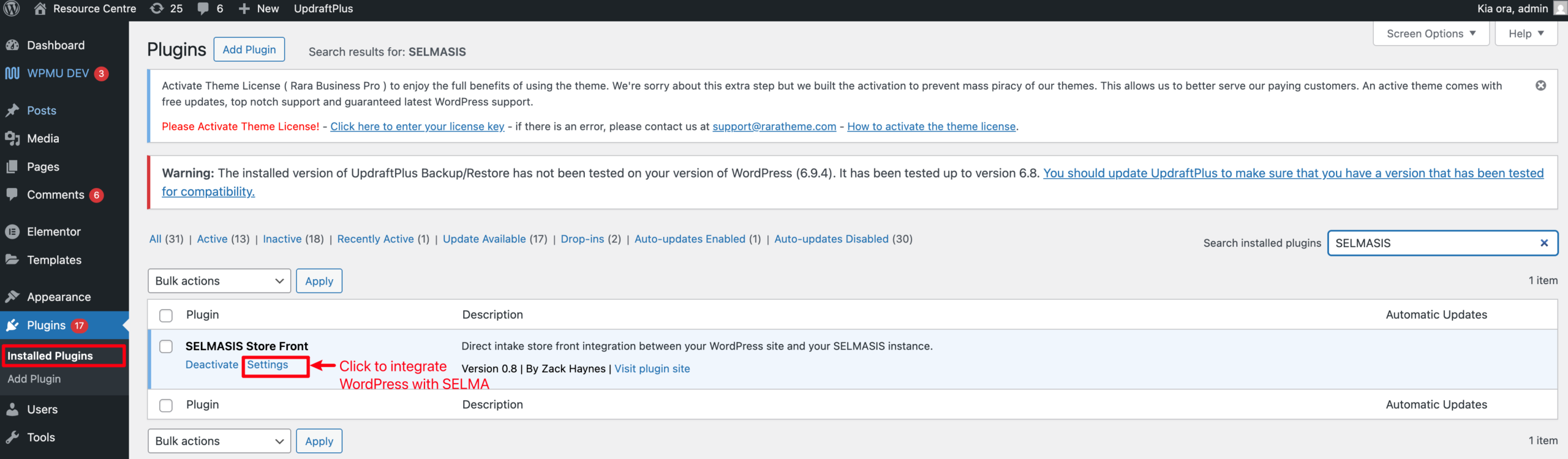
Figure 4. Enter API User and API Key
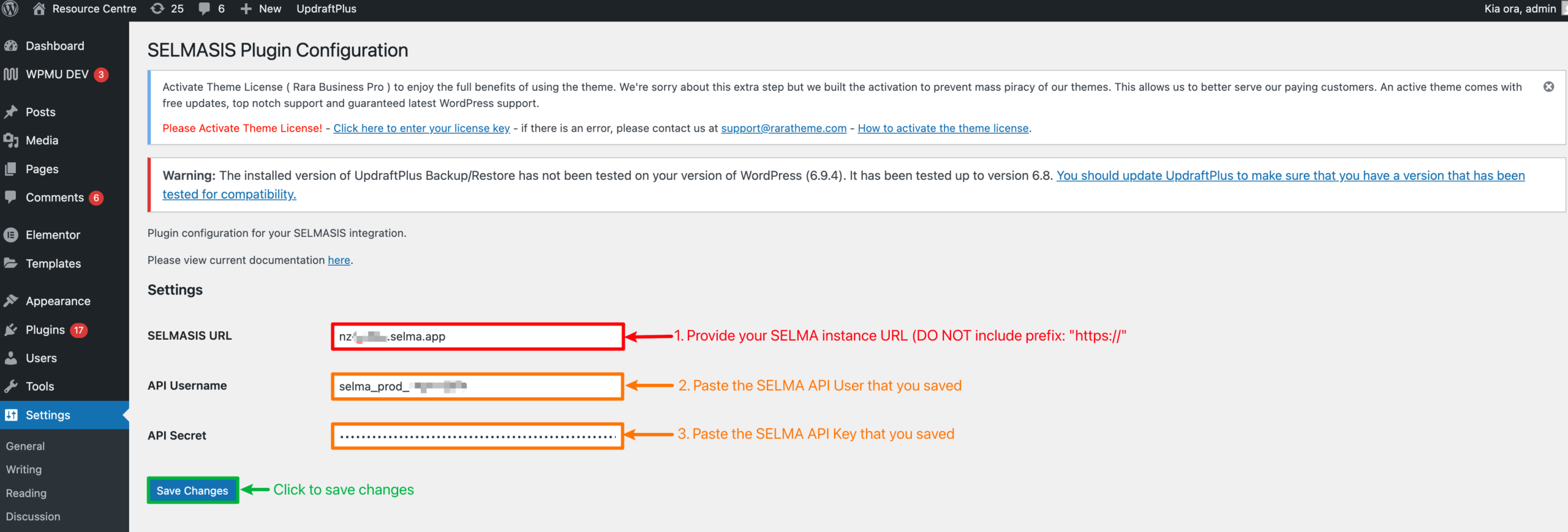
Figure 5. Enter Short-Code/s on a Post
Navigate to a WordPress post which constitutes your website. Then past the following Short Code parameters to render the appropriate SELMA Intakes onto your website:
- To show all available Intakes:
- selmasis (in square brackets)
- To show Intakes with a specifc Campus ID (e.g. 12) and Programme ID (e.g. 76)
- selmasis campus=12 programme=76 (in square brackets)
- To show Intakes with a specific Programme ID (e.g. 76)
- selmasis programme =76 (in square brackets)
Link Intakes to WordPress Site
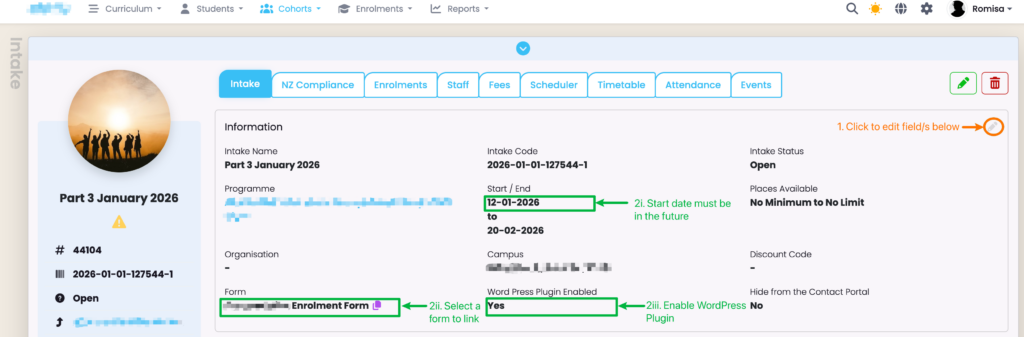
Navigate back to SELMA and fill out the following fields on the Intake tab of the Intake profile page.
Figure 6. Update Intake Tab Fields
Customise Website Display
The WordPress Integration has a default HTML script and CSS.
If you wish to customise the display follow the steps, below:
Figure 7i. Navigate to Settings > Integrations
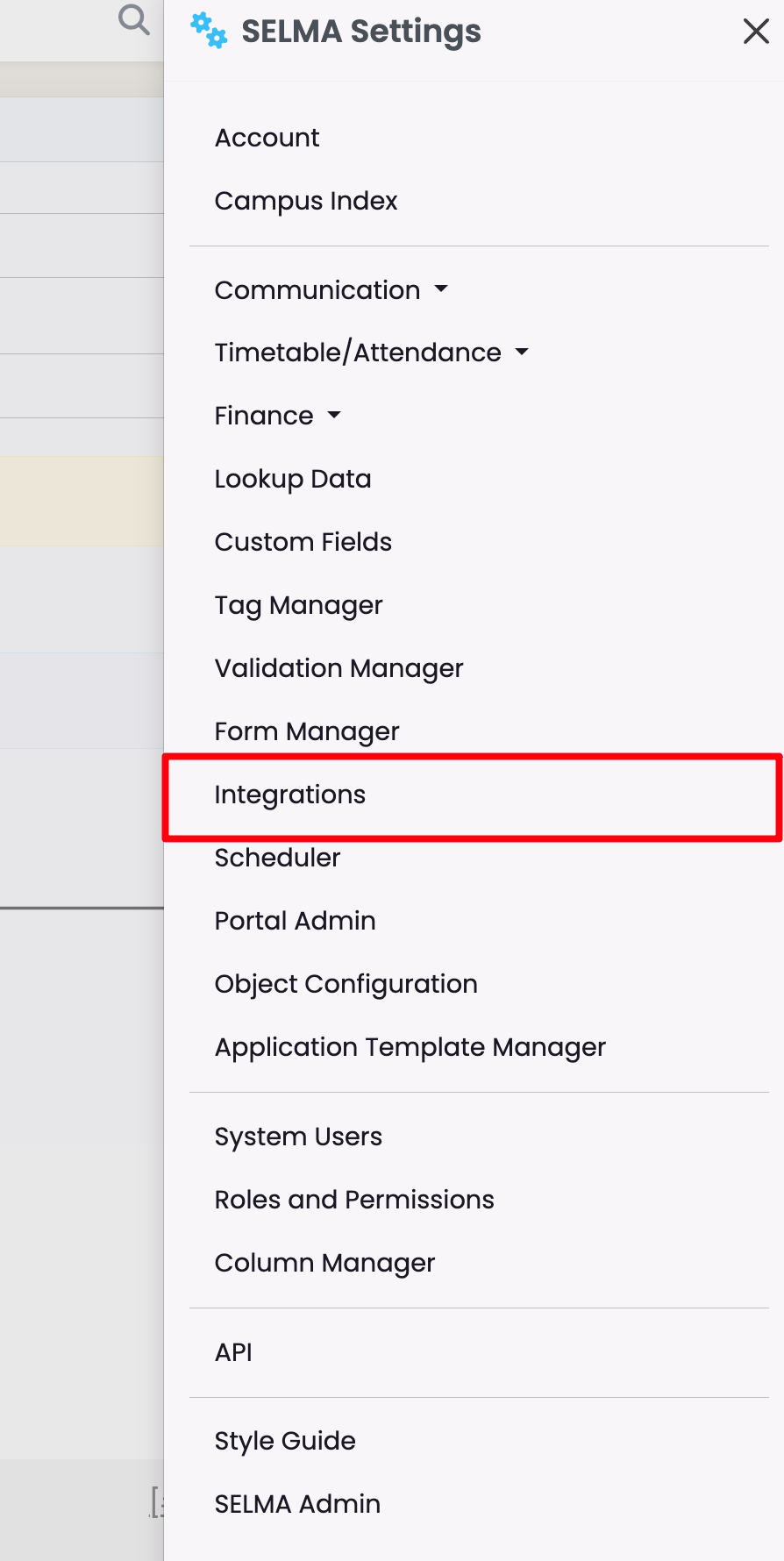
Figure 7ii. Select WordPress Configuration
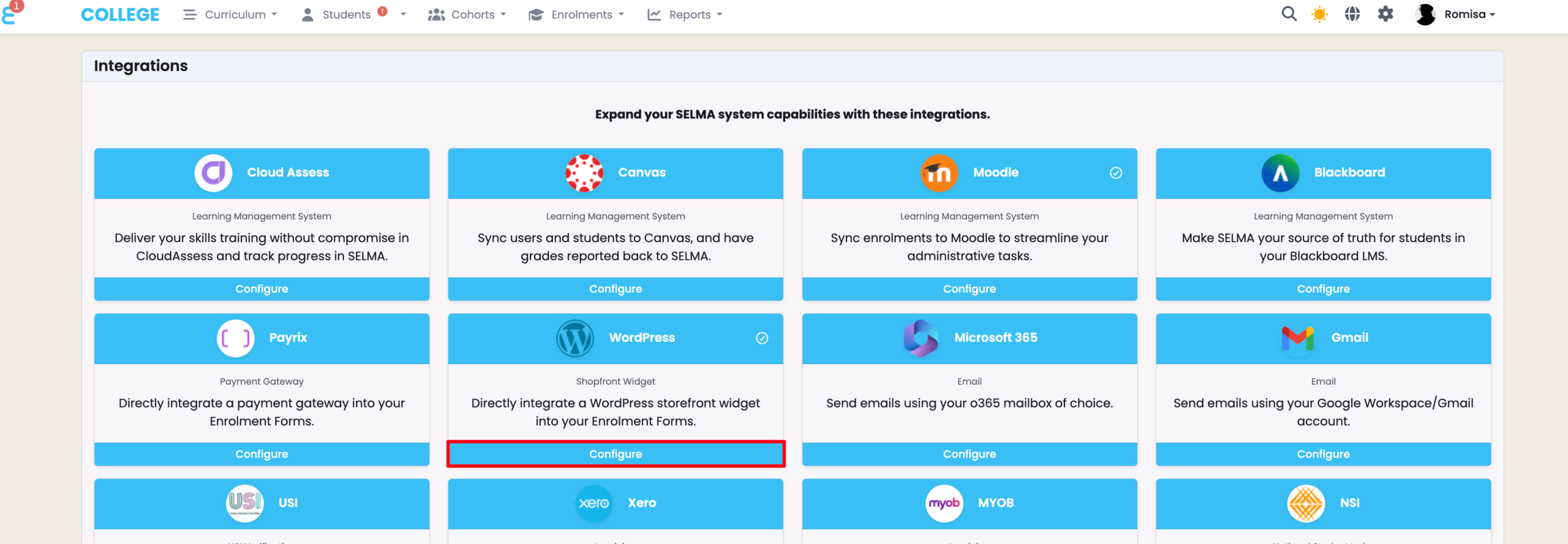
Figure 7iii. Edit Default HTML and CSS