The Marking feature in SELMA allows some Users to grade Enrolment Components, in bulk, without changing their Completion Codes.
Users with higher permissions rights can then access the Marking menu to review assessor’s grades, and approve them by changing their Completion Code to “Complete” or other Code.
Navigate the Marking Menu
Figure 1. Navigate to Enrolments > Marking

Figure 2. Initial Filter Search
Select your first round of filters within the dark blue outline, and click the light blue “Search” button to apply the search.
Note: The “Teacher Marked” button will show a list of Enrolment Components that have been graded, and which need their Completion Code updated.
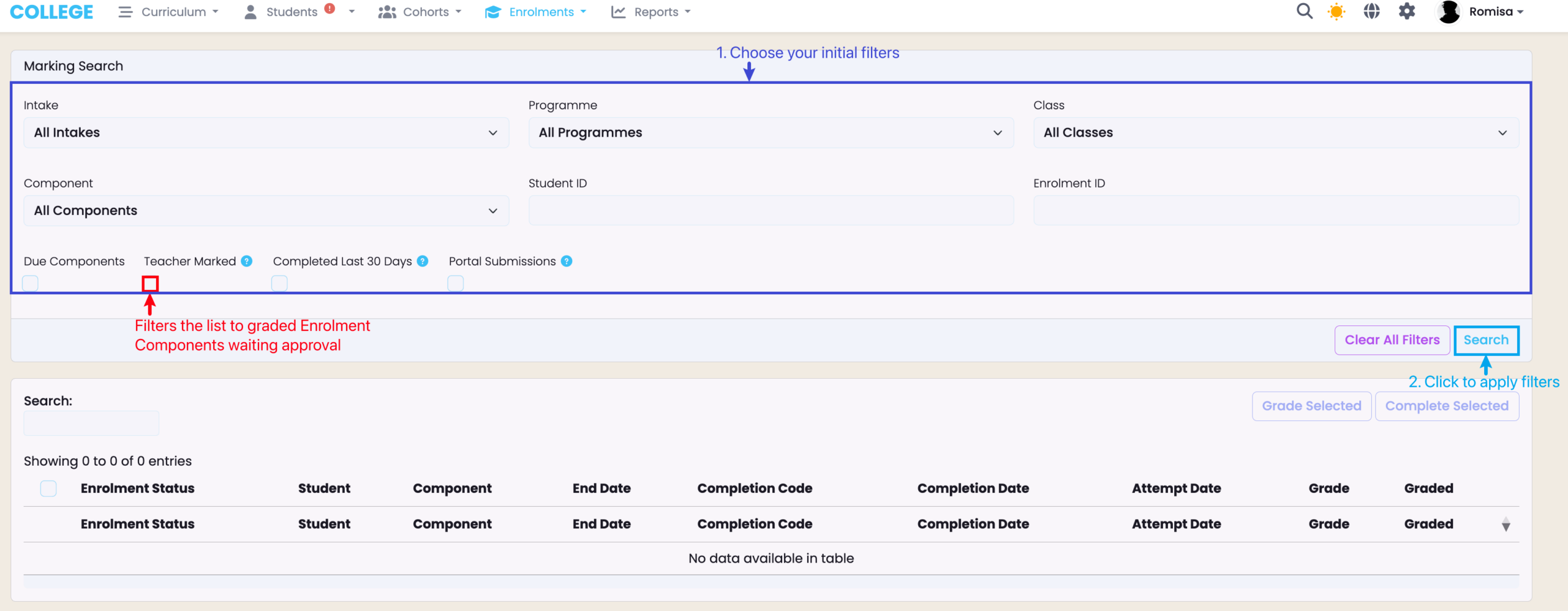
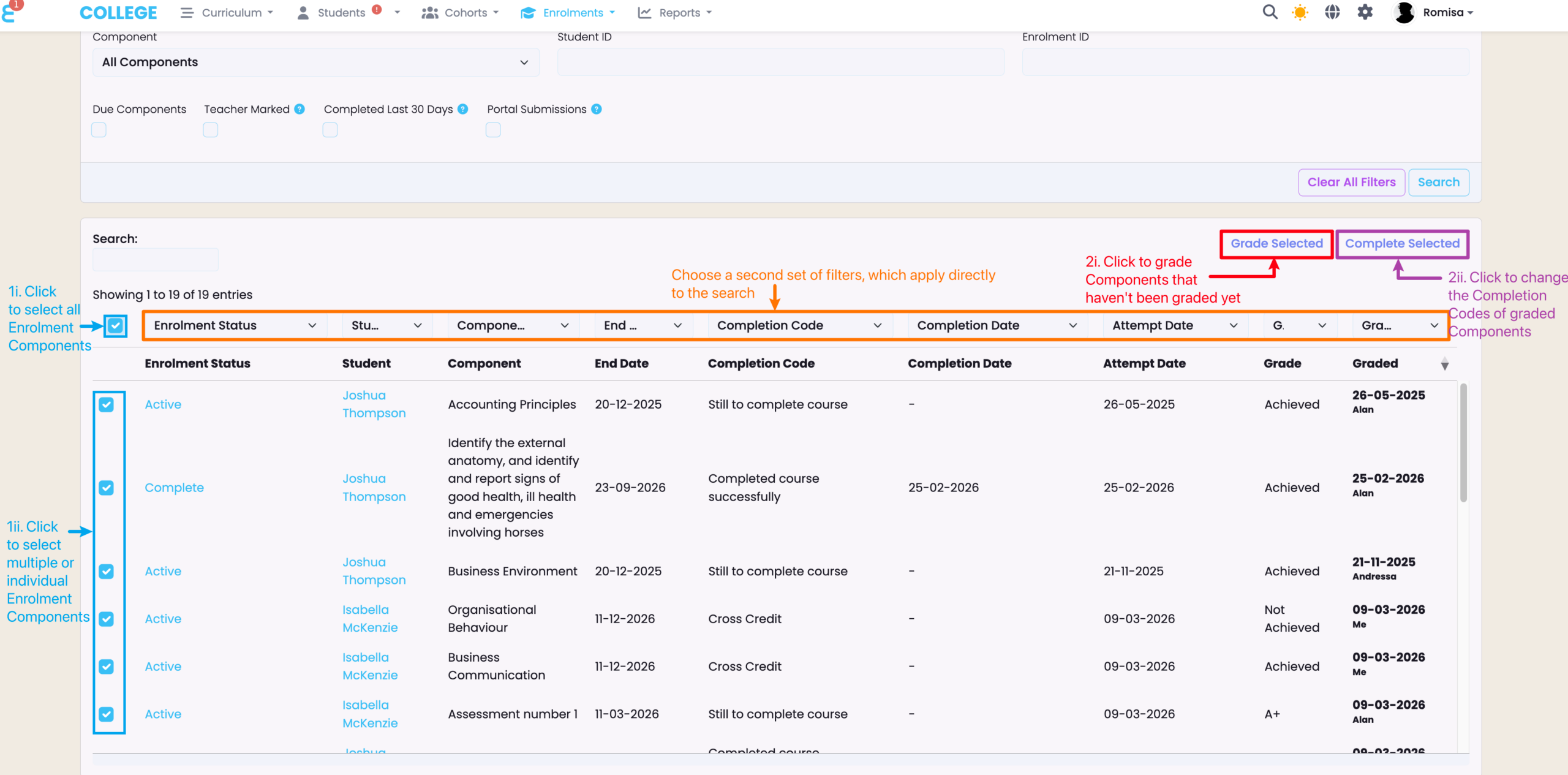
Figure 3. Further Filters and Actions
You can do a second round of filtering when the list appears after your initial search (orange), and grade Enrolment Components, which haven’t been graded yet (red), or change Completion Codes of graded Enrolment Components (purple).