
All learners undertaking nationally recognised training in Australia are required to hold a Unique Student Identifier (USI), unless a formal exemption applies.
Registered Training Organisations (RTOs) are responsible for:
- Collecting valid USIs
- Verifying learner identity
- Maintaining accurate records
- Reporting verified data through AVETMISS
SELMA SIS supports compliant USI collection, verification, and management in line with Australian regulatory requirements.
This guide explains how to configure, use, and maintain USI records in SELMA.
In this Section:
- Regulatory Context
- Pre-Requisites for USI Integration
- How SELMA Supports USI Management
- Enabling USI Services in SELMA
- Collecting and Verifying USIs
- Learners With Only One Legal Name
- Learners Without a Standard USI
- Compliance Note: USI and AVETMISS Reporting
- Monitoring and Error Management
- Best Practice Recommendations
- USI Integration Setup in SELMA
- How SELMA Uses the USI Integration
- Common Set-Up Issues
- Contact Us
Regulatory Context
USI management is governed by the Australian Government and administered through the USI Registry.
Official reference sources:
- USI Registry: https://www.usi.gov.au/
- MyGovID: https://www.mygovid.gov.au/
- Relationship Authorisation Manager (RAM): https://info.authorisationmanager.gov.au/
All RTOs must meet these requirements as part of ASQA and AVETMISS compliance obligations.
Pre-Requisites for USI Integration
Before SELMA can connect to the USI Registry, providers must complete mandatory government identity and authorisation steps. These requirements apply to all Student Management Systems.
Set-Up MyGovID
An authorised officer must create a MyGovID to verify their identity.
https://www.mygovid.gov.au/
Register in RAM
The organisation must be registered in the Relationship Authorisation Manager.
https://info.authorisationmanager.gov.au/
Link the Legal Entity
The Principal Authority must link the business entity in RAM to confirm organisational authority.
Assign Authorisations
Appropriate permissions must be granted to enable access to USI services. These authorisations determine who can manage and verify learner records.
How SELMA Supports USI Management
Once prerequisites are complete, SELMA enables:
- Secure connection to the USI Registry
- Automated verification workflows
- Identity matching and validation
- Enrolment-level compliance checks
- Reporting-ready USI records
This reduces administrative workload and compliance risk.
Enabling USI Services in SELMA
During onboarding or initial setup, the SELMA team will:
- Confirm MyGovID and RAM status
- Validate authorisations
- Enable USI services
- Test registry connectivity
- Configure user access controls
This ensures the environment is compliant prior to go-live.
Collecting and Verifying USIs
USI Collection
Learners may provide their USI through:
- Enrolment forms
- Student portal
- Direct submission
Learners without a USI can create one at:
https://www.usi.gov.au/students/create-usi
Verification in SELMA
SELMA verifies USIs by:
- Matching learner details with registry records
- Confirming identity consistency
- Flagging discrepancies
Where integration is active, verification occurs automatically.
Learners with Only One Legal Name
Some learners have only one legal name (mononym). This scenario is recognised by the USI Registry and is supported under AVETMISS, provided mandatory data requirements are met.
Recording in SELMA
For Australian providers, both Given Name and Family Name are mandatory fields under AVETMISS and must be populated in a way that exactly matches the learner’s USI record.
If a learner genuinely has only one legal name:
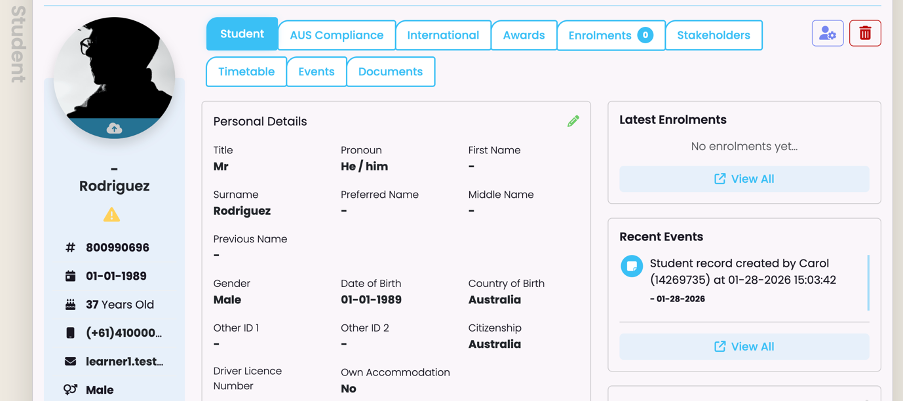
- Record the learner’s single name in the Family Name field
- Use an approved placeholder in the Given Name field (e.g.
-or.), matching the USI Registry record - Do not create artificial surnames
- Do not duplicate the learner’s name across both fields
Important Notes:
- Identity documents inform the data captured, but USI and AVETMISS rules take precedence for reporting.
- If system limitations prevent compliant data entry, contact SELMA Support before applying any workaround.
Figure 1: Record a Student with a Single Legal Name
Ensure you fill out First Name and Surname, and all details exactly match the USI Registry to ensure successful verification.
- NOTE: If there is any uncertainty about how a learner’s name is recorded in the USI Registry, confirm the USI details first.
Learners Without a Standard USI
In limited circumstances, learners may participate in training without holding a standard USI.
In these cases, SELMA requires an approved exemption value for reporting.
These records are excluded from national transcripts and must only be used where formal exemption criteria are met.
Compliance Note: USI and AVETMISS Reporting
USI exemptions do not remove AVETMISS reporting obligations.
Where a learner is exempt, providers must:
- Record an approved exemption value
- Maintain accurate learner data
- Include the record in AVETMISS submissions
Incorrect exemption usage may result in compliance findings.
SELMA supports compliant reporting through built-in validation and formatting controls.
Monitoring and Error Management
SELMA helps providers identify and resolve issues through:
- Verification status indicators
- Validation warnings
- Compliance dashboards
- AVETMISS export checks
Training Providers can also proactively reduce errors by creating custom validations using the Validation Manager in SELMA.
This allows organisations to enforce data rules (for example, name formats or mandatory fields) before records reach reporting or export stages.
- To learn how to create and manage validations, please refer to System Settings – Validation Manager.
Common errors include:
- Invalid USI
- Identity mismatches
- Missing data
- Incorrect exemption codes
These are flagged for correction prior to submission.
Best Practice Recommendations
To maintain strong compliance:
- Complete MyGovID and RAM setup early
- Verify USIs at enrolment
- Retain exemption evidence
- Review records regularly
- Resolve issues before reporting
USI Integration Setup in SELMA
This section explains how to connect SELMA to the USI Registry System.
Before starting, ensure your organisation has completed MyGovID and RAM set-up.
Step 1: Access the USI Connector
Figure 2a. Navigate from Settings > Integrations
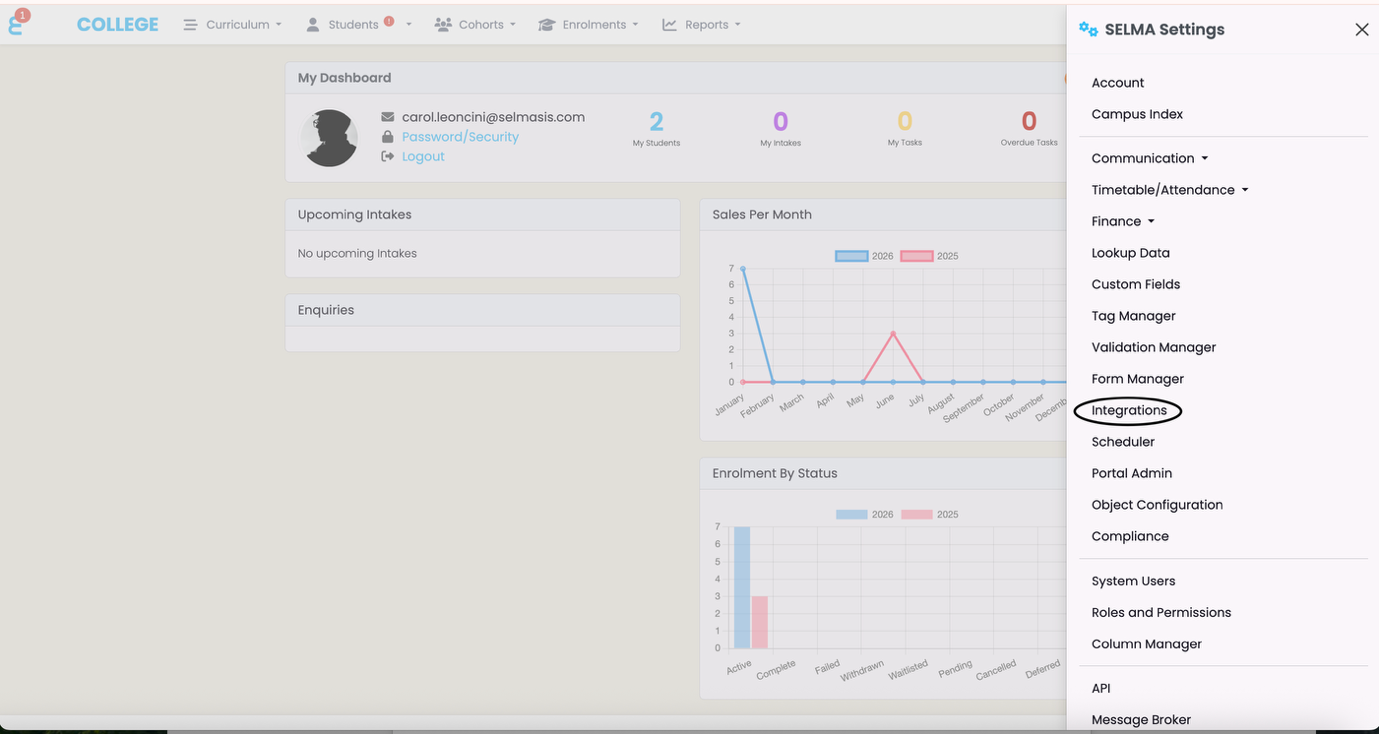
Figure 2b. Select the USI Integration
Click the “Configure” button under “USI”.
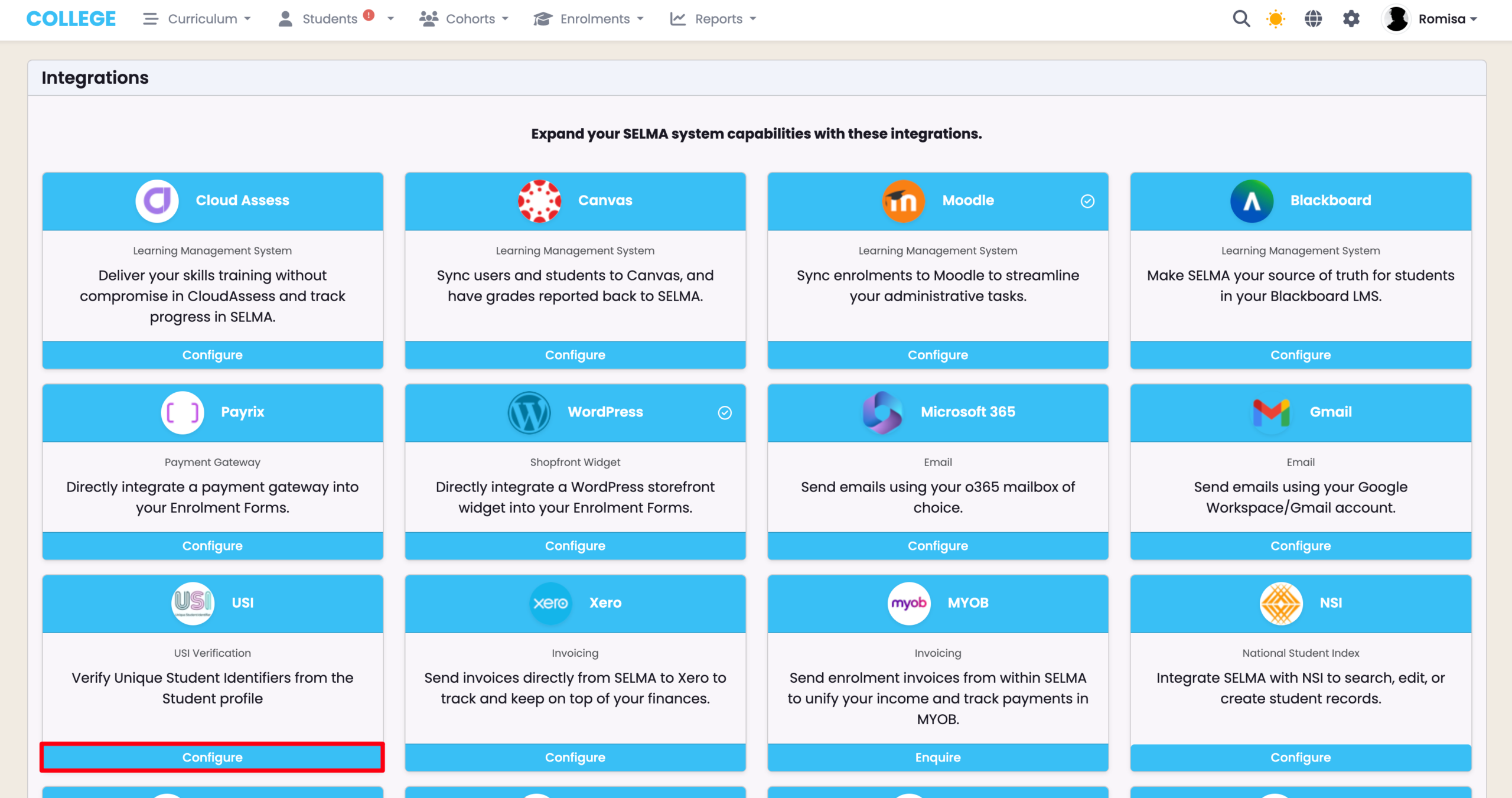
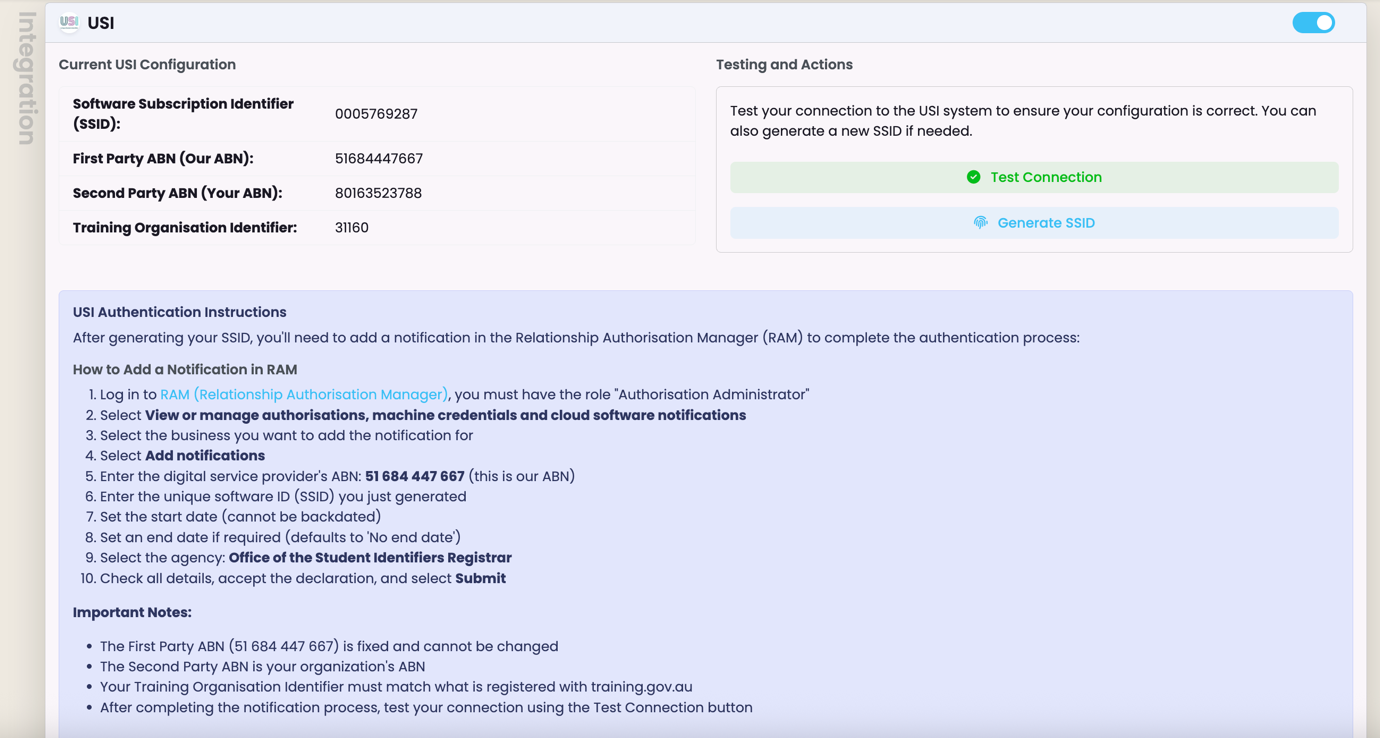
Figure 2c. USI Set-up Screen
Step 2: Enter Business Information
The current and following steps are related to the USI Set-Up Screen.
There, you will be guided to enter:
- Registered business details
- RTO/provider information
- Authorised contact details
- USI credentials (if required)
All details must match official registration records.
Step 3: Test the Connection
Select Test Connection to confirm:
- Authorisations are valid
- Credentials are active
- SELMA can communicate with the registry
Any issues will be displayed with guidance.
Step 4: Generate Your SSID
During set-up, you will be prompted to generate an SSID.
What Is an SSID?
A Secure System Identifier (SSID) is a unique security ID issued by the USI Registry that:
- Identifies SELMA as an authorised system
- Confirms organisational permission
- Enables secure system access
It functions as SELMA’s “security pass” to the USI system.
NOTE: Without a valid SSID, USI validation cannot operate.
Who Generates the SSID?
The SSID is generated through the organisation’s RAM/USI environment, usually by:
- The Principal Authority, or
- An authorised administrator
SELMA does not generate this independently.
Step 5: Activate the Integration
After testing and SSID generation:
- Save configuration
- Activate integration
- Confirm status shows Connected
Your USI integration is now live.
How SELMA Uses the USI Integration
Once connected, SELMA supports:
- Real-time USI verification
- Secure USI creation (where permitted)
- Automatic validation at enrolment
- Error detection before reporting
- Compliance-ready AVETMISS exports
This reduces manual checking and reporting risk.
Common Set-Up Issues
Integration Not Connected
- Check RAM authorisations
- Confirm entity linkage
- Re-test connection
USI Lookups Failing
- SSID inactive
- Credentials expired
- Permissions incomplete
Partial Connection
This status indicates that the USI connection test has completed successfully, confirming communication with the USI Registry.
However, full USI validation requires an active SSID that is correctly authorised in the Relationship Authorisation Manager (RAM).
If SSID or RAM authorisation is incomplete, some USI functions may be unavailable.
- Please contact SELMA Support if issues persist.
Contact Us
For assistance with USI configuration, verification, or compliance workflows, please reach out to SELMA Support for support.