In this Section:
- Create a Contact
- Manage the Contact Profile
- How the Contact Should Enrol Students
- Add New Contact Types
Create a Contact
Figure 1i. Navigate from Students > Contact
In the Contact Index, click the green “+” button to create a new Contact.

Figure 1ii. Fill Contact Details, and Add to Contact Index
Fill in the required details, as marked by red asterisks.
NOTE: The Contact Types readily available are system defaults. To add custom ones, jump to Add New Contact Types.

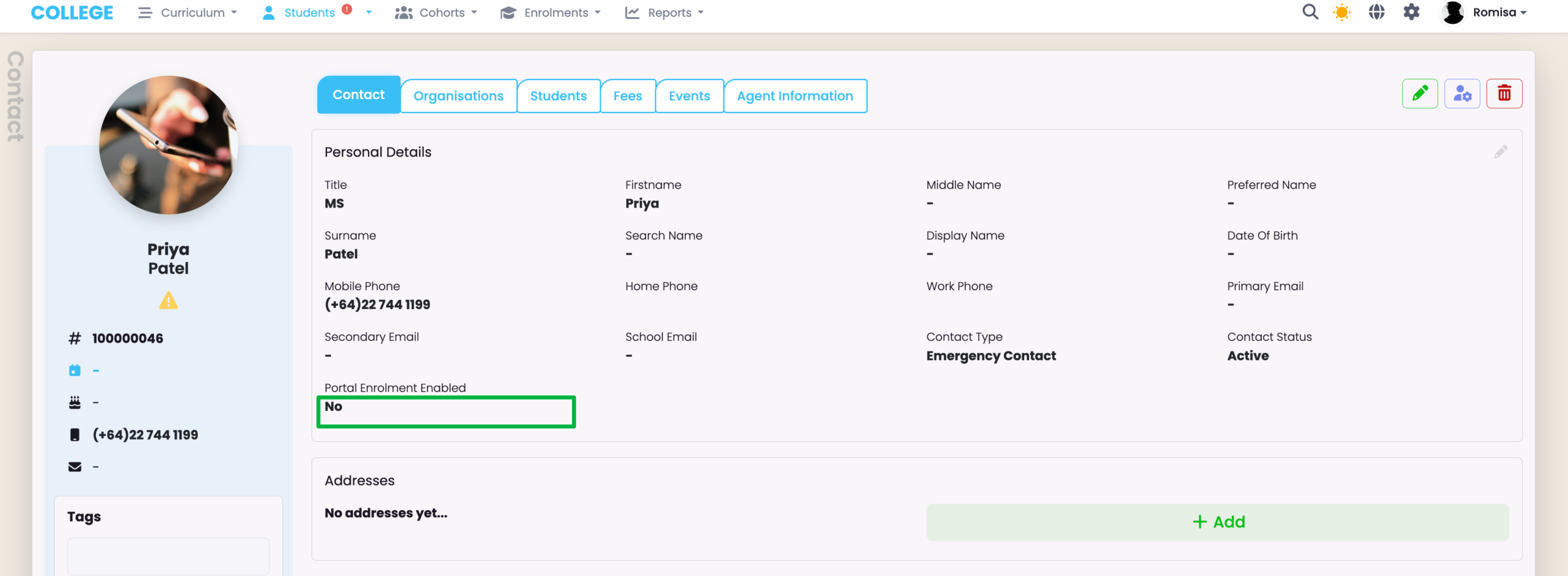
Figure 1iii. Edit Additional Details
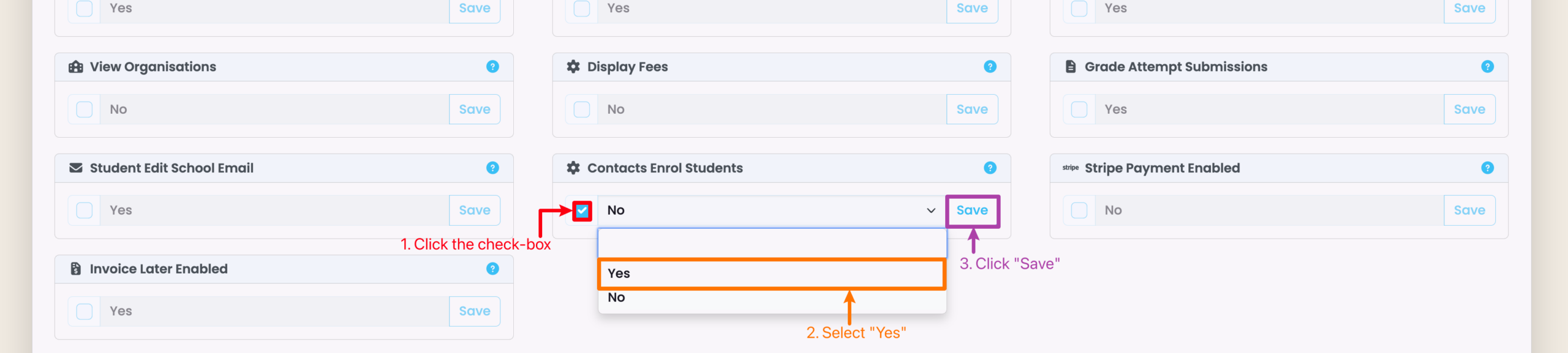
Click the pencil icon to edit and/or add further details to the Contact profile (green). Make sure you select “Yes” under the field “Portal Enrolment Enabled” to allow the Contact to bulk update Enrolments.

Manage the Contact Profile
Read on to see how you can navigate and use each of the features and tabs of a Contact profile page.
Actions
Figure 2i. Actions Button
Choose to Send an Email to the Contact, and invite them to the Contact Portal for the first time.

Figure 2ii. Send Email
You can free-type an email, or add an email template you have already created. If you wish to create a new email template for use later, please refer to System Settings – Communication Templates.

Figure 2iii. Invite to Portal
This is the email that the Contact will receive at their Primary Email address, when you invite them to the Contact Portal. They will need to follow the instructions, and set up a password via the “Forgot Password” option on their Portal URL link.

Impersonation
Only Primary Users can use the impersonation mode.
- Please contact SELMA Support if you require Primary User access permissions.
Figure 3i. Select Action Button
Once you’ve invited a Contact to the Contact Portal, you will be able to impersonate them and see what they would see.

Figure 3ii. Impersonate Contact
The purple top banner indicates that you are in impersonation mode, and seeing your screen through the eyes of the selected Contact.

Organisation Tab
To see Organisations reflected on the Contact profile page, you must first set-up a Contact-Organisation relationship at the Organisation level.
Figure 4i. Navigate from Students > Organisation
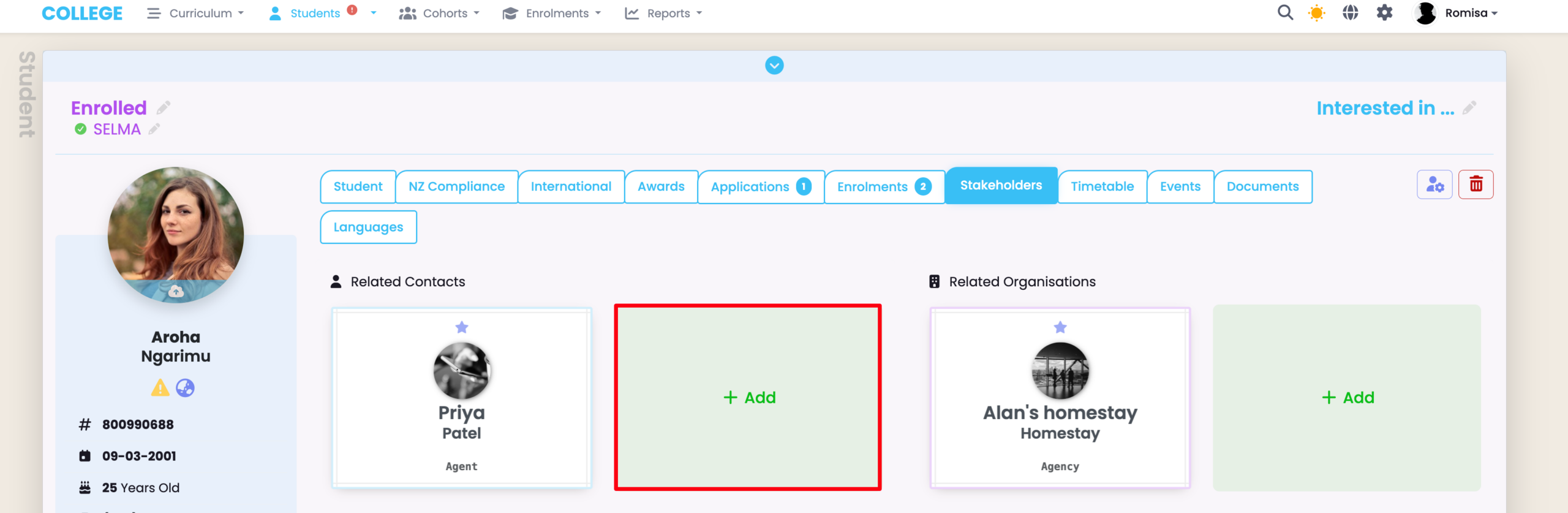
Select the “Contacts” tab on a select Organisation profile page, and link a Contact.

Figure 4ii. Add Required Details and Save
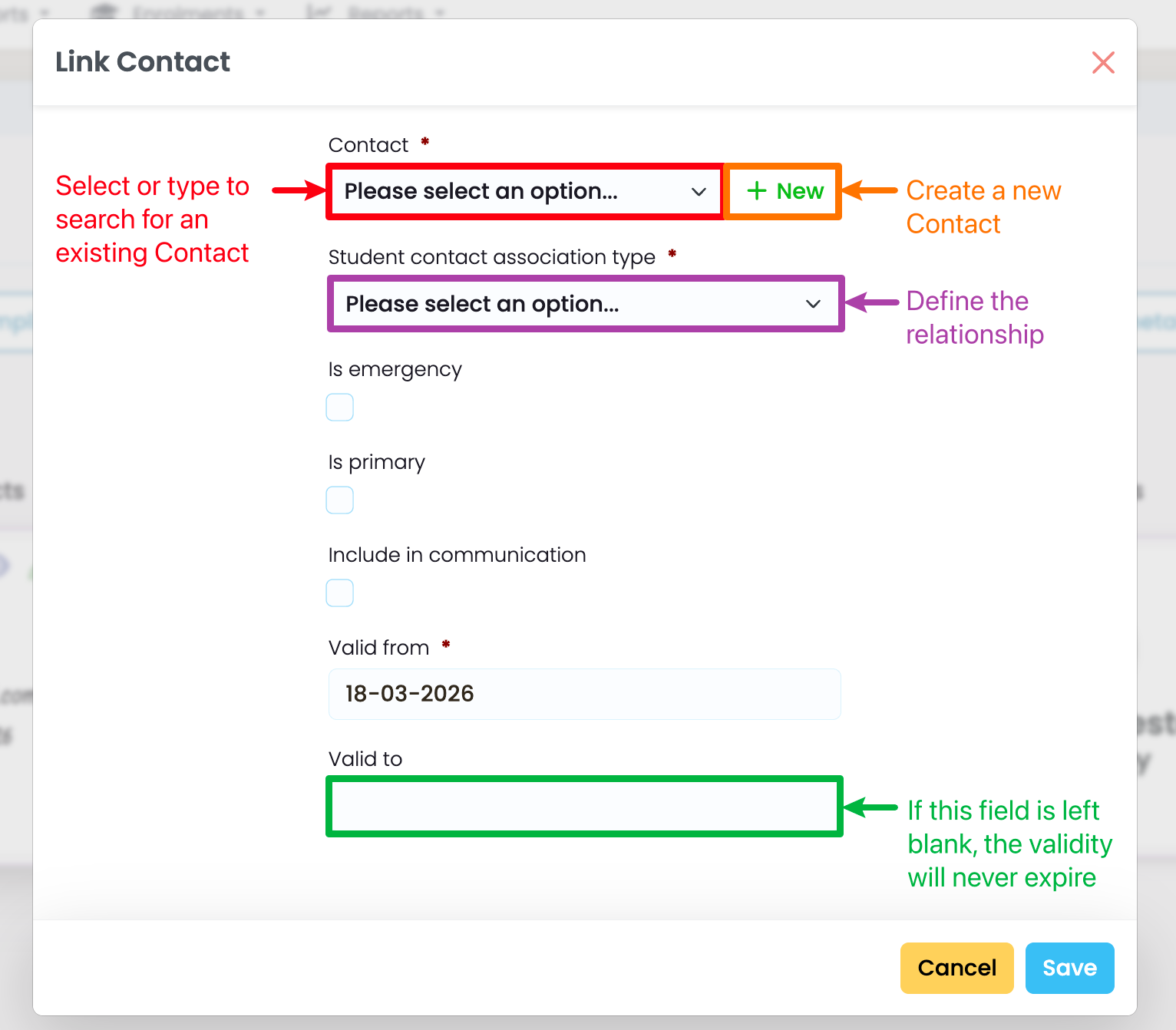
Specify the Contact you are linking, as well as the Contact-Organisation relationship. You can opt to add a note, too. Click “Save” to add the Student-Contact link.

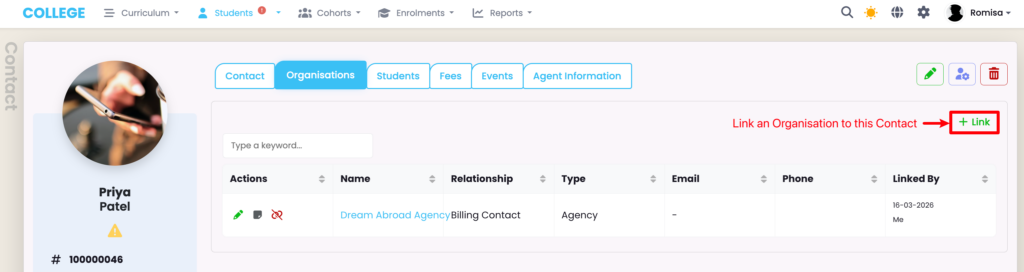
Figure 4iii. See the Contact | Organisation Tab
Click the green pencil icon to edit a Contact-Organisation relationship, or remove (unlink) the relationship entirely (red).

Students Tab
To see the appropriate Students reflected on the Contact profile page, you must first enable a Contact-Programme connection at the Programme level.
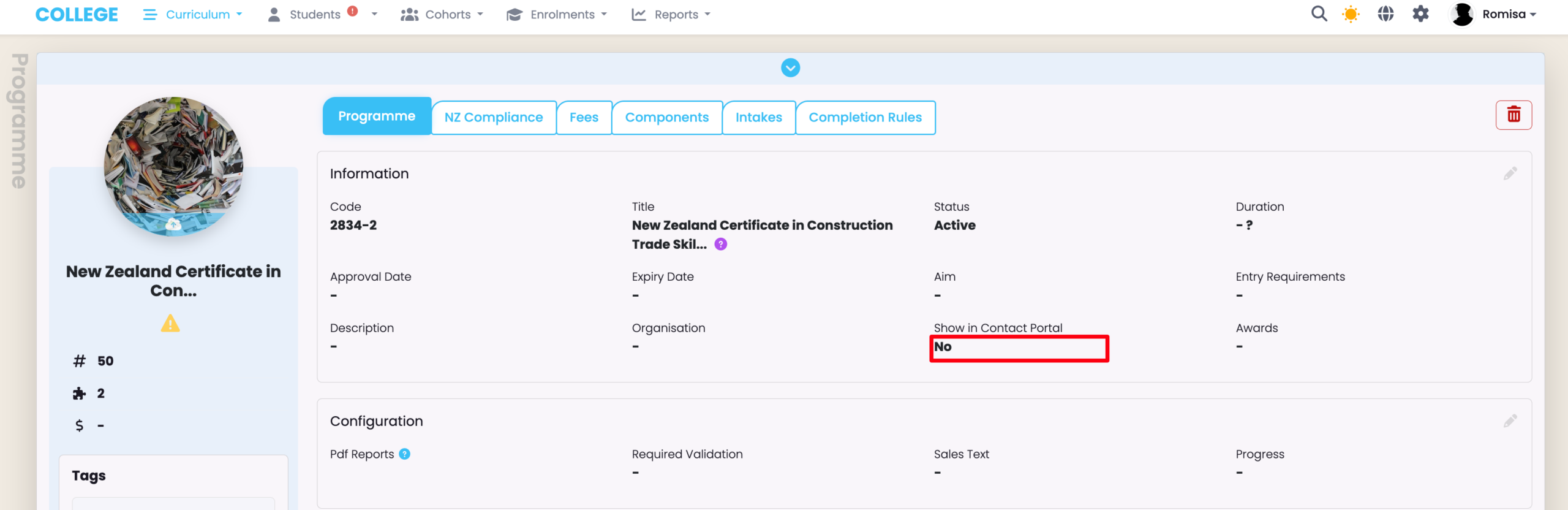
Figure 5i. Navigate from Curriculum Index > Programme
Edit the “Show in Contact Portal” field on the Programme tab, to “Yes”. In doing so, you are propagating the Students enrolled into the Programme Intakes to the Contact’s list of Students.

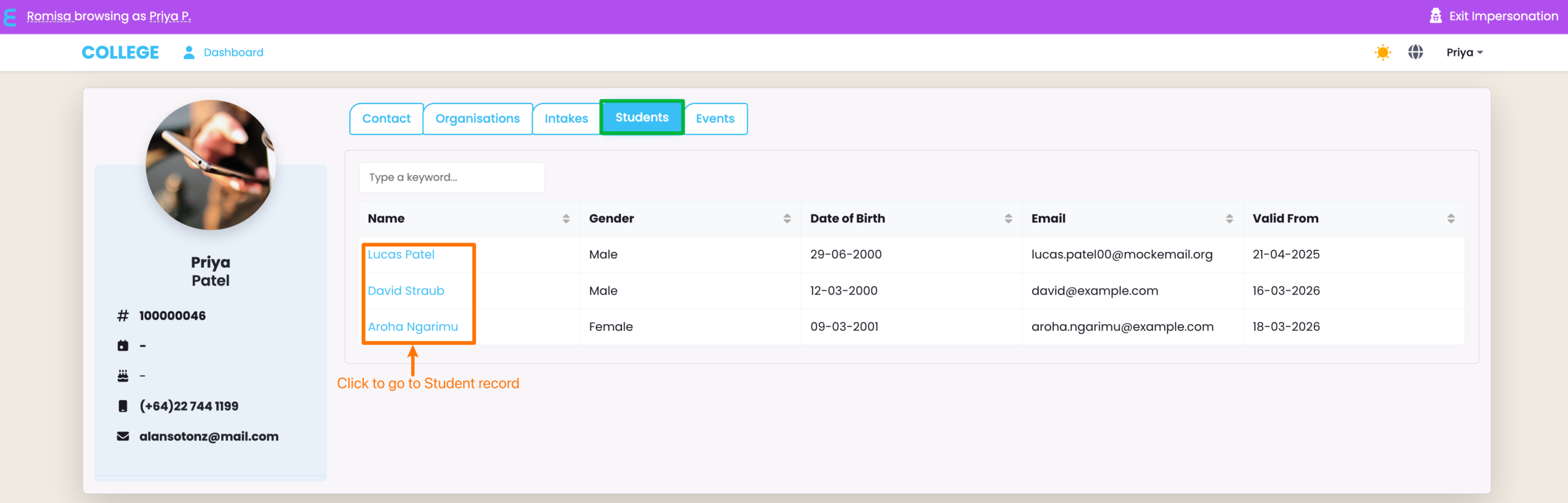
Figure 5ii. See the Contact | Students Tab
The Contact can now see a list of the Students who are linked to them.

Fees Tab
The Contact will see the sum of all Enrolment fees on this tab, including Students enrolled into multiple Programmes.
Figure 6. Add Financial Records
Add fees, payments and create invoices from this tab, using the Actions button on the grid (red).

Events Tab
You can communicate with the Contact by setting up notes from the Events tab.
Figure 7i. Add an Event

Figure 7ii. Add Note Details
You can add a note for the Contact to see. You can also set up a task to assign to internal SELMA users, regarding this Contact.

Intake Tab
The Intake Tab is visible to the Contact, only. However, you should manage the settings that results in the appropriate Intakes to show, here:
- Link an Organisation to the relevant Programme.
- Jump to Figure 4i-ii.
- Link the Contact to the Programme
- Jump to Figure 5i.
- Remove irrelevant Intakes from showing to the Contact
- See Figure 11, below.
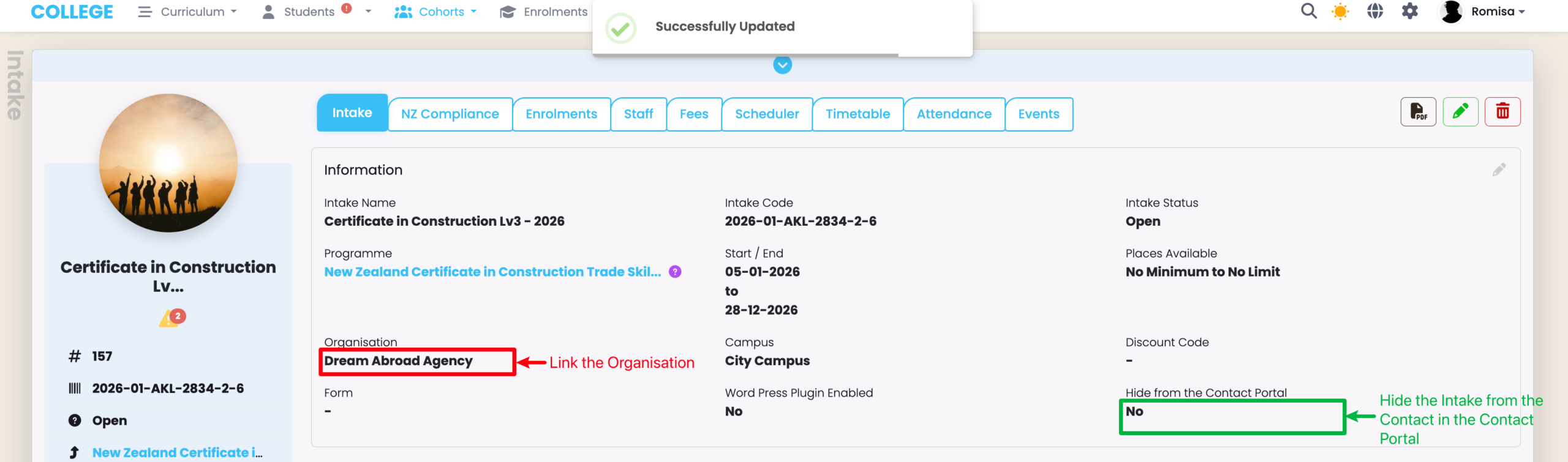
Figure 8. Hide an Intake from the Contact Portal
The “Hide from the Contact Portal” field defaults to “No”. Change it to “Yes” to hide a select Intake from showing to a Contact linked to the corresponding Programme.

How the Contact Should Enrol Students
The Contact can only Enrol Students if:
- The field “Show in Contact Portal” is marked “Yes” on the Programme tab of a select Programme.
- The field “Portal Enrolment Enabled” is marked “Yes” on the Contact tab of a select Contact.
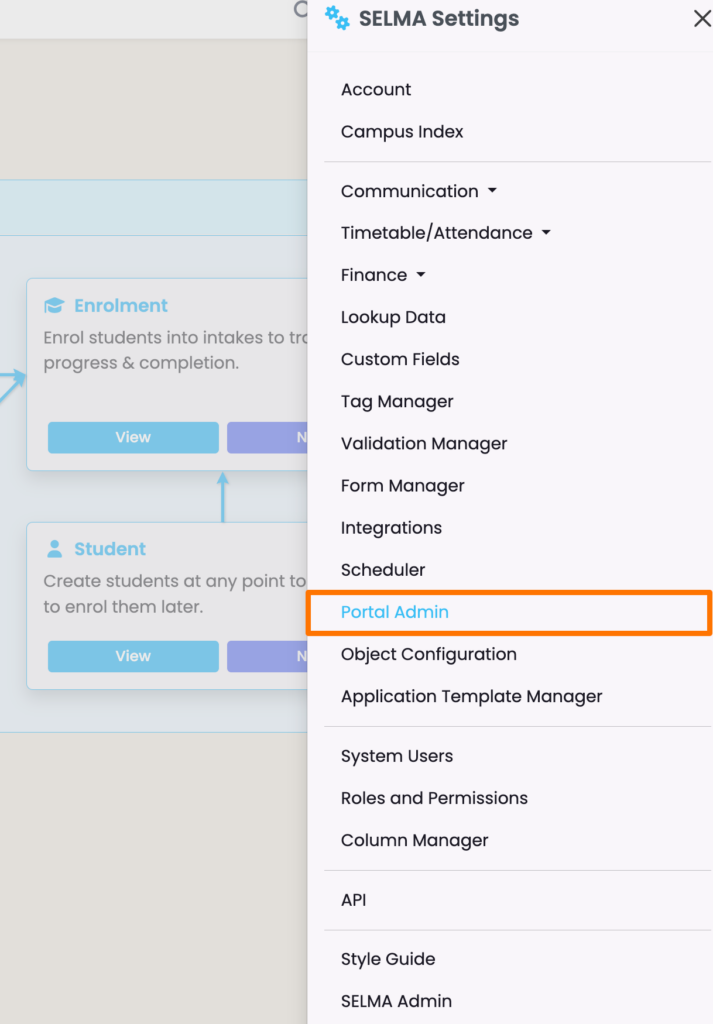
- The Student Portal toggle is ON.
- NOTE: Depending on your access rights you can access this toggle by navigating from
Settings > Portal Admin
- NOTE: Depending on your access rights you can access this toggle by navigating from
Figure 9i. Enrol Students
When impersonating a Contact, you can see that they will have the link “Enrol Students” on the top navigation bar.

Figure 9ii. Select a Programme
You will see the Programme/s that are linked to the Contact, here.

Figure 9iii. Select Intake and Enrol
Fill out the required fields, as marked by red asterisks.
NOTE: You can see specific details about each Intake (orange), including how many spots are remaining in the Intake. You can also select multiple Enrolments, using that number to guide you.

Figure 9iv. Review Details and Pay
Review all details before choosing to pay immediately (green button), or generating an invoice to send as an email to your Primary Email address.
NOTE: Once this is done, the Contact’s Fees tab will show the sum of fees associated with Enrolments.

Add New Contact Types
Create custom Contact Type options reflected in dropdown lists in SELMA e.g. when filling out new Contact details.
Figure 10i. Navigate from Settings > Lookup Data

Figure 10ii. Find Contact Type

Figure 10iii. Add details and Save
Fill in the required details, as marked by red asterisks, and ensure you select “Active” so that you can use the Contact Type elsewhere in SELMA.