NZQA details standard learning outcomes that should be met by New Zealand education providers through the delivery of a Unit Standard or Qualification. When these outcomes are successfully achieved by a Student, you can reward them with an NZQA-approved certification.
In this Section:
Prepare File Downloads
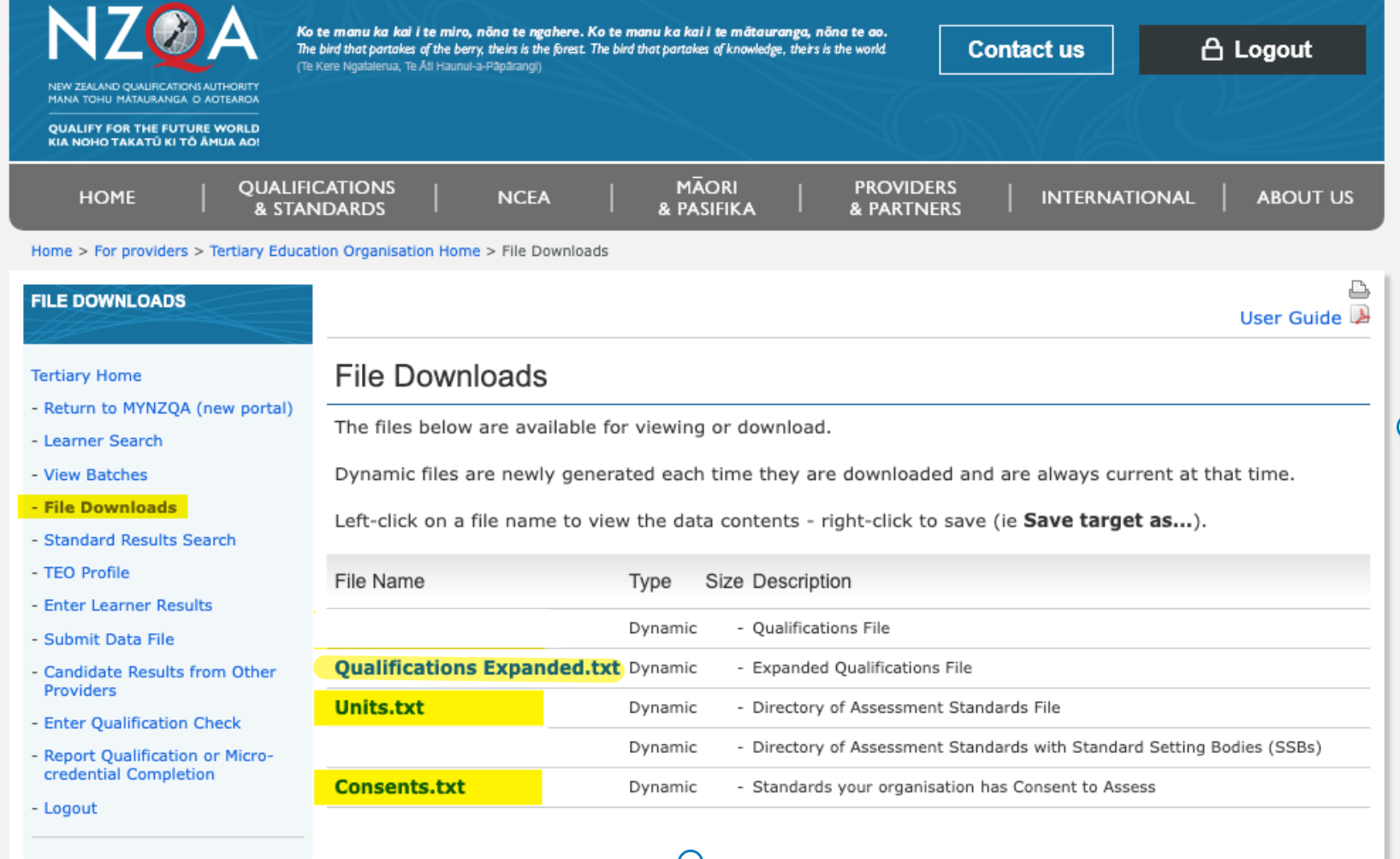
If you haven’t already, login to your NZQA account and download the following files:
- Qualifications Expanded.txt (Qualifications file)
- Units.txt (Units file)
- Consents.txt (Accredited Units file, also known as accreds.txt in SELMA)
NOTE: You must save the files to the “Downloads” folder of your device by right-clicking on the “File Name” and clicking “Save Link As…” (Figure 1).
Figure 1. Navigate to “File Downloads” (yellow, left panel) and download the relevant files (yellow, table).
Importing Unit Standards to SELMA
To import your Unit Standards, navigate from Curriculum > Unit Standards, and upload the following files from the “Downloads” folder on your device (Figures 1i-1iii.):
- Units.txt (Units file)
- Consents.txt (Accredited Units file, also known as accreds.txt in SELMA)
Once you click to “Upload and Import” the selected files, you will see a dynamic loading icon below the “Status” of your file for up to 20 minutes, while your file is being imported.
- Feel free to navigate away from this page, if necessary, as your upload works in the background.
Create a Component To Link the Unit Standard
Once the import “Status” has changed to “Completed“, you can create a new Component and directly link the Unit Standard to it. Either:
- Click the “Create Component” Action from the Imports menu (Figure 2i).
- Click the “Create Component” button on the Unit Standard profile (Figure 2ii).
Link a Unit Standard to a Component
For existing or new Components, navigate to the “Unit Standard” tab of a Component in the Curriculum Index, and link the Unit Standard to the Component.
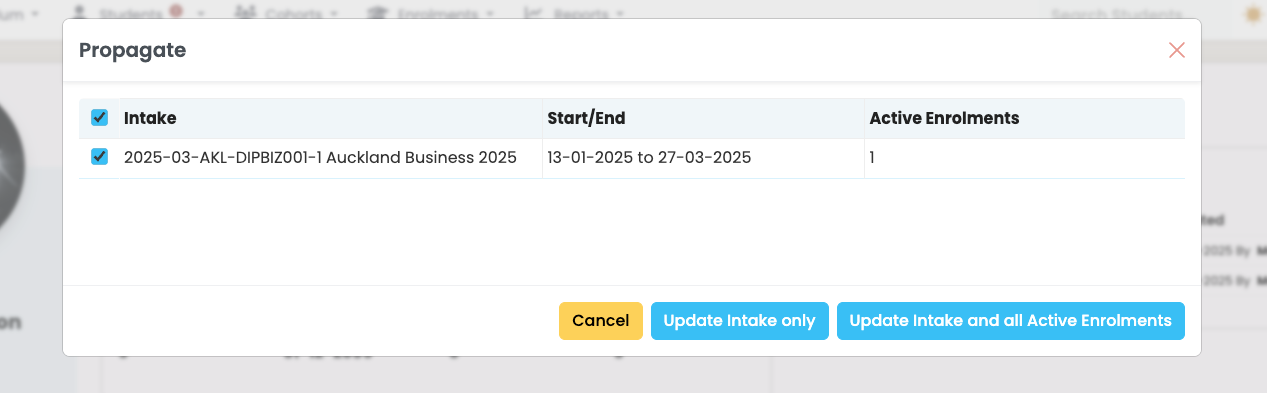
You can later update a new version of the Unit Standard, here, too (Figures 3i-3ii.).
NOTES:
- All Unit Standards within the Index must be manually linked to a Component, which in turn must be mapped onto an Enrolment.
- A Unit Standard can be reported to the TEC and NZQA.
Figure 1i. Find the “Unit Standards” Index (red) from the “Curriculum” tab in the top navigation bar (orange).
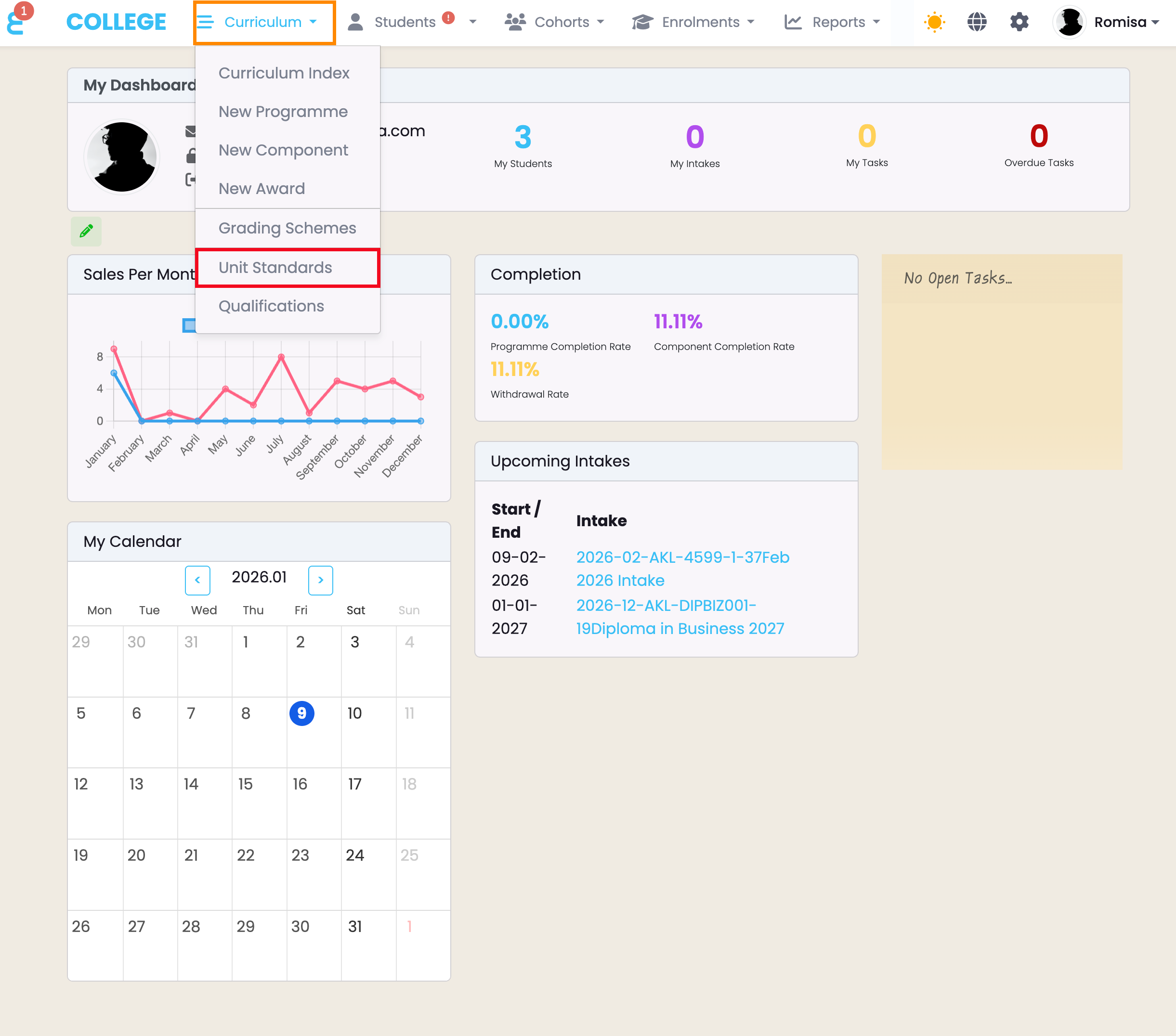
Figure 1ii. Click the “Upload Unit Standards” button to import new Unit Standards to SELMA (red). Use the interactive counts to filter by Unit Standard Status (orange), or use the “Advanced Search” feature to find a Unit by number (Standard).
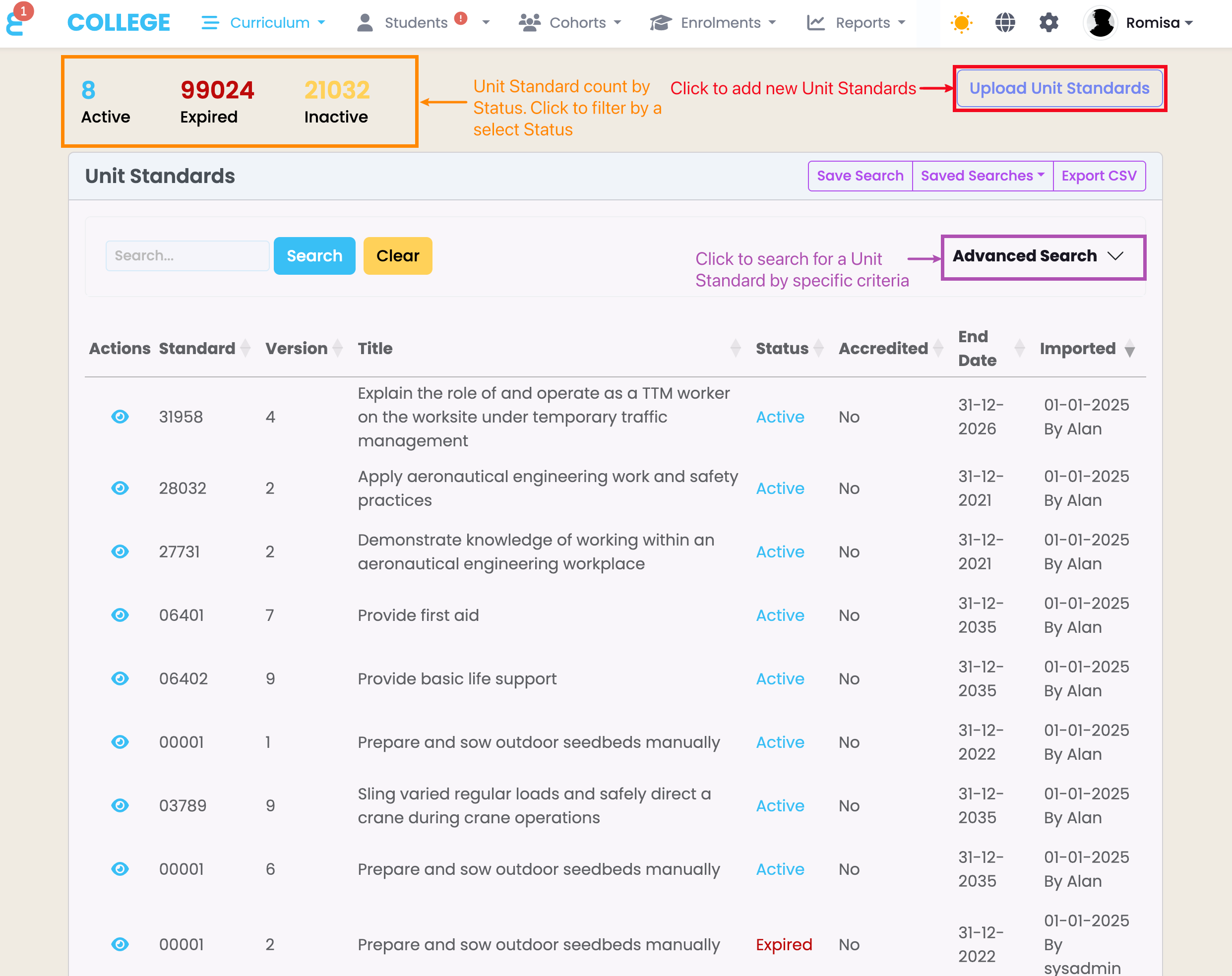
Figure 1iii. Click the “Choose file” buttons to select the relevant files to upload from your “Downloads” folder (red). Then, click the “Upload and Import” button to upload the files and save them as Unit Standards in SELMA (purple).
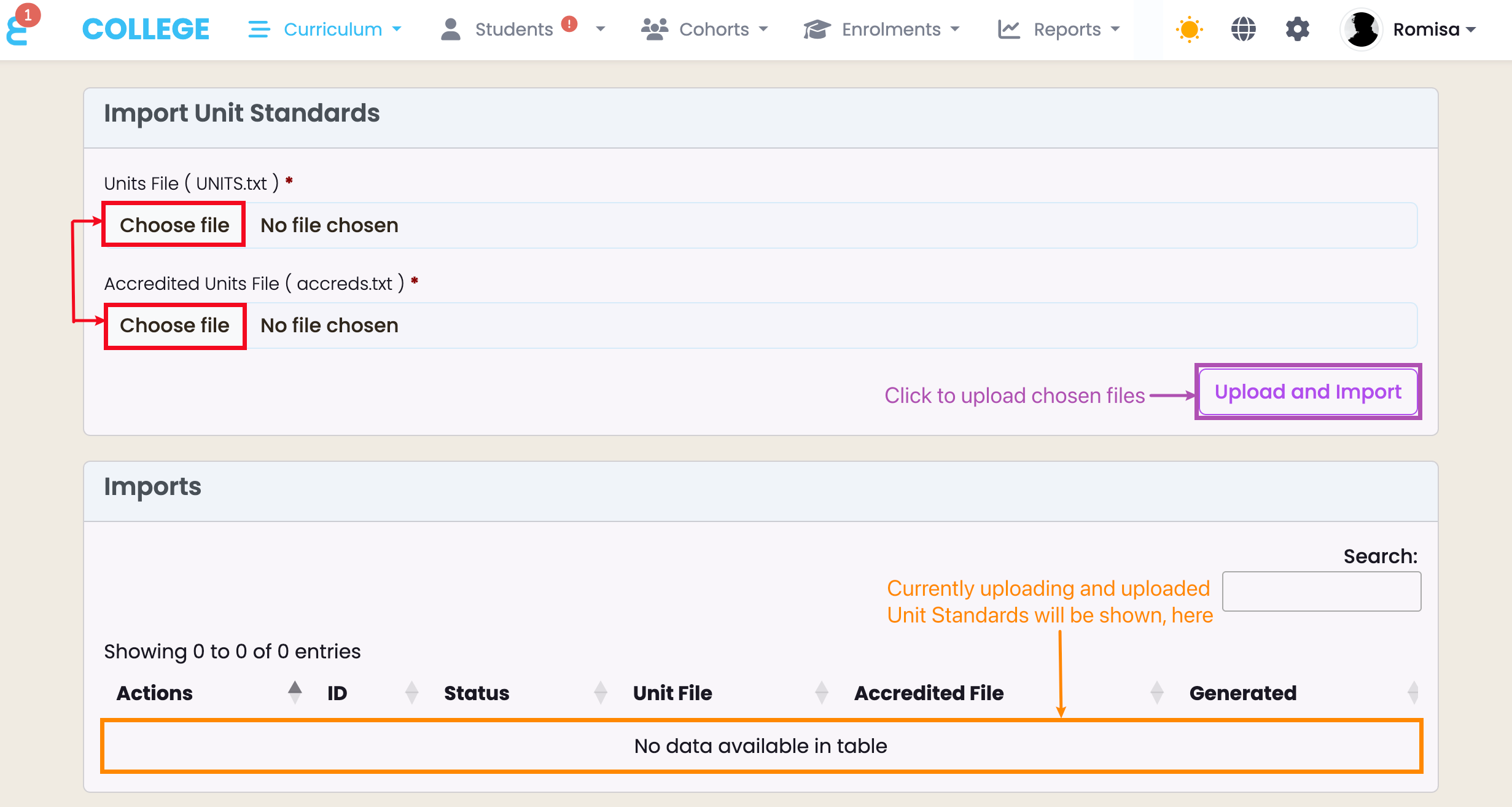
Figure 2i.
Figure 2ii.
Figure 3i.
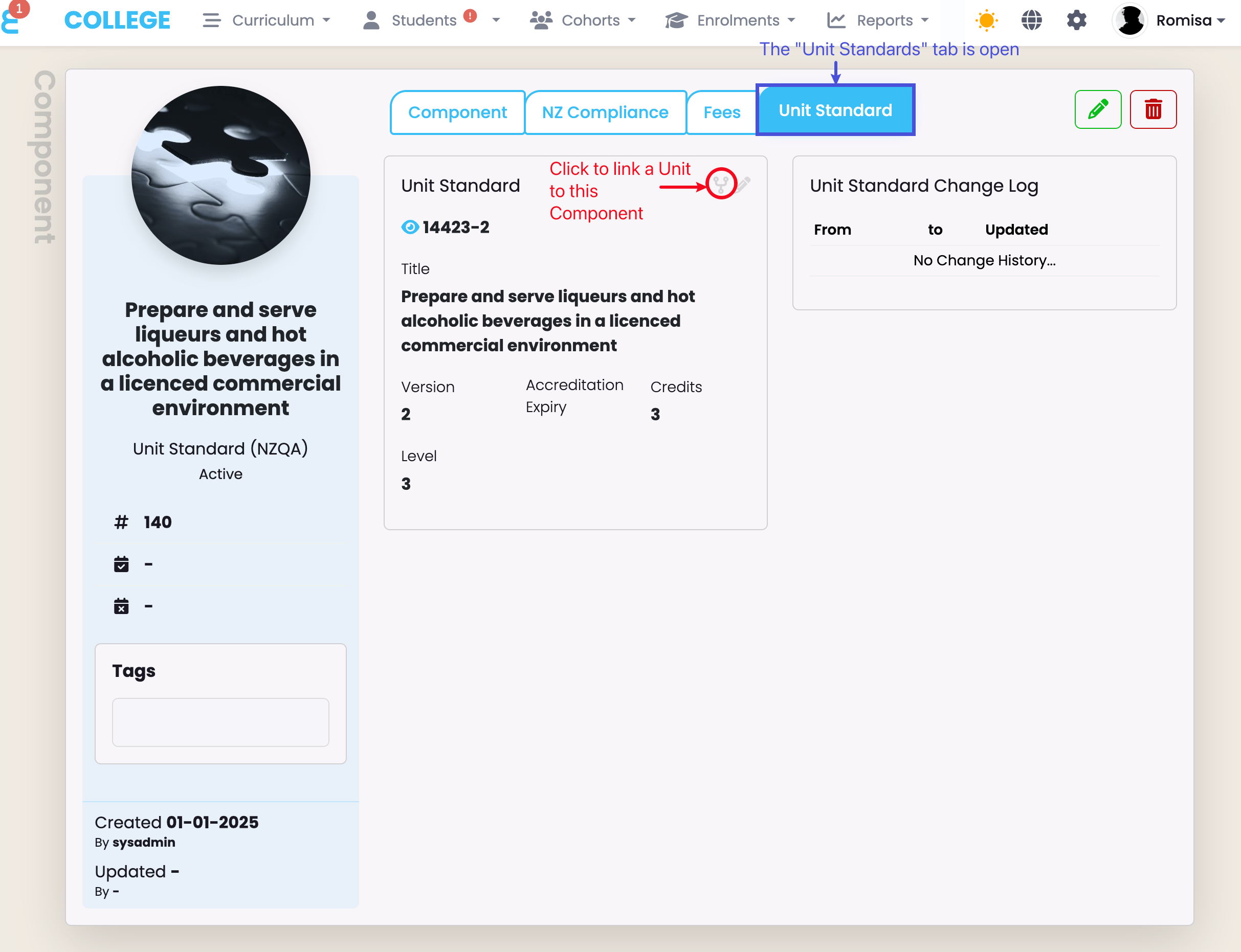
Figure 3ii. Select an Intake, and update Intakes and Enrolments with a new Unit Standard version. Click the “Update Intake only” button to update future Enrolments, or click “Update Intake and all Active Enrolments” to update existing Enrolments and future Enrolments.
Importing Qualifications to SELMA
To import a Qualification, navigate from Curriculum > Qualifications, and upload the following files from the “Downloads” folder on your device (Figures 4i-4iii.):
- Qualifications Expanded.txt (Qualifications file)
Once you click to “Upload and Import” the selected files, you will see a dynamic loading icon below the “Status” of your file for up to 20 minutes, while your file is being imported.
- Feel free to navigate away from this page, if necessary, as your upload works in the background.
Once the import “Status” has changed to “Completed“, you can create a new Programme and directly link the Qualification to it. Either:
- Click the “Create Programme” Action from the Imports menu (Figure 5i).
- Click the “Create Programme” button on the Qualification profile (Figure 5ii).
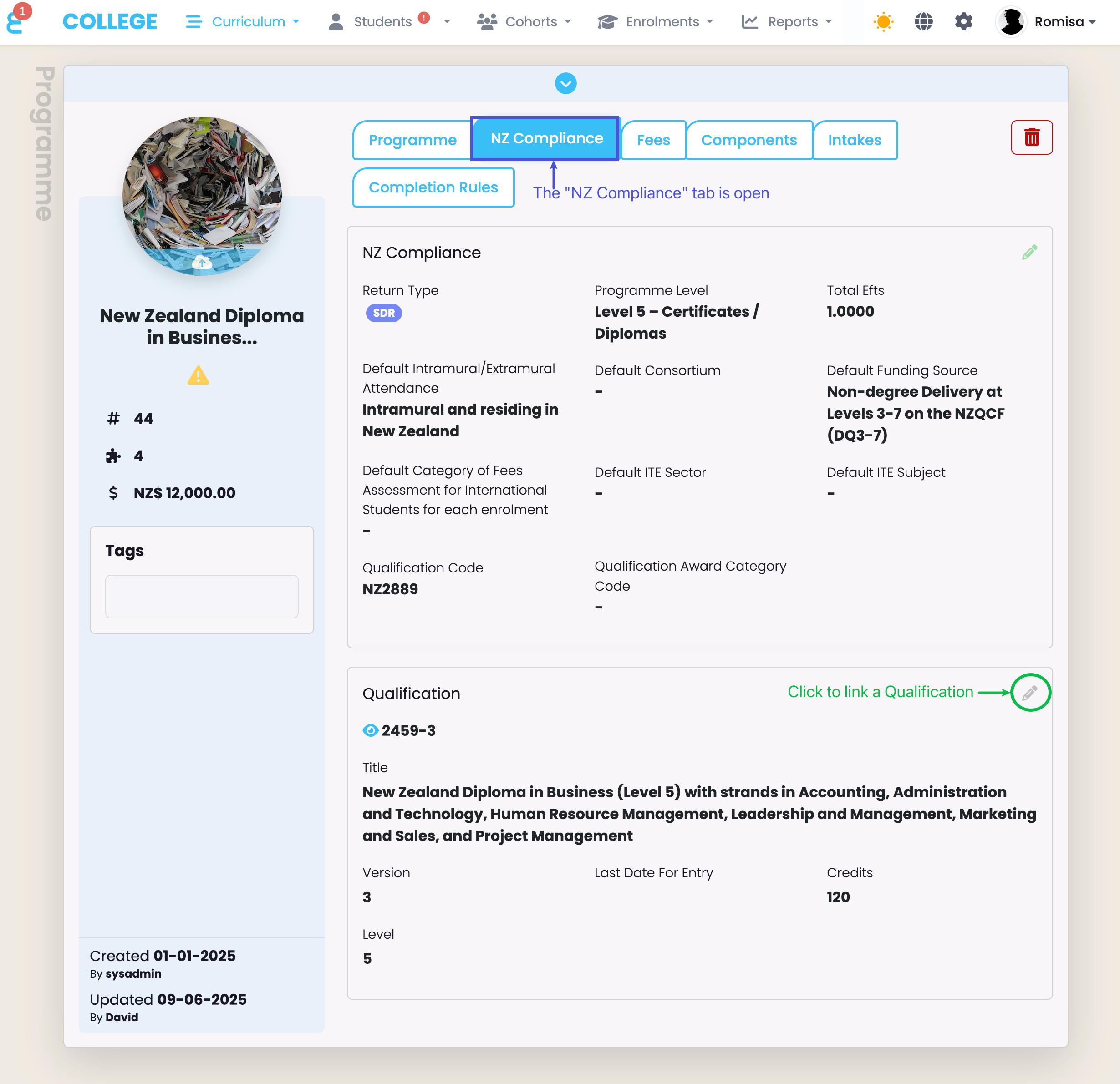
Otherwise, navigate to the “NZ Compliance” tab of a Programme in the Curriculum Index, and link the Qualification to the Programme (Figure 6).
Figure 4i. Find the “Qualifications” Index (red) from the “Curriculum” tab in the top navigation bar (orange).
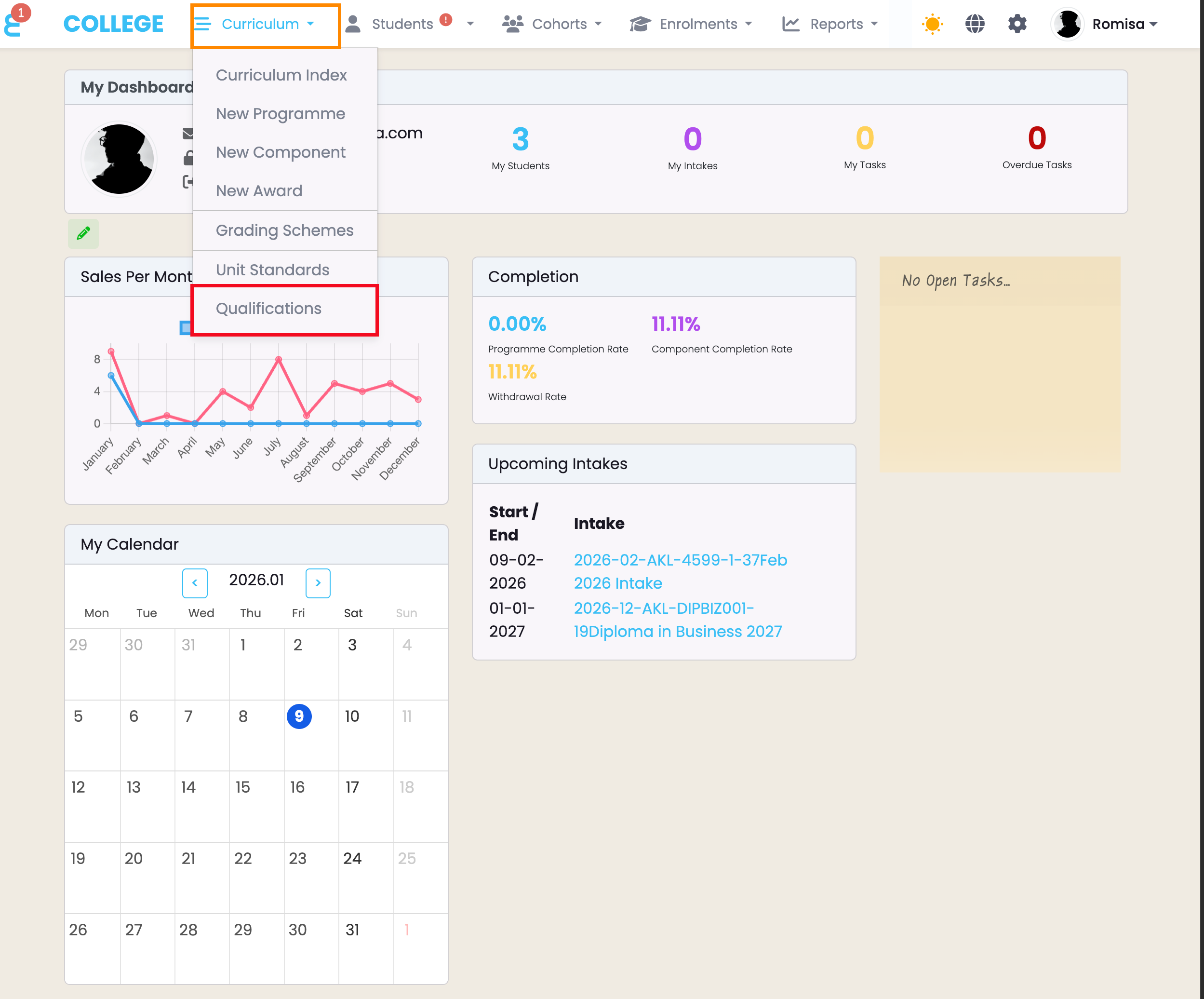
Figure 4ii. Click the “Upload Qualifications” button to import new Qualifications to SELMA (red). Use the interactive counts to filter by Qualification Status (orange), or use the “Advanced Search” feature to find a Qualification by number (Standard).
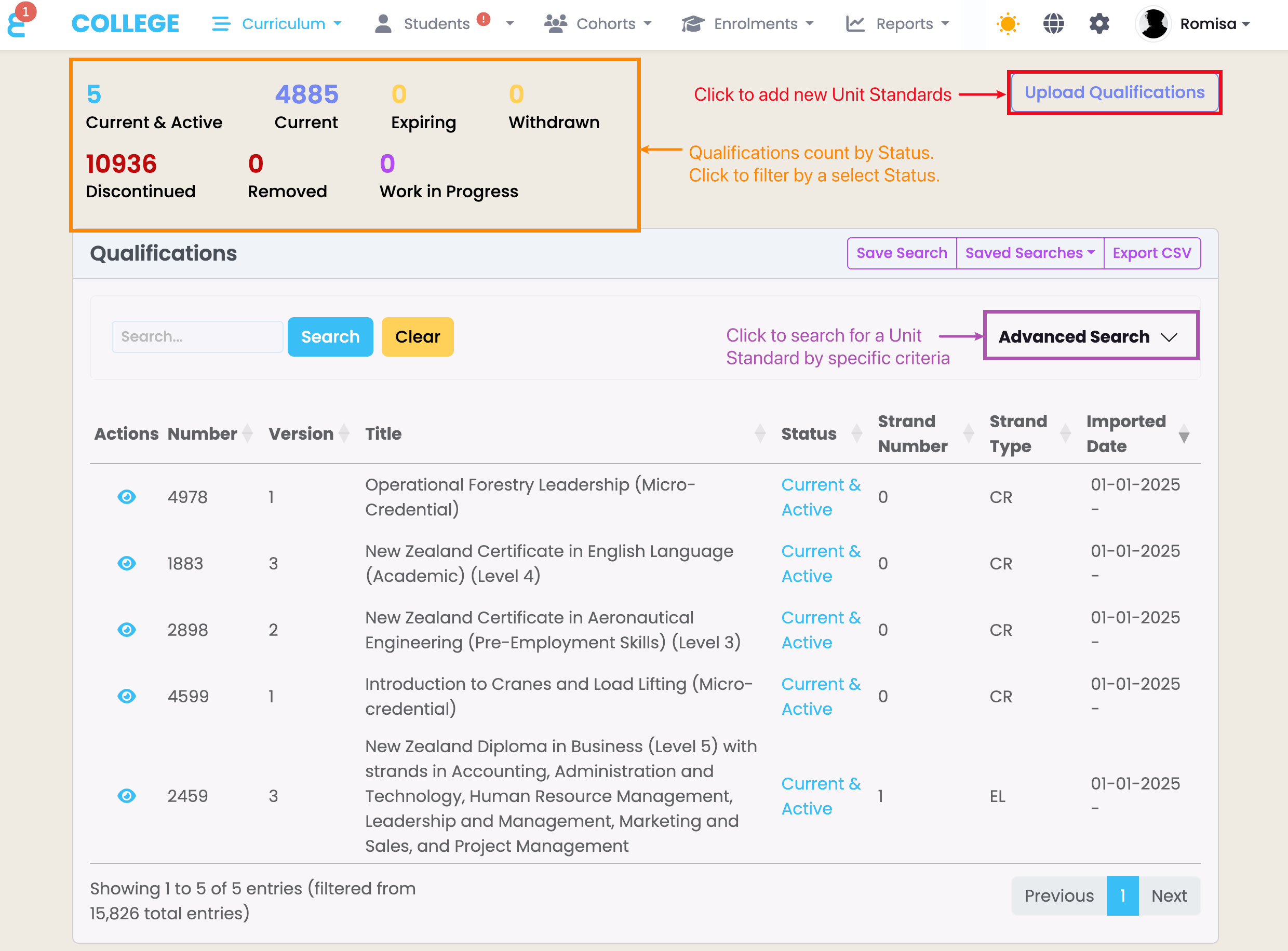
Figure 4iii. Click the “Choose file” button to select the Qualifications file to upload from your “Downloads” folder (red). Then, click the “Upload and Import” button to upload the file and save it as a Qualification in SELMA (purple).
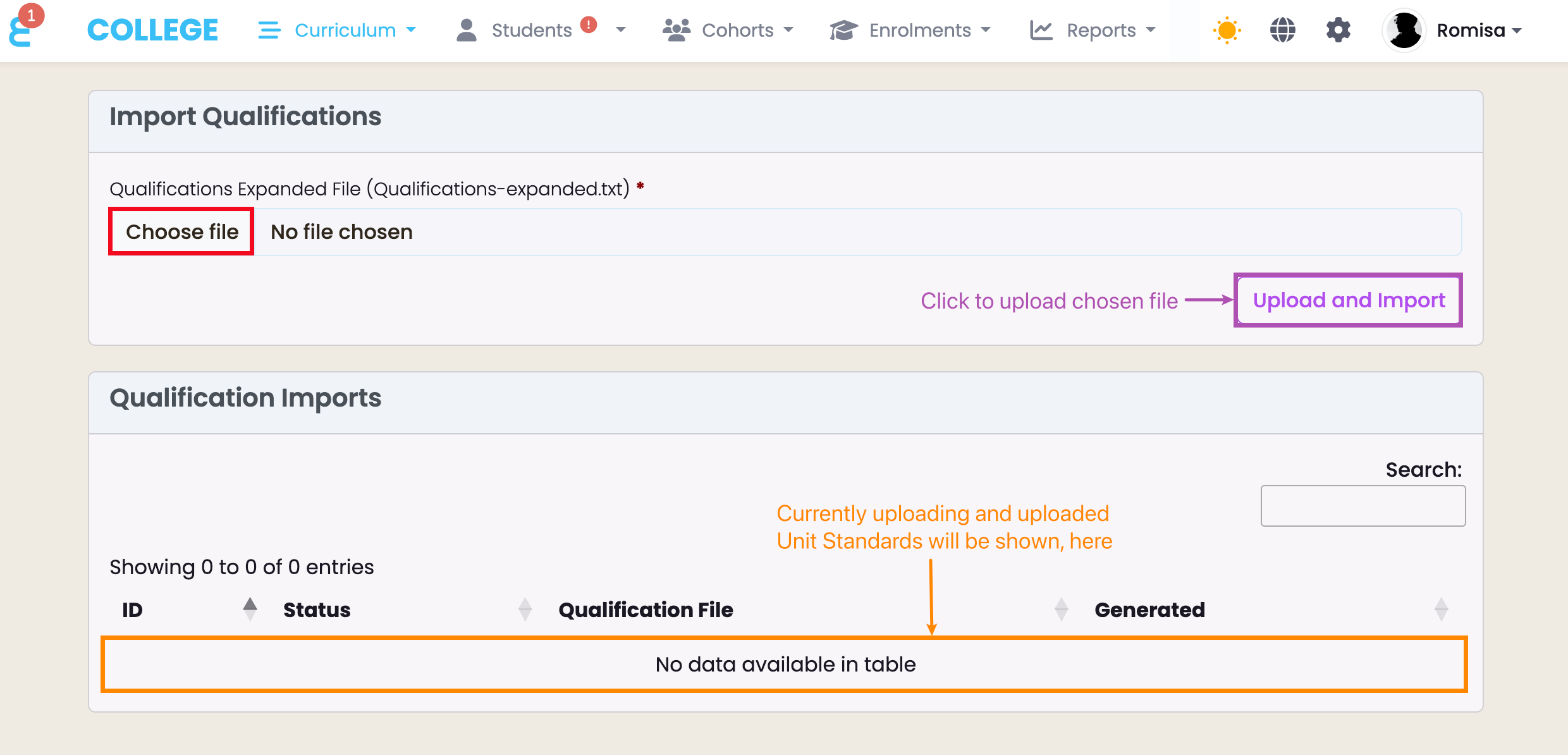
Figure 5i.
Figure 5ii.
Figure 6. Click the pencil icon to link a Qualification or change an existing one (green).