
Table of Contents
NZQA Units & Quals
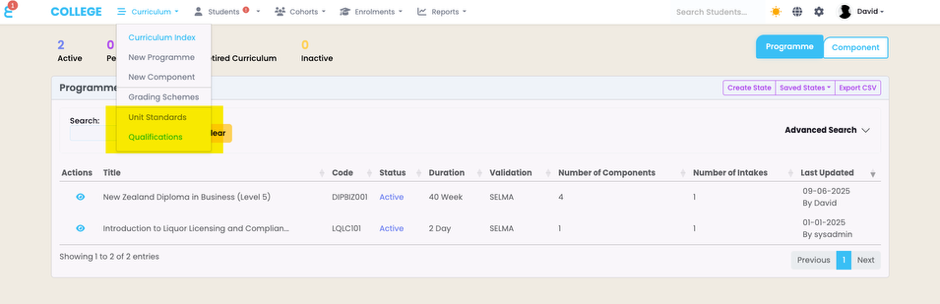
SELMA supports the import and management of NZQA unit standards and qualifications. If enabled in your SELMA instance, you can see Unit Standards and Qualifications under the Curriculum main menu:
Import Qualifications
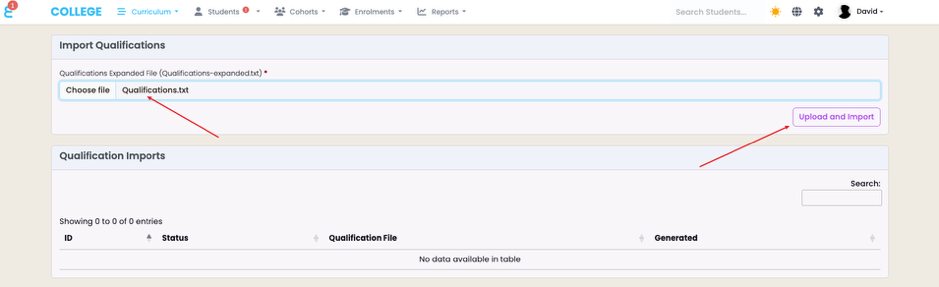
To import the NZQA qualifications navigate to “Curriculum -> Qualification -> Upload Qualifications”. From here, select your qualification file (downloaded earlier under “Import Unit Standards”) and click on “Upload and Import”:
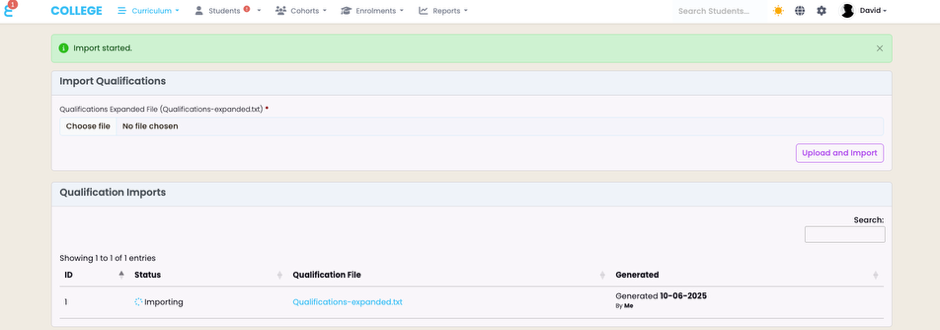
Once again, the import will start and may take up to 20 minutes:
Once the qualifications are successfully imported, the import history will show “Completed”

And the qualifications now show up under “Curriculum -> Qualifications”
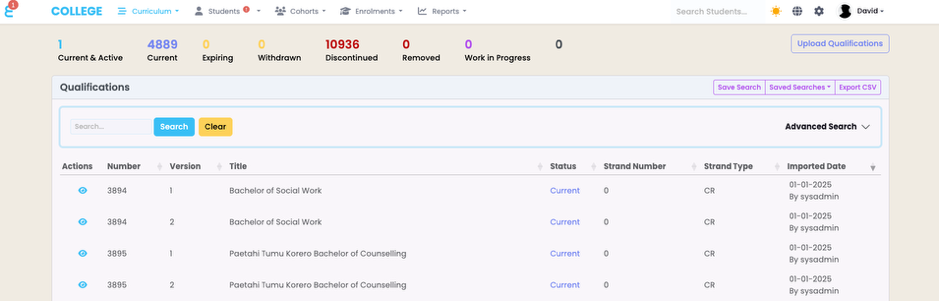
Note that the import includes ALL qualifications from NZQA and not just qualifications accredited for you provider to deliver. See Qualification Management to learn how to activate and use them.
NZQA Qualification Management
If you navigate to “Curriculum -> Qualifications” you will get to the overview screen of all qualifications accredited by NZQA. The below screen should show if you have successfully imported the qualification file (see earlier in this manual).
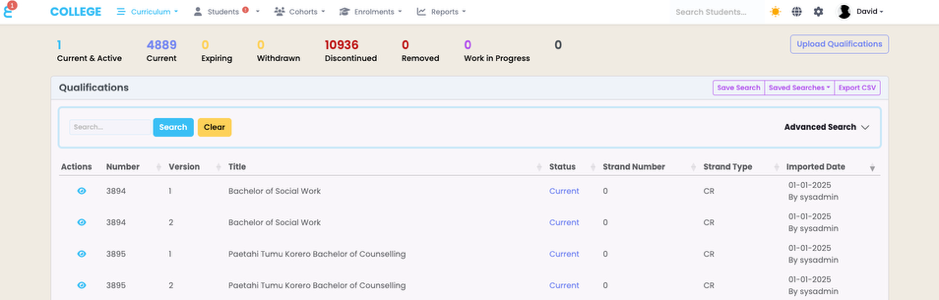
The qualification statuses follow the statuses of NZQA. The status of “Active” or “Current & Active” identifies the qualifications you marked as active for your provider to use.
To mark a Qualification as active, click on the eye button of the qualification. The click on the pencil button and change the status to Active:
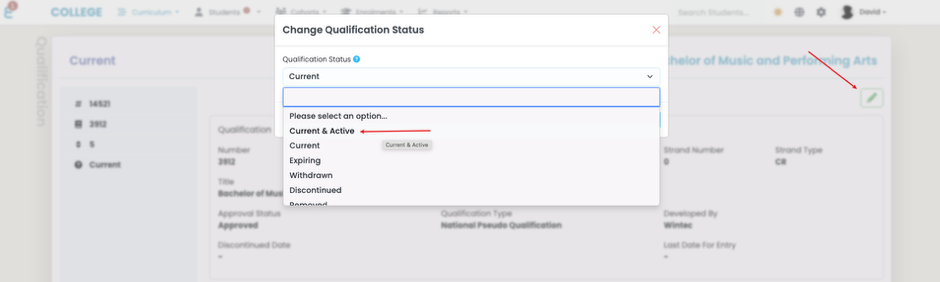
From this screen, you may also create a “Programme” record in SELMA that is automatically linked to the NZQA Qual. Much like with the Unit Standards:
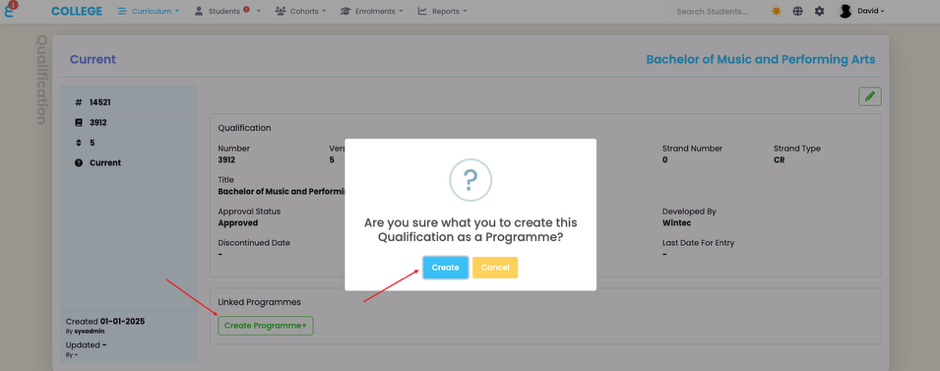
The created Programme now appears under “Curriculum -> Curriculum Index” and when you open it, you will see that it is linked to the qualification:
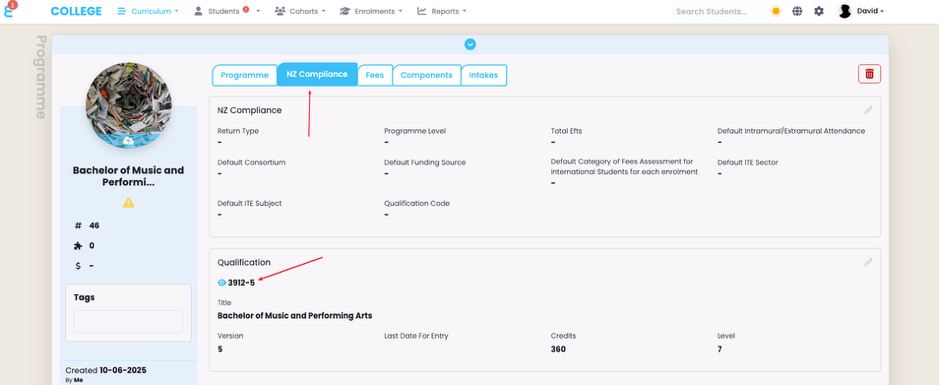
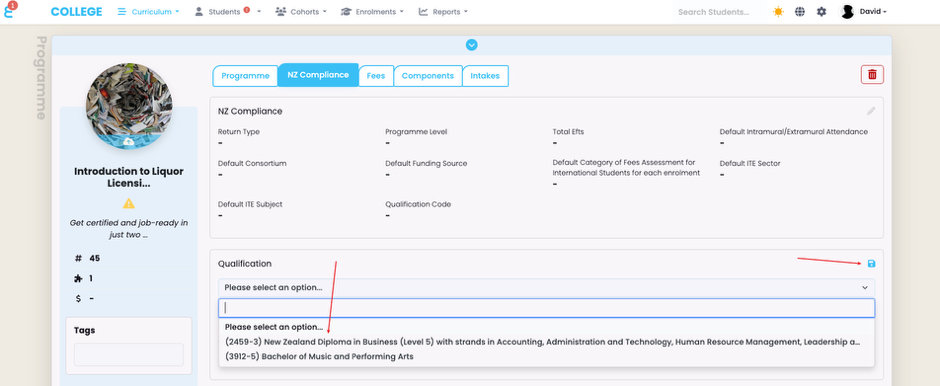
Like with the unit standards, you can also link an existing programme to a NZQA qualification from the NZ Compliance tab:
Having a qualification linked to a programme is a pre-requisite for qualification reporting to NZQA.