
Table of Contents
Creating a component from the Unit Standard
Updating a Unit (Version) on a Component
NZQA Units
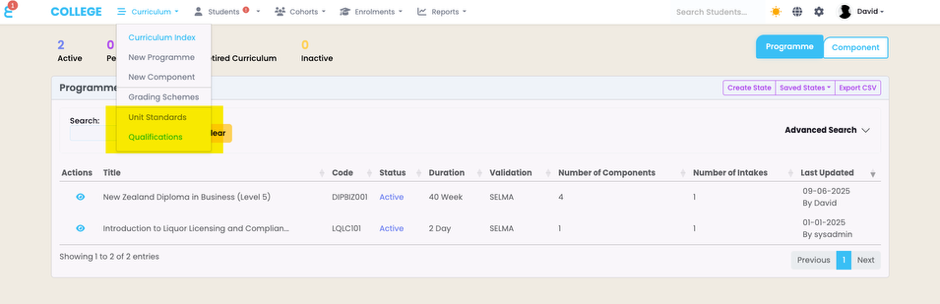
SELMA supports the import and management of NZQA unit standards and qualifications. If enabled in your SELMA instance, you can see Unit Standards and Qualifications under the Curriculum main menu:
Import Unit Standards
As a first step, we highly recommend importing your Accredited Unit Standards from NZQA. Click on “Upload Unit Standards”
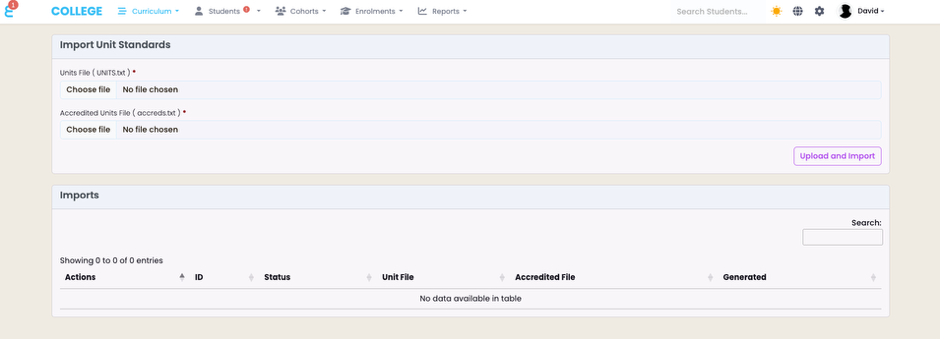
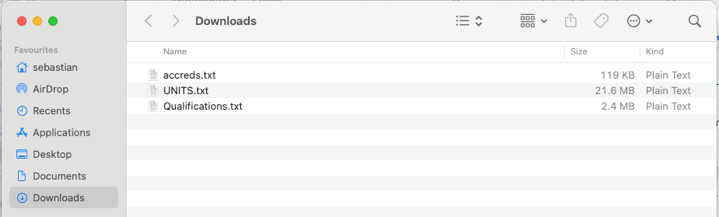
The import menu will appear. To perform the import, you must obtain the accreds.txt and the UNITS.txt file from NZQA. To do so, login to NZQA and navigate to “File Downloads”
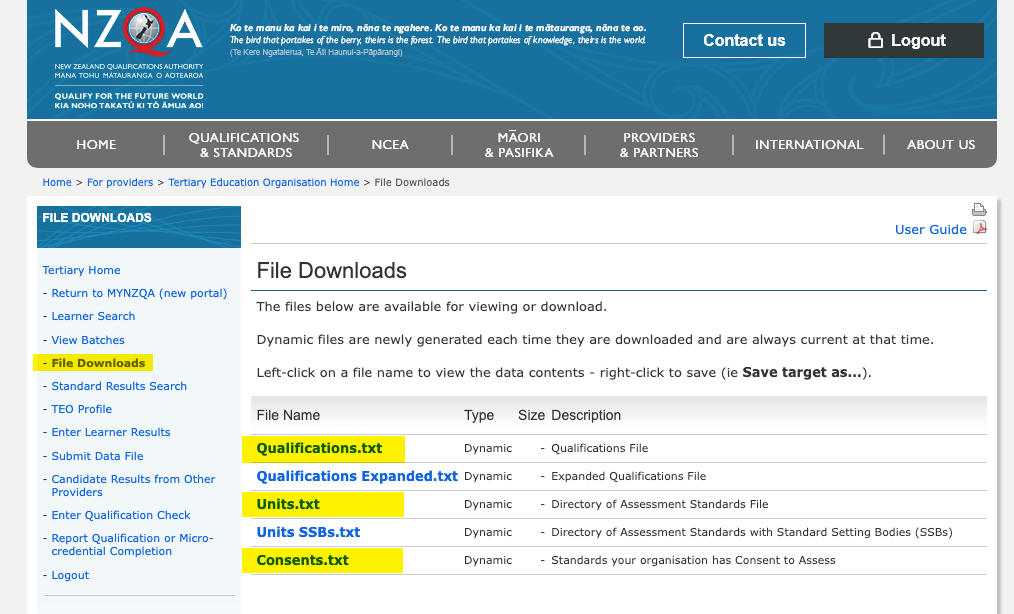
Download the Qualifications.txt, the Units.txt, and the Consents.txt file.
Note that to download the files, you will need to right click on the link and then choose “Save Link As…” 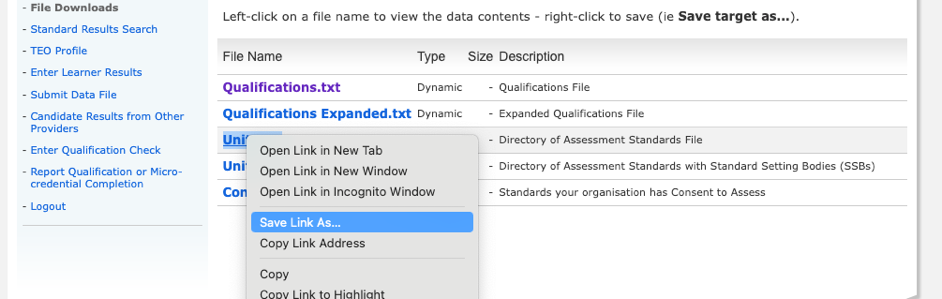
Once all files are in your download folder, navigate back to SELMA:
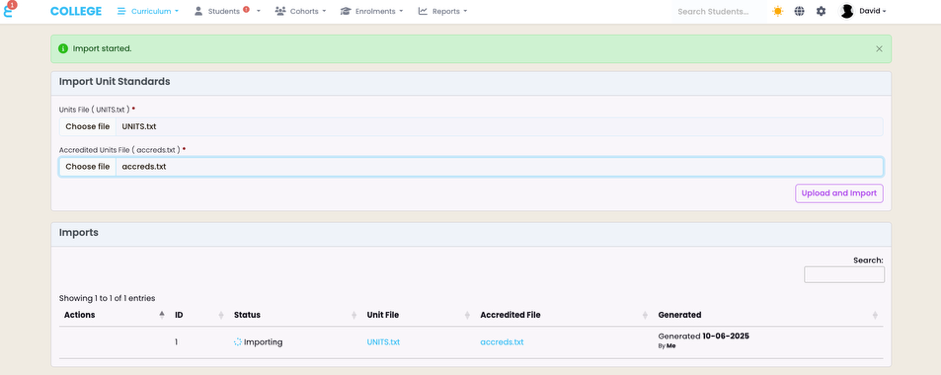
Go to Curriculum -> Unit Standards -> Upload Unit Standards – Then select the UNITS and accreds file you just downloaded and click on “Upload and Import”:

Note, you may experience and error when you try to import files for a different EDUMIS number than what your institution is set to under “Settings -> Account”

Otherwise, the process will start, and the Imports screen will show the progress and previous imports. The import can take up to 20 minutes.
Once the units are successfully imported, you should see the screen below and the “Create Components” function is now visible:

 |
It is important to understand that the imported unit standards are not automatically an item that you can enrol a student into. The units need to be “wrapped” into a SELMA component. The unit standards menu is simply an overview of all existing unit standard, the ones that are accredited to you, and the ones you are actively using in components. |
Clicking on the “Create Components” function will allow you to create a “Unit Standard” component in SELMA automatically which saves the work to create a component and link the unit standard to it.
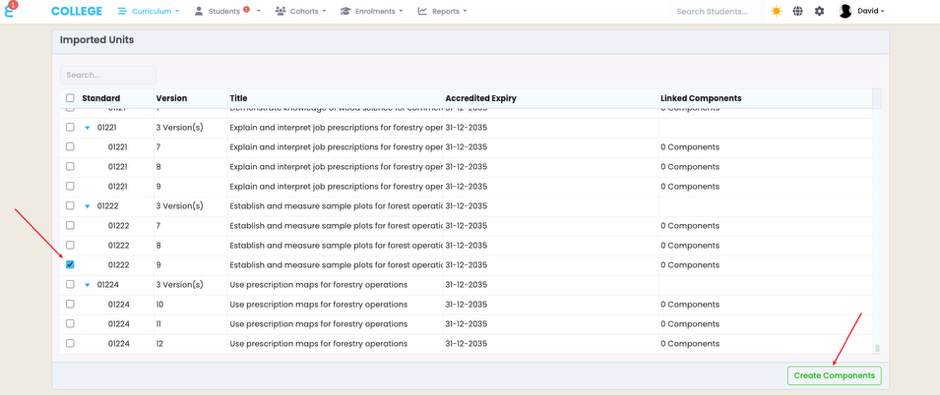
Simply select the units you’d like to offer, and you do not already have a component for and click “Create Components”.
If you now navigate to “Curriculum Index -> Components” you will see the component created…
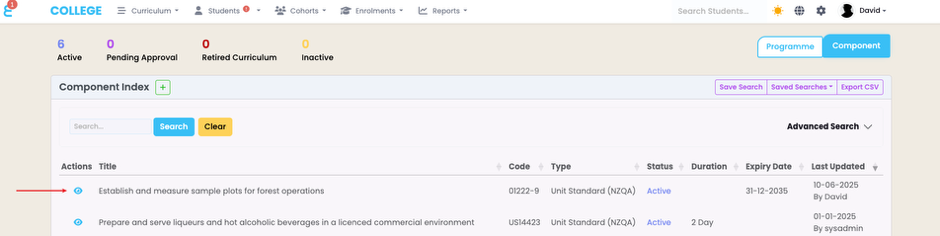
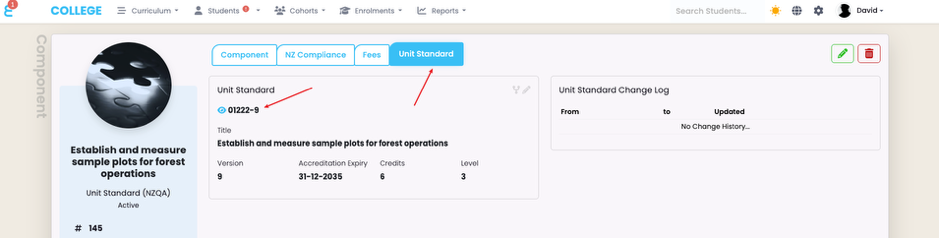
…and when you open it, it will show the link to the unit standard:
Unit Standards Management
Clicking on the unit standards main menu, opens unit standard grid:
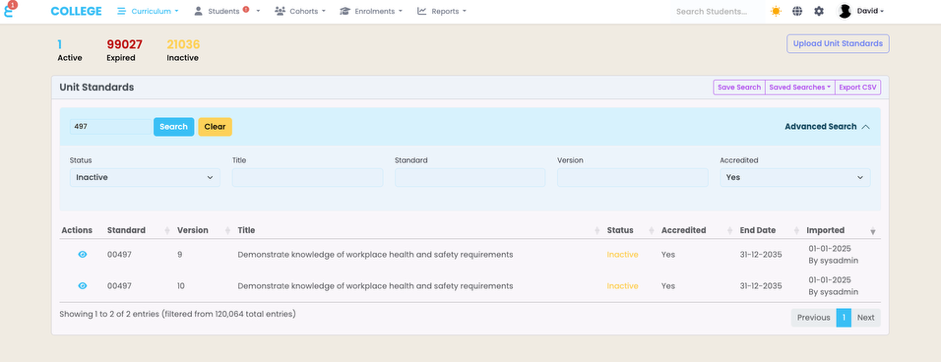
By default you will see 3 different statuses of Unit Standards. The Active unit standards are the ones that are actively used in your curriculum and therefore linked to a Component.
The Expired units are expired by NZQA and should no longer be taught.
The Inactive units are dormant; they may or may not be accredited to you and you are not currently using them in your offering.
To activate a unit, use the fast search or advanced search to find your unit. In above example, I search for units accredited to me and Inactive as well as the unit number 497 in the fast search. Once you find the unit you want to use, open it with the eye button.
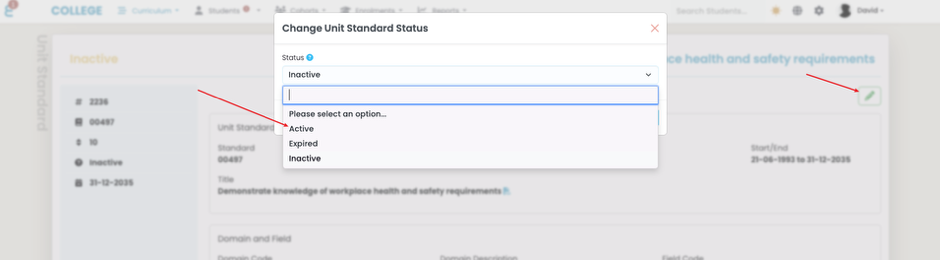
Click on the “Pencil” button and make the unit “Active”
 |
You may also make units “Active” that are not accredited to you. This might be because you are delivering a unit on behalf of another provider, or you have not imported your accredited units into SELMA. |
Creating a component from the Unit Standard
Once on the unit you’d like to offer, you can click on the “Create Component +” button to create a component that is automatically linked to the unit:
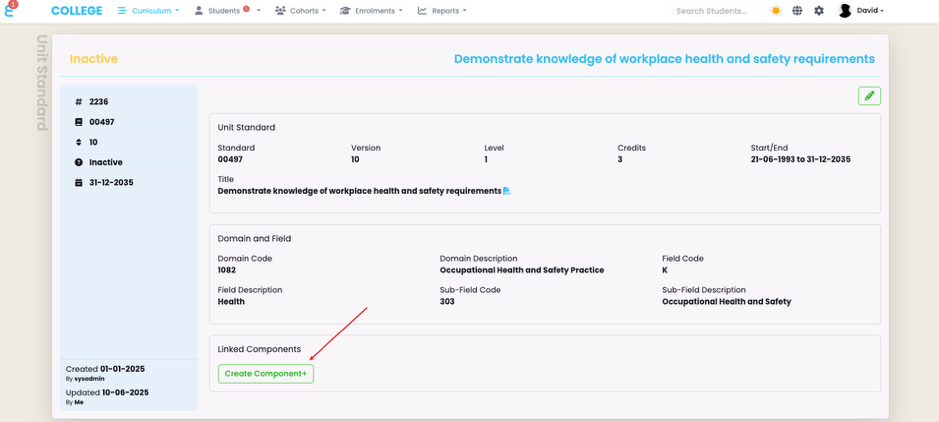
Note, this process will automatically mark the unit as “Active”, you do not need to do this manually before creating the component.
Once the component is created, you will be forwarded to the component record with the linked unit:
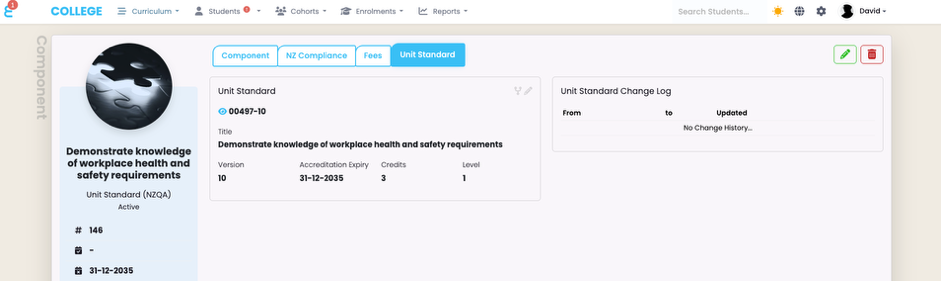
This component is now available to be linked to a programme or added to an intake. Students can enrol into it and start studying.
Linking a Unit to a Component
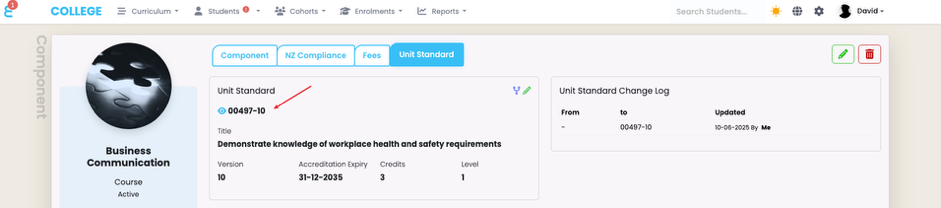
To link an existing component to a unit, go to “Curriculum -> Curriculum Index -> Components” and find the component you’d like to link to a unit. Then open the component and navigate to the Unit Standard tab:
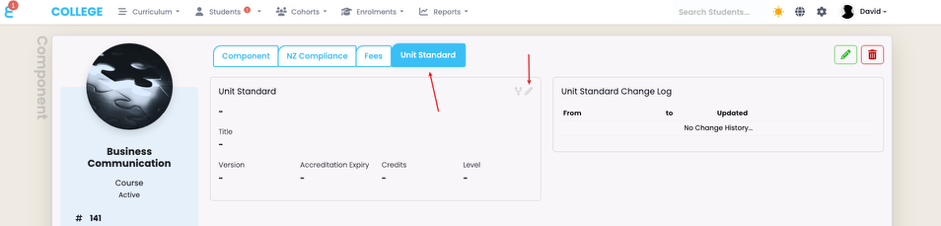
Use the pencil button on the Unit Standard card to edit the record and then find the unit you wish to link in the drop down and click the save icon. The unit is now linked to the component and the change log on the right has been updated:
 |
It is common and possible that a TEC funded Course is also a Unit Standard. In SELMA, you do not need to create separate components for this, you can use the TEC Course that you’ve already created and link the unit to it. Both SDR reporting and Unit Standard reporting are possible from the same component enrolment. |
Updating a Unit (Version) on a Component
If you change the version or the entire unit on a component and click the save button…
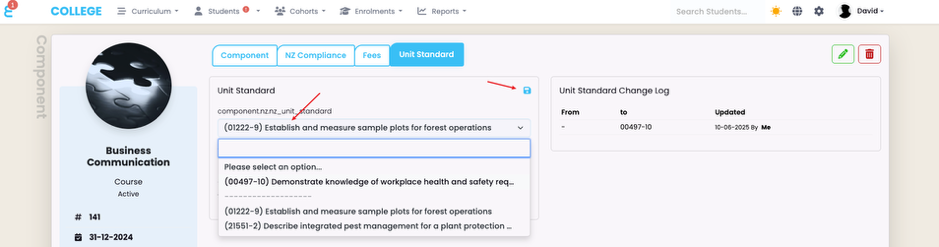
…the change log will update. But you may also want the change to be propagated to some existing intakes and enrolments. For this to happen, click on the “Propagate” icon next to the edit pencil:
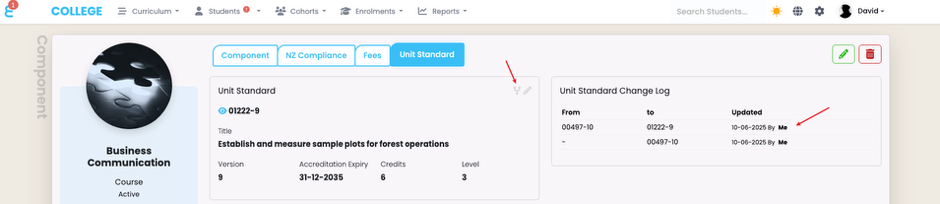
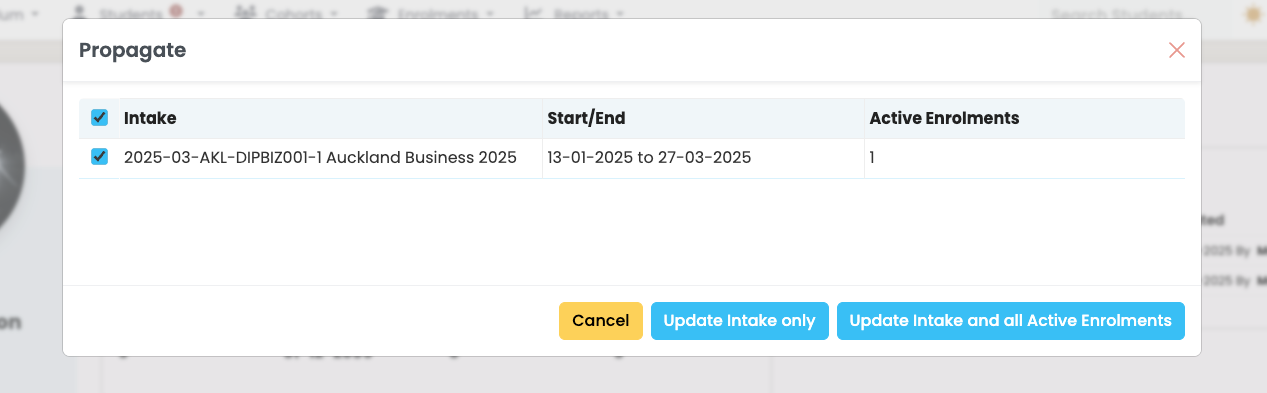
The propagation menu opens, and from here you may choose to either update the intakes that hold the component or update the intakes and underlying, active enrolments:
 |
Note that enrolments with the component already successfully completed and the unit reported will not be updated. Only component enrolments that are still to be completed are updated which makes it an excellent helper if e.g. a unit version change occurs during an intake duration. |
Having unit standards linked to components and these components offered in Intakes and/or added to enrolments is a pre-requisite for unit standard reporting.