In this Section:
Intake Compliance
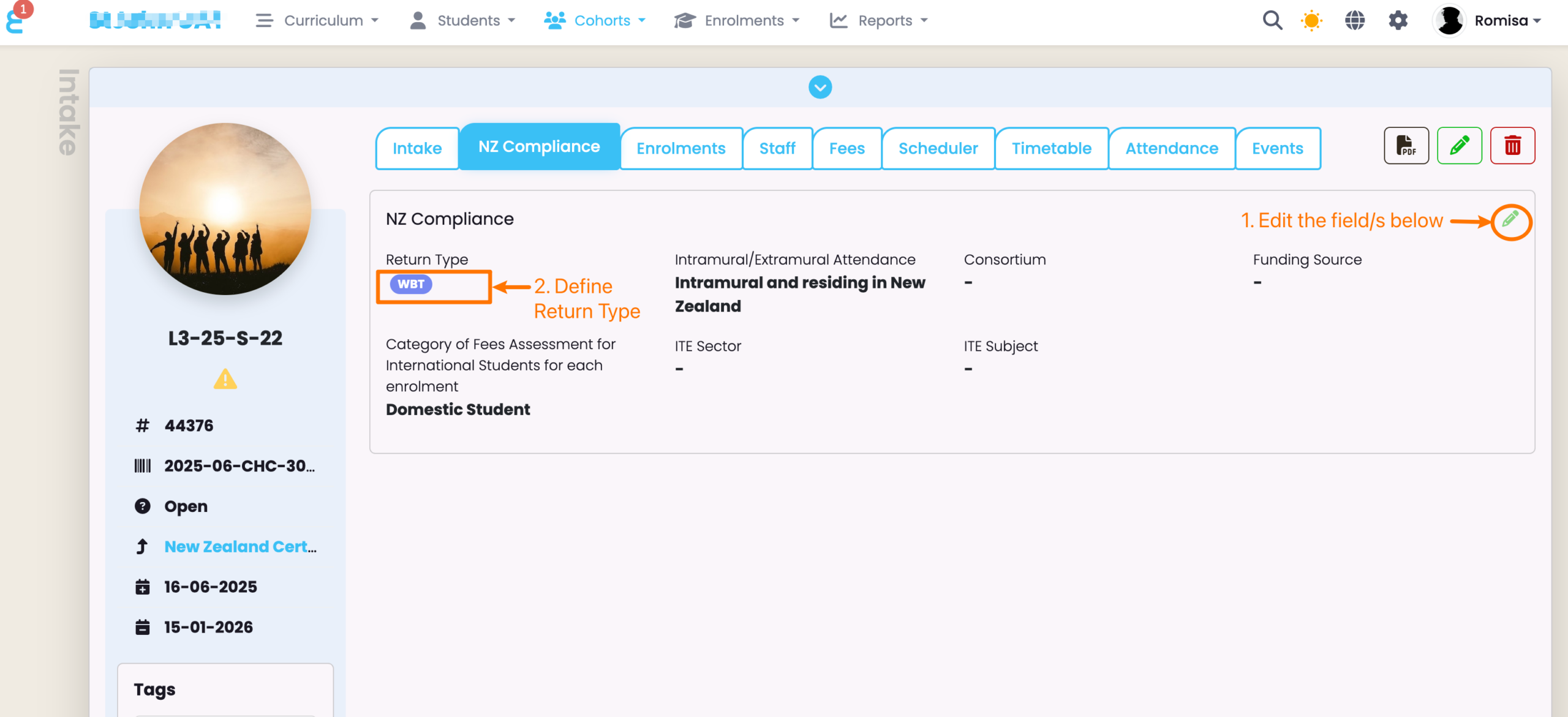
Intakes will inherit the Return Type and Funding Source defined at the Programme level. However, you can still check and edit these fields directly at the Intake level if necessary.
Figure 1. Navigate to Intake > NZ Compliance
Edit the Return Type and Funding Source of the Intake.
Enrolment Compliance and Status
Enrolments will inherit the Return Type and Funding Source defined at the Intake level. However, you can still check and edit these fields directly at the enrolment level if necessary.
Please follow the guidance from the latest version of WBT Data Specification for critical parameters such as Funding Source and Study Type Code.
Important things to note:
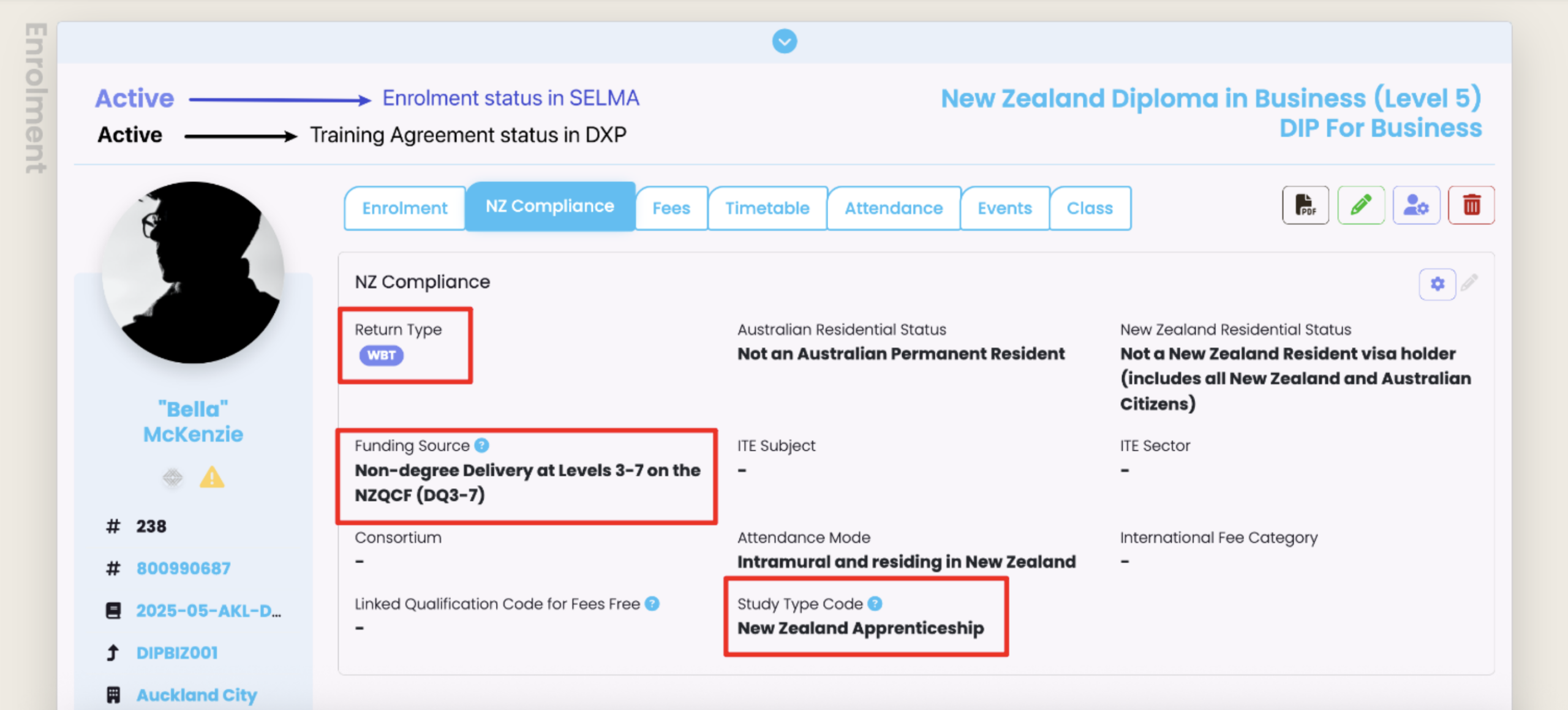
- Ensure that Return Type is “WBT” to enable real time data synchronisation.
- The Study Type Code of an Enrolment must match the same value set on the Programme level.
- Changes to the Training Agreement Status (set at the Student level) will also be displayed on the Enrolment level – refer to image below.
- The Enrolment Status (SELMA) is displayed above the Student Training Agreement Status (DXP).
- The Enrolment Status is automatically changed to “Withdrawn” if the Training Agreement Status is “In Grace”, and held for more than 42 days.
Figure 2i. Navigate to Enrolment > NZ Compliance
Completing the Enrolment
Before you can mark the Enrolment Status as “Completed”, you must report the Unit Standards to NZQA, manually, which will then sync with the WBT.
- Please refer to NZ Compliance – NZQA Unit Standard Reporting (F23)
Training Plans
All providers who offer apprenticeships to Students require Training Plans.
Training plans cannot be created unless the Enrolment “Study Type Code” is NZA (New Zealand Apprenticeship).
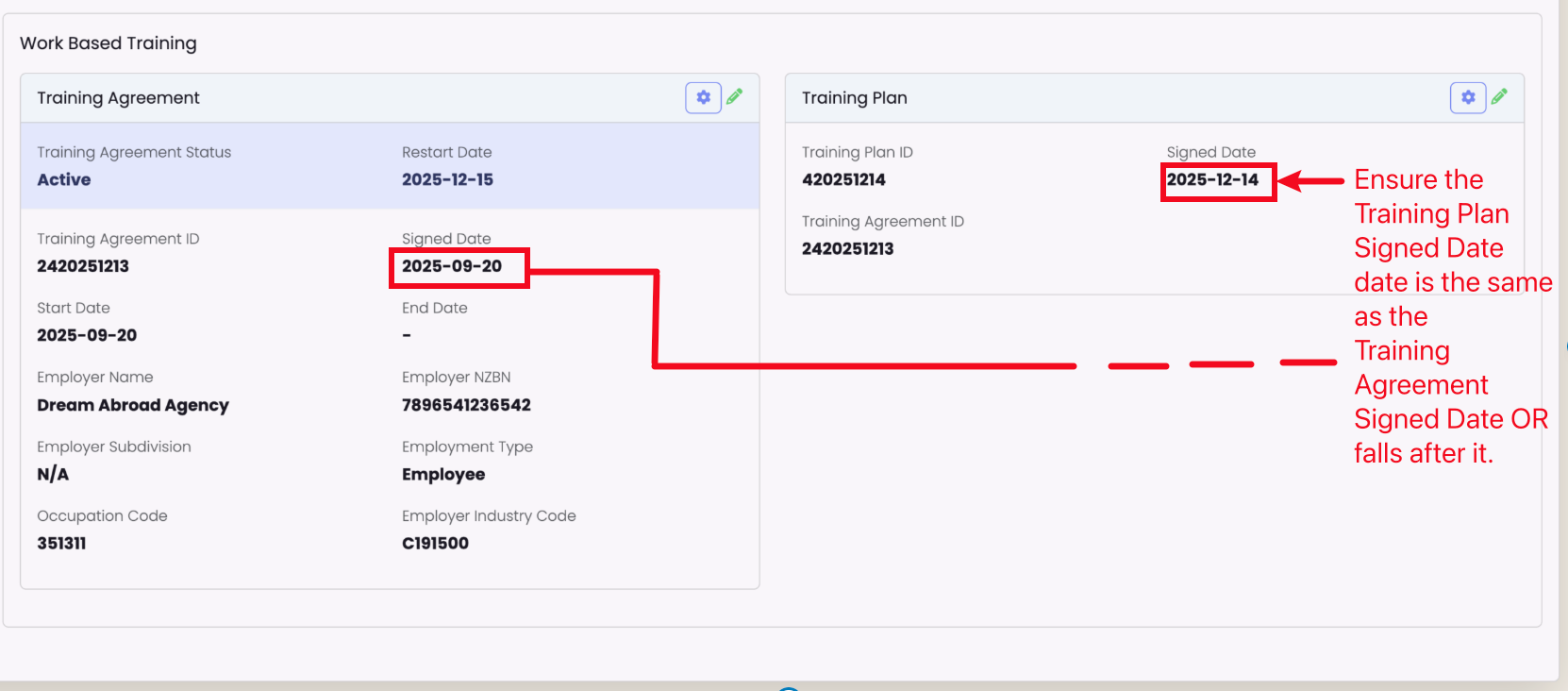
Figure 3. Signed Date
Set the “Signed Date”. This can be the Enrolment Start Date, however, it must be on or after the associated Training Agreement “Signed Date“.
Off Job Delivery
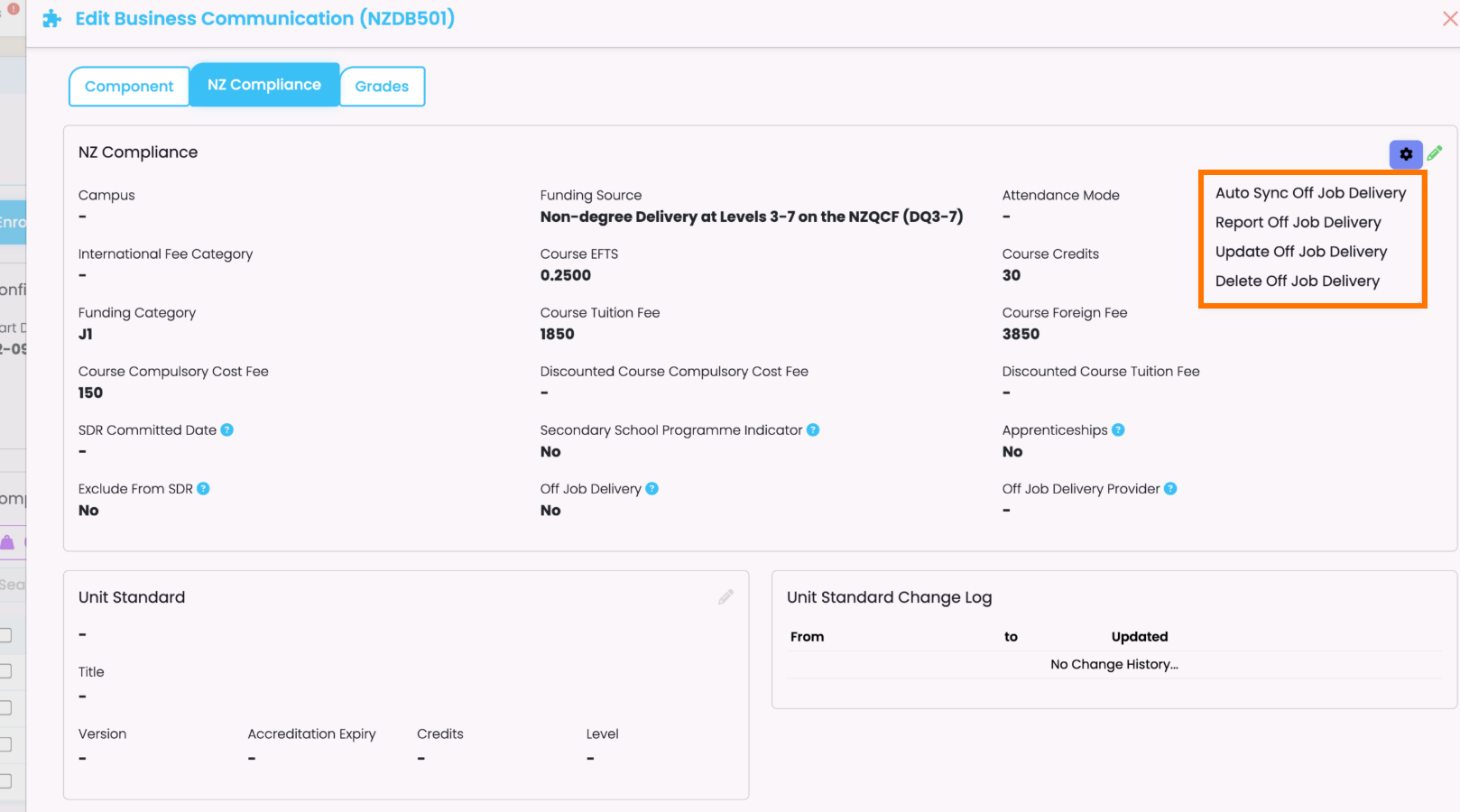
If configured on a Component Level, the “Off Job Delivery” parameters will be inherited by Intake Components and Enrolment Components.
Please read the following steps to verify the Enrolment Component configuration:
Figure 4i. Edit an Enrolment Component
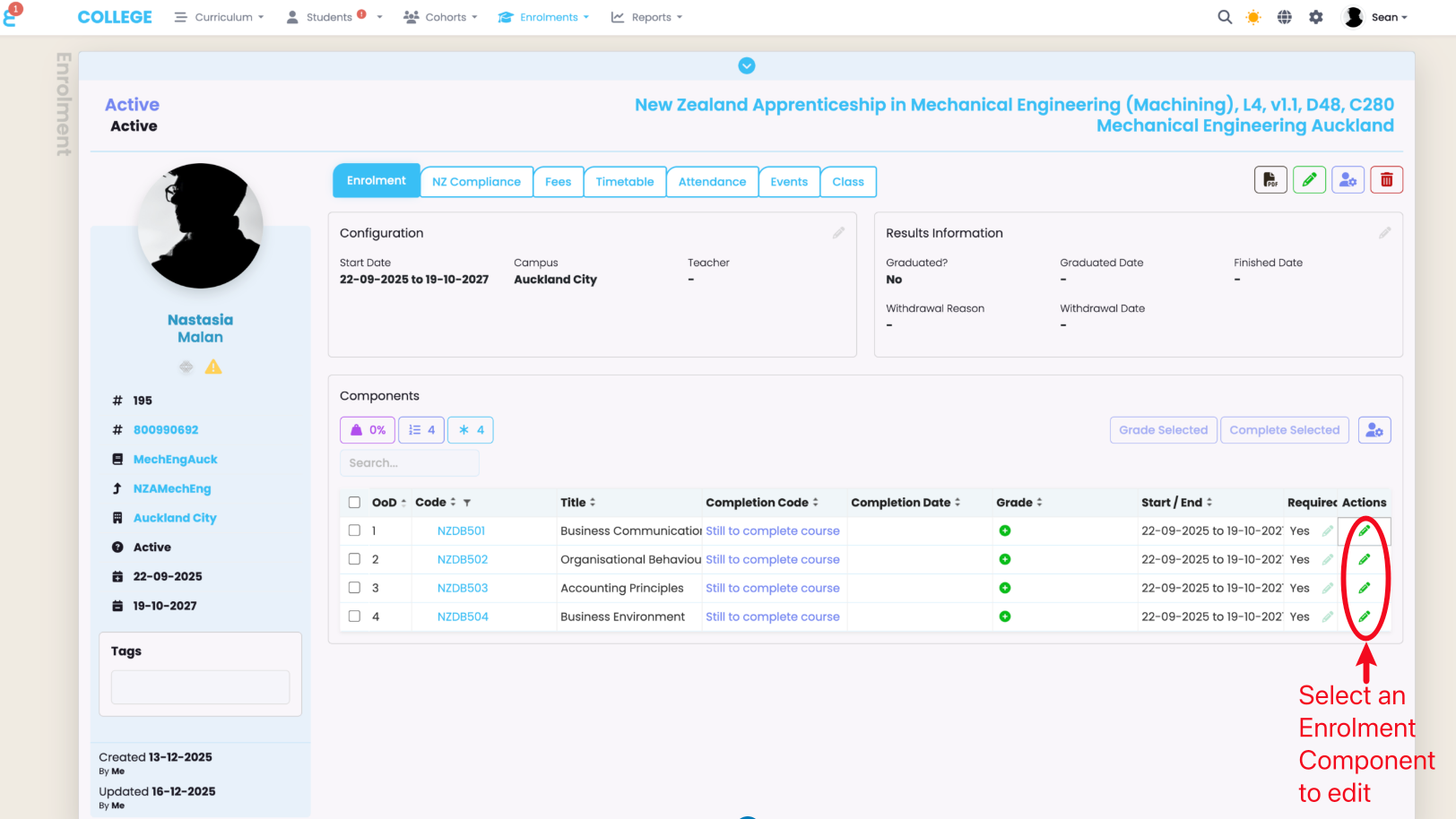
Figure 4ii. Enrolment Component > NZ Compliance Tab
On the NZ Compliance tab, click the pencil icon to edit the Compliance information fields.
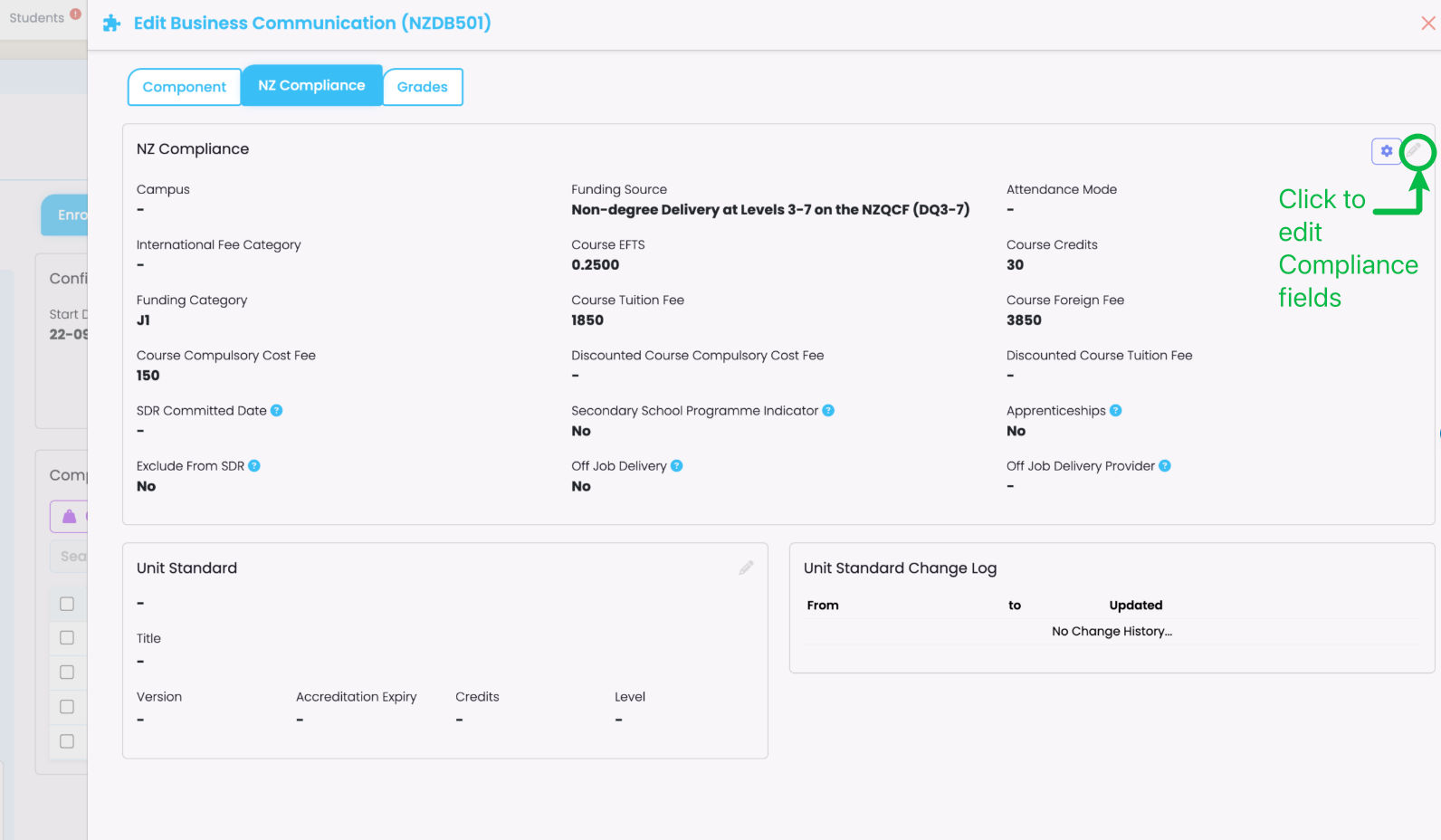
Figure 4iii. Select Off Job Delivery
Click the “Off Job Delivery check-box” and select an “Off-Job Delivery Provider”.
If any required fields are left empty, SELMA will highlight the missing fields in red. Add the necessary information to enable the blue “Save” button.
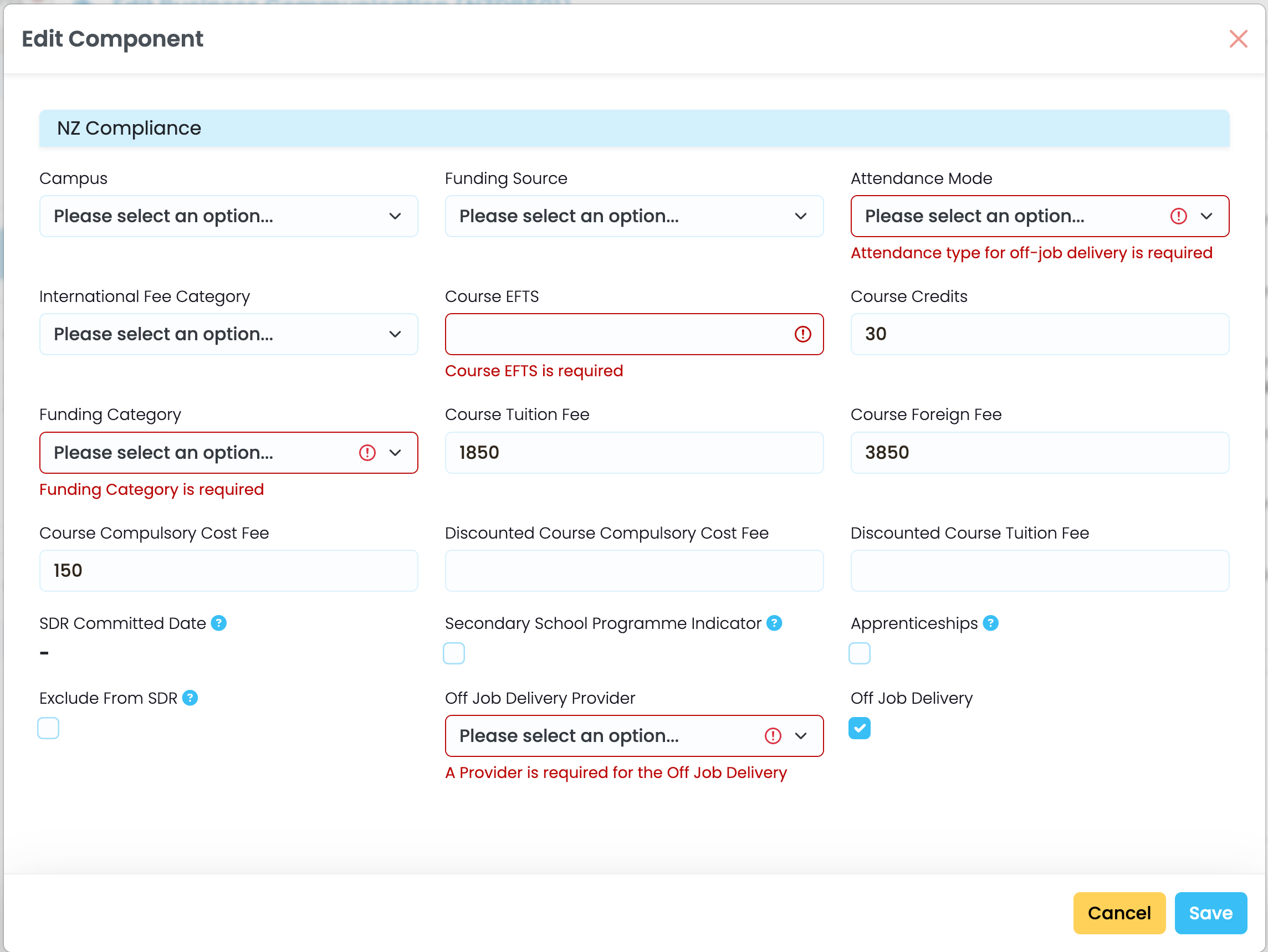
Figure 5. Reporting and Syncing Off Job Delivery
Click the actions button (purple cog icon) to “Auto Sync Off Job Delivery”. This action sends a request to verify that the Enrolment Component exists as “Off Job Delivery” in the WBT. If it does, it updates the WBT details. If it doesn’t, it sends off the data to create a new copy in the WBT.
NOTE:
- The “Report Off Job Delivery” and “Update Off Job Delivery” allows you to achieve the same outcomes as the “Auto Sync”, but manually.
- “Delete Off Job Delivery” removes the Off Job Delivery record from the WBT.